
Node-03 is in the Windows cluster (Part 10) but has no SQL binaries. This part installs SQL Server in Add Node mode on Node-03 — functionally identical to Part 7 (which added Node-02). After this, AOFCI can failover to any of the three nodes. Short post: same wizard, same defaults, just on a different machine.
The Add Node wizard (third time)
You’ve seen this wizard twice already — first time creating the FCI on Node-01 (Part 6), second time joining Node-02 (Part 7). Now Node-03. The Add Node path inherits everything from AOFCI — cluster name, VIP, service account, disks — you’re just registering this new server as another possible owner.
Step 1 — launch Add Node on Node-03
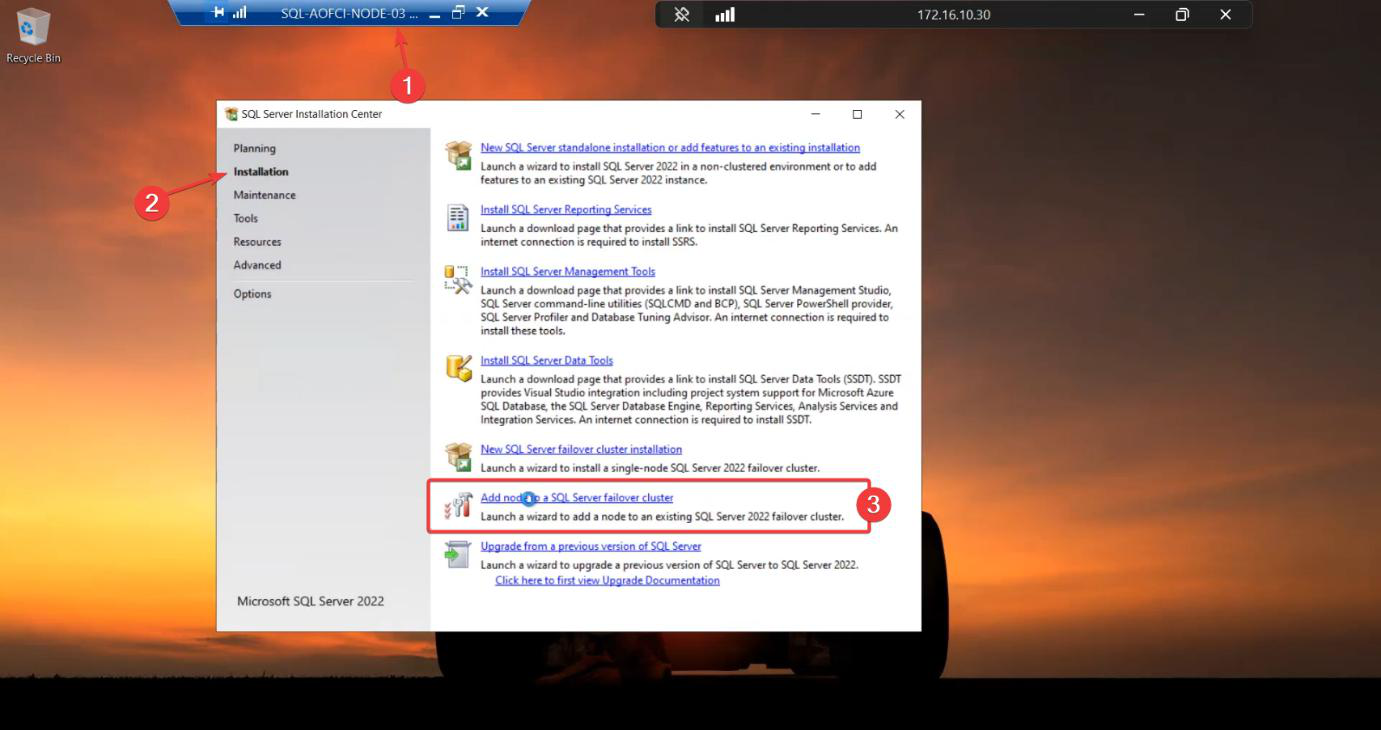
Sign in to Node-03. Mount the SQL Server 2022 ISO. Run setup.exe as Admin. Installation tab > Add node to a SQL Server failover cluster.
Step 2 — basics
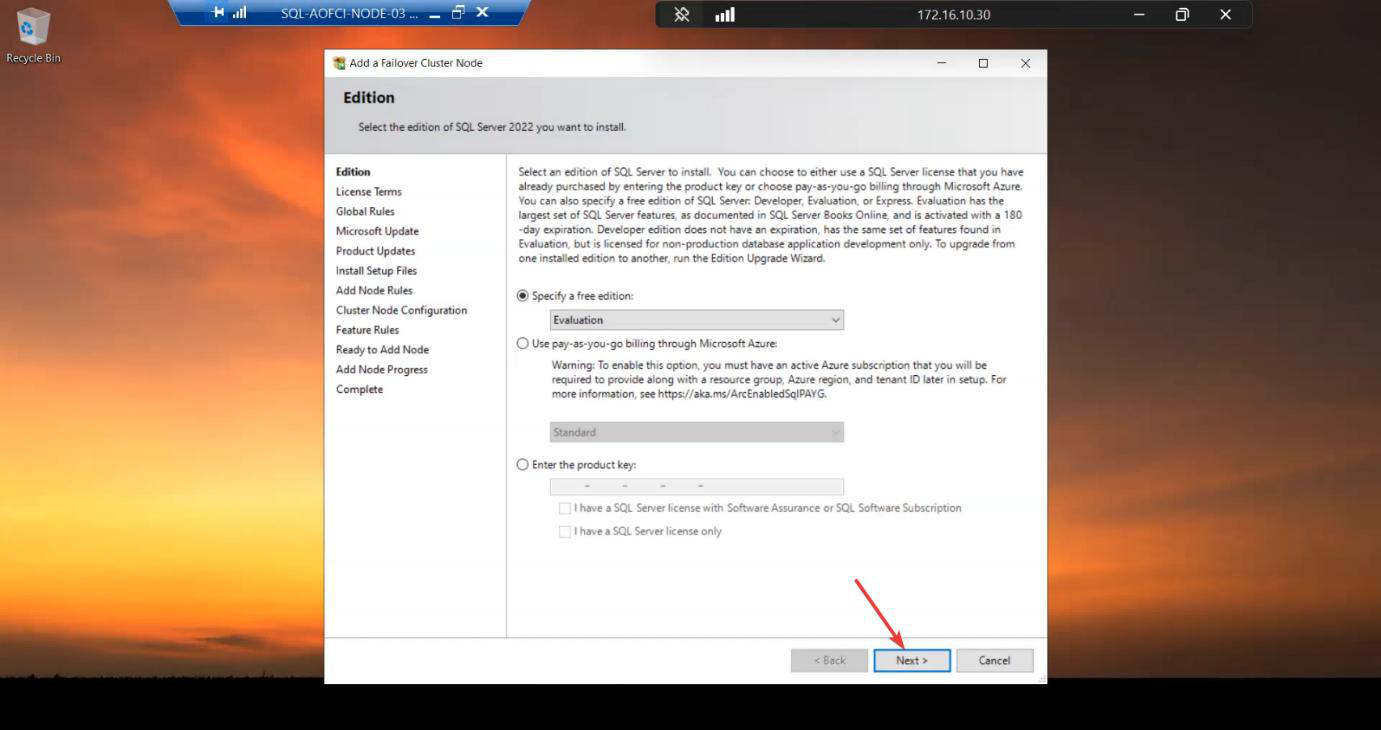
Edition: must match N1/N2. 3-node FCI requires Enterprise — Standard caps at 2 nodes. If you somehow got this far on Standard, this is the wall.
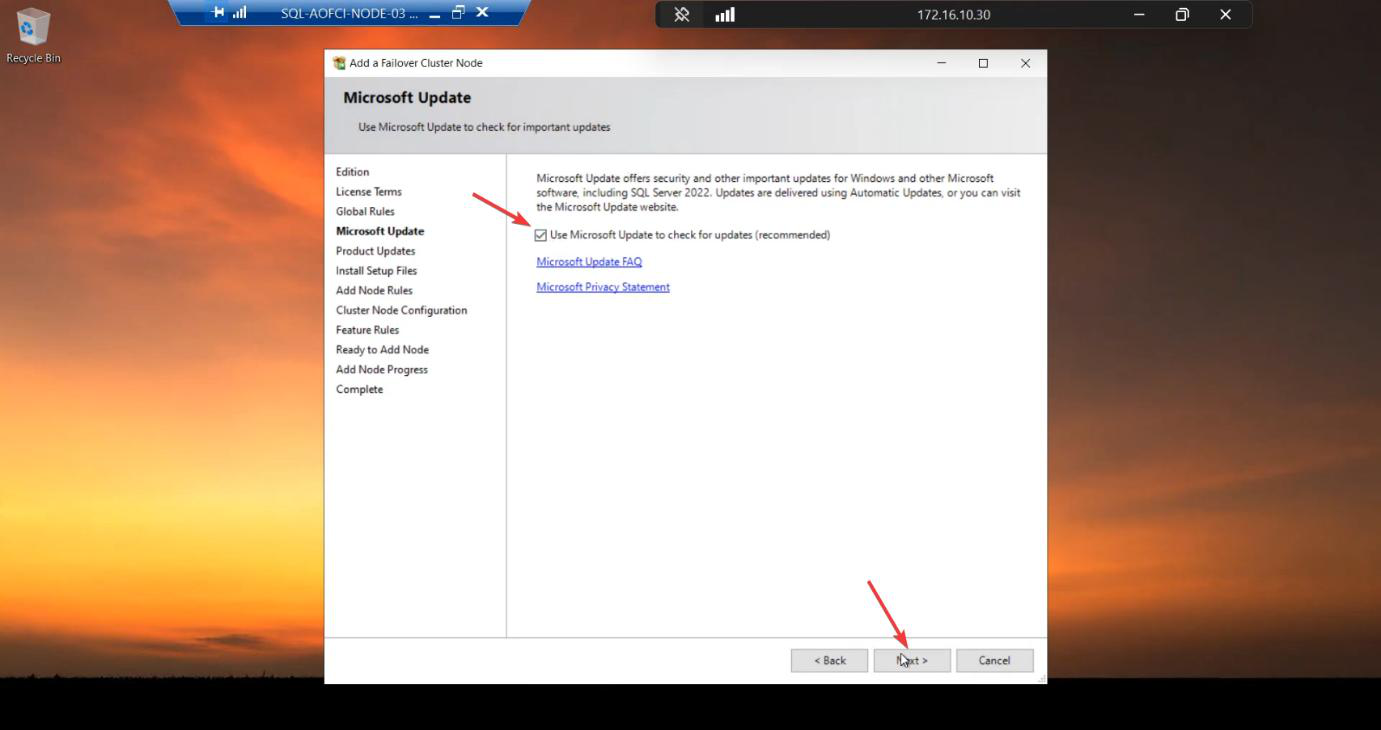
Microsoft Update: tick.
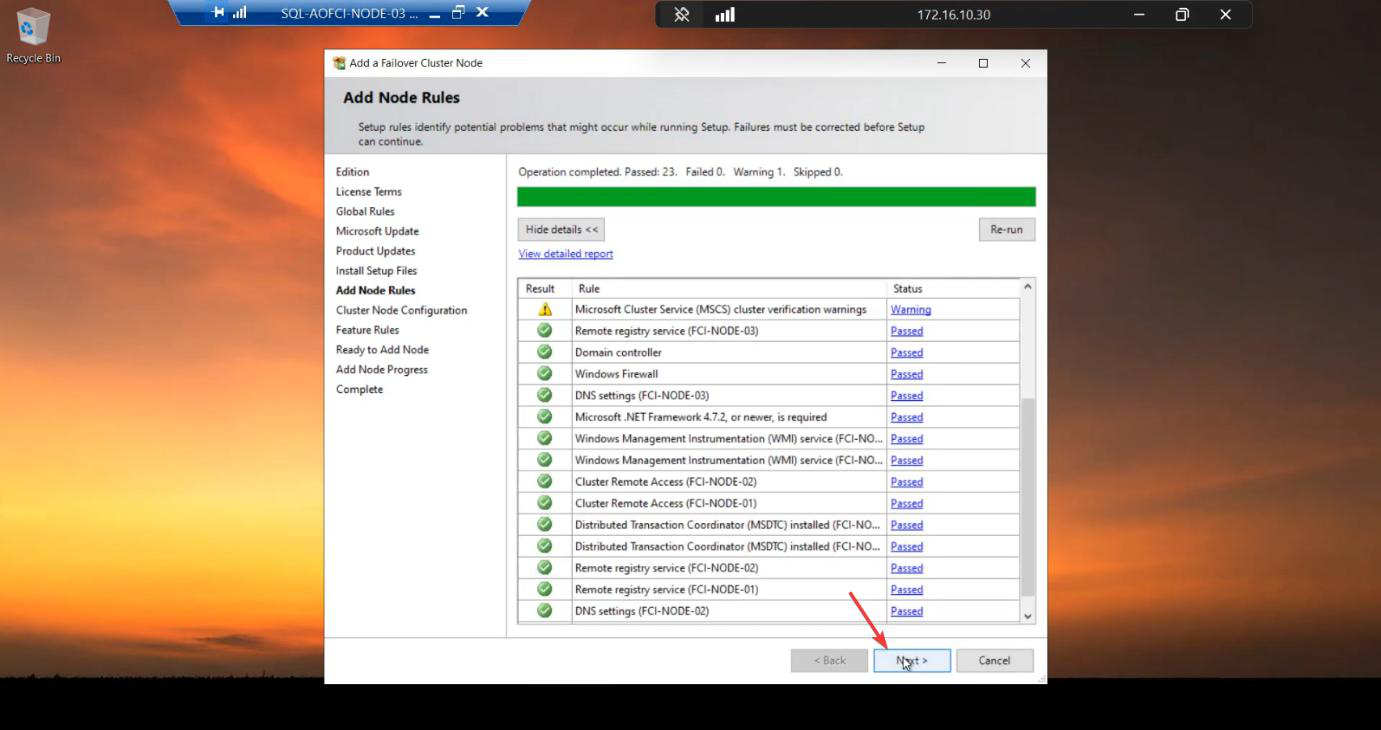
Add Node Rules: green. If your existing nodes have CU patches applied, ensure your installer ISO matches OR plan to install the same CU on Node-03 immediately after.
Step 3 — cluster + network (auto-detected)
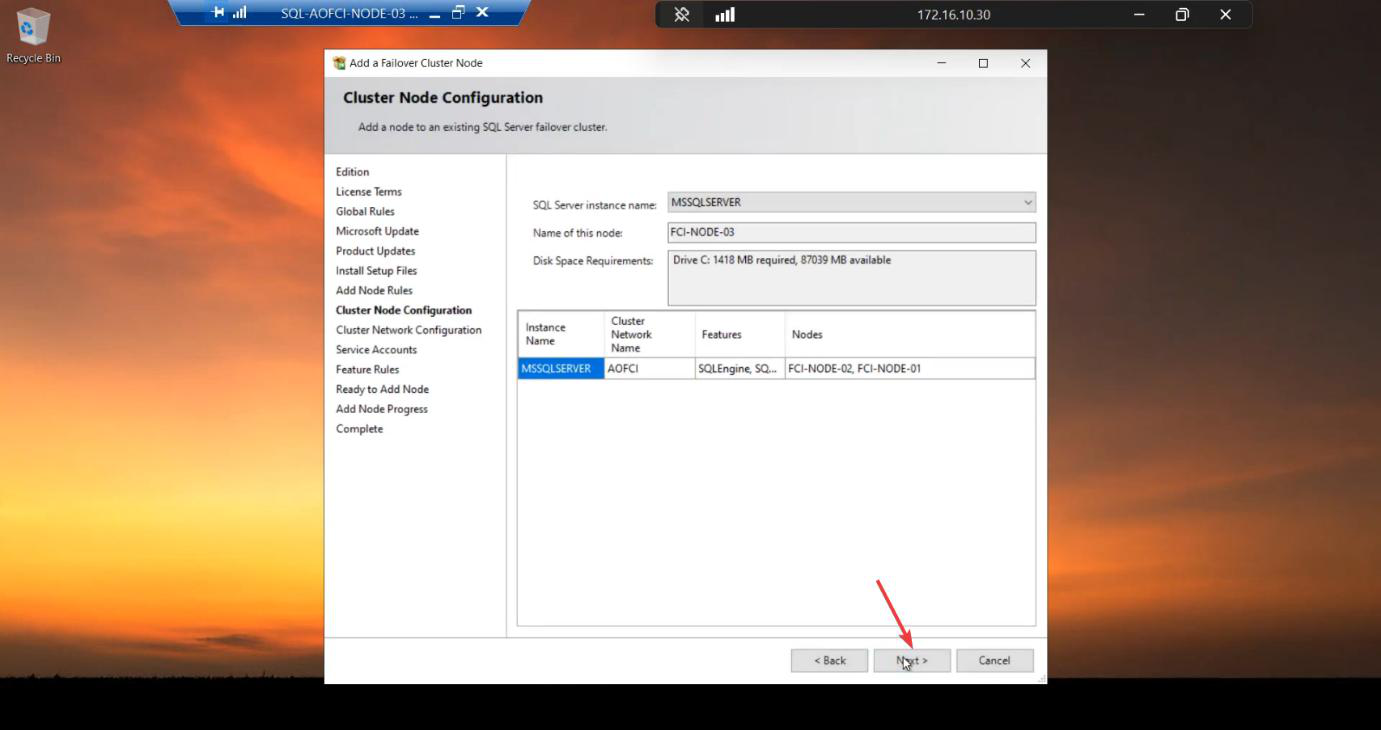
Cluster Network Name: AOFCI. Node Name: Node-03. Auto-detected from existing config. Verify, Next.
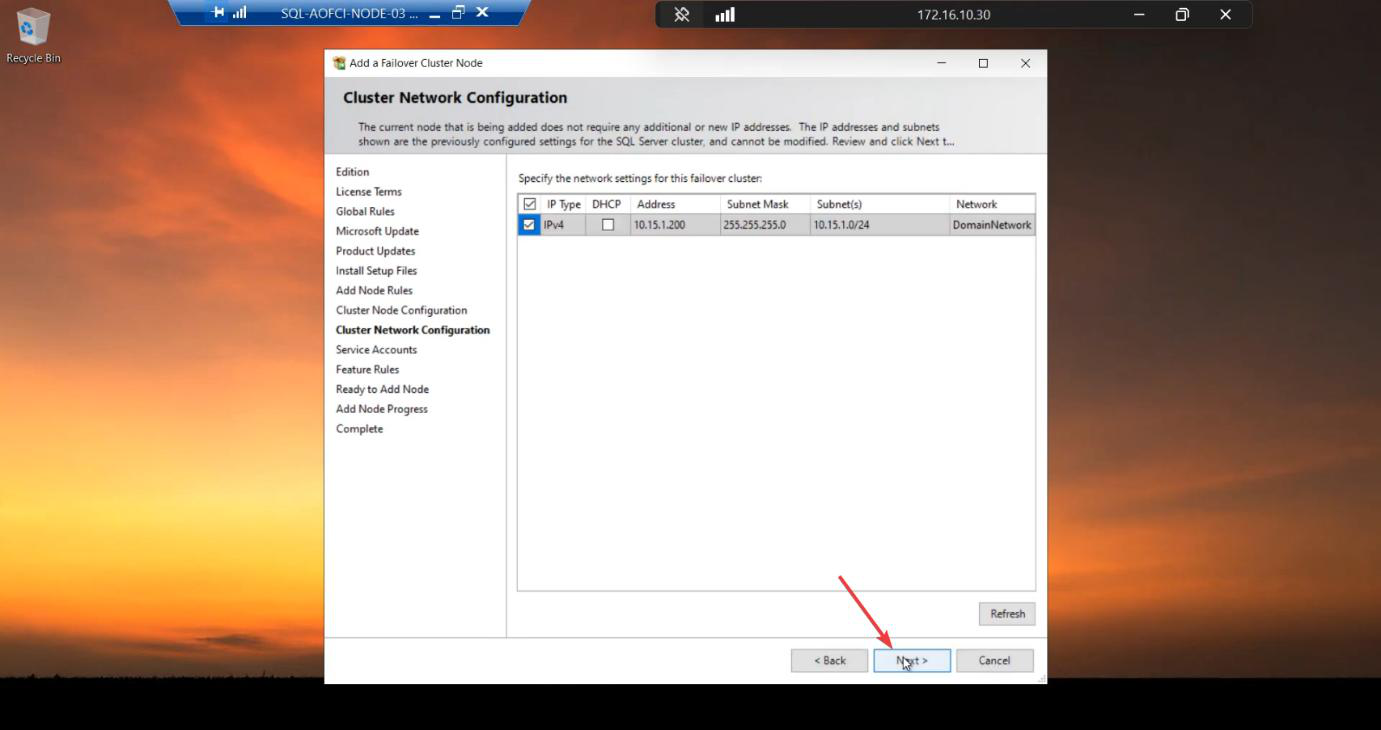
10.15.1.200 already reserved. No change.Network: VIP 10.15.1.200 already reserved by the cluster. No change.
Step 4 — service account password
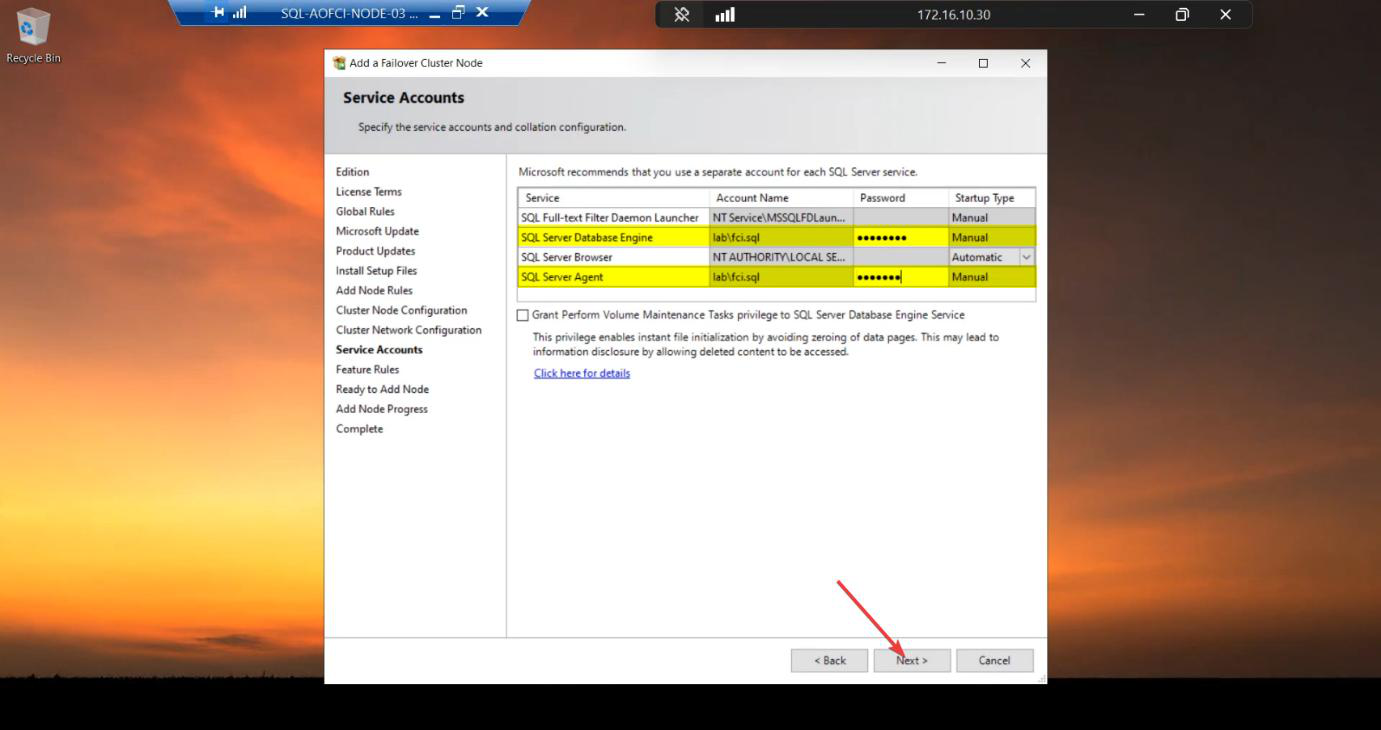
svc_sql password. Same domain account as N1/N2 — Windows just needs to grant Logon as a Service on N3.Re-enter the svc_sql password. Same drill as Node-02 in Part 7 — the AD account is unchanged, but Windows needs to grant Logon as a Service rights on Node-03 specifically.
Step 5 — install + defer reboot
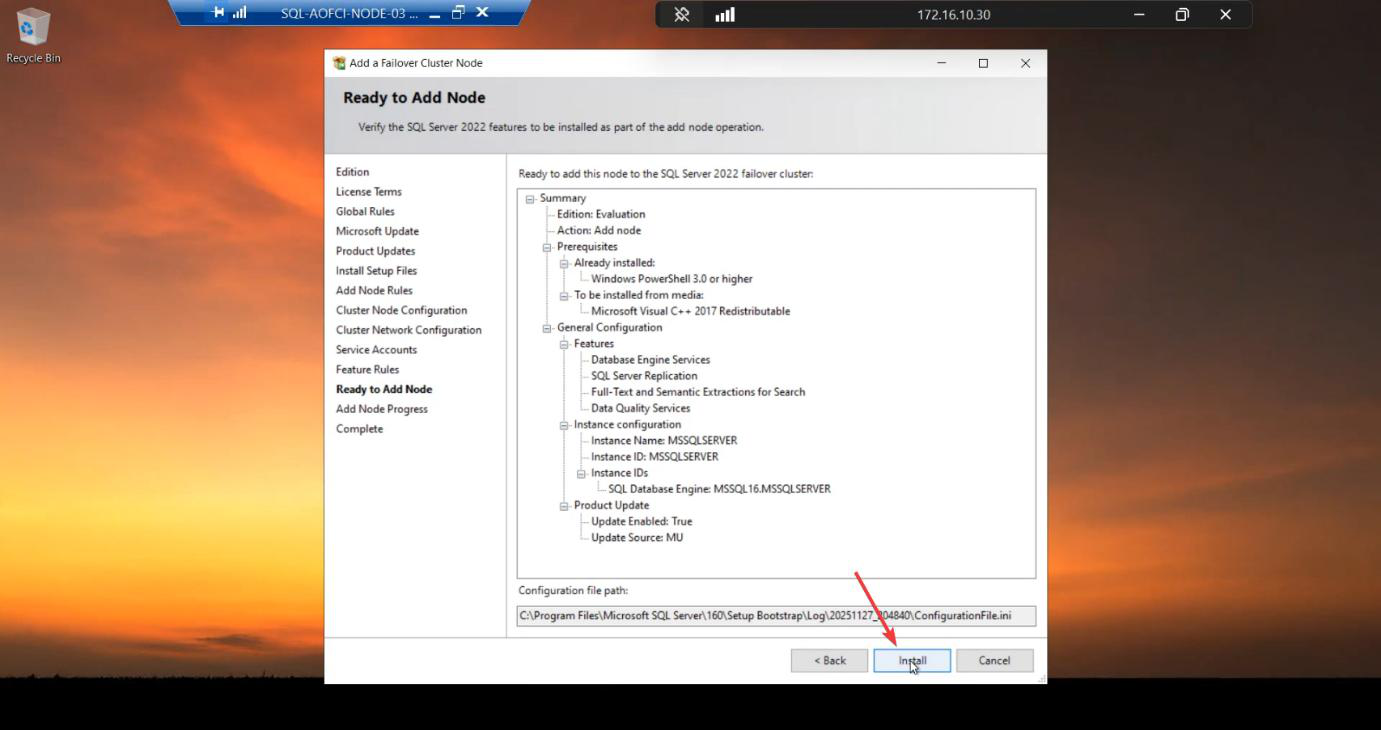
Install runs ~5-10 min.
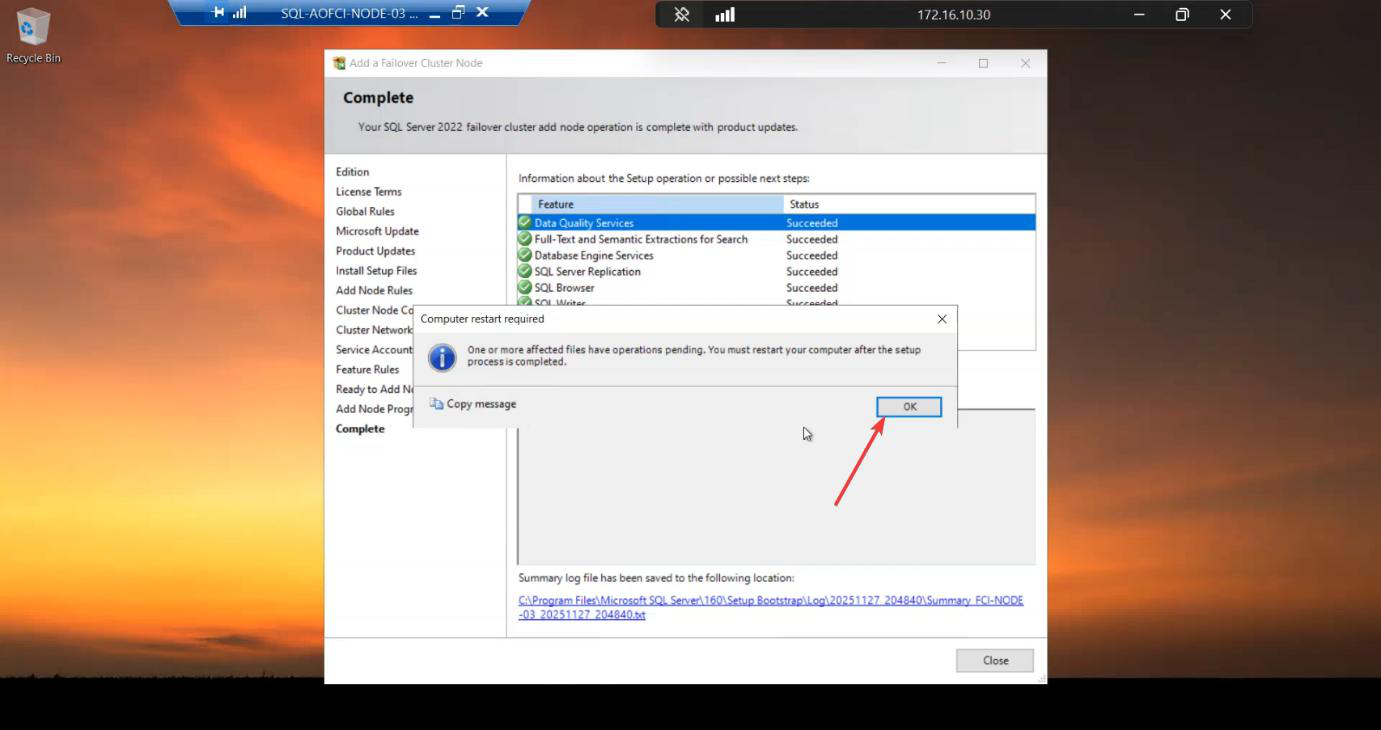
Restart Computer prompt appears. Defer it. Install SSMS first, then reboot once.
Step 6 — install SSMS
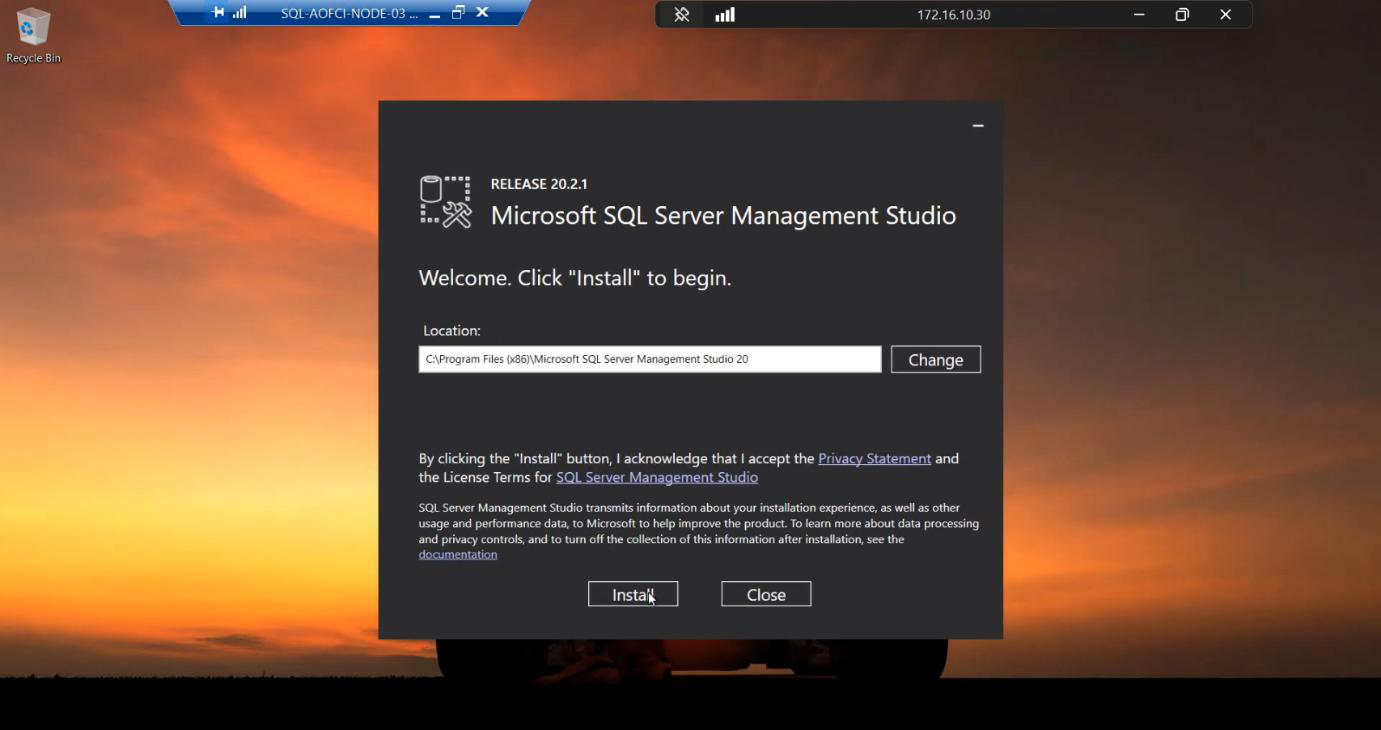
Run the SSMS installer.
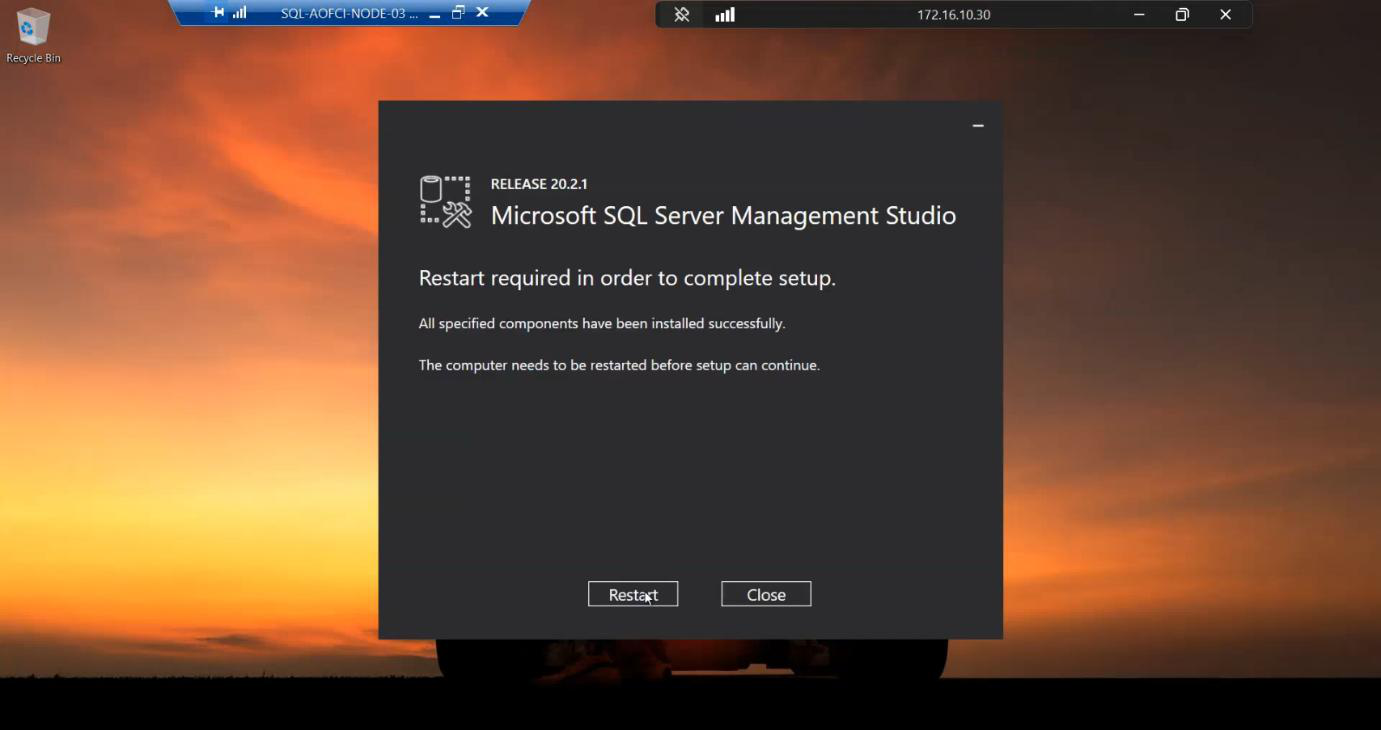
Default path. Install. ~2-3 min.
Step 7 — reboot

NOW reboot. One reboot covers both installs — saves 5 minutes vs rebooting between SQL and SSMS.
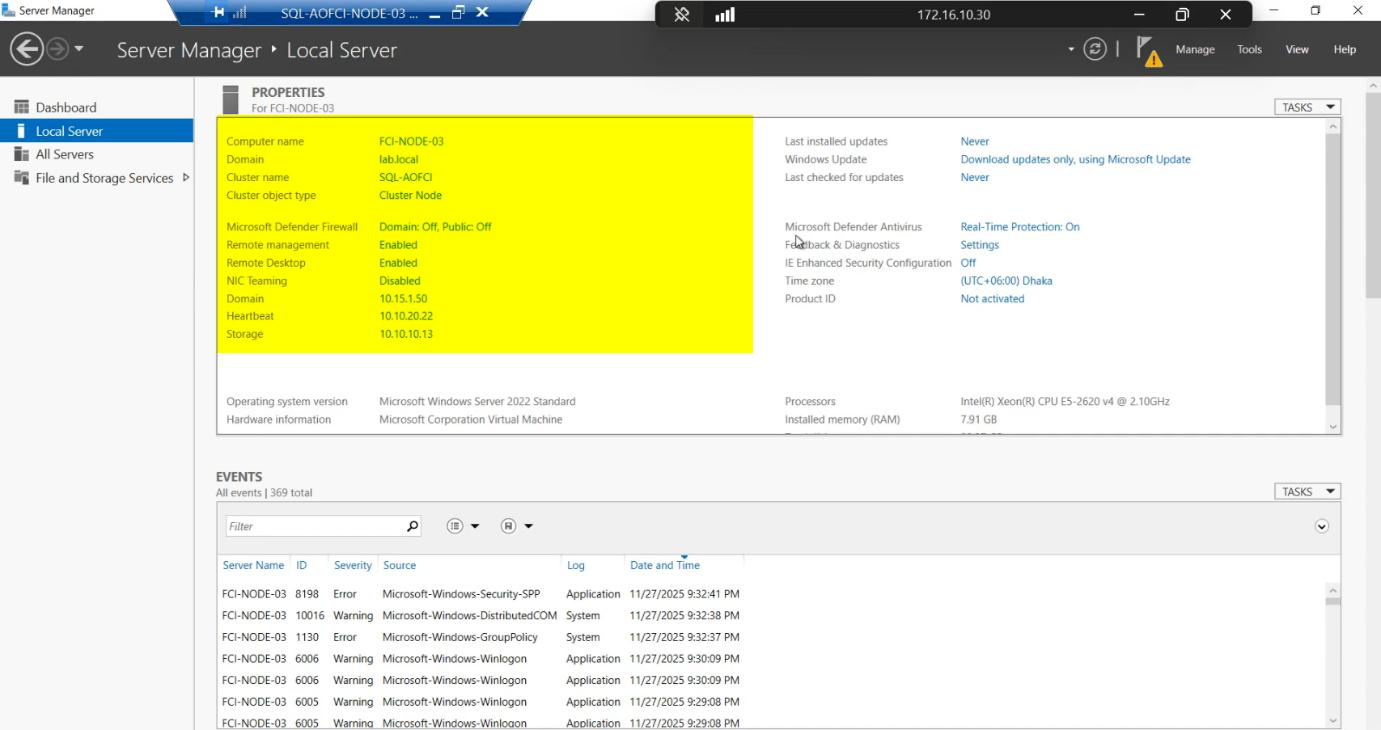
Boot complete.
Step 8 — verification
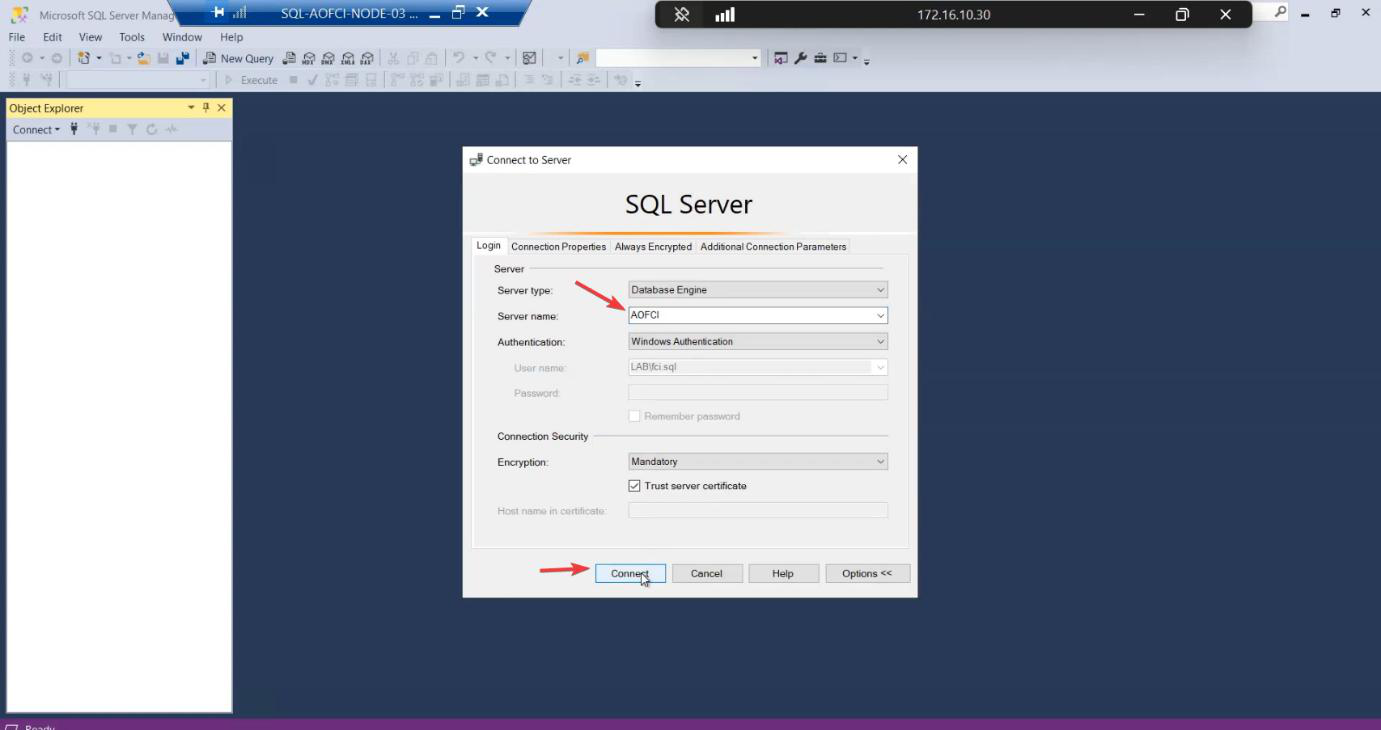
AOFCI.Sign in to Node-03. Open SSMS. Connect to AOFCI.
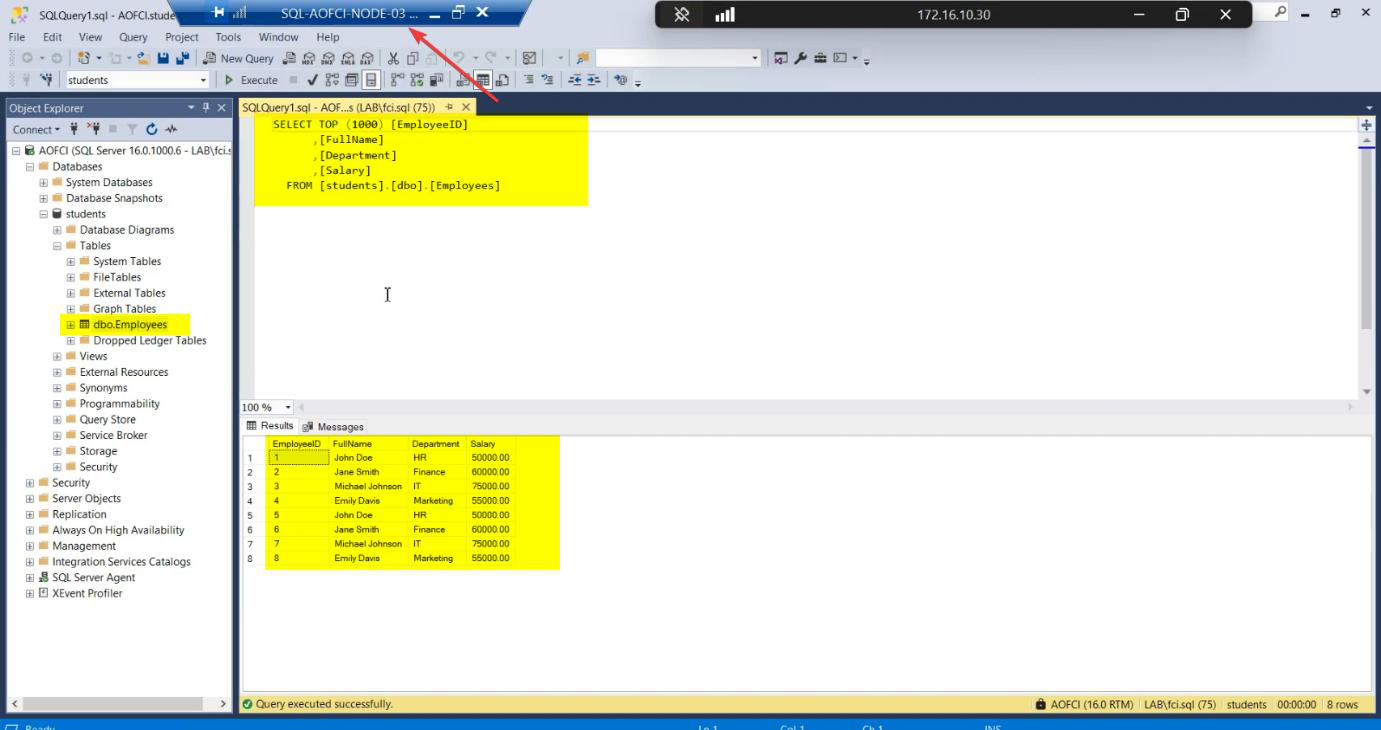
SELECT * FROM Students.dbo.Employees; — data from Part 1 visible, plus the “Failover Test” row from Part 8. Sync is perfect — same shared storage backs all 3 nodes.SELECT * FROM Students.dbo.Employees; — all the rows: original Part 1 data + the “Failover Test” row added during Part 8’s failover. Sync is perfect because all three nodes back to the same shared storage.
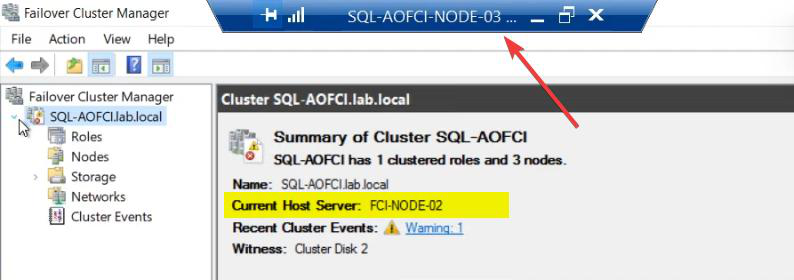
FCM Roles: still owned by Node-02 (where Part 8 left it). Installing SQL on Node-03 doesn’t auto-trigger failover. The role stays where it is until you move it manually or a failure occurs.
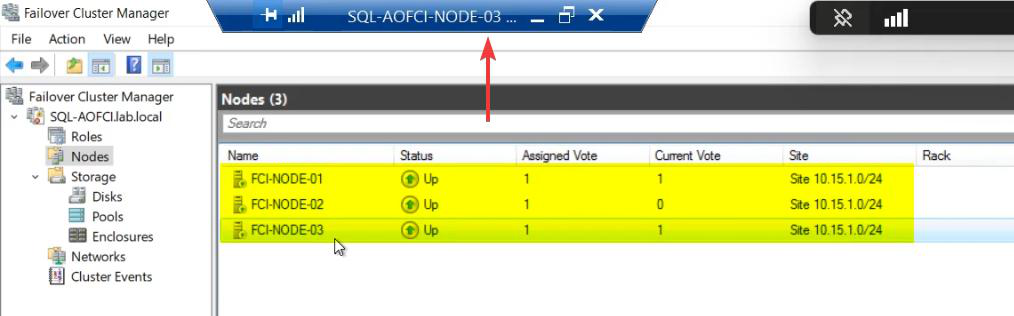
FCM Nodes: all three Up. SQL Server FCI now spans 3 nodes. AOFCI can failover to any of them.
What you have now
- 3-node Windows Failover Cluster, all nodes Up.
- SQL Server FCI binaries installed on all 3 nodes.
- SQL service can run on any of the 3 nodes (currently Node-02).
- Shared storage accessible from all 3 nodes (one owner at a time).
- Quorum: Node Majority + Disk Witness = 4 votes total = tolerates 2 failures.
This is genuinely production-grade FCI. You can patch Node-01, fail over to N2, patch N2, fail over to N3, patch N3 — rolling maintenance with zero downtime.
Things that bite people in this part
Edition mismatch
Standard supports 2 nodes max. Setup will refuse to add Node-03. If you started with Standard licenses, you need to upgrade to Enterprise — not free.
Build mismatch (N3 newer than N1/N2)
If the N3 installer ISO is newer than the build on N1/N2, Add Node may install a higher CU level than the existing nodes. Mixed-build clusters technically run but Microsoft support gets unhappy. Patch all nodes to the same CU before/after.
Service account password forgot
If nobody documented the svc_sql password, you can’t complete Add Node. Reset in AD — but then you also need to update the service password on N1 and N2 via SQL Configuration Manager, and the SQL service will need restarts there too. Disruptive. Document service account passwords always.
Reboot between SQL and SSMS
If you reboot after SQL install before SSMS install, you lose ~5 minutes (boot time x 2). Always defer the SQL reboot, install SSMS, then reboot once.
Possible Owners list editable
FCM > Roles > SQL Server (MSSQLSERVER) > Properties > Advanced Policies > Possible Owners. You can REMOVE Node-03 from possible owners if you want N3 to be a “manual-only failover target” (e.g., during initial production rollout). Default has all nodes as possible owners.
Storage reservation issue after install
Rare. If Add Node leaves the disks in a weird state on N3, run Test-Cluster against just the storage tests: Test-Cluster -Node N3 -Include Storage. Usually resolves on next failover.
What’s next
You have a 3-node FCI. Time to prove failover to Node-03 actually works (not just to Node-02). Part 12 covers manual failover to Node-03 + migrating data to verify the full HA picture. See the full series at SQL Server Clustering pathway.