Systems Admin

Two-Node Hyper-V Failover Cluster Part 8 of 15: Configure iSCSI Initiator (CHAP, Disks)

SAN built in Part 7. Now we connect the cluster nodes. Same pattern as the SQL FCI series — bind iSCSI Initiator to the Storage NIC, log in with CHAP, mount the LUNs. Critical: only NODE-01 brings the disks online and formats them. NODE-02 leaves them Offline. Cluster Service takes over orchestrating ownership in Part 9.

The cardinal rule

In a Windows Failover Cluster, only one node owns a disk at a time. Forcibly bringing a disk online on a non-owning node while the owner is writing = filesystem corruption within seconds. The wizard won’t stop you. Don’t do it.

Phase 1 — NODE-01 (the formatter)

Discover + connect with CHAP
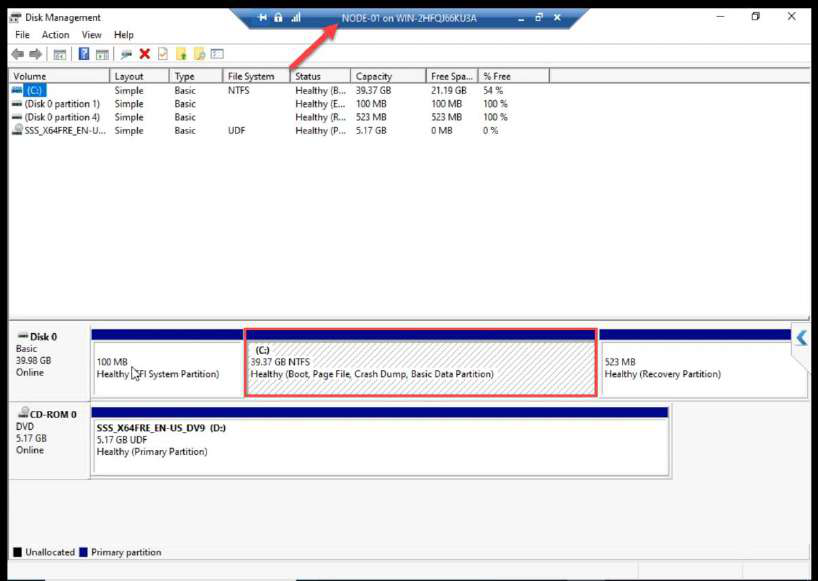
NODE-01 Disk Management showing only the OS disk before iSCSI connection
NODE-01 Disk Management before iSCSI — only OS disk visible.
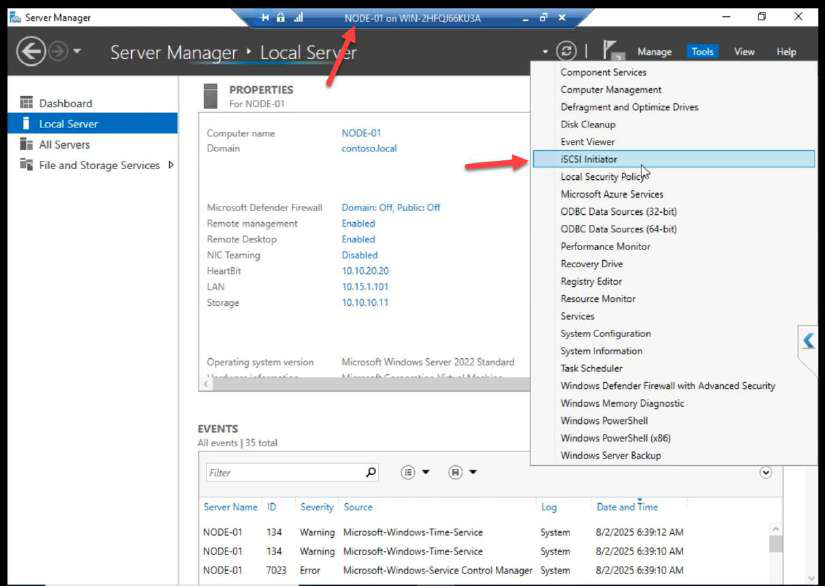
NODE-01 Server Manager Tools menu with iSCSI Initiator selected
Server Manager > Tools > iSCSI Initiator. If prompted, start the service.
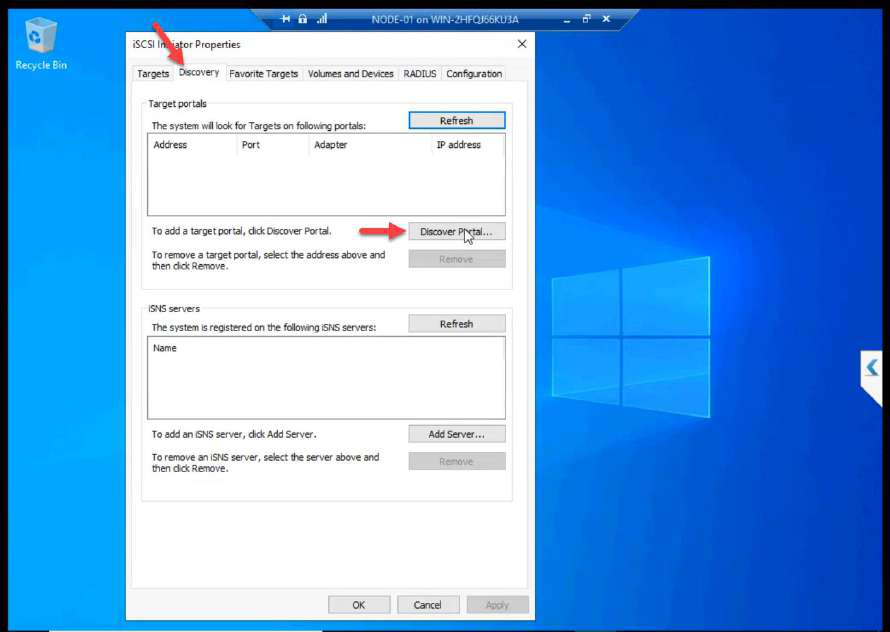
iSCSI Initiator Discovery tab with Discover Portal button
Discovery tab > Discover Portal.
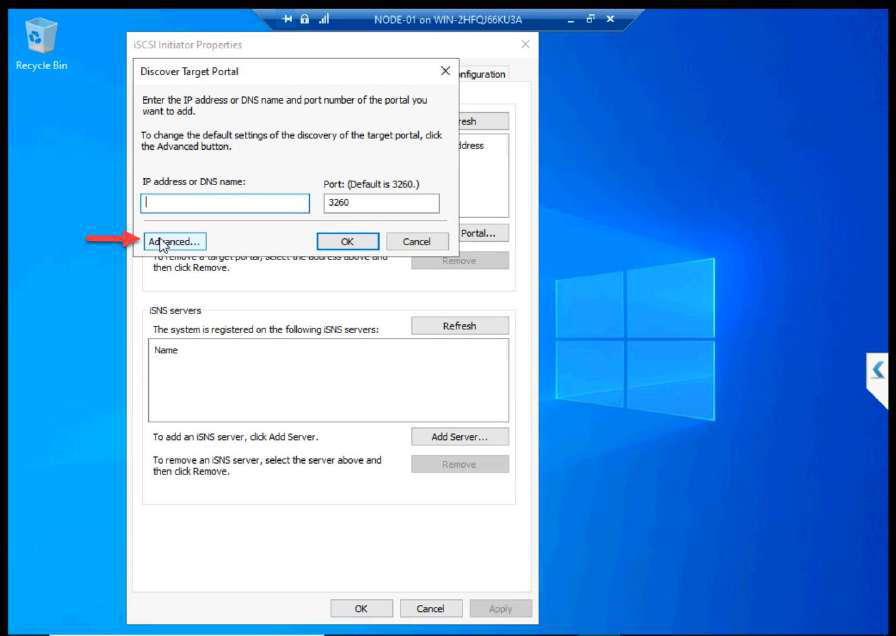
Discover Target Portal dialog with Advanced button
Click Advanced.
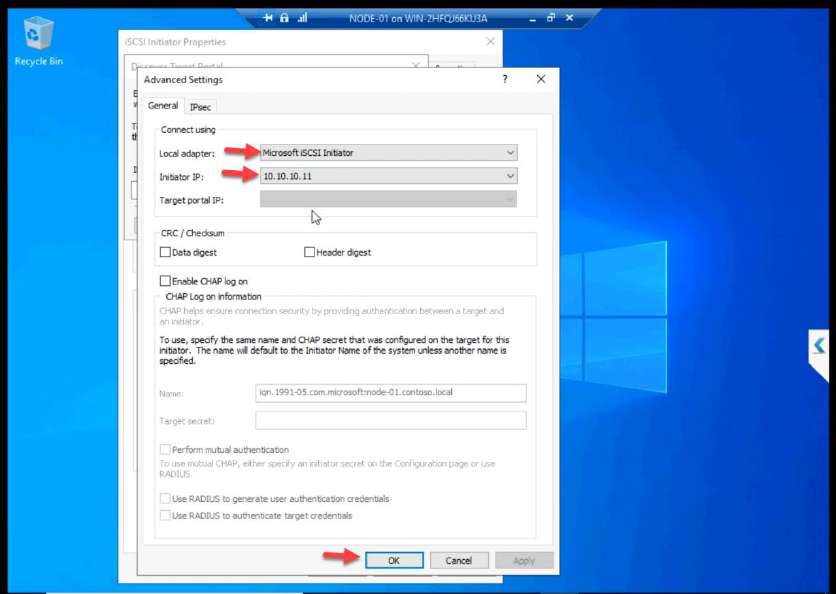
Advanced Settings on NODE-01 with Initiator IP set to 10.10.10.11 (Storage NIC)
Local Adapter: Microsoft iSCSI Initiator. Initiator IP: 10.10.10.11 (NODE-01 storage NIC). OK.

Discover Portal > Advanced. Initiator IP: 10.10.10.11 (Storage NIC). This step is the most-skipped one in lab guides. Without it, Windows uses any NIC for iSCSI — storage traffic ends up on the public wire.
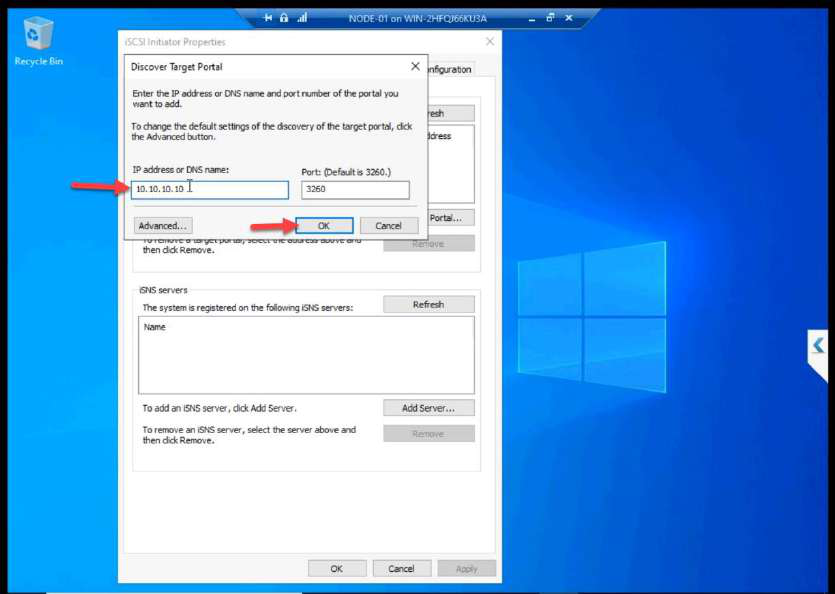
Discover Target Portal entering target IP 10.10.10.10
Target portal IP: 10.10.10.10. OK.

Target IP: 10.10.10.10.

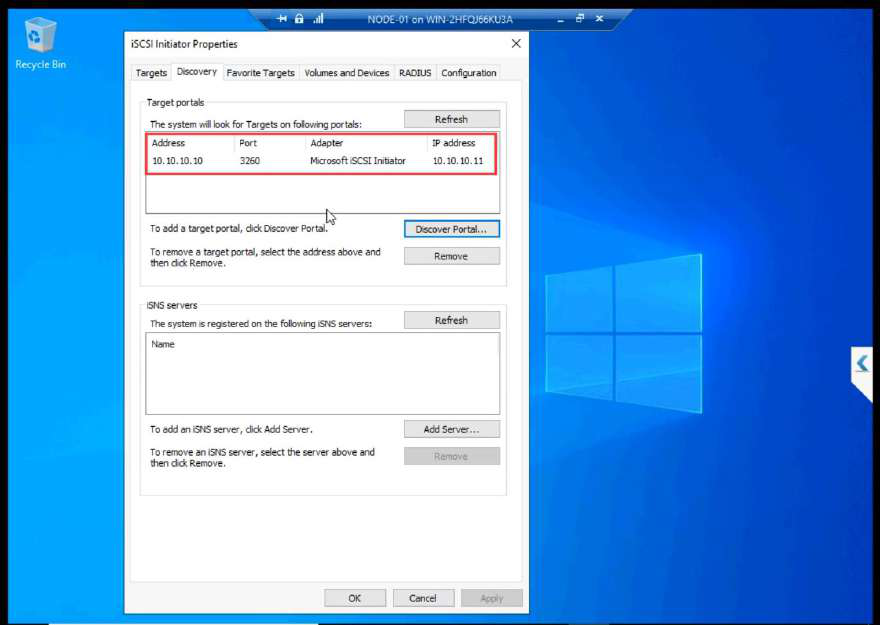
Discovery tab showing the discovered target portal listed
Verify the discovered portal appears.
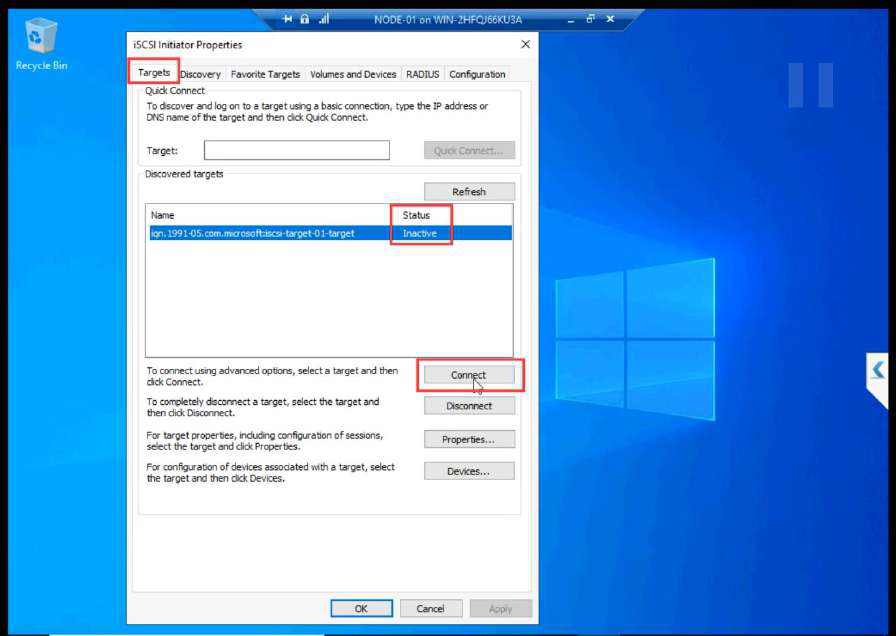
Targets tab with the discovered target Inactive, Connect button being clicked
Targets tab > select target > Connect.

Targets tab > Connect.

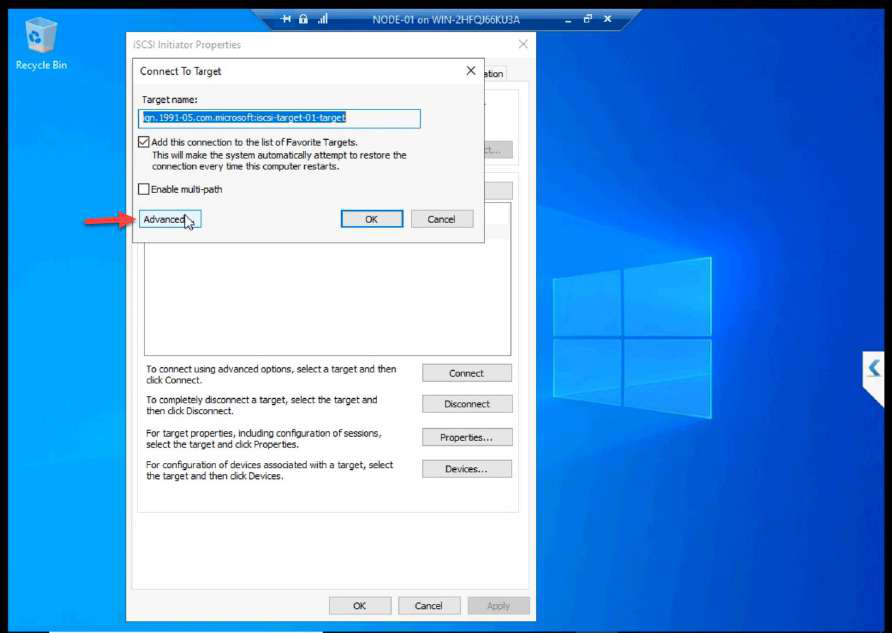
Connect To Target dialog with Advanced button highlighted for CHAP setup
Click Advanced in Connect To Target.
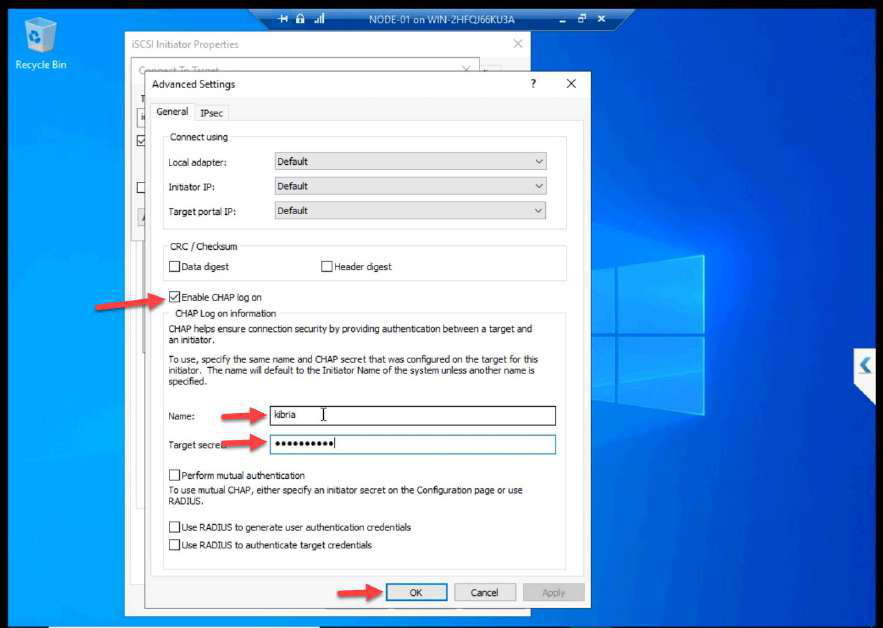
Advanced Settings dialog with Enable CHAP log on ticked, name and secret entered from Part 7
Enable CHAP log on. Enter the name + secret from Part 7. Without these, the SAN refuses the login.

Advanced > Enable CHAP log on. Enter the name + secret from Part 7. Without these, the SAN refuses the login.
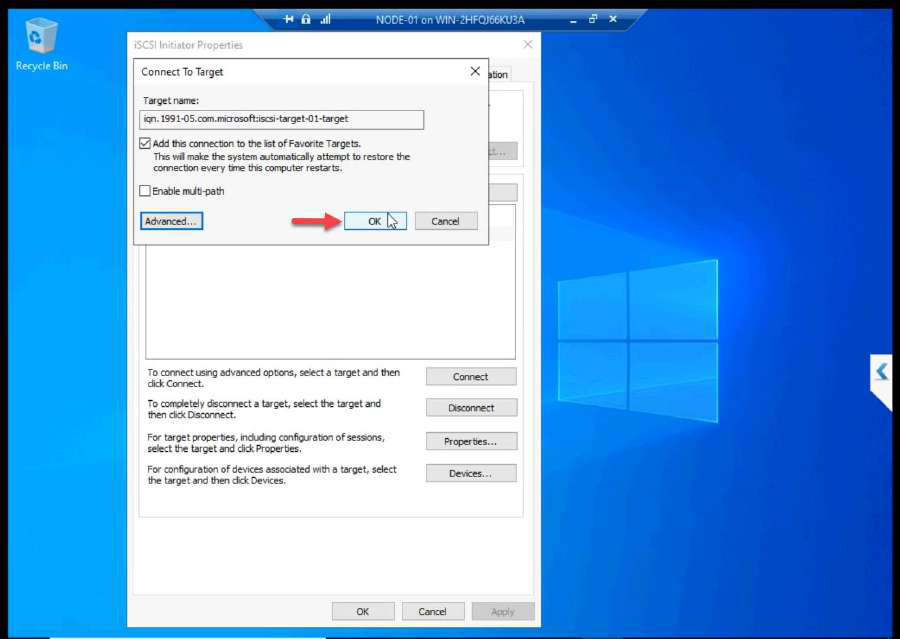
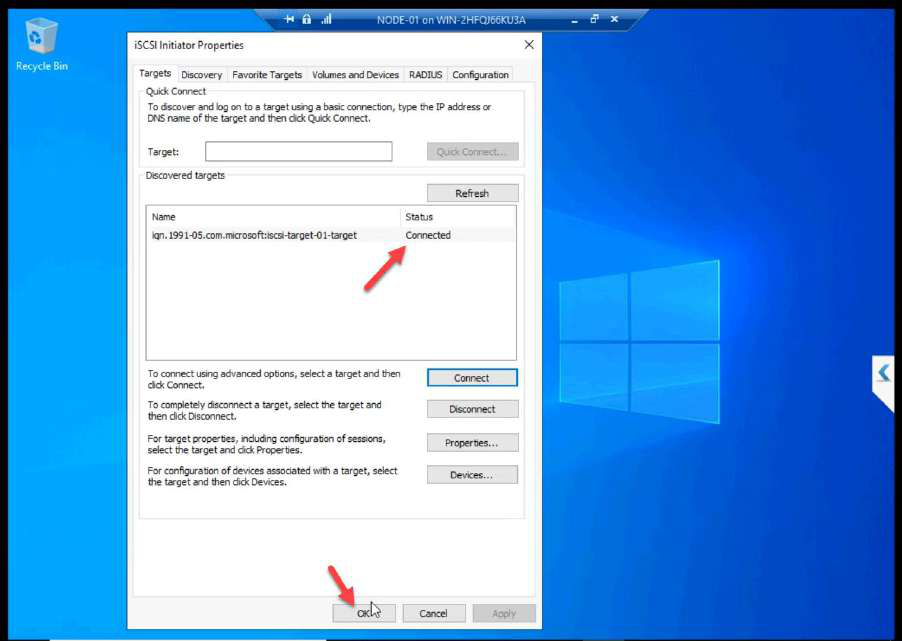
Advanced Settings OK button being clicked
OK on Advanced.
Connect To Target dialog OK after CHAP applied
OK on Connect.

OK + OK.

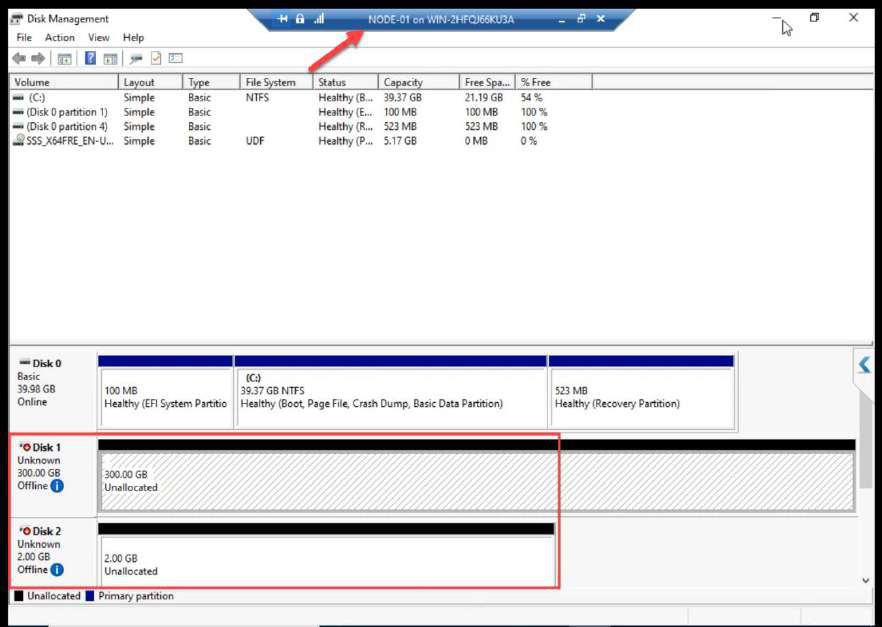
Disk Management on NODE-01 showing both new disks (300 GB and 2 GB) attached as Offline
Disk Management on NODE-01 — both LUNs (300 GB Data + 2 GB Quorum) appear as Offline. Expected.

Disk Management on NODE-01: both LUNs appear as Offline. Expected.

Phase 2 — NODE-02 (same setup, leave disks alone)
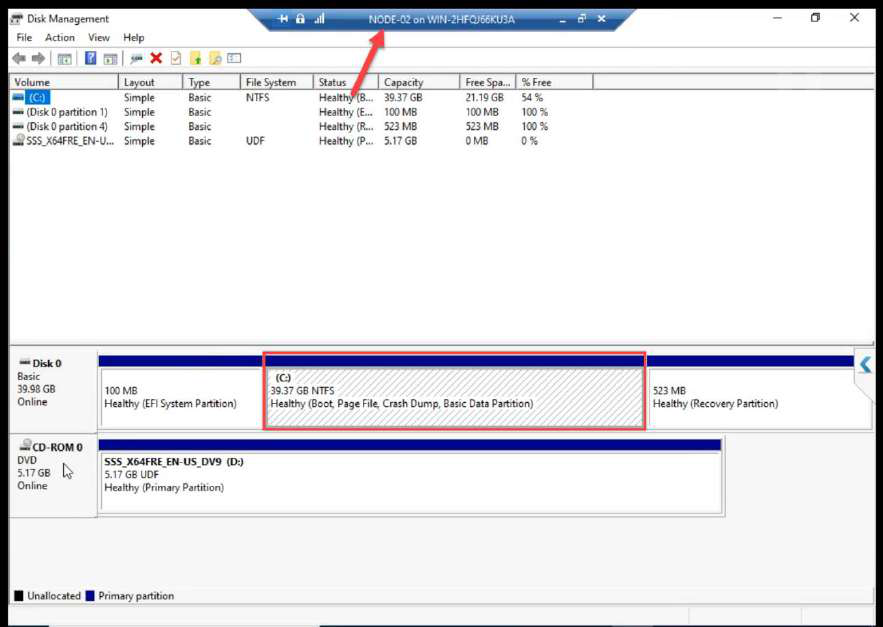
NODE-02 Disk Management showing only OS disk before iSCSI connection
NODE-02 Disk Management before iSCSI.
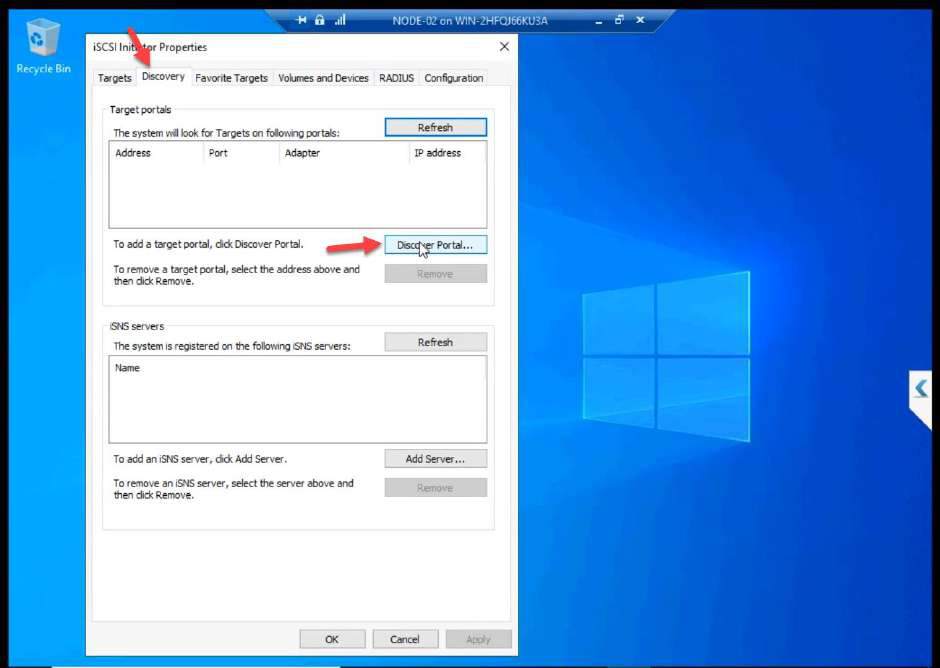
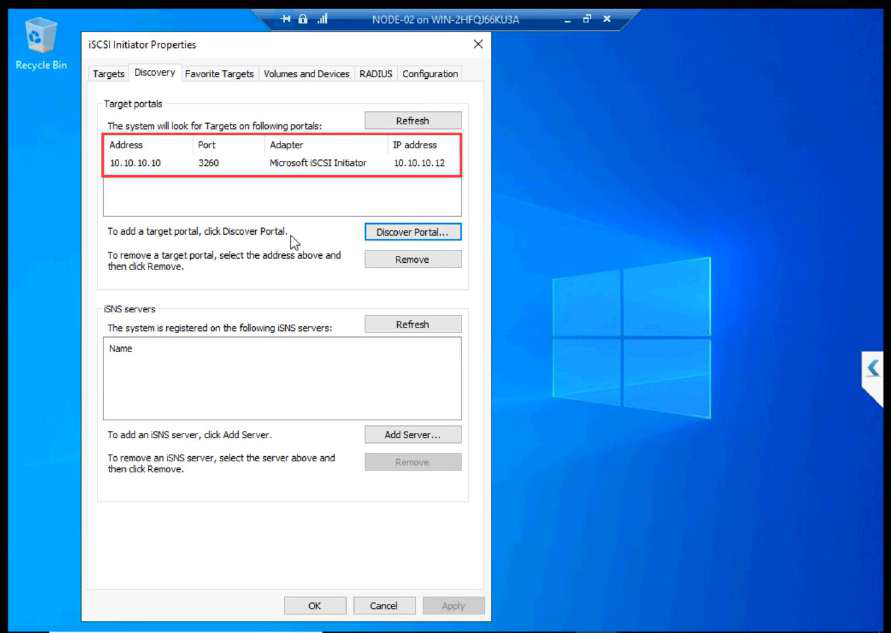
NODE-02 iSCSI Initiator Discovery tab
NODE-02: iSCSI Initiator Discovery tab.
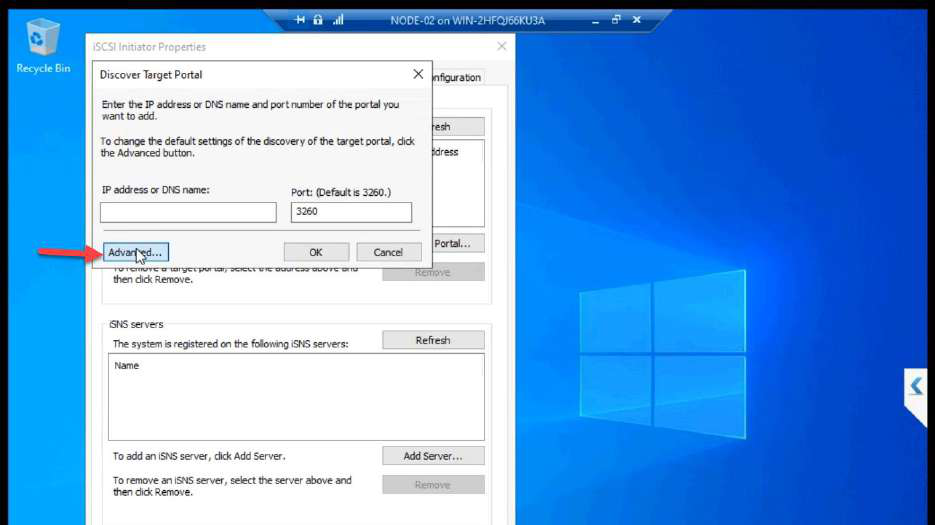
Discover Target Portal Advanced on NODE-02
Discover Portal > Advanced.
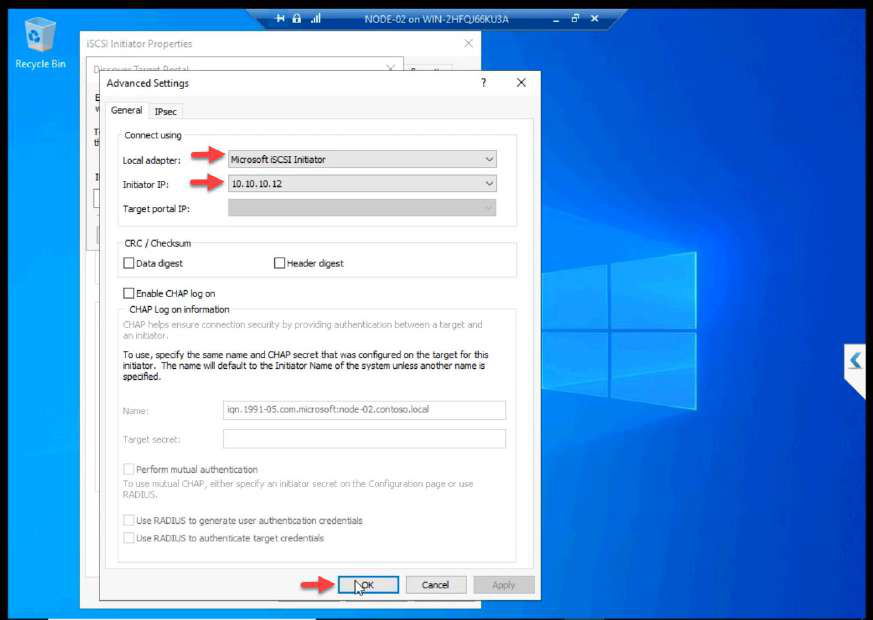
Advanced Settings on NODE-02 with Initiator IP 10.10.10.12
Initiator IP: 10.10.10.12 (NODE-02 storage NIC).

Same iSCSI Initiator setup — just the Initiator IP differs. 10.10.10.12 for NODE-02.
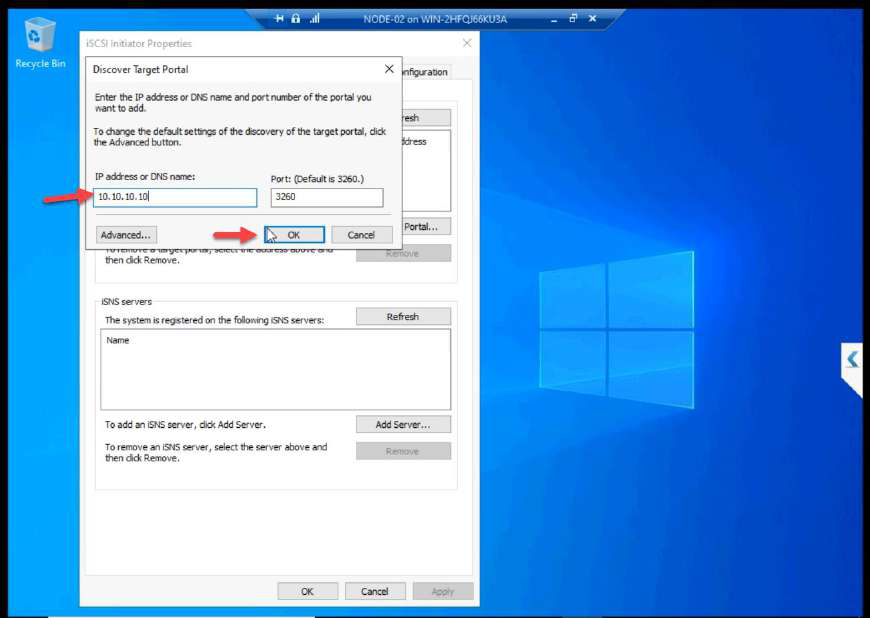
Discover Target Portal entering target IP 10.10.10.10 from NODE-02
Target IP: 10.10.10.10.

Target IP: 10.10.10.10.

Discovery tab showing the target on NODE-02
Discovery confirmed.
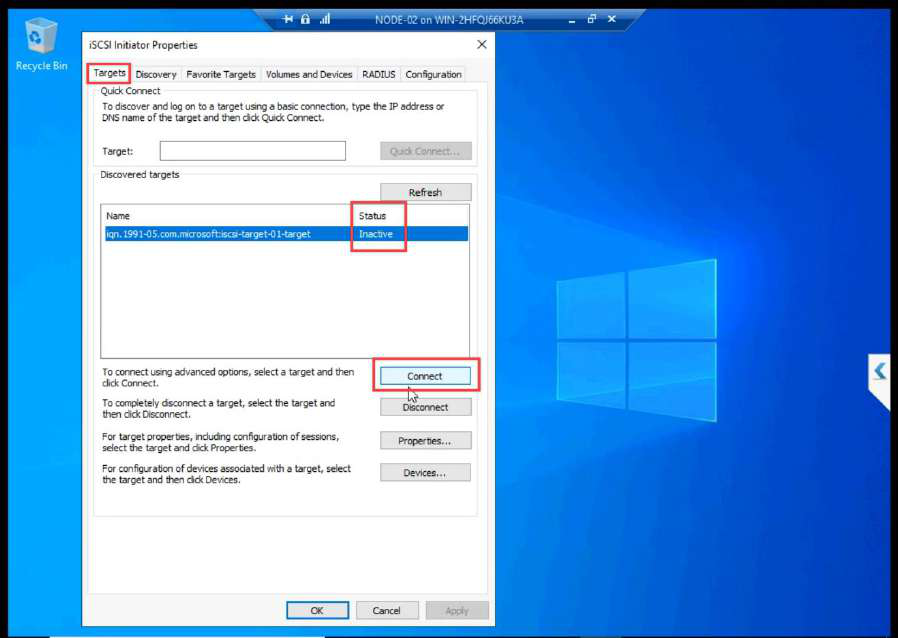
Targets tab on NODE-02 with Connect being clicked
Targets > Connect.
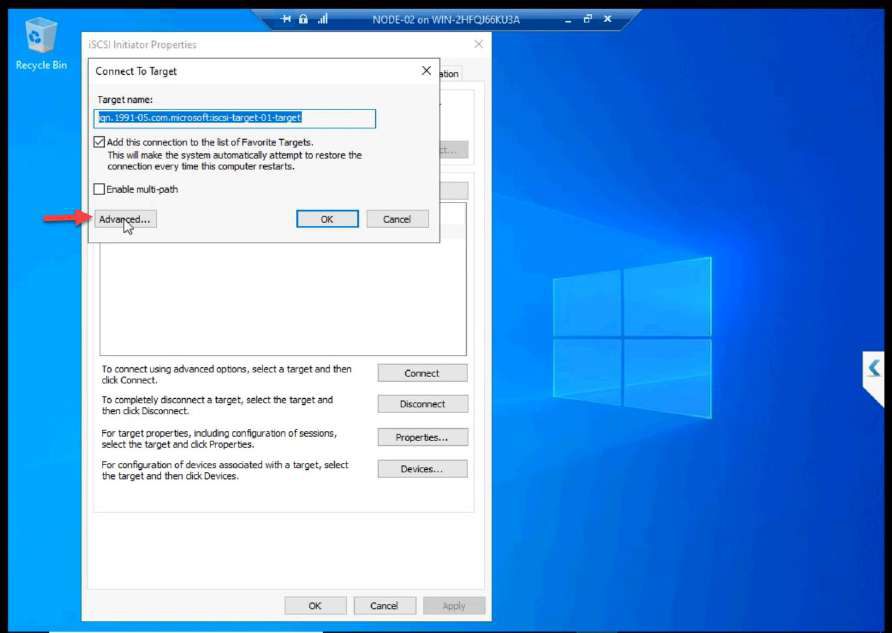
Connect To Target Advanced on NODE-02
Connect > Advanced.
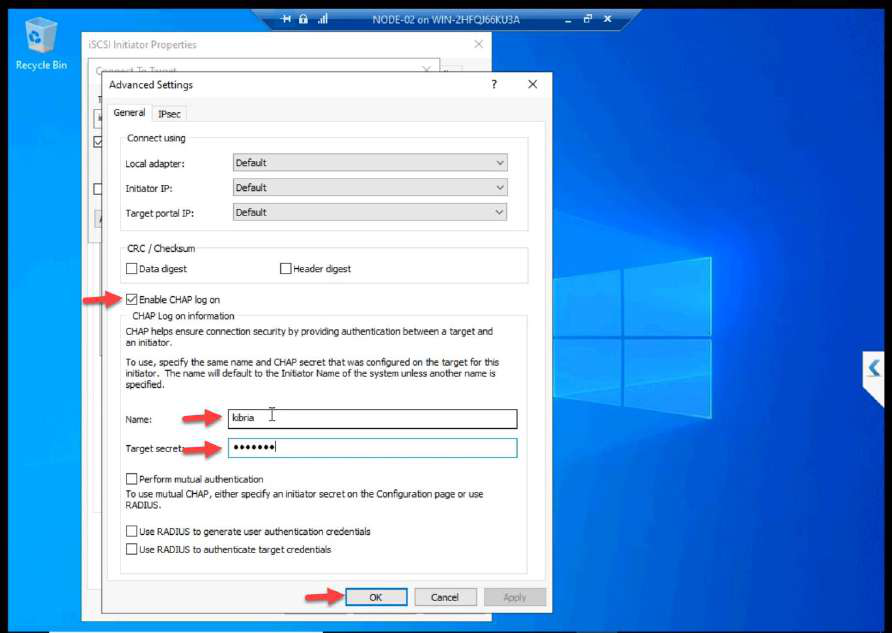
Advanced Settings on NODE-02 with CHAP enabled and matching secret
Enable CHAP — same name + secret as NODE-01.

Connect > Advanced > CHAP with the SAME credentials as NODE-01.
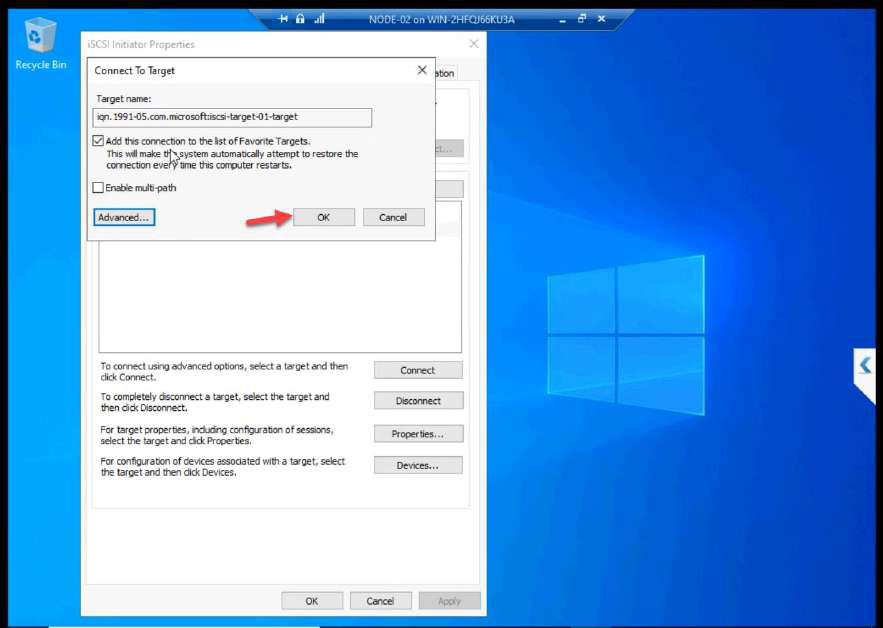
CHAP Advanced Settings OK on NODE-02
OK Advanced.
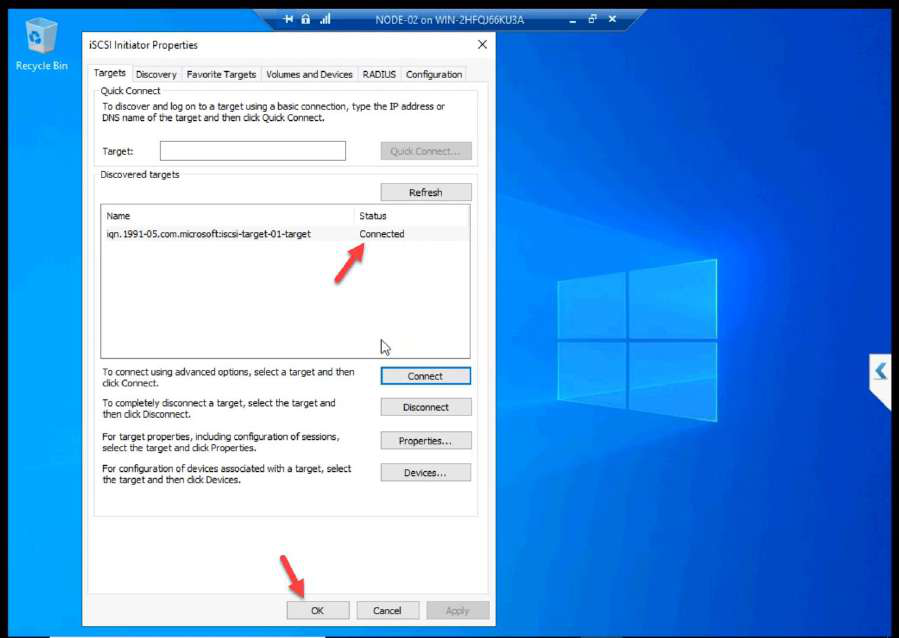
Connect To Target OK on NODE-02
OK Connect.

OK + OK.

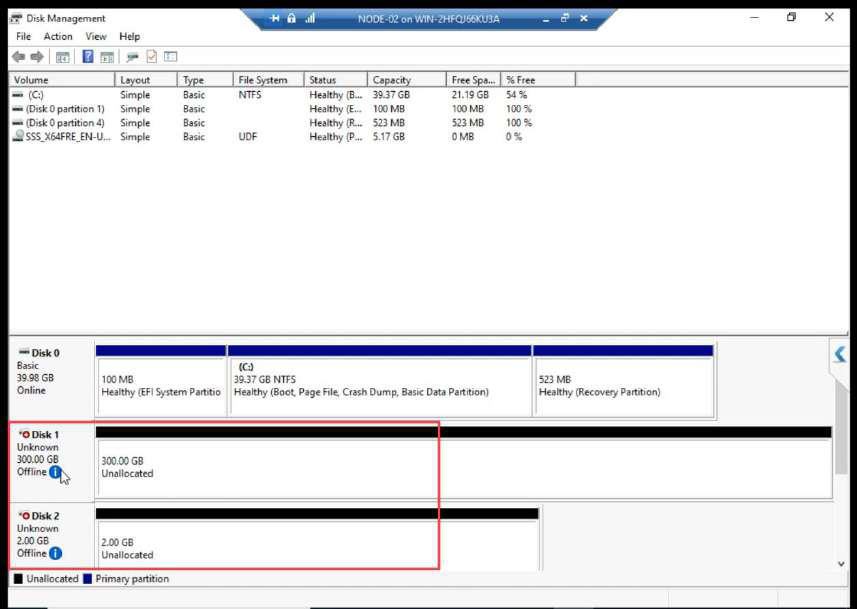
Disk Management on NODE-02 showing both disks Offline (correct state)
Both LUNs appear on NODE-02 as Offline. LEAVE THEM OFFLINE.

Disk Management on NODE-02: both LUNs Offline. STOP HERE. Do not bring online.

Phase 3 — verify on the SAN side
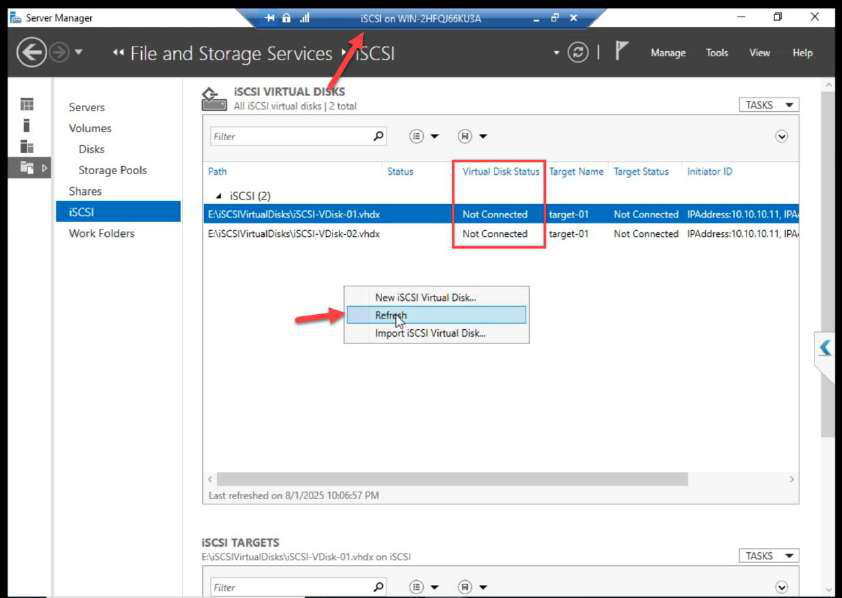
iSCSI VM showing target status Not Connected stale before refresh
Switch to the iSCSI VM. Target may show Not Connected at first — click Refresh.

iSCSI VM > Target may show Not Connected at first because the cache is stale. Click Refresh.
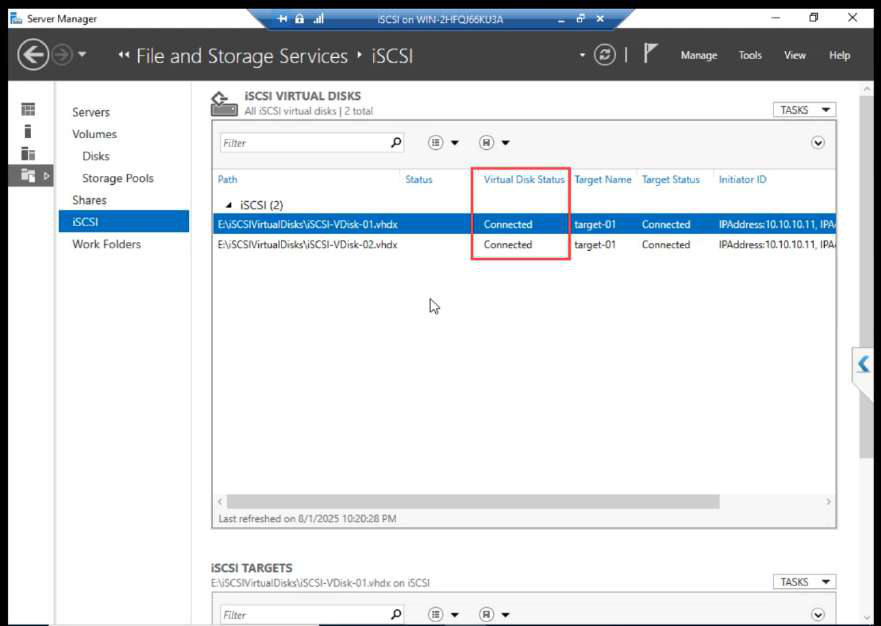
iSCSI VM after refresh showing target status Connected with both initiator sessions visible
After refresh: Connected. Both initiator sessions visible.
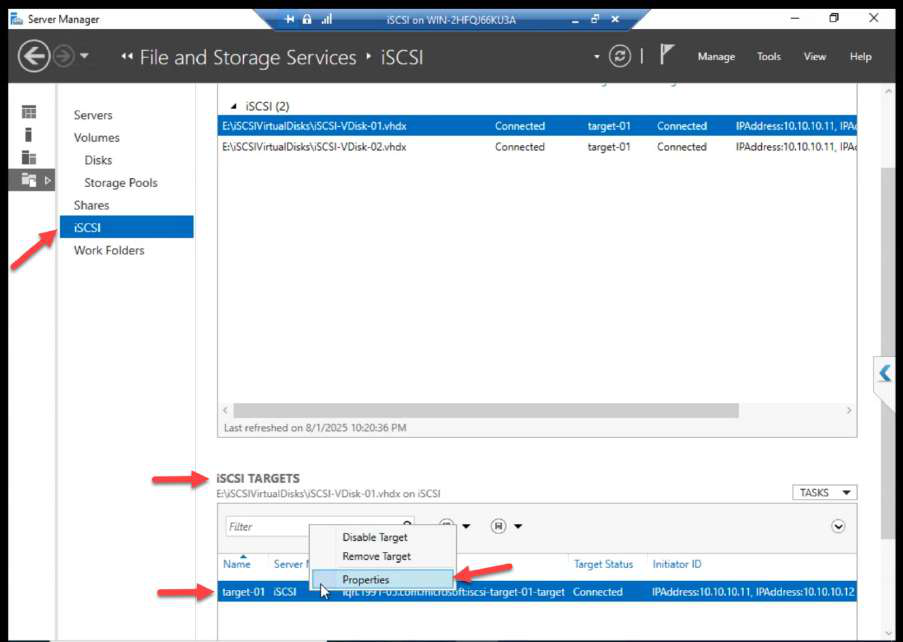
After refresh: Connected. Both initiator sessions visible.
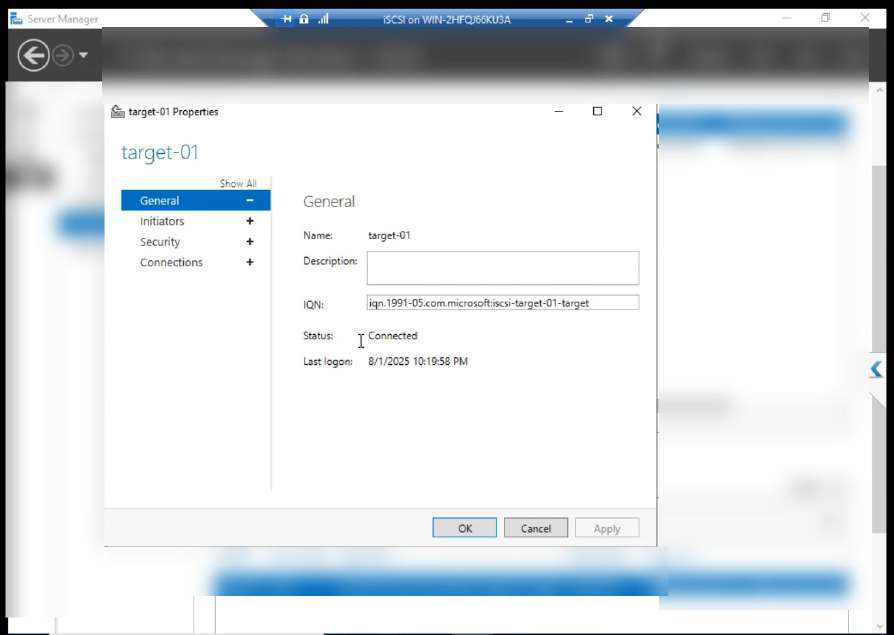
iSCSI Target Properties dialog being opened from the SAN side
Right-click Target-01 > Properties.
Target Properties showing authentication, sessions, portals tabs
Properties dialog: review authentication, sessions, portals.

Properties dialog shows authentication, sessions, portals.

Phase 4 — format the LUNs (NODE-01 ONLY)
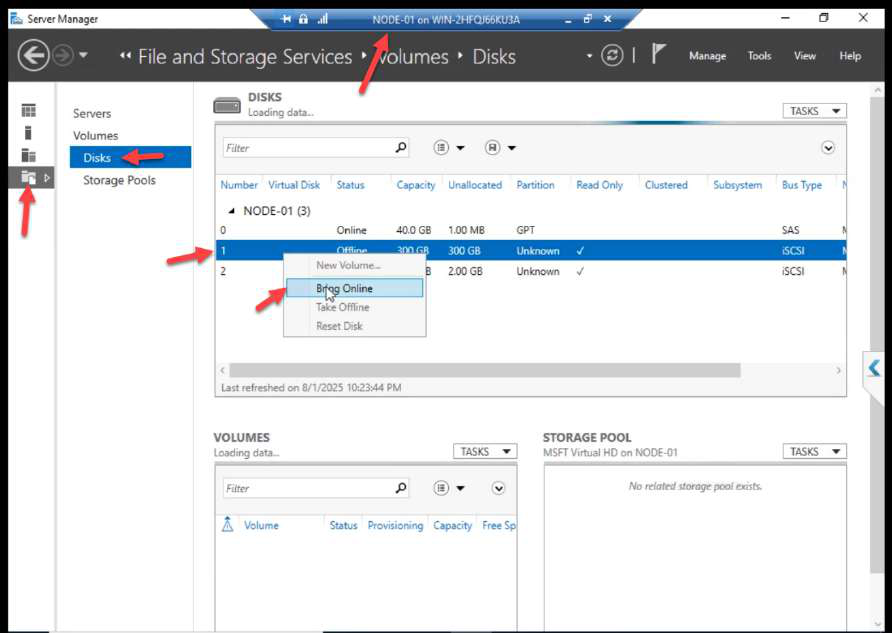
NODE-01 Disk Management with right-click on the 300 GB disk and Bring Online
Back on NODE-01: right-click the 300 GB disk > Bring Online.
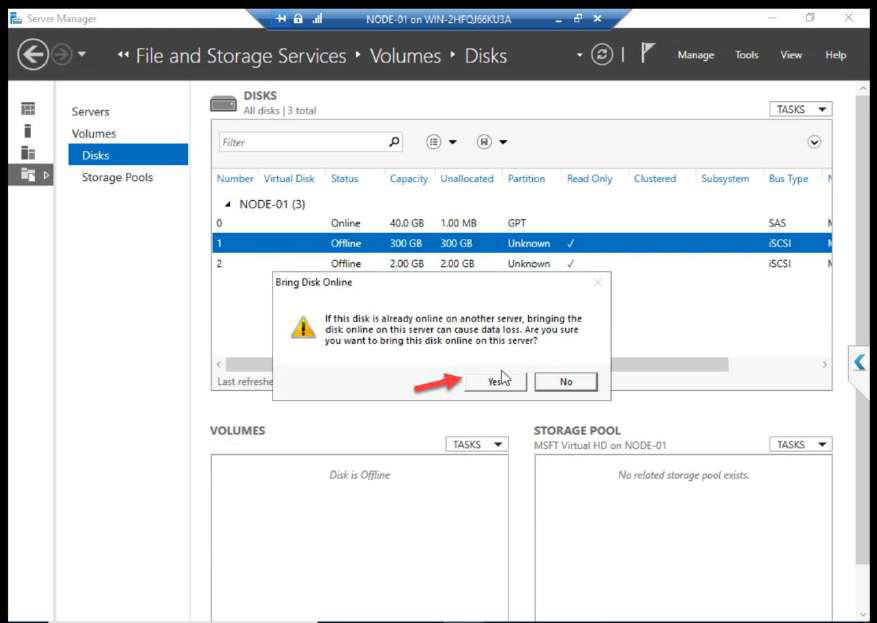
Back on NODE-01. Disk Management. Right-click the 300 GB disk > Bring Online.
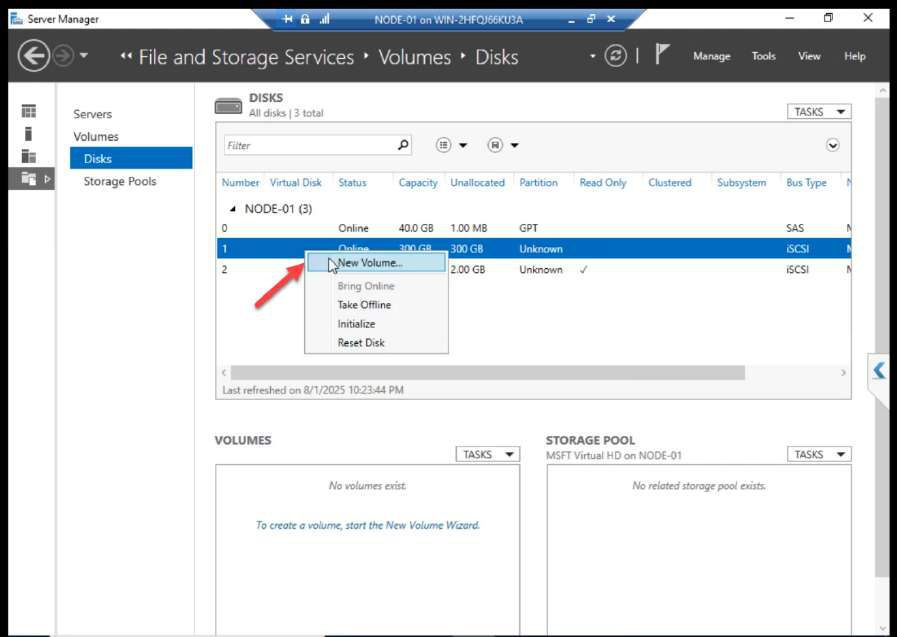
Bring Online confirmation dialog with Yes
Yes.
Right-click on the now-online disk with New Volume option
Right-click again > New Volume.

Right-click again > New Volume.

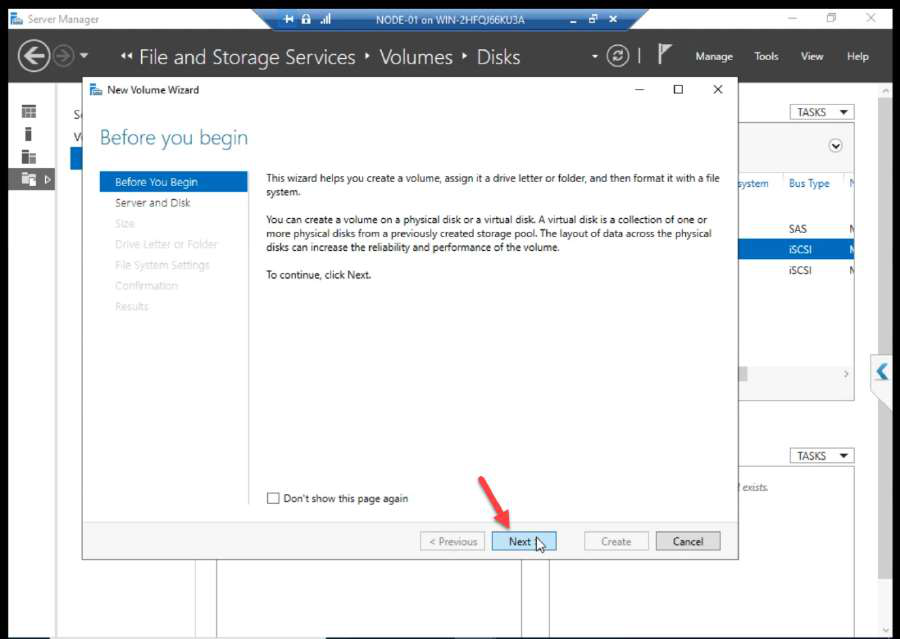
New Volume Wizard Before You Begin step
Wizard.
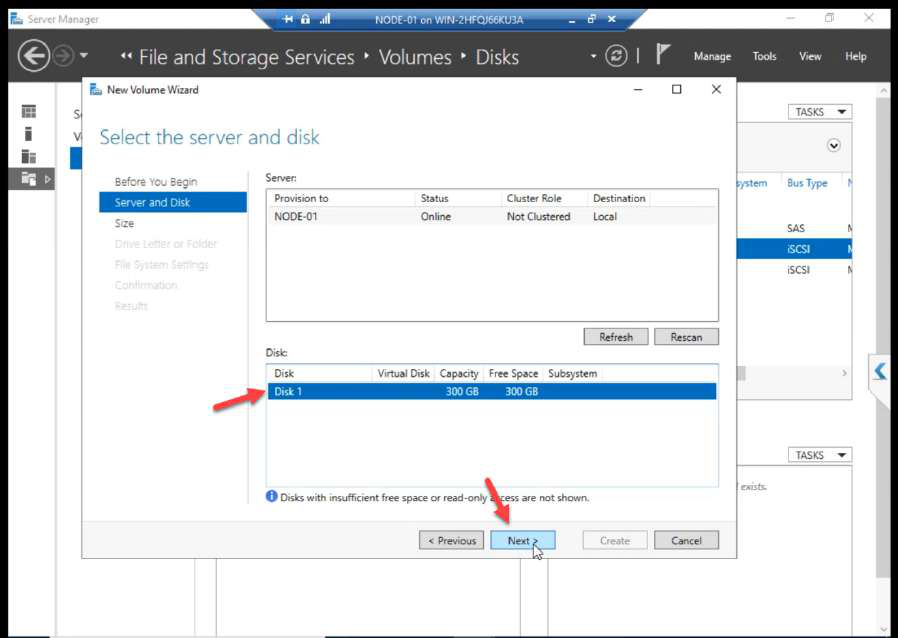
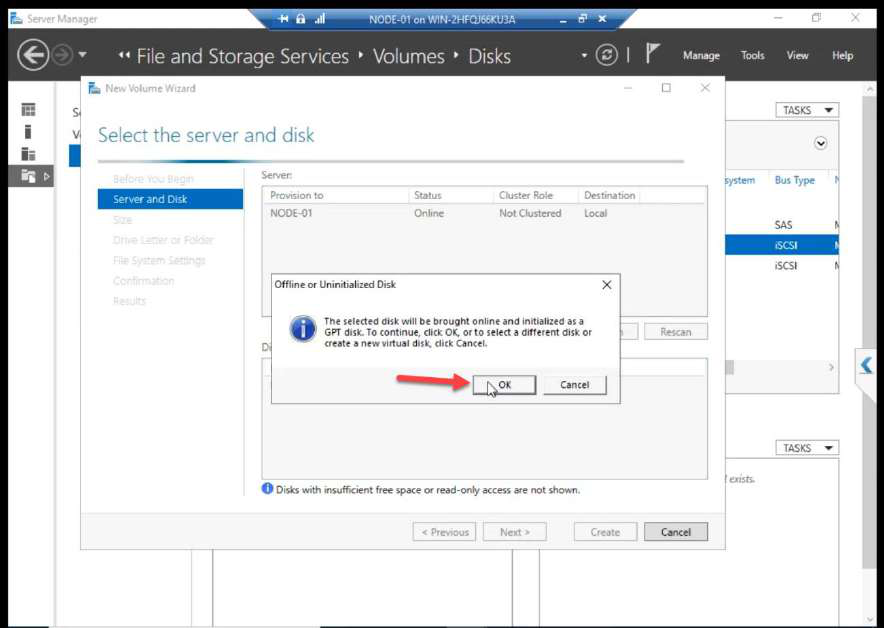
Server selection step with Disk 1 selected
Disk 1 selected.
Initialize disk confirmation dialog OK
Initialize: OK.

Wizard: server, disk selection, initialize confirmation.
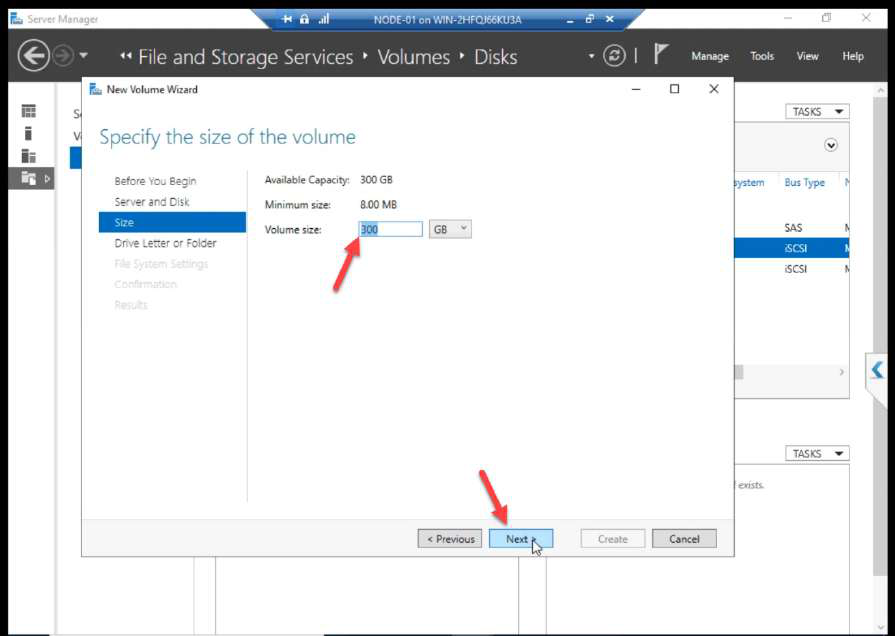
Volume Size step accepting default for the entire disk
Volume size: full disk default.

Volume size: accept default.

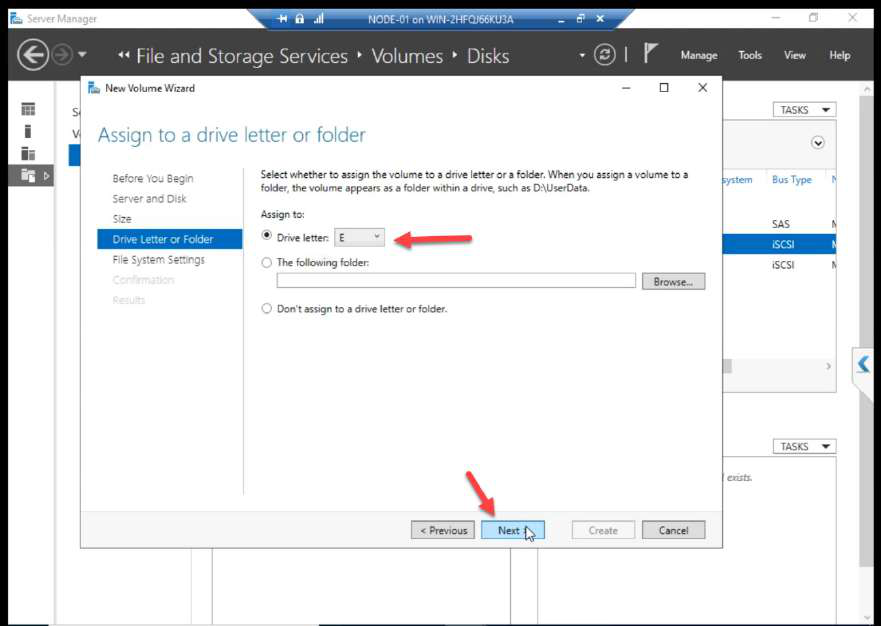
Drive letter assignment for the new Data volume
Drive letter (e.g. D:).

Drive letter: e.g. D:.

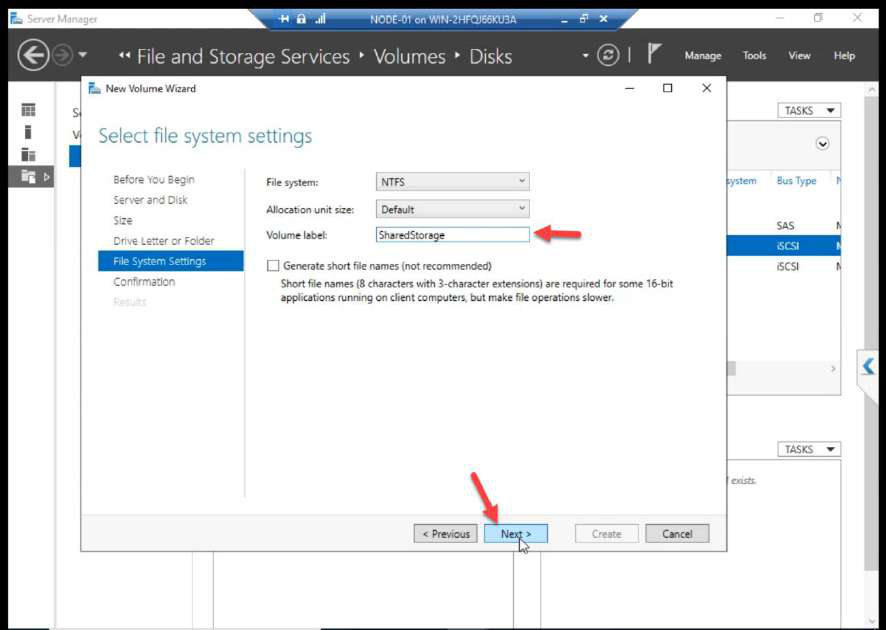
Volume label entry like ClusterData
Label: ClusterData.

Label: ClusterData.

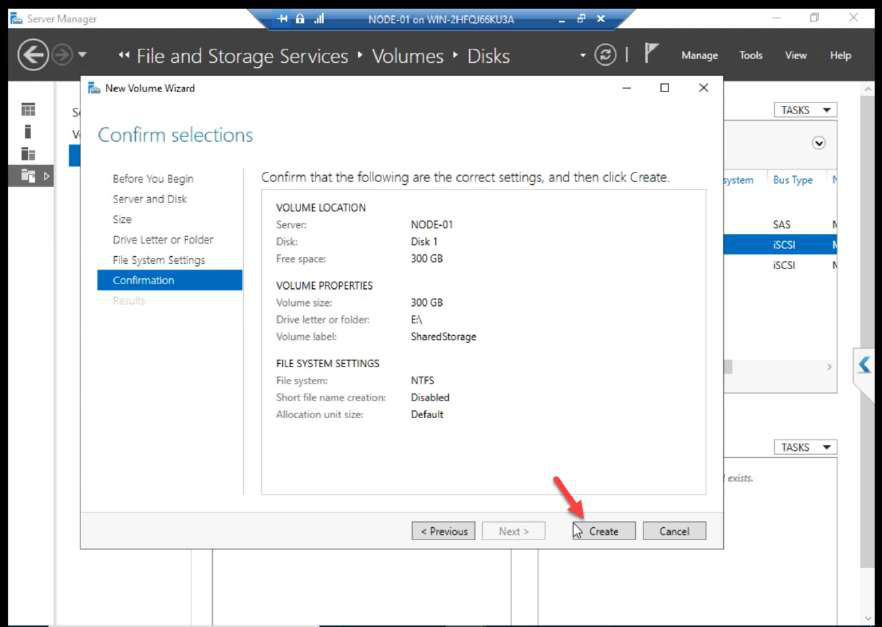
Wizard Create button being clicked
Create.
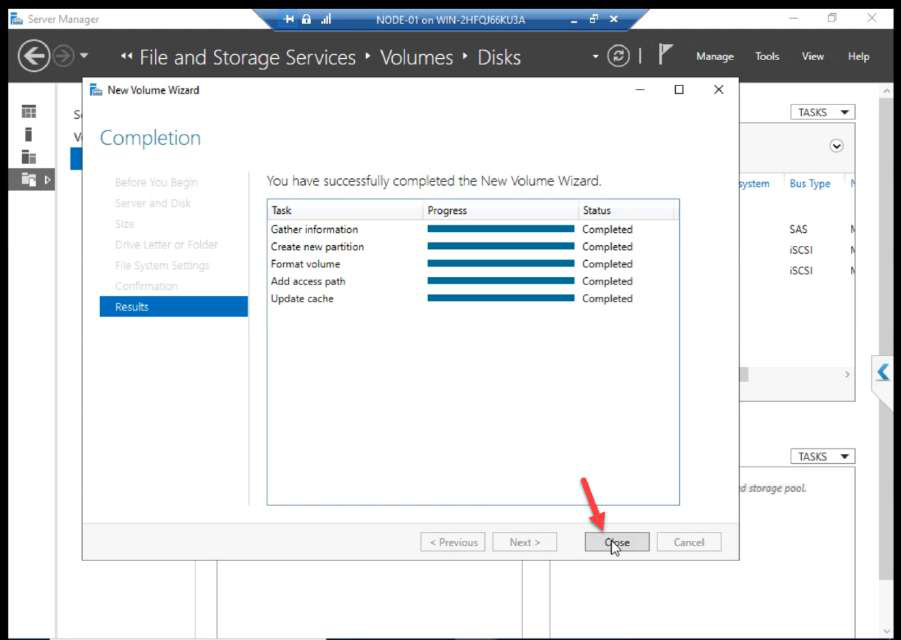
Wizard Close button after volume created
Close.

Create + Close.

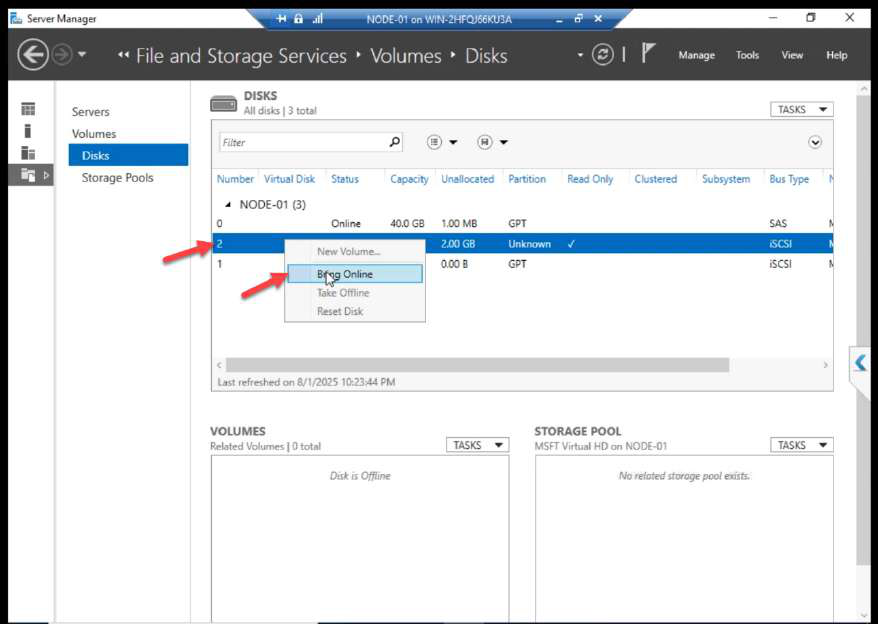
Right-click on Disk 2 (the 2 GB Quorum) with Bring Online
Right-click Disk 2 (Quorum) > Bring Online.
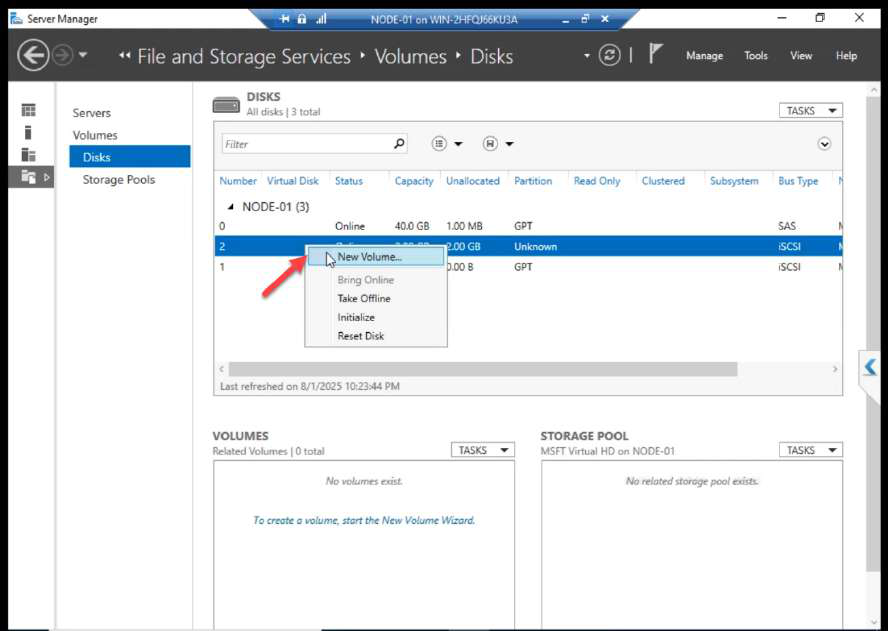
Right-click on Disk 2 with New Volume option
Right-click > New Volume.

Repeat for Disk 2 (2 GB Quorum). Bring Online.
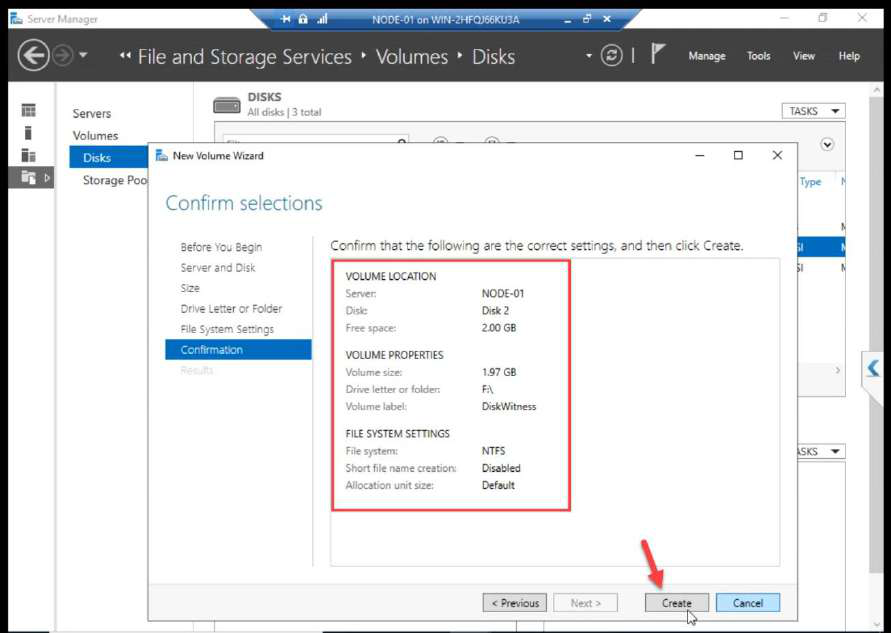
New Volume Wizard for Quorum disk going through the same steps
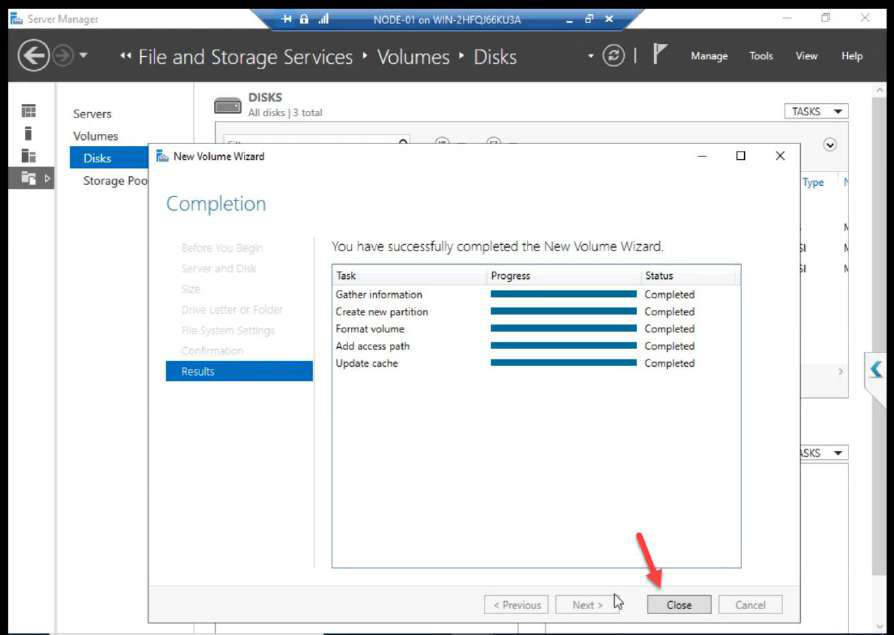
Same wizard steps for the 2 GB Quorum — format, drive letter (e.g. Q:), label ClusterQuorum.
Wizard Close after Quorum volume created
Close.

New Volume > same wizard > drive letter (e.g. Q:), label ClusterQuorum.

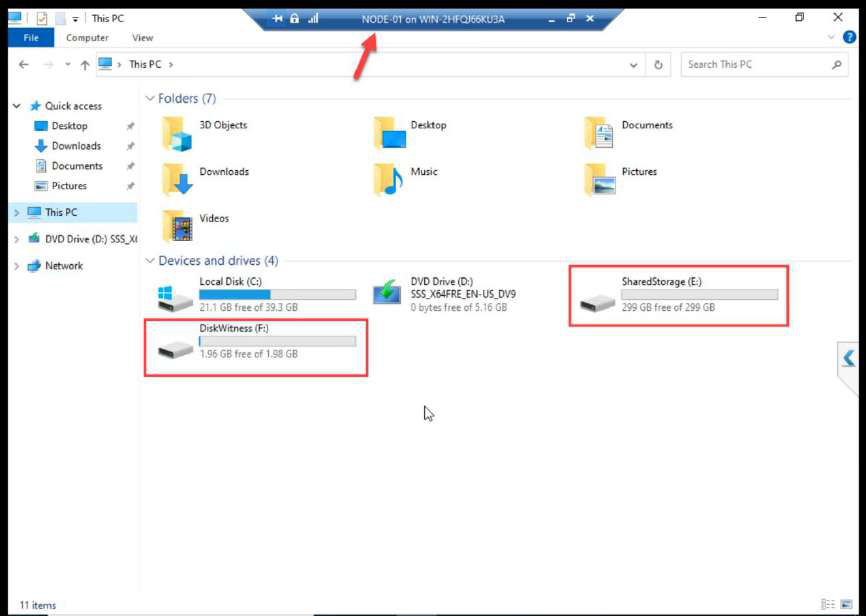
NODE-01 File Explorer showing both new volumes (Data and Quorum) mounted with drive letters
NODE-01 File Explorer: both volumes mounted. Done from NODE-01 only.
NODE-01 File Explorer: both volumes mounted. Done from NODE-01 only.

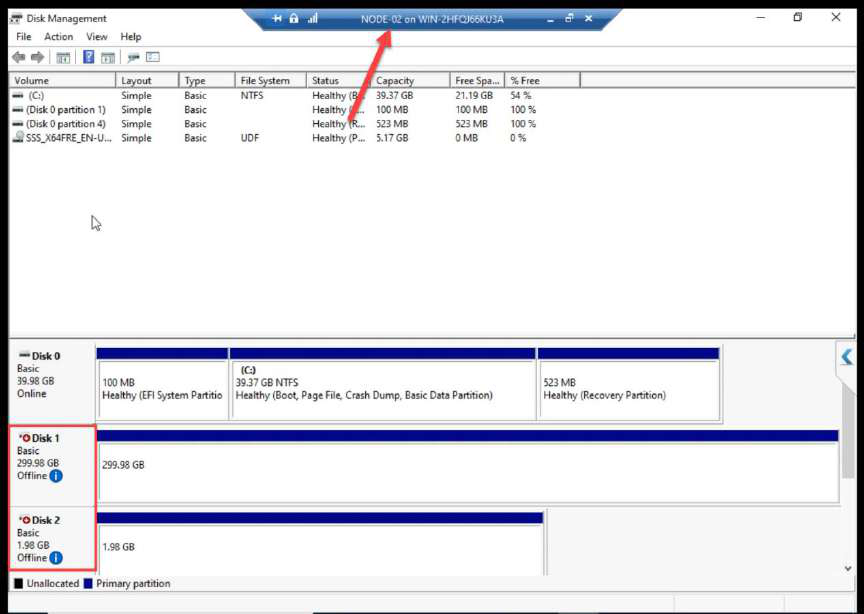
NODE-02 Disk Management still showing both disks Offline as expected because volumes were created from N1
NODE-02 Disk Management: both disks still Offline. Correct. Cluster Service handles ownership transitions in Part 9.

NODE-02 Disk Management: both disks STILL Offline. Correct. Cluster Service will manage ownership transitions starting in Part 9.

Things that bite people in this part

Initiator IP not set explicitly

Most common configuration error. Hit Discover Portal, type SAN IP, OK. Looks fine until storage traffic ends up on the wrong NIC. Always go through Advanced and set Initiator IP to the Storage NIC explicitly.

CHAP credentials lost or mismatched

If the secret on N1 differs from the secret on N2, only one node can log in. If neither matches the SAN, neither logs in. Document the credentials in a vault.

Bringing disks online on NODE-02

Already covered above. Do not. If you accidentally did, take them offline on N2, reboot N2, let N1 ownership reassert. If both nodes wrote during overlap, restore from backup.

Forgot Favorite Targets

The series source doesn’t mention this explicitly, but tick the “Add this connection to Favorite Targets” option during Connect. Otherwise the iSCSI session drops on reboot and the cluster comes up with no shared storage.

Drive letters drift

If D: is in use on N1 but not N2, and you assign D: on N1, after failover the cluster tries to map D: on N2 but it’s already taken there. Standardise drive letters across nodes BEFORE assigning.

What’s next

Compute ↔ storage wired. Part 9 installs the Failover Clustering feature on both nodes and runs cluster validation. See the full series at Hyper-V Failover Clustering pathway.

Leave a Reply