
Two-node FCI works. Tested it. But the design from Part 1 reserved a third node IP — this part builds it. The work splits into two posts: Part 9 (this one) preps Node-03 — VM, networks, storage access, cluster feature. Part 10 actually joins it to the cluster. Doing this in two stages keeps the changes auditable: Part 9 changes don’t affect cluster behaviour, Part 10 does.
Why three nodes instead of two? Maintenance window absorption. With 2 nodes, patching one means SQL runs on the other — if that other node fails during the patch window, you’re down. With 3 nodes, you can patch one while keeping 2 active. Also gives you N+1 for any planned downtime.
Edition note: SQL Standard caps at 2 cluster nodes. Going to 3 needs Enterprise. Verify your licensing before scaling out.
Step 1 — provision the Node-03 VM
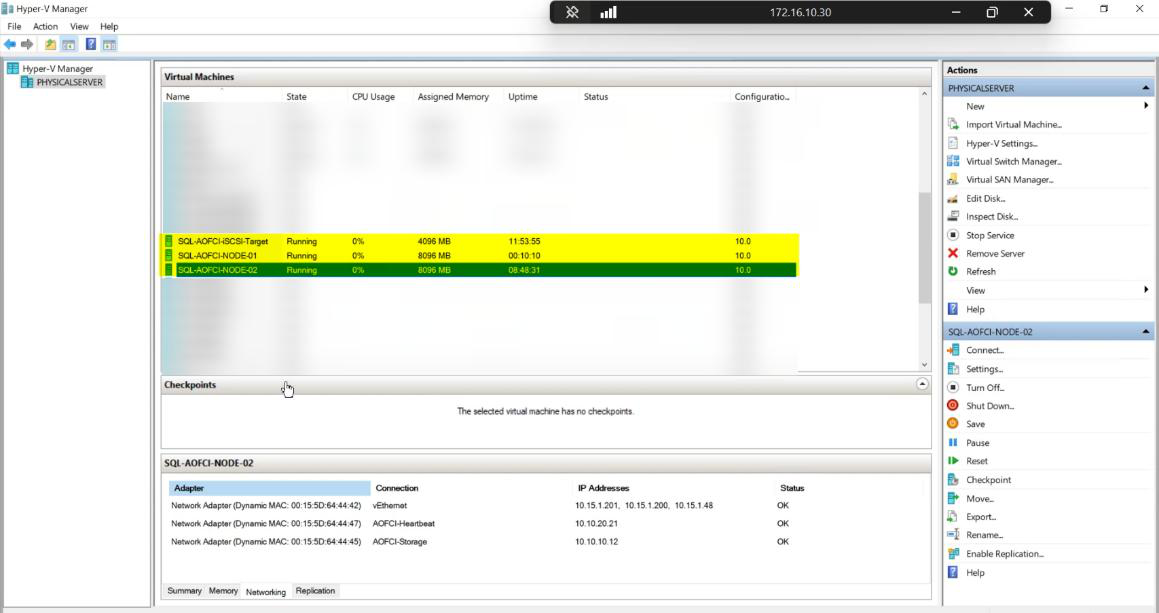
Lab inventory pre-build: DC, Node-01, Node-02, iSCSI-Target. Node-03 IP 10.15.1.50 was reserved in Part 1.
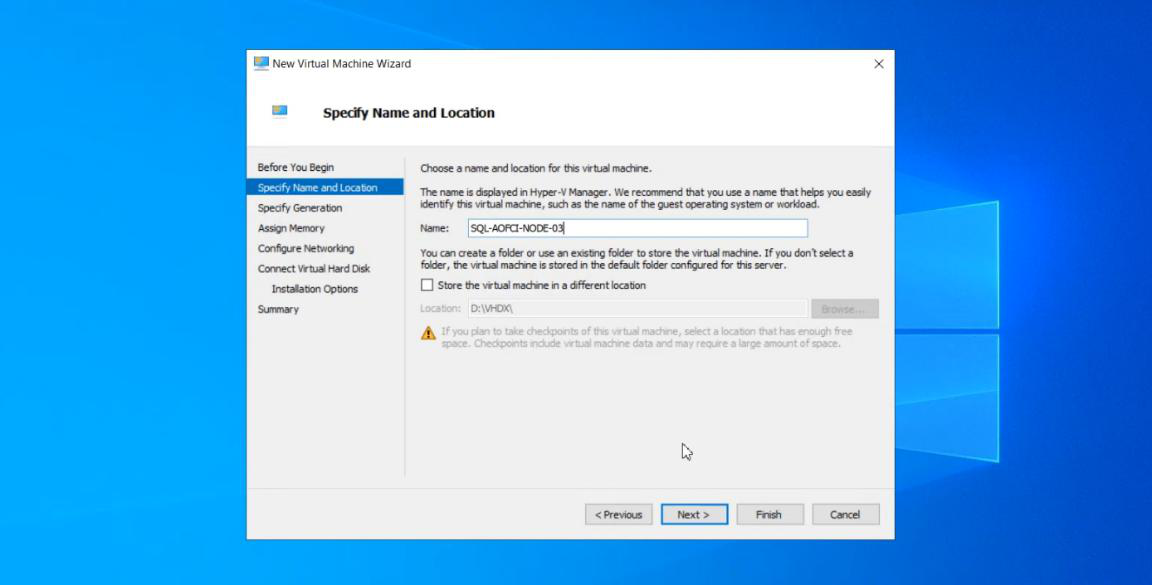
Node-03. Same Windows Server version as N1/N2 (cluster validation requires this).Create new VM in Hyper-V (or your hypervisor). Specs: same as N1/N2 (CPU/RAM/disk). Same Windows Server version, same patch level.
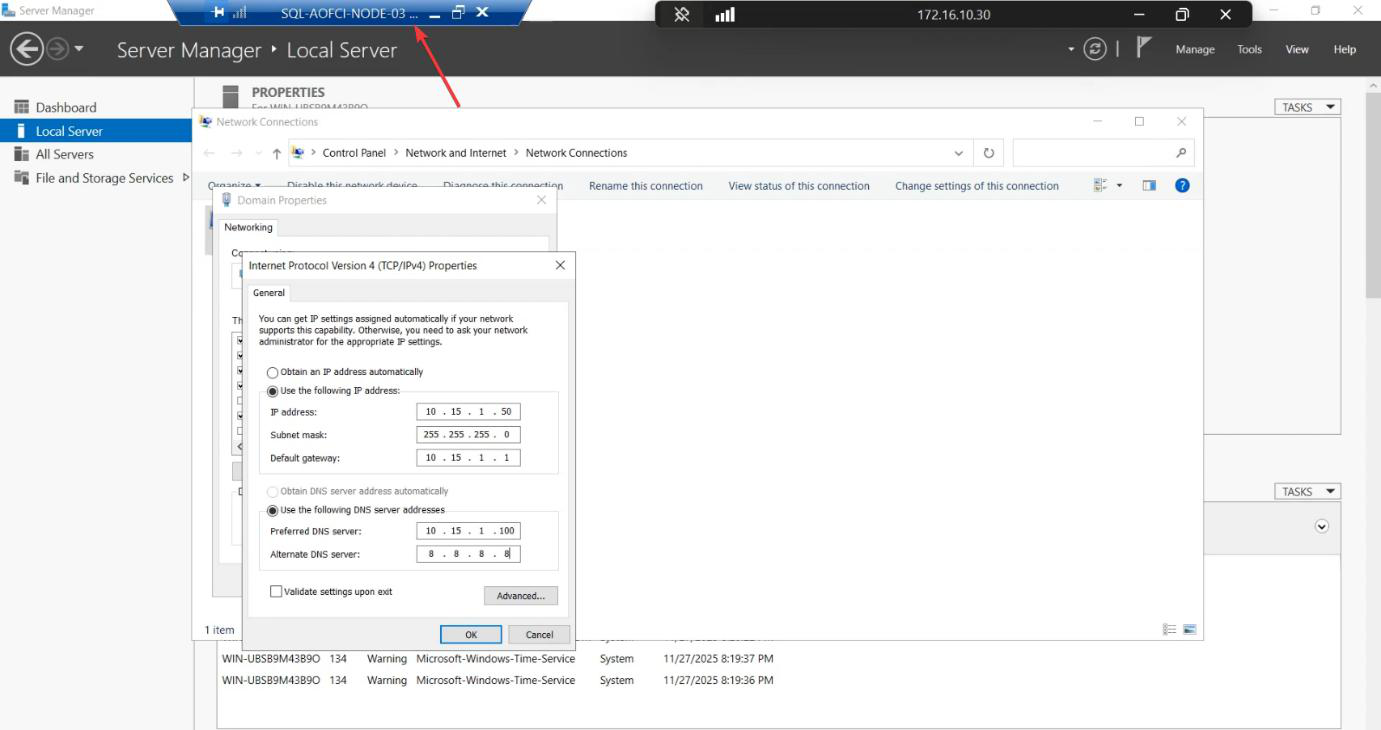
10.15.1.50. Domain DNS configured.Public NIC: static IP 10.15.1.50. Domain DNS configured.
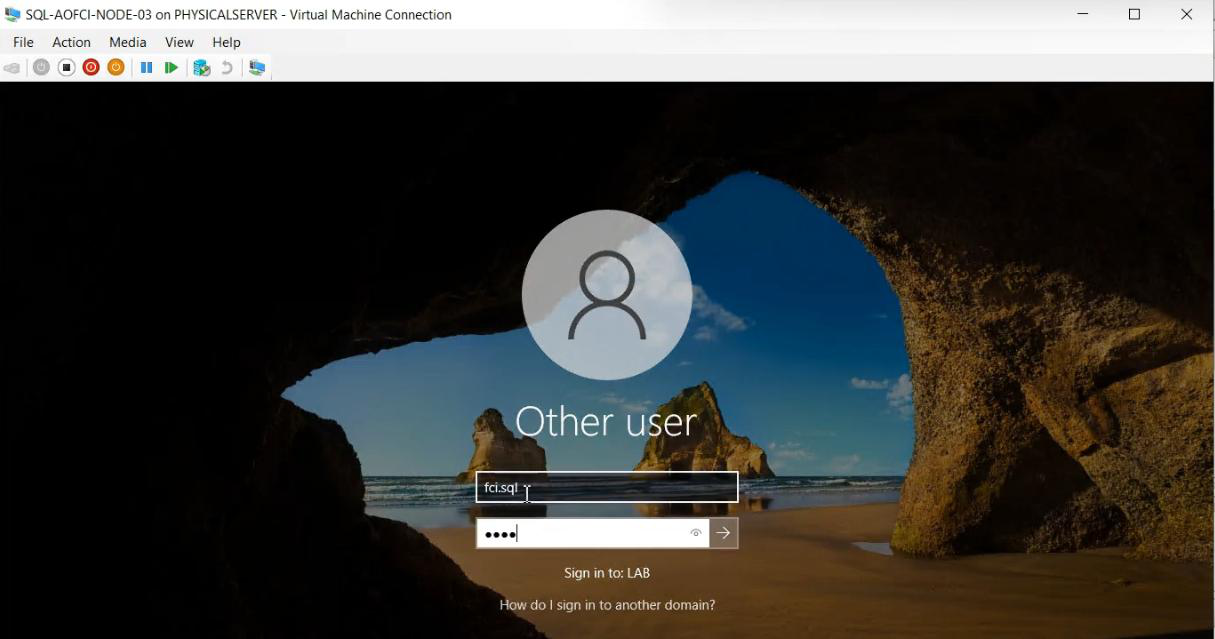
Node-03 and joined to infotechninja.local. Reboot.Rename computer to Node-03. Join infotechninja.local. Reboot.
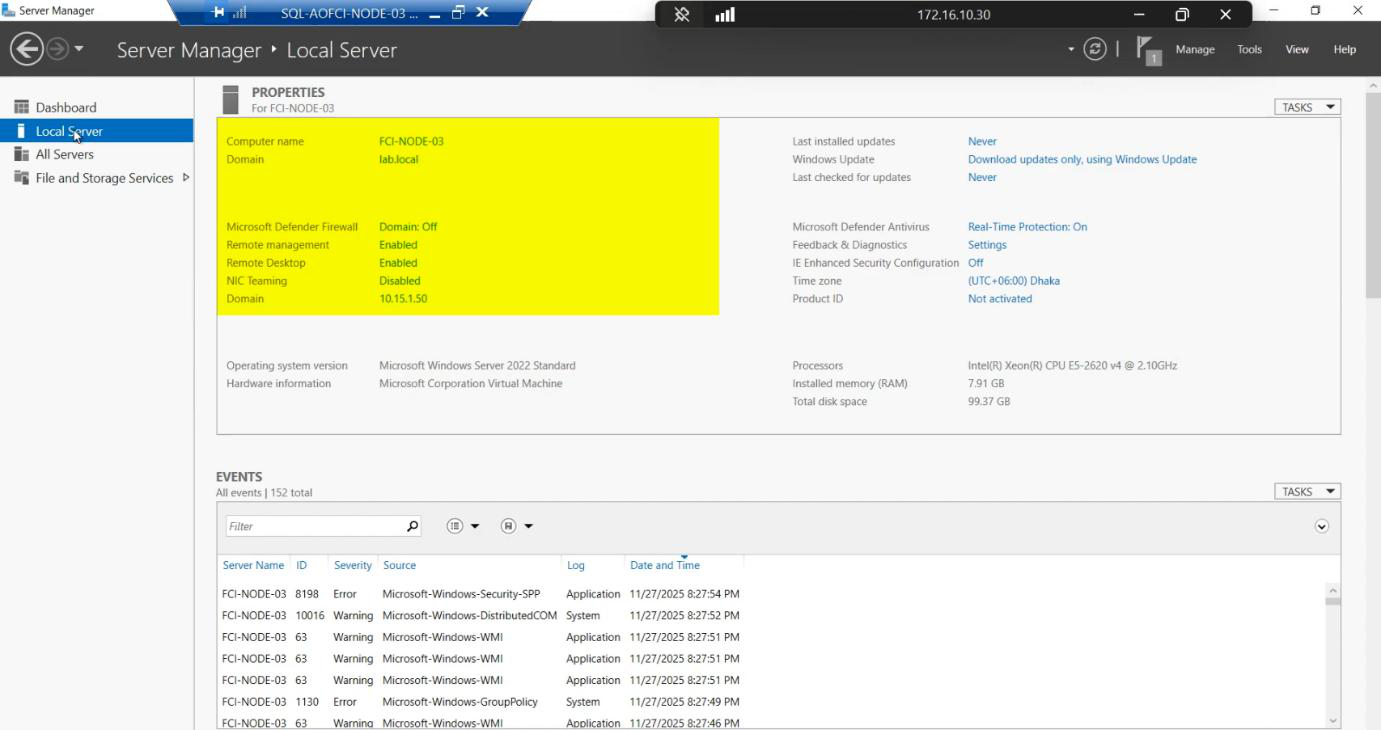
Sign in with svc_sql (or domain admin).
Step 2 — configure the storage and heartbeat NICs
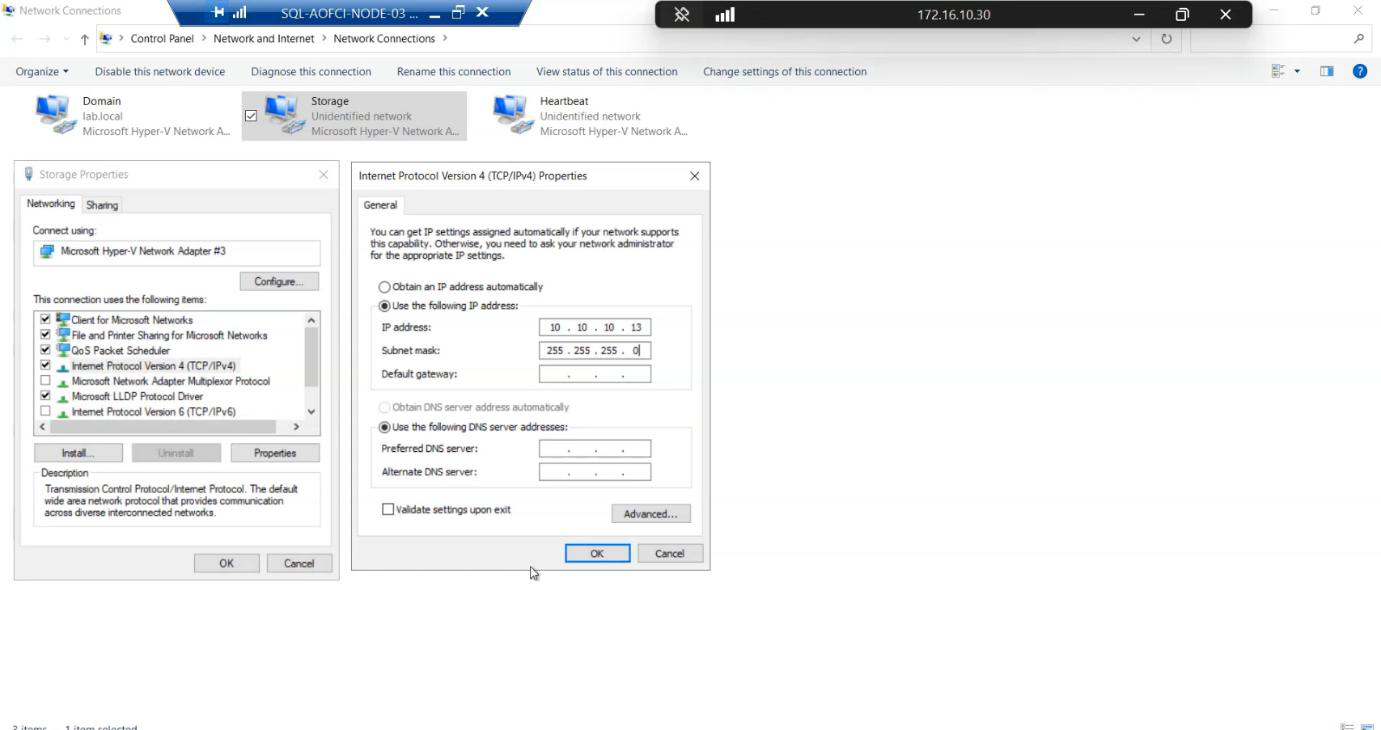
Storage, IP 10.10.10.13/24, no gateway. Mirror N1/N2.Storage NIC: Storage, 10.10.10.13/24, no gateway. Mirror N1/N2 exactly.
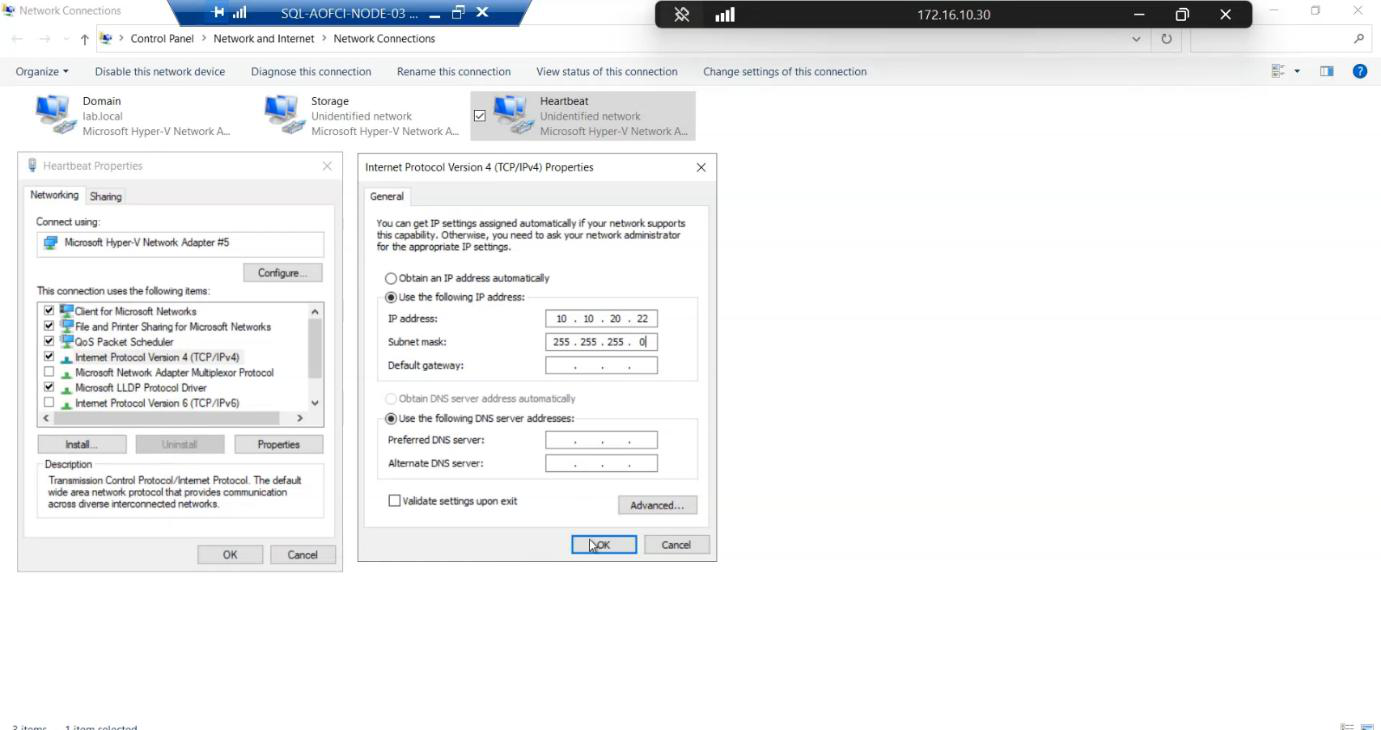
Heartbeat, IP 10.10.20.22/24, no gateway.Heartbeat NIC: Heartbeat, 10.10.20.22/24, no gateway.
Step 3 — ping matrix (do every cell)
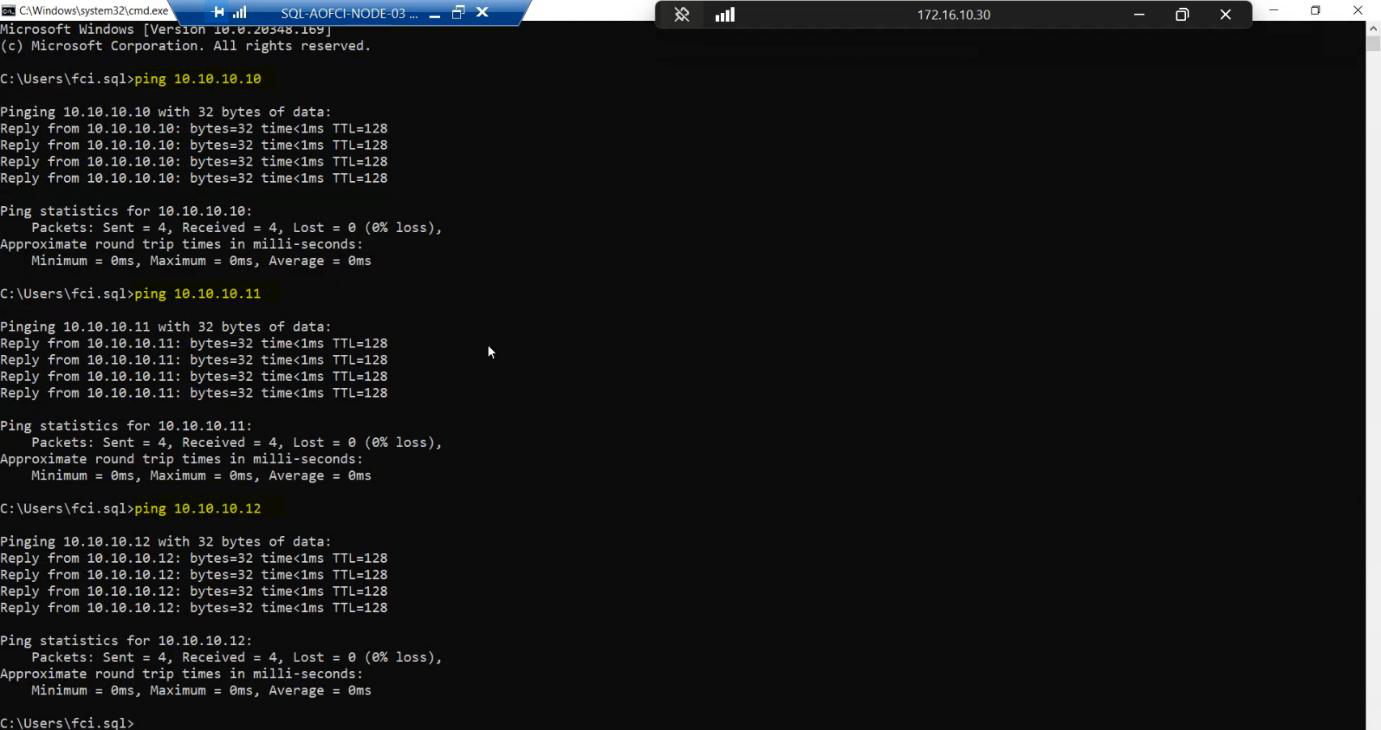
Storage subnet from Node-03:
- ping
10.10.10.10(SAN) — success - ping
10.10.10.11(Node-01) — success - ping
10.10.10.12(Node-02) — success
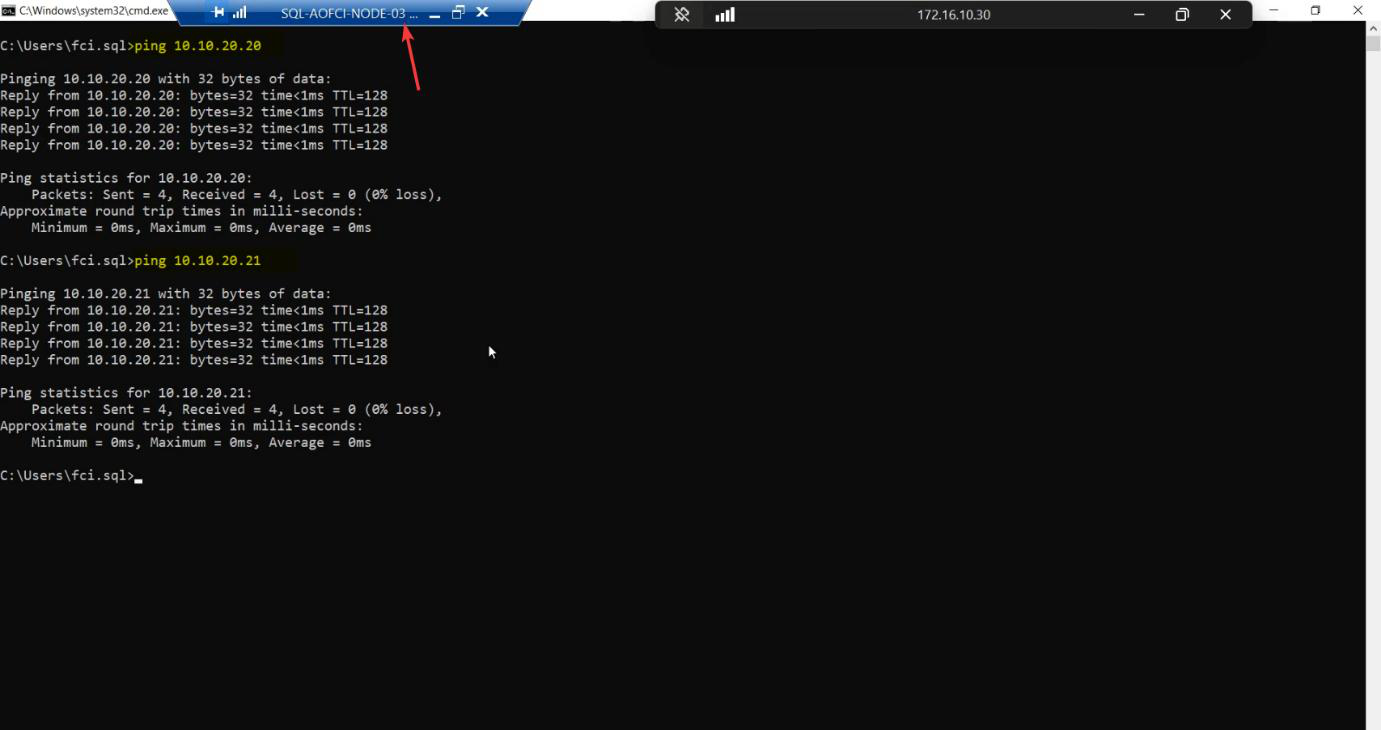
Heartbeat subnet:
- ping
10.10.20.20(Node-01) — success - ping
10.10.20.21(Node-02) — success
Any failure here = STOP. Cluster validation will refuse to add Node-03 with broken networking.
Step 4 — add Node-03 to the SAN ACL
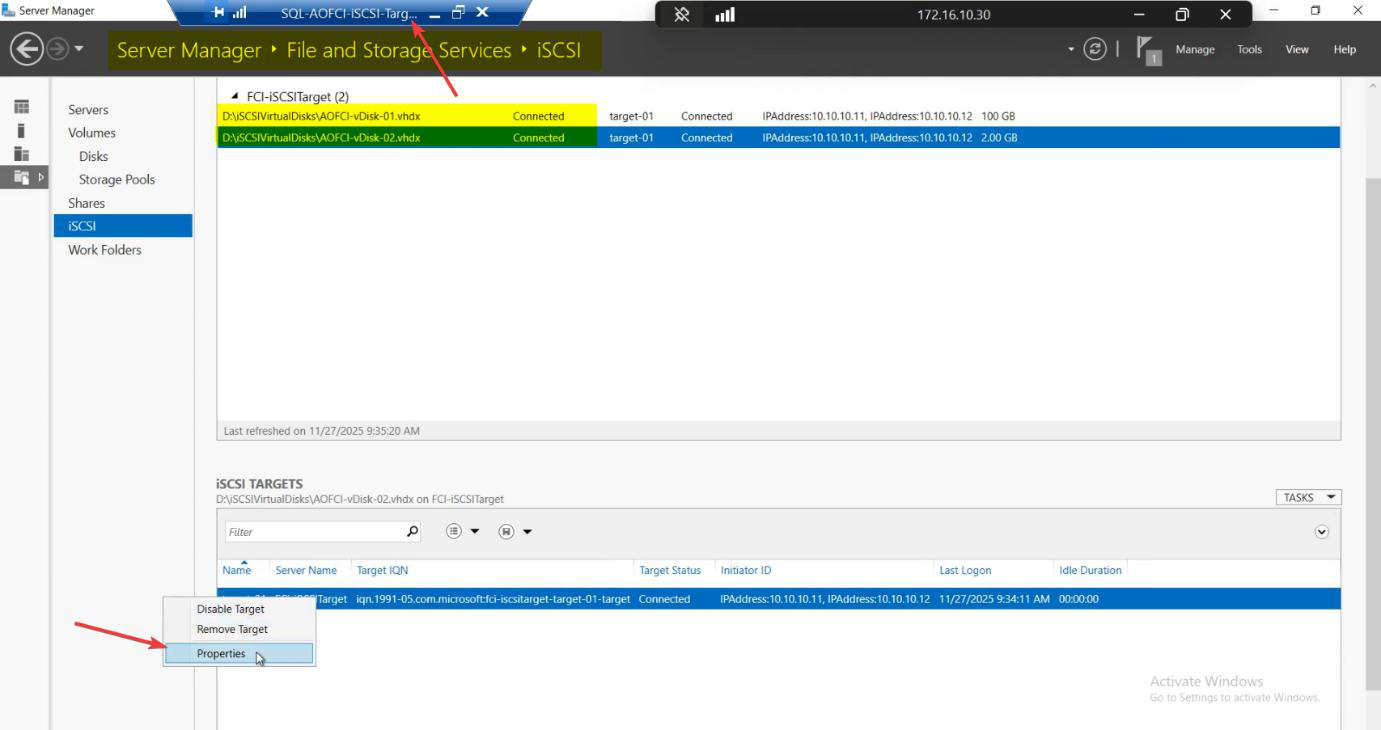
Switch to the iSCSI-Target VM. FSS > iSCSI > right-click Target-01 > Properties > Initiators tab.
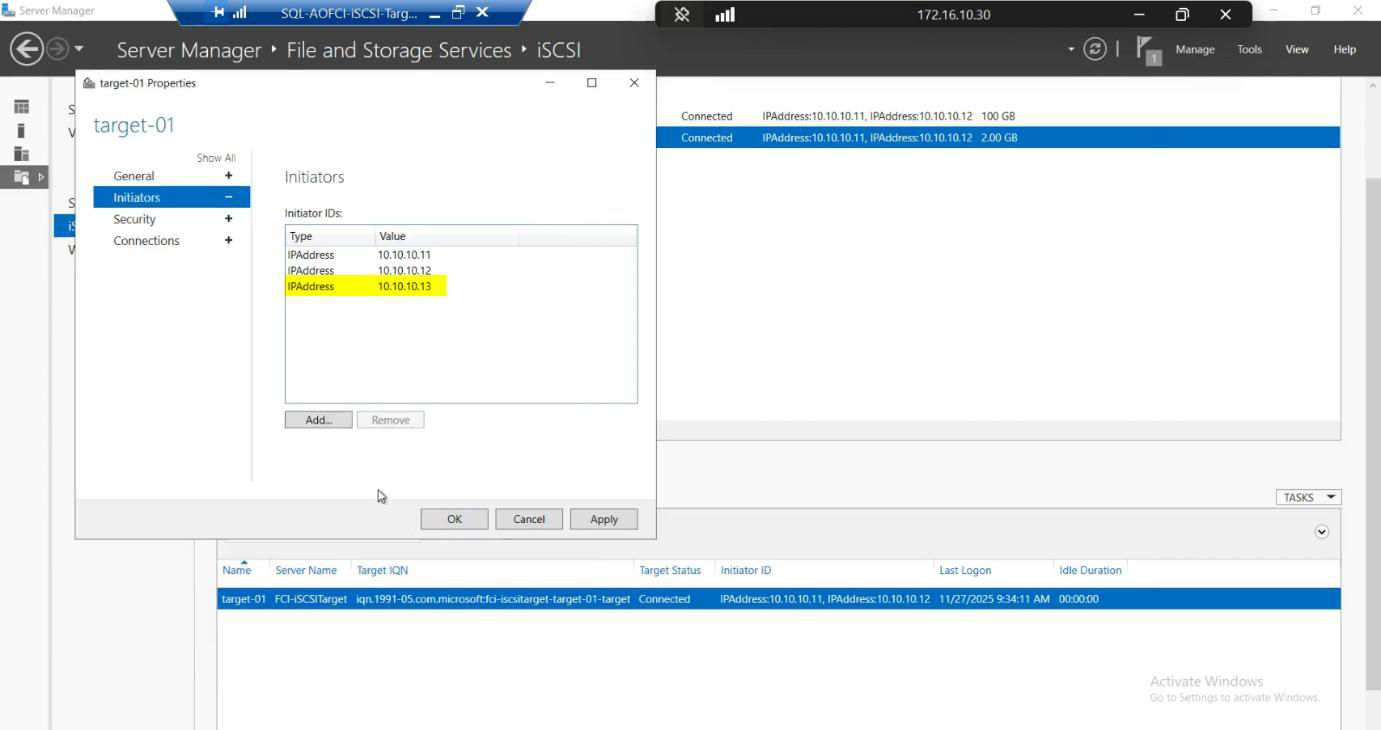
10.10.10.13 (Node-03 storage IP). Now N3 is in the SAN ACL alongside N1, N2.Add > IP Address > 10.10.10.13. Node-03 is now whitelisted on the SAN alongside Node-01 and Node-02.
Step 5 — configure iSCSI Initiator on Node-03
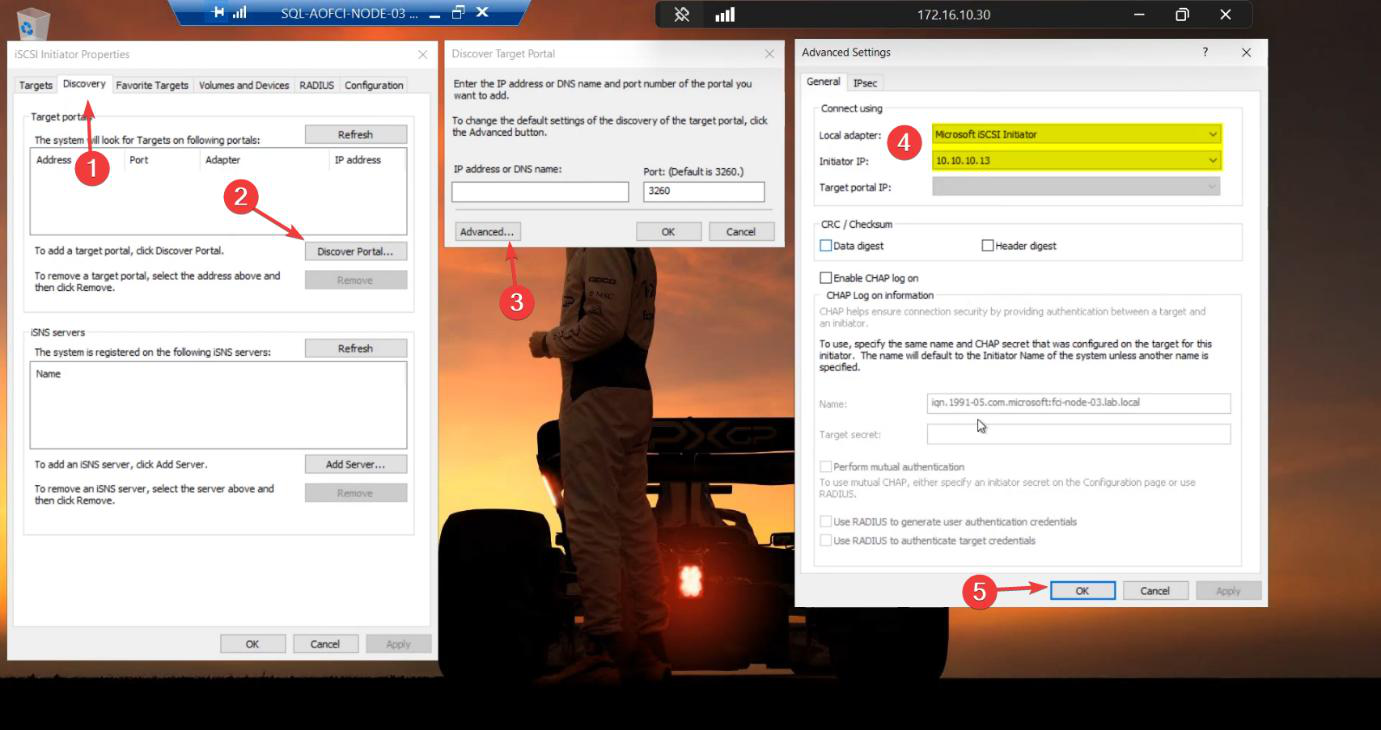
10.10.10.13. Same pattern as N1/N2 in Part 4.Same pattern as Part 4 for Node-01/02. iSCSI Initiator > Discovery > Discover Portal > Advanced. Initiator IP: 10.10.10.13.

10.10.10.10. Same SAN.Target IP: 10.10.10.10. Same SAN.

Targets tab > Connect. Tick Favorite Targets for auto-reconnect.
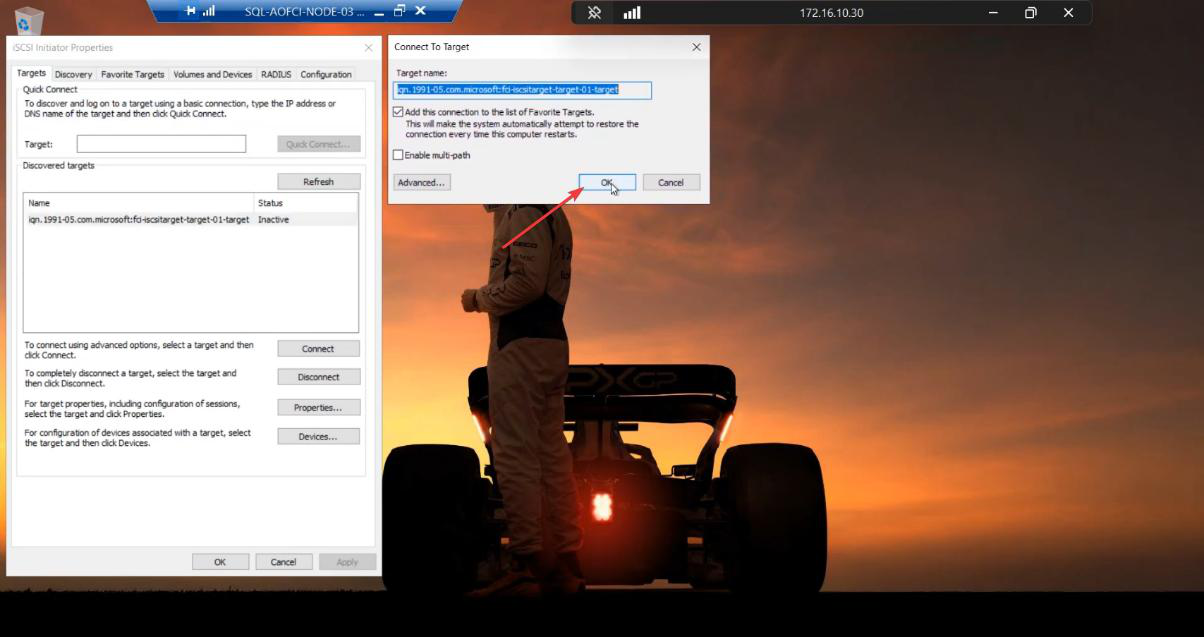
Connected. Node-03 sees the same shared LUNs that N1/N2 see.

Final initiator status: Active on Node-03.
Step 6 — install Failover Clustering feature
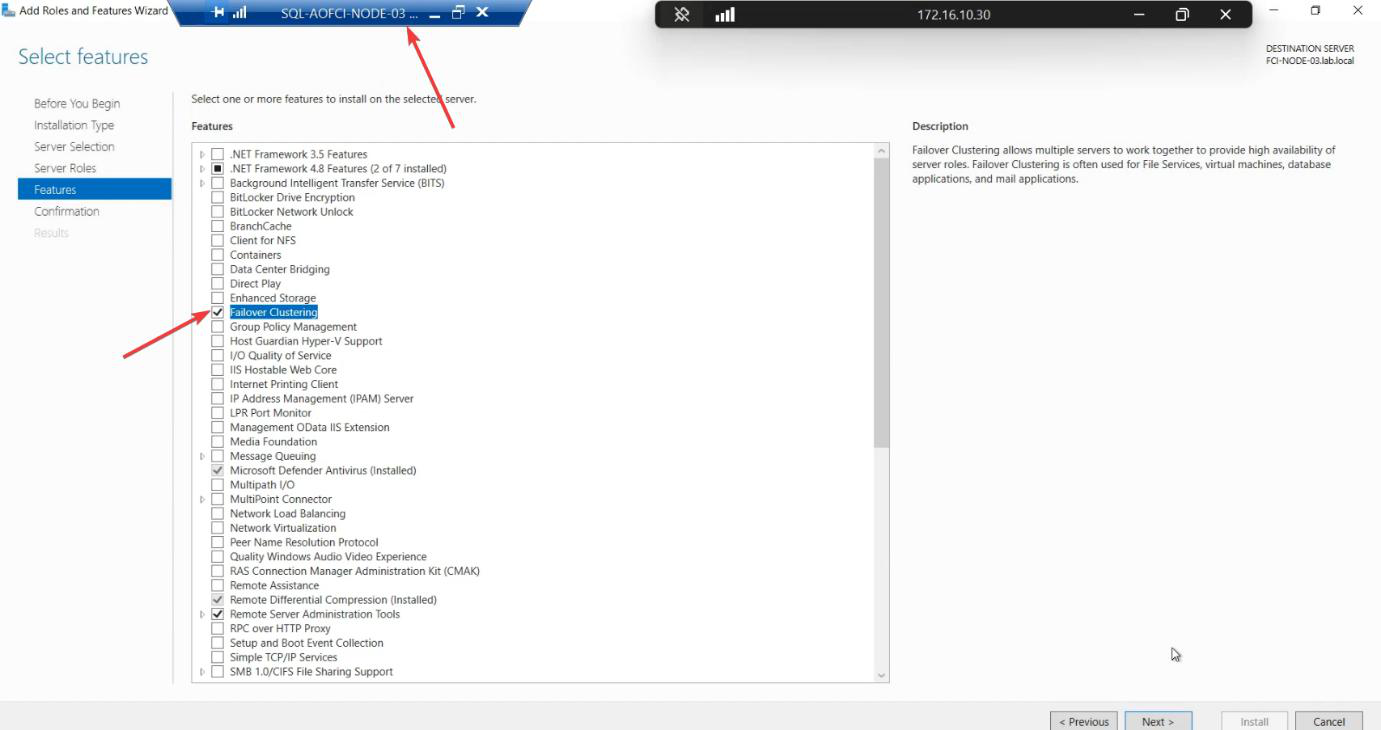
Server Manager > Add Roles and Features > Features > Failover Clustering. Install. Reboot if asked.
PowerShell shortcut: Install-WindowsFeature -Name Failover-Clustering -IncludeManagementTools.
Step 7 — verify disk visibility (the safe way)
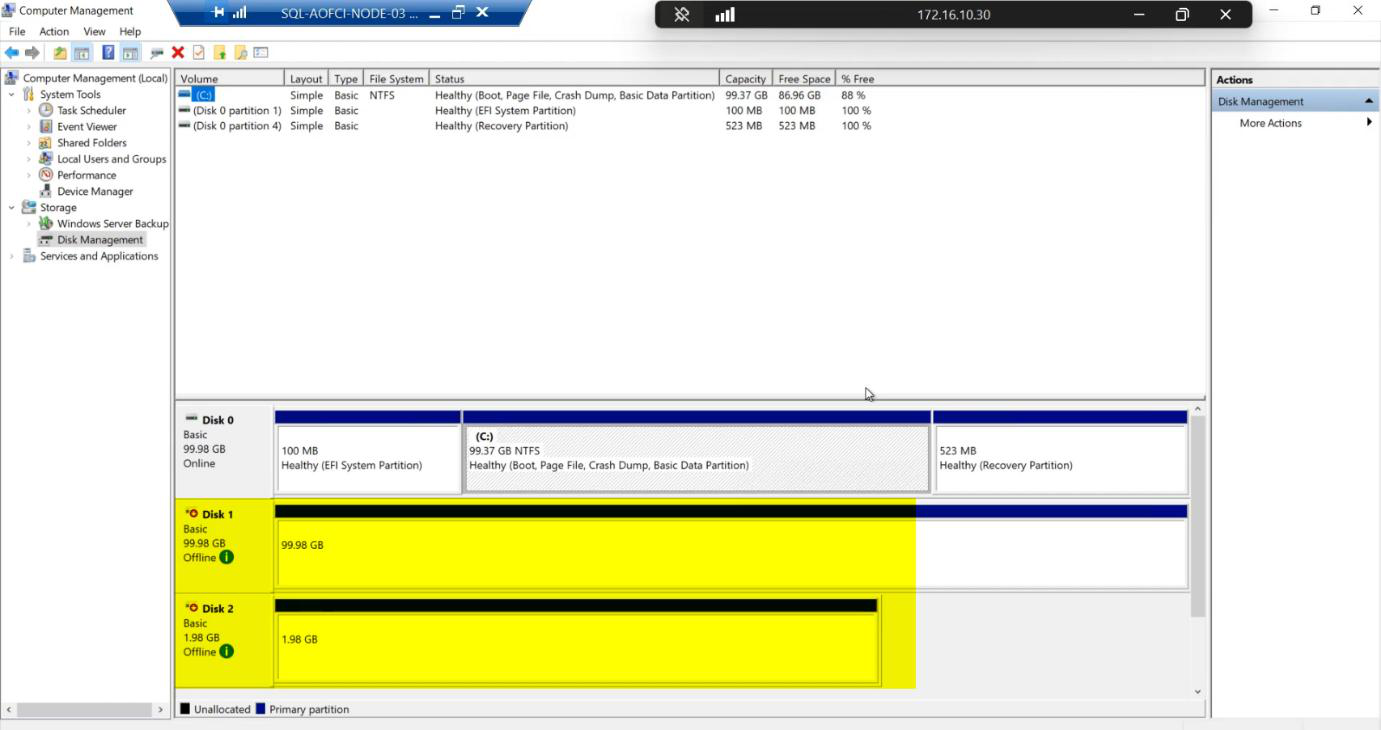
diskmgmt.msc on Node-03 shows the shared disks Offline / Reserved — correct state for a node that doesn’t currently own the cluster role.Open diskmgmt.msc on Node-03. Two shared disks visible: 100 GB SQL-Data and 2 GB Quorum. Status: Offline / Reserved.
Reserved means another initiator currently owns the disks (Node-01 or Node-02 via Cluster Service). This is the correct state.
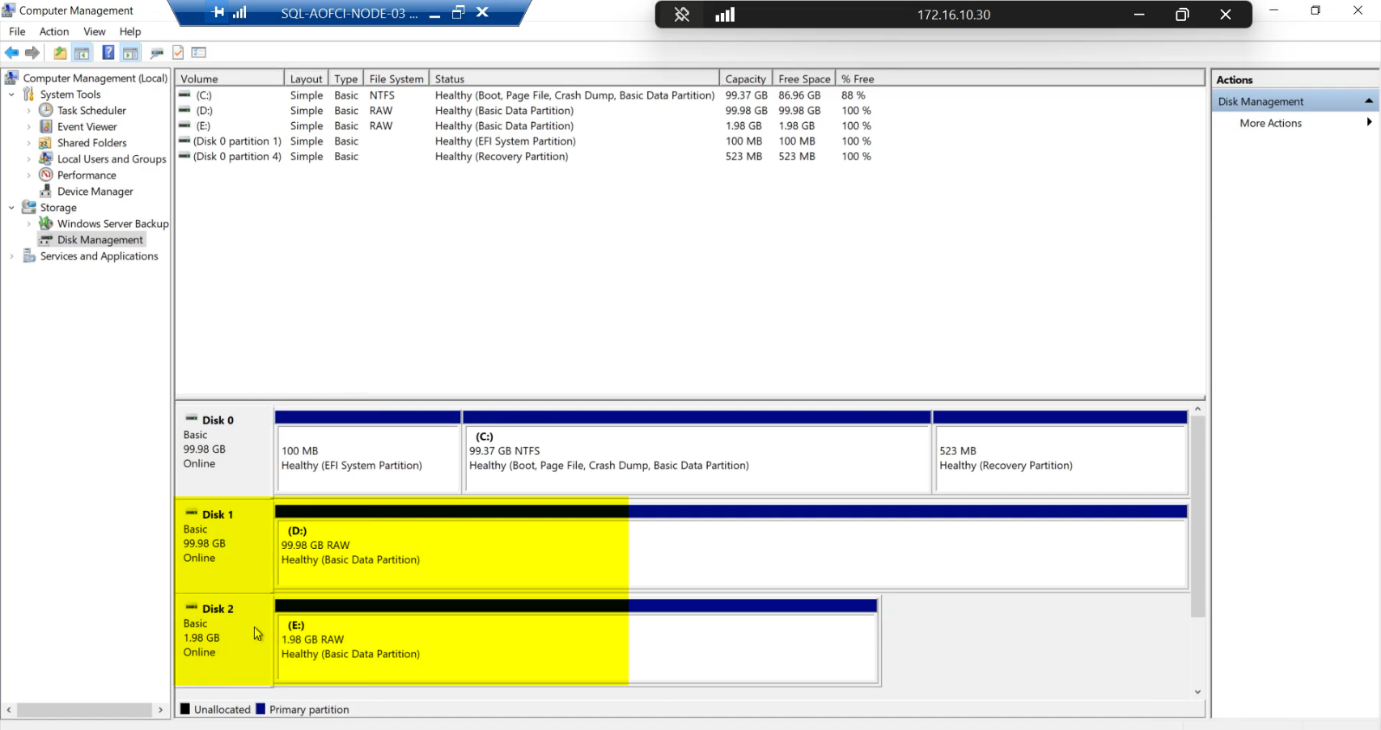
Lab demonstration only: you can right-click a disk > Online for a few seconds to verify the SAN path works end-to-end on Node-03. The disk briefly comes online (or attempts to), confirming connectivity.
NEVER do this in production while another node owns the cluster role. If you bring a shared disk online on a non-owning node while the owning node is actively writing, you can corrupt the SQL data files within seconds. The cluster service will manage ownership transitions in Part 10.
What’s ready, what isn’t
After this part:
- Node-03 exists, is domain-joined, networked.
- Storage path verified end-to-end.
- Cluster Service binaries installed.
- SAN ACL knows about Node-03.
What’s NOT ready:
- The cluster doesn’t know about Node-03 yet (no “Add Node” run).
- SQL Server isn’t installed on Node-03 yet (Add Node SQL setup happens in Part 11).
- Failover to Node-03 is impossible until cluster + SQL Add Node both done.
Things that bite people in this part
Forgetting to update SAN ACL
If you skip Step 4, Node-03’s iSCSI Initiator will discover the target but the LUN connect will fail. The error message points at “authentication failed” even though there’s no auth — the SAN is just refusing initiators it doesn’t know.
OS version mismatch
Node-03 must run the same OS version + patch level as N1/N2. Cluster validation rejects mixed-OS clusters. If N1/N2 are Windows Server 2022 with the latest CU, Node-03 needs that exact build.
Different VM specs
Asymmetric clusters work but cause subtle problems. If Node-03 has half the RAM of N1, SQL can crash if it fails over to N3 under load. Match specs.
Heartbeat NIC missed
Easy to forget the third NIC if Node-03 was provisioned from a 2-NIC template. Cluster validation catches this but easier to fix now.
Bringing disks online “just to make sure”
Production: don’t. Lab: brief Online attempt OK. The point is to verify the path, not write any data.
SQL Standard licensing
Standard caps at 2 nodes. Adding Node-03 needs Enterprise. Verify before going further — you don’t want to discover the licensing problem in Part 11 after installing SQL.
What’s next
Node-03 is ready to join the party. Part 10 runs cluster validation including N3, then officially adds Node-03 as a cluster member. See the full series at SQL Server Clustering pathway.