Systems Admin

SQL Server FCI Part 13 of 13: Scaling Down & Advanced Cluster Management

The grand finale. Twelve parts of building — this part is about tearing down gracefully when nodes need to be replaced or decommissioned. Plus advanced cluster moves: shuffling individual disks, relocating Core Cluster Resources. Cleanup is as important as setup — and the order of operations matters.

The correct order: SQL first, Windows second

Removing a node from a SQL FCI cluster is a two-step process:

  1. Phase 1: Run SQL Setup in Maintenance mode on the target node and choose Remove Node. This unregisters SQL from that node but leaves Windows clustering intact.
  2. Phase 2: Use FCM to Evict the node from the Windows Failover Cluster.

Doing it in this order is critical. If you evict from the Windows cluster first, the SQL Add Node metadata gets orphaned and you have to clean it up manually with PowerShell. If you do SQL first, both layers stay consistent.

Phase 1 — remove SQL from Node-03
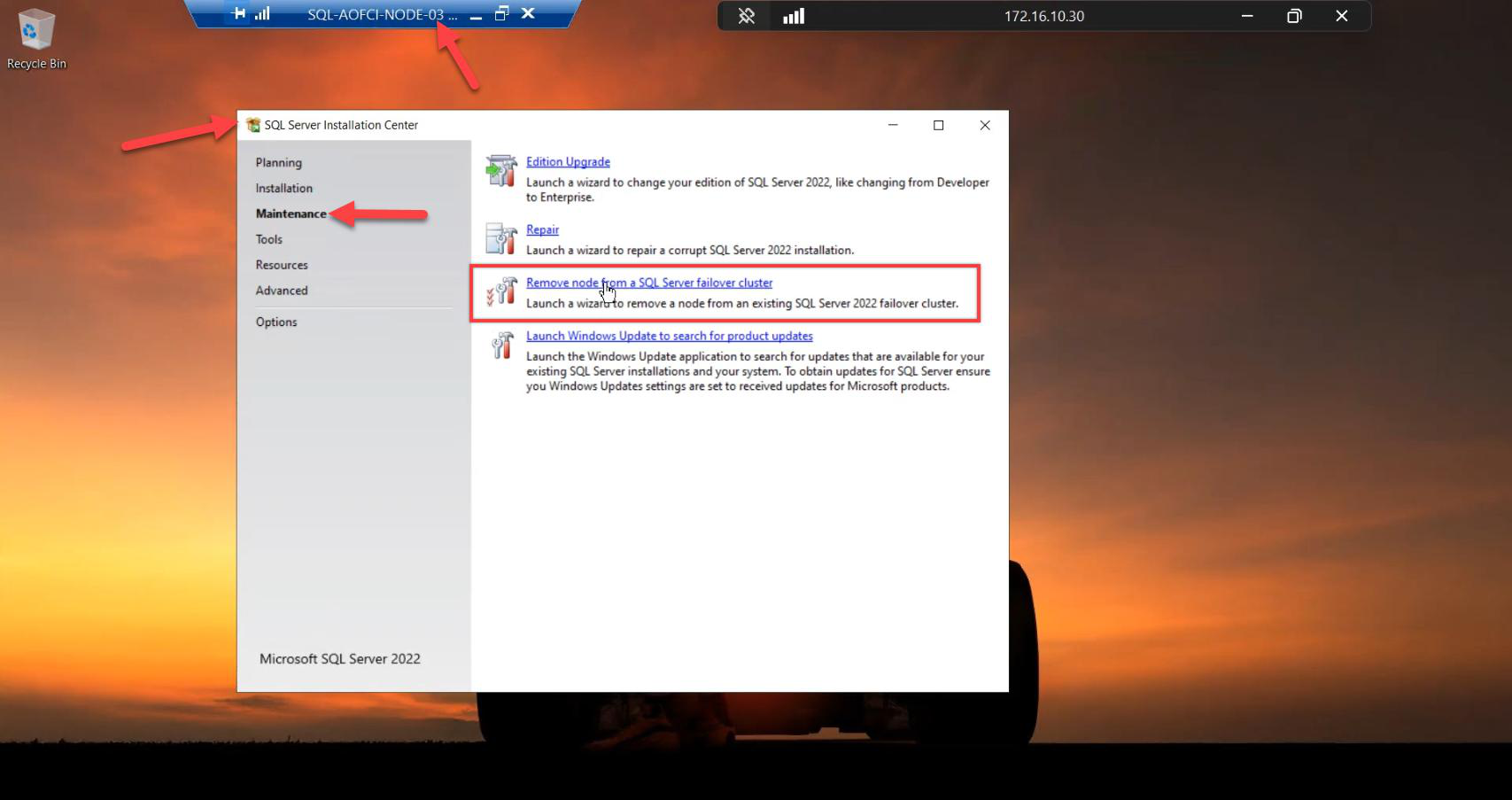
SQL Server Installation Center on Node-03 with the Maintenance tab open and Remove node from a SQL Server failover cluster link highlighted, the entry point for cleanly removing SQL from a node before evicting it from the cluster
Phase 1 step 1: SQL Server Installation Center > Maintenance tab (NOT Installation) > Remove node from a SQL Server failover cluster. SQL must be removed BEFORE the Windows cluster eviction.

Sign in to Node-03. Mount SQL Server 2022 ISO. Run setup.exe as Admin.

Go to the Maintenance tab (left nav, NOT Installation). Click Remove node from a SQL Server failover cluster.
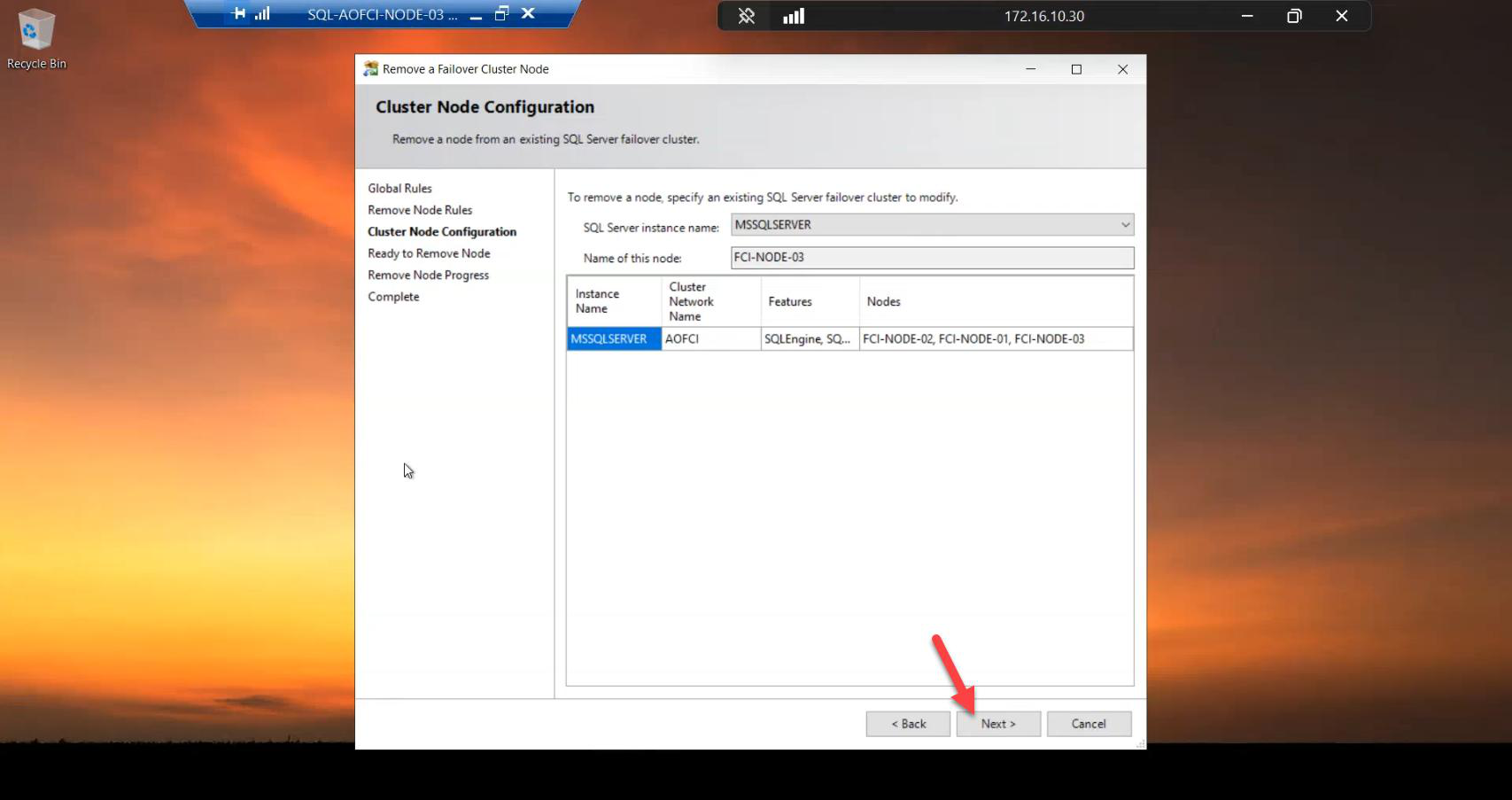
Cluster Node Configuration step of the Remove Node wizard with the wizard auto-detecting Node-03 as the target for SQL removal
Cluster Node Configuration: wizard auto-detects Node-03 as the target. Confirm and Next.

Cluster Node Configuration: wizard auto-detects Node-03. Confirm.
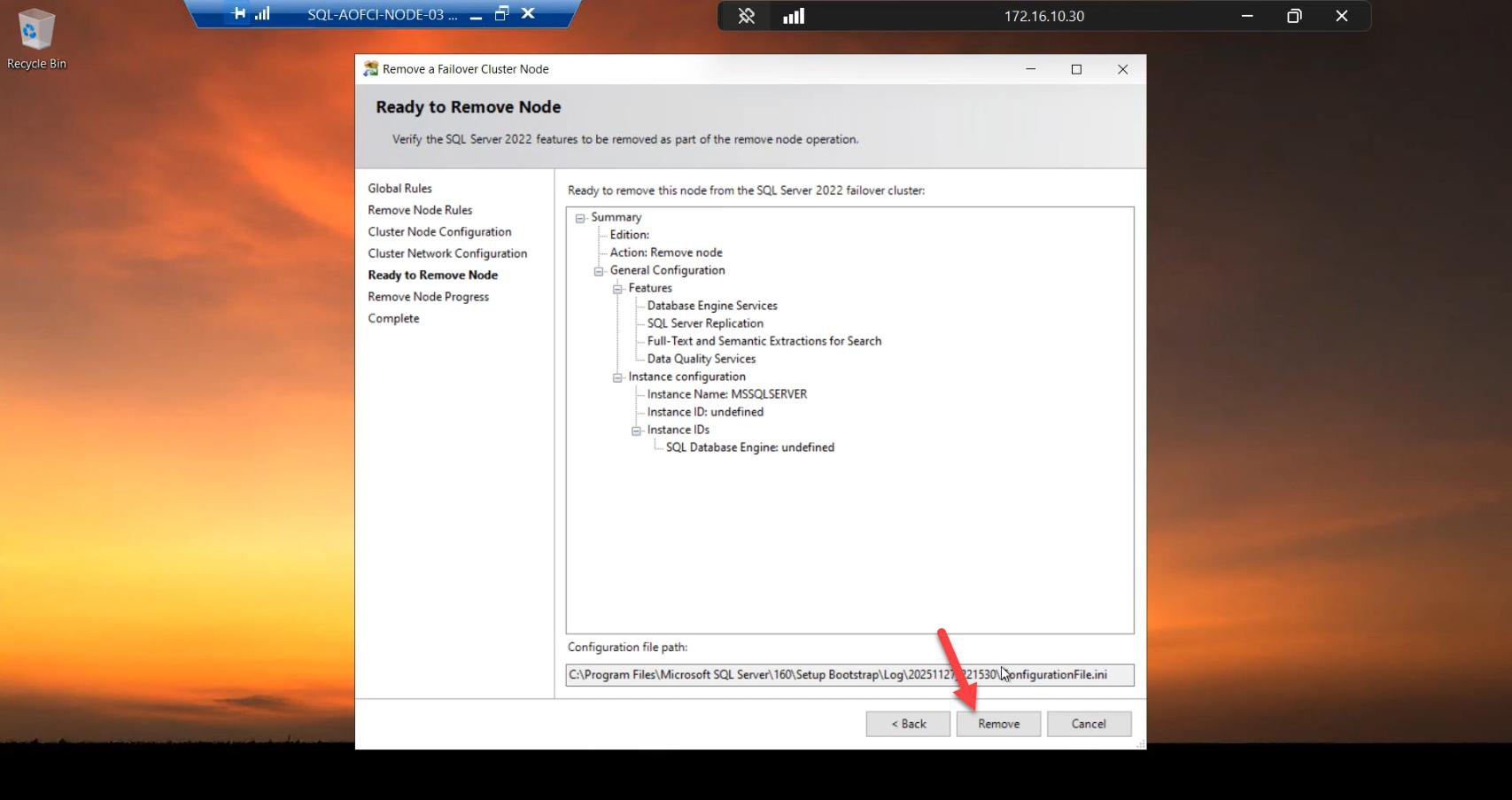
Remove Node operation in progress on Node-03 showing the SQL Server binaries being unregistered from the cluster instance
Click Remove. Pretty straightforward — the wizard unregisters SQL from this node.

Click Remove. SQL gets cleanly unregistered from this node.
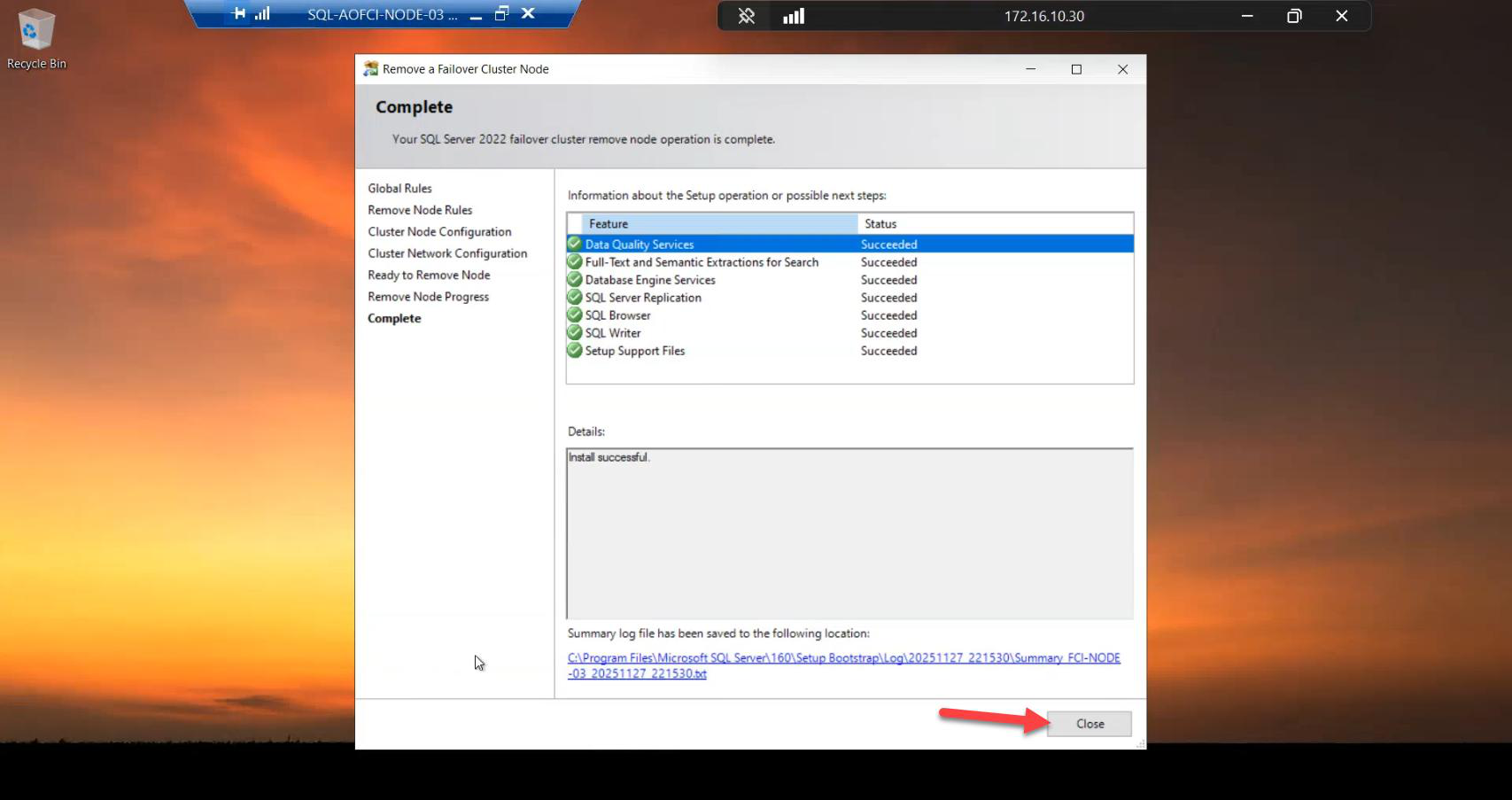
Remove Node completion dialog confirming Node-03 has been removed from the SQL FCI Possible Owners list (but Node-03 is still in the Windows cluster at this point)
Done. Node-03 still has the Windows OS clustered, but no longer participates in the SQL FCI. You could now reinstall SQL on it for a different purpose, or proceed to evict.

Done. Node-03 still has SQL binaries on disk, still has Windows clustering, still has iSCSI access — but it’s no longer in the SQL FCI Possible Owners list. SQL won’t failover to it.

If you wanted to keep Node-03 in the cluster (e.g., for a different clustered role), stop here. If you’re fully decommissioning, continue.

Phase 2 — evict Node-03 from the Windows cluster
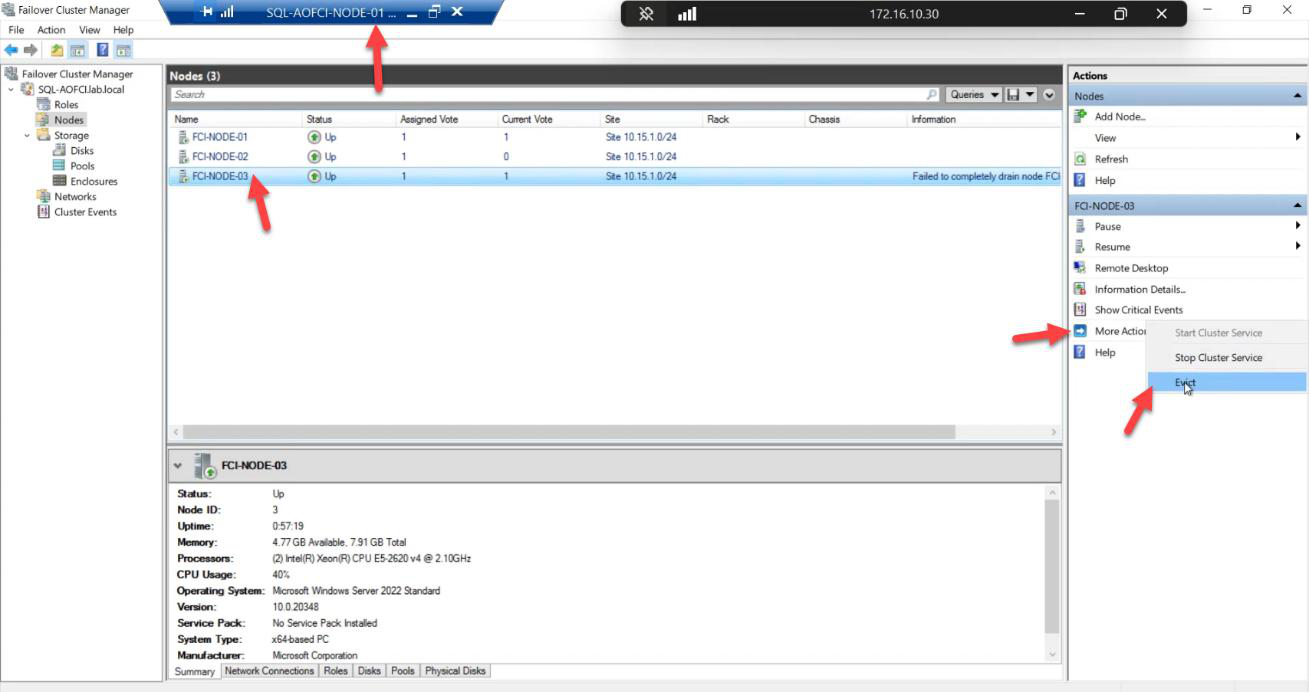
Failover Cluster Manager Nodes pane on Node-01 with right-click context menu on Node-03 showing More Actions > Evict, the cluster-level remove operation that follows SQL removal” /><figcaption>Phase 2 step 1: switch to Node-01 (or Node-02). FCM > Nodes > right-click <strong>Node-03</strong> > <strong>More Actions</strong> > <strong>Evict</strong>.</figcaption></figure>
<p>Switch to Node-01 (or Node-02). FCM > Nodes > right-click <strong>Node-03</strong> > <strong>More Actions</strong> > <strong>Evict</strong>.</p>
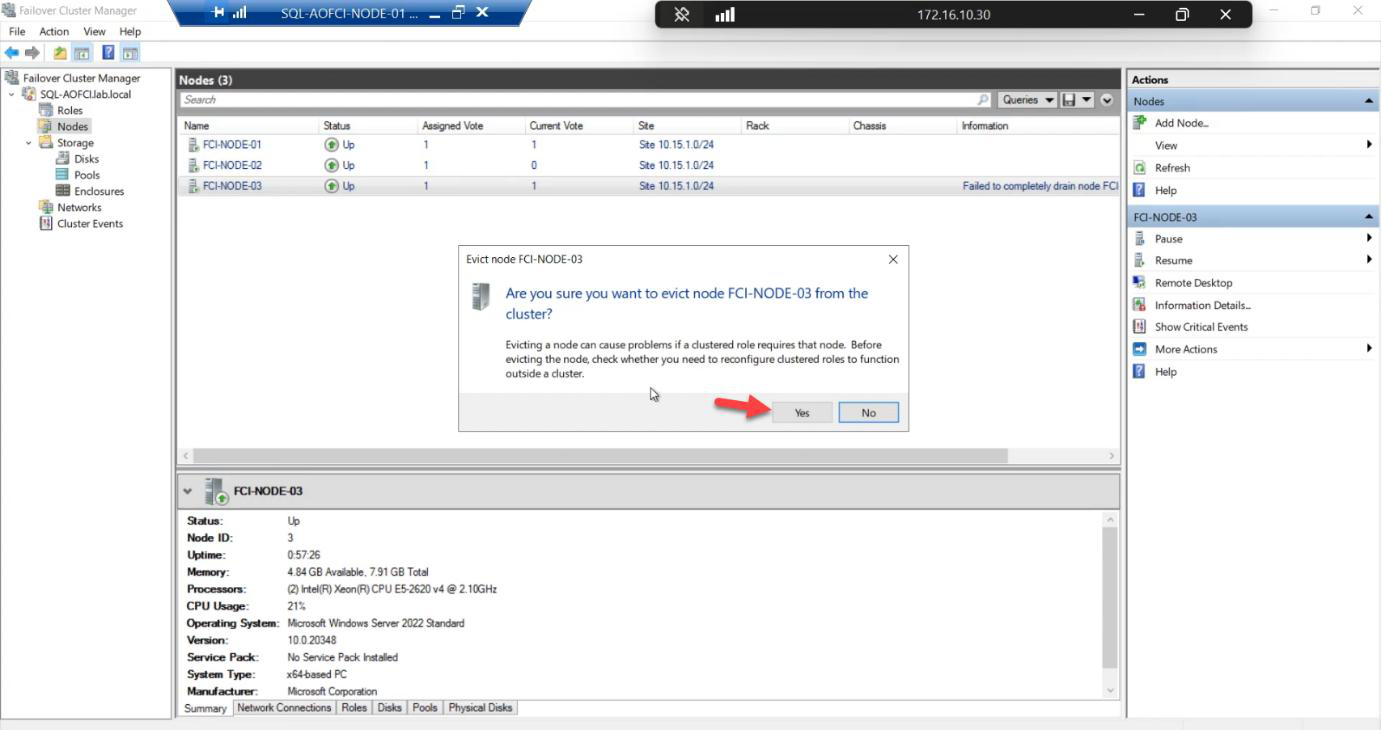
<figure class=Evict confirmation dialog asking to confirm the eviction of Node-03 from the Windows Failover Cluster
Evict confirmation. Yes.

Confirmation: Yes.

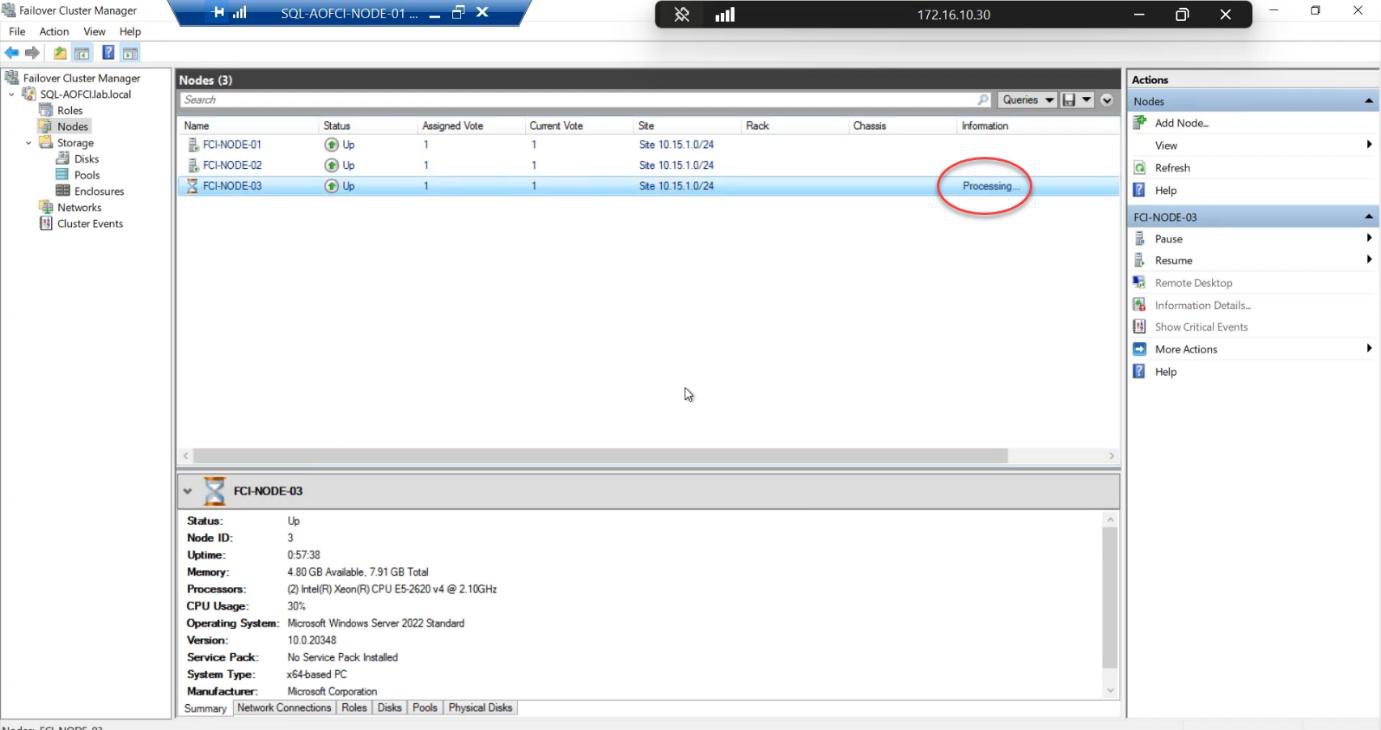
FCM showing Node-03 status briefly Processing during the evict operation, the cluster service removing all references to the node
Status briefly Processing. The cluster service removes all references to Node-03.

Status briefly Processing. The cluster service removes all references to Node-03.

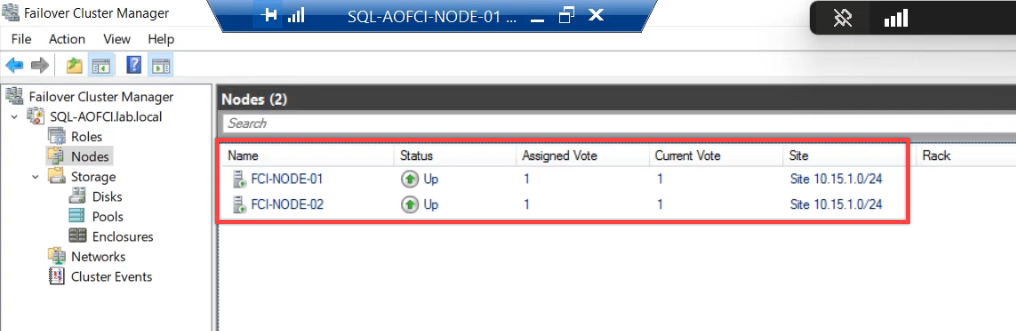
FCM Nodes pane after eviction showing only Node-01 and Node-02 remaining, Node-03 has been completely removed from the Windows cluster
Done. Only Node-01 and Node-02 remain in the cluster. Node-03 is now a regular standalone server (still domain-joined, still has the iSCSI session open, but no cluster membership).

Done. Only Node-01 and Node-02 remain. Node-03 is now a regular domain-joined server with no cluster membership. You can shut it down, reinstall it, repurpose it — whatever the decommission plan requires.

Phase 3 — reconfigure the quorum

Cluster shrunk 3 → 2 nodes. The vote calculation has changed. With 3 nodes + witness = 4 votes, you tolerated 2 failures. With 2 nodes + witness = 3 votes, you tolerate 1 failure. The witness disk is essential again.

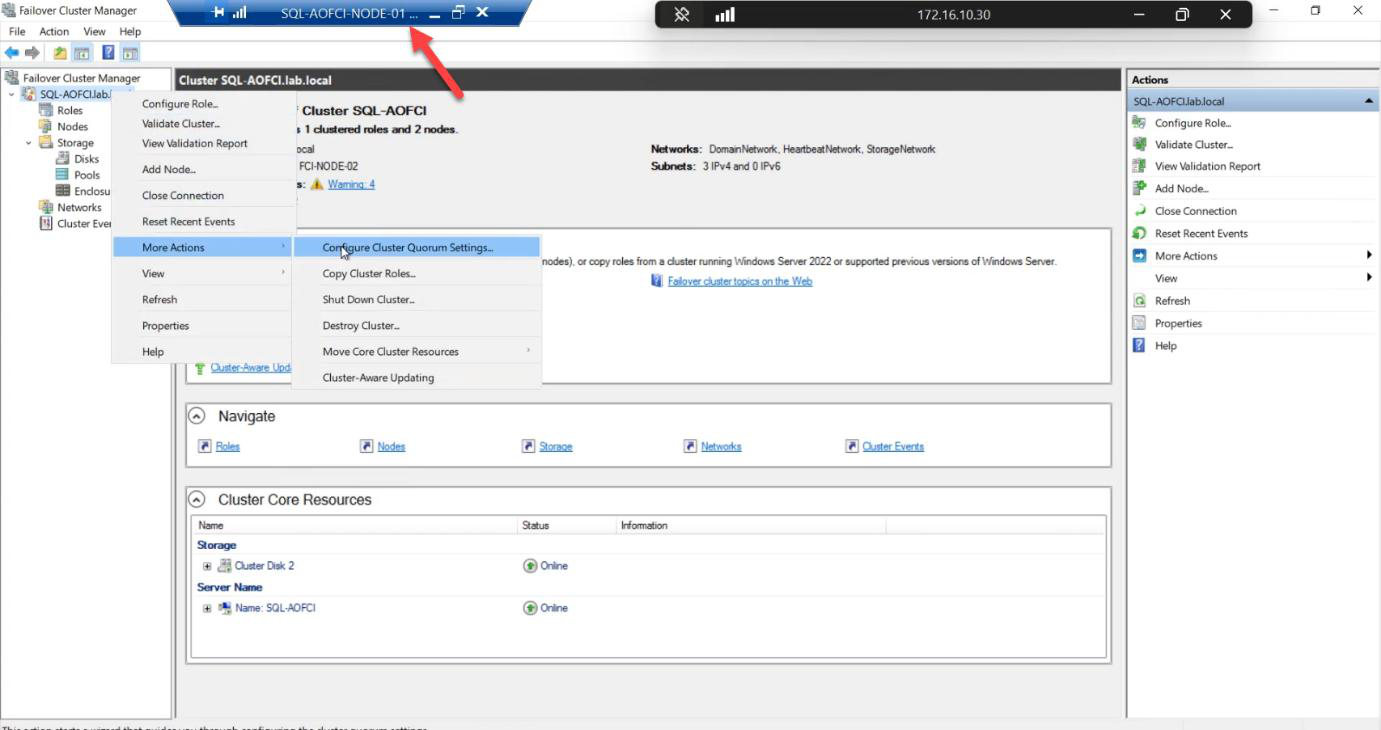
FCM with the cluster name right-clicked showing More Actions > Configure Cluster Quorum Settings menu item, the entry to reconfigure quorum after node count change” /><figcaption>Phase 3: reconfigure quorum. With node count changed (3 → 2), the cluster vote calculation needs reconsidering. Right-click cluster name > More Actions > <strong>Configure Cluster Quorum Settings</strong>.</figcaption></figure>
<p>FCM > right-click cluster name > More Actions > <strong>Configure Cluster Quorum Settings</strong>.</p>
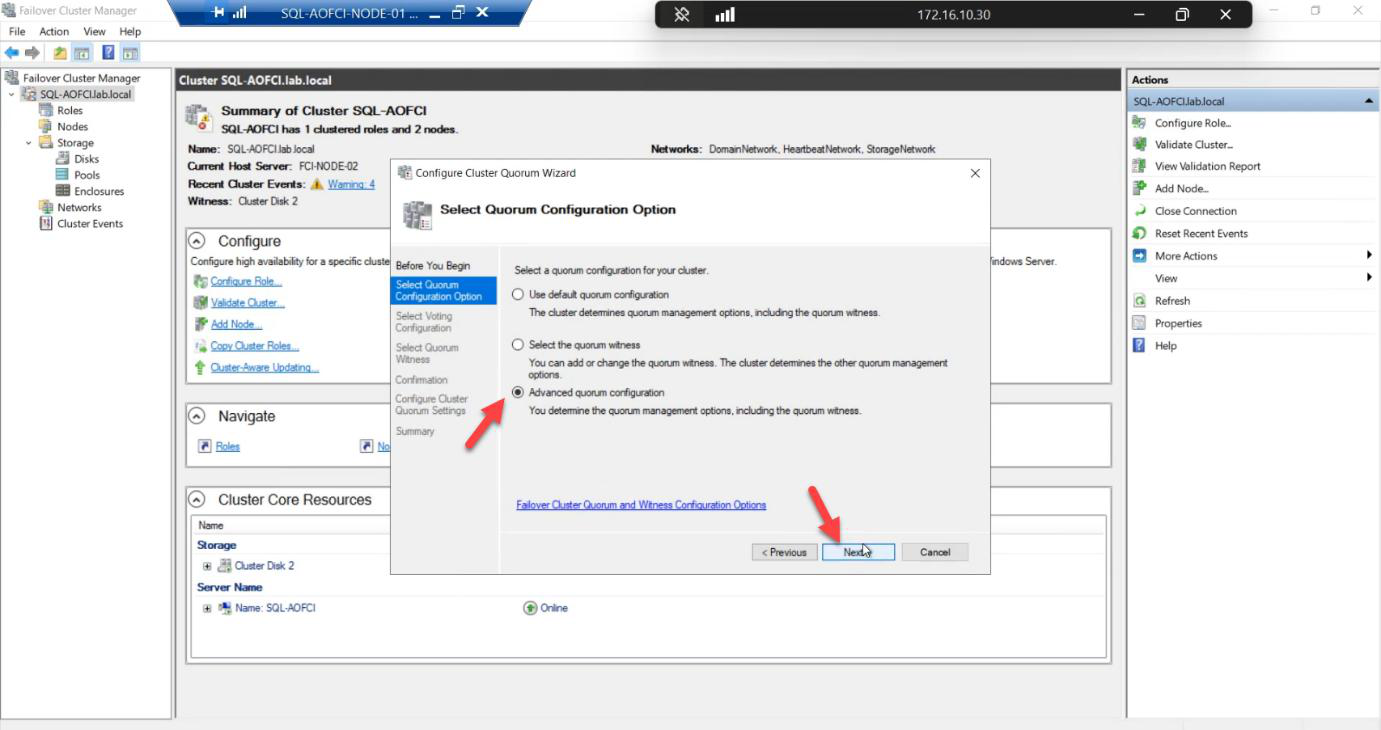
<figure class=Configure Cluster Quorum Wizard with Advanced quorum configuration selected to allow explicit control over voting and witness
Advanced quorum configuration. Gives explicit control vs the default auto-pick.

Advanced quorum configuration. Gives explicit control.

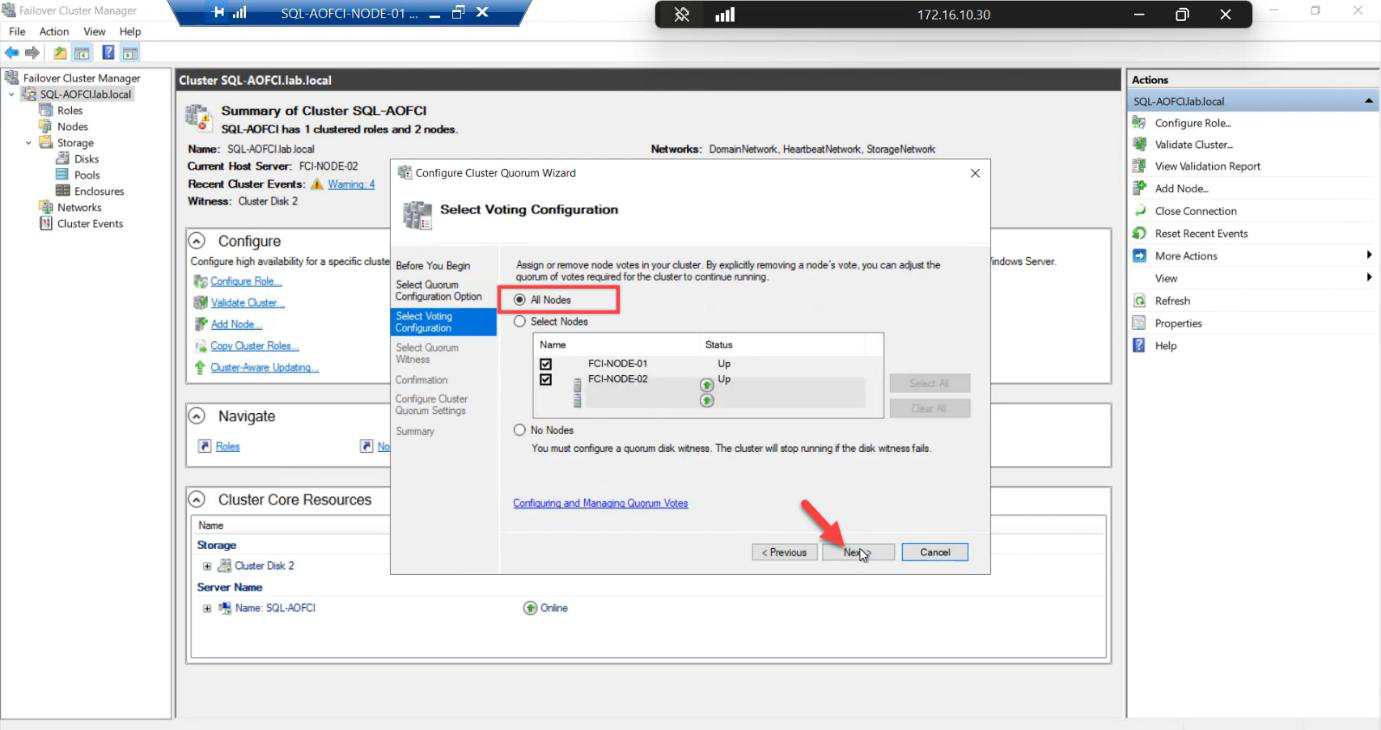
Select Voting Configuration step with Node-01 and Node-02 both ticked as voting members, the explicit voter list for the now-2-node cluster
Voting Nodes: tick Node-01 and Node-02 (both should vote in a 2-node cluster).

Voting Nodes: tick Node-01 and Node-02. Both vote.

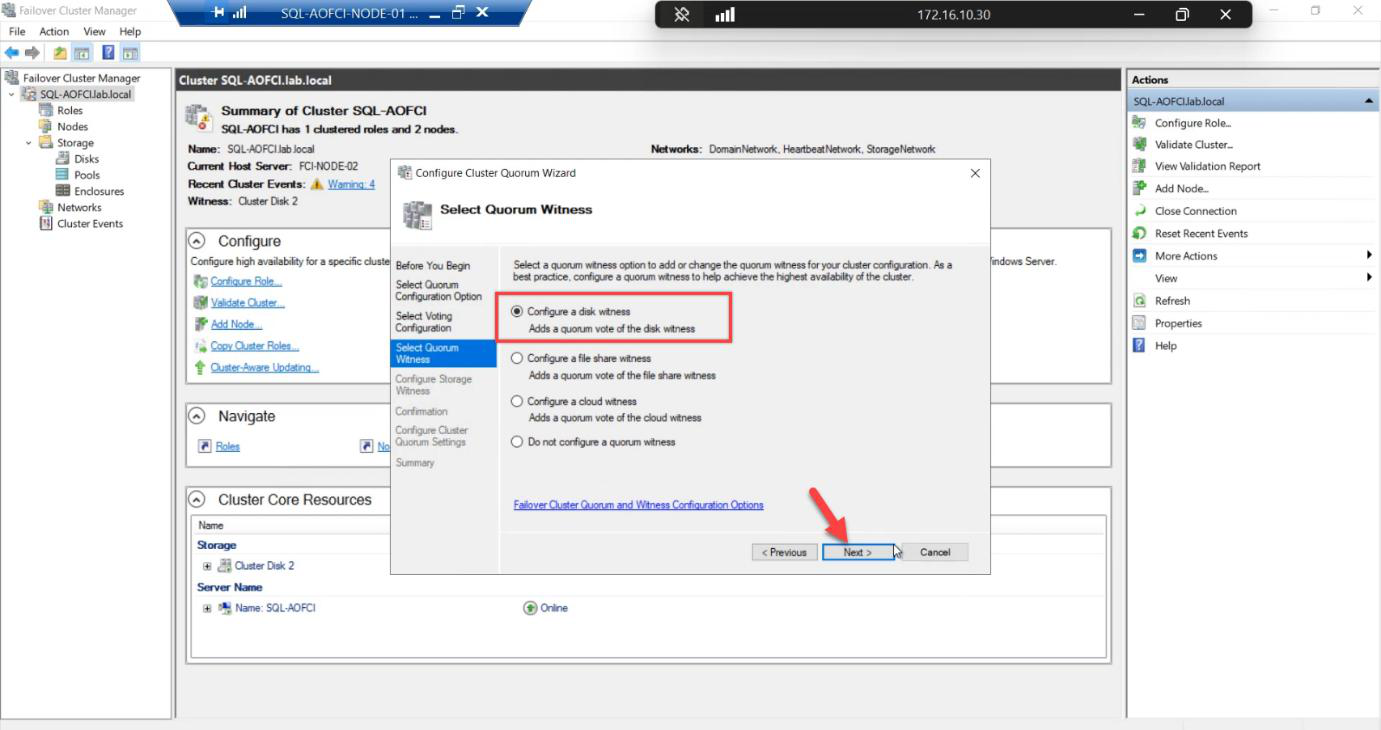
Quorum Witness step with Configure a disk witness selected since the cluster is back to even node count and needs the disk witness as tie-breaker
Witness: Disk witness. Back to even node count = need a tie-breaker.

Witness: Disk witness. Back to even node count, need the tie-breaker.

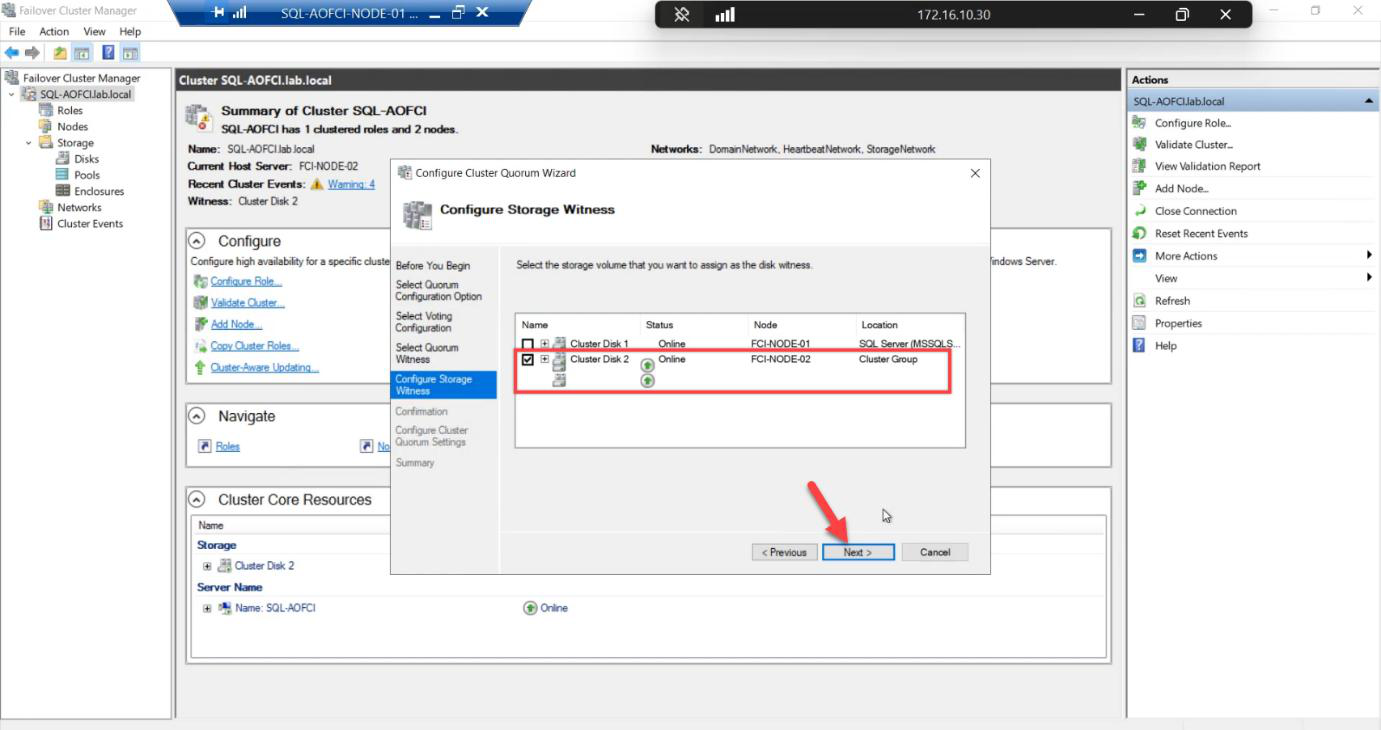
Disk witness selection step with the 2 GB Quorum disk explicitly checked, ensuring the witness role binds to the correct LUN
Pick the 2 GB Quorum disk explicitly. Don’t let the wizard pick the wrong one.

Pick the 2 GB Quorum disk explicitly.

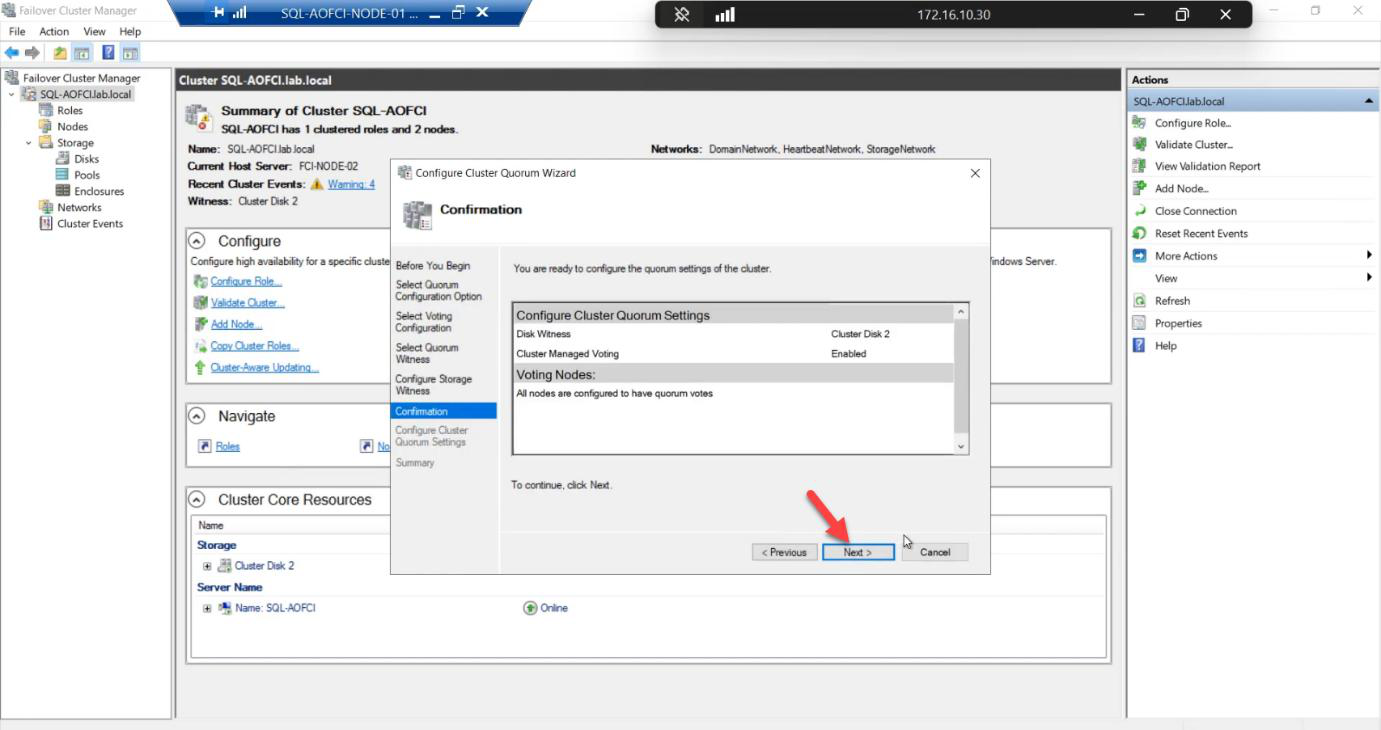
Confirmation step reviewing the new quorum configuration: 2 voting nodes + disk witness
Confirmation. 2 voting nodes + disk witness = 3 votes total = tolerates 1 failure (any node OR the witness).

Confirmation: 2 votes + 1 witness = 3 votes total. Tolerates 1 failure of any kind.

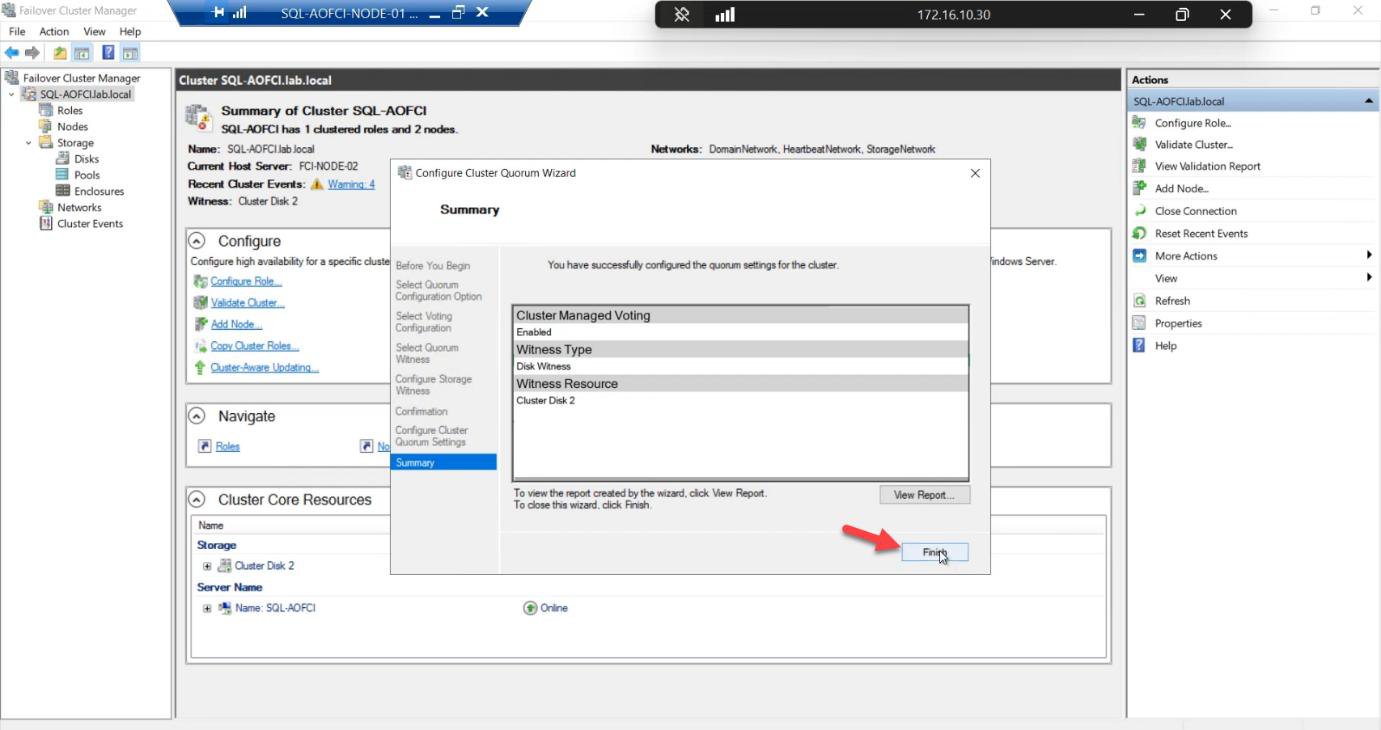
Quorum reconfiguration completion confirming the cluster now operates with 2 nodes and disk witness, the healthy state for a 2-node FCI
Done. Quorum healthy for the new 2-node configuration.

Done. Quorum healthy for the 2-node configuration.

Phase 4 — advanced: move individual disks

So far we’ve always failed over the entire SQL role (which moves all dependent disks together). But sometimes you need to move just one disk — e.g., for storage maintenance, or to test a path on a specific node.

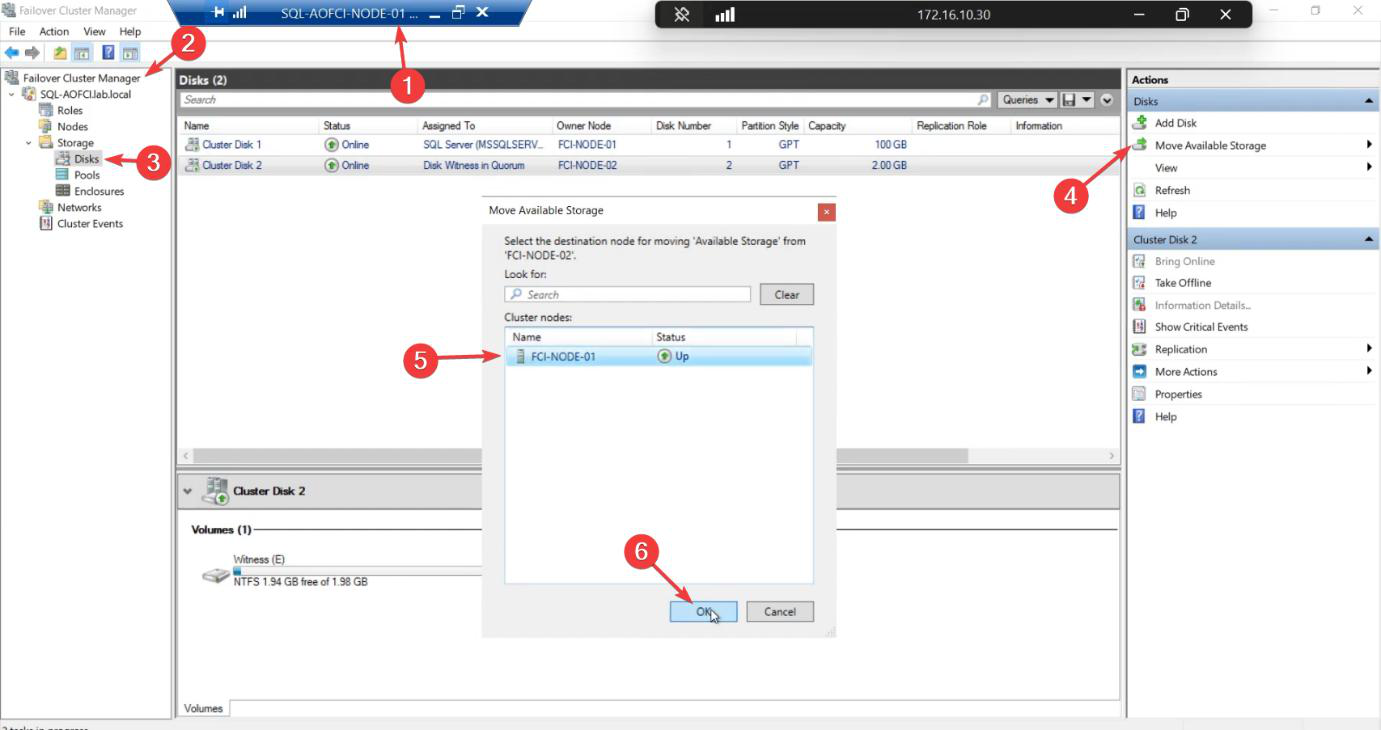
FCM Storage > Disks pane with right-click on Cluster Disk 2 showing Move Available Storage > Select Node menu item, the entry for moving a single disk independently of SQL” /><figcaption>Phase 4: move a single disk independently. FCM > Storage > Disks > right-click a disk > <strong>Move Available Storage</strong> > Select Node. Useful for individual storage maintenance without touching the SQL role.</figcaption></figure>
<p>FCM > Storage > Disks > right-click a disk > <strong>Move Available Storage</strong> > Select Node.</p>
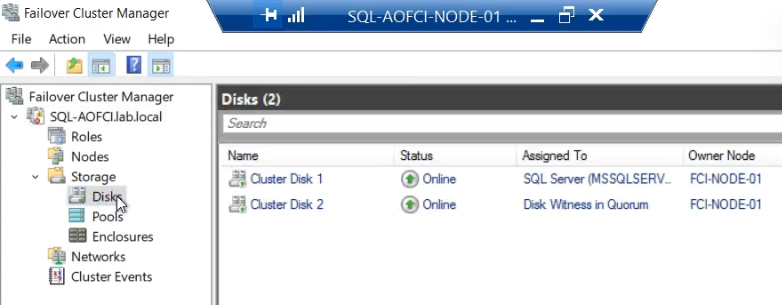
<figure class=Disk move completion with Cluster Disk 2 now owned by Node-01 (or whichever target was selected), demonstrating granular disk-level control without touching the SQL role
Disk moved. Owner Node updated. SQL stays on its current node throughout.

Disk ownership moves. SQL role stays where it is — doesn’t failover. Useful when you need to test storage paths or when SQL doesn’t depend on the disk you’re moving.

Phase 5 — advanced: move Core Cluster Resources

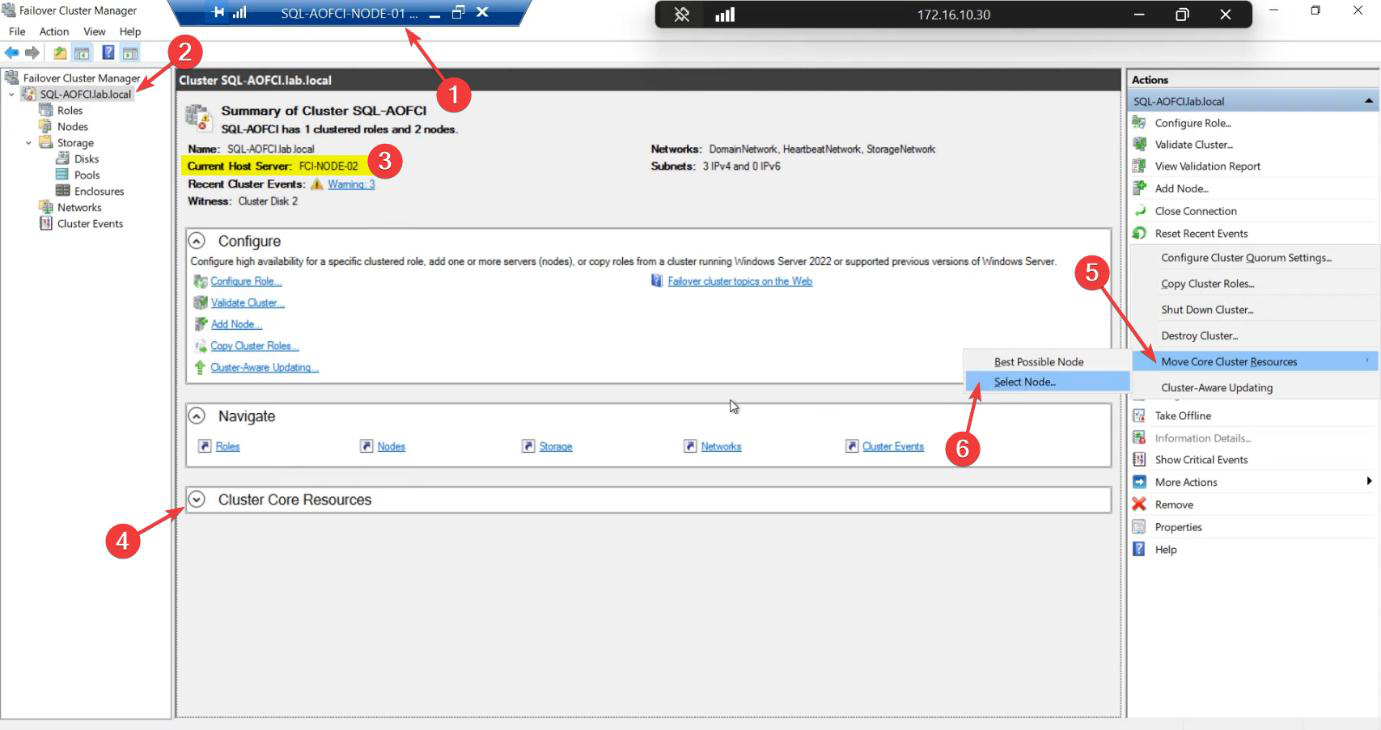
The cluster itself has a name and an IP — the CNO from Part 5 (ITN-CL-01, 10.15.1.45). These are separate from the SQL role’s name and IP. The CNO has its own owner.

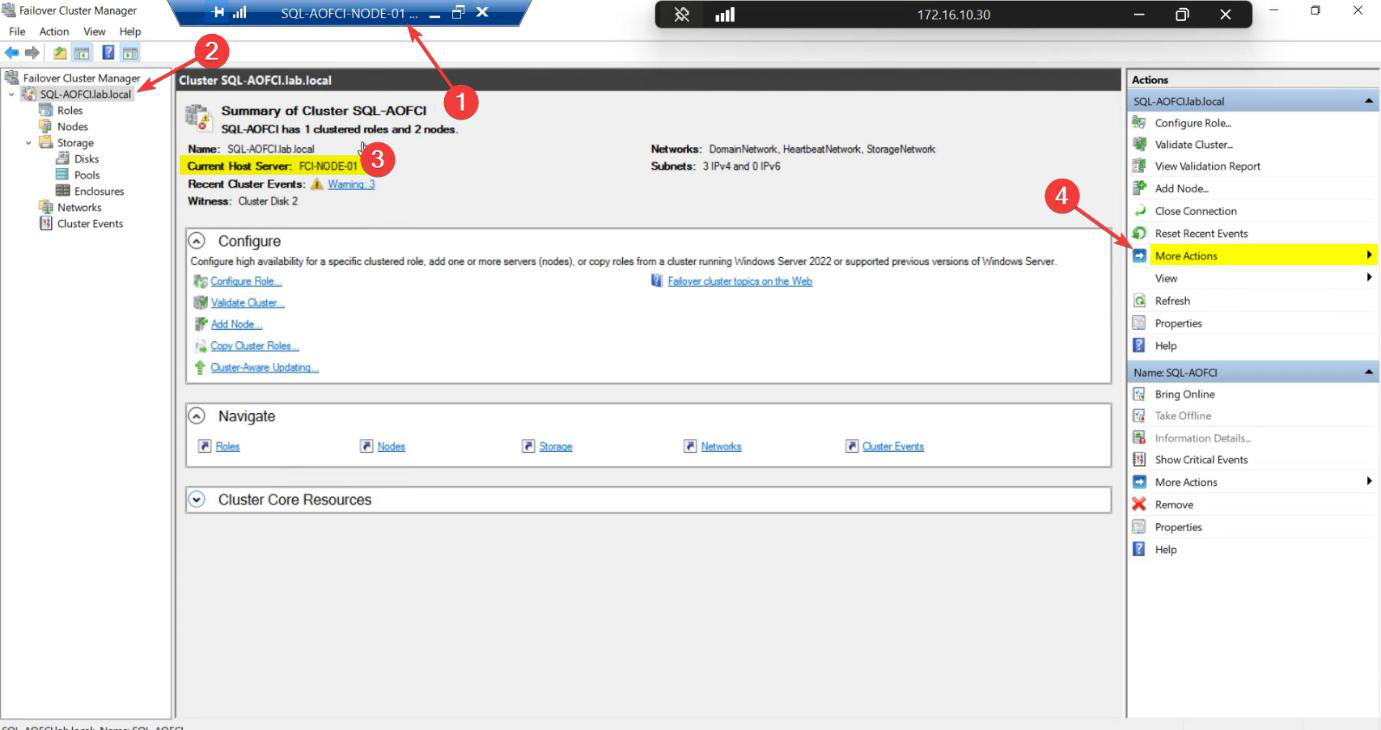
FCM with the cluster name selected showing the Cluster Core Resources panel with Current Host Server visible, the IP and Network Name resources of the cluster itself (separate from the SQL role)
Phase 5: Cluster Core Resources. The cluster name + IP have their own owner (separate from the SQL role’s owner). FCM > cluster name > check Current Host Server in the centre pane.

FCM > click cluster name (top of tree) > centre pane > Cluster Core Resources. Note Current Host Server.

Move Core Cluster Resources operation showing the Move > Select Node submenu, the rare-but-occasionally-needed operation to relocate the cluster CNO ownership independently of the SQL role” /><figcaption>Move Core Cluster Resources via right-click cluster name > More Actions > <strong>Move Core Cluster Resources</strong> > Select Node. Rarely needed but useful when balancing administrative load across nodes.</figcaption></figure>
<p>Move via right-click cluster name > More Actions > <strong>Move Core Cluster Resources</strong> > Select Node.</p>
<p>Rarely needed in normal ops. Useful when:</p>
<ul>
<li>Balancing administrative load (SQL role on N1, cluster admin on N2)</li>
<li>Testing CNO failover separately from SQL</li>
<li>Patching a node and you want to ensure it owns nothing during the patch window</li>
</ul>
<h2>Things that bite people in this part</h2>
<h3>Evict before SQL Remove</h3>
<p>Most common cleanup mistake. If you evict Node-03 from the Windows cluster without first running SQL Remove Node, the SQL FCI metadata still thinks N3 is a possible owner. Fix: <code>setup.exe /Action=RemoveNode /InstanceName=MSSQLSERVER /CONFIRMIPDEPENDENCYCHANGE=true /Force</code> on the orphaned metadata. Painful.</p>
<h3>Quorum left in old config</h3>
<p>After removing nodes, if you don’t reconfigure quorum, the old vote count persists in some configurations. With auto-quorum mode this self-corrects; with explicit configurations it doesn’t. Always reconfigure quorum after node count changes.</p>
<h3>Trying to remove the active node</h3>
<p>You can’t remove the node currently owning the SQL role — setup refuses. Move SQL to a different node first via FCM > Roles > right-click > Move > Select Node, then run Remove on the now-idle node.</p>
<h3>Storage IQN cleanup</h3>
<p>After a node is evicted, its iSCSI initiator session may stay open. The SAN still sees the IQN as connected. Manually disconnect on the SAN side: iSCSI Target VM > Target-01 > Properties > Initiators > remove the orphaned IQN.</p>
<h3>AD cleanup</h3>
<p>Eviction removes the node from the cluster but doesn’t delete the computer object from AD. If the server is being fully decommissioned, also delete the computer object from AD — otherwise stale records accumulate.</p>
<h3>DNS records orphaned</h3>
<p>Same story: DNS records for the evicted node may persist. <code>Remove-DnsServerResourceRecord</code> or use DNS Manager to clean up.</p>
<h2>Series wrap-up</h2>
<p>Thirteen parts. From bare VMs to a production-grade SQL Server Failover Cluster Instance — built, tested, scaled, migrated, and now decommissioned. You can now:</p>
<ul>
<li>Design storage and network architecture for clustering (Part 1)</li>
<li>Configure iSCSI SANs (Part 3)</li>
<li>Validate and build Windows Failover Clusters (Part 5)</li>
<li>Install SQL Server in FCI mode (Part 6)</li>
<li>Scale out to multiple nodes (Parts 7, 9-11)</li>
<li>Test failover end-to-end (Part 8, 12)</li>
<li>Migrate databases into FCI (Part 12)</li>
<li>Manage failovers and cluster resources (Part 13)</li>
<li>Cleanly decommission nodes (Part 13)</li>
</ul>
<p>The full series is available at <a href=SQL Server Clustering pathway. Apply the techniques. Build it in your own lab. Patch it, break it, fail it over. The fastest way to learn clustering is to actually run a cluster.

Happy clustering. Thanks for following along.

Leave a Reply