
SSPR — Self-Service Password Reset — lets users reset their own password from passwordreset.microsoftonline.com without calling the helpdesk. With writeback enabled, the new password flows back to on-premises AD via Entra Connect, so the user can also sign into their domain laptop with the new password. Helpdesk pw-reset tickets are the #1 ticket type at most orgs; SSPR drops them ~70%. This walkthrough covers all six phases.
Six phases at a glance
- Phase 1 — enable SSPR scope + auth methods in the Entra admin centre
- Phase 2 — tick Password Writeback on the Entra Connect server
- Phase 3 — flip the cloud-side On-premises integration toggle
- Phase 4 — set GPO Minimum password age to 0 to prevent AD rejecting resets
- Phase 5 — end-user test: reset cloud, then verify domain-joined sign-in
- Phase 6 — check Event Viewer logs to confirm the writeback round trip
Phase 1 — cloud-side enable
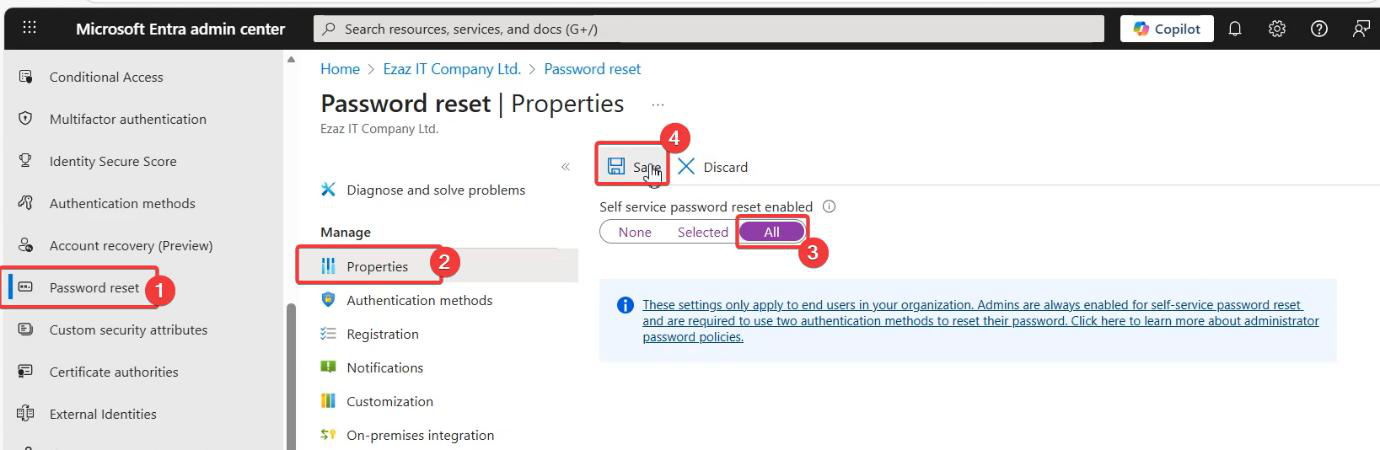
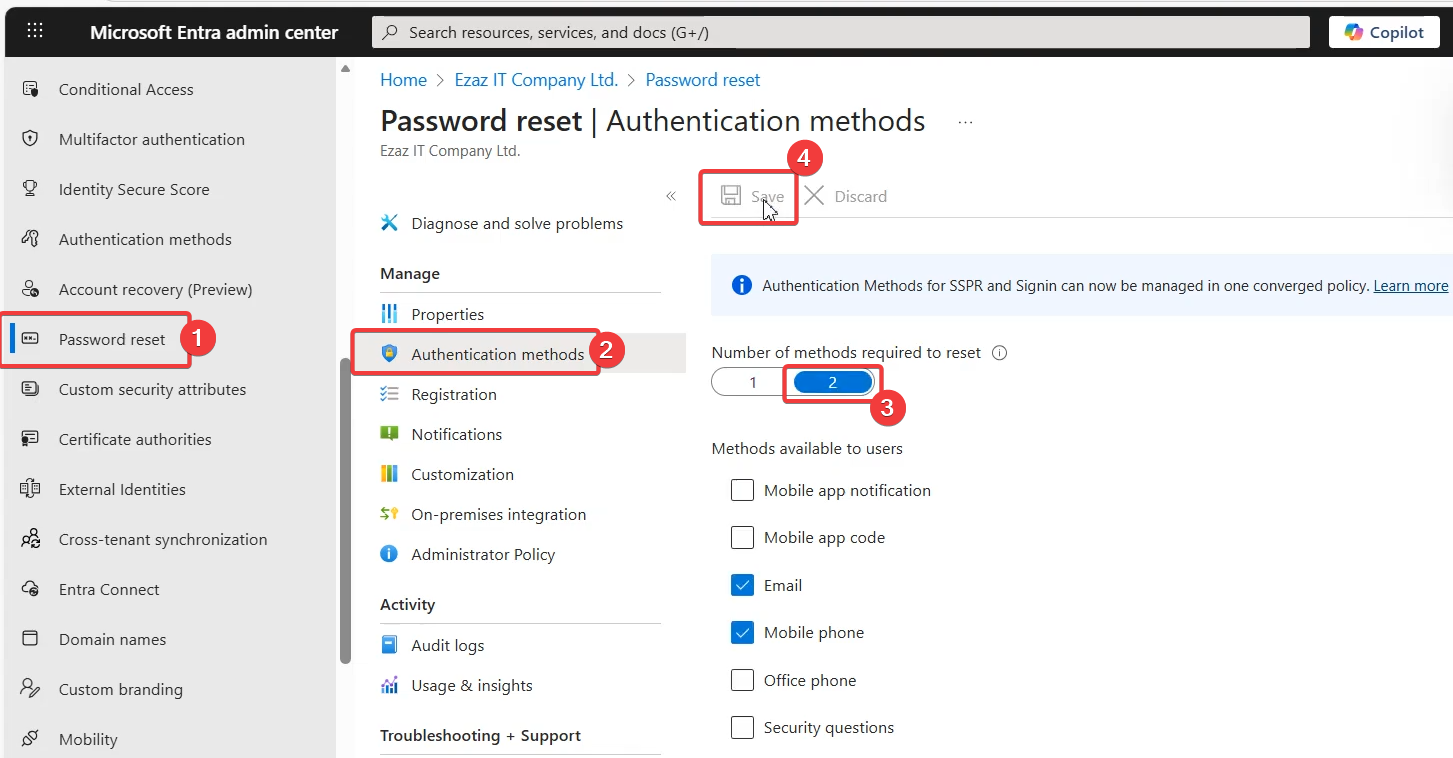
The cloud side is now ready to accept resets but no on-premises integration yet.
Phase 2 — writeback on Entra Connect
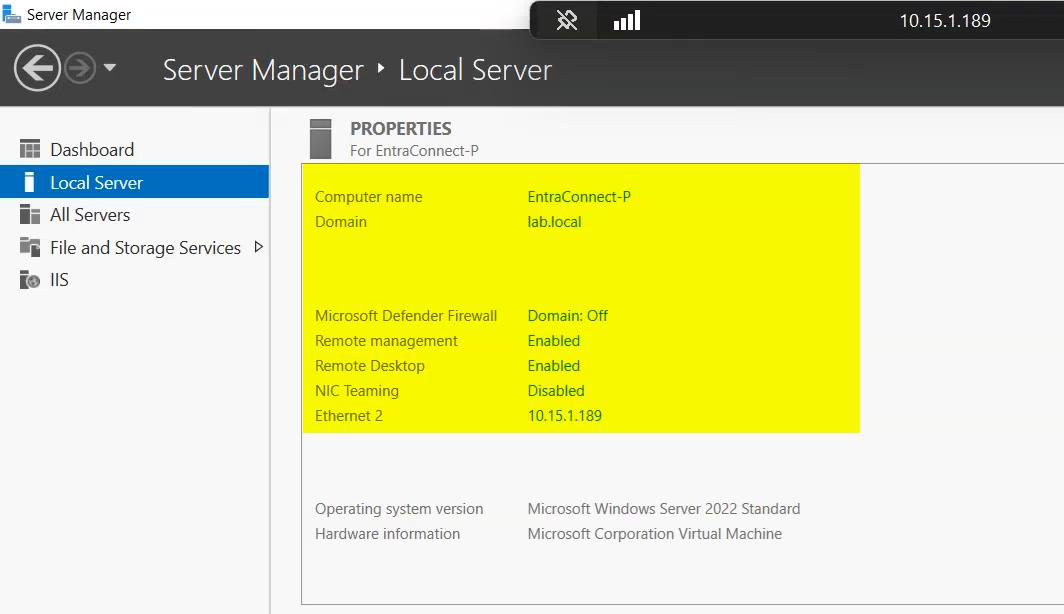
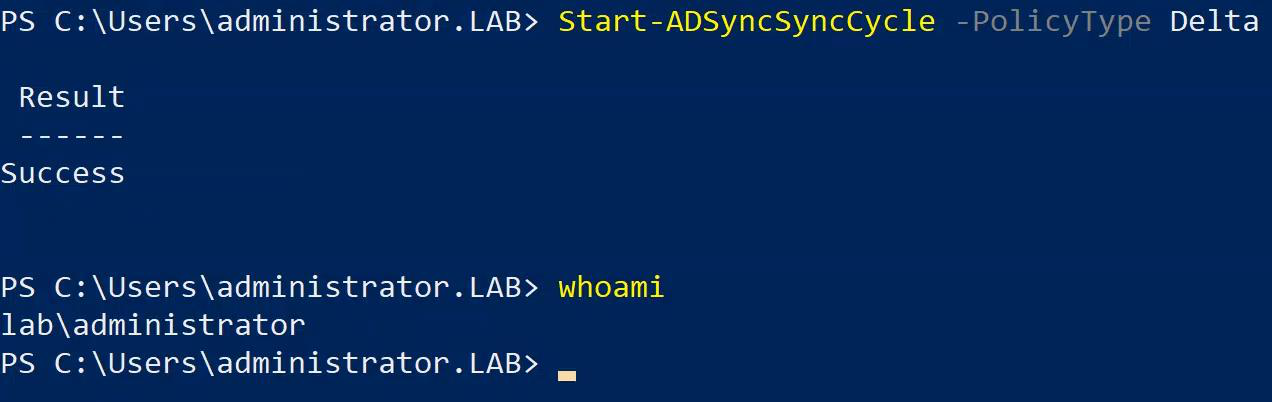
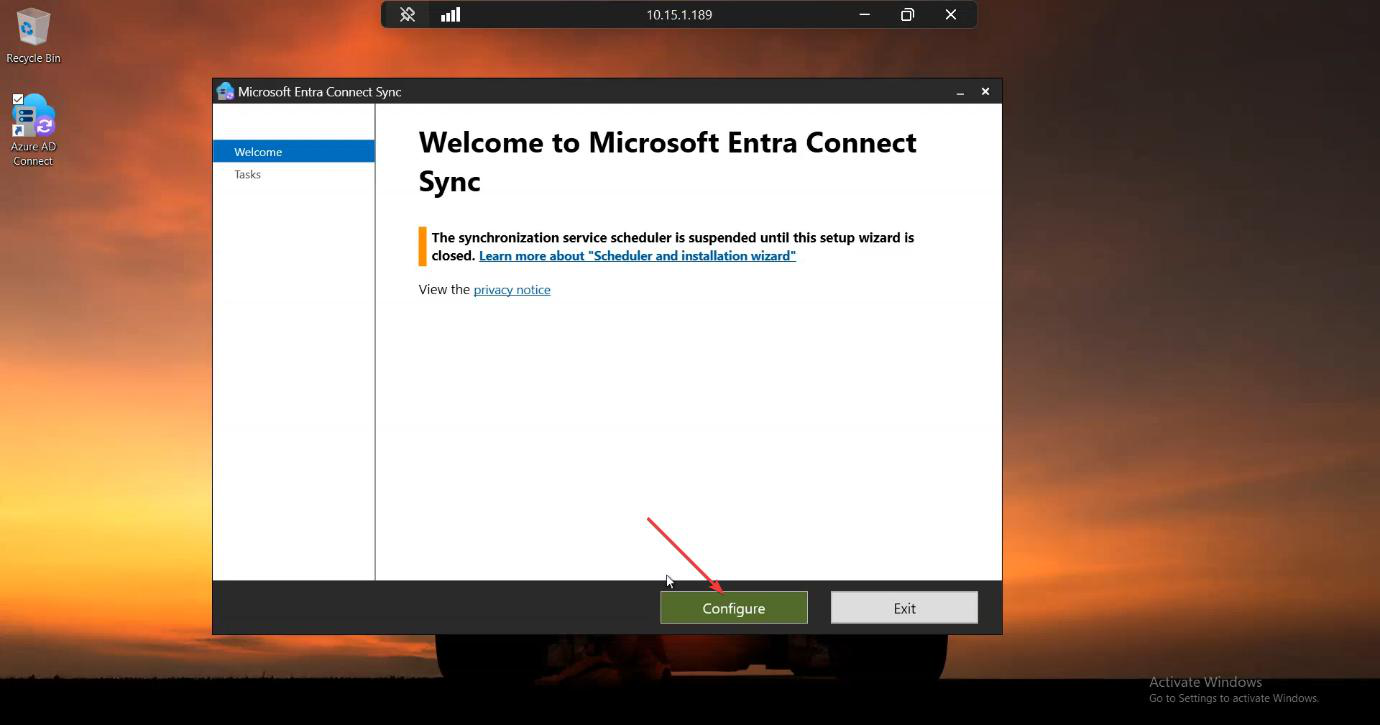
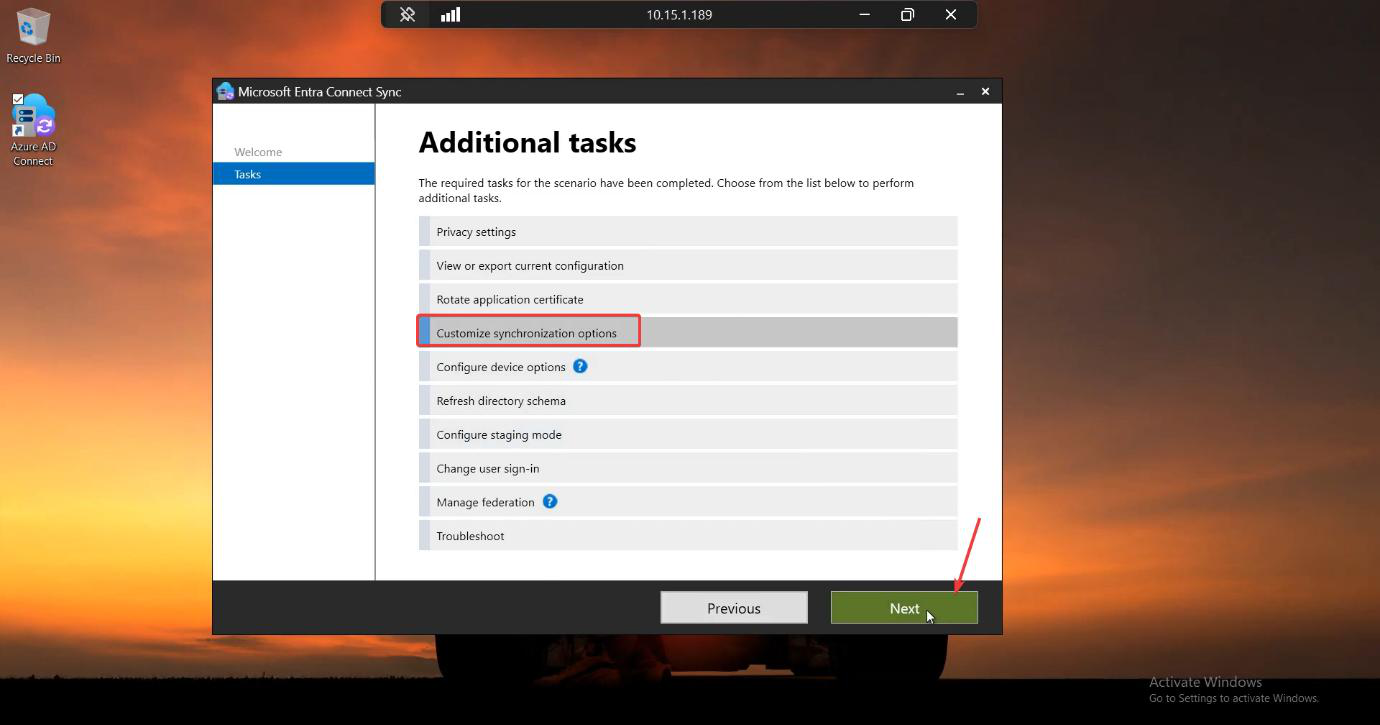
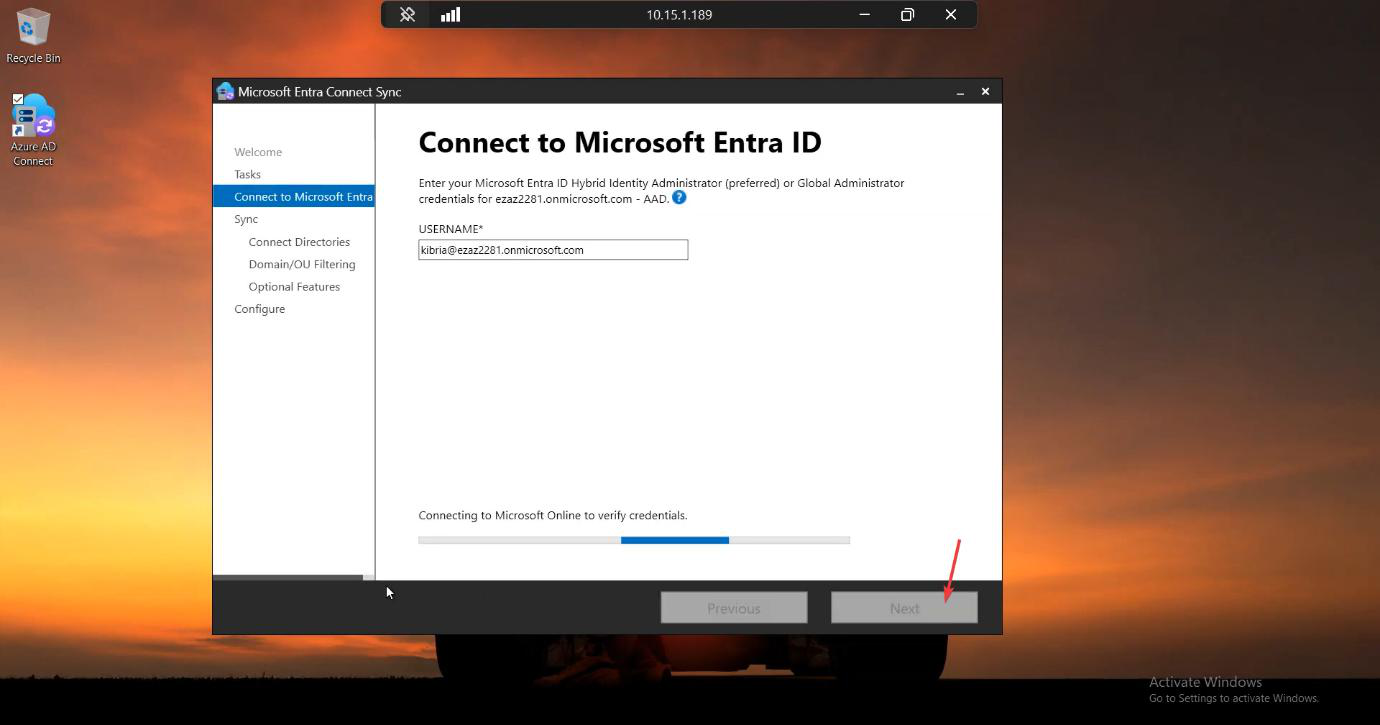
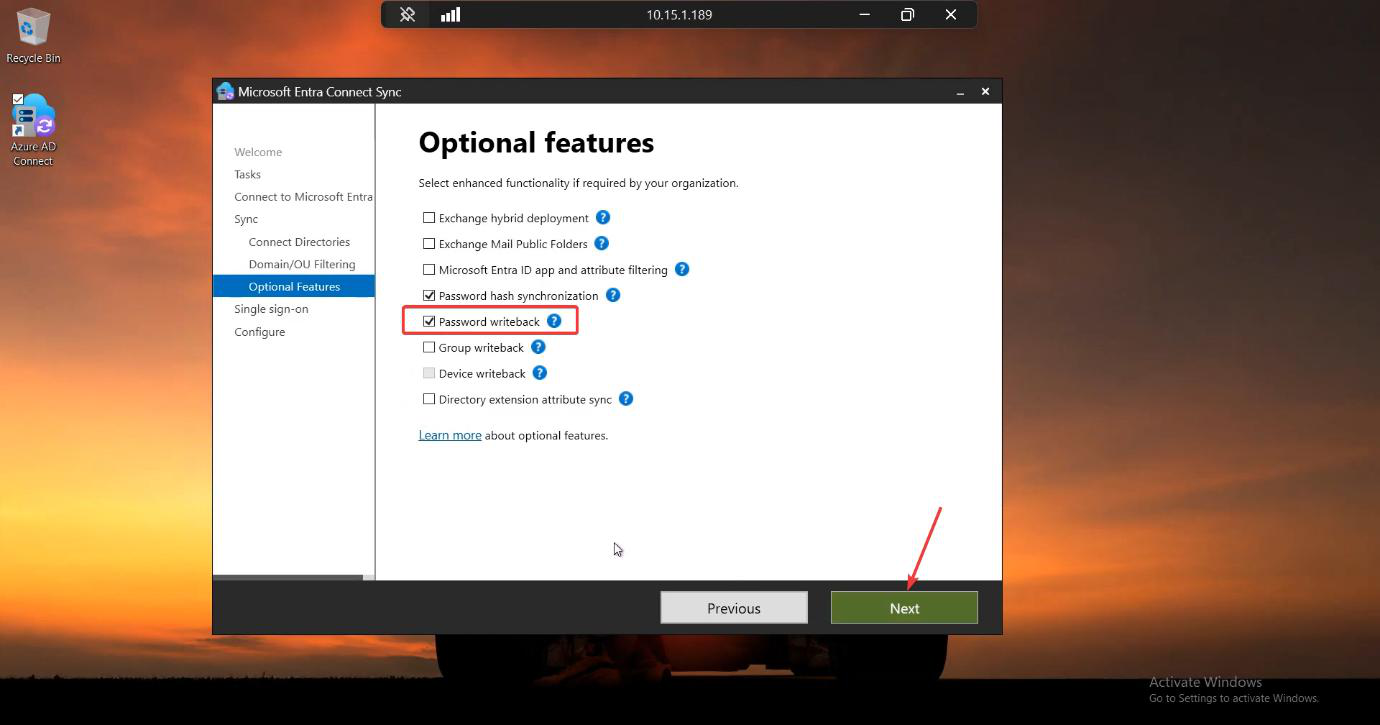
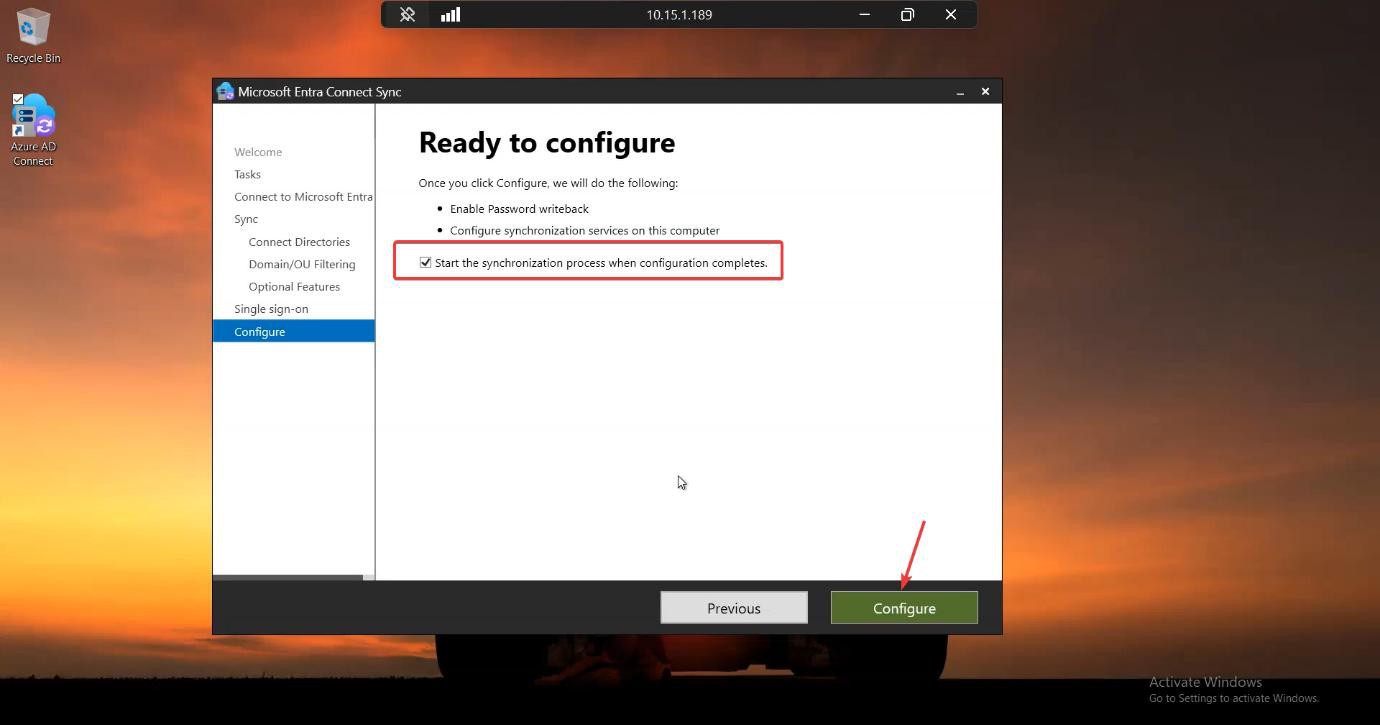
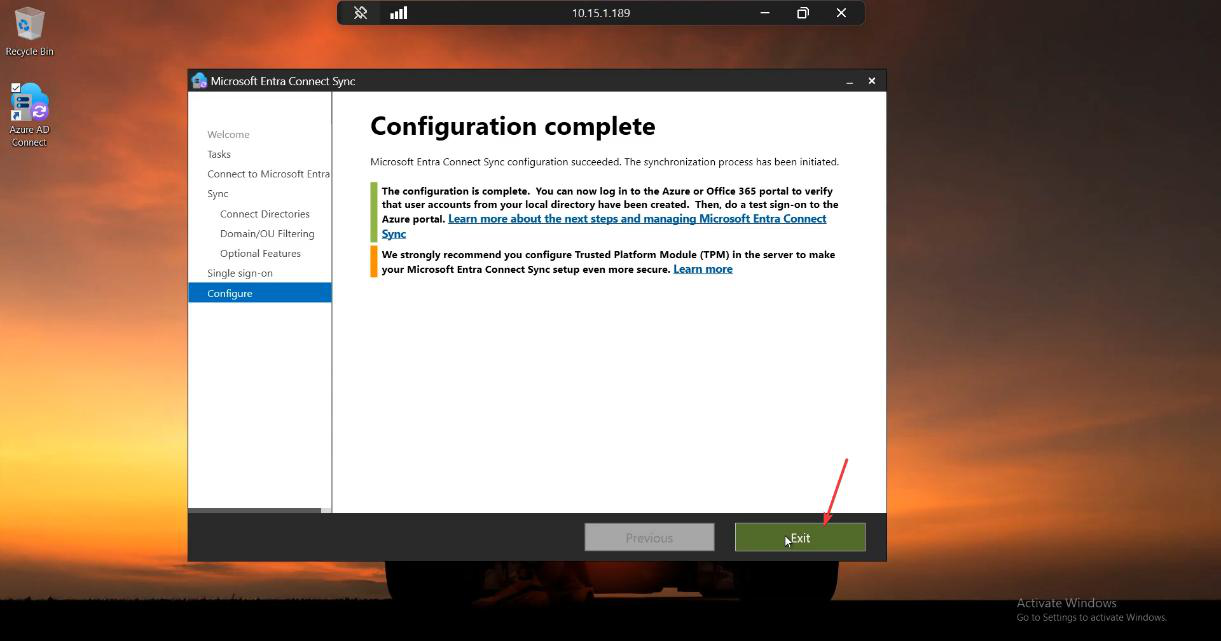
The writeback agent is now running. The cloud knows it can ship password changes back to your AD, but it’s waiting for you to authorise that path on the cloud side too.
Phase 3 — cloud-side on-prem integration
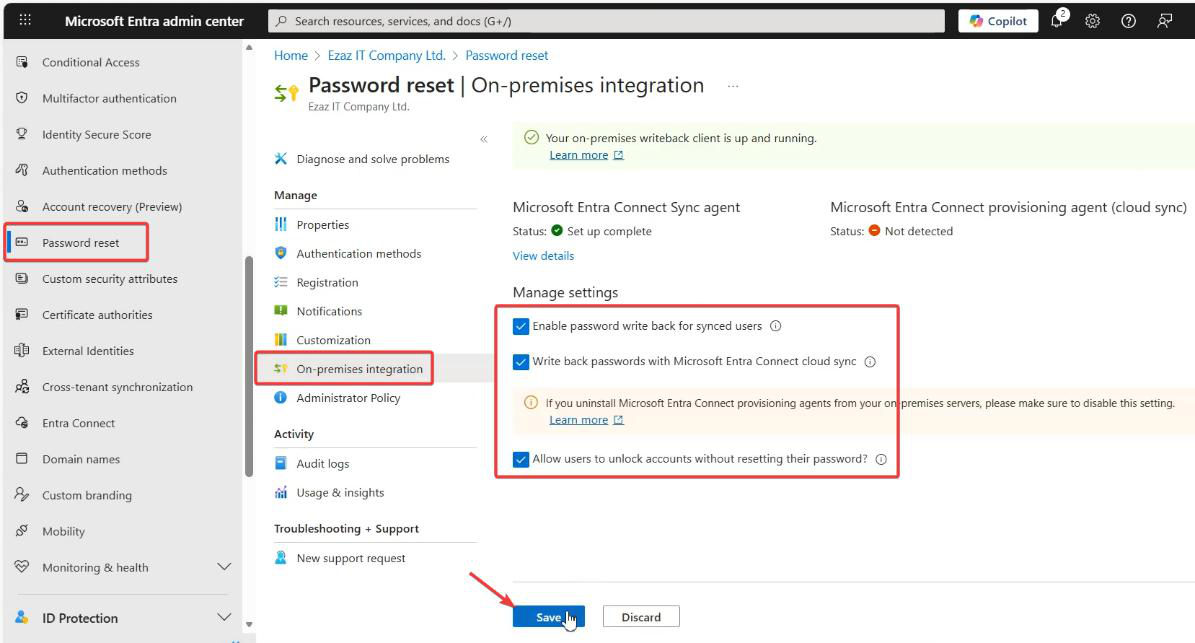
This is the cloud’s “ok, send password changes back to on-prem AD” switch. Both ends now agreed; data path is open.
Phase 4 — GPO Minimum password age = 0
The hidden phase that breaks SSPR if you skip it. AD’s default minimum-password-age is 1 day. So if a user resets their password and that password was set today (e.g. they JUST reset it manually 5 minutes ago), AD rejects the SSPR-driven write because the password is too young to change.
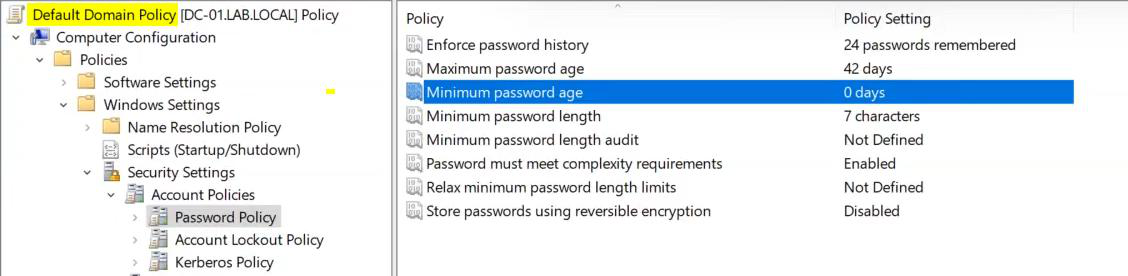
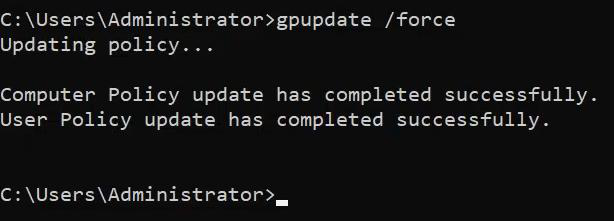
Set to 0 days. Reset takes effect immediately. Skip this and SSPR will appear to work in the cloud but fail to write back to AD on edge cases.
Phase 5 — end-user verification
Open a private window. Pretend you’re jdoe and you forgot your password — or you’re testing the change-password flow.
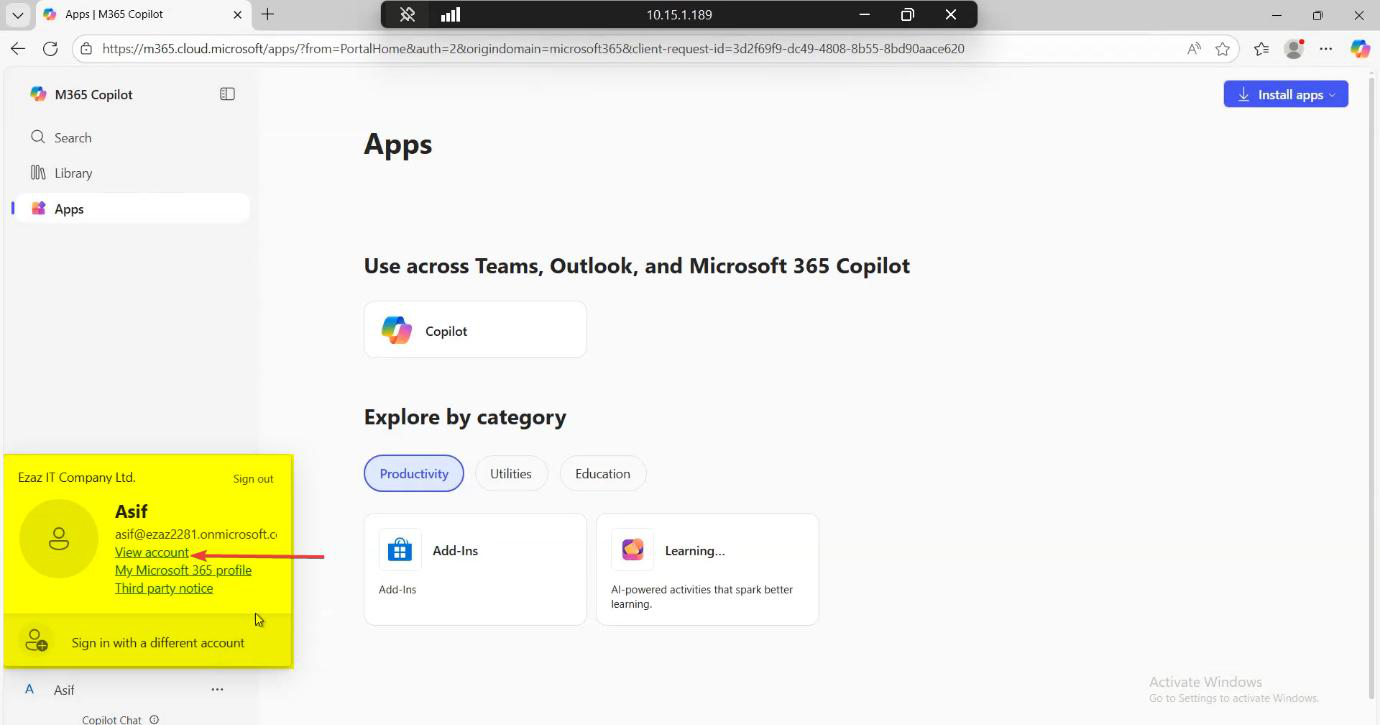
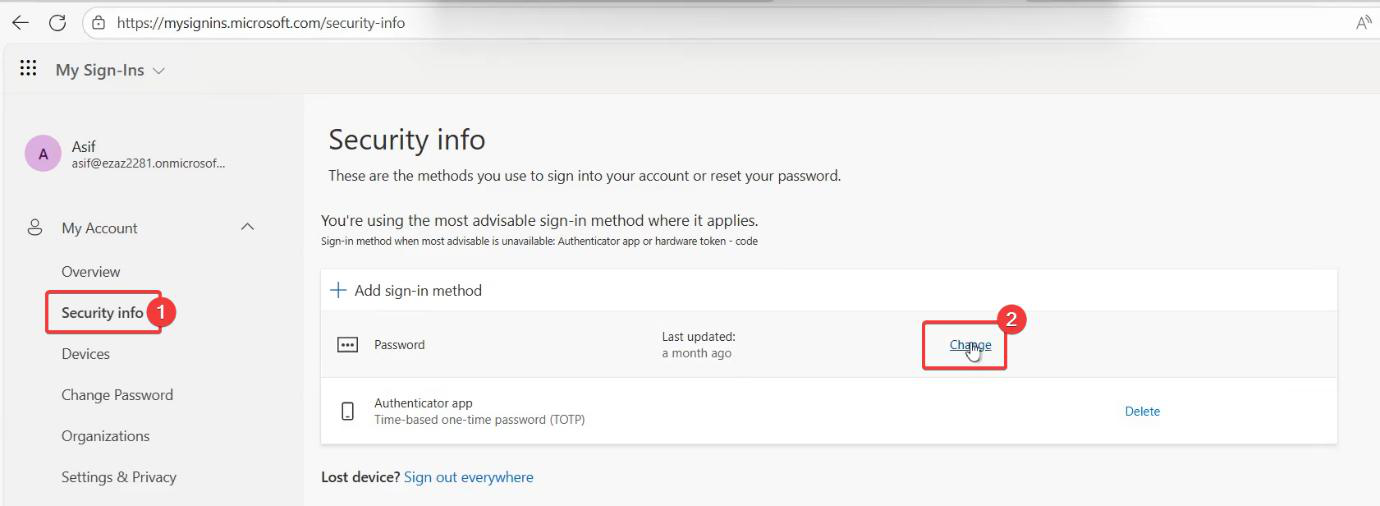
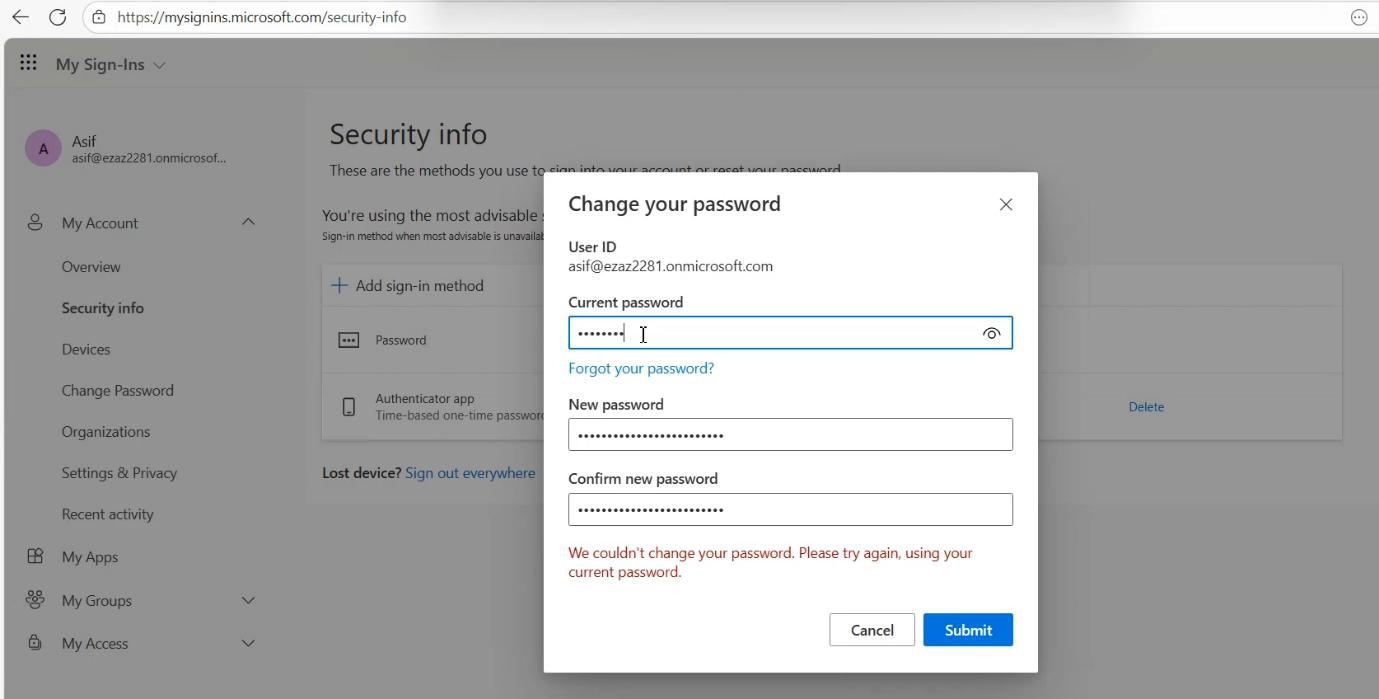
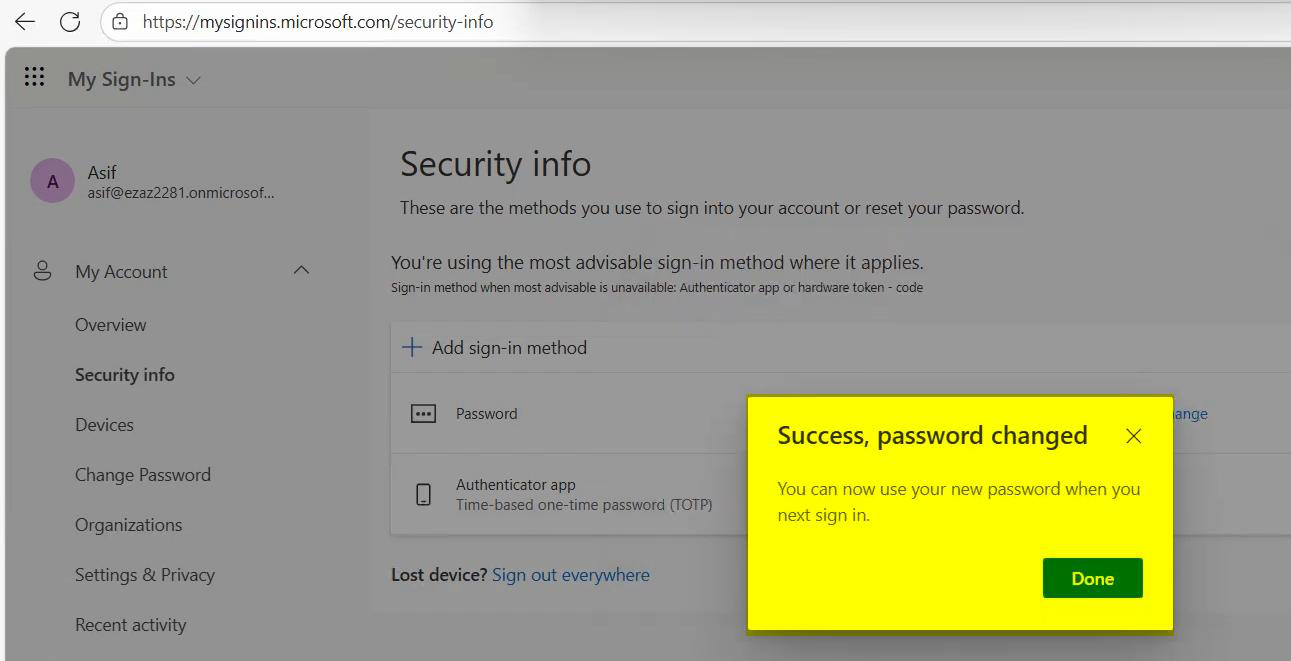
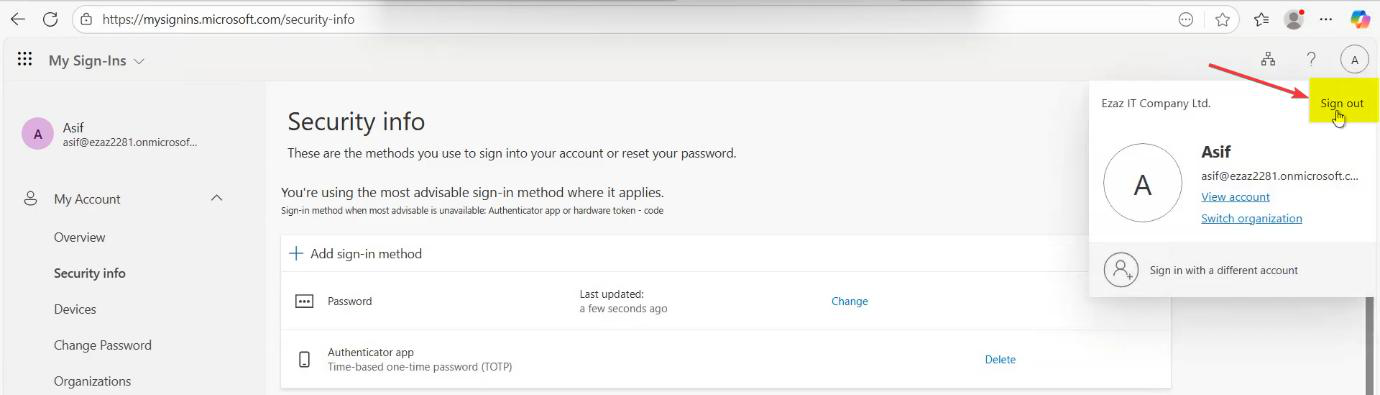
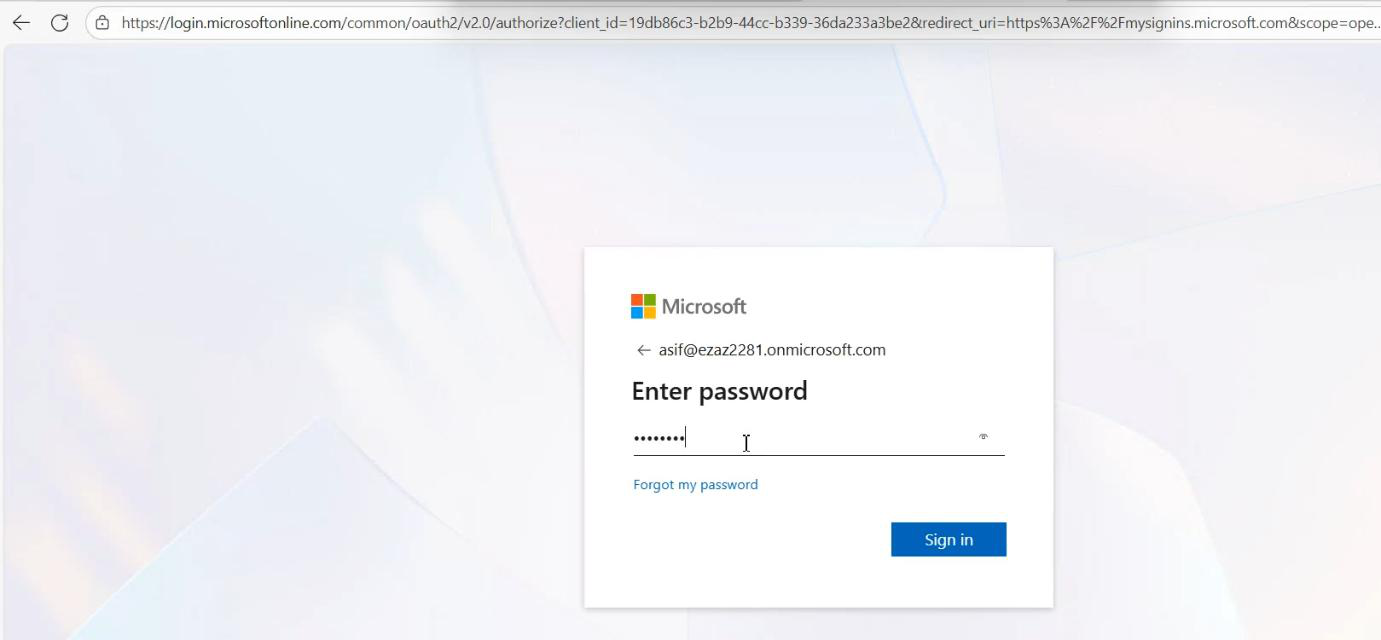
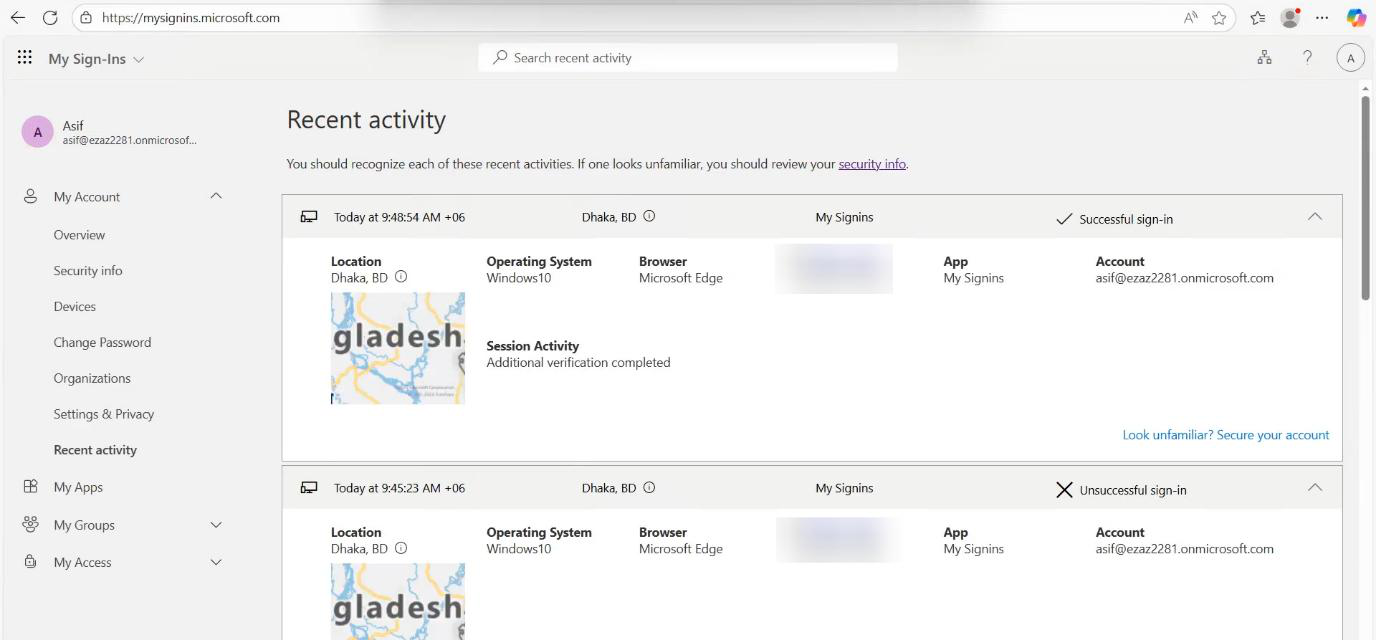
Cloud side works. Now the writeback test.
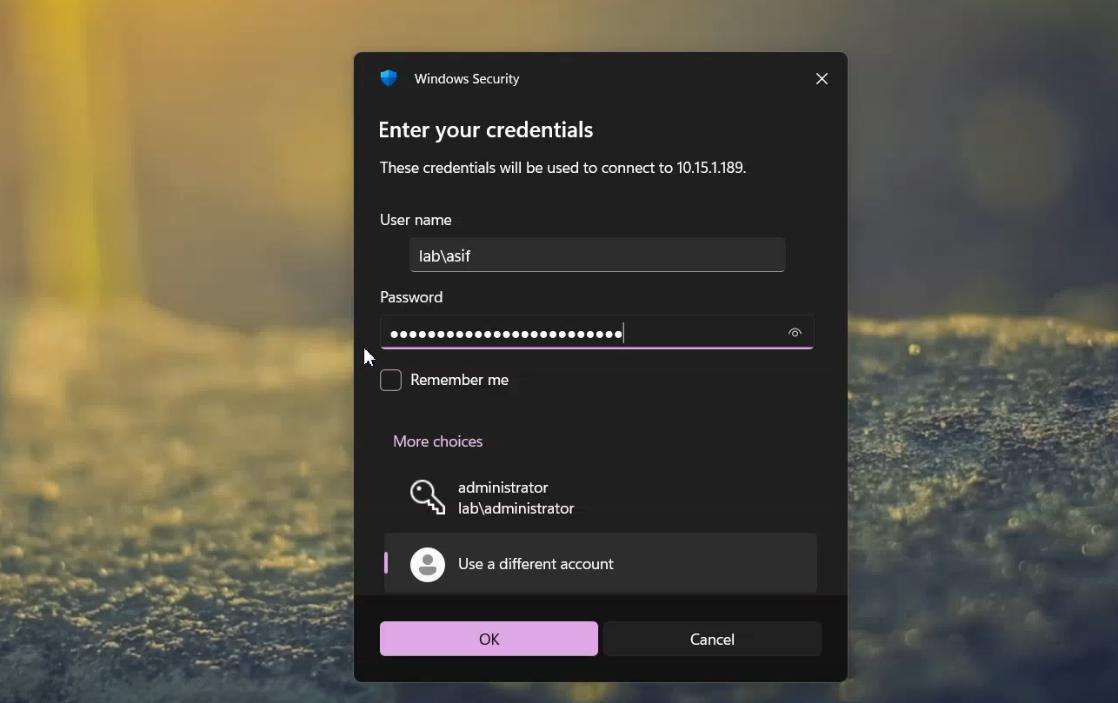
Sign into a domain-joined client with the new password. If it works, writeback is doing its job.
Phase 6 — server-side log verification
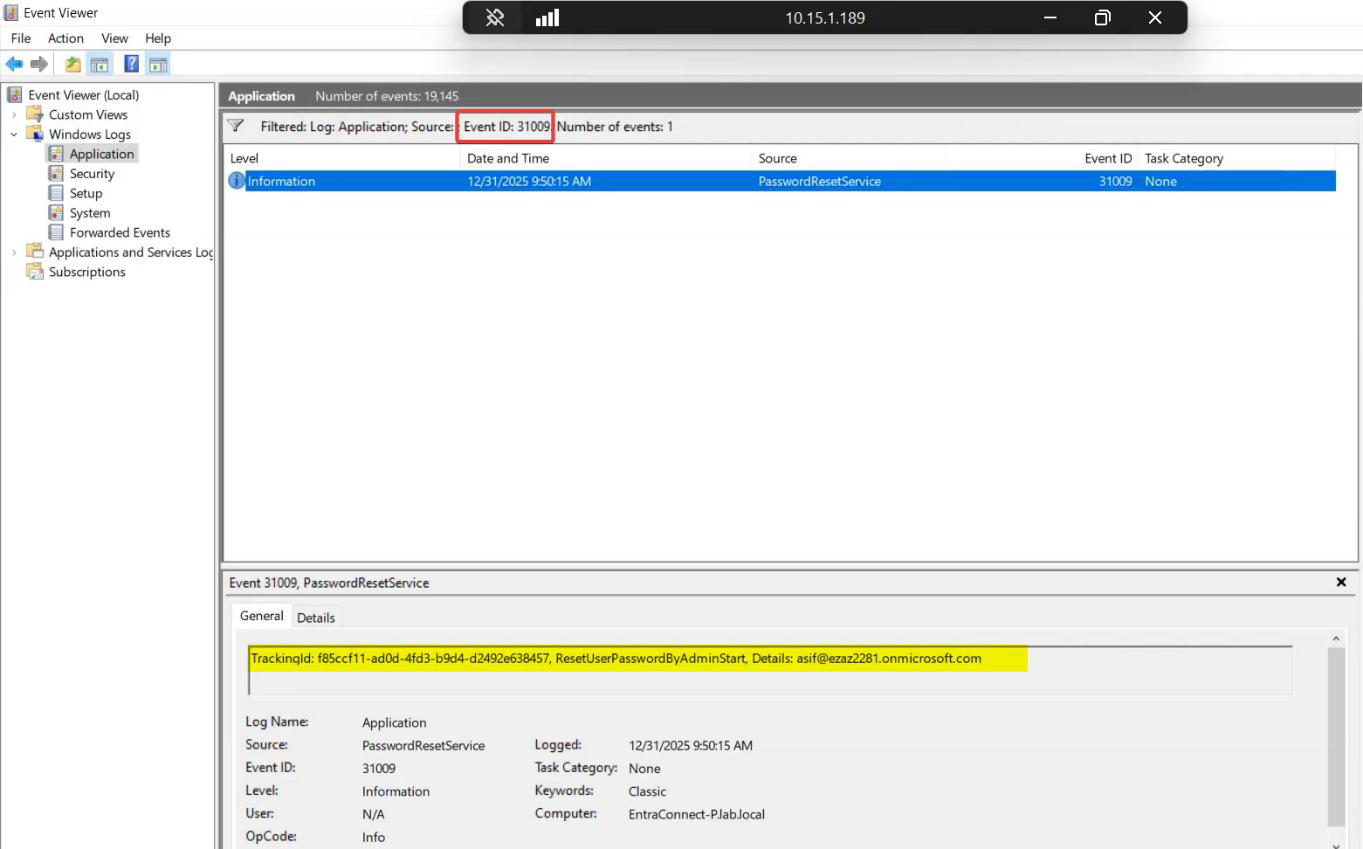
Event ID 31009 / 31010 in the Application log under source PasswordReset = success. If you don’t see these, check the writeback agent service status, the cloud-side toggle, and the AD permissions on the EC service account.
Licence requirements (read carefully)
| User type | What they want to do | Licence needed |
|---|---|---|
| Cloud-only | Change a password they already know | Free / any |
| Cloud-only | Reset a forgotten password | Business Standard or higher |
| Hybrid (synced from AD) | Reset a forgotten password | Business Premium / Entra ID P1 / P2 |
SSPR with writeback requires Entra ID P1 or higher per user. If your synced users only have Business Standard, the cloud reset will work but writeback won’t.
Things that bite people
Service account permissions on AD
The Entra Connect service account needs explicit AD permissions: Reset Password, Change Password, and Write on the lockoutTime attribute (for the unlock feature). The Entra Connect installer grants these on first install if you used Express settings, but custom installs and old configurations may be missing them. If writeback events show 31010 then nothing happens, this is the first thing to check.
Complex AD password policies
The cloud password policy and the on-prem password policy don’t talk to each other. If your AD requires 14-character passwords with a special character, but the cloud reset form doesn’t enforce that, the user will type a valid cloud password that AD rejects. They’ll see a generic error. Solution: configure password protection in Entra ID to enforce on-prem complexity rules at the cloud reset point.
Admins must use SSPR too
Admin SSPR is configured separately in the same blade. Without it, your admins are still calling the helpdesk. Enable both.
Writeback delay (~2 minutes)
SSPR with writeback isn’t real-time. There’s a ~2 minute delay between cloud reset and AD update. If a user immediately tries to sign into their domain laptop after a reset, they may need to wait. Tell them in the comms.
Notifications
Enable email notifications on password change — both to the user (so they know it succeeded or notice if it wasn’t them) and to admins (so a sudden burst of resets gets noticed). The Notifications page in the Password reset blade controls this.
If writeback breaks: check writeback agent service
On the EC server, the service is Microsoft Entra Connect Synchronization Service. Restart it. Check Application log for sync errors. If the agent is wedged, the cloud will queue resets but they won’t ship until the agent is healthy again.
What’s next
SSPR is the user-facing piece. The next post in this hybrid identity pathway covers the opposite end-of-life decision: disabling directory sync entirely when going fully cloud. For broader hardening, see restricting Entra admin centre access for standard users.