
Sometimes you need to stop the sync entirely. Maybe you’re going fully cloud and decommissioning the on-prem servers. Maybe you’re consolidating tenants. Maybe legacy AD is too rotted to fix and the rebuild is starting in the cloud. Whatever the reason, when you disable directory sync, you’re telling Microsoft Entra ID: stop listening to my local AD; treat every synced user as cloud-managed from now on. This is a one-way door (technically reversible via Microsoft support, but not in any timeline you’d enjoy). This post is the procedure with all the warnings.
Pre-flight checklist (do not skip)
Before running the disable command:
- Backup AD. Even though we’re cutting the cloud-link, your AD VMs still exist post-cut. Take a fresh DR backup before anything destructive.
- Export user attributes. Run
Get-ADUser -Filter *with all properties to a CSV. After the cut, attributes you stop syncing become editable in the cloud and may diverge. - Reset all admin passwords in the cloud BEFORE the cut. Once sync is off, your AD password isn’t reaching the cloud anymore. Whatever password is in Entra is the one you’ll be stuck with for that admin until you reset via SSPR (which requires it to already be configured) or via another admin.
- Verify a cloud-only break-glass admin works. One account that doesn’t depend on sync, MFA-secured, password stored in a vault. If everything goes wrong, this is your way back in.
- Comms to all users. They need to know that whatever password they have right now is the cloud password going forward; it stops mirroring AD. Some workflows will change.
Skip any of these and you risk locking yourself out, losing group memberships, or finding that a user’s on-prem-managed attributes (manager, department) are now blank in the cloud.
Step 1 — verify the “before” state
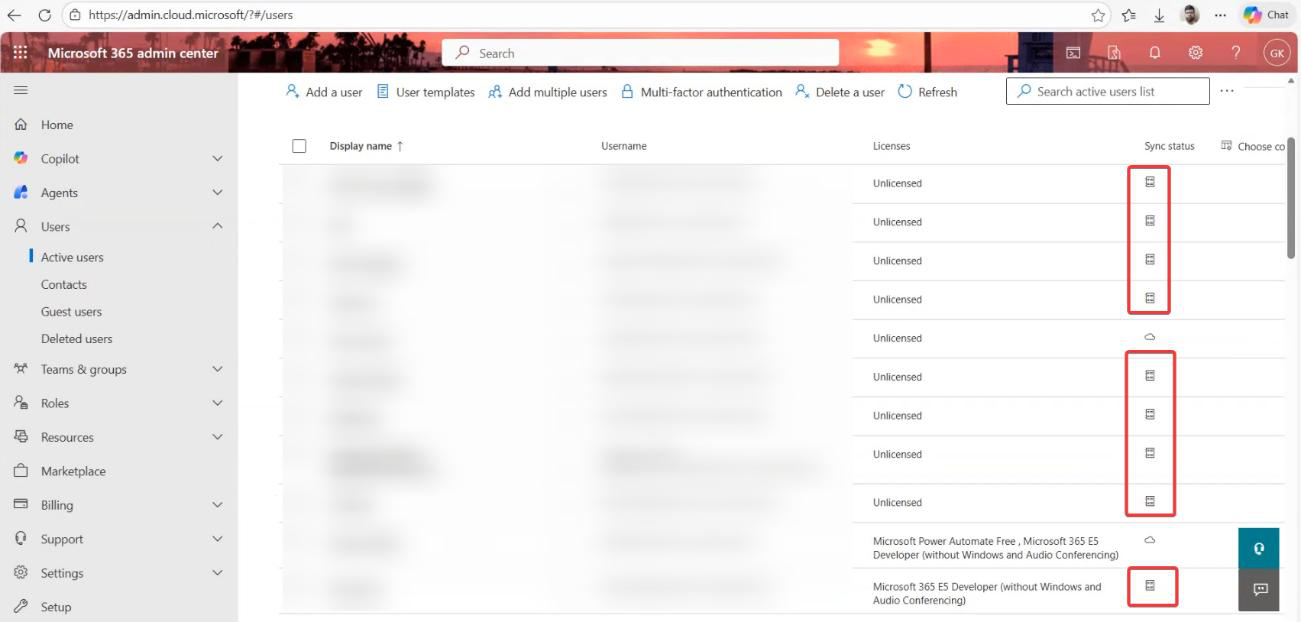
Go to M365 admin centre. Users > Active users. Look at the Sync status column. You’ll see two icons: a cloud icon (cloud-only users) and a sync icon (synced from on-prem). After the cut, all rows will be the cloud icon. Take a screenshot now — this is your before state.
Step 2 — PowerShell setup
This isn’t a UI operation. There is no toggle for it in the admin centre. PowerShell only.
Sign into the Entra Connect server (or any machine with the Microsoft.Graph PowerShell modules installed). Run as administrator:
# on the Entra Connect server
Import-Module ADSync
Get-ADSyncScheduler | Format-Table SyncCycleEnabled
Set-ADSyncScheduler -SyncCycleEnabled $false

Install-Module Microsoft.Graph -Force
Install-Module Microsoft.Graph.Beta -AllowClobber -Force
Connect-MgGraph -Scopes "Organization.ReadWrite.All"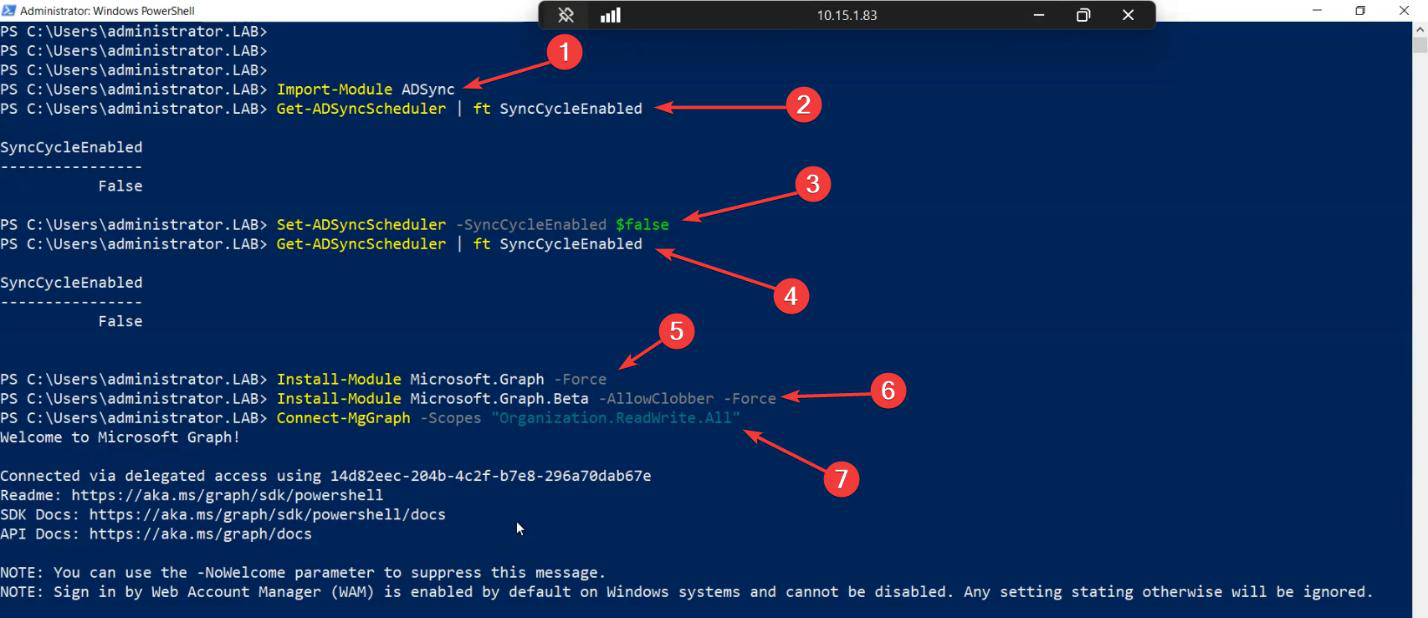
Set-ADSyncScheduler -SyncCycleEnabled $false), then install the Graph modules and connect with the right scope.What this does:
Import-Module ADSync— loads the local Entra Connect cmdletsSet-ADSyncScheduler -SyncCycleEnabled $false— stops the LOCAL scheduler from running new sync cycles. (This is local-side; the cloud-side cut comes next.)Install-Module Microsoft.Graph— the modern API to manage tenant settingsConnect-MgGraph -Scopes "Organization.ReadWrite.All"— sign in as a Global Administrator with permission to update org settings
Step 3 — verify admin context
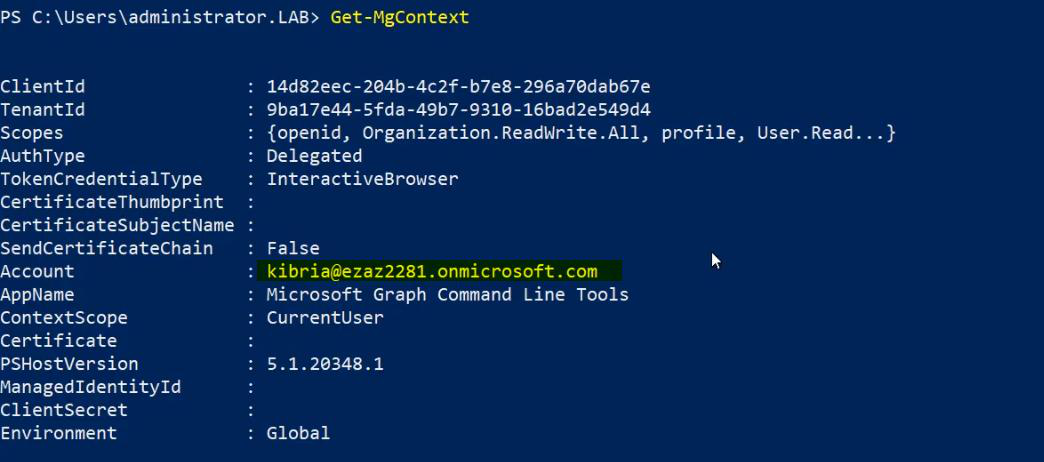
Sanity check before anything destructive. Run Get-MgContext — confirm the account, tenant ID, and scopes match what you expect.
Step 4 — disable directory sync (the cut)
$OrgID = (Get-MgOrganization).Id
$params = @{ onPremisesSyncEnabled = $false }
Update-MgOrganization -OrganizationId $OrgID -BodyParameter $params

# verify
Get-MgOrganization | Select-Object DisplayName, OnPremisesSyncEnabled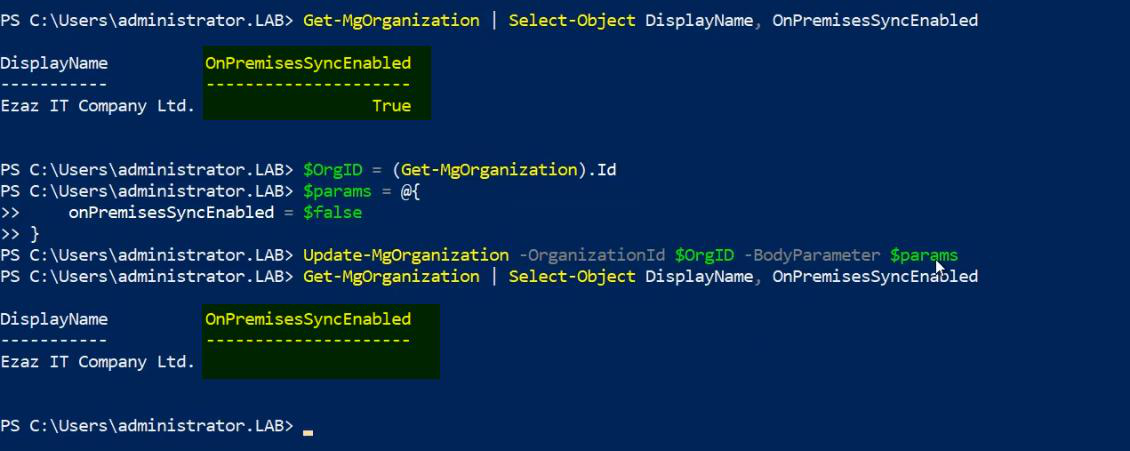
Update-MgOrganization -OrganizationId $OrgID -BodyParameter @{ onPremisesSyncEnabled = $false }. This tells Microsoft to stop listening to on-prem.The OnPremisesSyncEnabled field flips to False on the cloud side. Microsoft begins the conversion process — every synced user becomes a cloud-managed user.
Step 5 — the waiting game
Not instant. Don’t panic if M365 admin centre still shows the sync icons immediately after.
- Small labs (under ~50 users): 5–10 minutes for full propagation
- Mid-size orgs (a few hundred users): 30 min to a few hours
- Large directories (thousands of users): up to 72 hours
Make a coffee. Don’t make any user changes during the conversion period.
Step 6 — verify the “after” state
Check 1: M365 admin centre
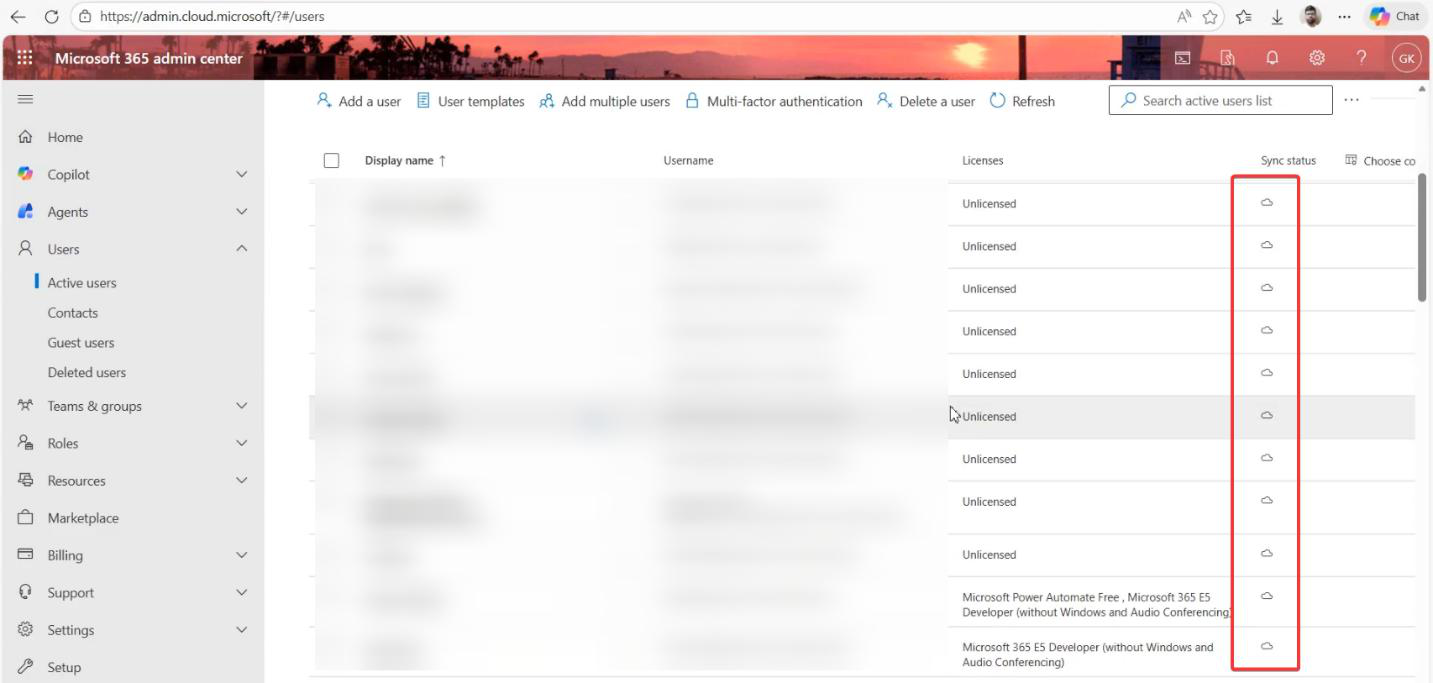
Refresh the Active Users page. The sync status column now shows Cloud-only for every user. Sync icons gone.
Check 2: Entra admin centre — Connect status
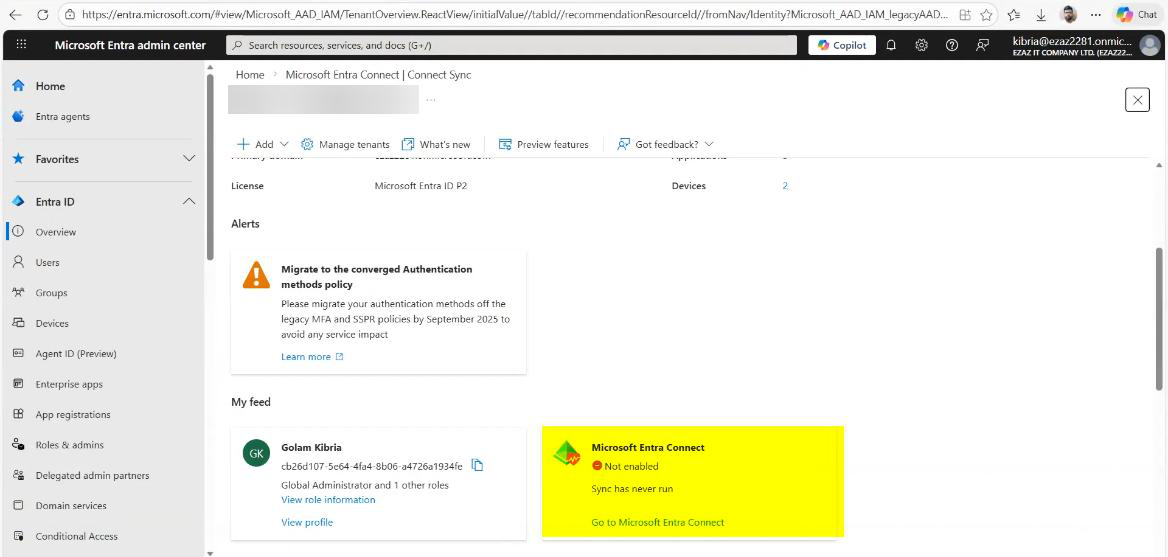 SSPR with writeback configured, it’s no longer functional. The cloud has nothing to write back to (sync is off). Users can still SSPR cloud-side; AD has its own password story now.
What’s next
Sync is off. The on-prem servers can be decommissioned at your pace. For the rest of the cloud-only journey — MFA enforcement, Conditional Access, Intune device management — see other posts in the hybrid identity pathway.