
The Entra admin centre is open by default to anyone with a tenant account. Standard users sign in, see the dashboard, browse the user list, view group memberships. They can’t edit anything — the buttons are greyed out — but they CAN read. For an attacker who phished a single low-privilege credential, that’s a goldmine: enumerate every user, find the admins, find their group memberships, build an org chart, plan the spear-phish. One tenant setting closes this surface entirely. This post walks the before/after and the toggle.
Why “read-only” isn’t enough
The default permission model assumes that “can’t edit” equals “safe.” For directory enumeration that’s wrong:
- An attacker with phished standard credentials reads the user list. Now they know every email address in the company. Phishing campaign material.
- They identify Global Admin accounts (often visible in the admin role-assignment view that standard users can read). Now they know which 3 accounts to target with sophisticated attacks.
- They read group memberships. Now they know which users have access to which sensitive systems. Targeting becomes precise.
- None of this involves “hacking” — it’s all visible data the tenant is freely sharing with anyone with a sign-in.
Closing this surface is a single tenant setting. Microsoft’s own security baseline recommends it for every tenant. The user-impact cost is zero — standard users don’t need the admin centre; they use M365, Outlook, Teams, etc.
Phase 1 — observe the default behaviour
Useful to see what the recon surface looks like before you close it.
Global Admin view
Sign in as Global Admin. Find a test user (jdoe in this example).
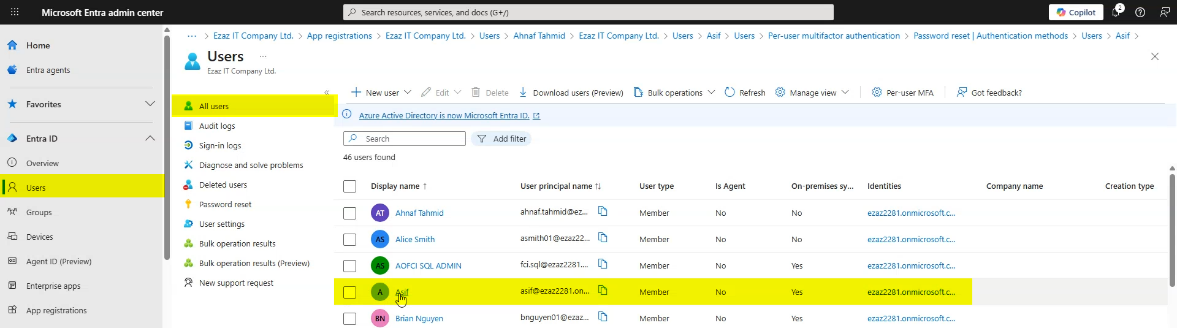
Note what attributes are visible — UPN, display name, group memberships, role assignments. This is the data plane jdoe will be able to read in the next step.
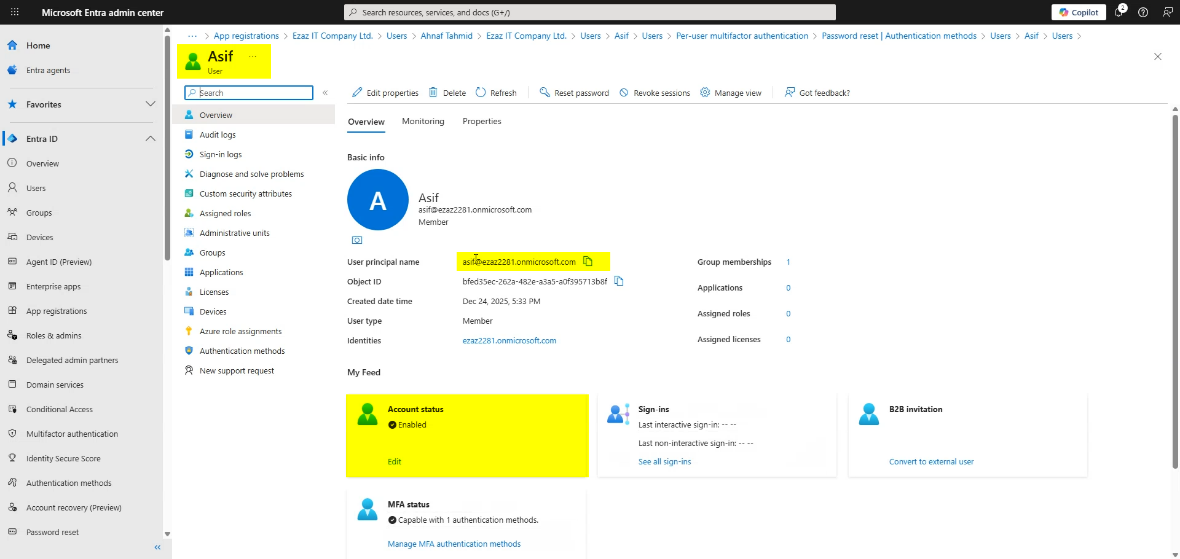
Standard user view (the recon surface)
Open a private/incognito browser window. Navigate to entra.microsoft.com. Sign in as jdoe (a standard user with no admin roles).
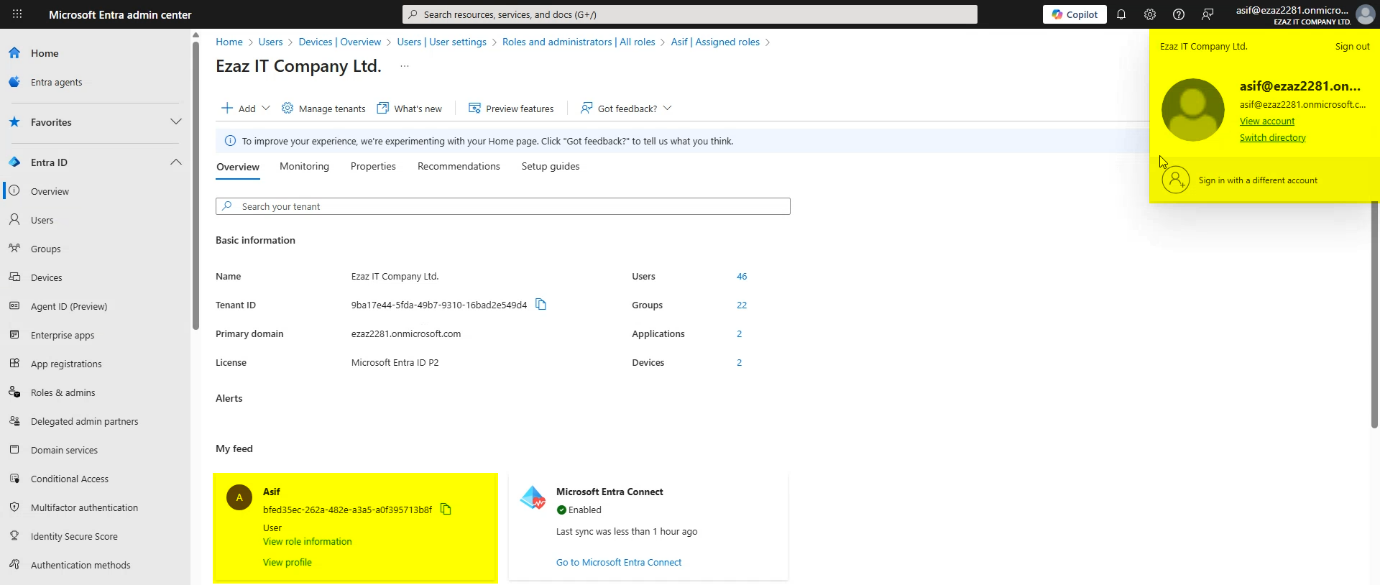
jdoe lands on the admin centre dashboard.
Click Identity > Users > All Users. The full tenant user list appears.
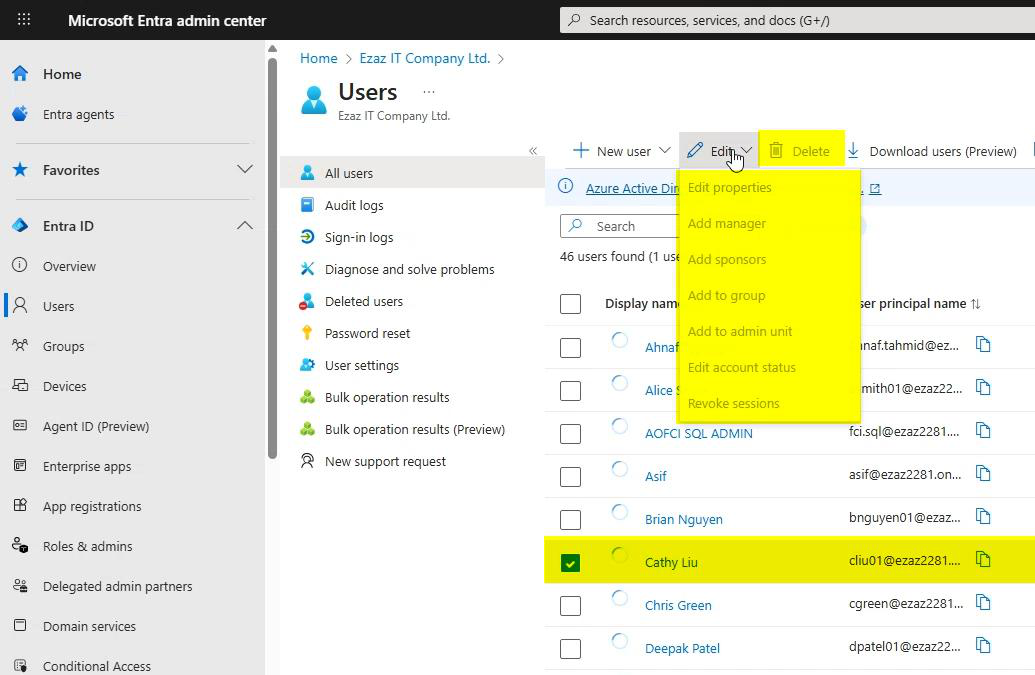
Click into a user. All attributes visible. Edit/delete buttons greyed out (because jdoe doesn’t have an admin role) but the data is there to read.
Phase 2 — flip the restriction
Single tenant setting. Switch back to the Global Admin browser session.
Navigate: Identity > Users > User settings.
Find: Restrict access to Microsoft Entra administration center.
Toggle to Yes.
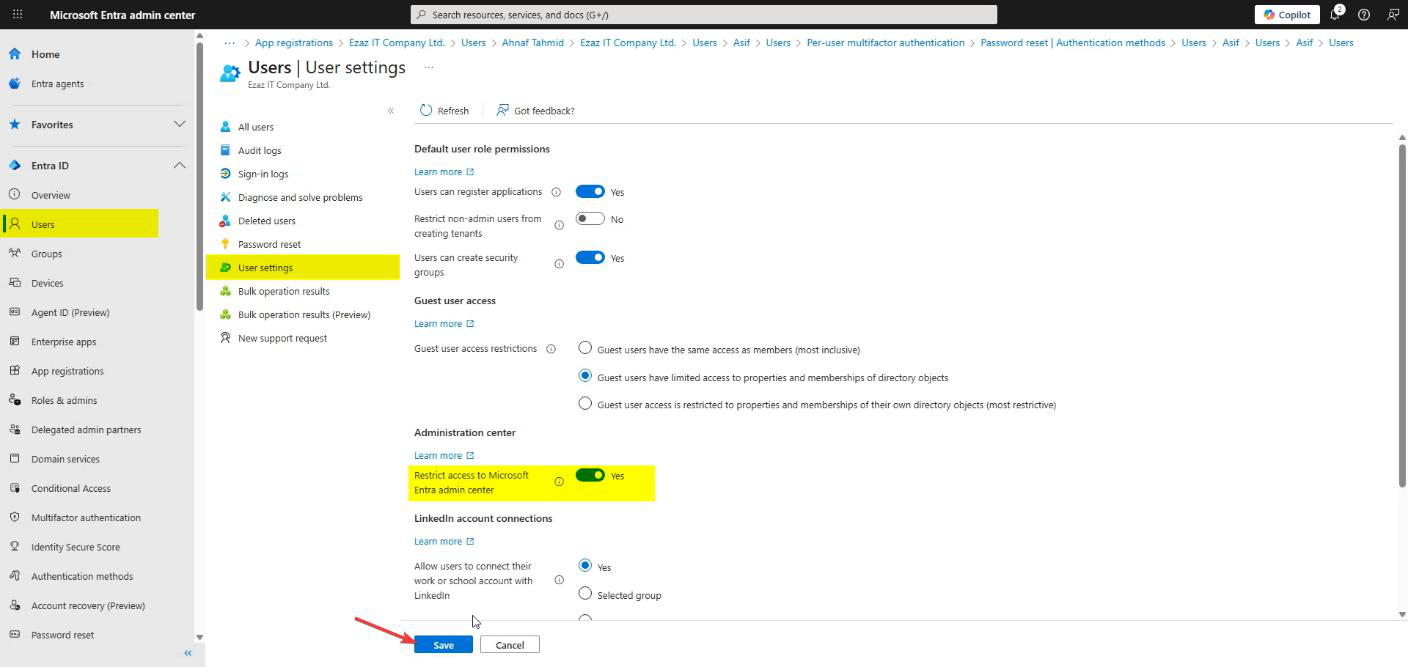
Click Save. The policy applies tenant-wide immediately.
What this does: only users with at least one administrative role assignment can access the admin centre. Standard users get blocked. Admin roles include Global Administrator, Helpdesk Administrator, User Administrator, and any other role that has visibility into the admin centre.
Phase 3 — verify the restriction works
Switch back to the jdoe browser session. No need to sign out / sign in — just refresh.

Dashboard reloads. The data is gone.
Click Users (or any other admin-centre nav item). Access denied. jdoe can no longer enumerate.
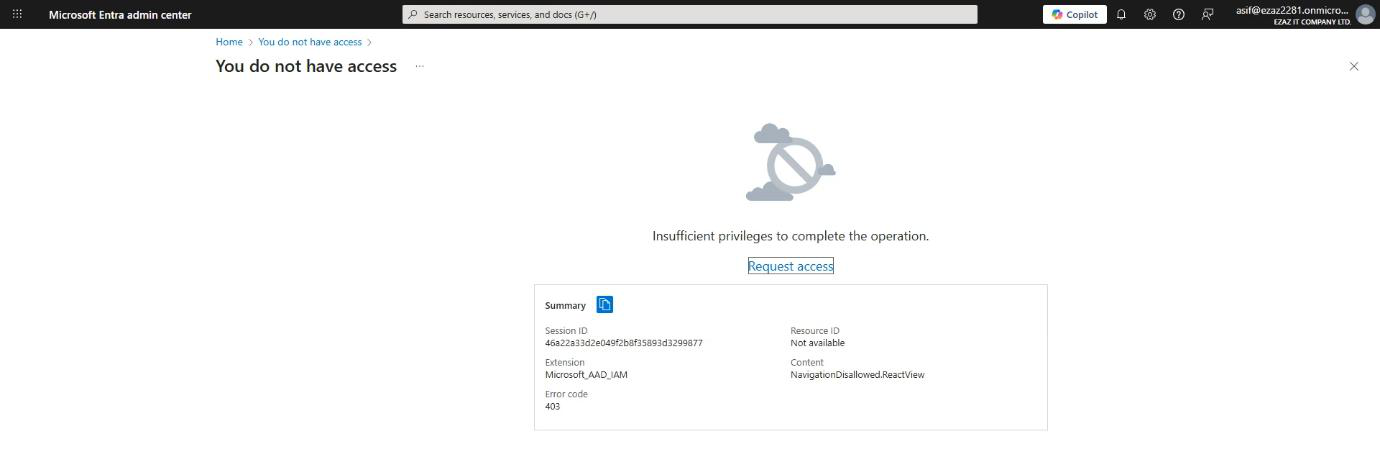
Final state: admin centre is locked to admins. M365, Outlook, Teams, OneDrive — all unaffected for jdoe; the user keeps doing their normal work.
Things that bite people
Help-desk users with custom “view-only” roles
Some orgs have help-desk users with read-only permissions in the admin centre. These users typically don’t have a Microsoft-defined admin role; they have custom permissions. After enabling the restriction, those users get locked out too. Fix: assign them a proper Microsoft-defined role like Helpdesk Administrator, OR use a custom Entra role that includes the admin centre access permission.
Apps using the admin centre’s data
Some integrations (rare) rely on standard-user authenticated access to the admin centre. These break. Inventory before flipping the toggle; ensure no production app expects this. Most apps use Microsoft Graph instead, which is unaffected by this setting.
The setting doesn’t affect Microsoft Graph
This restriction is specifically about the WEB UI of the admin centre. It does NOT block PowerShell calls or Graph API calls. A user with valid credentials and Graph permissions can still call Get-MgUser and enumerate the tenant. To restrict that path, scope the user’s consented Graph permissions or use Conditional Access on the Microsoft Graph application.
Forgot the setting was applied
Months later, an admin you weren’t expecting tries the admin centre and gets blocked. They forgot they’re a standard user (or you forgot to assign them an admin role). Easy fix: either grant them an admin role or instruct them to use the M365 admin centre instead (which has its own visibility model).
Doesn’t apply to guest users immediately in some configurations
If your tenant has B2B guests, the restriction applies but the message they see may be different (often a generic “you don’t have access to this tenant” rather than the in-tenant restriction message). Same outcome — locked out — just different framing.
Doesn’t protect against admins themselves being phished
This restriction stops STANDARD users from enumerating. It does nothing to stop an admin from being phished and the attacker enumerating with the admin’s creds. Combine with MFA on admins (essential), Conditional Access policies (location restrictions, device trust), and PIM (just-in-time admin role activation) for full coverage.
Disabling the restriction later
Same path: User settings > toggle off > Save. Reversible at any time. Some orgs disable it temporarily during specific operations (a vendor needs to view the directory) and re-enable after.
What’s next
This is one of the cheapest hardening steps available — no infrastructure, no licensing, no user impact. For broader Entra hardening (MFA, Conditional Access, PIM), see other posts in the Hybrid Identity pathway. The next post in this series covers the nuclear option: disabling Entra Connect directory sync entirely (for environments going fully cloud-only).