
You set up an OU filter at install time per Part 7. Months later, you need to change it — new OUs were added that should sync, old OUs got decommissioned, or someone wants to exclude a specific service-account OU you missed. Re-running the wizard works but is heavier than necessary; for a filter-only change, you go directly into Synchronization Service Manager and adjust the Containers list. This post walks the procedure and explains the theory of Entra Connect filtering along the way.
Why filter at all
By default, Entra Connect syncs every user, group, and contact from your AD to the cloud. That’s rarely what you want:
- Privileged accounts. Domain Admins, Enterprise Admins, security-sensitive accounts shouldn’t exist in the cloud at all — they’re the keys to the kingdom on-prem and exposing them via cloud sign-in surface is unnecessary risk.
- Service accounts. They aren’t humans; M365 doesn’t have a place for them; cloud licensing might cost money for accounts that don’t need cloud access.
- Decommissioned objects. Old test users, retired employee accounts, bookmarks from years ago that should have been deleted but weren’t.
- Compliance constraints. Some regulations or contracts prevent specific user data from leaving on-prem.
Filtering is the security guard at the door. Define what you want synced; everything else stays local.
The four filtering types
Entra Connect supports four filtering methods. They combine with AND logic — a user must pass EVERY active filter to be synced.
1. Group-based filtering
Create a security group (e.g. “Sync to Cloud”); only members of that group are synced. Useful for testing and small pilots. Not recommended for large production environments — the membership-based gate becomes hard to manage as the org grows; once you have 5,000 users in the sync group, audit-trail visibility is gone.
2. Domain-based filtering
For multi-domain forests. You can sync one domain (usa.infotechninja.local) and not another (eu.infotechninja.local). Configured at install time via the wizard or post-install via the wizard’s “Add Directory” flow.
3. OU-based filtering (this post)
The most common method. You pick specific OUs to include or exclude. Tree-based selection — tick or untick individual OUs in the AD hierarchy. Sub-OUs inherit by default. This is the recommended default approach for production.
4. Attribute-based filtering
The most granular. Filter on attribute values: e.g. “sync user only if extensionAttribute15 = NoSync is NOT set.” Or “sync user only if Department = Sales.” Configured via Sync Rules in the Synchronization Rules Editor — more complex than OU-based; use when OU structure isn’t granular enough.
What happens when you exclude something
If an object was previously synced and you change the filter to exclude it, Entra Connect doesn’t just stop syncing it — it actively DELETES it from the cloud on the next sync.
The cloud-side delete is “soft”:
- The user goes into the Entra ID Recycle Bin for 30 days.
- OneDrive content, mailbox content, group memberships are all retained during the 30-day window.
- If you fix the filter (or move the user back into a synced OU) within 30 days, the cloud account is restored with everything intact.
- After 30 days, the cloud-side data is purged. Recovery beyond that point requires backups.
This makes filter changes recoverable but — in the worst case — only for 30 days. Always think before you uncheck.
The procedure — 3 phases
Phase 1 — pause the scheduler
Before changing filter rules, stop the auto-sync scheduler. Without this, you risk the scheduler kicking off a sync mid-edit and producing inconsistent state.
On the EC server, open elevated PowerShell:
Set-ADSyncScheduler -SyncCycleEnabled $falseConfirm with:
Get-ADSyncScheduler
Get-ADSyncScheduler to see SyncCycleEnabled = False.SyncCycleEnabled should read False. Any in-progress sync finishes naturally; new sync cycles won’t start until you re-enable.
Phase 2 — configure the OU filter
Start menu > Synchronization Service (or Synchronization Service Manager; the Start menu entry may live under a Microsoft Entra Connect folder).
Top menu: Connectors tab. Find the on-prem AD connector in the list (named like infotechninja.local or Active Directory Domain Services). Highlight it.
Right-side Actions pane: Properties.
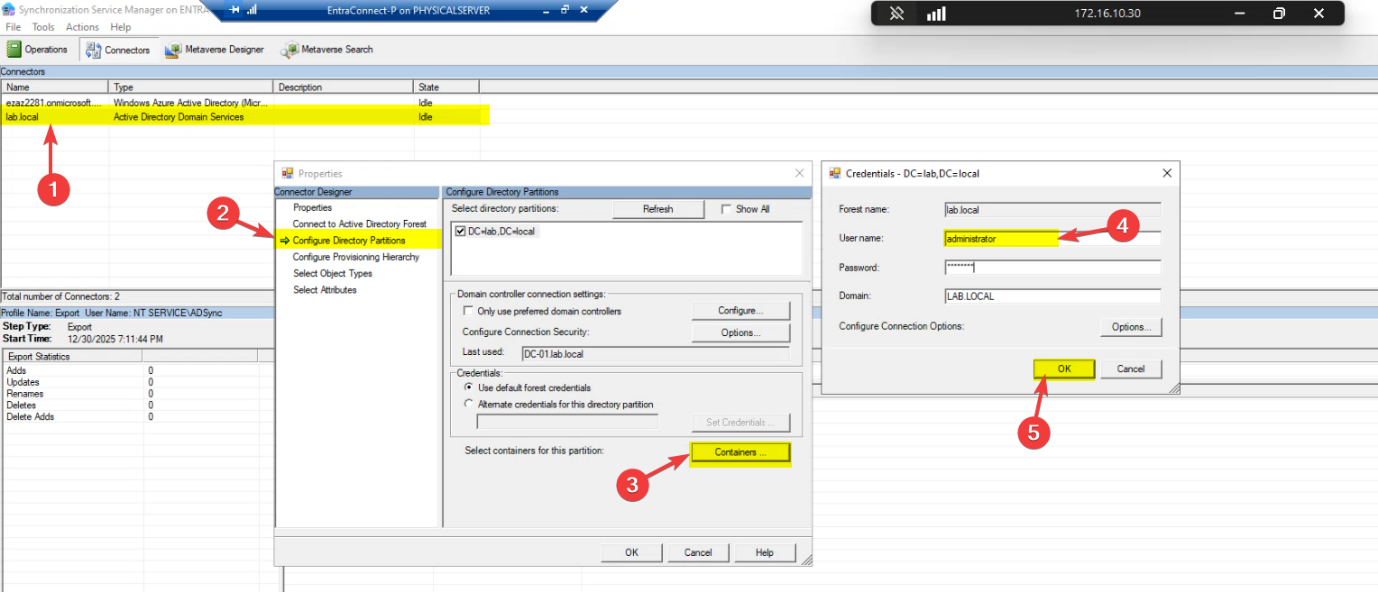
Left navigation in the Properties dialog: Configure Directory Partitions. Pick your domain partition in the right pane (e.g. infotechninja.local). Click Containers… at the bottom.
Authentication prompt — needs read access to AD. The MSOL_ service account that EC created at install time works. So does any account that has read permissions to the AD partition (Domain Admin, Account Operator, etc.).
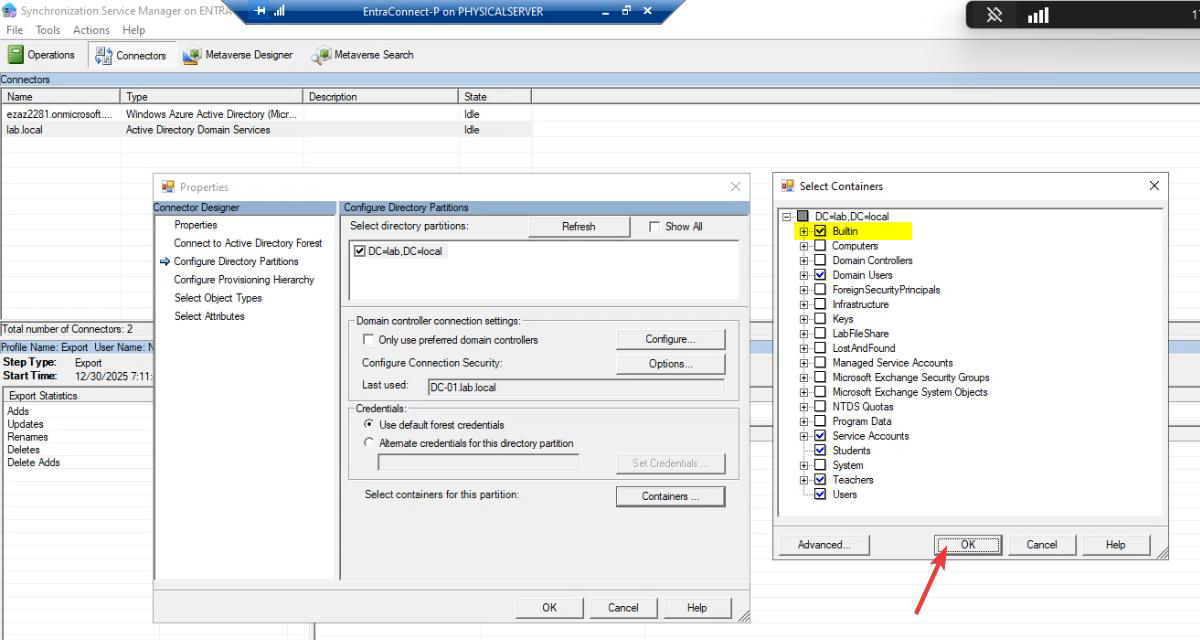
Containers tree view. This is the actual filter selection surface. Each OU in the AD hierarchy has a checkbox.
Tick or untick OUs as needed. Common patterns:
- Tick: human-user OUs — Employees, Engineering, Sales, IT.
- Untick: service-account OUs (Service Accounts), test OUs, computer-only OUs (Workstations, Servers), decommissioned OUs.
- The Builtin container: typically untick — it has built-in security groups (Administrators, Domain Admins, etc.) that don’t need to be in cloud.
- The Users container: tick OR untick depending on whether new users default-created here belong in cloud. For most environments, the default Users container should be ticked.
Sub-OUs inherit unless explicitly overridden. Tick a parent and all children sync; untick a child of a ticked parent and just that child gets excluded.
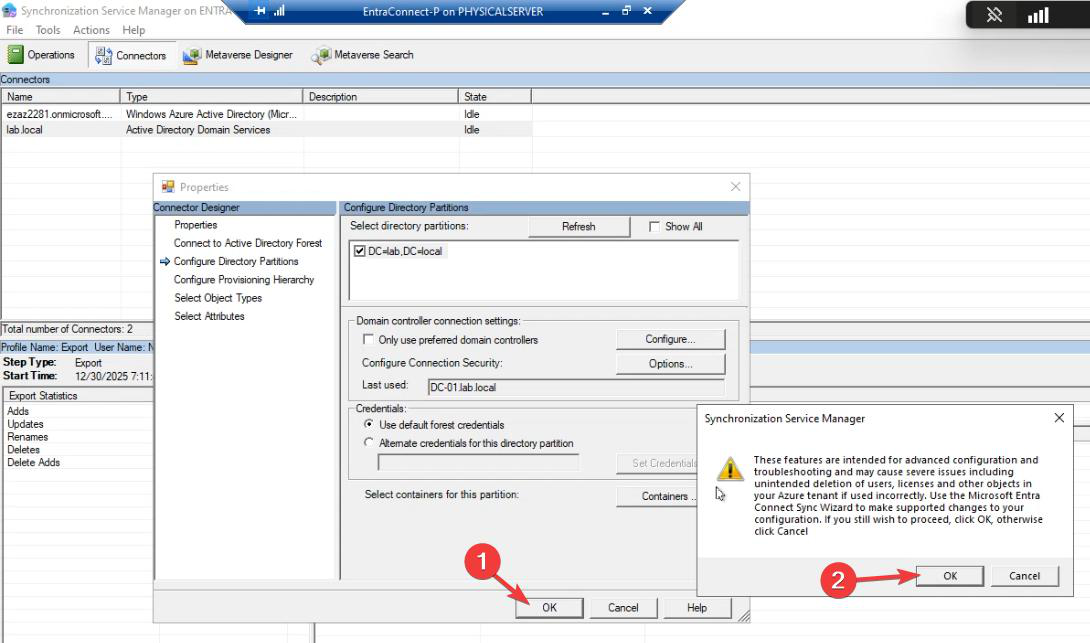
OK to close Containers. OK to close Properties. The new filter is stored in the connector but NOT YET applied to the cloud — that needs Phase 3.
Phase 3 — force initial sync
Back to PowerShell. Re-enable the scheduler:
Set-ADSyncScheduler -SyncCycleEnabled $trueForce a sync. Critical: use -PolicyType Initial, NOT Delta:
Start-ADSyncSyncCycle -PolicyType Initial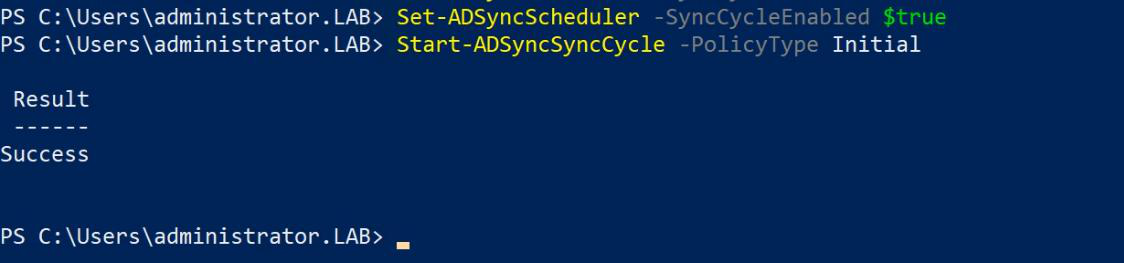
Start-ADSyncSyncCycle -PolicyType Initial. This is required because filter changes alter the SCOPE of what gets synced — Delta only looks at what changed inside the existing scope; Initial re-discovers everything against the new filter.Why Initial?
- Delta sync only looks for changes WITHIN the existing scope. If you added a new OU to the filter, Delta doesn’t see it.
- Initial sync tells the engine: “forget what you knew; re-evaluate the entire AD against the current filter.” This is the only way newly-included OUs get pulled in and newly-excluded objects get marked for cloud-side deletion.
The Initial sync takes longer than a Delta — for very large directories, possibly hours. Watch progress in Synchronization Service Manager. After it completes, the next Delta sync (in 30 minutes by default) returns the system to steady state.
Verification after the change
- Cloud: M365 admin centre > Active Users. Newly-included OU members should appear; newly-excluded users should be in the Recycle Bin (deleted users page).
- EC server: Synchronization Service Manager > Operations tab. The Initial sync should show Success. Export Statistics for the cloud connector should show non-zero Adds (newly-included), Deletes (newly-excluded), or both.
- Sync health: Entra admin centre > Connect Health > Sync services. Status should remain Healthy. Errors here mean the filter change introduced sync rule conflicts that need resolving.
Things that bite people
Forgot to use Initial — ran Delta instead
You ran Start-ADSyncSyncCycle -PolicyType Delta after the filter change. Newly-INCLUDED OUs don’t appear in cloud. Newly-EXCLUDED users still exist in cloud (Delta noticed they didn’t change but didn’t notice the scope change). Fix: re-run with -PolicyType Initial.
Scheduler not paused, mid-edit sync runs
You skipped Phase 1. Mid-edit, the scheduler kicked off a sync against the OLD filter. Some users got synced or deleted that shouldn’t have. The next Initial sync after the filter change settles things, but in the interim the cloud is briefly in an inconsistent state. Always pause the scheduler first.
Bulk soft-delete from accidental untick
You unticked the wrong OU and the next Initial sync soft-deleted hundreds of users. They’re in the Recycle Bin for 30 days; restore them by re-ticking the OU and running another Initial sync. Within 30 days the original cloud accounts come back with all their data. After 30 days they’re gone forever.
Sub-OU expectations
You ticked an OU and assumed all its children would sync. Mostly true — but some children were explicitly UNticked previously and that override stuck. Walk the tree carefully; for OUs you definitely want, tick the parent AND any previously-overridden children explicitly.
Computer accounts in OUs you tick
The default Users / Computers OUs in AD often have a mix of users AND computers. Entra Connect’s default sync rules don’t sync computer accounts unless you specifically enabled hybrid join — so the computer accounts in a ticked OU are typically harmless. But if you DID enable Hybrid Azure AD Join, those computer accounts now sync to Entra ID; verify the device list matches expectations.
Group nesting confusion
You filtered to include only specific groups (group-based filter, not OU-based). A user is a member of one of those groups via NESTED group membership. Entra Connect’s group-based filter only sees DIRECT membership; nested members don’t qualify. Either flatten the membership in AD or move to OU-based filtering.
Multi-domain filter confusion
If your forest has multiple domains, the OU filter only applies per-domain partition. Configure separately for each partition; don’t expect changes in one to affect another.
Filter changes don’t take effect because EC server is offline
You ran all the commands, but the EC server is having issues and the Initial sync silently fails. Check Synchronization Service Manager > Operations — the Initial run should show Status: Success. Anything else means the sync didn’t actually happen; troubleshoot the EC server before assuming the filter took effect.
What’s next
OU filtering is the most common day-2 operation on EC. Subsequent posts cover the more invasive operations: in-place upgrade (replacing the EC version on the same server), migrating EC to a new server (when you need a different machine), and HA setup (running two EC servers for failover). Series in the Hybrid Identity pathway.