
Domain-joined users sign in to Windows in the morning, hit a Microsoft 365 URL in the browser, and… get prompted for their password. Why? They’re already authenticated on this machine; the browser knows it; the cloud should know too. The fix is Seamless SSO — an Entra Connect feature that uses the user’s existing Windows Kerberos ticket to silently authenticate to Entra ID. No password prompt; no extra clicks; one Windows login unlocks every cloud app. This post walks the configuration end-to-end across four phases: firewall, Entra Connect wizard, Group Policy, and testing.
How Seamless SSO actually works
Five steps under the hood:
- User signs in to Windows on a domain-joined PC. Windows issues a Kerberos TGT.
- User opens a browser, navigates to a Microsoft 365 URL.
- Browser checks: is the URL in the Local Intranet zone? (You configure this via GPO — Phase 3.) If yes, the browser will silently send Kerberos tickets.
- Browser silently requests a Kerberos service ticket for the cloud’s SSO endpoint, gets one (because the on-prem AD trusts the AZUREADSSOACC computer object in its directory), sends it to the cloud.
- Cloud receives the Kerberos ticket, decrypts it using keys it shares with the AZUREADSSOACC object, identifies the user, issues a cloud sign-in token. Browser uses the token. User is signed in.
All transparent. No password ever leaves the device; the user never sees a prompt.
Important: Seamless SSO is an ADD-ON to Password Hash Sync (PHS) or Pass-through Authentication (PTA). It’s not a replacement; you must already have one of those configured. SSO sits on top to silence the password prompt at sign-in time.
Who benefits
- Domain-joined PCs on the corporate network. Full silent SSO. The dream scenario.
- Domain-joined PCs OFF the corporate network (e.g. WFH, no VPN). Browser can’t reach a DC to get a Kerberos service ticket; falls back to a regular password prompt.
- Personal / non-domain-joined devices. No Kerberos ticket; falls back to password prompt. Use Entra Joined or Hybrid Joined for those.
- Mobile / iOS / Android. Different SSO path (Authenticator app + conditional access). Not what this post covers.
If most of your workforce is on domain-joined corporate PCs in offices, SSO is high-value. If you’re mostly on personal devices or remote, the benefit is smaller.
Phase 1 — firewall
The Entra Connect server (or any client doing SSO) needs outbound HTTPS to *.msappproxy.net. This is where the cloud retrieves the Kerberos decryption keys for the AZUREADSSOACC computer account.
- Open your firewall config.
- Add
*.msappproxy.netto the outbound allow-list on TCP 443.
Critical: if your firewall does SSL inspection (breaks open encrypted traffic to scan it), you MUST exclude this URL. Inspection breaks the certificate pinning and key retrieval fails.
Phase 2 — enable in Entra Connect
This is a wizard reconfiguration on the existing EC server — you don’t reinstall.
Launch the Azure AD Connect wizard from the EC server desktop. Click Configure.
From the Tasks page, pick Change user sign-in. Next.
Click Next on the Change user sign-in page.
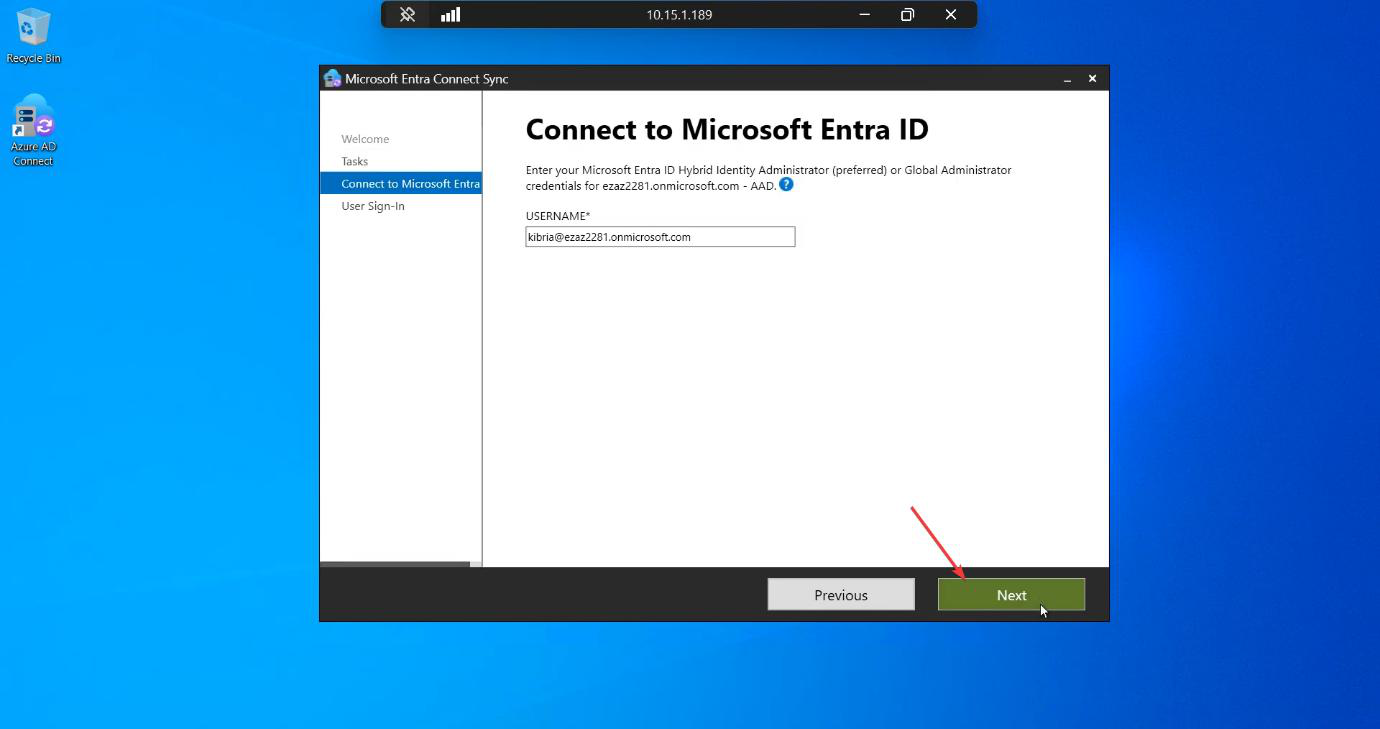
Authenticate with Global Administrator (or Hybrid Identity Admin) credentials when prompted.
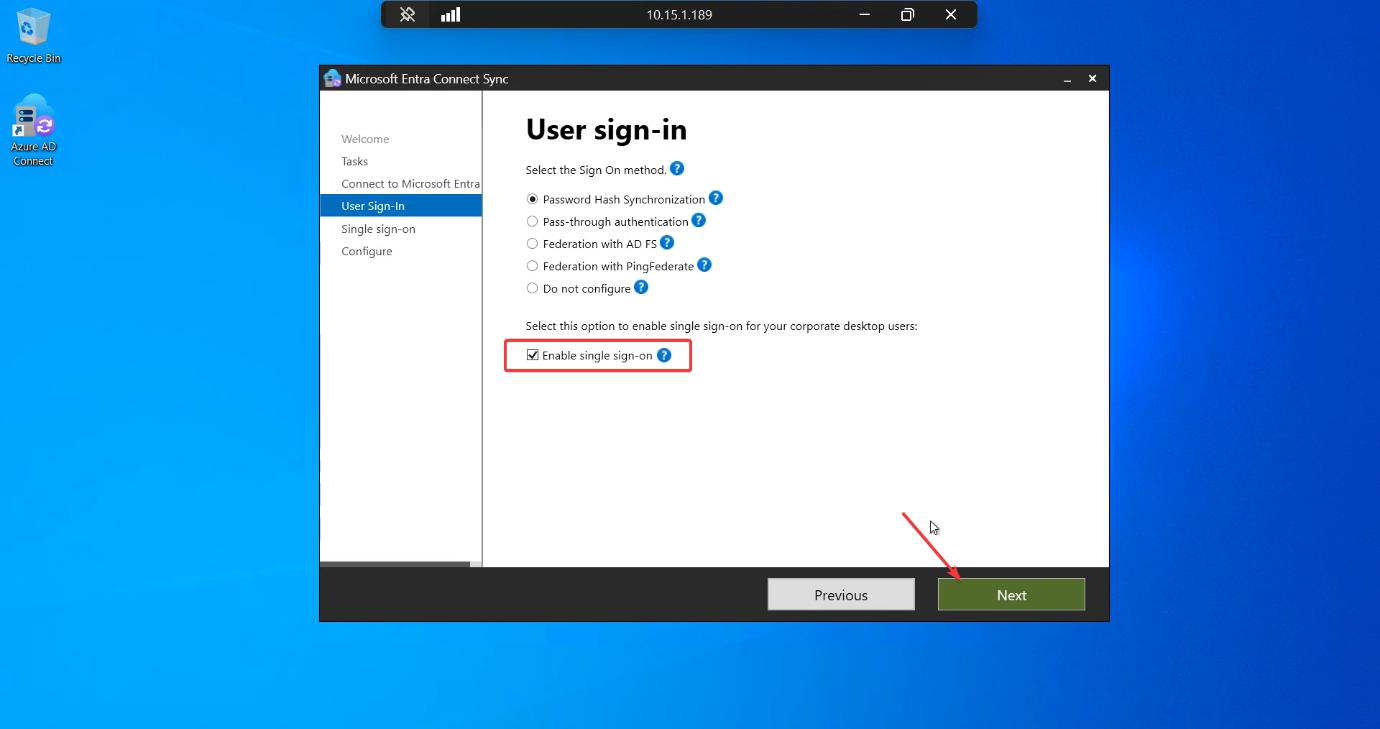
On the User sign-in page: tick Enable single sign-on. Don’t change the radio buttons for the existing sign-in method (PHS or PTA) — SSO is additive. Click Next.
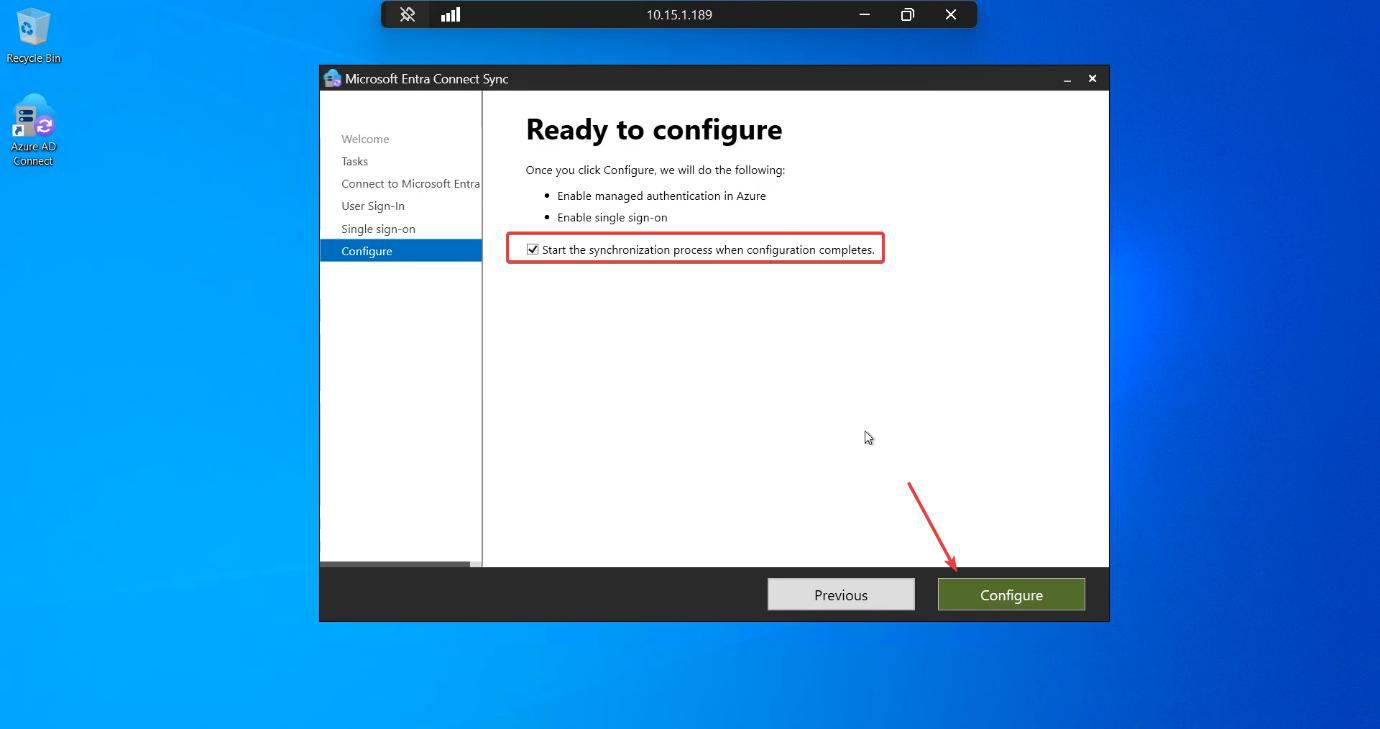
Ready to Configure summary. Tick Start the synchronization process when configuration completes. Click Configure.
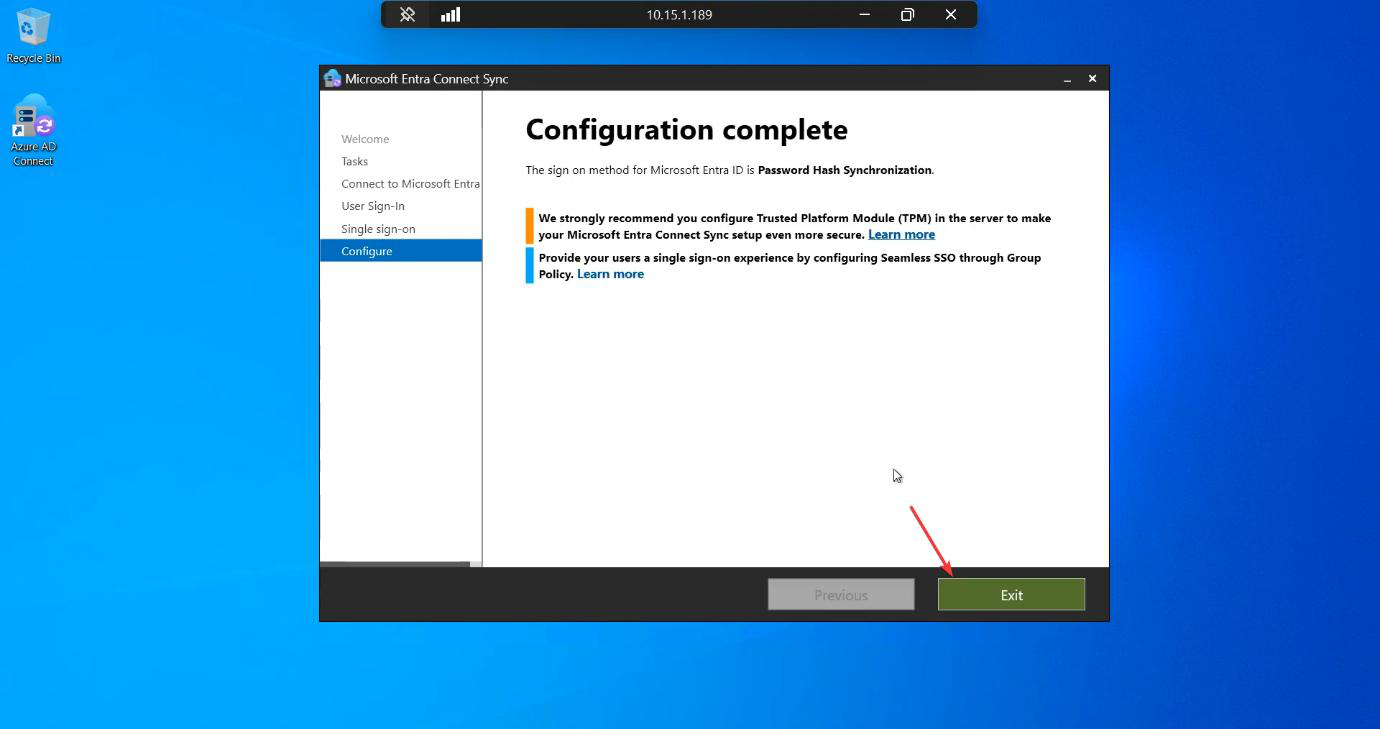
Configuration Complete. Click Exit. SSO is now enabled at the EC level.
Verification 1 — cloud check
Sign into the Entra admin centre. Hybrid management > Microsoft Entra Connect > Connect Sync.
Status now shows Seamless single sign-on: Enabled. Click the link for details.
Configured domains list should include your local AD domain (e.g. infotechninja.local).
Expanded view shows Kerberos key metadata. Keys rotate automatically; you don’t manage them directly.
Verification 2 — on-prem check
Open ADUC. Navigate to the default Computers container.
You should see a new computer object named AZUREADSSOACC.
This object is critical. NEVER DELETE IT. It holds the Kerberos decryption keys that link your on-prem AD to the cloud SSO endpoint. Deleting it breaks SSO immediately for every user; recovery requires re-running Phase 2.
Phase 3 — GPO to trust the SSO endpoint
For browsers to silently send Kerberos tickets, the SSO URL must be in the Local Intranet zone. Otherwise the browser treats it as Internet and refuses to send credentials.
Create the GPO
- Group Policy Management on a DC.
- Right-click your domain (or a target OU) > Create a GPO in this domain, and Link it here.
- Name: Policy – SSO.
- Edit.
Policy 1: Site to Zone Assignment List
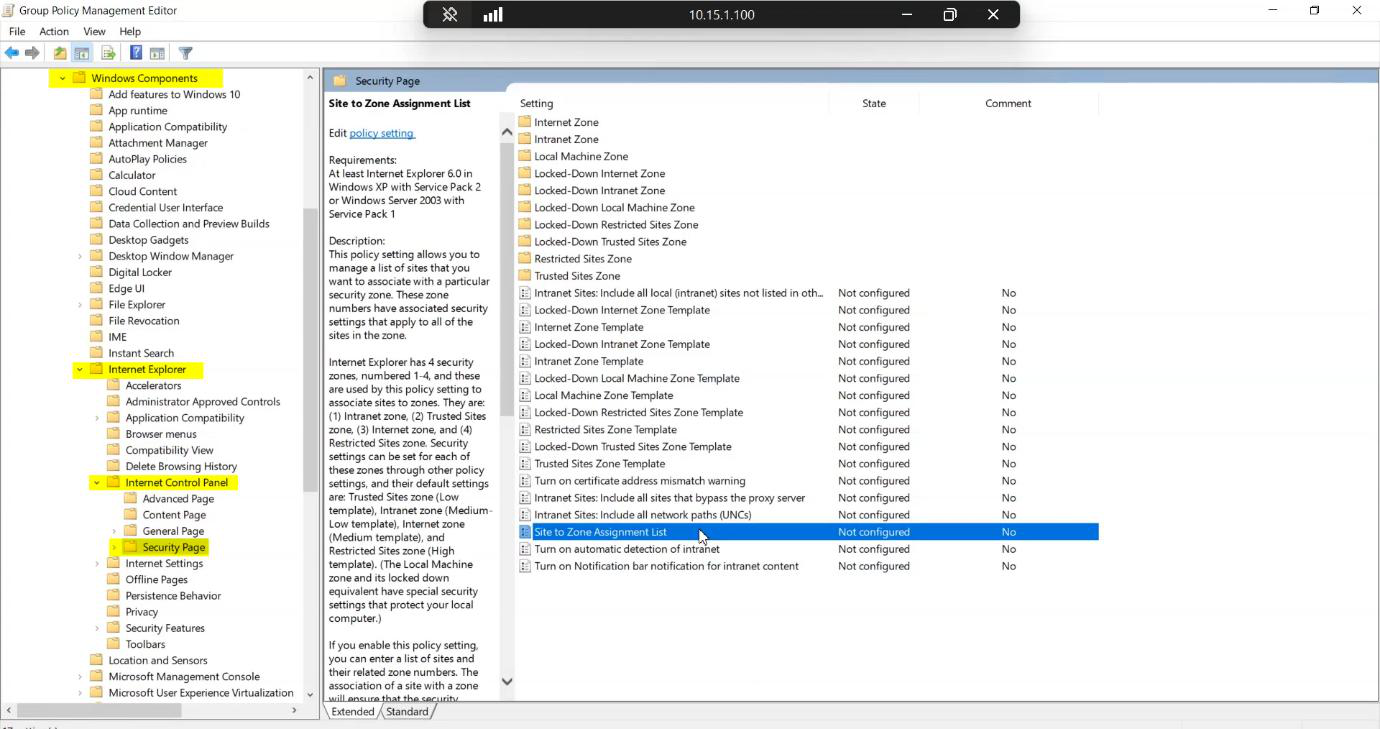
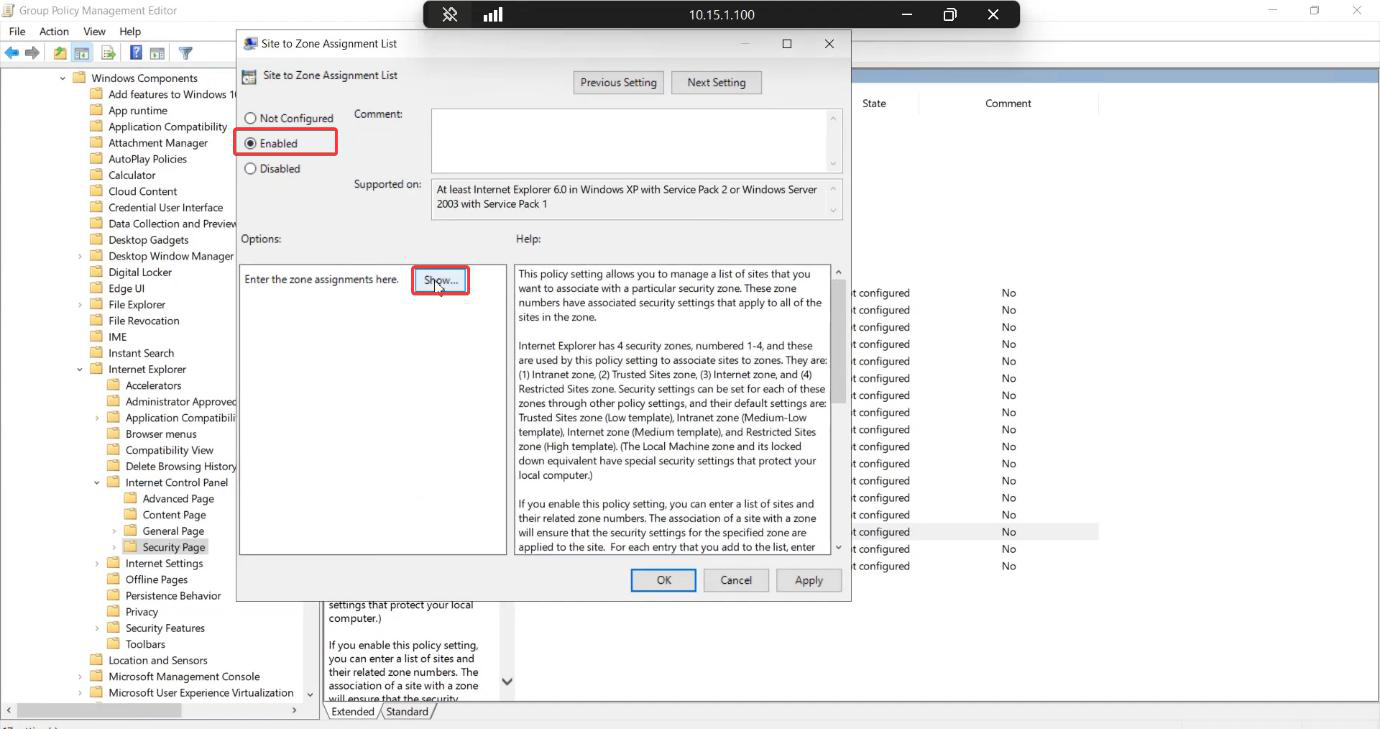
Set to Enabled. Click Show.
Empty list. Click Add.
Enter:
- Value Name:
https://autologon.microsoftazuread-sso.com - Value:
1(Zone 1 = Local Intranet)
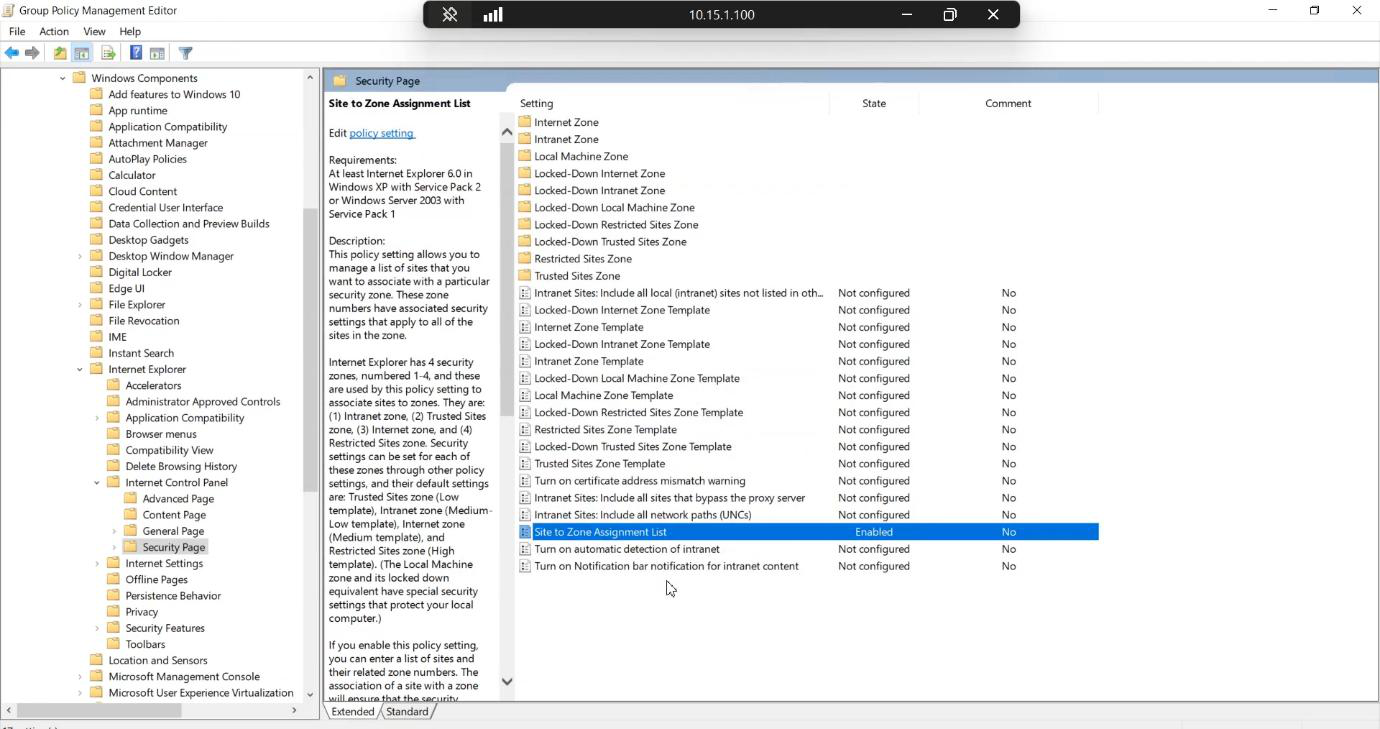
OK, OK, OK. Policy applied.
Policy 2: Allow status-bar updates (optional)
![Allow updates to status bar via script policy under Internet Control Panel > Security Page > Intranet Zone with Enabled selected” /><figcaption>Optional: enable <strong>Allow updates to status bar via script</strong> in the Intranet Zone properties. Helps older browsers and specific script paths complete the SSO handshake smoothly. Skip if you’re only targeting modern Edge / Chrome.</figcaption></figure>
<p>Same path, dive into Intranet Zone > <strong>Allow updates to status bar via script</strong> > Enabled. Helps older browsers and certain script paths during the SSO handshake. Skip if your fleet is modern Edge / Chrome.</p>
<h3>Link the GPO</h3>
<p>If not already linked, link the new Policy – SSO GPO at an appropriate scope. Domain root = everyone benefits. Specific OU = test first. Since this is User Configuration, the scope follows the USER, not the computer.</p>
<p>Confirm the link.</p>
<p>DC view of the new GPO with all settings visible.</p>
<p>Validate that GPO is being applied via gpresult or Group Policy Modeling.</p>
<h2>Validate end-to-end on EC server</h2>
<p>Back on the EC server, confirm the SSO feature is healthy and reporting to the cloud.</p>
<p>EC sync engine continues running normally; SSO is an additive feature alongside PHS / PTA.</p>
<h2>Phase 4 — testing</h2>
<p>Test on a domain-joined Windows 10 / 11 client.</p>
<p>Sign in as a regular domain user.</p>
<p>Confirm the user has a Kerberos TGT after sign-in. (Optional check: <code>klist</code> at a command prompt.) The Kerberos credential is what the browser will silently exchange.</p>
<h3>Test 1: MyApps portal</h3>
<p>Open Edge or Chrome. Navigate to <code>https://myapps.microsoft.com/[your-tenant].onmicrosoft.com</code> — replace <code>[your-tenant]</code> with your actual tenant name (e.g. <code>infotechninja.onmicrosoft.com</code>). The tenant-scoped URL hints to Microsoft which directory to look up.</p>
<p>Browser does a brief loading spin (the Kerberos exchange).</p>
<p>MyApps loads. <strong>No password prompt.</strong> If you saw one, troubleshoot back to GPO application (gpupdate /force then re-test) or AZUREADSSOACC object existence.</p>
<p>App launcher with all the user’s assigned apps. Clicking any app opens it without a fresh prompt.</p>
<h3>Test 2: portal.office.com</h3>
<p>Navigate to <code>portal.office.com</code>. Same expected behaviour.</p>
<p>Office portal loads.</p>
<figure class=](https://infotechninja.com/wp-content/uploads/2026/05/post244-fig-19.png)
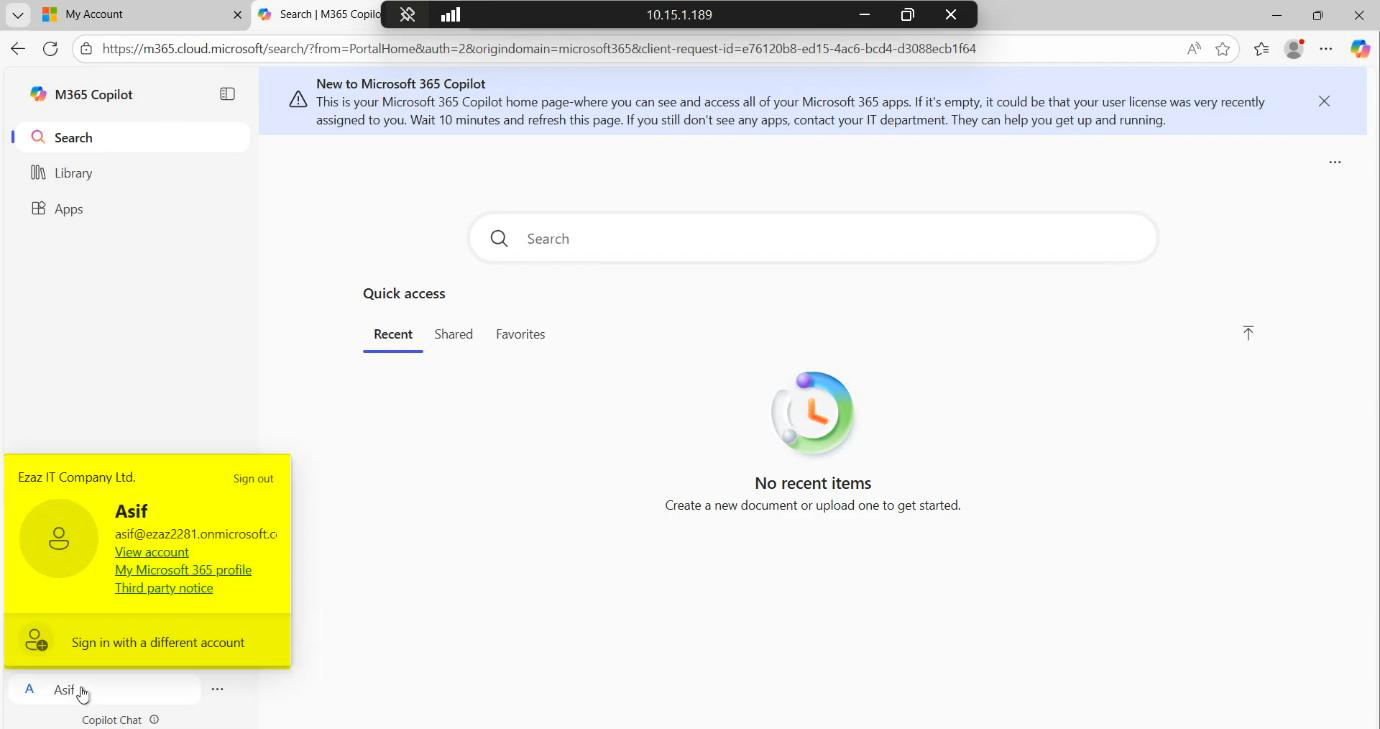
M365 dashboard accessible. SSO is working end-to-end.
Things that bite people
Browser still prompts for password
The most common failure. Causes:
- GPO not applied. Run
gpupdate /forceon the client. Confirm withgpresult /h C:\g.html— the report should show Policy – SSO under Applied GPOs. - Browser cache. Some browsers cache the “is this URL in Intranet zone?” decision. Close all browser windows, reopen.
- Wrong URL. The Site to Zone Assignment must be the EXACT URL
https://autologon.microsoftazuread-sso.com. No trailing slash. No variations. - Browser doesn’t honour Intranet zone for credentials. Firefox needs additional configuration (
about:config>network.negotiate-auth.trusted-uris); Edge / Chrome use Windows’ Internet Settings.
AZUREADSSOACC missing or deleted
SSO breaks for everyone. The wizard re-creates the object if you re-run Phase 2 (Configure > Change user sign-in > untick Enable SSO > Apply > re-run with Enable SSO ticked). This rotates the keys; expect a brief sign-in glitch during rotation.
Off-network users get prompted
This is by design. Seamless SSO requires the browser to reach a DC for a Kerberos service ticket. WFH users without VPN to the corporate network can’t do that; they get the regular password prompt. Solution: combine with Entra Joined / Hybrid Joined for off-network device sign-in, or use VPN.
Multi-domain forests
If your AD forest has multiple domains, you need to enable SSO per domain. The Entra Connect wizard handles this; the AZUREADSSOACC object gets created in each enabled domain.
Kerberos key rotation
Microsoft recommends rotating the AZUREADSSOACC keys every 30 days. There’s a PowerShell module (AzureAdSSO) for this. Forgetting to rotate is technically a security gap but practically harmless — the keys are long-lived and not easily extracted.
SSL inspection breaks key retrieval
Enterprise firewalls that do SSL inspection on outbound traffic break the certificate pinning Microsoft uses for key retrieval. Excluding *.msappproxy.net from inspection is mandatory.
SSO not working for one specific user
The user has a UPN that doesn’t match the verified domain. SSO requires the on-prem UPN to align with the cloud UPN; if a user is still on jdoe@infotechninja.local while the cloud has them as jdoe@infotechninja-tenant.onmicrosoft.com, SSO can’t link them. Fix: do the UPN suffix work from Part 4.
Conditional Access policy blocking SSO
If you have a Conditional Access policy that requires MFA for everything, SSO succeeds but the user still gets prompted for MFA. That’s usually desired (SSO doesn’t bypass MFA), but if you specifically want SSO + no-MFA for trusted networks, configure CA exclusions for the corporate IP range.
What’s next
SSO is one of the more impactful Entra Connect add-ons — user-visible improvement with no extra licensing required. Subsequent posts cover OU filtering changes (post-install reconfiguration of which users sync), in-place upgrades, and migrating EC to a new server. Series in the Hybrid Identity pathway.