
You inherited an Entra Connect deployment with no documentation. Or you suspect there’s a rogue EC install somewhere on your network. Or you’re auditing for compliance and need to know which on-prem boxes touch identity. Question: what’s the hostname of the server doing the syncing? Answer: ask the cloud. The Entra tenant has a list of every EC server currently registered to it; you can read that list from the admin centre without any on-prem access.
Why ask the cloud (and not just RDP into the obvious server)
You might already know which box is supposed to be running Entra Connect. But the cloud’s view is authoritative for several reasons:
- Inherited environments. Old hostnames, IT team rotated, the wiki rotted. The server that was supposed to be running EC isn’t the one currently doing the syncing.
- HA pairs. The cloud shows BOTH servers in a high-availability setup, with which one is currently Active vs Standby. RDP into one server only tells you about that one.
- Shadow installs. Someone at some point installed EC on a different box for testing and never cleaned up. The cloud has the truth; the wiki may not.
- No on-prem access. You may have cloud admin rights but no RDP into the on-prem environment. The cloud-side path works regardless.
- Audit / compliance. “Which servers in our environment are part of the identity sync infrastructure?” is a common audit question. The cloud’s registered-servers list is the canonical answer.
The recipe
Six clicks. The path mirrors Method 1 from Part 8 (find the version) — same admin-centre navigation; you’re just reading a different field at the end.
Step 1 — sign in
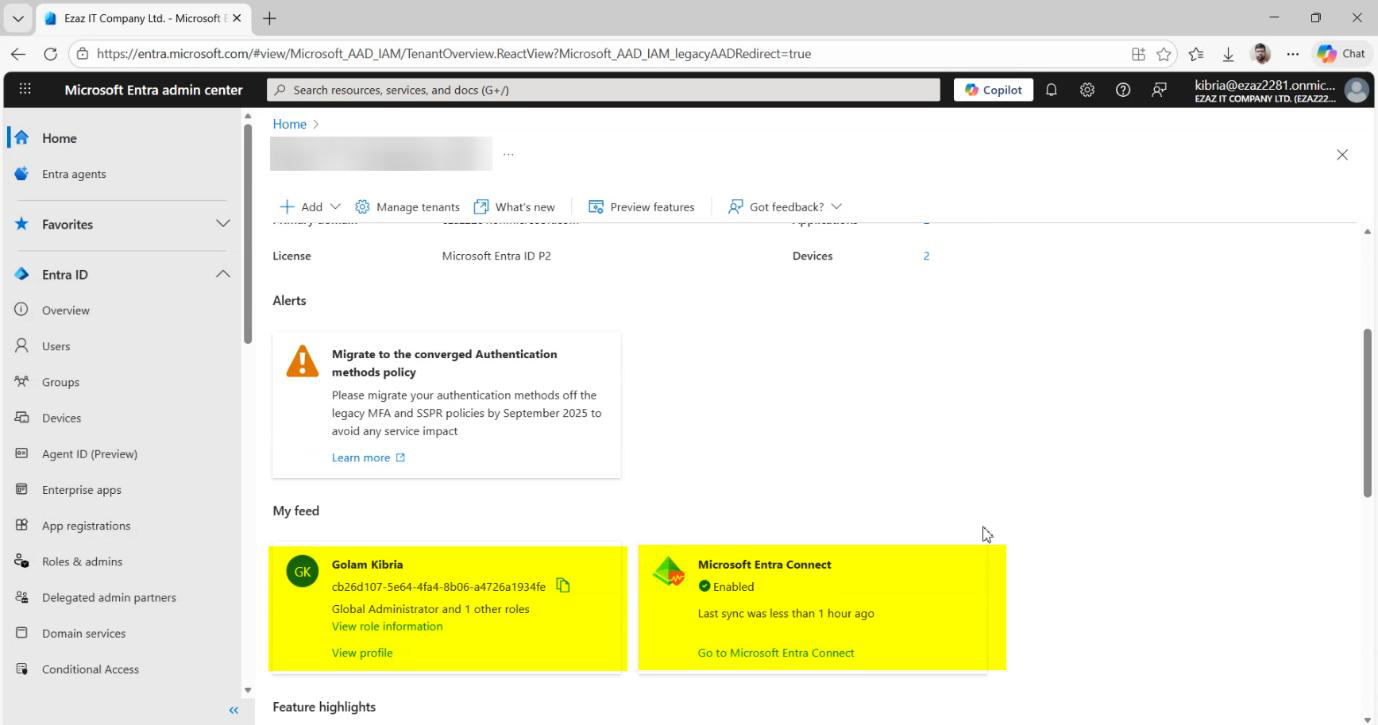
Sign in to entra.microsoft.com as a Global Administrator.
Step 2 — navigate to Connect Health
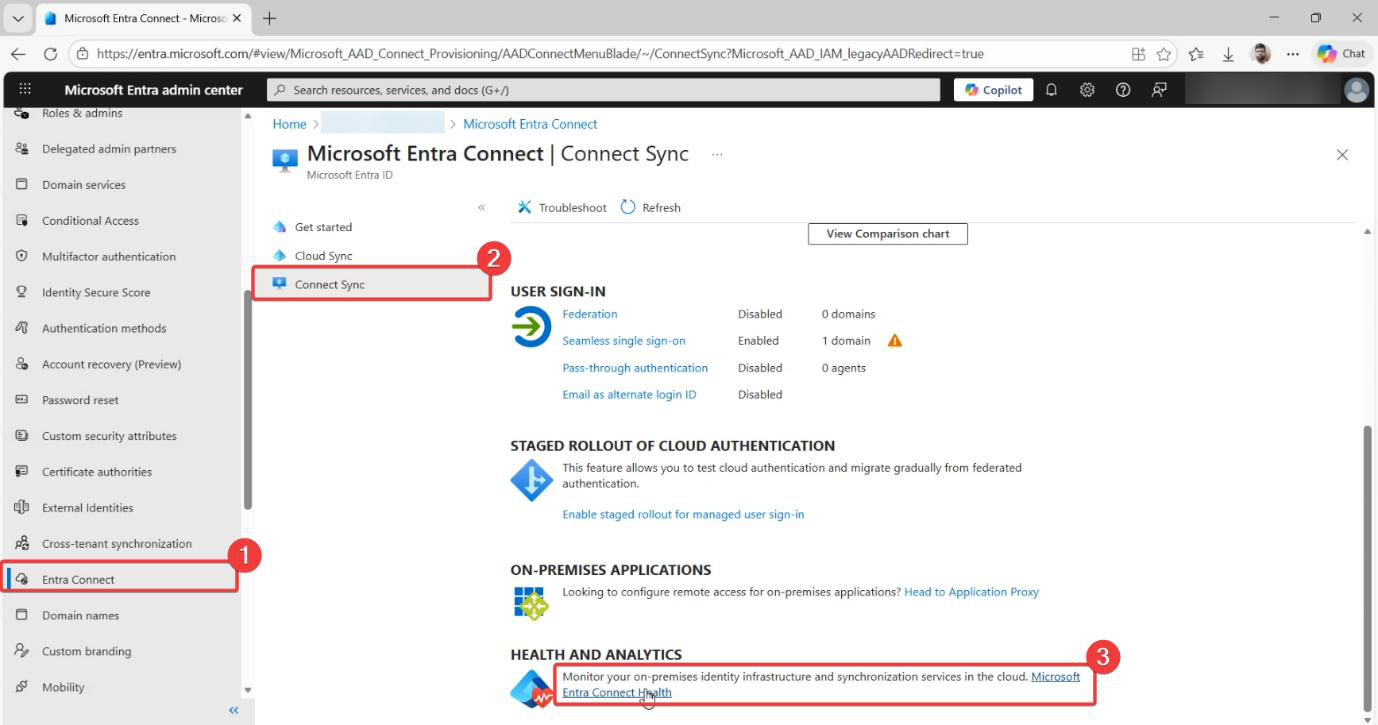
Identity > Show more (if needed) > Hybrid management > Microsoft Entra Connect > Connect Sync. The dashboard has a Microsoft Entra Connect Health link — click it.
Step 3 — pick the tenant
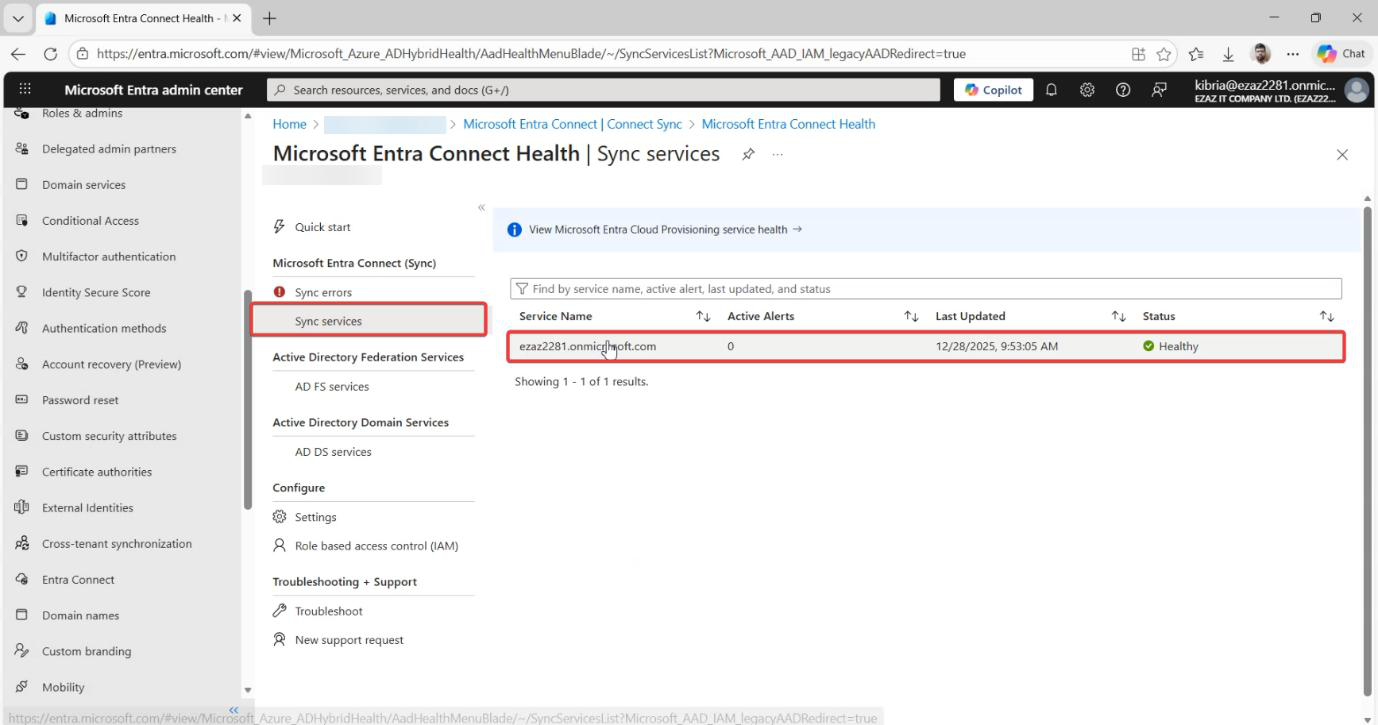
Connect Health > Sync services. The list shows one entry per tenant (typically just yours). Click it.
Step 4 — open Servers
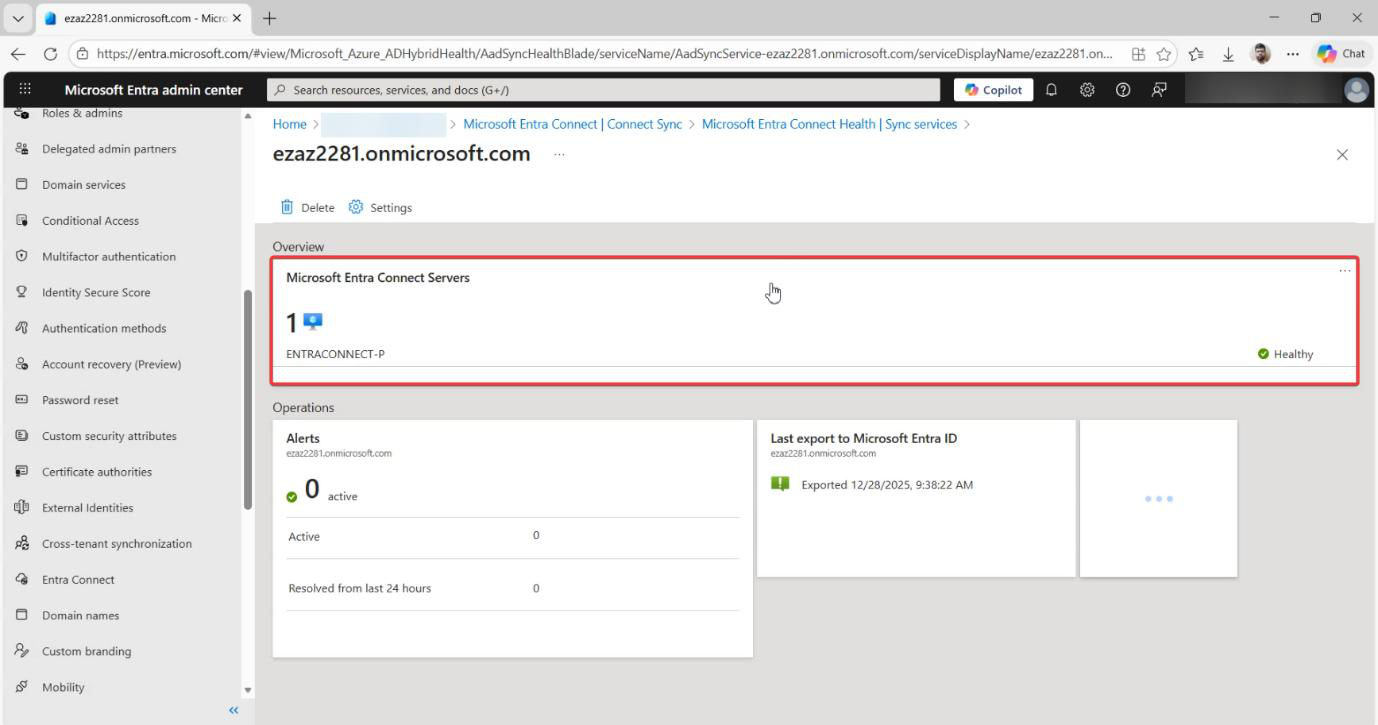
In the property list, click Microsoft Entra Connect Servers.
Step 5 — read the list
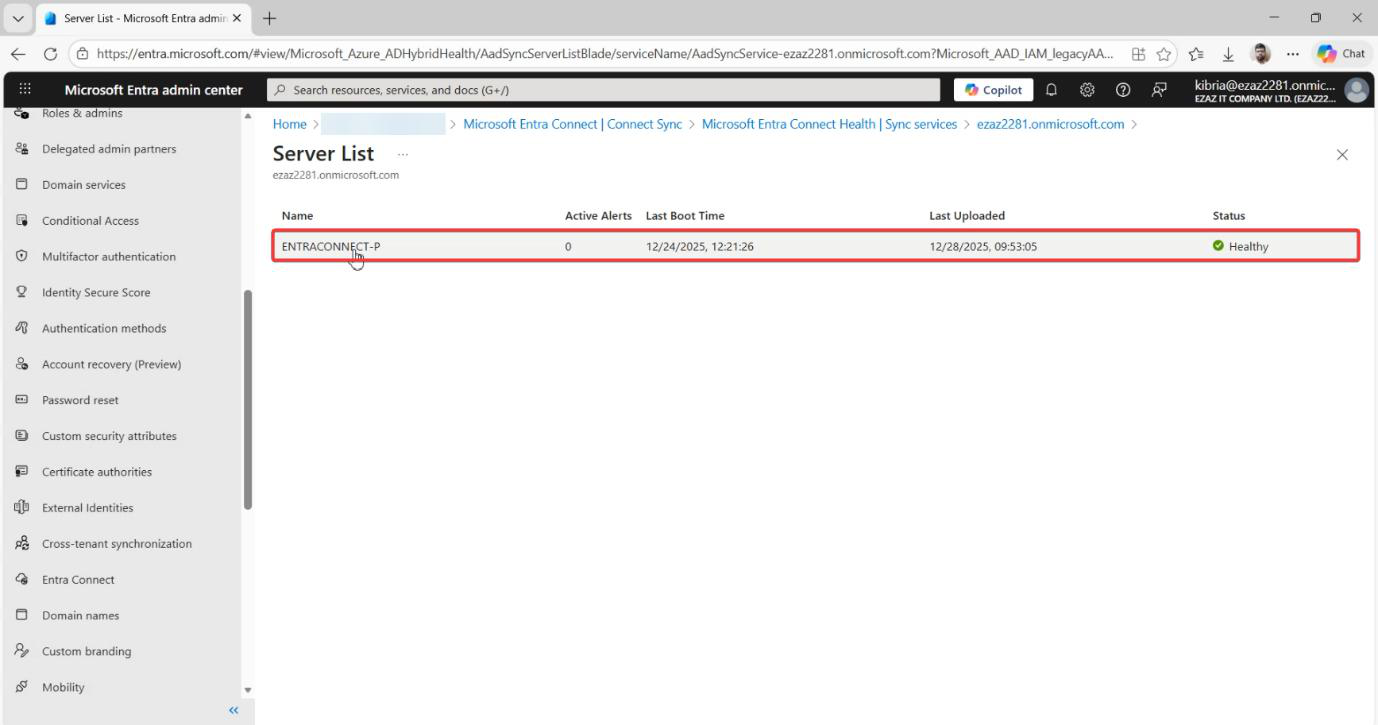
The Connect Servers pane lists every EC server currently registered with this tenant. The Server Name column is the hostname — that’s your answer.
Expand the columns for additional context: Status, Agent Version, Last Heartbeat. Useful detail.
What the columns tell you
| Column | Meaning |
|---|---|
| Server Name | Hostname of the EC server. May be FQDN or short name depending on how the Health Agent reports. |
| Status | Active or Standby (HA pairs only). Active = currently performing syncs. Standby = ready to take over. |
| Agent Version | The Health Agent version (NOT the EC sync engine version — those track separately). Cross-check with the version-finding methods from Part 8. |
| Last Heartbeat | How recently the Health Agent last reported. Should be within minutes. Anything older than an hour means the agent is broken or the server is offline. |
PowerShell alternative
For scripted inventory, use Microsoft Graph PowerShell:
Connect-MgGraph -Scopes "Directory.Read.All"
Get-MgDirectoryOnPremiseSyncStatus
Returns:
syncEnabled: True / FalsesyncSource: hostname of the server currently doing the syncing- Plus various sync-state fields
Useful for nightly audit jobs that record the answer to a CSV. The Microsoft Graph API is the underlying source of truth that the admin centre also reads from; same data, different presentation.
Things that bite people
Connect Servers list is empty
If the list is empty, one of three things is true:
- The tenant is cloud-only. No on-prem sync configured at all. If you expected sync, this is the headline.
- Health Agent isn’t reporting. EC is installed but the Health Agent component is disabled or broken. Common when EC was installed using a Hybrid Identity Admin account (per Part 1 alternative) — the Health Agent installs but doesn’t auto-enable. Enable it manually with
Register-AzureADConnectHealthSyncAgenton the EC server. - EC server is unreachable. Server is offline; the Health Agent can’t report. Check the server itself.
Multiple servers listed but you only have one
Old registrations can stick around after a server is decommissioned. The cloud-side cleanup isn’t automatic. Use Remove-MgDirectoryOnPremiseSync or the admin centre’s remove-server action to clear stale entries.
Server name is the SHORT name, not FQDN
Some older Health Agents report short hostnames; newer ones report FQDNs. The cloud doesn’t care which; it just records what the agent sent. If you need to RDP to the server, you may need to resolve the short name via DNS first.
Heartbeat very old (>1 hour)
The Health Agent is broken or the server is offline. Investigate the server directly. If the server is fine but the agent is broken, restart the Microsoft Entra Connect Health Sync Monitoring service on the server: Restart-Service AzureADConnectHealthSyncMonitor.
Status shows neither Active nor Standby
Single-server installs show no Active/Standby status (because there’s no HA). HA installs should show one Active + one or more Standby. If you see something else (e.g. all Standby and no Active), the cluster is in a degraded state — investigate immediately because no sync is happening.
Permission required: not just any cloud admin
You need at least Global Reader to view this list; Global Administrator for full visibility. Help-desk-tier accounts won’t see this view at all. If a user reports they can’t see the data, check their role assignments.
What’s next
Knowing which server runs EC is the second piece of the operational toolkit (after knowing the version). Subsequent posts cover the actual day-2 operations: changing OU filters, performing in-place upgrades, migrating EC to a new server, and setting up high availability. Series in the Hybrid Identity pathway.