
The first thing any Entra Connect troubleshooting call asks: which version are you running. Microsoft’s release cadence is brisk; minor sync issues often turn out to be known bugs in older builds; upgrade-related issues need both old and new version numbers. Knowing the answer takes seconds — if you know where to look. This post covers four ways to find the Entra Connect version, each suited to different access levels and contexts.
Pick by access level
| Method | Where | Time | Best for |
|---|---|---|---|
| 1 — Entra admin centre | Cloud (browser) | ~30 sec | You only have cloud access; no RDP to the server |
| 2 — Programs and Features | EC server (GUI) | ~10 sec | Quick eyeball when you’re already on the server |
| 3 — Synchronization Service Manager | EC server (GUI) | ~5 sec | Already in the sync app for other troubleshooting |
| 4 — PowerShell | EC server (cmd-line) | 2 cmds | Scripted inventory / automation |
All four read the SAME underlying value — the build number you get back is the same regardless of method. Differences are speed and access requirements.
Method 1 — Entra admin centre
Use when: you can’t reach the EC server but you have Global Admin in the cloud tenant.
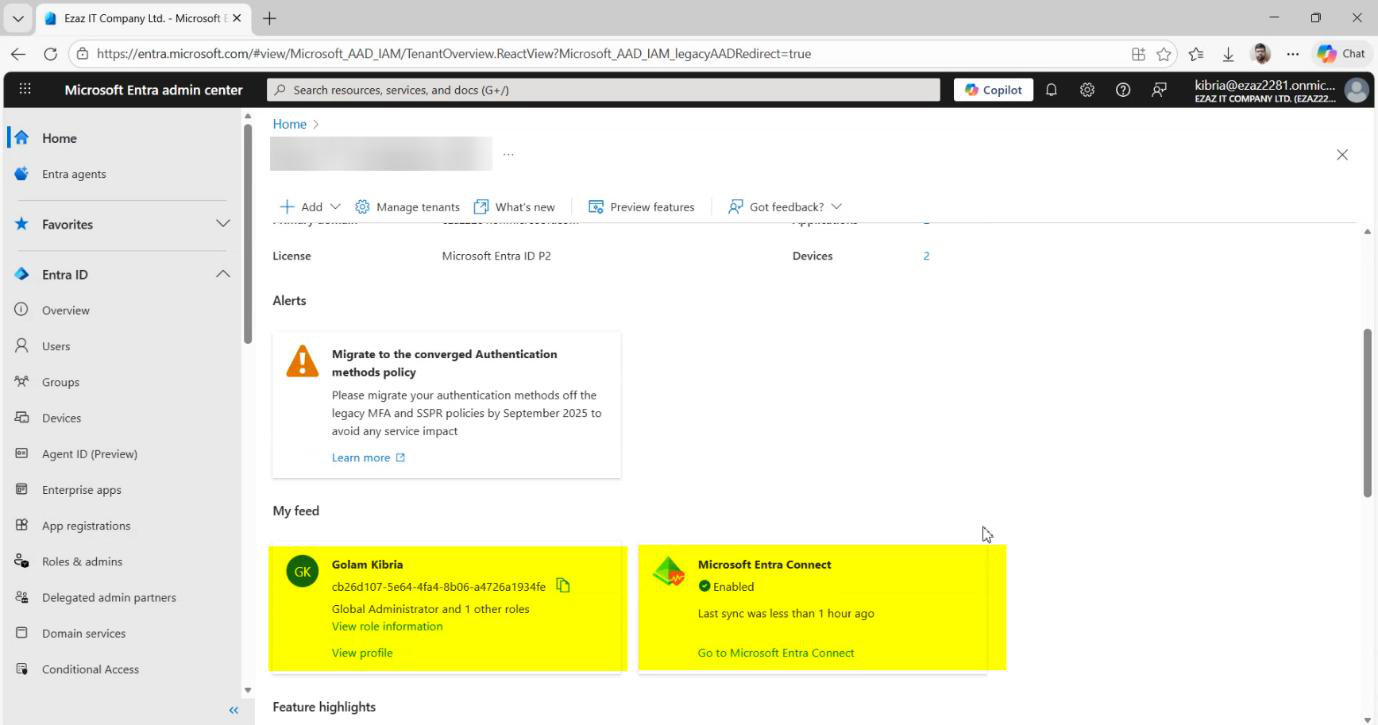
- Sign into entra.microsoft.com as a Global Administrator.
- Left navigation: Identity > Show more if needed.
- Hybrid management > Microsoft Entra Connect.
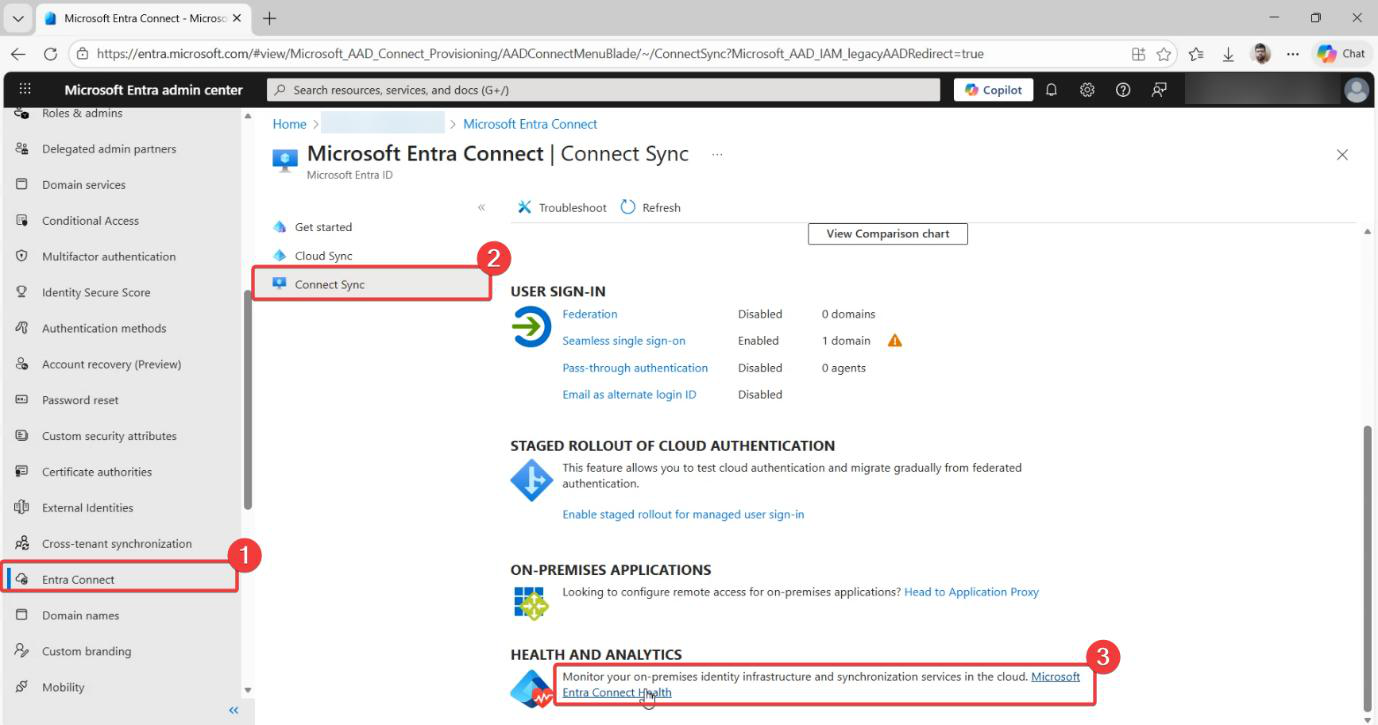
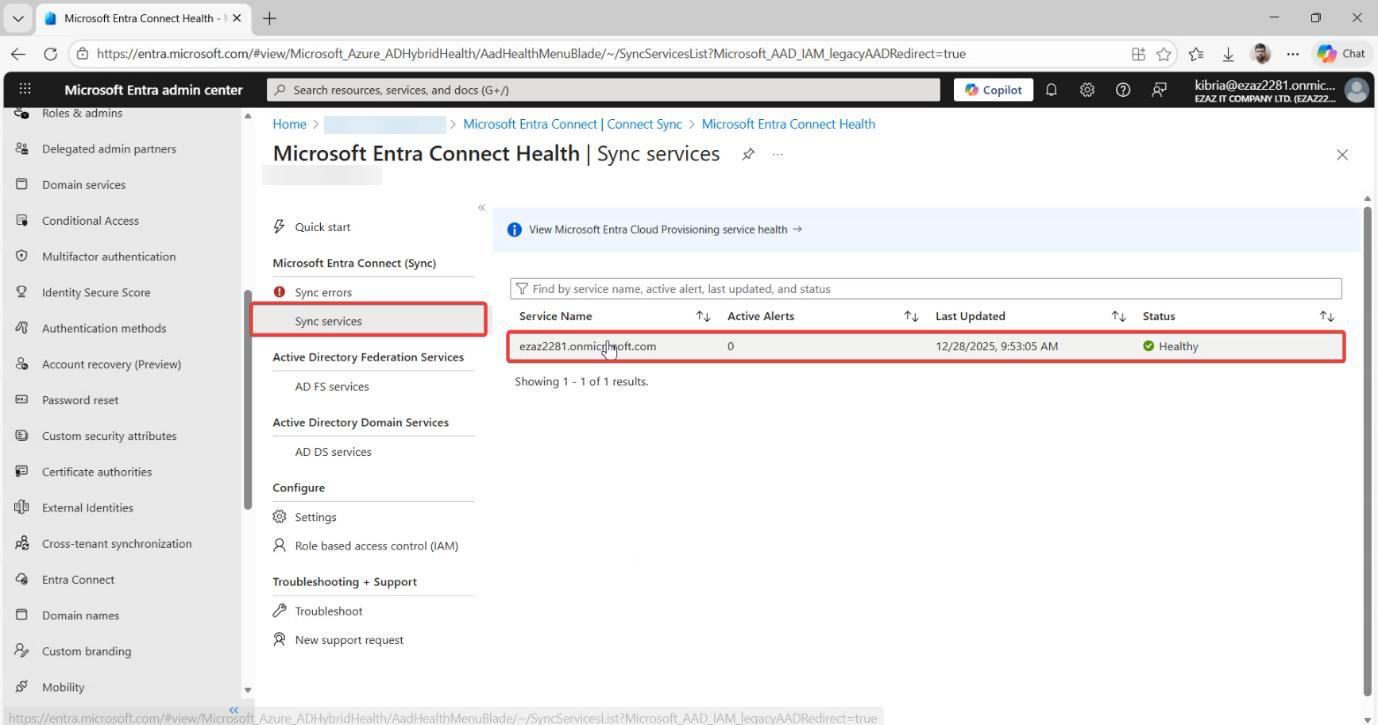
[your-tenant].onmicrosoft.com).- Sync services.
- Click your tenant (typically
[your-tenant].onmicrosoft.com).
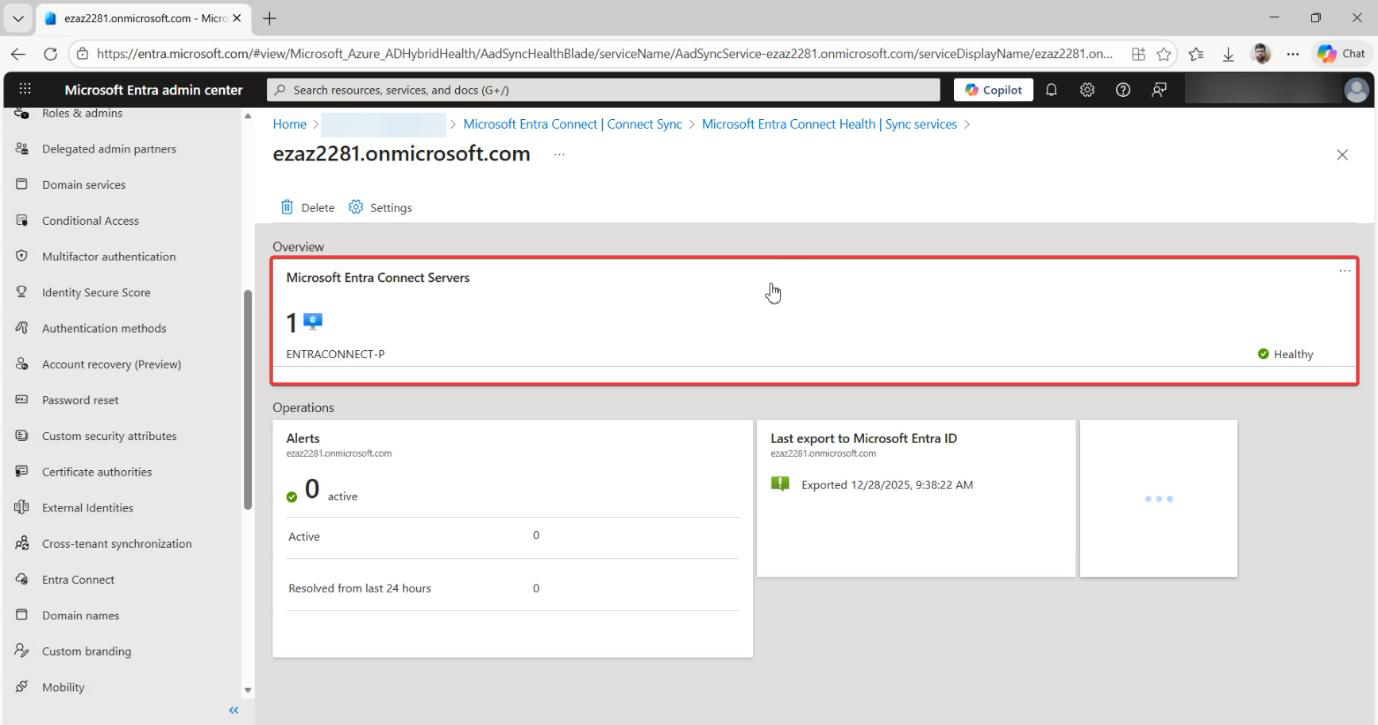
- Find Microsoft Entra Connect Servers in the property list. Click.
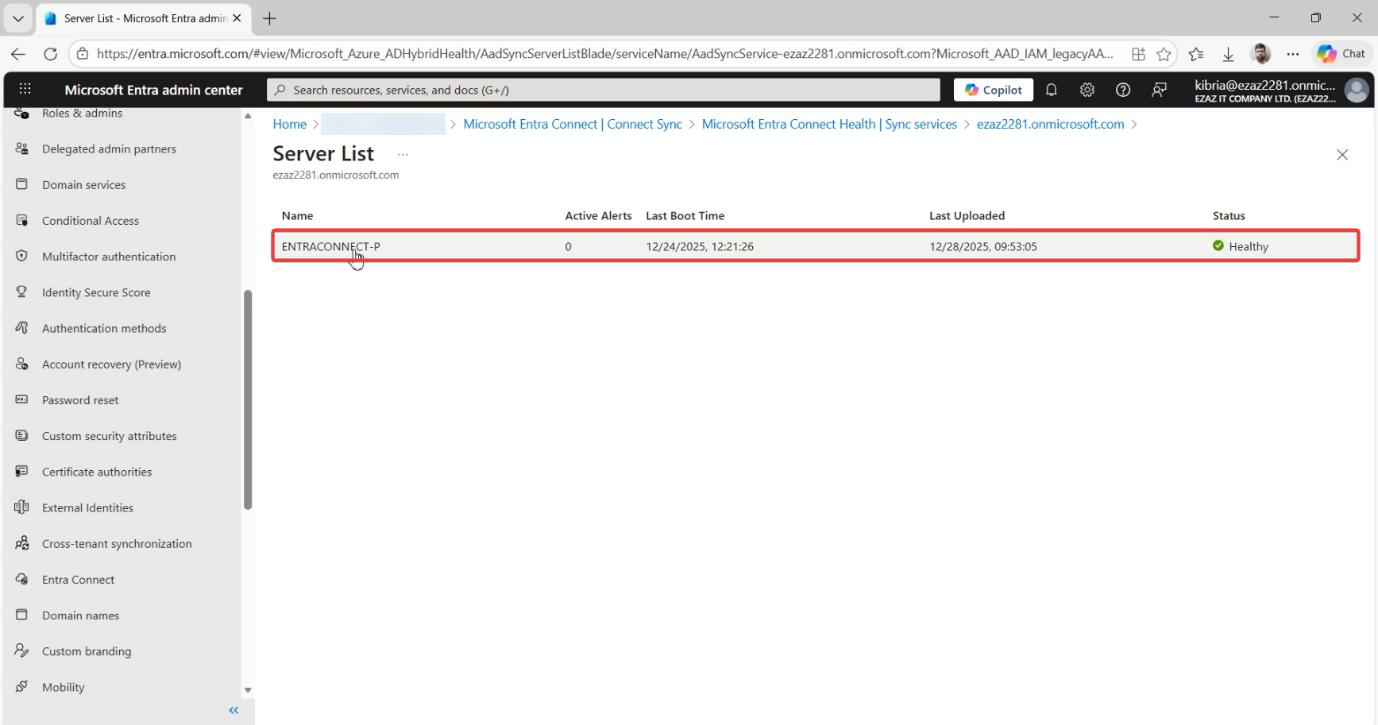
- Click the specific server name from the list.
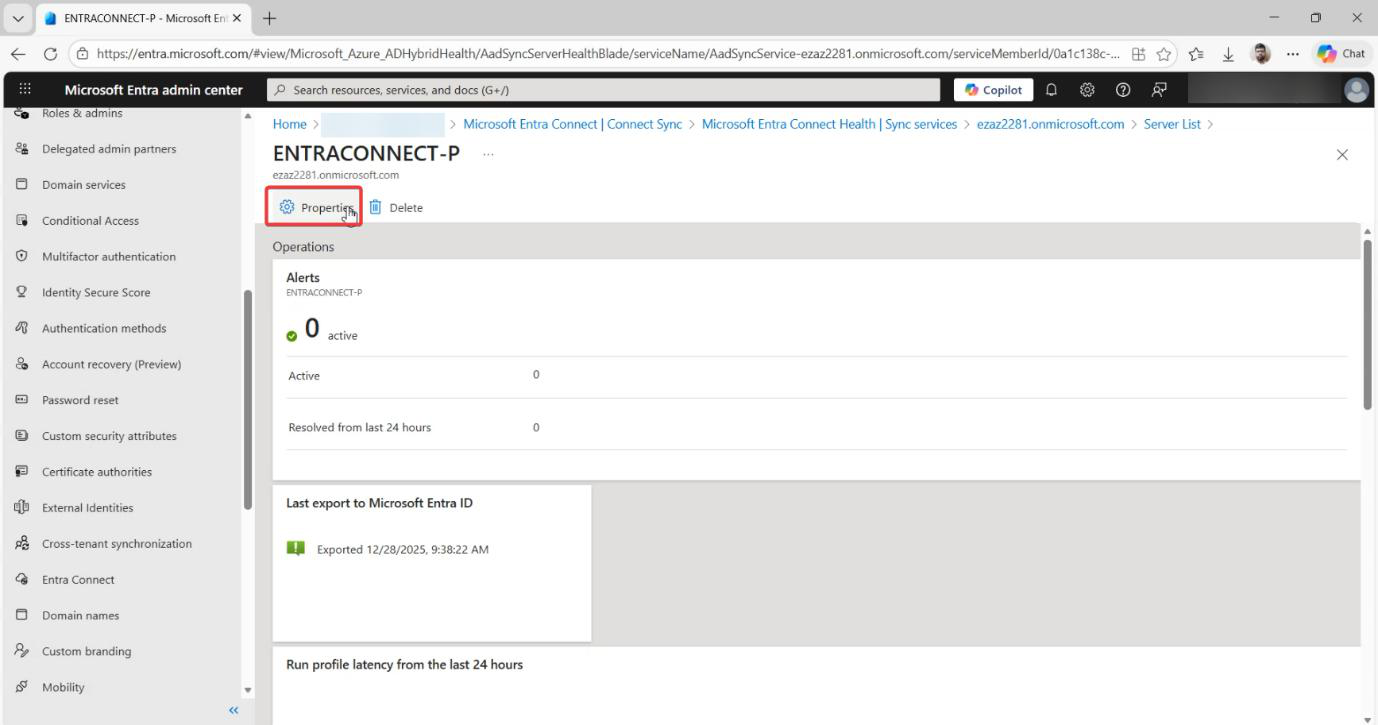
- Click Properties if not already expanded.
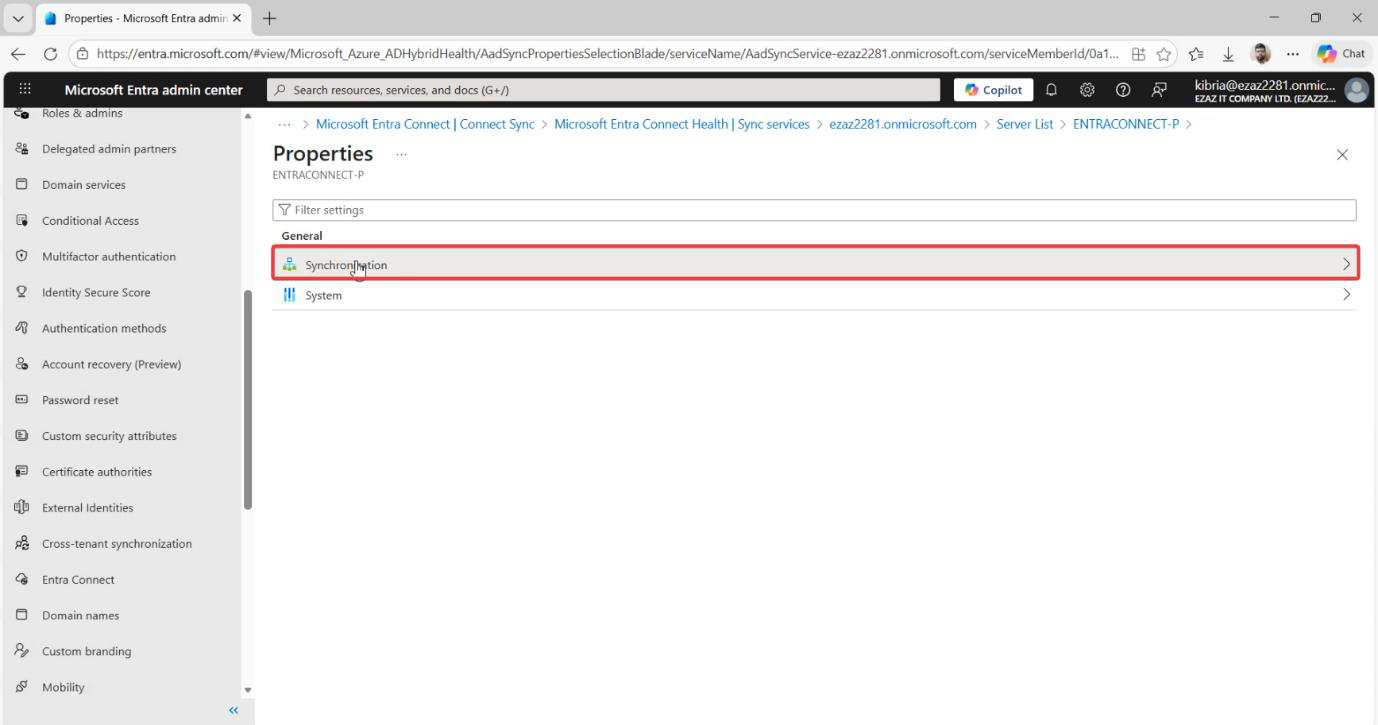
- Look at the Synchronization tab. The Microsoft Entra Connect Version field has the build number.
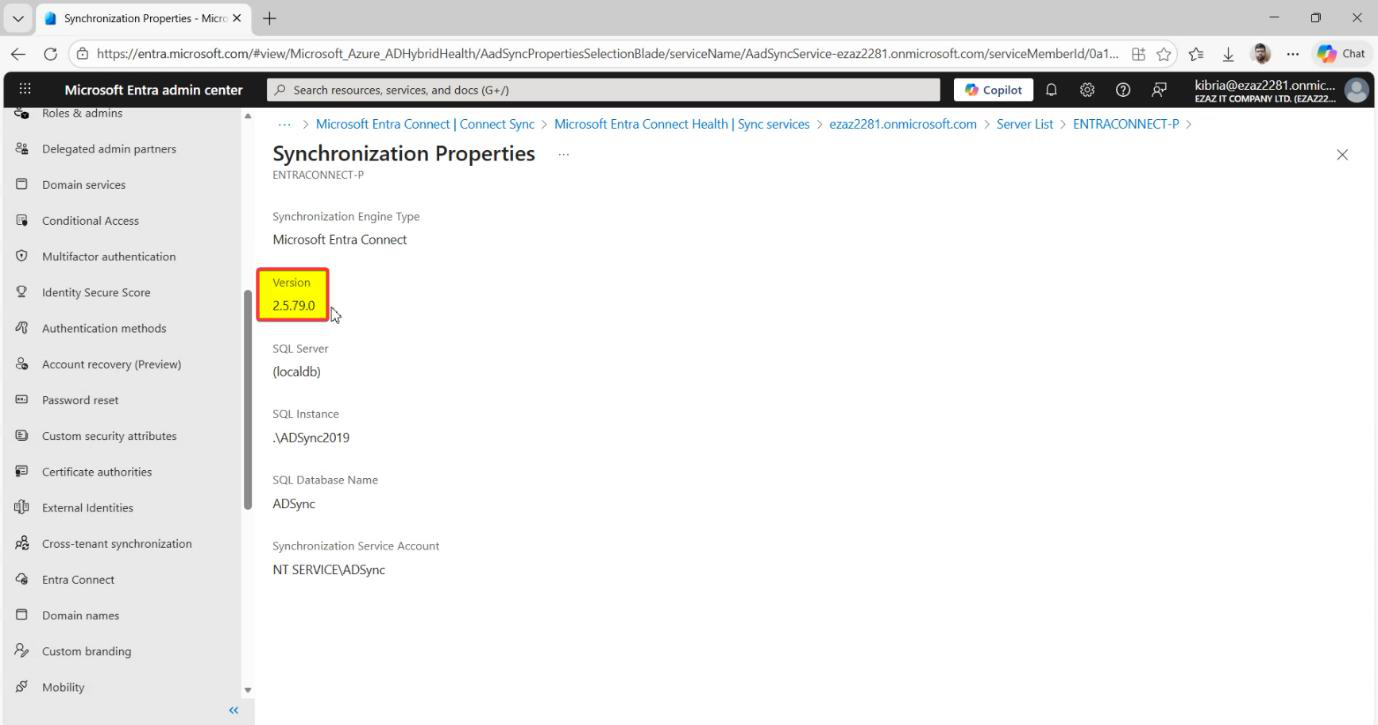
Eight clicks total. Slow but reliable when you have no other access.
Method 2 — Programs and Features (on the EC server)
Use when: you’re logged into the EC server’s desktop and want a quick look.
- Open Control Panel.
- Programs > Programs and Features.
- Scroll to Microsoft Entra Connect (or Microsoft Azure AD Connect for very old versions).
- Read the Version column.
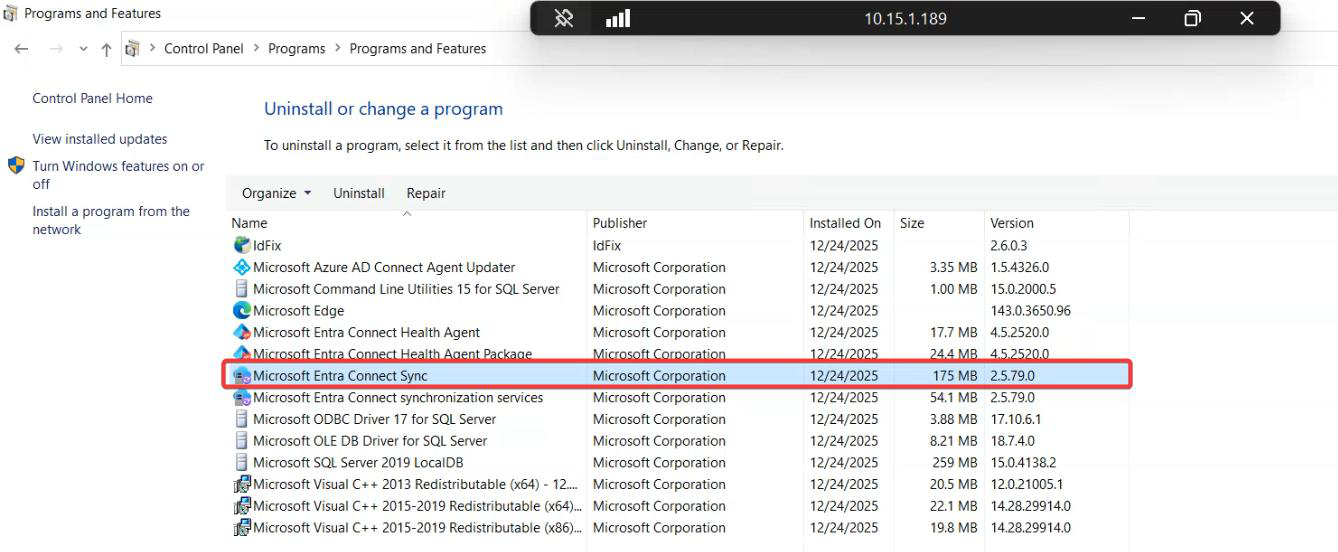
Three clicks. Fastest GUI path if you’re already on the server.
Caveat: the version Programs and Features shows is the INSTALL version — if Microsoft auto-applied a runtime update, the actual running version may be slightly different. For troubleshooting, prefer Method 3 or Method 4 which read the running version.
Method 3 — Synchronization Service Manager
Use when: you’re already in the Sync Service app investigating jobs or errors.
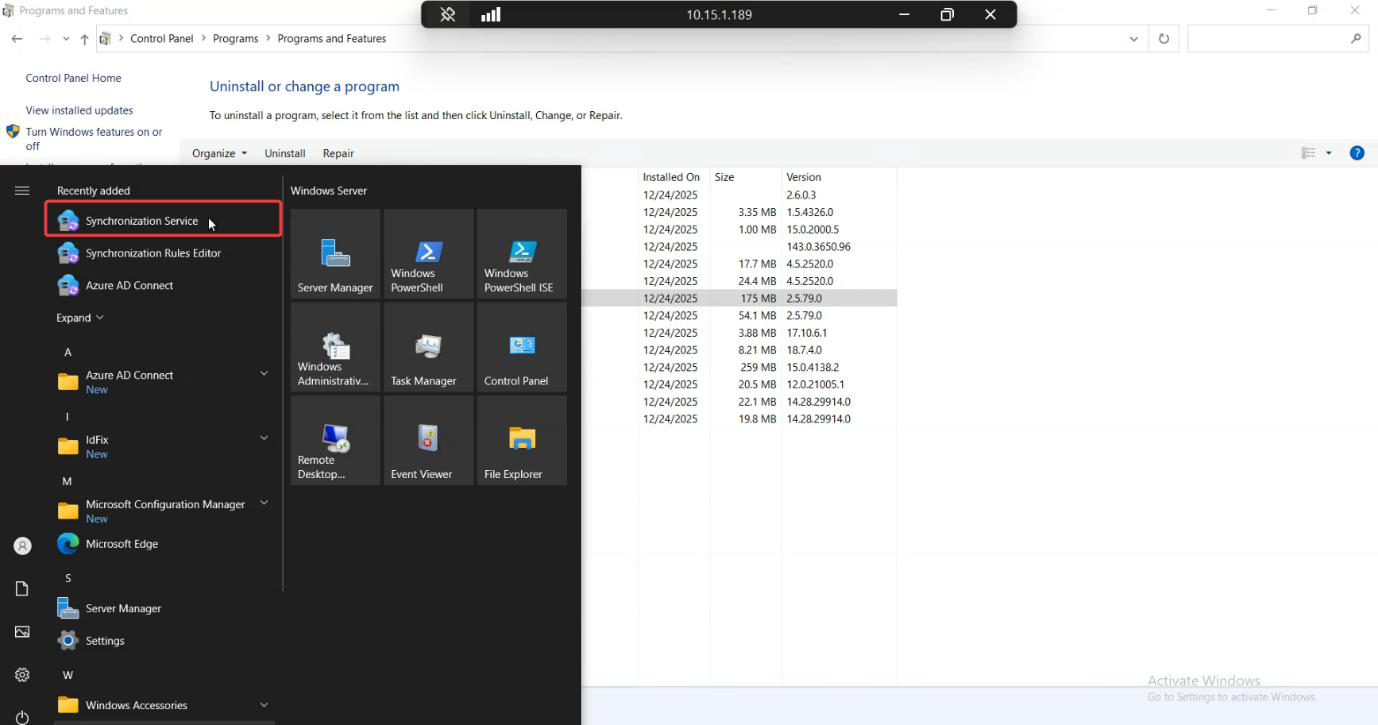
- Open Synchronization Service from the Start menu.
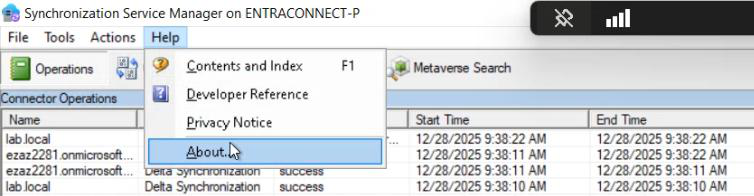
- Top menu: Help > About.
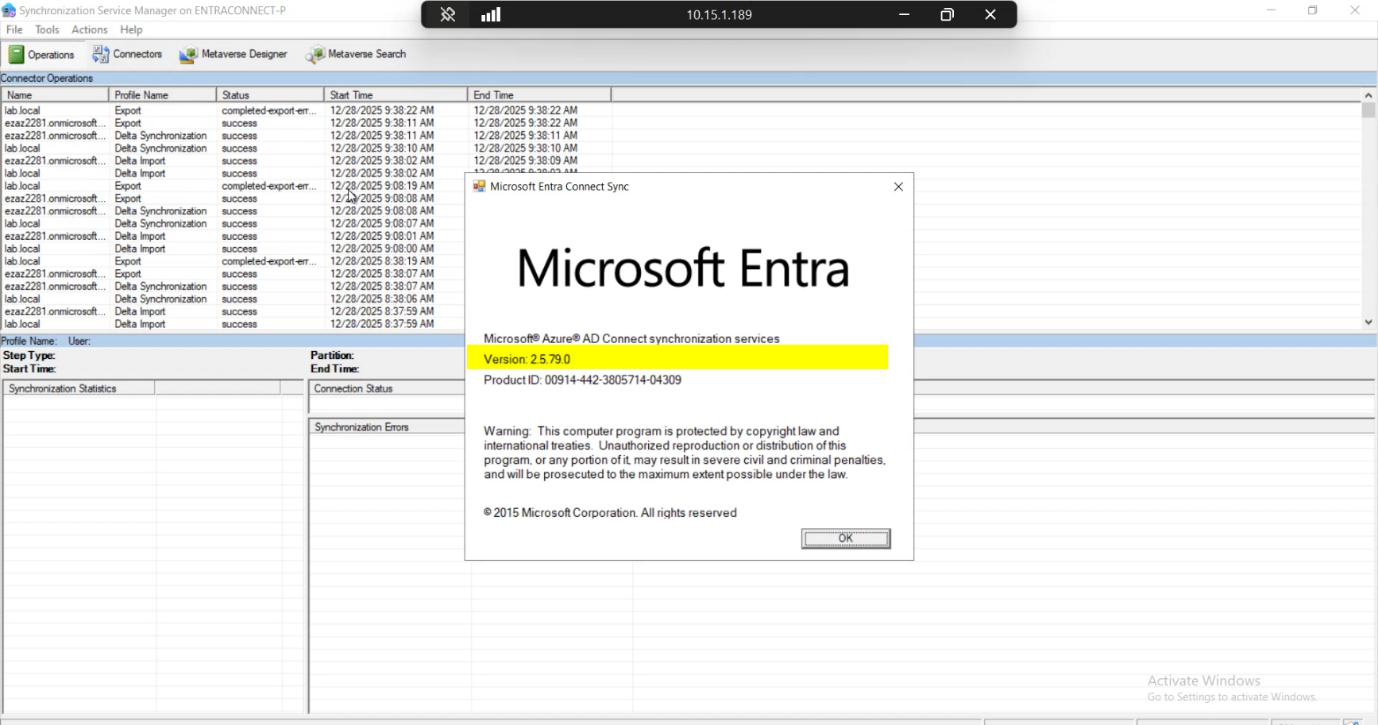
- The version is at the top of the About dialog.
Two clicks if the app is already open. The About dialog also shows the full build details (revision, signature) which is useful when escalating to Microsoft support.
Method 4 — PowerShell
Use when: automating, scripting, or running fleet-wide inventory.
- Open PowerShell as Administrator on the EC server.
- Load the ADSync module:
Import-Module ADSync- Pull the version:
(Get-ADSyncGlobalSettingsParameter |
    Where-Object { $_.Name -eq 'Microsoft.Synchronize.ServerConfigurationVersion' }).Value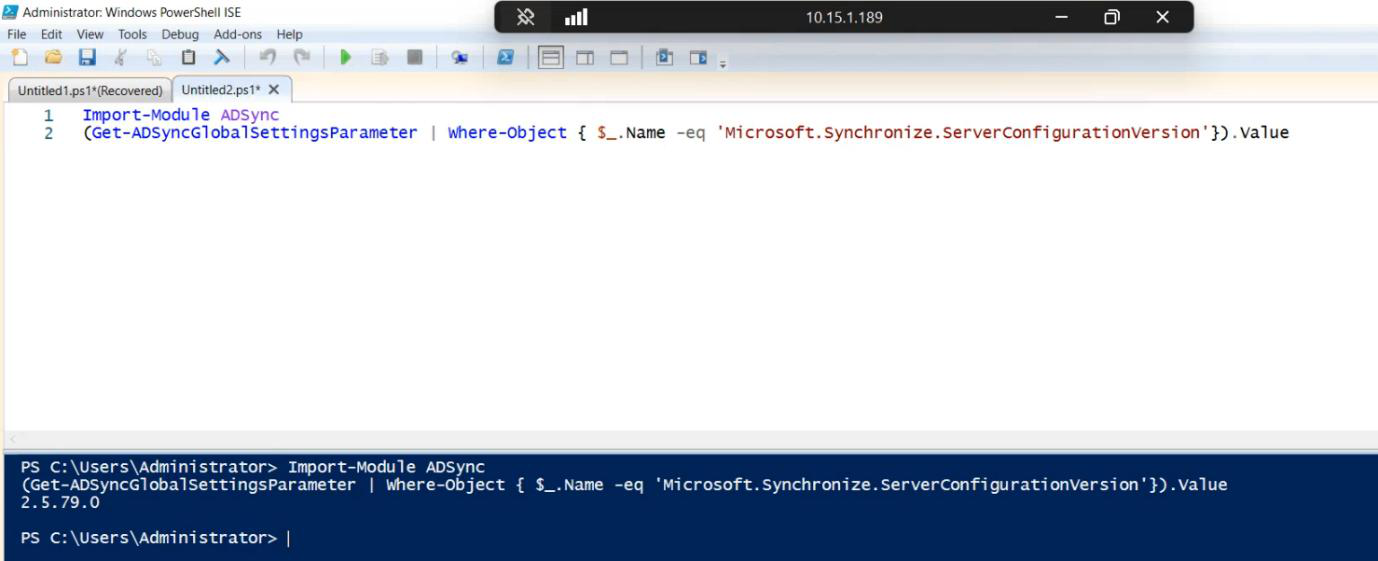
Import-Module ADSync then the Get-ADSyncGlobalSettingsParameter pipeline returns the version as a string. Use this for fleet inventory scripts (loop across hosts, write to CSV) or any context where you can’t open a GUI.Output: a scalar string like 2.1.20.0. Easy to capture in scripts.
Fleet inventory pattern
For environments with multiple EC servers (HA pairs, dev/test/prod), pull versions across all hosts at once:
$hosts = @('ec01.infotechninja.local', 'ec02.infotechninja.local')

foreach ($h in $hosts) {
    $v = Invoke-Command -ComputerName $h -ScriptBlock {
        Import-Module ADSync
        (Get-ADSyncGlobalSettingsParameter |
            Where-Object { $_.Name -eq 'Microsoft.Synchronize.ServerConfigurationVersion' }).Value
    }
    [PSCustomObject]@{ Host = $h; Version = $v }
} | Format-Table
Useful before a fleet upgrade to confirm everyone’s on the same starting version.
Things that bite people
Method 1 disagrees with Methods 2-4
The cloud-side view in Method 1 reads from the last health-check report uploaded to the cloud (sent every few minutes by the Health Agent). If the EC server was upgraded but the Health Agent hasn’t reported yet, Method 1 can show the OLD version while Methods 2-4 on the server show the NEW. Wait 30 minutes, refresh Method 1.
Programs and Features shows old version after auto-update
Microsoft sometimes pushes incremental updates to the running EC server without bumping the install metadata. Programs and Features shows the original install version; Methods 3-4 show the running (possibly newer) version. The discrepancy is intentional — Programs and Features is a logical install-history record, not a runtime version reporter.
Health Agent installed disabled
If you installed Entra Connect using Hybrid Identity Admin (per the Part 1 alternative), the Health Agent installs but is disabled. Method 1 returns nothing because no health data is being uploaded. Either enable the Health Agent (specific PowerShell from the Microsoft docs) or use Methods 2-4 instead.
Method 4 returns null
If Import-Module ADSync succeeds but the Get-ADSyncGlobalSettingsParameter pipeline returns null, the parameter name has changed in your version. The fallback approach is to read the version directly from the binary’s file properties:
(Get-Item 'C:\Program Files\Microsoft Azure AD Sync\Bin\miiserver.exe').VersionInfo.FileVersionSame value, different path to it. Useful when troubleshooting why the documented method doesn’t work.
Help > About missing on Server Core
Server Core has no GUI, so Method 3 isn’t available. Anyway, EC isn’t supported on Server Core (per Part 1); if you somehow have it running, use Method 4 instead.
Comparison: which version do I have?
Once you know the version, the next question is “is it old?” Microsoft maintains a Versioning Reference page listing which versions are current, supported, deprecated, and blocked. Cross-reference your version against that page. Anything older than 2.5.79.0 will be blocked from sync after September 30, 2026 (per Part 2).
What’s next
Knowing the version is the first step in any upgrade conversation. Subsequent posts cover related operational topics: finding service accounts, finding the EC server itself in larger environments, and the actual upgrade procedure. Series in the Hybrid Identity pathway.