
Part 3 of the Entra Connect series. We’ve covered the prerequisites (Part 1) and staged the installer files (Part 2). Now we need a server to run Entra Connect on. The actual VM creation is standard Hyper-V (or VMware, or whatever your virtualisation platform is) — create a domain-joined Windows Server 2022 VM, give it 4 GB RAM and a 70 GB disk, name it appropriately. Nothing Entra Connect-specific in that part. The Entra Connect-specific part comes after the VM is up: enabling TLS 1.2. This is the step that catches people because Windows Server APPEARS to support TLS 1.2 out of the box, but .NET applications inherit a different default that breaks the Entra Connect install in subtle ways.
Why TLS 1.2 isn’t already on
Windows Server 2016, 2019, and 2022 all support TLS 1.2 at the OS level. Run a network capture during a regular HTTPS connection from the server and you’ll see TLS 1.2 in the handshake. So why does Entra Connect fail without manual intervention?
Because Entra Connect is a .NET application, and the .NET runtime has its own opinion about which TLS protocol to use. By default, .NET 4.x apps use the OS’s default protocol — which on a fresh server install is often TLS 1.0 or 1.1, even though TLS 1.2 is available. Microsoft Cloud endpoints reject TLS 1.0/1.1 entirely. So Entra Connect tries to call the cloud, the .NET runtime offers TLS 1.0, the cloud refuses, and the install fails with a misleading error message about authentication or connectivity.
The fix is two registry keys per architecture (4 keys total) that tell the .NET runtime: “always use the strongest protocol the OS supports.” Once those are set, .NET negotiates TLS 1.2 like the OS-level apps do, and Entra Connect works.
Lab prerequisites
This post assumes:
- You’ve created a Windows Server 2022 (or 2019) VM in your virtualisation platform of choice.
- The VM is joined to your AD domain.
- You can sign in with an account that has local Administrator on the VM (a Domain Admin works; a less-privileged local admin works for this step too).
- The two installer files from Part 2 are staged on the VM (or on a fileshare the VM can reach).
VM creation itself is standard fare for any Windows Server VM; nothing Entra Connect-specific there. We pick up after the VM is built and joined.
Step 1 — PowerShell ISE on the server
Sign into the EC server. Open PowerShell ISE as Administrator (Right-click PowerShell ISE shortcut > Run as Administrator). The ISE rather than the plain console because we’re going to paste a multi-line script and read output side-by-side — the ISE’s split-pane layout makes that easier.
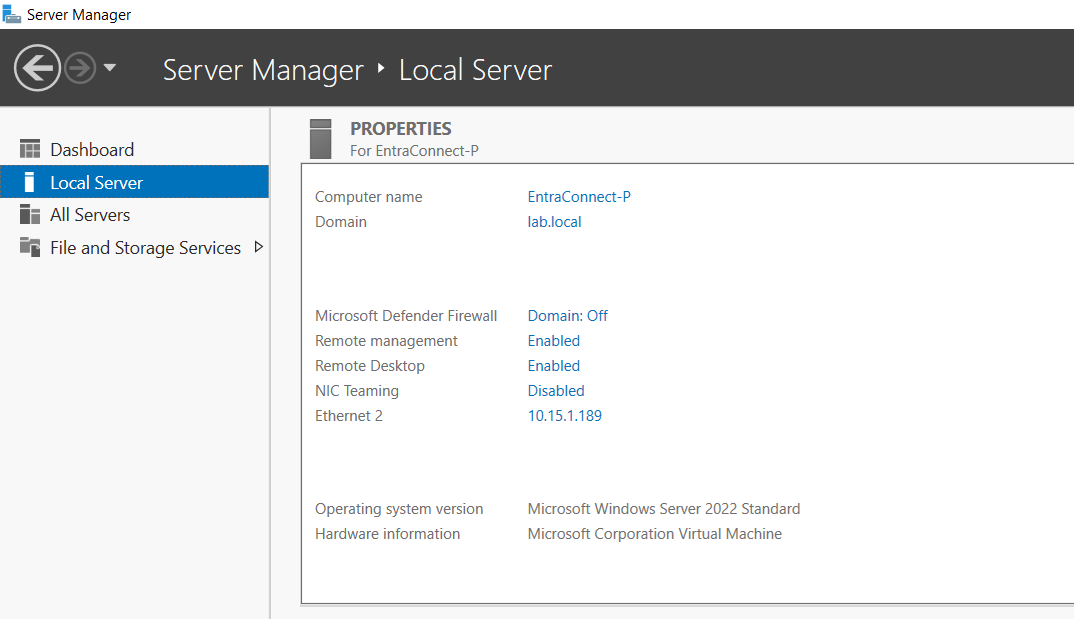
If you prefer the plain PowerShell console (some sysadmins do), the workflow is identical — just paste the script, hit enter, read the output. ISE just adds a nicer editor.
Step 2 — check current TLS state
Microsoft Learn publishes two scripts: one to check current TLS state, one to enable TLS 1.2 if it’s not on. Both are in the official Entra Connect documentation under “Enable TLS 1.2 for Microsoft Entra Connect.” Find them at:
Copy the “PowerShell script to check TLS 1.2” from that page, paste it into ISE, run it.
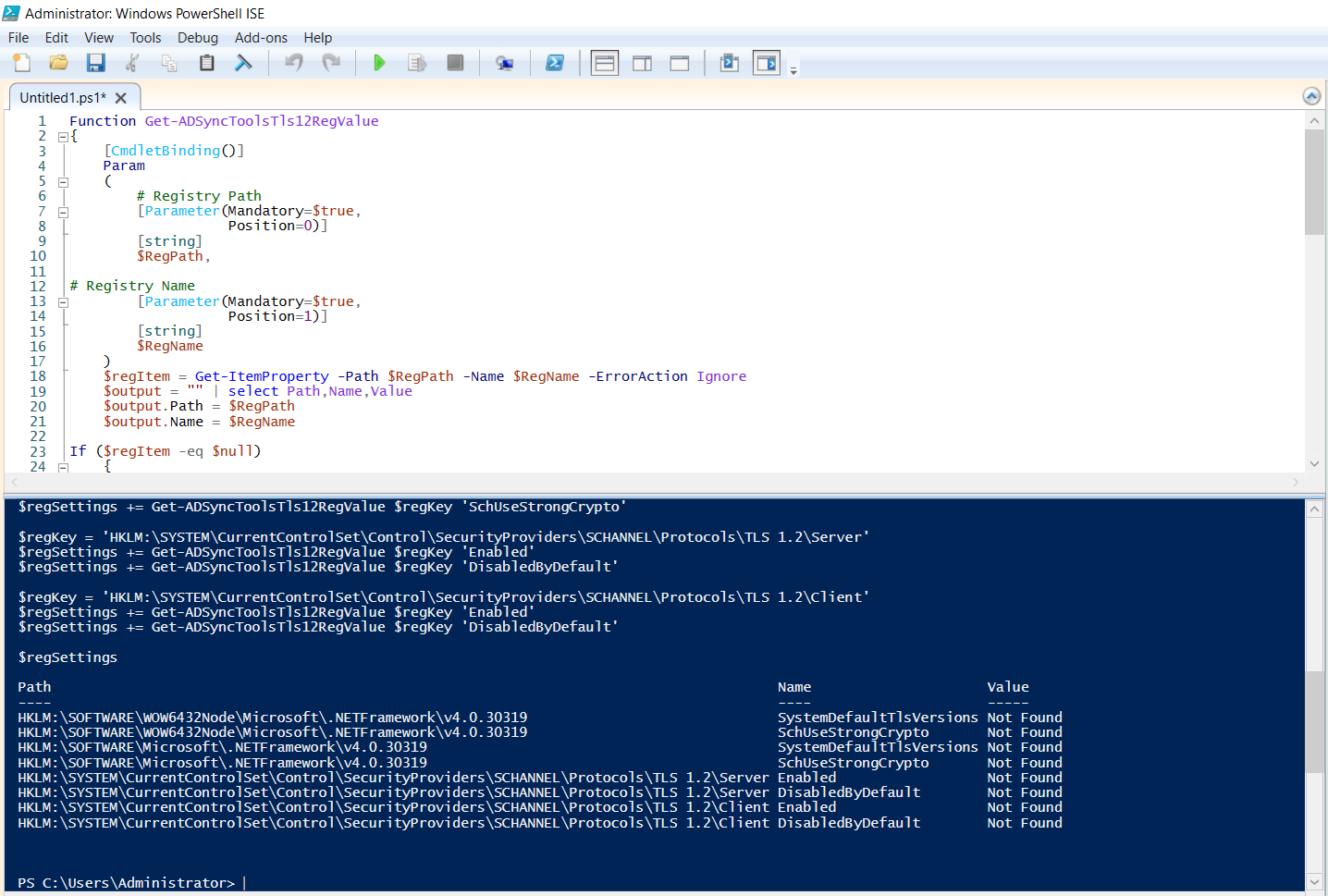
Expected output: most or all of the registry value rows show Not Found. That confirms TLS 1.2 isn’t configured for .NET on this server. If you see 1 in some rows already (someone may have partially configured this earlier), only enable the missing ones in the next step — the enable script overwrites whatever’s there.
Step 3 — enable TLS 1.2
From the same Microsoft Learn page, copy the “PowerShell script to enable TLS 1.2”. Paste into ISE, run.
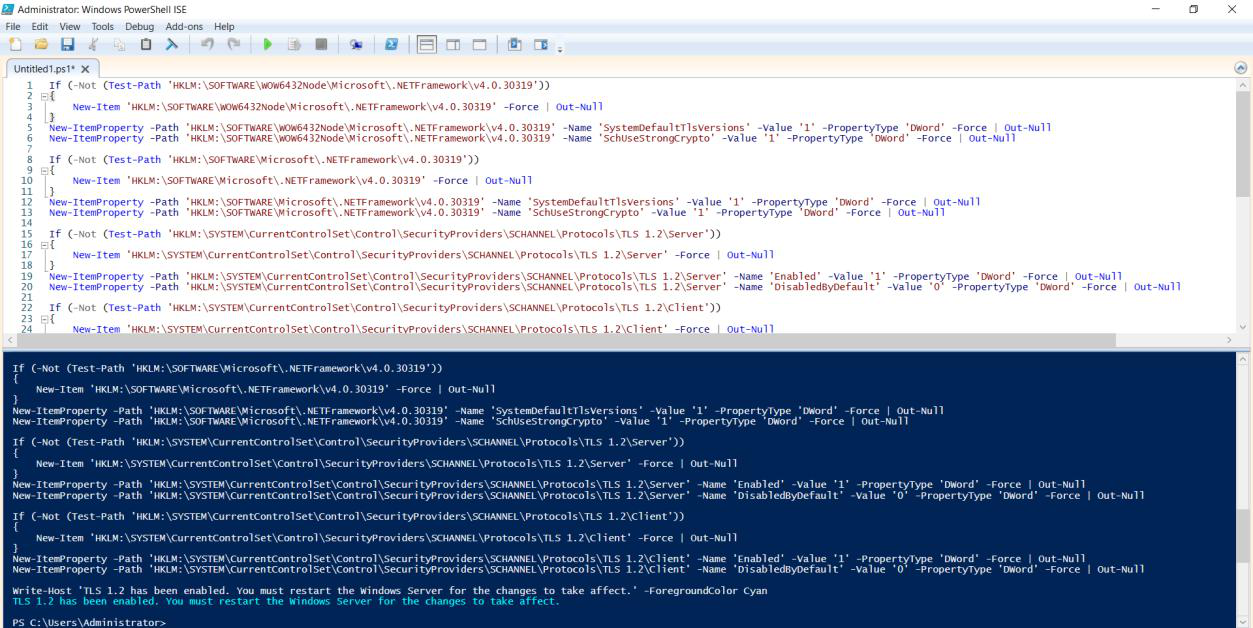
The script writes four registry values across two paths:
HKLM:\SOFTWARE\Microsoft\.NETFramework\v4.0.30319
  SchUseStrongCrypto         = 1
  SystemDefaultTlsVersions   = 1

HKLM:\SOFTWARE\WOW6432Node\Microsoft\.NETFramework\v4.0.30319
  SchUseStrongCrypto         = 1
  SystemDefaultTlsVersions   = 1
The 64-bit and WOW6432Node (32-bit) paths cover both .NET architectures — you need both because Entra Connect’s sub-processes can be either. Setting just one and not the other leaves a gap that surfaces only when the wrong sub-process tries to connect.
Do you need to reboot?
Technically no. The registry change applies to NEW .NET processes started after the change. The Entra Connect installer hasn’t run yet, so it will pick up the new policy on first launch. If there are existing .NET processes running on the server (rare on a fresh box), they keep their old policy until restarted.
For peace of mind, a reboot doesn’t hurt and guarantees a clean state. For a hurried lab demo, skip it.
Step 4 — verify the change
Re-run the check script from Step 2.
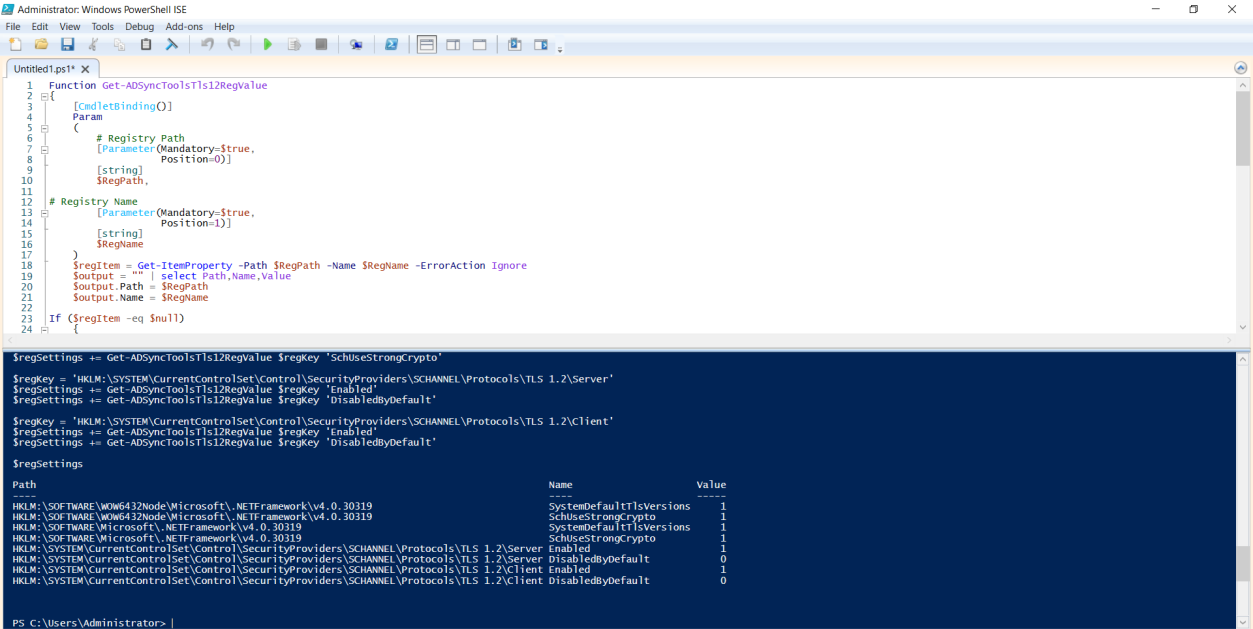
Now every value column should show 1 instead of Not Found. That’s the green light: the .NET runtime will negotiate TLS 1.2 on the next connection. Safe to launch the Entra Connect MSI installer.
Things that bite people
Running the enable script as a non-admin
The script writes to HKLM, which requires admin privileges. If you ran ISE without “Run as Administrator”, the script returns an “access denied” error per registry key. Easy to miss in the noisy output. Symptom: re-running the check script still shows Not Found.
Half-configured TLS
You manually set one of the four values via regedit because you saw it referenced somewhere, then run the install. It fails. The check script reveals: 1 in one location, Not Found in another. .NET picks whichever path matches the running architecture, and the missing one is the one Entra Connect’s sub-process happens to use. Run the full enable script to set all four.
Existing .NET processes don’t pick up the change
If you have other .NET applications already running on the server when you apply the registry change, they keep using the old TLS policy until restarted. For Entra Connect’s purposes this doesn’t matter (the installer hasn’t started yet), but for hardening other apps on the same server, those need to be restarted too.
Server 2025 with TLS 1.3 enforcement
Newer Windows Server builds may have TLS 1.3 partially enforced. The Entra Connect 2.5.79.0 N-1 version doesn’t support TLS 1.3 yet (newer builds do). If you’re on Server 2025, the Entra Connect install fails for a different reason than missing TLS 1.2. Solution: either downgrade the server OS for the lab (Server 2022 is the supported choice anyway, per Part 1), or use only the latest Entra Connect version (skip the upgrade-demo path of this series).
WOW6432Node missing entirely
On Server Core or other minimal installs, the WOW6432Node path may not exist (no 32-bit subsystem installed). The enable script can’t write to a missing path. Solution: either add the 32-bit subsystem (Install-WindowsFeature WoW64-Support on supported builds) OR accept that Entra Connect won’t install on this build. Per Part 1, Server Core is unsupported anyway — this is just one symptom of why.
Group Policy reverting the registry keys
If your organisation has a security GPO that enforces specific .NET TLS settings (rare but exists), the GPO may overwrite the keys you just set. Symptoms: enable script reports success; re-run of check script shows the values reverted within minutes. Solution: scope the GPO to exclude this server, or modify the GPO to set the same values you want.
What’s next
The server is now ready for the Entra Connect installer. Part 4 covers the actual install of the N-1 (2.5.79.0) version — the wizard, account selection, sync configuration, and verification of the first sync cycle. After that, the upgrade demonstration. Full series in the Hybrid Identity pathway.