
Open the Security tab of any AD object that has been live for a few years and you will eventually find an ACL entry that lists the principal as a raw SID — S-1-5-21-901-2456-1110 — with no name beside it. That is an orphaned SID: an access control entry whose underlying user, group, or computer object has been deleted, leaving the permission attached to the parent object but unable to resolve back to anything human-readable.
Orphaned SIDs are a low-grade hygiene problem most of the time. They do not break access control (a deleted account cannot use the permission) and they do not consume meaningful disk space (one ACE is a few hundred bytes). What they do is junk up your security audits, complicate compliance reports, and occasionally cause permission errors when something tries to enumerate or copy ACLs that contain unresolvable principals.
Walking thousands of OUs and objects to remove these by hand is impractical. The right tool is a PowerShell script that recurses through Active Directory, identifies every ACE whose IdentityReference is a domain-prefixed SID that no longer resolves, and either lists them or strips them out. This article shows that script and walks the two-pass workflow you should always run: list first, remove second.
What an Orphaned SID Actually Is
A SID is the immutable identifier Windows assigns to every security principal. Inside an Access Control List, every Access Control Entry references a principal by its SID, not its name — the human-readable name you see in the GUI is resolved on the fly by looking up the SID against the directory.
When you delete a user, group, or computer object, Active Directory removes the directory entry but not the references to it in every ACL across every object. Each of those ACEs is now an orphan: the SID is still there, but it no longer resolves to anything. The GUI shows the raw SID instead of the friendly name; tools that scan the directory occasionally throw errors when they hit one.
An orphaned SID is not a security risk on its own — the underlying principal is gone, so nothing can authenticate as it. But it is a clear signal that the directory has not been cleaned up, and it is worth removing as part of a regular audit.
Setup
On the domain controller (or any RSAT-equipped workstation logged in as a domain admin), create two folders on the C: drive:
New-Item -ItemType Directory -Path "C:\scripts" -Force | Out-Null
New-Item -ItemType Directory -Path "C:\temp"    -Force | Out-Null
Save the script below as C:\scripts\RemoveOrphanedSID-AD.ps1. The transcript log writes to C:\temp\RemoveOrphanedSID-AD.txt; that file is the audit trail you should keep with your change-control evidence.
The Script
The script scans Active Directory objects for ACEs whose IdentityReference begins with the domain SID prefix and either lists them (default) or removes them (with -Remove). A -WhatIf switch lets you do a dry-run of the remove pass without committing changes.
<#
    .SYNOPSIS
    Removes or lists orphaned SIDs from Active Directory objects.

    .DESCRIPTION
    This script scans Active Directory objects for access control entries
    (ACEs) that reference SIDs which no longer exist in the domain. It
    can either just list these orphaned SIDs or remove them from the
    ACLs, based on the parameters provided.

    .PARAMETER Filter
    Specifies the starting point for the scan. Use "All" for the entire
    forest or provide a specific DN like "OU=Users,DC=example,DC=com".

    .PARAMETER Remove
    If specified, the script will remove the orphaned SIDs from the ACLs.
    Without this switch, it only shows them.

    .PARAMETER WhatIf
    When used with -Remove, shows what would happen if the script were
    to run without actually making changes.

    .EXAMPLE
    .\RemoveOrphanedSID-AD.ps1 -Filter "All"
    Scans the entire forest for orphaned SIDs without removing them.

    .EXAMPLE
    .\RemoveOrphanedSID-AD.ps1 -Filter "OU=Users,DC=example,DC=com" -Remove
    Removes orphaned SIDs from the specified OU.

    .EXAMPLE
    .\RemoveOrphanedSID-AD.ps1 -Filter "OU=Users,DC=example,DC=com" -Remove -WhatIf
    Shows what would be changed without actually altering the ACLs.
#>

param (
    [Parameter(Mandatory = $true)][string]$Filter,
    [switch]$Remove,
    [switch]$WhatIf
)

$Forest      = Get-ADRootDSE
$ForestName  = $Forest.rootDomainNamingContext
$domsid      = (Get-ADDomain -Identity $ForestName).DomainSID.ToString()

$Logs = "C:\temp\RemoveOrphanedSID-AD.txt"
Start-Transcript -Path $Logs -Append -Force

if ($Filter -eq "All") {
    $Folder = $ForestName
    Write-Host "Listing all objects in the forest: $ForestName" -ForegroundColor Cyan
}
else {
    $Folder = $Filter
    Write-Host "Analyzing the following object: $Folder" -ForegroundColor Cyan
}

function RemovePerms {
    param ([string]$fold)
    $fName       = $fold
    Write-Host $fName

    $acl         = Get-ACL "AD:$fName"
    $modified    = $false
    $previousSID = ""

    foreach ($ace in $acl.Access) {
        if ($ace.IdentityReference.Value -like "$domsid*") {
            $sid = $ace.IdentityReference.Value
            if ($previousSID -ne $sid) {
                Write-Host "Orphaned SID $sid on $fName" -ForegroundColor Yellow
                $previousSID = $sid
            }
            if ($Remove -and -not $WhatIf) {
                $acl.RemoveAccessRuleSpecific($ace)
                $modified = $true
            }
            elseif ($Remove -and $WhatIf) {
                Write-Host "Would remove orphaned SID $sid on $fName" -ForegroundColor Green
            }
        }
    }
    if ($modified -and -not $WhatIf) {
        Set-ACL -Path "AD:$fName" -AclObject $acl
        Write-Host "Orphaned SID removed on $fName" -ForegroundColor Red
    }
}

function RecurseFolder {
    param ([string]$fold)
    $folders = Get-ADObject -LDAPFilter "(objectClass=*)" -SearchBase $fold -SearchScope OneLevel
    foreach ($entry in $folders) {
        $dn = $entry.DistinguishedName
        RemovePerms -fold $dn
    }
    foreach ($entry in $folders) {
        RecurseFolder -fold $entry.DistinguishedName
    }
}

RemovePerms   -fold $Folder
RecurseFolder -fold $Folder

Stop-Transcript
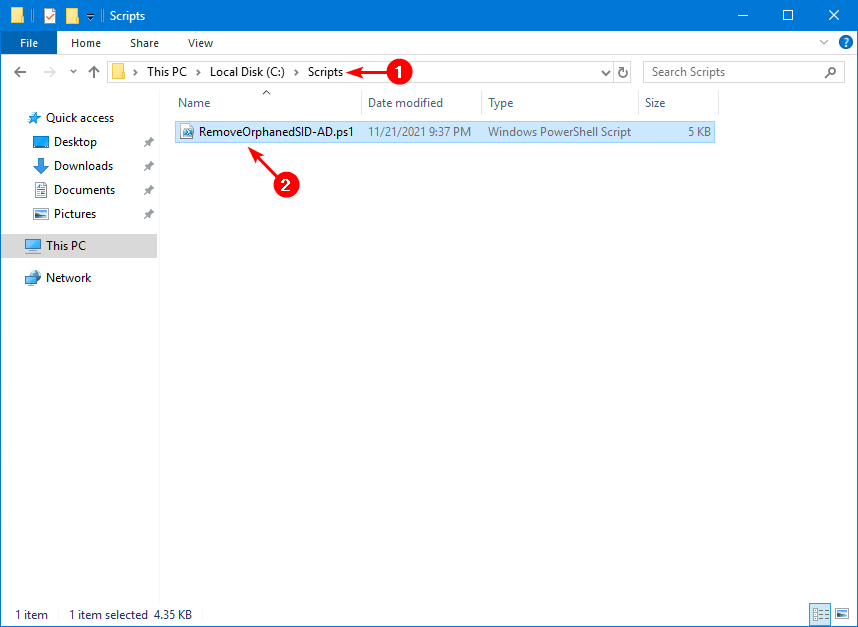
RemoveOrphanedSID-AD.ps1 — comment-based help, two functions, and a recursive walk over the AD tree.The script does four things worth understanding before running it:
- It pulls the domain SID prefix from
Get-ADDomain. Every principal in the domain has a SID that starts with this prefix; a SID with this prefix that no longer resolves is, by definition, an orphaned SID for one of your deleted principals (not a built-in or external trust SID). - It uses
Get-ACL "AD:$fName"— the AD: PowerShell drive provider. That is the right way to read AD object ACLs from PowerShell; it returns a realSystem.DirectoryServices.ActiveDirectorySecurityobject that you can manipulate and write back withSet-ACL. - It uses
RemoveAccessRuleSpecificrather thanRemoveAccessRule. The Specific variant removes the exact ACE, not all ACEs that match the rule. This matters because some objects have multiple ACEs for the same orphaned SID (different access masks); the Specific form removes one at a time, in a loop, until they are all gone. - It logs everything via
Start-Transcript. The transcript file is the audit trail and is the artifact your change-control process will want to see.
The Two-Pass Workflow
Always do two passes: list, then remove. The list pass surfaces what is actually there; the remove pass commits the change. Doing them separately gives you a chance to spot anything weird (e.g. a SID prefix that does not look like one of your deleted accounts) before stripping the ACL.
Pass 1 — List All Orphaned SIDs
Open Windows PowerShell as administrator. Change to the scripts directory:
cd C:\scriptsRun the script with -Filter All — this scans the entire forest from the root downward and lists every orphaned SID it finds. No changes are made.
.\RemoveOrphanedSID-AD.ps1 -Filter "All"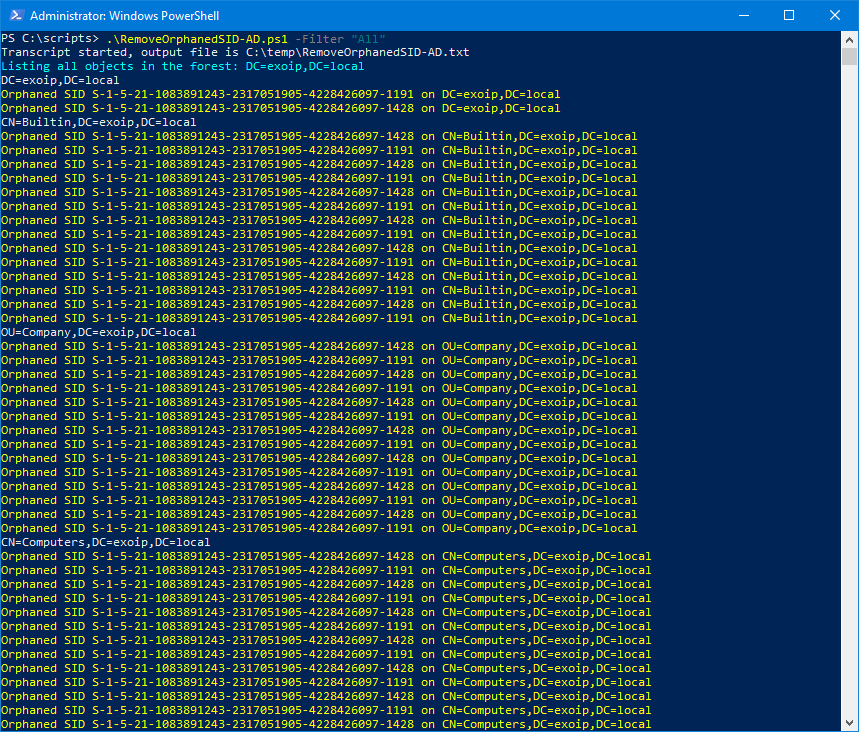
-Filter All walks every AD object and prints orphaned SIDs in yellow. Nothing is changed yet.The script writes the path of every AD object as it walks, and prints orphaned SIDs in yellow. The same output is written to the transcript log:
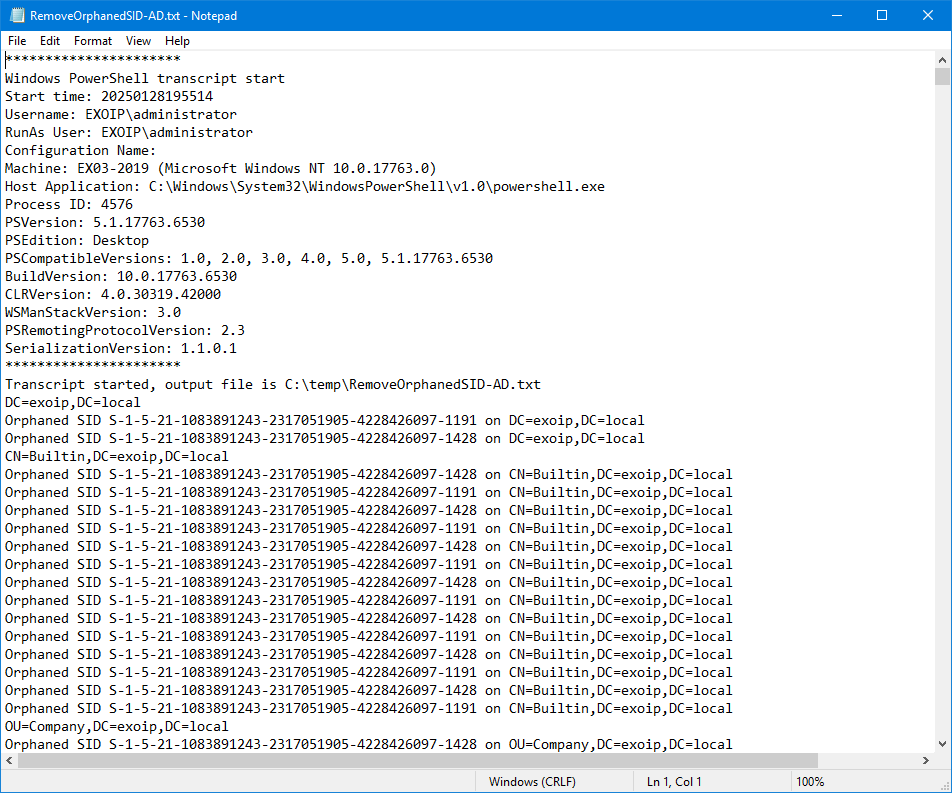
C:\\temp\\RemoveOrphanedSID-AD.txt by Start-Transcript. Useful for change-control evidence.Read the log carefully before continuing. If you see SIDs that look unusual — very short prefixes, well-known SIDs (S-1-5-32-* for built-in groups), or trust SIDs from another domain — those are not what this script is meant to handle and you should narrow the filter to a specific OU before running with -Remove.
If you want to limit the scan to one OU first (recommended for the very first run on a real domain):
.\RemoveOrphanedSID-AD.ps1 -Filter "OU=Users,DC=corp,DC=local"Pass 2 — Remove the Orphaned SIDs
Once the list looks reasonable, re-run with -Remove to commit the changes:
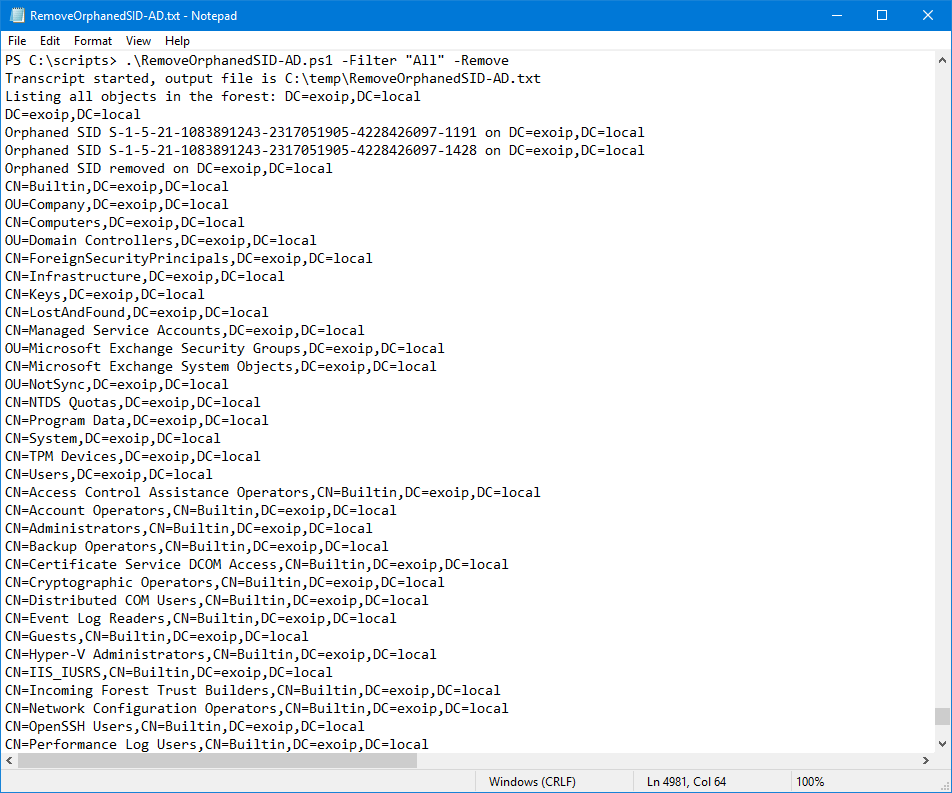
.\RemoveOrphanedSID-AD.ps1 -Filter "All" -Remove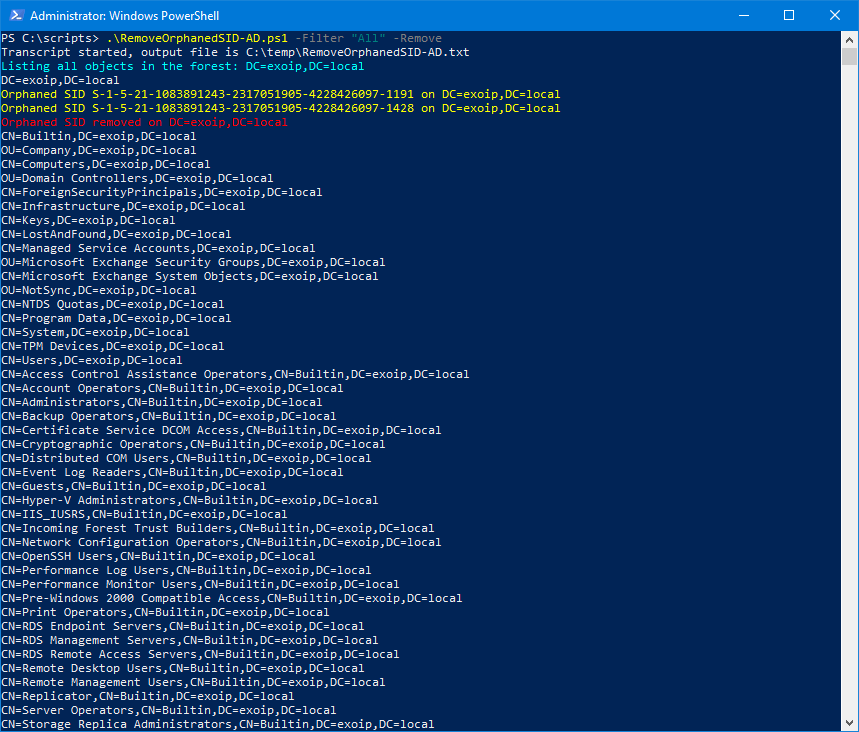
-Remove — the script now strips each orphan from its parent ACL. Removed entries are shown in red.If you want to do a dry-run of the remove pass first, add -WhatIf. The script then walks every object the way it would for a real removal but prints Would remove orphaned SID… instead of actually changing the ACL:
.\RemoveOrphanedSID-AD.ps1 -Filter "All" -Remove -WhatIfThe transcript log captures the change set, including which object each removal touched:
Verify the Cleanup
Open the Security tab on any AD object that previously had orphaned SIDs (Active Directory Users and Computers → right-click → Properties → Security tab). The numeric SIDs are gone; only resolvable principals remain.
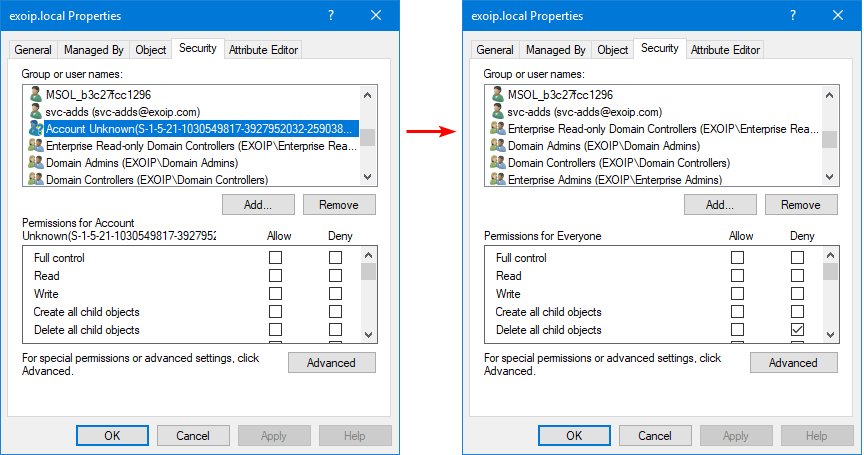
For programmatic verification, re-run the list pass and confirm no orphaned SIDs are reported:
.\RemoveOrphanedSID-AD.ps1 -Filter "All"The output should now be just the AD walk with no yellow lines.
Common Pitfalls
- Running -Remove without running the list pass first. The list pass shows you what the script will touch. Skipping it is the fastest way to remove a SID you did not actually want to remove (a misconfigured permission attached to a still-valid trust principal, for example).
- Running on the entire forest before testing on one OU. The first run should always be scoped to a single OU you understand. Once that works, expand the filter.
- Forgetting that this only handles SIDs from your own domain. The script filters by the domain SID prefix, so SIDs from external trusts, well-known groups, or built-in principals are intentionally skipped. If you need to clean those, that is a different problem and a different script.
- No backup of the directory. Run the script during a maintenance window with a recent system-state backup of at least one DC. The change is reversible (you can re-add the principal and the ACL is gone, so you would need to re-grant permissions), but a snapshot lets you revert quickly if something goes wrong.
- Confusing this with file-system ACL cleanup. This script targets AD object ACLs (the security on the directory entries themselves, like the OU permissions). For file shares with orphaned SIDs in NTFS ACLs, you need a different script that walks the file system, not the directory.
Conclusion
Orphaned SIDs are inevitable in any AD that has been around long enough for accounts to be created and deleted. Removing them is not strictly required for security, but it makes audits cleaner, reports more accurate, and reduces the noise that hides genuine permission problems. The two-pass workflow — list first, remove second — gives you a chance to review what the script will change before it changes anything.
Run RemoveOrphanedSID-AD.ps1 as part of your quarterly AD hygiene routine. Keep the transcript logs with your change-control evidence. The directory stays clean, the audits stay quiet, and the next admin who opens the Security tab on an OU sees names instead of raw SIDs.