
You kick off a domain controller promotion on a fresh Windows Server, watch it tick through prerequisites and DNS configuration, and then the wizard reaches Creating the NTDS Settings object and stops. No error, no rollback — just a progress bar that does not move. Twenty minutes later it is still there. Cancel the wizard and the next attempt fails the same way; an hour and three reboots later, you are looking at a half-promoted server that cannot be a DC and cannot quite go back to being a member server either.
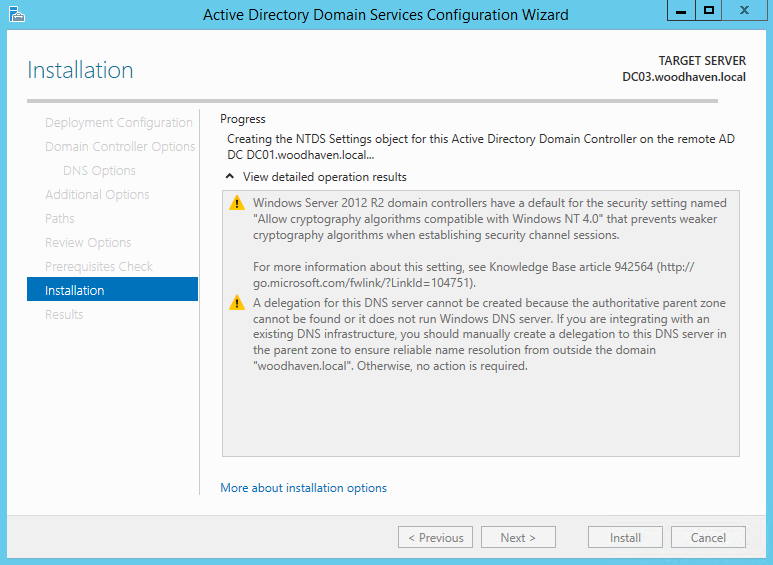
The cause is almost always one of two things: the credentials supplied to the wizard cannot authenticate against an existing DC, or the candidate server has stale residue from a prior failed promotion still wedged in Active Directory. The Directory Service log on the candidate is the place to confirm which — the events you will find there are 1963 (no DC found), 1962 (RPC connection error), and 1125 (DC promotion failed at the NTDS settings stage), in that order.
This article walks the troubleshooting path the way it actually works in the field: confirm prerequisites, fix the two most common credential mistakes, clean up the failed-promotion residue, retry the install, and only then chase the deeper network or DNS issues. The cleanup step is the one that surprises people — doing it correctly is what separates “the next attempt works” from “the next ten attempts fail the same way.”
Step 1 — Prerequisites and Basic Connectivity
Before chasing the harder causes, prove the basics. The candidate server needs four things to promote successfully:
- Static IP. A DC on DHCP is a recipe for replication problems later; the AD DS install wizard will warn about this. Set a static IP before you start.
- DNS pointed at an existing DC. Not at 1.1.1.1, not at the loopback — at one of your existing domain controllers (or another internal DNS server that hosts the AD-integrated zones). The promotion needs to do SRV-record lookups in the domain.
- Sufficient disk space. The NTDS database, the SYSVOL share, and log files all live on the system drive by default. 20 GB free is comfortable.
- Time within five minutes of the existing DCs. Kerberos breaks if the time skew is greater than five minutes. The wizard does not always surface this clearly; the symptom is a credential failure during the bind, not a clock error.
Three commands cover the basic checks:
# Confirm static IP and DNS pointing at an existing DC
ipconfig /all

# Verify time source and current skew
w32tm /query /source
w32tm /query /status

# Resolve the domain and one of the DC hostnames
nslookup corp.local
nslookup dc01.corp.local

# Reach the existing DC at the network layer
ping 10.0.0.10
ping dc01.corp.local
If any of those fail, fix them before retrying the promotion. There is no point pursuing the credential or cleanup steps if DNS resolution does not work.
Step 2 — The Two Common Credential Mistakes
Local Administrator password matches the domain Administrator password
This is the cause most often missed. If the local Administrator account on the candidate server has the same password as the domain Administrator account, the promotion can hang during the bind because the LSA is unsure which credential it is using and which domain it should authenticate against. Change the local Administrator password to something different before retrying:
# From an elevated PowerShell on the candidate server
Set-LocalUser -Name "Administrator" -Password (Read-Host -AsSecureString "New local Administrator password")
Or, less interactively:
$pw = ConvertTo-SecureString -String "AReally-Long-Local-Only-Password!" -AsPlainText -Force
Set-LocalUser -Name "Administrator" -Password $pw
The local password does not need to be memorable — it just needs to be different from the domain Administrator password and stored in your password manager.
Credentials supplied without the domain qualifier
When the wizard prompts for promotion credentials, the username field accepts plain Administrator, but Windows then has to guess which domain you mean. On a server that is not yet domain-joined, that guess fails silently and the wizard hangs at the NTDS stage waiting for a bind that never completes. Always supply the credential in fully qualified form:
- Wrong:
Administrator - Right:
corp\Administrator(down-level format) - Right:
Administrator@corp.local(UPN format)
The same rule applies to the PowerShell equivalents. Get-Credential prompts handle this automatically; $cred = New-Object PSCredential does not, so spell the username out:
$cred = Get-Credential -UserName "corp\Administrator" -Message "Promotion credentials"
Install-ADDSDomainController -DomainName corp.local -Credential $cred -SiteName "Default-First-Site-Name"
Step 3 — Clean Up Failed-Promotion Residue
If a previous promotion attempt got far enough to create or partially create directory objects, those objects are still there and the next attempt collides with them. The cleanup is mechanical but has to be done in order; skipping a step is the most common reason “tried it again, same error” happens.
3a. Reboot the candidate server
A reboot clears any in-memory state from the failed attempt — promotion uses several services that may be in a half-started state and a clean reboot is the fastest way to clear them.
3b. Delete the candidate’s computer object from AD
If the failed attempt got as far as joining the candidate server to the domain, there is now a computer object in AD with the candidate’s name. The next promotion attempt will refuse to use it. Delete it from an existing DC:
# From an existing DC, or any RSAT-equipped workstation logged in as a domain admin
Remove-ADComputer -Identity "DC02NEW" -Confirm:$false

# Verify it is gone
Get-ADComputer -Identity "DC02NEW" -ErrorAction SilentlyContinue
Or via the GUI: Active Directory Users and Computers → Computers container (or wherever your default landing OU is) → right-click the candidate’s object → Delete.
Wait a few minutes for the deletion to replicate to all DCs in the site before continuing. repadmin /syncall /AeP on any DC forces it.
3c. Forcibly remove the candidate from the domain
If the candidate server is somehow still domain-joined (after the AD object is deleted, this is rare but happens), force it back to a workgroup:
# On the candidate, from an elevated Command Prompt
netdom remove /domain:corp.local /userd:corp\Administrator /passwordd:*

# Or via the System Properties dialog: Advanced system settings -> Computer Name -> Change... -> Workgroup
Reboot the candidate after the workgroup change.
3d. Remove the AD DS role and reboot
Even after the workgroup move, the AD DS role is still installed on the candidate and may have left configuration files behind. Uninstall the role cleanly:
Uninstall-WindowsFeature -Name AD-Domain-Services -RemoveManagementTools

# Reboot when prompted
Restart-Computer -Force
If the uninstall hangs (uncommon but possible after a failed promotion), force-remove via DISM:
DISM /Online /Disable-Feature /FeatureName:DirectoryServices-DomainController /Remove
Restart-Computer -Force
Step 4 — Retry the Promotion
With the residue cleared, reinstall the role and retry the promotion. Confirm DNS still points at an existing DC after the reboot — the residue cleanup occasionally resets the DNS configuration to DHCP defaults.
# Install the role
Install-WindowsFeature -Name AD-Domain-Services -IncludeManagementTools

# Promote (use a properly-qualified credential)
$cred = Get-Credential -UserName "corp\Administrator" -Message "Promotion credentials"
Install-ADDSDomainController `
    -DomainName "corp.local" `
    -Credential $cred `
    -SiteName "Default-First-Site-Name" `
    -InstallDns $true `
    -CreateDnsDelegation $false `
    -DatabasePath "C:\Windows\NTDS" `
    -LogPath "C:\Windows\NTDS" `
    -SysvolPath "C:\Windows\SYSVOL" `
    -Force
Watch the PowerShell console for progress. The promotion should complete in 5 to 15 minutes on modern hardware; if it stalls again at Creating the NTDS Settings object, you have a deeper issue — jump to Step 5.
Step 5 — If Promotion Still Hangs
The remaining causes are network or directory health problems that the basic checks did not catch.
LDAP port 389 blocked between candidate and target DC
The promotion needs LDAP on TCP 389 to bind, plus RPC on TCP 135 + dynamic ports, plus SMB on TCP 445 for SYSVOL. The first one to fail is usually 389:
# From the candidate
Test-NetConnection 10.0.0.10 -Port 389
Test-NetConnection 10.0.0.10 -Port 135
Test-NetConnection 10.0.0.10 -Port 445

# Sweep all the AD ports at once
foreach ($port in 53,88,135,389,445,464,3268) {
    $r = Test-NetConnection 10.0.0.10 -Port $port -WarningAction SilentlyContinue
    "{0,5} {1}" -f $port, $r.TcpTestSucceeded
}
If any of those fail, walk the firewall layers (candidate host firewall, DC host firewall, network ACL) the same way you would for any TCP block.
DNS resolves but the SRV records are wrong
If nslookup corp.local succeeds but nslookup -type=SRV _ldap._tcp.dc._msdcs.corp.local returns nothing, the DC IP is reachable but the SRV records are missing or wrong. This happens on freshly-installed DNS servers where the AD-integrated zones have not yet replicated, or on DNS servers that point at the wrong forwarder. Confirm and force replication:
# On any DC
Get-DnsServerResourceRecord -ZoneName "_msdcs.corp.local" -RRType A
repadmin /syncall /AeP

# Re-test from the candidate
Resolve-DnsName "_ldap._tcp.dc._msdcs.corp.local" -Type SRV
Existing DC has replication problems
If the existing DCs cannot replicate among themselves, a new DC promotion fails because the replication topology cannot extend to include it. Run the standard replication health checks on an existing DC:
repadmin /replsummary
dcdiag /v

# Look at recent Directory Service events on the existing DC
Get-WinEvent -LogName "Directory Service" -MaxEvents 50 |
    Where-Object { $_.LevelDisplayName -in 'Error','Warning' } |
    Format-Table TimeCreated, Id, LevelDisplayName, Message -Wrap
If the existing DC has replication errors, fix them first — the new DC cannot join a broken topology. dcdiag output usually points at the failing test (DNS, FrsEvent, Replications, Topology, etc.) and the typical fixes (re-register SRV records, force replication, fix DNS).
Temporarily disable host firewall for one test attempt
If everything looks right and it still hangs, do one isolated test with the firewalls off — on both the candidate and the target DC — to rule out a firewall rule you missed:
# Run on BOTH the candidate and the target DC
Set-NetFirewallProfile -Profile Domain,Private,Public -Enabled False

# Retry the promotion
# After the test (success OR failure), re-enable IMMEDIATELY
Set-NetFirewallProfile -Profile Domain,Private,Public -Enabled True
This is the diagnostic of last resort, not a fix. If the promotion succeeds with firewalls off, find the rule that was breaking it and write a proper allow rule for the AD ports.
Common Pitfalls
- Skipping the residue cleanup. Retrying without deleting the candidate’s old computer object, removing it from the domain, and uninstalling the AD DS role almost always leads to the same hang. The cleanup is mechanical but mandatory.
- Bare-username credentials. Plain Administrator in the wizard prompt is the most common single cause. Use corp\Administrator or Administrator@corp.local.
- Identical local and domain admin passwords. A subtle but real cause — the LSA cannot tell which credential it is supposed to use during the bind. Different passwords always.
- Promoting too soon after the first DC. If the first DC was promoted in the last hour and you are now adding a second one, the AD-integrated DNS zones may not have been fully populated yet. Wait until the SRV records are visible on the existing DC, then promote.
- Time skew greater than five minutes. Kerberos requires the candidate to be within five minutes of the existing DCs. A virtualised candidate that has not been time-synchronised since boot is the usual culprit. Run
w32tm /resync /forceon the candidate before retrying. - Walking away from the wizard. The promotion takes 5 to 15 minutes — if you cancel because “it has been a long time,” you have just created the residue you now have to clean up. Wait at least 30 minutes before declaring it stuck and pulling the plug.
Conclusion
The “Creating the NTDS Settings object” hang is a credential or residue problem dressed up as a promotion problem. The diagnostic shape is consistent: confirm DNS and time, fix the two credential mistakes (different local password, qualify the username), do the four-step cleanup, retry. If it still hangs, the deeper causes are LDAP connectivity (TCP 389), missing SRV records, or replication problems on the existing DC — in that order of likelihood.
The cleanup is what most newcomers skip. The next time you see this in production, do not retry the wizard ten times in a row — do the four-step cleanup once and the next attempt is the one that works.