
Domain join error 0x232A — An Active Directory Domain Controller for the domain could not be contacted — is one of the more confusing failures Windows surfaces during workstation onboarding. The error reads as if the network is down or the DC is offline; the actual cause is almost always one layer up: name resolution. The workstation cannot translate the domain name into a domain controller IP address, either because it is asking for the NetBIOS short name on a network that no longer carries NetBIOS traffic, or because its DNS configuration is pointing at a resolver that does not host the AD-integrated zones.
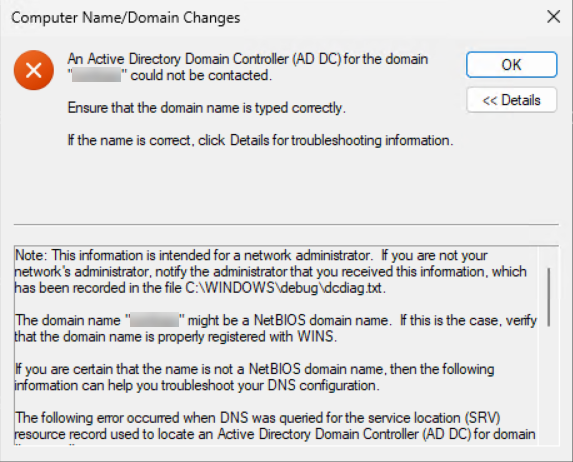
This article walks the diagnostic path the way the article’s author works through it in the field: confirm what name was actually entered, fix the client’s DNS configuration so SRV records resolve, kill NetBIOS so the box stops asking the wrong way, and then verify connectivity to the DC for the protocols the join actually uses (DNS port 53, LDAP port 389). By the end you will have a one-page checklist you can run through any time 0x232A appears.
What 0x232A Actually Means
The Windows error code 0x232A (decimal 9002) is DNS_ERROR_RESPONSE_CODES_BASE + REFUSED — a name-resolution failure. In the domain-join context it is the system’s way of saying: I tried to find a domain controller for this domain, the lookup failed at the resolver layer, and I never got far enough to even attempt an LDAP bind.
That is different from 0x3a (The specified server cannot perform the requested operation), which is what you see when the workstation did find a DC but couldn’t finish the LDAP conversation on TCP 389. 0x232A means the lookup failed; 0x3a means the lookup worked but the connection didn’t. Different problems, different fixes.
Three causes account for the vast majority of 0x232A on a fresh workstation:
- Wrong domain name typed. The user entered the NetBIOS short name (
CORP) instead of the DNS FQDN (corp.local). NetBIOS resolution is best-effort on modern networks and almost always fails first. - Workstation DNS pointed at a non-AD resolver. The box is on DHCP, the DHCP scope hands out 1.1.1.1 or 8.8.8.8, and those public resolvers do not host the AD zones — so the SRV records that domain join needs (
_ldap._tcp.dc._msdcs.<domain>) return nothing. - NetBIOS over TCP/IP enabled, no WINS. The workstation falls back to NetBIOS resolution for the short name, the network has no WINS server, and the broadcast traffic dies at the router.
Step 1 — Use the DNS Domain Name, Not NetBIOS
Confirm the user (or the script) typed the DNS domain name. If your domain’s FQDN is corp.local, type corp.local — not CORP. The NetBIOS Name field on the System Properties dialog accepts the short name, but every modern AD interaction (SRV lookups, Kerberos realm discovery, LDAP referrals) is keyed on the FQDN.
A quick sanity check from PowerShell:
# What does the workstation think the domain is right now?
Get-ComputerInfo -Property CsDomain, CsDomainRole, CsPartOfDomain

# What domain name should you actually type?
nslookup -type=SOA corp.local
If nslookup returns the SOA record for the DNS name, that is the name to enter in the join dialog. If it returns nothing, the workstation cannot resolve the domain at all — you have a DNS problem to fix before retrying the join. Continue to Step 2.
Step 2 — Fix Client DNS Configuration
The single most common cause of 0x232A: the workstation’s DNS server list is not pointed at servers that host the AD-integrated zones. Open Network Connections, right-click the active adapter, choose Properties, select Internet Protocol Version 4 (TCP/IPv4), and click Properties.
The two correct configurations are:
- DHCP-assigned DNS, where the DHCP scope hands out your DC IPs as DNS option 6. Choose Obtain DNS server address automatically. Verify that DHCP is delivering the right values:
ipconfig /allshould show your DCs in the DNS Servers list, not a public resolver. - Static DNS, where you explicitly list the DC IPs. Choose Use the following DNS server addresses. Enter your DC IPs as Preferred and Alternate. This is the right choice on servers, on hand-built workstations, and any time DHCP is unreliable.
Either way, when you close the dialog tick Validate settings upon exit — Windows will try to resolve a known external name and warn you immediately if the configuration is broken.
From PowerShell, the equivalent of the GUI walk:
# Show current DNS servers per adapter
Get-DnsClientServerAddress -AddressFamily IPv4 |
    Where-Object { $_.ServerAddresses } |
    Format-Table InterfaceAlias, ServerAddresses -Wrap

# Statically set DNS to your DCs (replace the IPs with your own)
Set-DnsClientServerAddress -InterfaceAlias 'Ethernet' -ServerAddresses 10.0.0.10, 10.0.0.11

# Or revert to DHCP
Set-DnsClientServerAddress -InterfaceAlias 'Ethernet' -ResetServerAddresses
After changing DNS, flush the resolver cache and re-register so the next lookup starts clean:
ipconfig /flushdns
ipconfig /registerdns
Step 3 — Disable NetBIOS over TCP/IP
NetBIOS is the legacy short-name resolution layer. On modern AD networks it is almost always a liability: the workstation tries NetBIOS first for short-name lookups, the network has no WINS server, the broadcast goes nowhere, and the failure surfaces as 0x232A. The fix is to take it out of the resolution path entirely.
- Open Network Connections → right-click the adapter → Properties.
- Select Internet Protocol Version 4 (TCP/IPv4) and click Properties.
- Click Advanced….
- Click the WINS tab.
- Under NetBIOS setting, choose Disable NetBIOS over TCP/IP.
- Click OK on every open dialog to commit the change.
From PowerShell, equivalent (changes the WINS tab setting via the WMI provider):
# Disable NetBIOS on every IPv4 adapter
Get-WmiObject Win32_NetworkAdapterConfiguration -Filter 'IPEnabled=True' |
    ForEach-Object { $_.SetTcpipNetbios(2) }

# 0 = use DHCP setting; 1 = enable NetBIOS; 2 = disable NetBIOS
For a fleet, push NetBIOS over TCP/IP — Disabled via the DHCP scope (option 1, NetBIOS over TCP/IP option) or via Group Policy. Setting it on a per-machine basis ten thousand times is not the right answer.
Step 4 — Verify DNS Resolution Works
Now confirm the workstation can resolve the names domain join needs. The two queries that matter:
# Can we resolve the domain to a DC IP?
nslookup corp.local

# Can we resolve the SRV record domain join actually uses?
nslookup -type=SRV _ldap._tcp.dc._msdcs.corp.local
The first should return the IPs of one or more DCs. The second should return one SRV record per writable DC, naming each DC’s hostname and port (almost always 389). If either query returns Non-existent domain or no records, your DNS server is not the right one or the AD-integrated zones are missing.
An alternative that talks to the local resolver cache directly:
Resolve-DnsName -Name '_ldap._tcp.dc._msdcs.corp.local' -Type SRV |
    Format-Table NameTarget, Port, Priority, Weight
Step 5 — Verify TCP Connectivity to the DC
Once DNS resolves the DC, prove the workstation can reach it on the ports the join actually uses. From PowerShell as Administrator:
# Replace 10.0.0.10 with the IP nslookup returned for the DC
Test-NetConnection 10.0.0.10 -Port 53     # DNS
Test-NetConnection 10.0.0.10 -Port 389    # LDAP
Both should return TcpTestSucceeded : True. If either is False, the resolution side is fine but the network path is blocked — that is now an 0x3a-class problem (covered in our companion article on error 0x3a). Walk the firewall layers in this order: workstation host firewall, DC host firewall, network ACL between them.
Step 6 — Check Both Host Firewalls
Even with DNS healthy and NetBIOS disabled, an over-zealous host firewall on either side blocks the join. Quick checks:
# On the workstation: outbound rules that might block 53 / 389
Get-NetFirewallRule -Direction Outbound -Enabled True |
    Where-Object { $_.DisplayName -match 'DNS|LDAP|389|53' } |
    Select-Object DisplayName, Profile, Action

# On the DC: confirm the AD inbound rules are enabled
Get-NetFirewallRule -DisplayName '*Active Directory*' |
    Select-Object DisplayName, Direction, Action, Enabled, Profile
The pre-installed inbound rules Active Directory Domain Controller – LDAP (TCP-In) and DNS (TCP-In) / DNS (UDP-In) need to be enabled and scoped to whichever profile the inbound traffic arrives on. On a domain controller fresh from Install-ADDSForest, they are; on a hardened DC where someone has run a CIS benchmark too aggressively, they may not be.
Step 7 — Read netsetup.log
The actual workhorse log for domain join failures is %WINDIR%\debug\NetSetup.log. It is plaintext, append-only, and records every step of the join: the SRV lookup, the candidate DCs, the LDAP bind attempt, and the exact failure point.
# View the last 80 lines of the join log
Get-Content "$env:WINDIR\debug\NetSetup.log" -Tail 80

# Look for failures
Select-String -Path "$env:WINDIR\debug\NetSetup.log" `
    -Pattern 'fail|error|0x' -Context 1,3
Failures look like NetpDsGetDcName: failed to find a DC having account 'corp.local': 0x232A. The line above usually shows what name was looked up (NetBIOS short name vs DNS FQDN) and what resolver returned what. That tells you whether to double back to Step 1 (wrong name typed) or Step 2 (wrong DNS server).
If the log is absent or empty, the join attempt did not start — usually a credential prompt that was canceled, or the System Properties dialog was closed before the join button was clicked.
Common Pitfalls
- Typing the NetBIOS name in the join dialog.
CORPworks on networks that still carry NetBIOS broadcast or run WINS — almost no modern AD does either. Usecorp.local. - Public DNS resolvers in the DHCP scope. 1.1.1.1 and 8.8.8.8 are great for general internet browsing, terrible for an AD-joined workstation. Hand out the DCs as DNS, hand out a public resolver as the conditional-forwarder backup on the DC, not on the client.
- Both NetBIOS and DNS misconfigured. The workstation falls back from DNS to NetBIOS, NetBIOS broadcast goes nowhere, the user sees 0x232A and assumes “the DC is down.” Disabling NetBIOS forces the failure to surface clearly as a DNS issue, which is both faster to diagnose and faster to fix.
- Joining via VPN with split-tunnel DNS. The workstation may have a private DNS over the VPN tunnel and a public DNS via the local interface. The OS picks one; if it picks the public one for the AD lookup, the join fails. Force-list the AD DNS servers on the VPN-tunnel interface, or run
Get-DnsClientServerAddressto confirm which server is actually being used. - SRV records present on one DC but not replicated. A newly promoted DC has not yet replicated to its peers; the workstation queries a peer and finds no SRV record. Force replication:
repadmin /syncall /AePon any DC, then retry.
Conclusion
Error 0x232A almost always boils down to two questions: What name did you type? and What DNS server is the workstation asking? If both answers are right, the SRV records resolve, the DC is contacted, and the join completes. If either answer is wrong, you get 0x232A and the rest of the troubleshooting is just narrowing down which.
The standardised one-page checklist:
- Type the FQDN (
corp.local), never the NetBIOS short name. - Make sure the workstation’s DNS is pointed at the DCs.
- Disable NetBIOS over TCP/IP on the WINS tab (or via DHCP option / GPO for a fleet).
- Verify with
nslookup -type=SRV _ldap._tcp.dc._msdcs.<domain>. - Confirm TCP 53 and 389 are open with
Test-NetConnection. - If still failing, read
NetSetup.log— it tells you what name was looked up and what came back.
Bake those checks into your domain-join script and the error stops appearing in your help-desk queue.