
You sit down at a fresh workstation, type in the domain credentials, and hit OK. Instead of the welcome screen you expect, Windows comes back with a dialog that reads The specified server cannot perform the requested operation and a Windows error code of 0x3a. Nothing about “wrong password,” nothing about “domain not found” — just a server, somewhere, refusing to do the work.
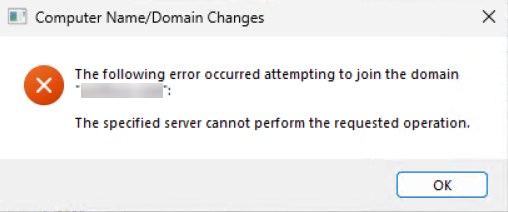
The error is almost always a network-layer problem dressed up in directory-layer language. The workstation was able to find the Domain Controller (so DNS is at least minimally working) but it could not complete an LDAP conversation on TCP 389. Something between the workstation and the DC is dropping or filtering that traffic; until you fix it, no domain join can succeed regardless of how good the credentials are.
This article walks the troubleshooting path methodically: confirm the network basics, prove whether port 389 is reachable, then narrow the firewall layer that is breaking it. By the end you will have a one-line PowerShell test you can run any time this error reappears.
What Error 0x3a Actually Means
Windows raises error 0x3a (decimal 58) when the client receives a response that says the server understood it but cannot do the work in this context. In a domain-join workflow that almost always points at one of three failures:
- The client cannot complete an LDAP bind to the DC on TCP 389. The TCP three-way handshake either times out or is RST-ed before the LDAP conversation can start.
- DNS resolves the domain to the right DC, but the route to that DC is broken (firewall, NSG, network ACL, missing route).
- The DC is reachable on the network but the AD DS service is in a bad state — the LDAP listener is not bound, or the DC is in a hung post-promotion state.
The first two are far more common than the third. Both are connectivity problems on TCP 389; the rest of this article is about how to confirm which one and where the block is.
Step 1 — Confirm Basic Network Connectivity
Before chasing port 389, prove the basics. From a Command Prompt on the workstation that is failing the join:
# Replace 10.0.0.10 with one of your DC IPs and dc01.corp.local with its FQDN
ping 10.0.0.10
ping dc01.corp.local
ipconfig /all
nslookup corp.local
What you are looking for:
- Both pings succeed. If ping by IP fails, you have a routing or layer-2 problem — fix that first; LDAP cannot work over a network that does not pass ICMP. If ping by name fails but ping by IP succeeds, you have a DNS problem; the workstation cannot resolve the DC’s name. Re-check the DNS server list under
ipconfig /alland make sure it points at your AD-integrated DNS servers, not at 8.8.8.8 or your ISP’s resolver. - The DNS server list is correct. A workstation joining an AD domain should have the domain controllers listed as its DNS servers (or any DNS server that hosts the AD-integrated zones). If the box is using a public resolver, the SRV records that point at the DCs will not resolve and the join will fail before it ever gets to the LDAP step.
nslookup corp.localreturns the DC IPs. If it returns nothing, the workstation is not pointed at a DNS server that knows about your domain. Fix that and the rest of the troubleshooting may become unnecessary.
Worth checking too — the SRV records that domain join actually relies on:
nslookup -type=SRV _ldap._tcp.dc._msdcs.corp.localThat should return one record per writable DC. If it returns nothing, the workstation cannot find the DCs via DNS and the join will fail with a related (but slightly different) error before reaching 0x3a.
Step 2 — Test TCP 389 Directly
This is the diagnostic you actually came here for. Open PowerShell as Administrator and run:
Test-NetConnection 10.0.0.10 -Port 389The output looks like this when the connection is healthy:
ComputerName     : 10.0.0.10
RemoteAddress    : 10.0.0.10
RemotePort       : 389
PingSucceeded    : True
TcpTestSucceeded : True
If TcpTestSucceeded is True, the workstation can complete a TCP handshake on port 389 to the DC. The error 0x3a in this case is not a port-389 problem — jump to Step 4 for the residual list (DNS, AD DS service, time skew).
If TcpTestSucceeded is False, you have your answer: something between the client and the DC is blocking TCP 389. Continue with Step 3 to identify what.
You can also extend the test to all the ports a domain join exercises:
foreach ($port in 53, 88, 135, 389, 445, 464, 636, 3268, 3269) {
    $r = Test-NetConnection 10.0.0.10 -Port $port -WarningAction SilentlyContinue
    "{0,5} {1}" -f $port, $r.TcpTestSucceeded
}
That sweep tells you whether the firewall is blocking just LDAP (389) or the whole AD-traffic group (53 DNS, 88 Kerberos, 135 RPC endpoint mapper, 389 LDAP, 445 SMB, 464 password change, 636 LDAPS, 3268/3269 Global Catalog). Patterns matter — only 389 blocked usually means a host firewall rule; the whole group blocked usually means a network firewall.
Step 3 — Locate the Block
If TCP 389 fails, walk the path from the workstation to the DC. There are typically three places traffic can be blocked:
Workstation host firewall
Windows Defender Firewall on the workstation can block outbound 389 if a custom rule has been deployed via GPO or local configuration. Test by temporarily disabling the firewall on the workstation only:
# Run as administrator on the workstation
Set-NetFirewallProfile -Profile Domain,Private,Public -Enabled False
# Re-test
Test-NetConnection 10.0.0.10 -Port 389
# Re-enable IMMEDIATELY after the test
Set-NetFirewallProfile -Profile Domain,Private,Public -Enabled True
If 389 succeeds with the firewall off and fails with it on, an outbound rule on the workstation is the culprit. List it:
Get-NetFirewallRule -Direction Outbound -Enabled True |
    Where-Object { $_.DisplayName -like '*LDAP*' -or $_.DisplayName -like '*389*' } |
    Select-Object DisplayName, Profile, Action
Disable any rule that blocks outbound 389. Outbound is allowed by default on Windows; an explicit block rule is something somebody created on purpose — figure out why before deleting it.
Domain Controller host firewall
The DC’s own Windows Defender Firewall might be filtering inbound 389 from the network the workstation is on. Run on the DC:
Get-NetFirewallProfile | Format-Table Name, Enabled, DefaultInboundAction
Get-NetFirewallRule -DisplayName '*LDAP*' |
    Select-Object DisplayName, Direction, Action, Profile, Enabled
The pre-installed rule Active Directory Domain Controller – LDAP (TCP-In) should be enabled on the Domain profile. If it is disabled or scoped to a different profile than the inbound traffic uses, port 389 is closed.
If you suspect the DC’s firewall is the cause, do not turn it off — even briefly. Instead, enable the right inbound rule with PowerShell:
Enable-NetFirewallRule -DisplayName 'Active Directory Domain Controller - LDAP (TCP-In)'
Enable-NetFirewallRule -DisplayName 'Active Directory Domain Controller - Secure LDAP (TCP-In)'
Network firewalls and ACLs between client and DC
If both host firewalls are clean and TCP 389 still fails, the block is between them. The path between a workstation subnet and the DC subnet is the most common place for an environment to grow an old, forgotten ACL that allowed everything except AD traffic when it was first written.
Walk it from both sides:
- Trace the route from the client:
tracert 10.0.0.10. The hop where the response stops is roughly where the block lives. - From a working domain member on the same subnet as the failing client, run the same
Test-NetConnection. If it succeeds from there, the block is specific to the failing workstation’s VLAN, not a network-wide ACL. - Check NSGs (in cloud), firewall policies (Palo Alto, FortiGate, etc.), and router ACLs for any rule denying TCP 389 between the source and destination subnets.
Step 4 — Residual Causes (When Port 389 Is Open)
If Test-NetConnection succeeded but the join still fails with 0x3a, the likely culprits are:
- AD DS service is hung on the DC. Verify on the DC:
Get-Service NTDS, Netlogon, KDC, ADWS. All four should be Running. If NTDS is stopped or stuck, the DC accepts TCP connections but cannot answer LDAP queries. Restart the service if the DC is reachable:Restart-Service NTDS -Force. - Time skew. If the workstation’s clock is more than five minutes off from the DC, the Kerberos handshake later in the join sequence will fail and the OS may surface 0x3a or a related error. Confirm:
w32tm /query /statuson both sides. Resync if necessary:w32tm /resync /force. - Stale computer object with the same name. A leftover AD object can cause errors that Windows wraps as 0x3a. See the related troubleshooting article on the “machine account quota” error for the reset/delete procedure on stale computer accounts.
- Wrong DNS server. The workstation may resolve the domain via a public resolver that returns nothing for AD SRV records. The join then picks no DC and fails at the bind. Confirm
ipconfig /alllists your AD DNS servers as primary.
Common Pitfalls
- Disabling the firewall and forgetting to turn it back on. The single most common “temporary” fix that ends up in production. Re-enable before you walk away from the box; better, use a single inbound allow rule scoped to the DC subnet.
- Testing only port 389. Domain join needs a whole port group (53, 88, 135, 389, 445, 464, plus optional 3268). If 389 succeeds but 88 or 445 are still blocked, the join fails again at a different step. The for-loop sweep above is faster than testing a port at a time.
- Pointing the client’s DNS at a public resolver. Workstations on a domain need DNS that knows about the AD zones. 1.1.1.1 does not. Pin the AD DNS servers in your DHCP scope or the static client config.
- Skipping the working-control test. Run
Test-NetConnectionfrom a known-good domain member on the same subnet. If that works, you have narrowed the problem to the failing workstation. If it does not, the problem is network-wide and you are wasting time on the workstation’s firewall. - Confusing 389 and 636. 389 is plaintext LDAP; 636 is LDAPS. Domain join uses 389. If your firewall allows only 636 (because someone hardened the perimeter), domain joins will fail with this exact error until 389 is permitted on the same path or until you switch the join workflow to LDAPS-only via Group Policy.
Conclusion
Error 0x3a / The specified server cannot perform the requested operation is at heart a TCP 389 connectivity problem dressed up in domain-join terminology. The diagnostic boils down to one PowerShell line:
Test-NetConnection <DC-IP> -Port 389If TcpTestSucceeded is True, the rest of the failure is in the residual list (AD DS service, time skew, DNS). If it is False, walk the three firewall layers in order — client host firewall, DC host firewall, network firewall — and you will find the block. Once 389 is reachable, the join completes and the error goes away.
Worth wiring the test into your standard workstation-build runbook: a one-second port test before kicking off the domain join saves a half-hour of GUI debugging on every batch of new endpoints you deploy.