
You install a fresh workstation, you type the domain credentials of a non-admin domain user when prompted, and Windows comes back with one of the more confusing error messages it ships with: You have exceeded the maximum number of computer accounts you are allowed to create in this domain. The user has not joined a single computer recently — or so they think. Nothing about “your password is wrong” or “the DC is unreachable” would point you at this; the failure is at the directory layer, not the network layer.
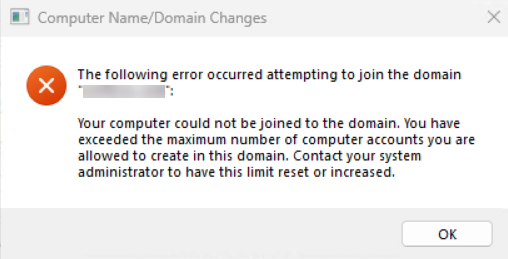
This article walks the full troubleshooting path: what the error actually means, why it happens to non-admin domain users, and the four ways to fix it — from the best-practice OU delegation down to the lazy-but-it-works domain-admin override. The fix you pick depends on whether you have domain admin access and how many other accounts in the directory will hit the same ceiling later.
What the Error Actually Means
Active Directory ships with a built-in safety net called ms-DS-MachineAccountQuota — a domain-wide attribute that limits how many computer accounts any single authenticated user can create. The default value is 10. Every authenticated domain user, by default, has the right to create up to ten machine accounts in the directory by joining a computer to the domain.
This is a security measure. Without it, any compromised user account could pivot to creating arbitrary machine accounts in the domain — useful both for persistence (a rogue computer object can be used to authenticate as a domain member) and for lateral movement (Kerberos relay, S4U abuse, and so on). Ten is high enough that no normal user hits it accidentally and low enough that an attacker who reaches the limit is forced to do something else, something noisier.
The error you see does not mean “your domain is full of computers.” It means “this specific user account has already created (or has on record as having created) ten machine accounts, and Active Directory will not let them create an eleventh.”
Why This Hits Non-Admin Users First
Domain admins are not subject to ms-DS-MachineAccountQuota — the attribute is enforced against the user creating the object, and members of Domain Admins, Account Operators, or anyone with explicit Create Computer Objects rights on the target OU bypass it entirely. So the very first time the error surfaces, it is almost always because a help-desk technician or a junior admin is using their normal AD user account to do the join — not the domain-admin account they have for AD work.
Common ways to land on the limit without realising it:
- You actually joined ten boxes already. Lab admins building VMs in volume blow through the default in a single afternoon.
- An old computer account with the same name still exists. If a previous join created an object and the box was wiped without removing the AD object, the new join attempt either resets that object (if you have rights) or creates a second one (counting against your quota).
- Someone else delegated rights to your account, then revoked them. The orphaned objects you created are still in the directory and still attributed to you.
Step 1 — Identify the User Account
Before you change anything, work out which account is hitting the wall. The error happens at the moment you supply credentials in the Computer Name/Domain Changes dialog — that is the account ms-DS-MachineAccountQuota is being checked against. If multiple admins share a tech account or you joined the box with a non-obvious credential, look at the system event log on the workstation:
Get-WinEvent -LogName System -MaxEvents 50 |
    Where-Object { $_.Id -in 4097,4098 } |
    Format-Table TimeCreated, Id, Message -Wrap
On the domain controller side, the directory service log records account-creation attempts. The user identified there is the one whose quota is exhausted.
Step 2 — Option 1: Delegate Computer-Object Permissions on the OU (Recommended)
This is the fix you want by default. Instead of raising a domain-wide quota that affects every user in the directory, you grant this one account the explicit right to create computer objects in the OU you actually use. The quota check is bypassed for users with explicit Create permissions on the target OU.
You will need Domain Admin rights to make the delegation. Run on a domain controller or any workstation with RSAT installed:
- Open Active Directory Users and Computers (
dsa.msc). - Navigate to the OU where new computer accounts should land. By default this is Computers under the domain root, but in any well-organised directory it is a dedicated OU like OU=Workstations,DC=corp,DC=local. (If you do not know which OU is the default, run
redircmp.exewith no arguments on a DC; it prints the current default container.) - Right-click the OU and choose Delegate Control….
- Click Next, then Add… and pick the user (or, better, a security group the user belongs to).
- Click Next. On the Tasks to Delegate page, choose Create a custom task to delegate and click Next.
- Choose Only the following objects in the folder, scroll to and check Computer objects, then check both Create selected objects in this folder and Delete selected objects in this folder. Click Next.
- For Permissions, check General and select Read all properties, Write all properties, Create all child objects, and Delete all child objects. Click Next, then Finish.
The change is immediate — allow a couple of minutes for AD replication if your DCs are on different sites. Test by joining a workstation with the delegated account; the quota error will not reappear regardless of how many machines that account creates in this OU.
Why this is the preferred fix: it scopes the privilege (one OU, not the whole directory), it scopes the user (one account or group, not all authenticated users), and it leaves the global quota at its safe default for everybody else.
Step 2 — Option 2: Raise ms-DS-MachineAccountQuota Domain-Wide (Use With Caution)
This is the blunter fix and it raises the limit for every authenticated user in the domain, not just the one who is hitting the wall. Reach for it only if delegation is not feasible — for example, on a small lab forest where the security delta does not matter.
- On a DC, open ADSI Edit (
adsiedit.msc). - In the left pane, right-click ADSI Edit and choose Connect to…. Under Select a well known Naming Context, pick Default naming context and click OK.
- Expand the default naming context, right-click the domain object (e.g. DC=corp,DC=local) and choose Properties.
- In the Attribute Editor tab, scroll to ms-DS-MachineAccountQuota, select it, and click Edit.
- Change the value — raise it to something workable like 20, or set it to 0 to disable the per-user quota entirely. Click OK, then OK again to close.
You can also do it from PowerShell, which is faster and scriptable:
# Raise the per-user machine account quota to 20
Set-ADDomain -Identity (Get-ADDomain).DistinguishedName `
    -Replace @{ "ms-DS-MachineAccountQuota" = 20 }

# Or read the current value first
(Get-ADDomain).DistinguishedName |
    Get-ADObject -Properties "ms-DS-MachineAccountQuota" |
    Select-Object Name, ms-DS-MachineAccountQuota
Setting it to 0 disables the quota entirely — every authenticated user can create unlimited machine accounts. Do not do this in any environment that ever hears the word “production.” A value of 0 is a security regression on every account in the directory and is the kind of thing that turns up in audit findings six months after the change.
Step 3 — Use a Domain Admin Account (Quick, Lazy, Not Recommended)
Domain admin accounts bypass the machine-account quota completely — the attribute is not checked for them. So the absolute simplest “fix” is to do the domain join with a domain-admin credential instead of the regular user account. The join works, the error goes away, and you carry on.
Why this is on the list: it is the natural reflex when you are sitting at a workstation, you have a domain-admin password in your head, and a customer is waiting. The join needs to happen now; you can fix the underlying delegation later.
Why this is the worst long-term answer: every machine joined this way ends up under the Computers default container with the domain admin as the creator. You lose the ability to track which technician built which workstation. Worse, it teaches habits — helpdesk staff start using domain-admin credentials for routine tasks, and that is exactly how domain-admin credentials end up in the credential cache of compromised endpoints.
Use it once to unblock the immediate join; fix it properly with delegation before the next batch of workstations.
Step 4 — The “Account Already Exists” Variant
Sometimes the underlying problem is not quota at all — it is a stale computer account in AD with the same name as the box you are trying to join. The error message can still surface as cannot join the domain on the workstation, but the AD-side cause is different.
Check whether an existing object is in the way:
# Replace WORKSTATION-01 with the actual computer name
Get-ADComputer -Identity "WORKSTATION-01" -Properties whenCreated, whenChanged, lastLogonDate
If the object exists and belongs to the box you are now rebuilding, you have two clean options:
- Reset the existing computer account. Right-click the object in ADUC and choose Reset Account. The next domain join from a machine with the same name will be allowed to take over the account, preserving any group memberships and OU placement that were already on it.
- Delete the existing computer account. Right-click and choose Delete. This is the right move when the old object is pointing at a retired machine and the new join is genuinely a new computer. Any application or share permissions that referenced the old object will break, so check that before deleting in production.
From PowerShell:
# Reset (preserve OU and group memberships)
Reset-ComputerMachinePassword -Server WORKSTATION-01

# Or delete (if the old box is gone for good)
Remove-ADComputer -Identity "WORKSTATION-01" -Confirm:$false
After You Make the Change — Replication Matters
If your forest has more than one DC, any change you just made (delegation on an OU, raising ms-DS-MachineAccountQuota, deleting a stale object) lives on the DC you made it on first. Until that change replicates, a workstation that hits a different DC during the next join attempt will see the old state and the same error message will reappear.
Force replication if you cannot wait for the default schedule:
repadmin /syncall /AeP

# Or replicate one specific NC across all DCs
repadmin /syncall /AdeP "DC=corp,DC=local"

# Confirm replication health afterwards
repadmin /replsummary
dcdiag /test:replications /v
For lab forests with a single DC, replication is a non-issue. For everything else, this step is what separates “the fix worked” from “the fix worked on the third attempt for no obvious reason.”
Common Pitfalls
- Setting ms-DS-MachineAccountQuota to 0. Tempting because it “just works”, but it removes the entire safety net. Every authenticated user in the directory becomes able to create unlimited machine accounts, which is a textbook precondition for several Active Directory attack chains. Use delegation on the OU instead.
- Delegating to Domain Users or Authenticated Users. The whole point of the delegation is to scope the privilege. Delegating to a security group that contains every user in the directory is functionally identical to setting the quota to 0. Pick a small, named group like Workstation Build Operators.
- Forgetting that the orphan objects still count. Resetting your quota by raising the limit does not remove the ten old objects that pushed you over. Either delete them (if they are stale) or reset them (if the boxes still exist), or both your quota and your directory hygiene problems return next month.
- Using the wrong default OU. If you delegate Create Computer Objects on OU=Workstations,DC=corp,DC=local, but the domain’s default computer container is still the legacy CN=Computers,DC=corp,DC=local, the delegated account still hits the quota wall. Use
redircmp.exe "OU=Workstations,DC=corp,DC=local"to redirect new computer objects to the OU you actually delegated against. - Not documenting the delegation. Six months later, the next admin sees a non-domain-admin user creating computer objects and panics. Note the delegation in your AD documentation: which OU, which group, what permissions, when, and why.
FAQ
Can a regular AD user normally join a computer to the domain?
Yes — up to ten times per user. After that, ms-DS-MachineAccountQuota blocks them and you see this error.
Do I need a domain admin account to do the join?
No. Either delegate Create Computer Objects on the OU, or have a domain admin do the one-time delegation. After that, the regular user joins as many machines as they need.
Does ms-DS-MachineAccountQuota apply to domain admins?
No. Members of Domain Admins, Enterprise Admins, and any user with explicit Create Computer Objects rights on the OU bypass the quota completely.
What value should I set ms-DS-MachineAccountQuota to?
Leave it at 10 and use OU delegation for the accounts that need to create more. If you must raise it domain-wide, raise it — do not zero it. 20 is a safer ceiling than 0.
Conclusion
The maximum number of computer accounts error is not really about computers; it is about the quota Active Directory keeps on every user account, and it is the directory’s way of telling you that this particular account does not have explicit rights to create more machine objects. The fix is almost never to raise the global quota — it is to delegate Create Computer Objects on the OU you actually use, scoped to the account or group that needs it. Domain-wide quota changes are the lazy version, domain-admin overrides are the lazier version, and a healthy AD environment uses neither.
Bake OU delegation into your initial AD design and the error stops appearing. Document the delegation alongside everything else in your AD runbook so the next admin who walks into the directory has the same answer to the same question.