
Manual backups are practice. Scheduled backups are what actually saves you when a DC dies at 3 AM. Part 1 covered the one-shot system state backup; this post automates the same flow with a nightly full-server schedule, lays out the 1-full + 14-incremental retention model that Windows Server Backup uses by default, and shows the Task Scheduler tweaks that make the resulting scheduled task production-ready.
For an Active Directory domain controller, scheduling Full server beats scheduling System State alone — storage cost is similar (system state is the bulk anyway) and you get bare-metal recovery for free. Posts 3 and 4 in this pathway use a bare-metal backup to test that the procedure actually restores; the schedule we set up here produces exactly the right backup artifact for that test.
Step 1 — Install Windows Server Backup via PowerShell
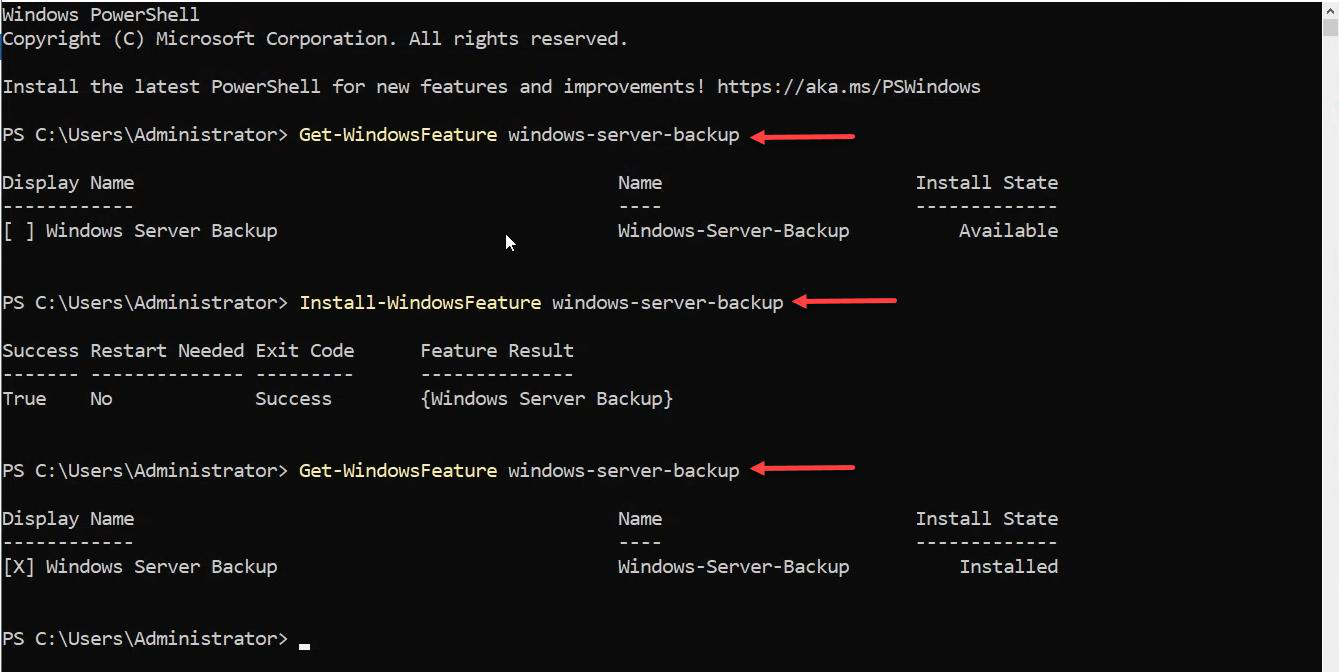
Install-WindowsFeature Windows-Server-Backup takes about 30 seconds, no reboot required. Verify with Get-WindowsFeature Windows-Server-Backup — install state flips from Available to Installed.Two commands:
Get-WindowsFeature Windows-Server-Backup
Install-WindowsFeature Windows-Server-Backup
First command shows the install state (Available if not installed). Second installs it — takes about 30 seconds, no reboot. Run Get-WindowsFeature Windows-Server-Backup again and the state flips to Installed.
PowerShell is faster than the GUI wizard route from Part 1 and easier to embed in DC build scripts — install WSB as part of the standard DC build template.
Step 2 — Launch Windows Server Backup > Backup Schedule

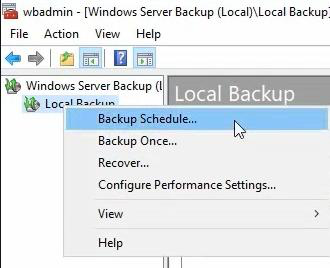
Server Manager > Tools > Windows Server Backup > Local Backup > right-click > Backup Schedule. (Or use the Actions pane on the right — same wizard either way.)
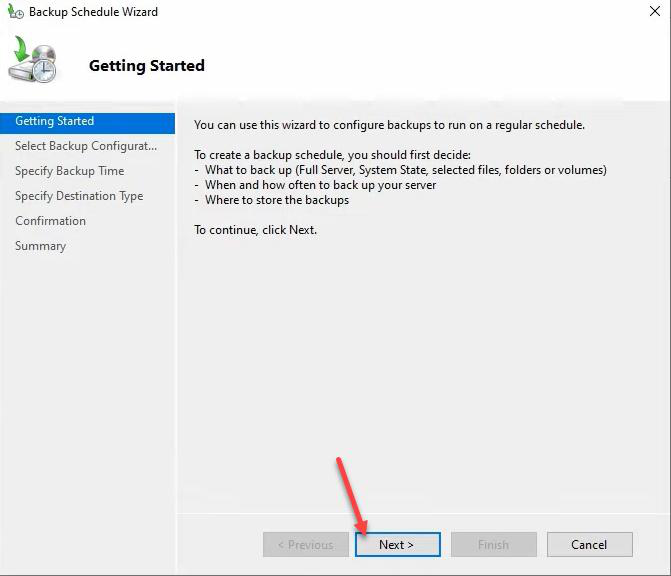
Getting Started page > Next.
Step 3 — Full server vs Custom
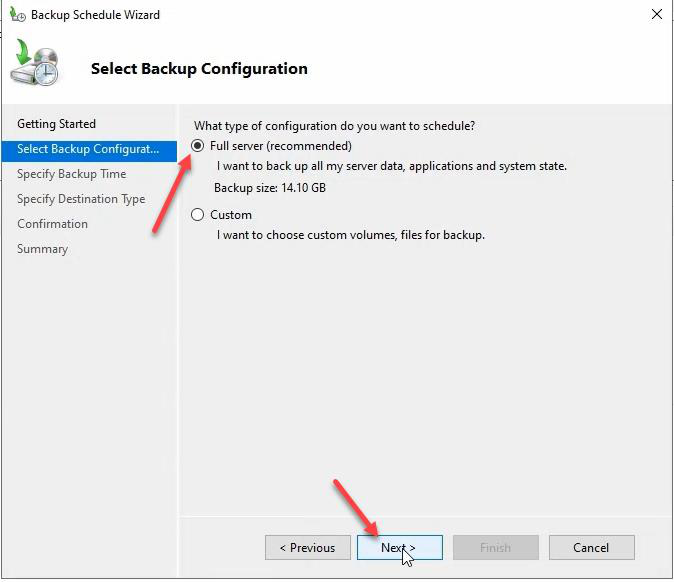
Pick Full server. On a DC, full server backup includes:
- Operating system + boot files
- System state (which already covers
NTDS.DIT, SYSVOL, registry, COM+, AD CS if present) - All data volumes
- Application state
This is the artifact you want for bare-metal recovery. Custom only if you have a specific reason to exclude something — like a giant scratch volume that doesn’t belong in the backup.
Step 4 — Set the schedule
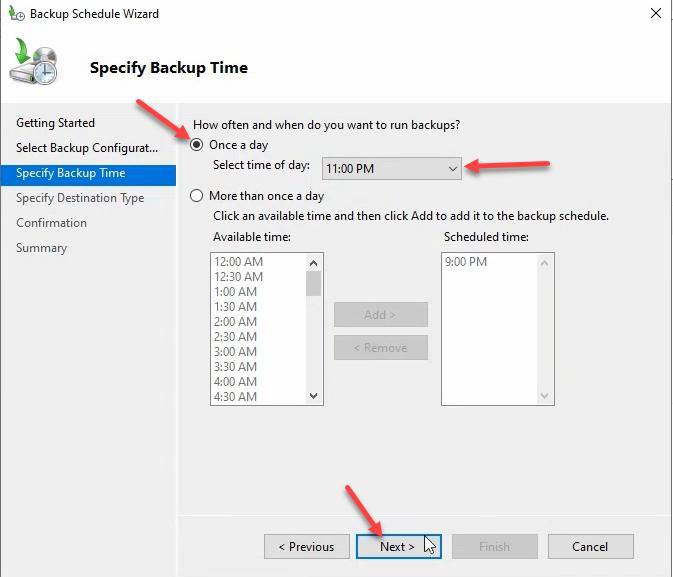
Once a day > 11:00 PM for this lab. Real-world picks:
- Off your AD replication peak — check your replication schedule and don’t overlap.
- Off any third-party backup window (Veeam, Commvault, DPM) — running both at the same time fights for VSS.
- Off your Patch Tuesday reboot window.
Windows Server Backup limit: one daily backup schedule. If you want a weekly full + monthly archive in the same tool, you can’t — either use multiple Task Scheduler-driven wbadmin jobs or move to a third-party backup tool. WSB does support multiple times per day, but only on a single repeating window (e.g., every 4 hours).
WSB auto-manages the full vs incremental cadence: roughly one full backup + 14 incrementals on rolling retention. You don’t configure this — WSB picks.
Step 5 — Destination disk
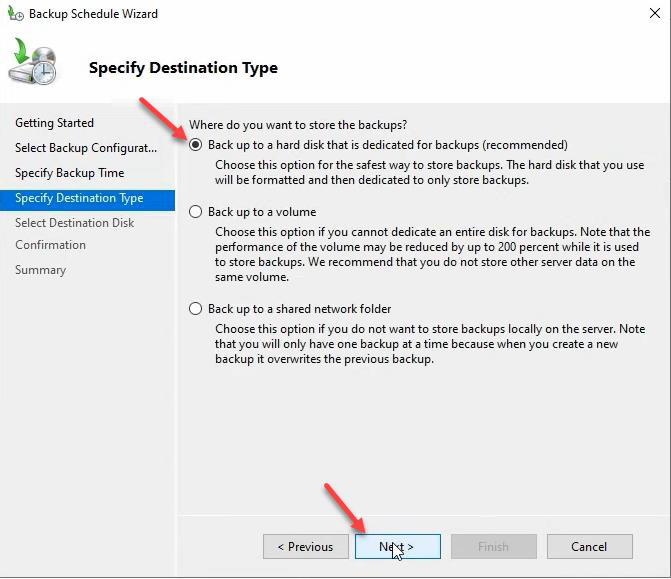
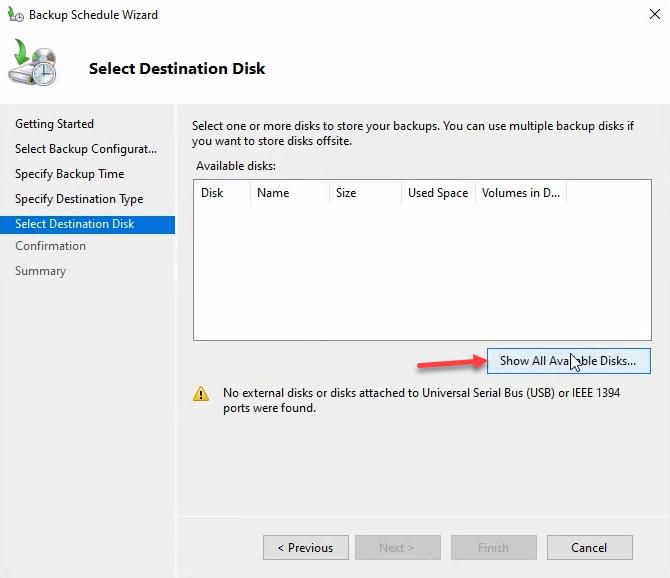
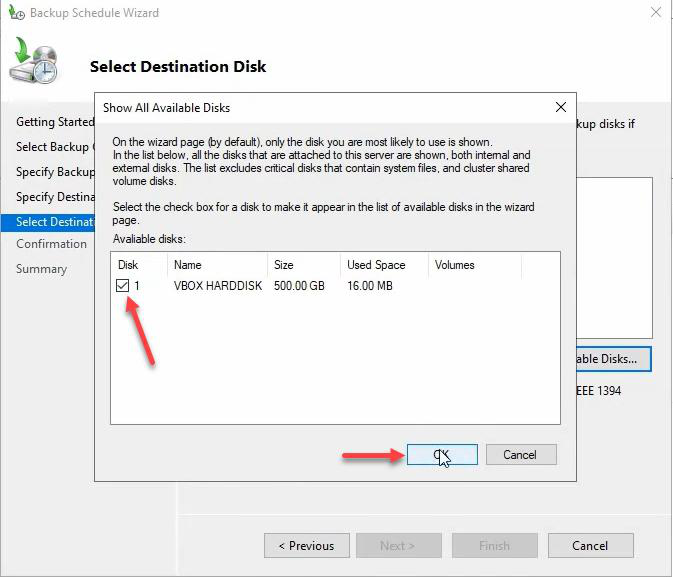
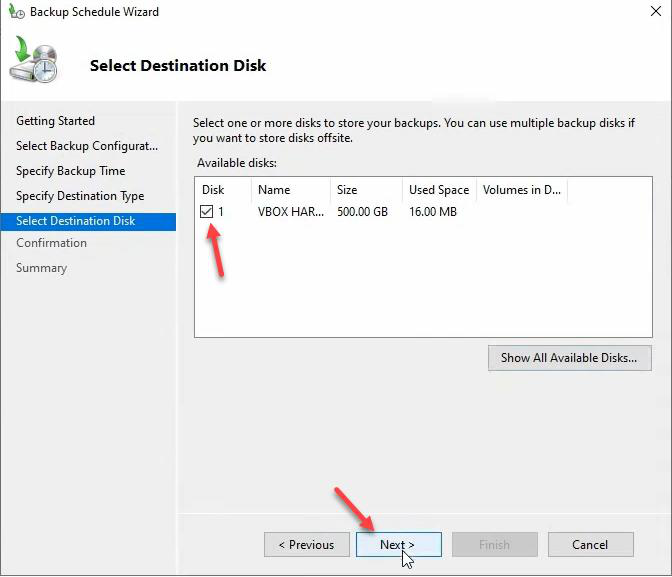
Pick Back up to a hard disk that is dedicated for backups. The dedicated-disk model is the most reliable target:
- WSB formats and takes exclusive control — nothing else can write to it.
- The disk doesn’t get a drive letter — protects against accidental drag-and-drop deletes.
- Performance is predictable — backup doesn’t fight a busy data volume for I/O.
If your target disk doesn’t appear in the Show All Available Disks list, it’s probably online with a drive letter assigned — offline it in Disk Management first, then retry.
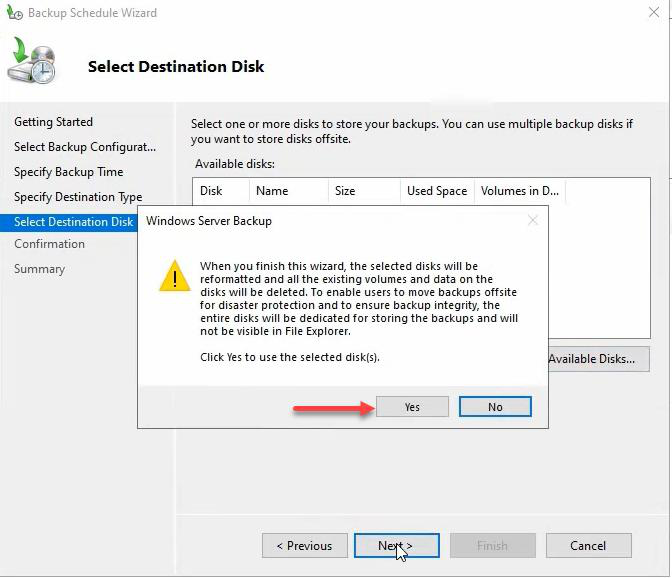
The disk will be formatted. Anything on it is destroyed. Move data off first. Click Yes only once you’re sure.
Step 6 — Finish and verify
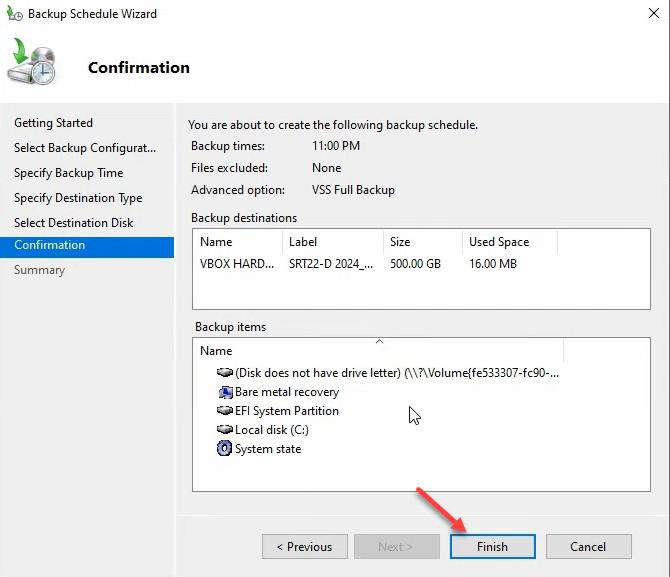
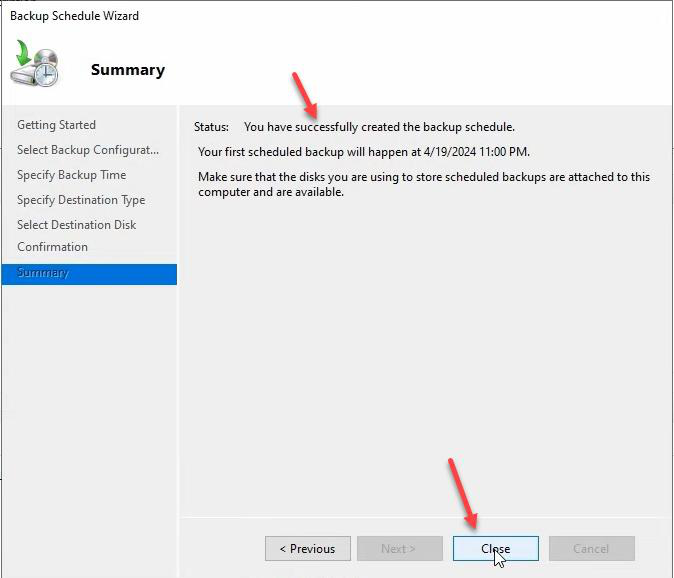
Confirmation summary > Finish. WSB formats the disk (takes 1–3 minutes depending on size) and creates the scheduled task. Success dialog > Close.
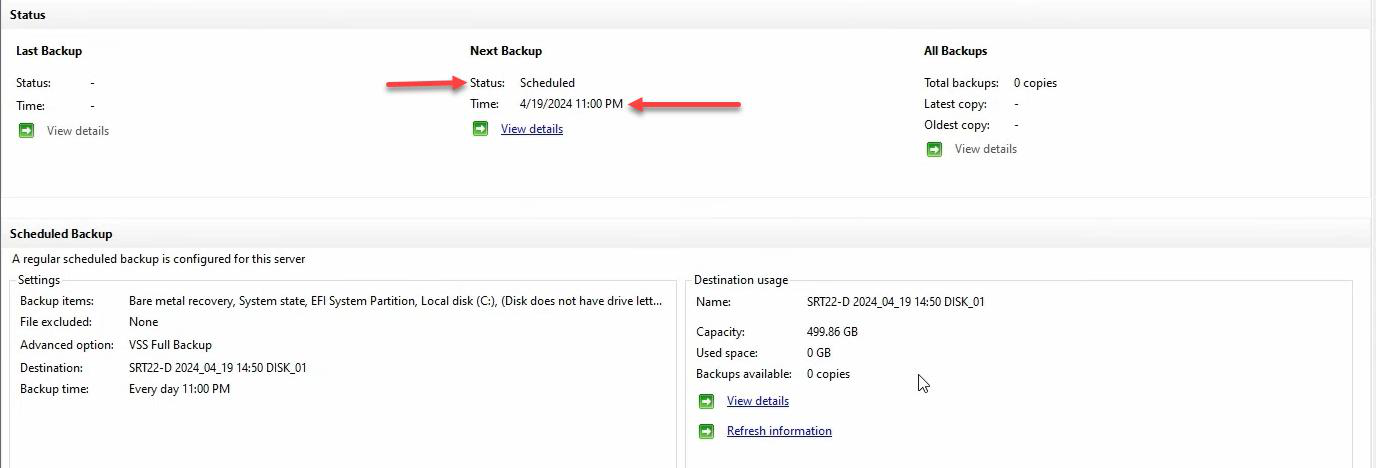
The console now shows: Next Backup at 11:00 PM. First backup runs tonight. After that, daily.
Modifying or stopping the schedule
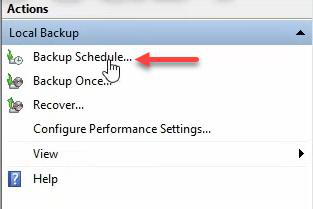
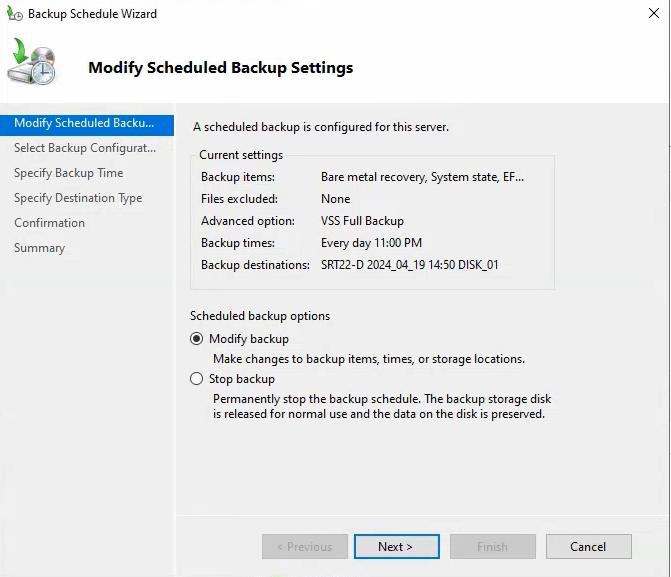
Run Backup Schedule again from the Actions pane. Two options:
- Modify backup — change time, items, or destination. Wizard reopens with current settings.
- Stop backup — permanently removes the schedule. Stored backup data stays on the disk; only the recurring run is killed.
Task Scheduler tweaks for production
WSB’s wizard creates a Task Scheduler task under Microsoft\Windows\Backup. The wizard doesn’t expose the more granular settings — we open Task Scheduler directly to adjust them.
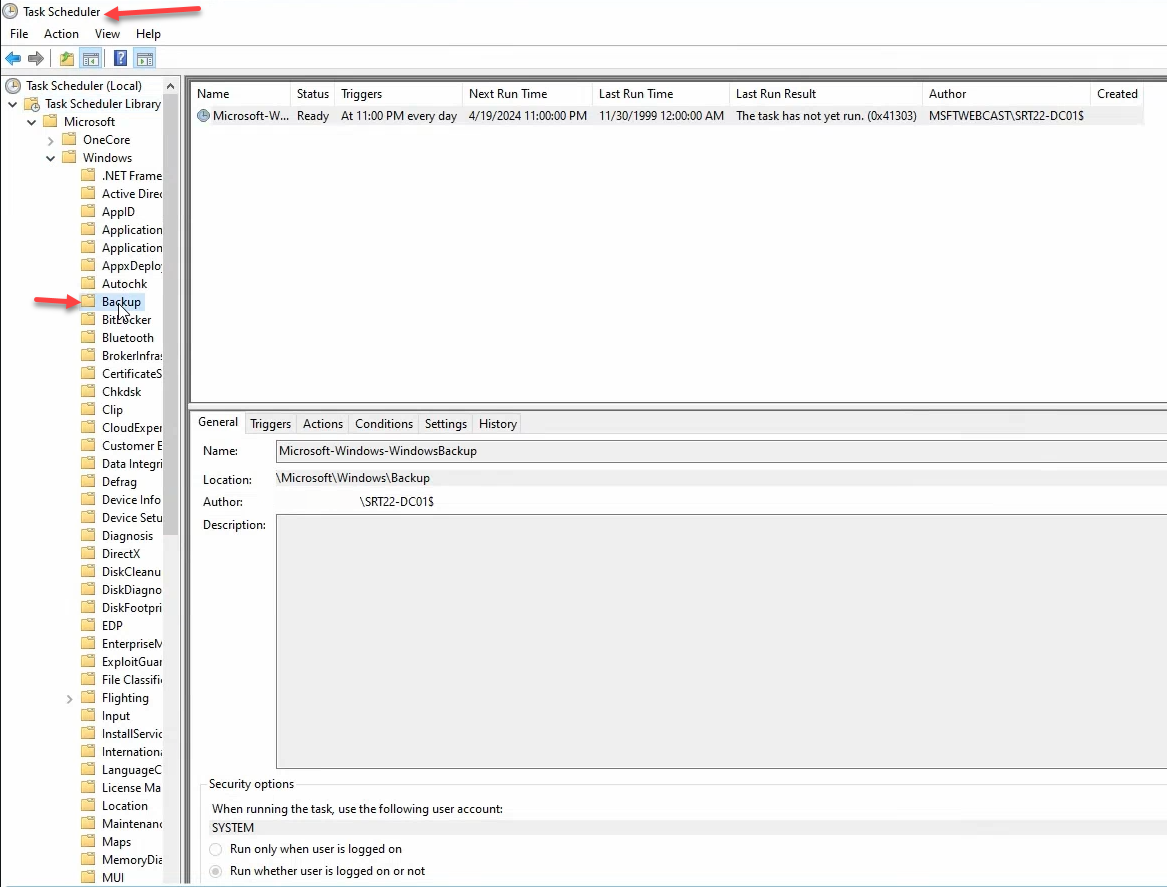
Microsoft-Windows-WindowsBackup. We can tweak it directly for fine-grained control the wizard doesn’t expose.Task Scheduler > Task Scheduler Library > Microsoft > Windows > Backup. You’ll see Microsoft-Windows-WindowsBackup.
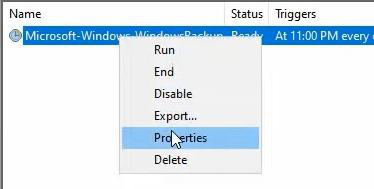
Right-click > Properties.
General tab
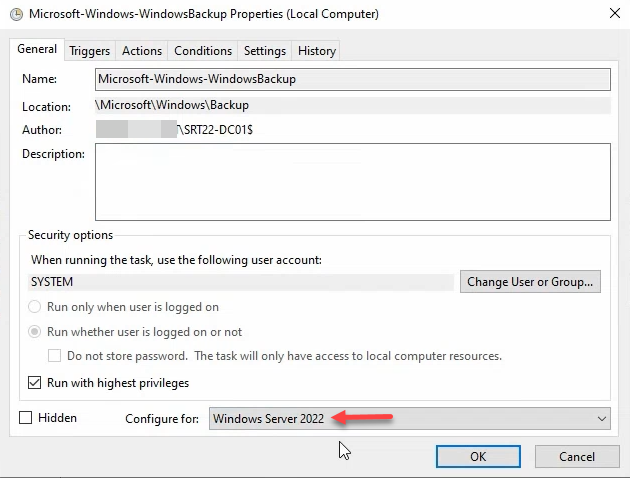
Two important settings:
- Run as SYSTEM — full local privileges, no password to rotate.
- Configure for: Windows Server 2022 (or whatever your OS is). Matching this enables OS-specific scheduling features — getting it wrong can break run-once or hidden-task behavior.
Settings tab
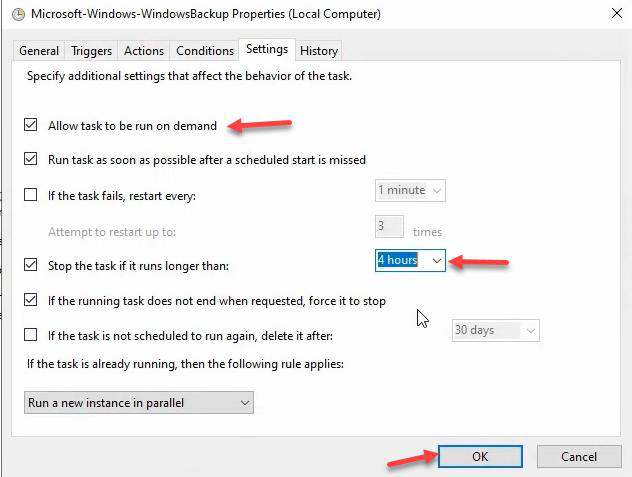
Three tweaks worth making:
- Tick Allow task to be run on demand — lets you right-click > Run for an ad-hoc kick (e.g., before a risky change you want extra rollback for).
- Tick Stop the task if it runs longer than: 4 hours. Protects against a backup that hangs forever after a VSS writer failure. 4 hours is enough for any normal DC, generous enough to allow a slow night.
- Optional: tick If the task is already running, the following rule applies: Do not start a new instance. Prevents overlap if a backup runs long.
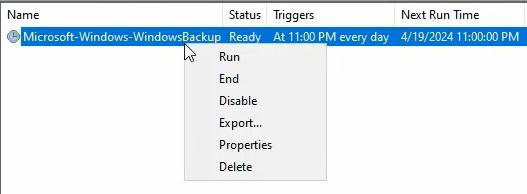
Back at the Windows Server Backup console: this is the daily-monitoring view. Last run time, status, next scheduled, disk usage, alerts. Make this your morning check.
Verify the schedule with wbadmin
wbadmin get status
wbadmin get versions -backupTarget:<disk>
get status shows whether a backup is running right now. get versions lists every backup on the destination disk — you should see a new entry every day after first run.
Things that bite people
One daily schedule only
WSB allows exactly one Backup Schedule per server. If you need weekly-full + monthly-archive cadence, you have to leave the WSB Backup Schedule alone and roll your own with multiple wbadmin start backup jobs in separate Task Scheduler tasks. Most shops move to Veeam / DPM / Commvault at that point.
Destination disk has data on it
WSB formats the disk. If you skim the warning and click Yes, anything on the disk is gone. Read the dialog. Verify the disk is empty before confirming.
Schedule overlaps with replication peaks
Domain controllers replicate intra-site every 15 seconds and inter-site on configured intervals. If your backup window hits a heavy inter-site replication run, VSS can stall waiting for AD to flush log buffers. Pick a window with low replication activity.
Run-as account not SYSTEM
The WSB-created task runs as SYSTEM by default. If you change it to a domain account, you now have a password to rotate — and the task will fail silently on password expiry. Leave SYSTEM unless you have a documented reason.
No alerting on failed backups
WSB writes to Microsoft-Windows-Backup/Operational. Hook this event log to your monitoring (Event ID 5 = success, 4 / 561 = failure). Without alerting, a silent backup failure goes unnoticed until you actually need the backup.
Forgetting that incrementals depend on the full
WSB’s 1-full + 14-incremental scheme means a corrupt full breaks every incremental built on top. Watch for Volsnap event 25 (shadow copy deleted unexpectedly) — it’s often the first sign of a corrupt full. WSB auto-rolls a new full once the chain has fully rotated, but a corrupted full mid-chain leaves you exposed.
What’s next
You now have nightly automated full-server backups on the DC. Part 3 uses this same backup model to do a bare-metal backup test on a VM — prove the backup actually restores before you ever need it for real. Untested backups don’t count.