
Open Group Policy Management Editor on a domain controller, then open it on a freshly-imaged Windows 10 admin workstation, and you can see different settings in the same Administrative Templates tree depending on which machine you launched it from. The reason: ADMX/ADML files (the policy-definition packs that drive the editor’s UI) live in C:\Windows\PolicyDefinitions by default — per machine. Different Windows builds carry different sets, so the editor presents whatever is local. The fix is the central store, a single SYSVOL-replicated copy that every GPMC instance reads from instead of the local folder. This post walks the build — what ADMX vs ADML are, why the local-folder default causes drift, the exact steps to stand up the central store on smart.local, and the update workflow when Microsoft ships new template packs.
What you need before starting
- A Windows Server domain controller (the lab uses Windows Server 2022 with domain
smart.local) - Domain Admin or equivalent rights to write into SYSVOL
- GPMC installed on the DC (default with the AD DS role)
- An understanding that creating the central store affects nothing about EXISTING GPOs — it only changes where the editor loads templates from
ADMX and ADML — the two halves of an admin template
Every setting that appears in the GPMC editor comes from a pair of files:
- ADMX (Administrative Template XML) — the schema. Defines what the setting is, the registry path it controls, the value type (DWORD, string, etc.), the available options (Enabled / Disabled / Not Configured, plus any sub-options). Language-neutral.
- ADML (Administrative Template Markup Language) — the localisation. Provides the human-readable name, the description text, and the option labels for one specific language. English ADML lives in the
en-USsub-folder; French infr-FR; etc. The same ADMX is paired with whichever ADML matches the admin’s display language.
The pair is what GPMC reads when it builds the Administrative Templates tree. Both files have to be present for the setting to render with proper text; missing the ADML produces an unlabelled placeholder.
The local-folder problem
Default location is C:\Windows\PolicyDefinitions (with en-US sub-folder for the English strings). The folder is populated by the OS install — whatever templates were current when the Windows build shipped land here. Then over time:
- The DC was installed at Windows Server 2022 RTM — has the 2022-RTM template set.
- The lead admin’s workstation is on Windows 11 23H2 — has a newer set with extra Windows-11-specific settings.
- The junior admin’s workstation is still on Windows 10 21H2 — has older templates missing some of the newer Windows 11 entries.
- Microsoft 365 Apps deployment requires the M365 ADMX pack which has to be downloaded separately and copied to the local folder — it’s on some machines, not others.
Result: GPMC shows different settings depending on which machine you launched it from. An admin on the DC sees a setting that an admin on a workstation can’t find. Worse, an admin on the workstation can edit a GPO and accidentally remove a setting the DC understood — the GPO ends up referring to ADMX the editing machine doesn’t have, and the next admin sees mysterious orphaned settings.
What the central store does
The central store puts the entire PolicyDefinitions directory in SYSVOL at a specific path the GPMC checks BEFORE the local folder:
\\<domain>\SYSVOL\<domain>\Policies\PolicyDefinitions
\\<domain>\SYSVOL\<domain>\Policies\PolicyDefinitions\en-US
For the lab’s smart.local domain that’s:
\\smart.local\SYSVOL\smart.local\Policies\PolicyDefinitionsSYSVOL is automatically replicated between all DCs via DFS-R (or the older FRS on legacy domains), so any update to the central store on one DC propagates to every other DC within minutes. Every GPMC instance — on the DC, on a workstation, on a remote management VM — loads from the same SYSVOL path. The editor signals which source it’s using via a banner at the top of the Administrative Templates node: either retrieved from the local computer or retrieved from the central store.
Step 1 — Confirm there’s no existing central store
Before creating one, check that one doesn’t already exist (avoiding the “I overwrote our customisations” mistake).
- On the DC, open Server Manager → Tools → Group Policy Management.
- Expand Forest → Domains → smart.local → Group Policy Objects.
- Right-click Default Domain Policy (or any GPO) and pick Edit.
- In the Group Policy Management Editor, expand Computer Configuration → Policies and click Administrative Templates.
- Read the banner at the top of the right-hand pane. If it says Policy definitions (ADMX files) retrieved from the central store, one already exists — skip to Step 5 (update). If it says retrieved from the local computer, no central store; proceed.
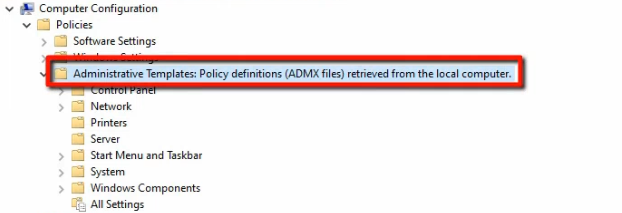
C:\Windows\PolicyDefinitions, which drifts as Windows builds diverge.Close the editor.
Step 2 — Navigate to SYSVOL
The central store path is under SYSVOL. Open via the UNC path so that the action goes through the share rather than via the local filesystem — this matters for replication semantics later.
- Press Win+R and type
\\smart.local. Press Enter. - Explorer opens at the domain root share. Navigate into
smart.local → Policies. The Policies folder shows the GUID-named sub-folders for each existing GPO.

\\smart.local in Run/Explorer. The domain’s SYSVOL is where the centralised template store lives so that all DCs replicate it.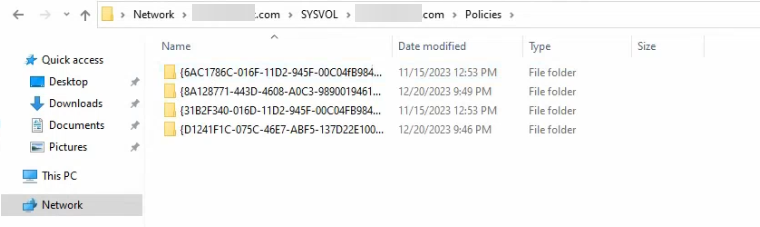
\\smart.local\SYSVOL\smart.local\Policies — the GUID folders are existing GPO containers; PolicyDefinitions is missing, confirming no central store yet.Step 3 — Create the PolicyDefinitions folder
Inside \\smart.local\SYSVOL\smart.local\Policies, right-click empty space → New → Folder → name it PolicyDefinitions. The folder name is case-sensitive in the sense that GPMC checks for an exact match before treating it as the central store; spell it correctly.
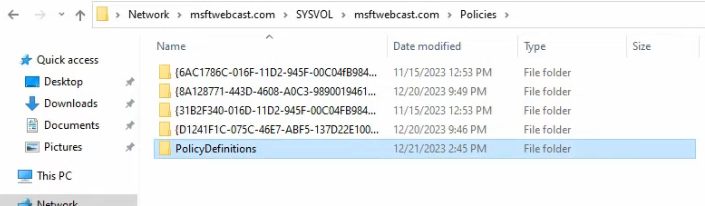
PolicyDefinitions folder created. Empty for now; the next step seeds it from the local PolicyDefinitions.Creating the folder is non-destructive — existing GPOs continue to work. GPMC won’t flip to “retrieved from the central store” yet because the folder is empty.
Step 4 — Seed from the local PolicyDefinitions
Copy the entire local template set into the central store as the seed.
- Open a second Explorer window. Navigate to
C:\Windows\PolicyDefinitionson the DC. - Select all (Ctrl+A) — both the ADMX files and the language sub-folders. Right-click → Copy.
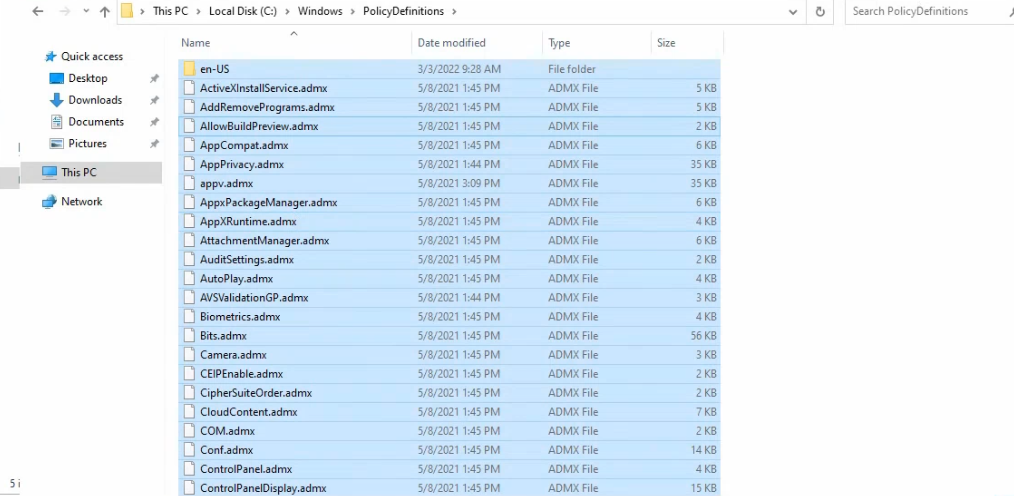
C:\Windows\PolicyDefinitions. Hundreds of ADMX files plus the language-coded ADML sub-folder. Select all + copy.- Switch to the SYSVOL Explorer window, navigate into the new
PolicyDefinitionsfolder, right-click empty space → Paste.
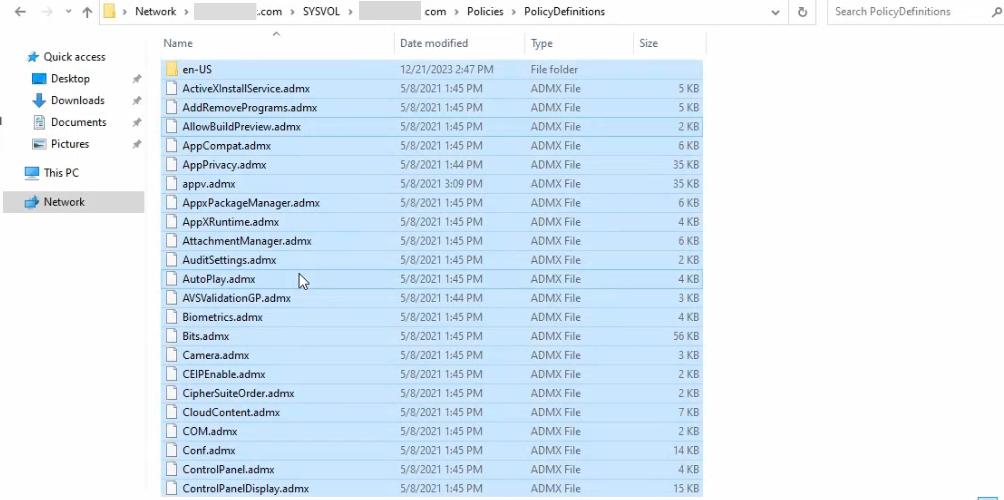
Hundreds of ADMX files and the language sub-folders flow over — takes a few seconds. If a prompt appears about overwriting existing files, pick Skip — nothing should already exist in the new central store, but if it does, leaving them in place is the safer default.
Step 5 — Verify the switch
Reopen GPMC, edit the same GPO as Step 1, navigate back to Computer Configuration → Policies → Administrative Templates. The banner should now read Policy definitions (ADMX files) retrieved from the central store.
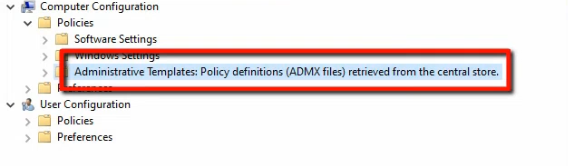
Repeat the verify on a different machine — an admin workstation, another DC. The banner should also report retrieved from the central store, confirming the SYSVOL replication landed and every GPMC instance now reads from the same source.
If the banner still reports the local computer on a remote machine, give SYSVOL replication a few minutes to propagate (DFS-R cycle is typically under 5 minutes for small payloads). Force-replicate with repadmin /syncall /AdeP if you need it faster.
Step 6 — Updating the central store with new template packs
Microsoft ships new ADMX/ADML packs alongside Windows feature updates and major Microsoft 365 milestones. The update workflow is identical to the seed:
- Download the latest Administrative Templates (.admx) pack from Microsoft Download Center for the target Windows release. Microsoft 365 Apps has its own pack, also from Download Center.
- Run the installer (or extract the .msi) into a staging folder. Typical extract path is something like
C:\Program Files (x86)\Microsoft Group Policy\Windows 11 23H2\PolicyDefinitions. - Open Explorer at the staging path. Select all the ADMX files and the language sub-folders. Copy.
- Paste into
\\smart.local\SYSVOL\smart.local\Policies\PolicyDefinitions. When prompted about existing files, pick Replace the files in the destination — the new pack overrides the older versions. - Wait for SYSVOL replication to propagate; verify by opening GPMC on a remote machine and checking that any newly-introduced settings are visible.
The critical rule: never delete existing ADMX files from the central store. If a GPO references a setting from WindowsHelloForBusiness.admx and you delete that file, the GPO’s setting becomes orphaned — GPMC can’t render it and silently drops it from edit views, but the underlying registry value still applies on clients. Always replace, never remove.
Things that bite people in production
The central store path is case-sensitive in the GPMC check
Folder name must be exactly PolicyDefinitions. NTFS itself is case-insensitive, but the GPMC code that checks for the central store does an exact-case comparison on some Windows builds. policydefinitions or policyDefinitions may not be picked up. Stick to the canonical name.
SYSVOL replication latency is real
The central store creation on one DC isn’t visible on other DCs (and on workstations using those DCs as their SYSVOL source) until DFS-R has replicated. Typically <5 minutes for small payloads, but can stretch to 30 minutes on busy or slow links. Force a sync with repadmin /syncall /AdeP /e if the verify on a remote machine is taking too long.
Mixing ADMX versions in the central store works but is risky
If you copy a Windows 11 23H2 pack on top of a Windows Server 2022 baseline, some ADMX files will have newer schemas than others. Generally OK because ADMX is forward-compatible, but specific edge cases (ADMX files that reference newer ADMX in their dependency tree) can produce render errors. The cleanest approach is to use Microsoft’s combined “Administrative Templates for Windows” pack which ships a coherent set, then layer Microsoft 365 Apps templates on top.
Removing the central store later requires manual cleanup
To roll back to per-machine local templates, you delete the SYSVOL PolicyDefinitions folder. Existing GPOs that reference settings only present in the central store will then render as “extra registry settings” rather than as proper templated settings — the configurations still work, but the editor UI loses the friendly description. Plan rollbacks carefully; the typical answer is to keep the central store and update it rather than remove it.
Custom ADMX from third parties belongs in the central store too
Vendor-specific ADMX (Adobe, Citrix, Chrome, Firefox, custom internal templates) should be copied into the central store alongside the Microsoft set. Otherwise, only admins with the vendor template installed locally can edit those policies. The central store is the single right location for any ADMX you want every admin to see.
SYSVOL filesystem permissions matter
The central store inherits SYSVOL ACLs — Domain Admins / Enterprise Admins write, Authenticated Users read. Don’t modify these; the GPMC editor on workstations runs in the user’s context and needs read access. Lock down only if you have a specific reason and you understand the impact on remote admins.
Where this fits
The central store is foundational to multi-admin Group Policy management at any scale. For broader GPO patterns — planning, AppLocker, drive maps, advanced audit policies — see the Group Policy pathway. For the AD-Sites-and-Services side of SYSVOL replication that propagates the central store between DCs, see Multi-Location AD Part 4 (replication mechanics). For the broader AD context, the Active Directory pathway covers the rest of the surface area.