
The companion post on the Group Policy Central Store covered why the central store exists and how to stand it up the first time. This post is the recurring half: every time Microsoft ships a Windows feature update, the ADMX/ADML pack changes — new settings appear, existing settings get new sub-options, and policies you can’t see in the editor without the latest pack quietly become the difference between a working configuration and an out-of-date one. Refreshing the central store with the latest pack is the routine task that keeps the Group Policy editor honest. This post walks the download, install (extract), and SYSVOL deploy for the Windows 11 23H2 pack on a Windows Server 2022 domain controller.
What you need before starting
- A Windows Server domain controller (the lab uses Server 2022 with domain
smart.local) with the Group Policy Central Store already in place — see the companion post if it isn’t - Domain Admin or equivalent rights to write into SYSVOL
- Internet access on the DC (or a workstation you can transfer the MSI from) to reach
microsoft.com/download - ~50 MB of free disk for the extracted templates plus the same again on the SYSVOL volume
- An understanding that the update is non-destructive on existing GPOs — the policy data lives separately from the template definitions, so updating templates doesn’t touch GPO content
Why the templates need updating
The ADMX pack defines what the GPMC editor knows about. Every time Microsoft adds a new policy setting (security baseline tweak, new Windows feature surface, M365 Apps option), the new setting only renders correctly if the corresponding ADMX is present. Without the update:
- Newly-introduced settings are invisible in the editor — you can’t configure them.
- Settings that gained new sub-options or changed value ranges show with stale option lists.
- The “extra registry settings” node in GPMC fills up with unrecognised entries from policies created on machines with newer templates.
The fix is the same recurring update workflow this post walks. Run it every time you adopt a new Windows feature update; run it whenever Microsoft ships an out-of-band template-pack update for Microsoft 365 Apps; run it whenever a vendor (Adobe, Citrix, Chrome, Firefox) ships new templates you depend on.
Step 1 — Back up the existing central store
Cheap insurance. Before any deployment touches the live SYSVOL templates, copy the current PolicyDefinitions folder to a safe location:
Copy-Item -Path "\\smart.local\SYSVOL\smart.local\Policies\PolicyDefinitions" -Destination "C:\Backups\PolicyDefinitions-2026-05-09" -RecurseIf the new templates introduce a regression that breaks an existing GPO’s edit experience, the rollback is to copy the backup back over the live folder. Realistically the new pack rarely breaks anything — but at zero cost in time and disk space, the backup is always the right thing to do.
Step 2 — Download the latest ADMX pack
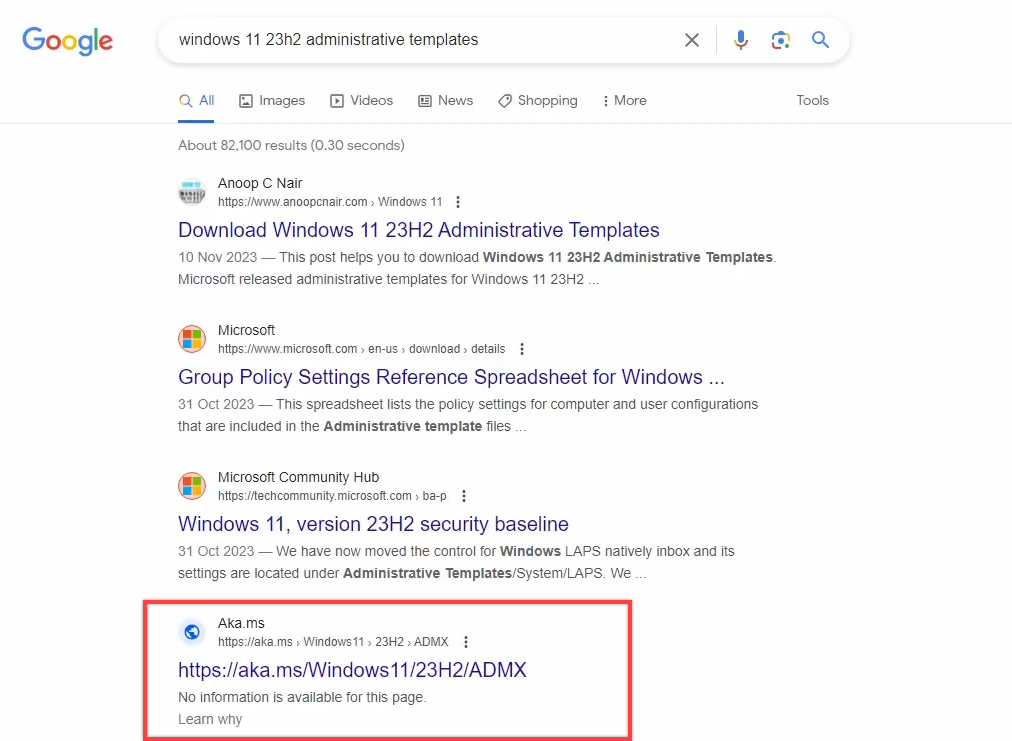
Open Microsoft Edge (or any browser) on the DC. Search for “Administrative Templates Windows 11 23H2” and pick the official Microsoft Download Center result — the URL pattern is microsoft.com/en-us/download/details.aspx?id=.... The page reports the publish date; verify it’s the most recent version of the pack you want.
Click the download link. An MSI file (signed by Microsoft) lands in your Downloads folder.
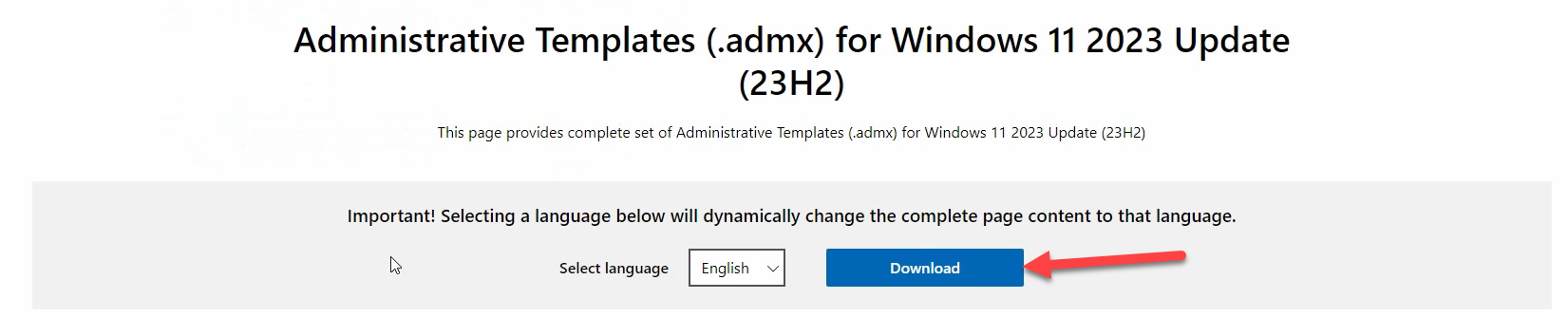
Microsoft maintains separate ADMX packs for each Windows feature update. Pick the one that matches the highest Windows feature update you intend to manage policies for — the pack is backward-compatible (a 23H2 pack manages 22H2, 21H2, Win10 22H2, etc. just fine) so always download the newest available rather than the version-matching one. The reverse isn’t true: an older pack can’t define settings introduced in a newer Windows release.
Step 3 — Run the MSI to extract the templates
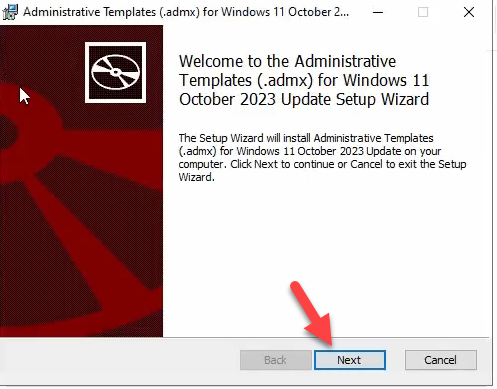
Double-click the MSI. The setup wizard opens with the standard four pages:

- Welcome. Click Next.
- License agreement. Read, accept, click Next.
- Installation folder. The default is
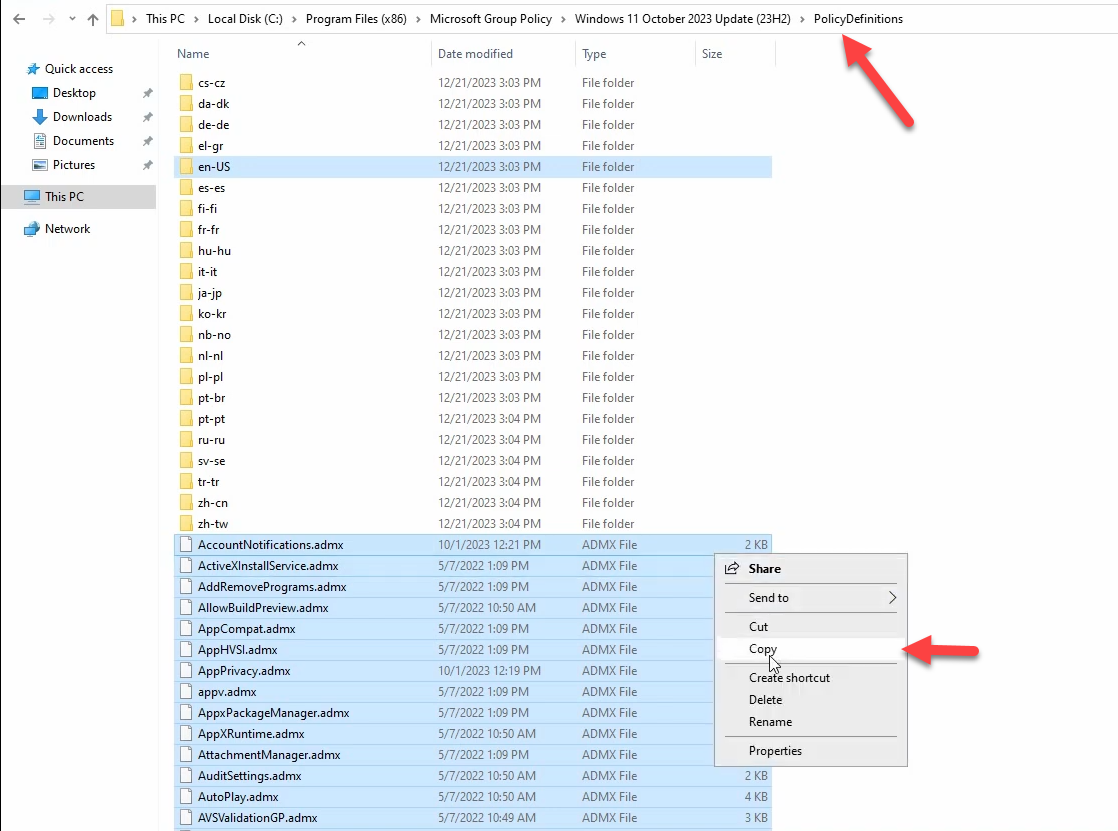
C:\Program Files (x86)\Microsoft Group Policy\Windows 11 October 2023 Update\PolicyDefinitions\. The folder name embeds the Windows release the pack targets, so successive installs (next year’s pack, the M365 pack, etc.) extract to different folders rather than overwriting each other. Leave the default unless you have a reason to change it.
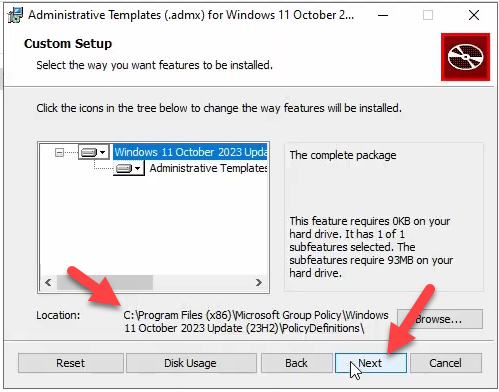
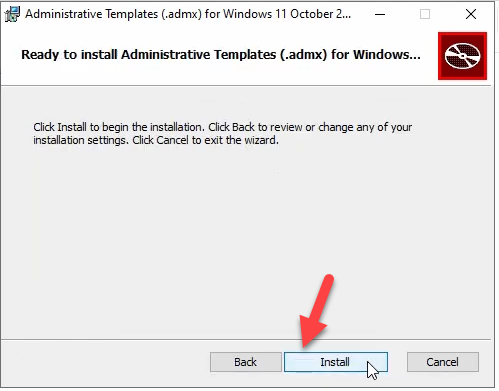
Microsoft Group Policy so successive packs don’t overwrite each other.- Ready to install. Click Install.
- Completion. Click Finish.
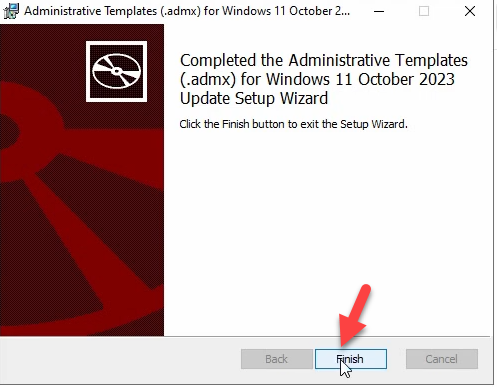
The MSI is a passive installer — nothing is registered with Windows, no service is touched, no reboot is needed. The MSI’s entire job is to drop the templates into the named folder.
Step 4 — Inspect the extracted templates
Browse to the install folder. Inside PolicyDefinitions\ you should see:
- Hundreds of
.admxfiles at the top level — one per logical setting group (e.g.,WindowsFirewall.admx,BitLocker.admx,Microsoft-Windows-Hello.admx). - Sub-folders named after locale codes —
en-US,fr-FR,de-DE, etc. Each contains.admlfiles corresponding to the ADMX files at the top level, with localised display strings.
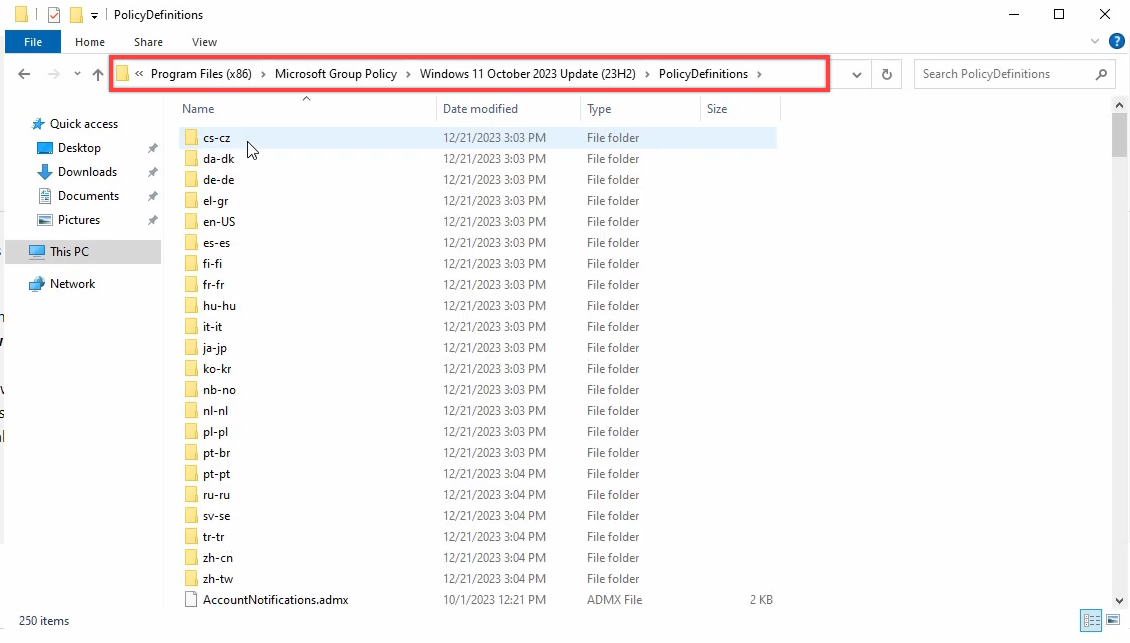
en-US for English; copy other locale folders only if your admins use them.Verify visually that the expected files are present, that the locale sub-folder you need is there, and that file timestamps match the pack’s publish date.
Step 5 — Navigate to SYSVOL
Run dialog (Win+R) → \\smart.local\SysVol\smart.local\Policies. Press Enter.
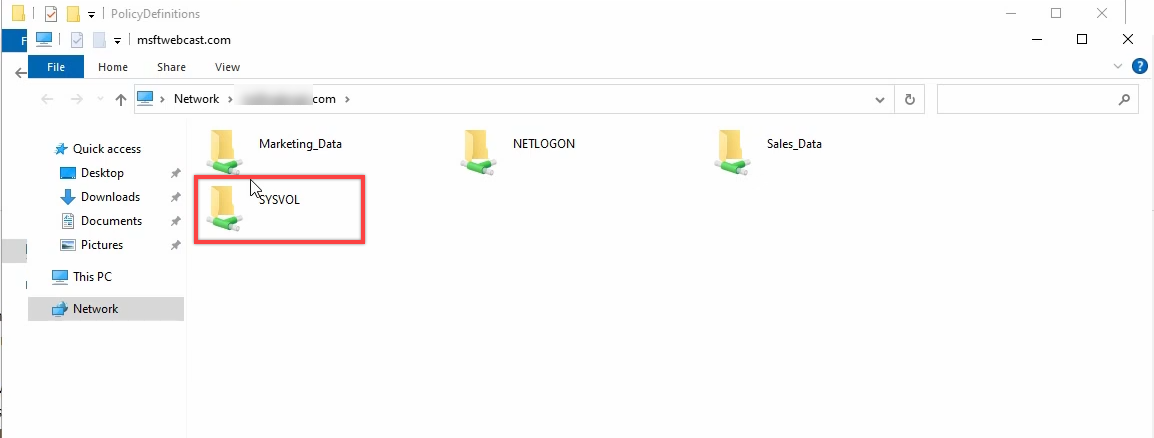
C:\Windows\SYSVOL\... path preserves the share-level ACL semantics SYSVOL replication relies on.The Policies folder shows the GUID-named GPO containers plus the PolicyDefinitions folder that the central store lives in. (If PolicyDefinitions isn’t there, the central store hasn’t been created yet — back to the central-store creation post first.)
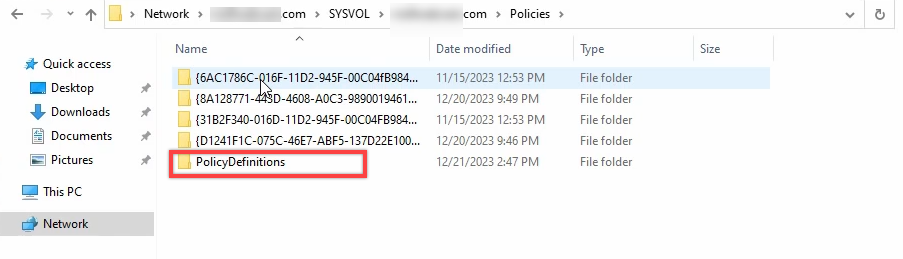
PolicyDefinitions. The current templates live here; the update overlays new versions on top of them.Step 6 — Backup the existing PolicyDefinitions to the desktop
Even though Step 1 covered backup, the lab walks an additional belt-and-braces: right-click the existing PolicyDefinitions folder → Copy → paste to the Desktop. This gives you an in-arm-reach restore source if the deployment goes sideways while you’re standing at the console.

Step 7 — Copy the new templates into the central store
Switch back to the install folder Explorer window. Open PolicyDefinitions. Select the ADMX files plus the locale sub-folders you actually need (typically en-US only; copy others only if your admins are localised). Right-click → Copy.
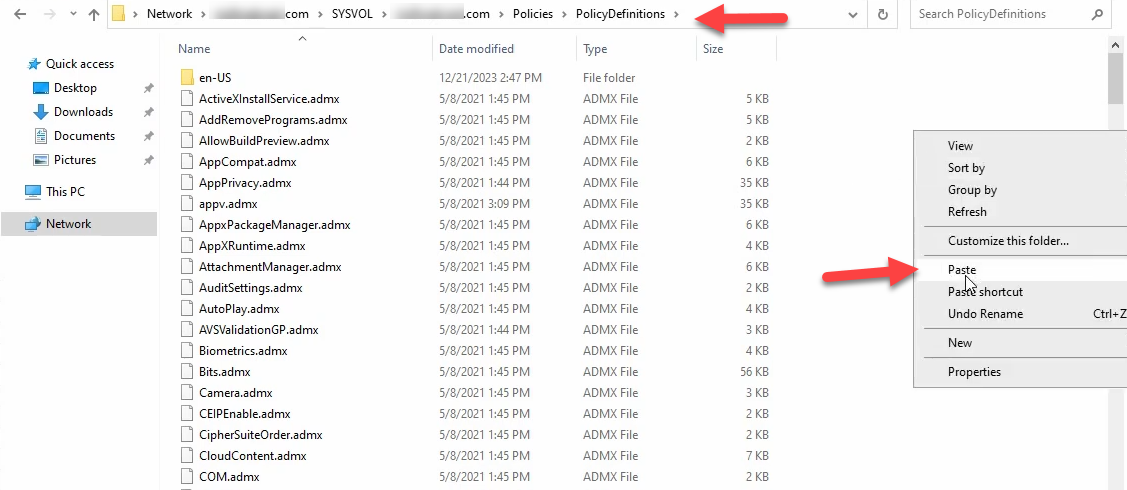
Switch to the SYSVOL Explorer window. Navigate into PolicyDefinitions. Right-click empty space → Paste.
Step 8 — Pick “Replace the files in the destination”
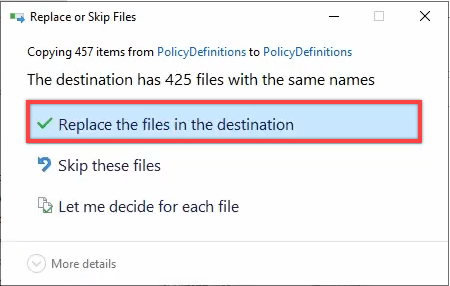
The paste operation triggers a conflict prompt because most of the destination filenames already exist. The dialog offers three options:
- Replace the files in the destination — the right answer. Overwrites old templates with new versions; leaves any destination-only files (older templates the new pack doesn’t carry) untouched.
- Skip — doesn’t replace anything. Useful if you want to do a dry-run check first; not useful for an actual update.
- Compare info for both files — lets you pick per-file. Tedious; only useful if you have a specific suspicion about a single file.
Always Replace.
The copy finishes in a few seconds. SYSVOL DFS-R picks up the change on its next replication cycle (typically within 5 minutes) and propagates the new templates to every other DC in the domain.
Step 9 — Verify on a remote machine
Pick a DC or admin workstation that wasn’t the one you ran the update on. Open GPMC, edit any GPO, navigate to Computer Configuration → Policies → Administrative Templates. Two checks:
- The banner should still report retrieved from the central store. (If it reverted to local, something is wrong with the central store path.)
- Look for a setting introduced in the new pack — e.g., a Windows 11 23H2-specific setting under Administrative Templates → Windows Components → …. If the new setting is visible, the pack landed correctly. If it isn’t, either the paste missed something or DFS-R hasn’t propagated yet.
Force a SYSVOL sync if needed: repadmin /syncall /AdeP /e. Re-check on the remote machine after a few minutes.
Things that bite people in production
Always Replace, never Delete
Pasting new templates with Replace is correct. Going on to delete “orphan” older templates that don’t exist in the new pack is wrong. Old GPOs may reference settings defined in the older ADMX files; deleting those ADMX files orphans the GPO settings and silently breaks the editor experience for those GPOs. The discipline: only Replace; never delete from the central store.
The pack name embeds the Windows release; don’t mistake it for the latest
Microsoft Download Center keeps multiple ADMX packs available simultaneously. The naming pattern is “Administrative Templates for Windows 11 [Month Year] Update.” Always check the publish date — the page may show a 2022 pack as the top hit if the URL was older.
Don’t copy locale sub-folders you won’t use
The full pack contains en-US, de-DE, es-ES, fr-FR, it-IT, ja-JP, ko-KR, pt-BR, ru-RU, zh-CN, zh-TW, etc. Copying every locale into the central store balloons SYSVOL by a multi-megabyte factor and slows replication. Copy only the locales your admins actually use — typically one or two.
The MSI install location vs the SYSVOL location are different
Common confusion: the MSI’s install path is just the staging folder; pasting from there is the actual deployment. Closing the wizard does NOT push templates to the central store automatically. Step 7 has to happen manually.
Vendor templates layer on top, not under
If you have third-party templates (Adobe Reader ADMX, Citrix Workspace ADMX, Chrome bundle, Firefox), they go in the same central store, copied alongside the Microsoft templates. Microsoft’s pack and vendor packs don’t collide because filenames are namespaced by vendor. The central store ends up as a flat union of all the ADMX files from every source.
Microsoft 365 Apps templates are a separate pack — don’t skip them
The Office / Microsoft 365 Apps ADMX is shipped separately from the Windows pack. Updating only the Windows pack leaves the Office settings stale. Run the same download-extract-paste workflow against the Microsoft 365 Apps Administrative Templates pack to keep both in sync.
SYSVOL replication latency is usually OK but worth knowing
The expected propagation window is <5 minutes for a small payload like this. Slow WAN links to remote DCs can stretch it. repadmin /syncall /AdeP /e from any DC forces a fresh replication cycle if you need the templates available on a remote DC immediately.
Where this fits
This is the routine update half of the central-store pattern; the one-time creation half is in create the Group Policy Central Store. For broader GPO patterns — AppLocker, drive maps, Windows Firewall via GPO, Group Policy planning — see the Group Policy pathway. For the SYSVOL-replication mechanics that propagate the central store between DCs, see Multi-Location AD Part 4 (replication mechanics).