
Architecture is in your head from Part 1. Now we build VMs. The iSCSI VM is first because the cluster nodes need shared storage to be cluster-able — and that storage comes from this VM. Spec: Gen2, 4 GB RAM, 4 vCPU, 40 GB OS disk. Standard Windows Server 2022 install. No domain join (the SAN sits outside the cluster).
Why we build the SAN VM first
Working backwards from the goal: cluster nodes need shared storage. Shared storage comes from the SAN. The SAN doesn’t care about the cluster. So building the SAN first means we can attach it to the nodes once they exist, rather than reconfiguring everything later.
In production this VM is replaced by a real SAN appliance — NetApp, Pure Storage, Dell EMC, HPE 3PAR, etc. The iSCSI Target Server role on Windows is functionally equivalent for learning, just much slower.
Step 1 — create the VM
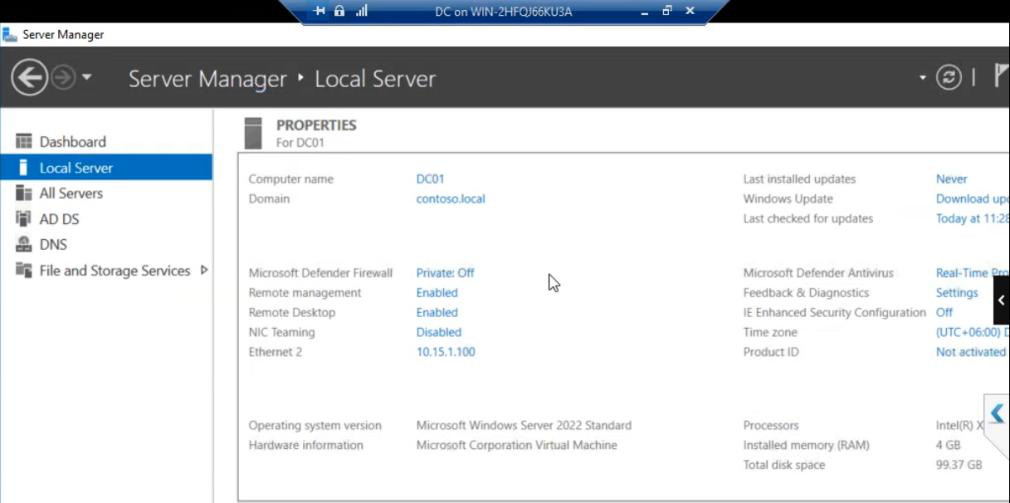
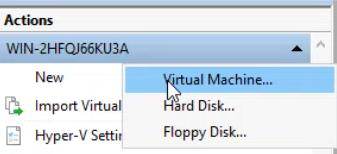
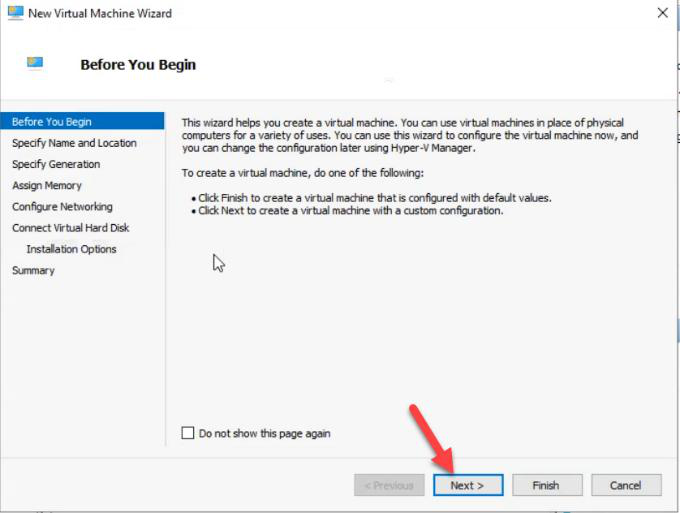
Before You Begin — Next.
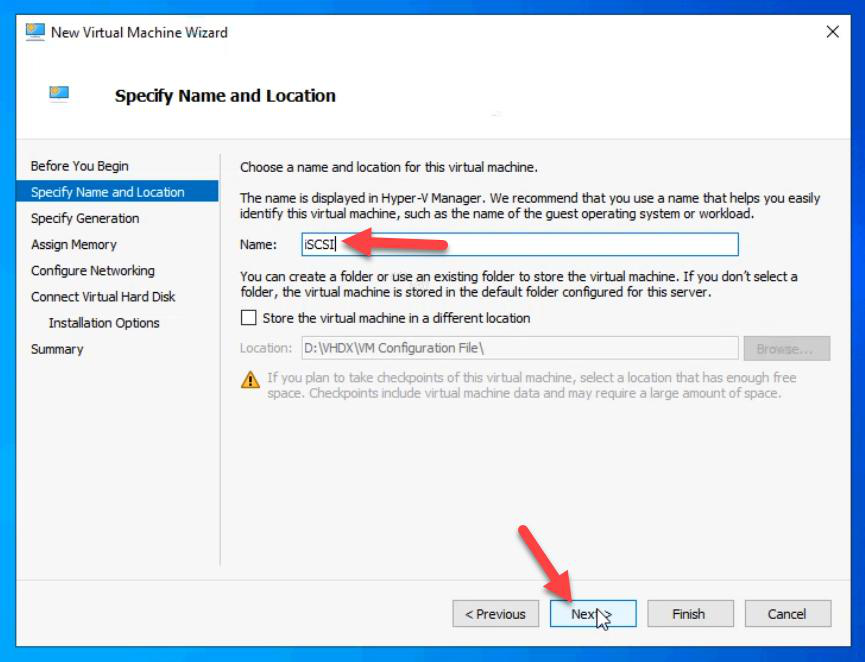
iSCSI. Default location is fine for lab.Name: iSCSI. Default location works for lab; in production use a dedicated VM storage path.
Step 2 — choose Generation 2
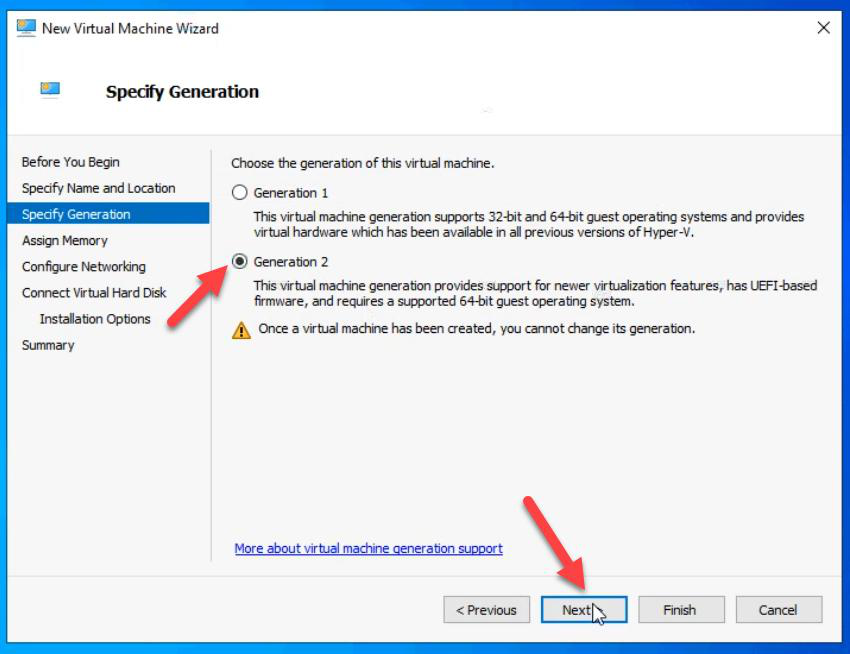
Gen2 is the modern default. UEFI boot, Secure Boot capable, better disk performance (no IDE emulation), supports vTPM. Pick Gen1 only if you NEED legacy BIOS or Pre-Win-2012 OS support — not the case here.
Step 3 — memory and networking
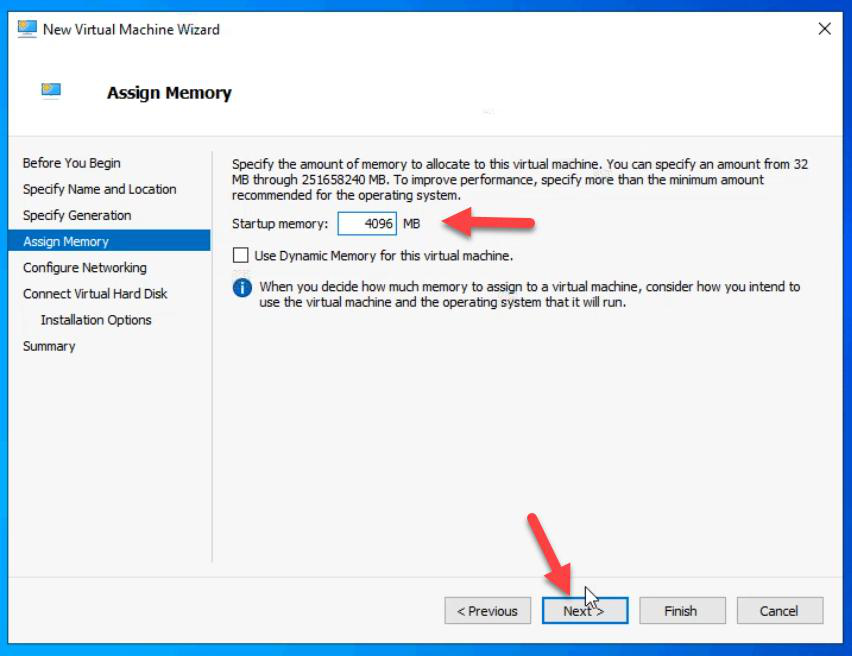
Memory: 4 GB. Static — do NOT tick Dynamic Memory for cluster-related VMs. iSCSI workload is steady; dynamic memory adds overhead and can cause subtle latency variance.
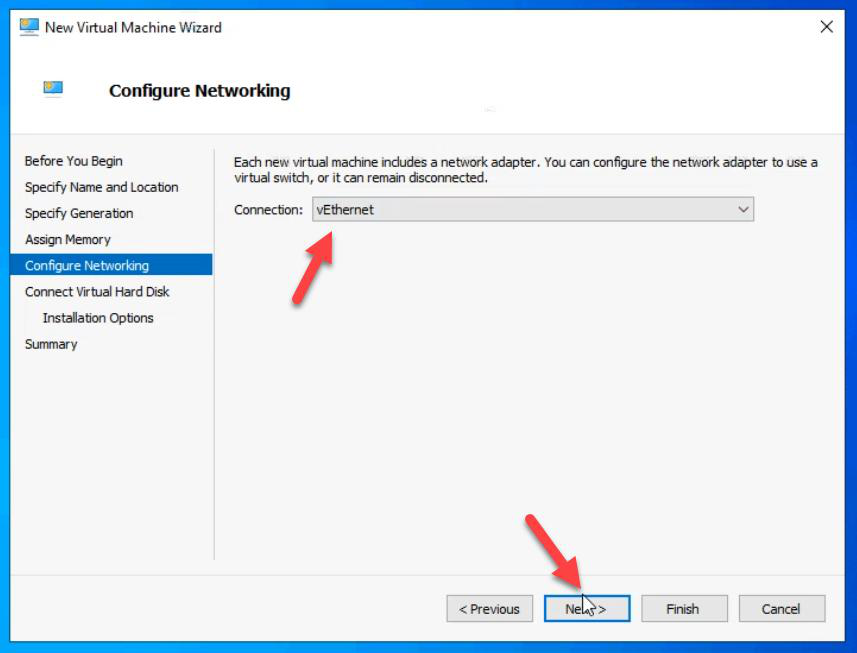
Network: External vSwitch (the one that connects to your LAN). We’ll add Storage and Heartbeat vSwitches in Part 6.
Step 4 — OS disk
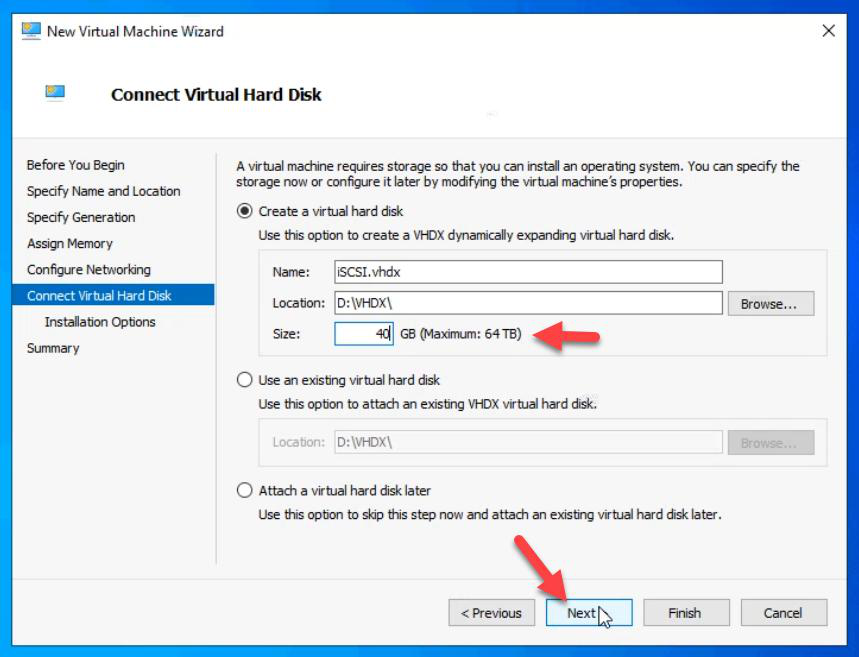
VHDX: 40 GB. OS only. The data disk for serving as a SAN gets attached in Part 5 as a separate VHDX.
Step 5 — OS install
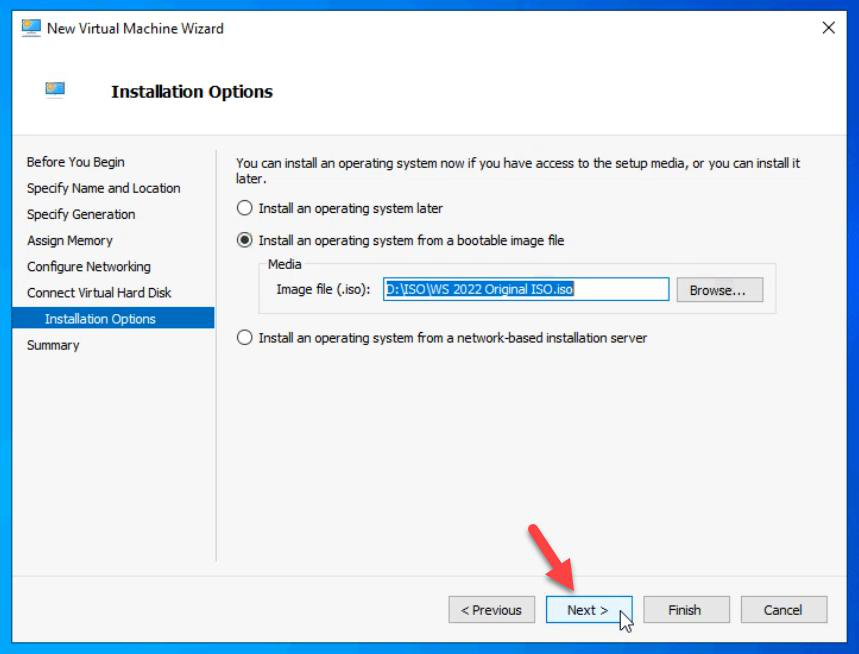
Boot from ISO: Windows Server 2022.
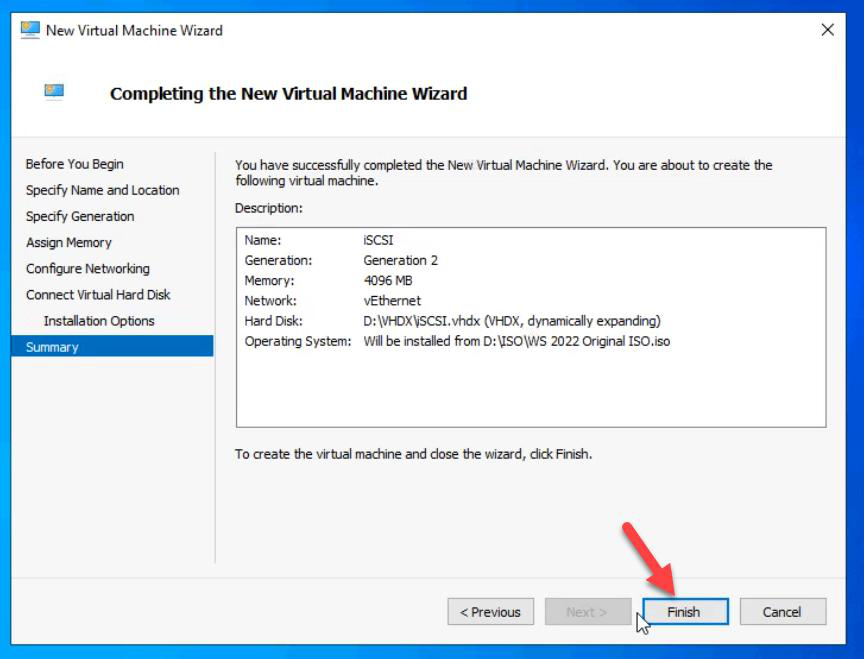
Review and Finish.
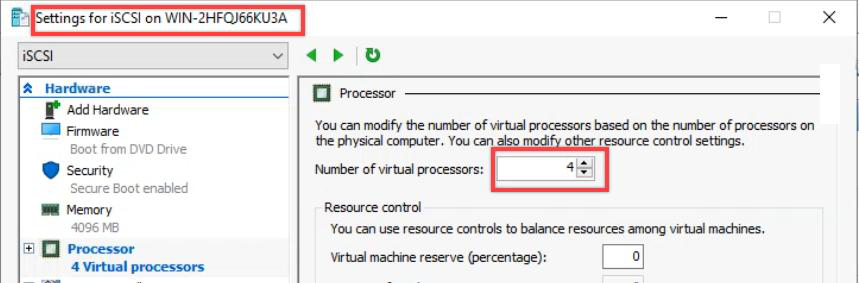
After create: VM Settings > Processor > 4 vCPUs. Default is 1, which isn’t enough.

Connect to the VM.
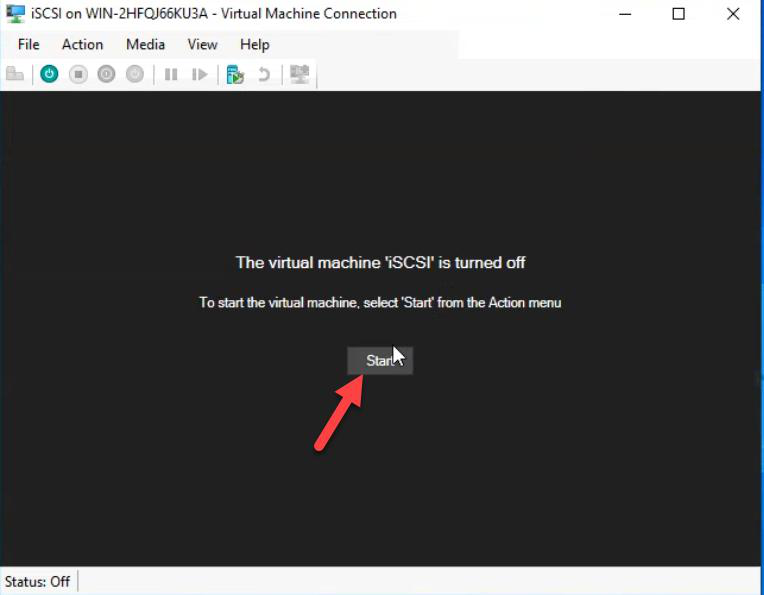
Press Spacebar when you see “Press any key to boot from CD”. Otherwise the VM boots from the empty disk and waits forever.
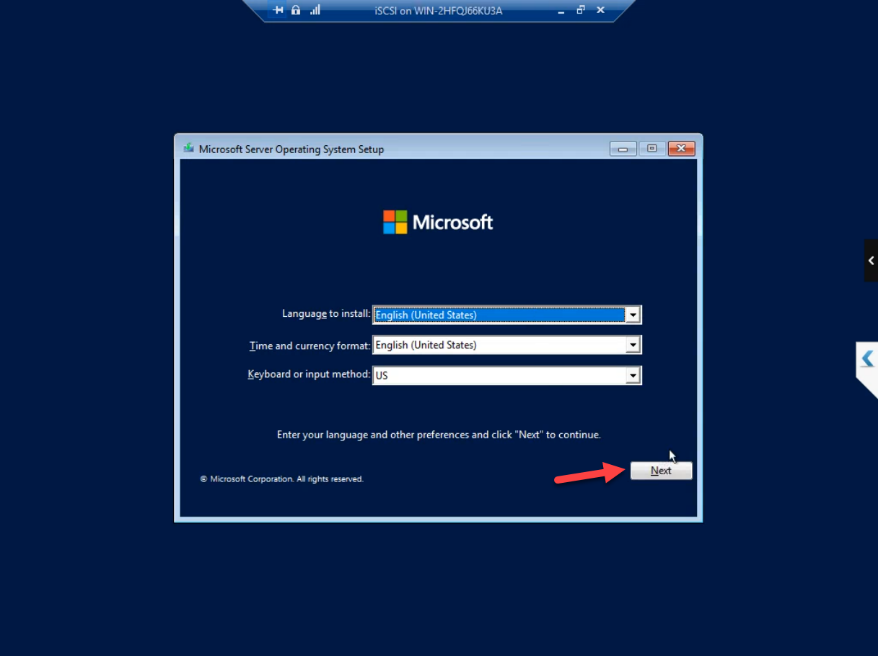
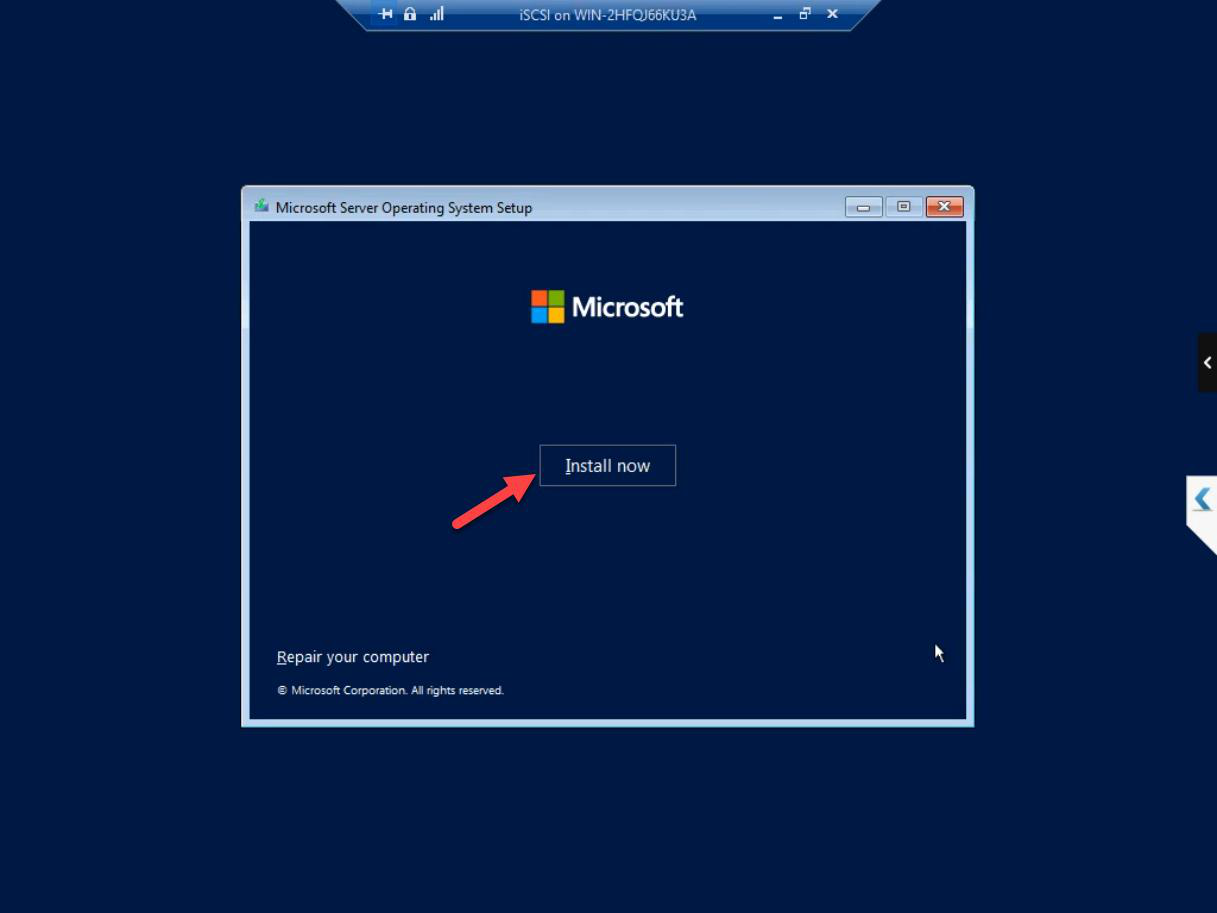
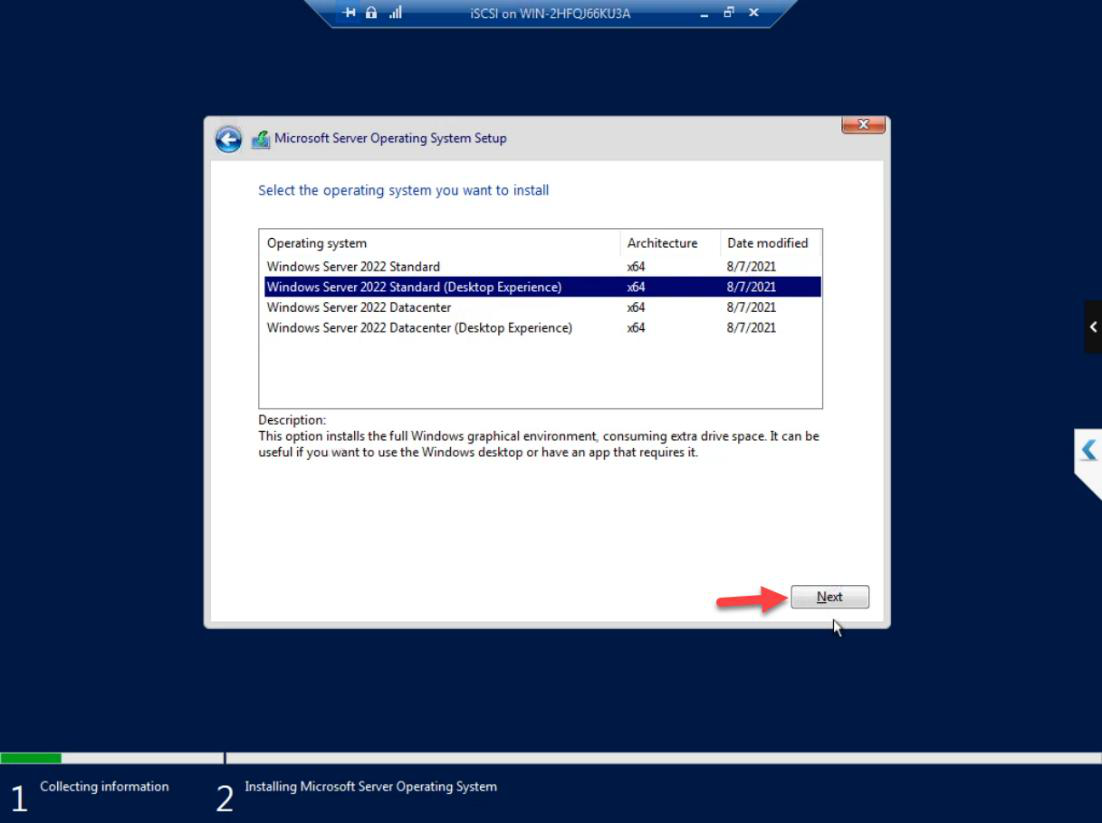
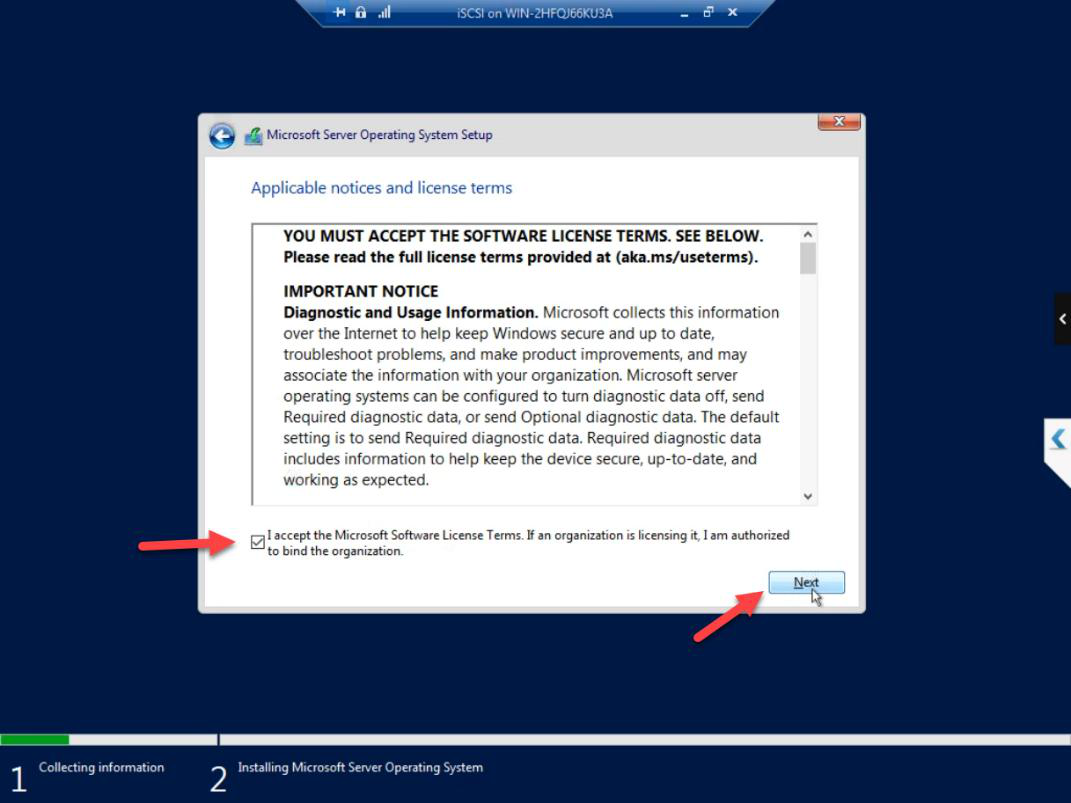
Standard Windows Server install: locale, Install Now, edition (Standard with Desktop Experience), licence accepted.
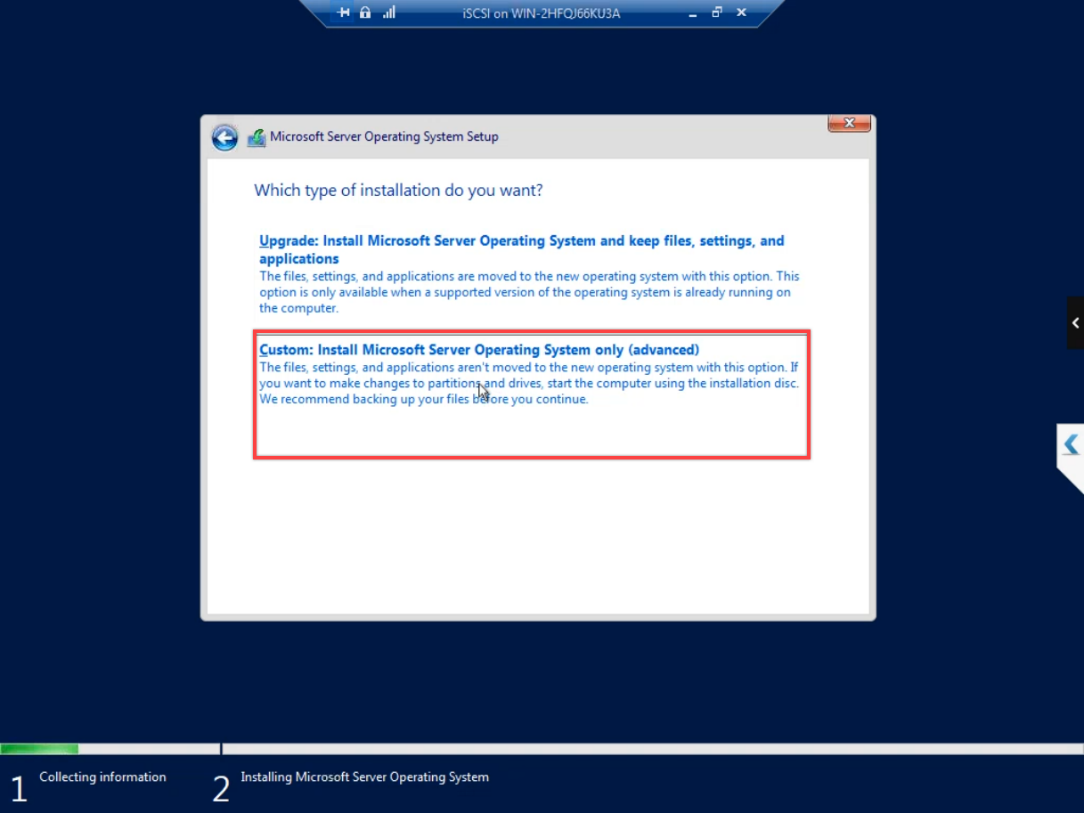
Custom: Install Windows only. (Upgrade is for OS upgrades, not new installs.)
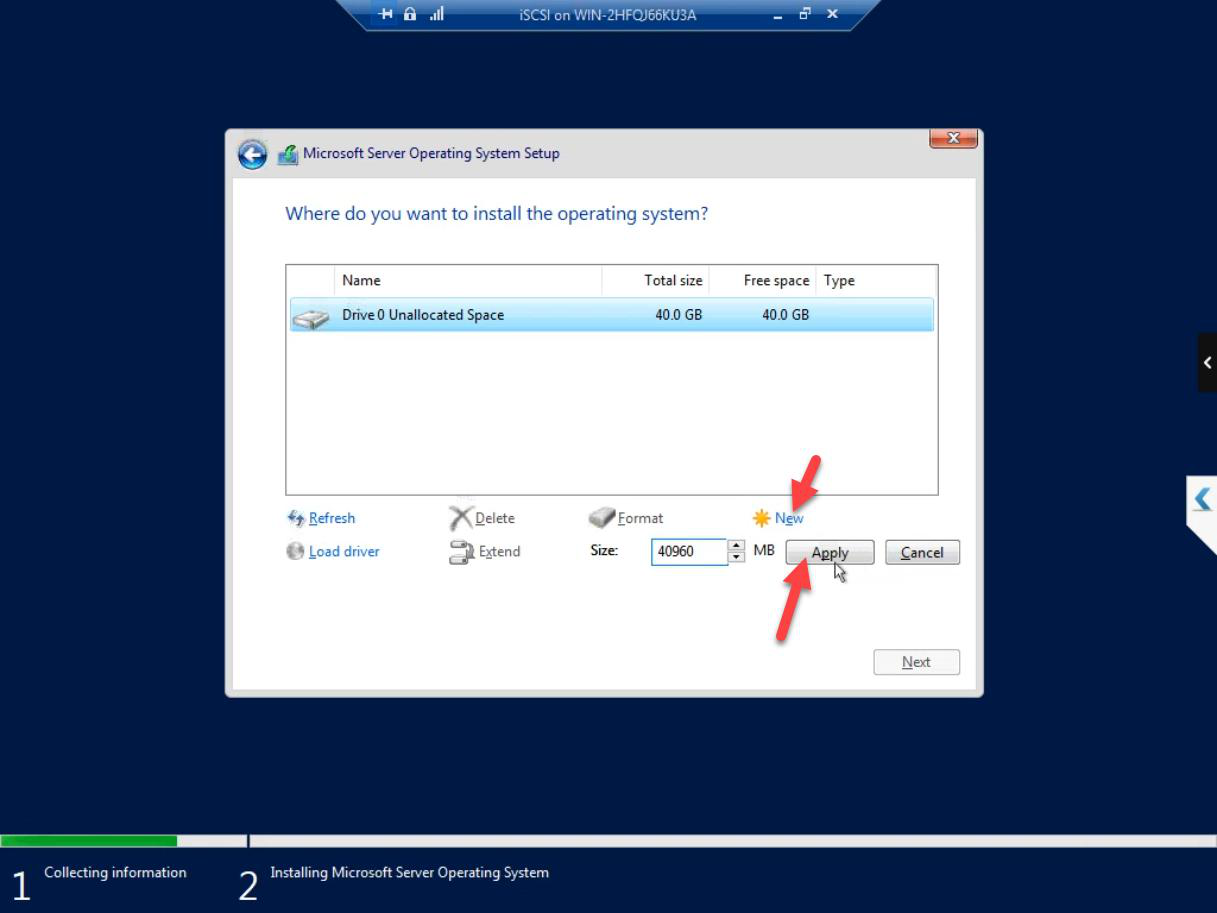
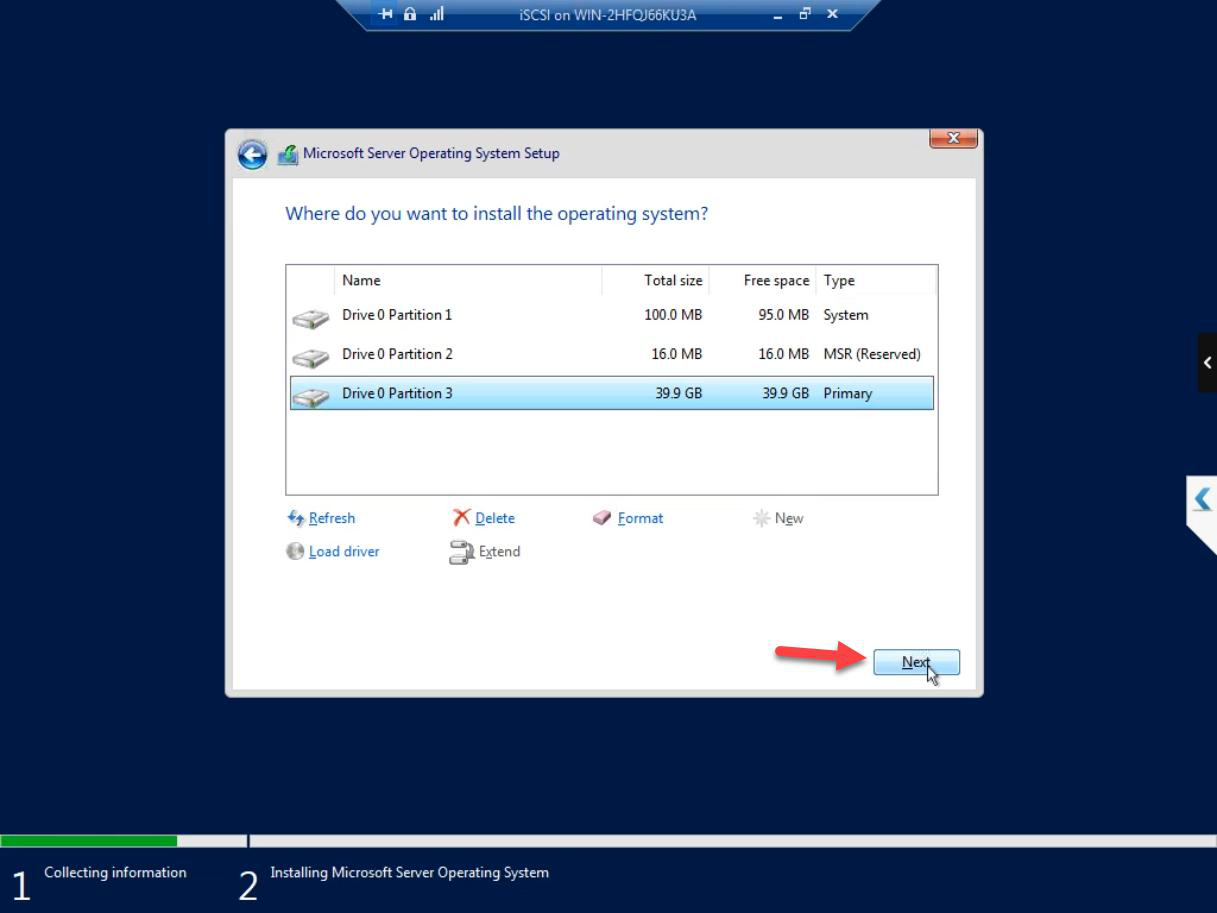
New > Apply > OK to create the partition. Then Next on the resulting partition.
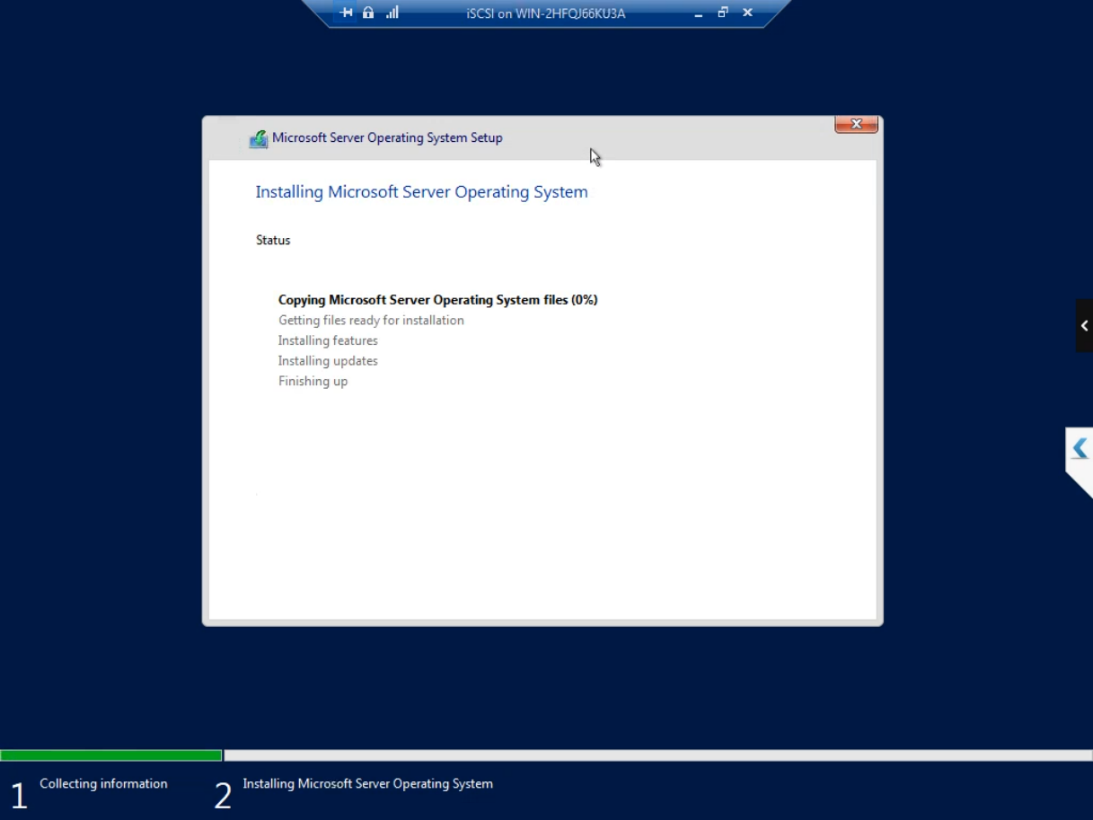
Install runs. ~10-15 min including a couple of automatic reboots.
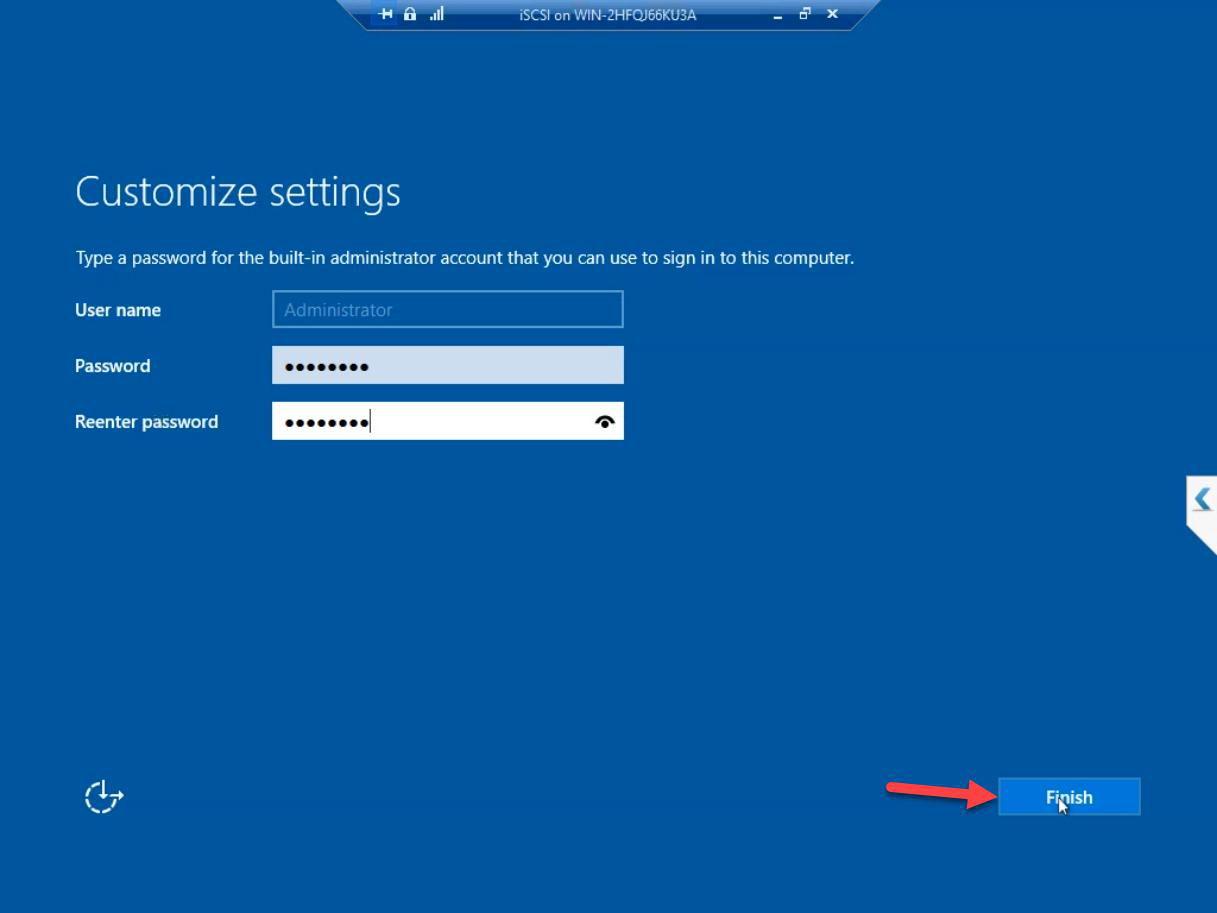
Set the Administrator password. Strong — this account controls the entire SAN. Don’t use the same password as your domain admin (the SAN should have a separate identity).
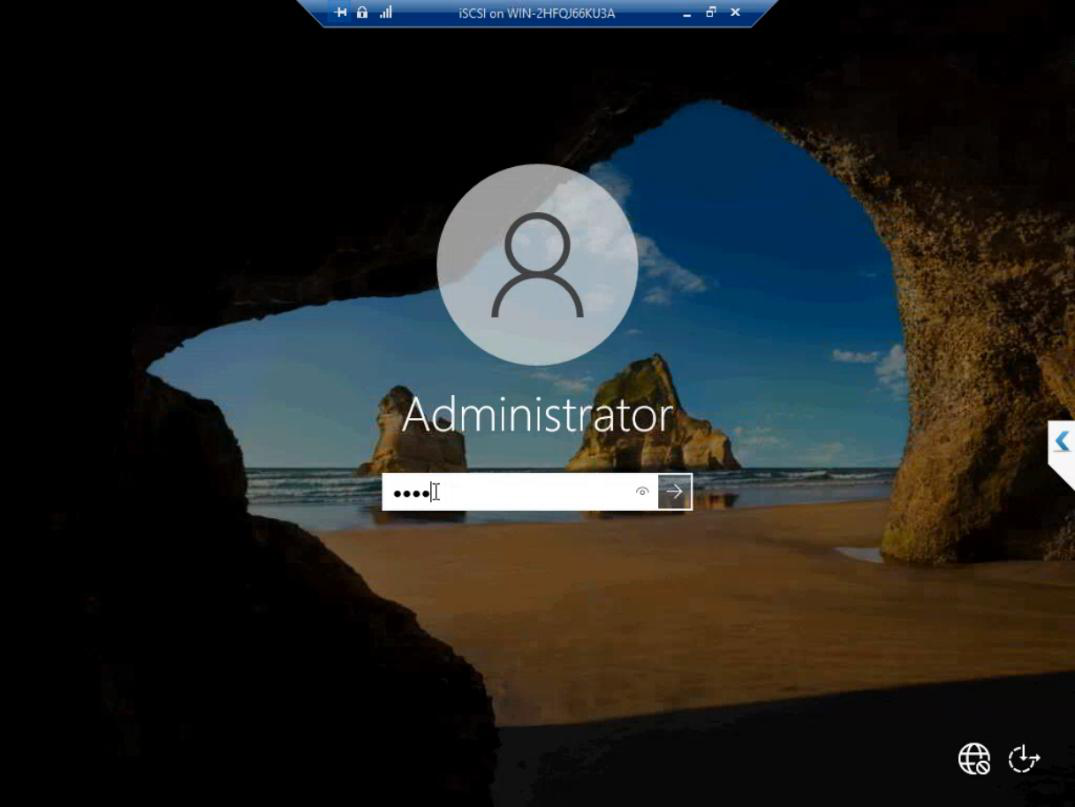
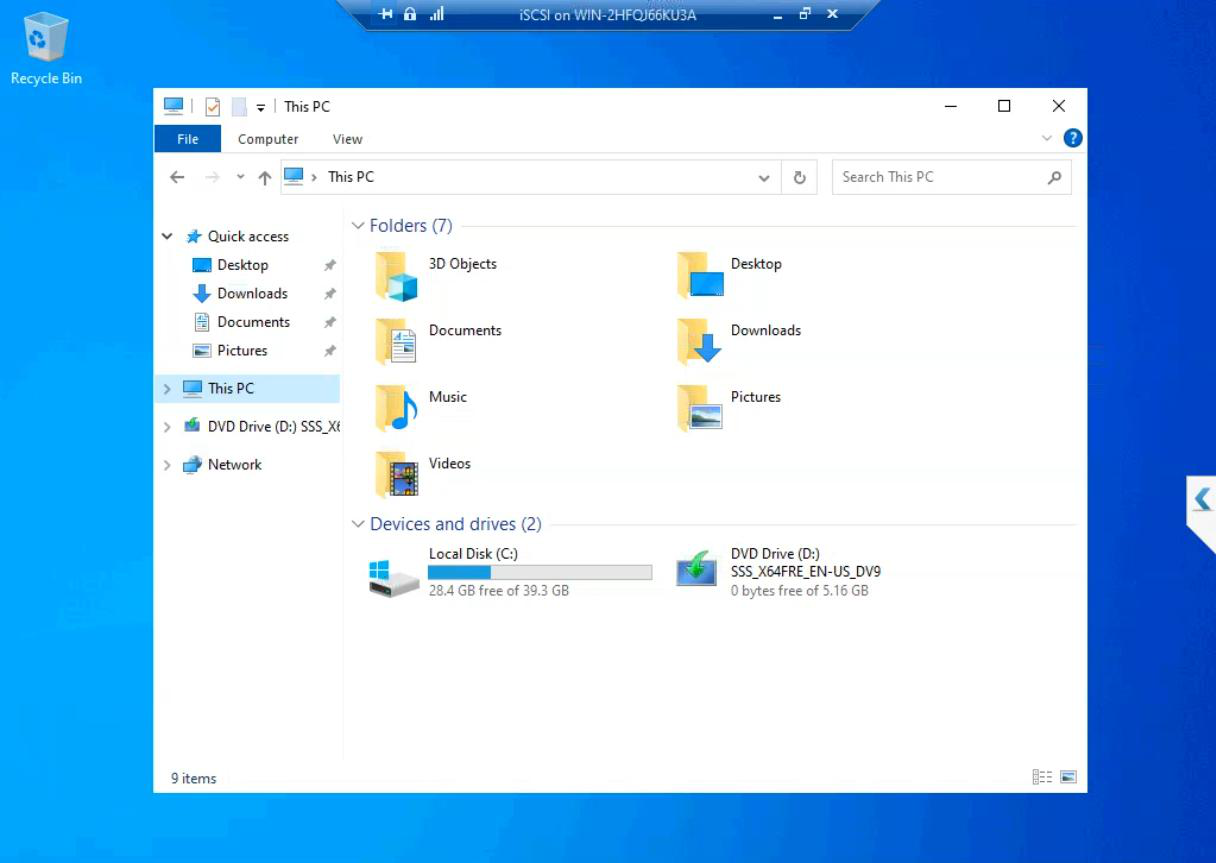
First sign-in. Server Manager auto-launches. The iSCSI VM is now a working Windows Server install.
What we’re NOT doing in this part
- Domain join — the iSCSI VM stays in workgroup. The SAN is a separate admin context. If you join the domain, a Domain Admin compromise reaches the SAN too.
- Adding the iSCSI Target role — that’s Part 7.
- Network IPs — we’ll set the storage subnet IP in Part 6 after the Storage vSwitch exists.
- Adding the data disk — Part 5 adds a separate VHDX for the SAN’s storage pool.
Things that bite people in this part
Picked Gen1 by accident
You can’t convert Gen1 to Gen2. If you picked wrong, delete and recreate. Easier than converting.
Dynamic Memory enabled
Default checkbox state can vary by Hyper-V version. Always uncheck for cluster-relevant VMs.
vCPU forgotten
Default 1 vCPU is the most common post-install regret. Bump to 4 immediately.
ISO not bootable
Some Win Server ISOs from sketchy mirrors don’t boot Gen2 properly. Use the official MS download.
Storage path runs out of space
If your physical host’s VM storage is on a small SSD, four lab VMs (DC + iSCSI + 2 cluster nodes) at 40 GB each is 160 GB plus data disks. Plan disk capacity ahead.
What’s next
Part 3 builds Node-01 and Node-02 — same Hyper-V pattern, but with Hyper-V role + Failover Clustering installed inside (nested virt). See the full series at Hyper-V Failover Clustering pathway.