
Anyone who’s ever exposed RDP on a public IP and watched the Security log fill up within minutes already understands the threat model intuitively: every internet-facing RDP listener attracts continuous, automated brute-force attempts from botnets that have nothing better to do. The interesting question is what your server does in response to those attempts — specifically, how much work the server performs before it knows the credentials are bogus. Network Level Authentication (NLA) is the answer to that question, and it’s why the Windows checkbox that controls it ends with the word “recommended” in parentheses.
This article covers what NLA actually does at the protocol level, why the alternative (legacy “classic” RDP authentication) leaves the server open to a class of resource-exhaustion attacks that have nothing to do with credential strength, the GUI toggle and the Group Policy equivalent, the compatibility caveats with older clients, and a verification path so you can confirm NLA is actually enforced on every server you care about.
What you need before starting
- Administrative access to the target Windows Server (or Windows 10/11) machine, locally or via an existing RDP session
- Domain Admin or delegated GPO authoring rights, if you want to push NLA enforcement domain-wide via Group Policy
- An RDP client that supports CredSSP — modern Windows clients do; very old XP/Vista clients without the patch chain may not
- A test workstation you can use to validate the connection behaviour before/after enabling NLA
The setting itself
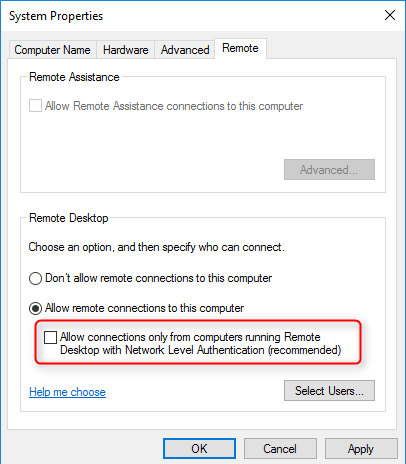
Open System Properties > Remote tab on a Windows Server (run sysdm.cpl from anywhere, or right-click This PC > Properties > Remote settings). The relevant checkbox:
Allow connections only from computers running Remote Desktop with Network Level Authentication (recommended)
Tick it — the server will refuse RDP connections from clients that don’t support NLA. Untick it and the server accepts both NLA-capable and legacy clients (with the implications below). On modern Windows Server (2019 and later) this checkbox is ticked by default; on older 2016 hosts and certain in-place upgrade scenarios you sometimes inherit it unticked, which is the most common reason an environment ends up running mixed-mode RDP unintentionally.
What NLA actually does at the protocol level
RDP is two protocol layers stacked: the transport (TCP 3389 by default, with TLS for encryption) and the authentication-and-session-setup layer that runs on top. The pivotal question is where in the connection handshake the user’s credentials get validated, and what the server has already spent in resources by that point.
Without NLA — classic RDP authentication
The legacy flow has authentication happen after the server has already provisioned a session for the incoming connection. Step by step:
- The client opens a TCP connection to port 3389 on the server
- The TLS handshake runs, encrypting the channel
- The server starts spinning up an RDP session: it allocates memory for the session context, starts the appropriate session services, and prepares the graphical desktop environment
- The server sends back the Windows login screen as a graphical RDP frame
- The client renders the login screen; the user types their credentials
- The credentials traverse the (already-set-up) RDP session to the Local Security Authority for validation
- If validation fails, the server returns an error, the user retries, and the cycle repeats — with the session still allocated until the connection is closed or times out
The problem with this flow isn’t the cryptography — the TLS layer is fine. The problem is steps 3 through 5: the server has invested real resources (memory, CPU, RDP service initialisation, rendered graphical context) in every connection attempt before learning whether the credentials are even close to correct. A bot that hits a server with a thousand login attempts per minute forces the server to spin up and tear down a thousand session contexts per minute — not because the bot has a chance of guessing the password, but because the server doesn’t know yet that it’s a bot.
With NLA — CredSSP pre-authentication
NLA flips the order. Authentication happens before the session is allocated, using a separate lightweight protocol called CredSSP (Credential Security Support Provider) that runs over the established TLS channel. Step by step:
- The client opens TCP to port 3389
- TLS handshake runs
- The client’s RDP component captures the user’s credentials locally and packages them via CredSSP
- The CredSSP exchange runs against the server: the server validates the credentials against the local SAM (or against the domain via Kerberos for domain accounts) without spinning up a session
- If validation fails, the server simply refuses the connection — no session ever exists, no graphical context is allocated, no Windows login screen ever renders. The TCP connection drops. The bot moves on.
- If validation succeeds, then the server allocates the session and proceeds with normal RDP session setup
The cost difference is enormous. A failed NLA attempt is essentially “TCP handshake + TLS handshake + a few KB of CredSSP messages, then drop” — a few dozen kilobytes of work. A failed classic-RDP attempt is the full session allocation plus rendering plus tear-down — potentially megabytes of memory and noticeable CPU per attempt. At a thousand attempts per minute, that’s the difference between “the server doesn’t notice” and “the server’s memory pressure spikes and other workloads suffer.”
The credential-protection bonus
Beyond the resource-exhaustion benefit, NLA fixes a second problem with the classic flow: the legacy login screen is a generic Windows screen that includes information potentially useful to an attacker (the actual Windows version, sometimes hints about the local user list). Worse, the credential entry happens inside an RDP session that has already been provisioned — theoretically, malicious code on the server could intercept the credentials at that point.
With NLA, the credential exchange happens client-side first, traverses CredSSP into the server’s authentication subsystem, and never goes through the user-mode session that an attacker could compromise. The authentication is happening in the protected LSASS path, not in a not-yet-trusted RDP session. This is also why CredSSP requires the client to trust the server — the client is sending credentials before knowing for sure who’s on the other end — and why CredSSP’s history of vulnerabilities (CVE-2018-0886 being the famous one) is taken so seriously: a flaw in CredSSP is a flaw in the credential-handoff itself.
Enable NLA via Group Policy (the right way at scale)
The GUI checkbox is fine for a one-off server. For a fleet, push it via Group Policy so every domain-joined Windows Server (and Windows 10/11) gets the same enforcement automatically.
The relevant setting:
- Computer Configuration > Policies > Administrative Templates > Windows Components > Remote Desktop Services > Remote Desktop Session Host > Security > Require user authentication for remote connections by using Network Level Authentication
Set to Enabled. The corresponding registry value the policy sets is HKLM\SOFTWARE\Policies\Microsoft\Windows NT\Terminal Services\UserAuthentication = 1. Push this through a GPO linked at the OU containing the servers you want to enforce on; security-filter to the appropriate computer group if you need to scope it.
For Group Policy mechanics — OU placement, security filtering, link order — see the planning for Group Policy walkthrough and the comprehensive GPO guide.
Verify enforcement
Three quick ways to confirm NLA is actually enforced on a target server, in increasing order of authoritative-ness:
- Inspect the GUI —
sysdm.cpl > Remote: the “NLA recommended” checkbox is ticked. This tells you the local override; doesn’t catch GPO settings overriding it. - Check the registry:
(Get-ItemProperty 'HKLM:\System\CurrentControlSet\Control\Terminal Server\WinStations\RDP-Tcp').UserAuthenticationA return value of
1means NLA enforced;0means classic RDP allowed. - Test from a non-NLA client — from any modern Windows client, attempt to connect with NLA explicitly disabled in the .rdp file (set
enablecredsspsupport:i:0in the file). The connection should fail with a clear “remote computer requires Network Level Authentication” error if NLA is enforced.
The third method is the only one that proves end-to-end enforcement — it confirms that the GPO took effect, that the registry value is what it should be, and that the server’s RDP listener is actually rejecting non-NLA clients in real time.
Compatibility considerations
NLA was introduced in Windows Vista / Windows Server 2008 and has been the recommended setting since. By 2026 the compatibility story is essentially solved — every supported Windows client can speak CredSSP. The two scenarios where you might still hit issues:
- Linux / third-party RDP clients — clients like Remmina, FreeRDP, Microsoft’s own Remote Desktop apps for Mac/iOS/Android all support NLA but sometimes need an explicit configuration toggle. Older versions of these clients might lack CredSSP support entirely.
- Out-of-support Windows versions — Windows XP and unpatched Vista cannot do NLA. If those are still in your environment, the right answer is upgrading them, not disabling NLA on the servers they connect to. Keeping NLA disabled to support an XP machine is leaving the server’s RDP service exposed to the resource-exhaustion attack class.
Modern Microsoft Remote Desktop clients on Windows, Mac, iOS, Android, and Linux (the official Microsoft client) all support NLA out of the box. Practical guidance: enforce NLA, fix any individual client that can’t connect rather than weakening the server’s security posture for everyone.
Summary — the practical difference
| Behaviour | NLA enforced | NLA disabled (classic) |
|---|---|---|
| When are credentials validated? | Before RDP session allocation (CredSSP pre-auth) | After RDP session allocation, on the rendered login screen |
| Who sees the Windows login screen on a failed attempt? | Nobody — the connection drops earlier | Anyone who can complete TCP+TLS to port 3389 |
| Resource cost of a failed login attempt | Tiny — CredSSP message exchange only | Significant — full session allocation and tear-down |
| Resilience to brute-force / botnet RDP scans | High — bots can’t exhaust resources without valid credentials | Low — resource exhaustion is a viable DoS path |
| Information disclosure from failed attempts | Minimal — no login screen renders | Generic Windows login screen renders, sometimes leaks OS version / user hints |
| Default state on modern Windows Server | Enabled (Server 2019+) | Disabled by default on older / upgraded hosts — verify, don’t assume |
Things that bite people in production
NLA ≠ MFA
NLA validates that the credentials are correct before allocating a session. It does not require a second factor. A correct username and password gets in — that’s still single-factor authentication and still vulnerable to credential theft, password reuse, and phishing. NLA closes the resource-exhaustion attack class; multi-factor authentication closes the credential-compromise attack class. Run both. For privileged-account scenarios specifically, hardware MFA via Windows Hello for Business or FIDO2 keys is the right complement to NLA.
Don’t expose RDP directly to the internet, even with NLA
NLA significantly hardens RDP but doesn’t make port 3389 safe to publish to the open internet. Botnets continuously scan for it; CredSSP itself has had vulnerabilities; and any future zero-day in the RDP listener becomes immediately exploitable. The right pattern for remote access at scale is a Remote Desktop Gateway (RDGW) with conditional access, an RDS Web Access front-end, or modern equivalents like Azure Virtual Desktop or Microsoft Entra Private Access. Use NLA on every server, but don’t use NLA as a substitute for not exposing the protocol.
Watch out for in-place-upgrade hosts with old NLA settings
Servers that started life on Windows Server 2008 R2 or 2012 and have been in-place-upgraded through subsequent versions sometimes carry forward the original NLA-disabled setting because the registry value persists across upgrades. Audit every server’s actual UserAuthentication registry value rather than trusting the “modern OS = NLA on by default” assumption.
The NLA “requires Domain Admin” misconception
Some early documentation gave the impression that NLA required users to be Domain Admins or that domain join was a prerequisite. Neither is true. NLA works for any account that can authenticate against the local SAM or the domain — standard users included — on standalone or domain-joined machines.
CredSSP version mismatches after CVE-2018-0886
The CVE-2018-0886 patch series tightened CredSSP’s version negotiation. The known-symptom is “remote computer requires CredSSP for authentication” errors when one side has the patches and the other doesn’t. The fix is the same on both sides: install current Windows Updates. The temporary registry workaround that was floated around 2018 (AllowEncryptionOracle = 2) re-opens the underlying vulnerability and should not be used in production today.
Where this fits
NLA is one piece of broader RDP and Windows security hardening. For configuring Remote Desktop with the modern admin tooling, see enable Remote Desktop using Windows Admin Center. For the broader Windows endpoint hardening picture, the ACSC Windows 10/11 high-priority hardening controls cover NLA in the context of an end-to-end endpoint posture (with credential protection, application control, attack surface reduction, and the rest).
For the GPO mechanics referenced above — OU placement, security filtering, design tradeoffs — see planning for Group Policy, the comprehensive Group Policy Objects guide, and the Group Policy pathway. For broader Windows Server administration topics, the Windows Server Administration pathway covers the rest of the operational surface.