
Group Policy normally applies in a clean two-track way: Computer Configuration follows the computer wherever it goes, User Configuration follows the user wherever they sign in. That clean separation breaks down on shared computers — kiosks, lab workstations, point-of-sale terminals, factory-floor consoles — where the device’s purpose is supposed to constrain the user, not the other way around. A finance staffer who happens to log into the lobby kiosk should not get their finance-team toolbar, locked-down PowerShell, or department drive maps following them onto a public machine.
Loopback Processing is the GPO mechanism that handles this case. It tells Windows to apply user-configuration settings based on the computer the user is signing in to, rather than (or in addition to) the user’s own home OU policies. Two flavours: Replace (only the computer’s user-config policies apply, the user’s own user-config is ignored entirely) and Merge (both apply, with the computer’s user-config winning conflicts).
This walkthrough covers what loopback actually does, when each mode is the right pick, the GPO setting that turns it on, a worked end-to-end example with two OUs and two GPOs, and the verification path with rsop.msc that confirms it’s actually applying the way you expect.
What you need before starting
- A working Active Directory domain with Group Policy Management Console (GPMC) installed (part of RSAT)
- An OU containing the shared computers that need the loopback behaviour, and at least one GPO linked to that OU
- A test user account in a different OU you can sign in with to validate behaviour
- Domain Admin rights or delegated GPO authoring rights on the relevant OU
Why default Group Policy doesn’t fit shared-computer scenarios
The default rule is simple: a domain user’s user-config comes from whichever GPOs apply to the OU containing that user object. The computer they happen to be signed into doesn’t matter for user-config purposes — the computer’s GPOs only deliver computer-config.
That works perfectly when the user’s identity should drive the experience. It fails on shared devices. A receptionist signs into the front-desk kiosk and gets the personalised desktop, the department’s drive maps, the unlocked Start menu, and any application configurations the user’s OU policies apply — none of which should be available on a public-facing terminal. The fix is to flip the directionality: on this computer, the computer’s OU policies should drive the user-config, regardless of who signs in. That’s loopback processing.
The two loopback modes
Loopback is a single GPO setting with three states: not configured (default), Replace, or Merge. The behavioural difference between Replace and Merge matters more than people expect:
- Replace mode — the user’s own user-config GPOs are not applied at all. Only the user-config settings from GPOs linked to the computer’s OU apply. This is the right pick when the device should provide a fully controlled, identity-independent experience — lab machines, kiosks, factory-floor consoles, anything where every sign-in should produce the same desktop regardless of user.
- Merge mode — both the user’s normal user-config GPOs and the user-config from the computer’s OU GPOs apply. Where they conflict, the computer’s GPO wins. This is the right pick for semi-public scenarios where you want users to keep some personalisation (their email signature, their bookmarks) but the device still enforces certain behaviour overrides (locked screensaver timeout, restricted application list).
The setting itself lives in the computer-side of Group Policy and is configured on a GPO that’s linked to the computer’s OU — not on the user’s GPO. That distinction trips people up the first time; the loopback flag is on the computer GPO, not the user GPO.
The worked example: HR Users, HR Computers, two GPOs
To make this concrete, imagine a domain myinfotechninja.local with two relevant OUs:
- HR Users — contains the actual user accounts, e.g.
JDoeandFModi - HR Computers — contains the shared HR workstations, e.g.
SRC01andSRC02
Two GPOs are linked to these OUs:
GPO1 — linked to HR Users OU:
- User Configuration: Lock Taskbar, Remove Clock from Notification Area
- Computer Configuration: nothing configured
GPO2 — linked to HR Computers OU:
- Computer Configuration (Local Security Policy): Display Interactive Logon Message, Do Not Display Last Username
- User Configuration: Remove Task Manager, Limit Profile Size to 1 GB
The interesting question: when JDoe (a user from HR Users) signs into SRC01 (a computer from HR Computers), which user-config settings actually apply? The answer depends on whether loopback is configured.
Default behaviour (no loopback)
With loopback disabled (the default state), the standard Group Policy processing rules apply. JDoe signs into SRC01 and:
- Computer Configuration comes from GPO2 (HR Computers): the logon message appears, the last username is hidden
- User Configuration comes from GPO1 (HR Users): the taskbar is locked, the clock is removed from the notification area
- The User Configuration in GPO2 (Remove Task Manager, profile size limit) is never applied — because GPO2 is linked to a Computer OU, and JDoe is not in a Computer OU
This is the standard split: computer policies follow the computer, user policies follow the user. If the goal is to lock down Task Manager on these shared HR workstations regardless of who signs in, the default behaviour fails — the lockdown only happens for users whose own OU policies remove Task Manager, which is exactly the wrong direction for shared-device hardening.
Enable loopback in Replace mode
The Replace-mode goal: apply only the user-config from GPO2 (the computer-OU GPO), and ignore the user-config from GPO1 entirely. Configured on GPO2:
- Open Group Policy Management Console on a DC or any RSAT-equipped admin workstation
- Right-click GPO2 (the GPO linked to
HR ComputersOU) > Edit - Navigate to
Computer Configuration > Administrative Templates > System > Group Policy - Double-click Configure user Group Policy loopback processing mode
- Set to Enabled
- Pick Replace from the Mode dropdown
- Apply, OK
Trigger a policy refresh on the test client (gpupdate /force) and have JDoe sign in fresh. The behaviour now:
- Computer Configuration from GPO2 still applies (logon message, last-username hide) — same as default
- User Configuration from GPO2 now applies as well: Task Manager is removed, profile size is capped at 1 GB
- User Configuration from GPO1 is completely ignored: the taskbar is no longer locked, the clock reappears
The lab/kiosk effect: every user who signs into SRC01 or SRC02 now gets the same controlled experience — the HR Computers GPO2’s user-config settings, regardless of their own OU. JDoe’s personal taskbar lock and clock removal don’t follow them onto these shared machines.
Enable loopback in Merge mode
The Merge-mode goal: apply user-config from both GPO1 and GPO2, with GPO2 winning when they collide. Same procedure on GPO2:
- GPMC > right-click GPO2 > Edit
Computer Configuration > Administrative Templates > System > Group Policy- Double-click Configure user Group Policy loopback processing mode
- Enabled, Mode dropdown: Merge
- Apply, OK
Refresh the client (gpupdate /force), have JDoe sign in. The combined effect:
- Computer Configuration from GPO2 applies as always
- User Configuration from GPO2 applies: Task Manager removed, profile size capped
- User Configuration from GPO1 also applies: taskbar locked, clock removed
- If both GPOs had configured the same user-config setting differently, GPO2’s value would win — the computer GPO has higher precedence in merge mode
The semi-public effect: JDoe keeps personal taskbar/clock preferences from her own OU’s GPO, AND the HR Computers GPO additionally enforces the lockdowns it cares about.
Verify with rsop.msc
Don’t trust that loopback is doing what you think without checking. From the test client, signed in as the test user:
- Press Win + R, type
rsop.msc, press OK - The Resultant Set of Policy snap-in computes and displays which GPOs actually applied to this user/computer combination, in precedence order
Under merge mode, expect to see both GPO1 and GPO2 listed, with GPO2 (the computer-linked GPO) appearing higher in the precedence order — indicating it would win conflicts. Under replace mode, expect to see only GPO2 applied for the user portion. Either way, rsop.msc is the authoritative answer for “what is actually happening?”
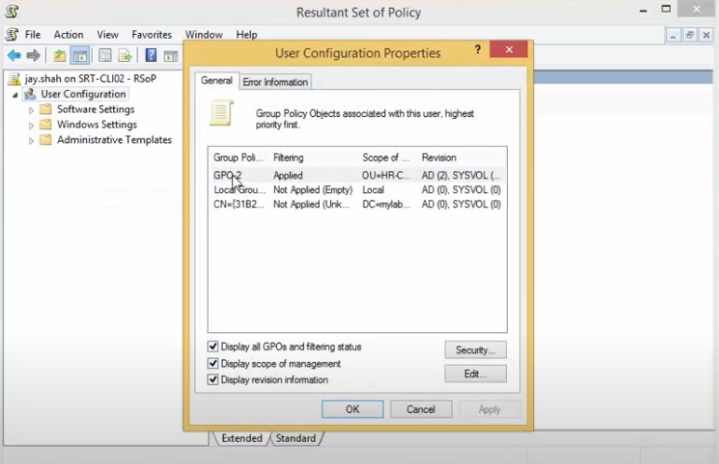
For scriptable verification or richer reporting, gpresult /h C:\report.html generates an HTML report showing every GPO that applied, every setting that took effect, and every setting that was overridden — useful when troubleshooting why a particular policy isn’t showing up where you expect.
How to choose between Replace and Merge
| Mode | Applied user configurations | Conflict handling | Right for |
|---|---|---|---|
| Default (no loopback) | User’s own GPO only | N/A — computer’s user-config never applies | Standard one-user-per-computer scenarios |
| Replace | Only the computer’s user-config applies | User’s GPO is dropped entirely | Kiosks, lab machines, factory-floor consoles, public-facing terminals where the device defines the experience |
| Merge | Both apply | Computer’s GPO wins on conflicts | Semi-public systems where users keep some personalisation but the device enforces specific overrides |
Things that bite people in production
Set the loopback flag on the COMPUTER GPO, not the user GPO
The single most common loopback mistake: configuring the loopback setting on a GPO that’s linked to the user’s OU. The setting is computer-side, and it’s evaluated when the computer applies its policies — configuring it on a user-OU GPO does nothing. Always edit the GPO that’s linked to the OU containing the shared computer objects.
Loopback only changes user-config processing, not computer-config
Computer Configuration policies always follow the computer regardless of loopback — loopback is purely about how user-config is sourced. If you’re trying to change which computer-config policies apply, loopback is the wrong tool; you want OU placement or security filtering on the computer GPO instead.
Test in a real lab before production
Loopback can produce surprising results the first time you deploy it — users complain that “my drive maps are missing” (because Replace mode dropped the user GPO that mapped them) or “Task Manager is suddenly disabled on my normal desktop” (because the loopback GPO accidentally got linked too broadly). Stage the configuration in a lab with a representative computer OU and a representative test user before flipping the production GPO.
Apply on the right OU level — not too high
If you link the GPO with the loopback flag at a parent OU that contains both shared and personal computers, loopback applies to everyone whose computer is anywhere under that OU — including normal workstations where it shouldn’t. Either link the GPO at a sub-OU containing only the shared computers, or use security filtering on the GPO to scope it to a specific group of computer accounts.
Use rsop.msc and gpresult, not assumption
Group Policy precedence interactions get complex fast: site-linked GPOs, domain-linked GPOs, OU-linked GPOs, Block Inheritance, Enforced flags, security filters, WMI filters, and now loopback’s own precedence rules all interact. Don’t guess what’s applying; check it with rsop.msc on the actual client. The Resultant Set of Policy view is what end users see; that’s the only source of truth that matters.
Don’t put loopback on every computer GPO
Loopback adds processing overhead at logon and complicates troubleshooting. Reserve it for the specific OUs where shared-computer behaviour is genuinely needed; don’t enable it as a precaution on general-purpose workstation OUs. The performance cost compounds with every additional GPO that has to be evaluated.
Where this fits
Loopback is one of the more powerful Group Policy mechanisms and one of the most-confused. For the broader Group Policy story see the InfoTech Ninja comprehensive guide to Group Policy Objects and the planning for Group Policy walkthrough — the latter covers the design context where loopback decisions actually fit (Tailspin Toys’ manufacturing-floor design uses loopback Replace exactly the way this article describes).
Companion practical articles in the GPO area: backup and restore Group Policy Objects for the operational hygiene around loopback-enabled GPOs, block built-in apps with AppLocker GPO as a related computer-side restriction pattern, map network drives by group with GPO for the per-team-or-per-OU drive-mapping pattern, and configure advanced audit policies in Active Directory for the auditing baseline that should accompany any GPO setup. The full Group Policy pathway covers the rest.