
Enabling Remote Desktop on a Windows Server is one of those tasks that has a small but annoying chicken-and-egg problem: the obvious way to enable RDP on a remote server is to RDP into it — which you can’t do until RDP is enabled. Windows Admin Center (WAC) is the cleanest way around it: WAC reaches the server over its existing management channel and toggles the Remote Desktop setting for you, no console session required. This walkthrough shows the full flow plus two ways to verify it worked.
Prerequisites
- Windows Admin Center installed and reachable.
- The target server already added to WAC’s All connections list (we’re using
dc.smart.local). - The WAC gateway account has local administrator rights on the target.
- If a firewall sits between you and the target, allow inbound TCP 3389 on the rules that face the management network.
Step 1: Pick the target server in Windows Admin Center
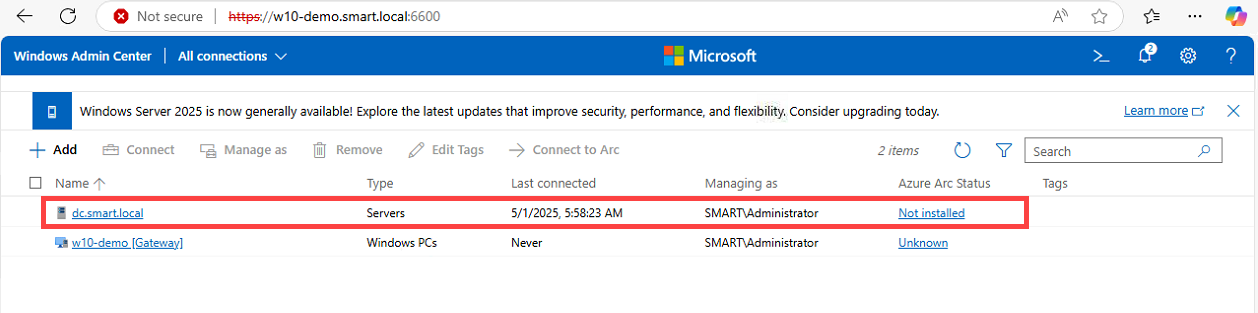
From the WAC home page, select the server you want to manage. In our example that’s dc.smart.local, a Windows Server 2022 Domain Controller managed by SMART\Administrator. The same flow works against any Windows Server in the connections list — not just DCs.
Step 2: Settings → Remote Desktop → Allow + NLA → Save
Once you’re inside the server connection:
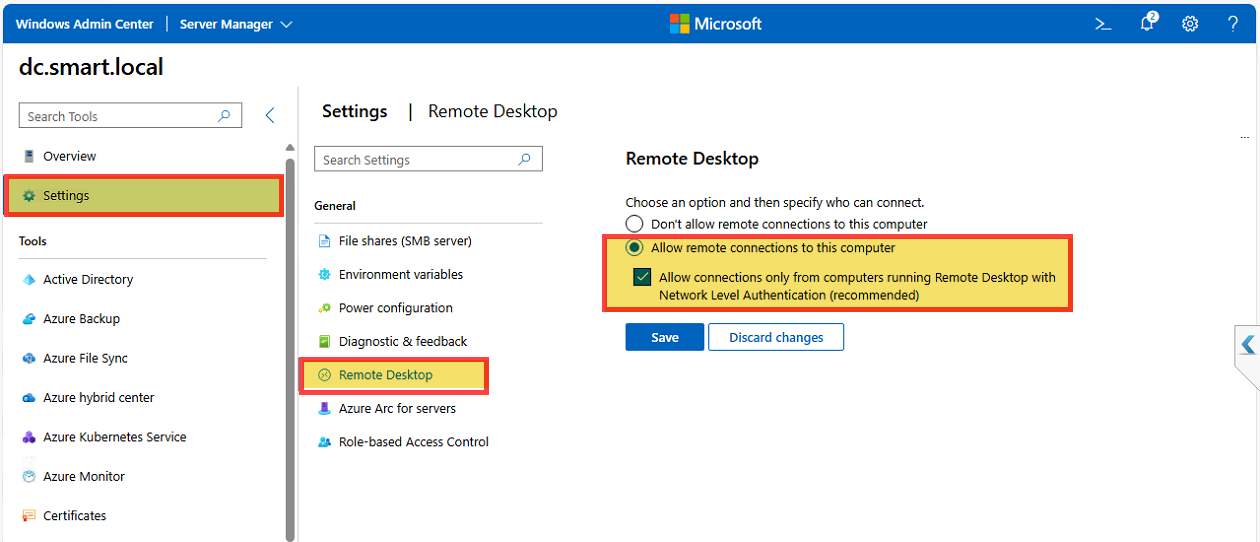
- Click Settings in the left tools rail.
- Choose Remote Desktop from the General settings list.
- Select Allow remote connections to this computer.
- Tick Allow connections only from computers running Remote Desktop with Network Level Authentication (recommended).
- Click Save.
That’s the entire enable step. WAC writes the equivalent of toggling the fDenyTSConnections registry value to 0 and turning on the Remote Desktop firewall rule, then opens the appropriate Windows Defender Firewall exception for TCP 3389. NLA is on by default in modern Windows Server — keep it that way; pre-NLA RDP exposes a half-authenticated RDP layer that’s a known scan target.
Step 3: Verify path A — classic mstsc client
From a workstation that can route to the server, launch the legacy Remote Desktop Connection client.
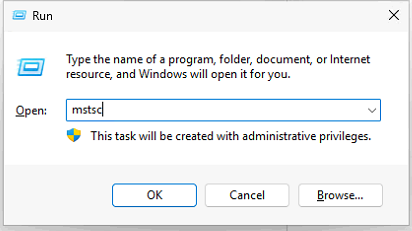
- Press Win+R and type
mstsc, then click OK. - Enter the target hostname (
dc.smart.local) and click Connect. - When prompted, supply domain credentials — for our DC,
SMART\Administratorand the password. - Click OK.
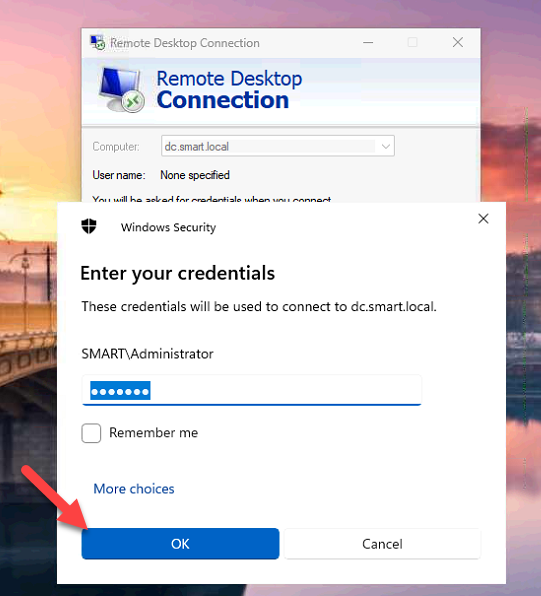
If the connection succeeds, you’ve confirmed two things at once: RDP is enabled on the server, and the path between your client and the server’s TCP 3389 listener is open through any intervening firewalls. If it fails, pinpoint where: a connection refused (port closed) usually means the firewall rule didn’t open or the RDP listener didn’t start, while a credential prompt that loops without error usually points at NLA or domain-trust issues rather than RDP being off.
Step 4 (optional): Confirm at the OS level
If you want a second-source confirmation, sign in to the server (locally or via the new RDP session) and open Server Manager. On the Local Server page, the Remote Desktop property should now read Enabled.
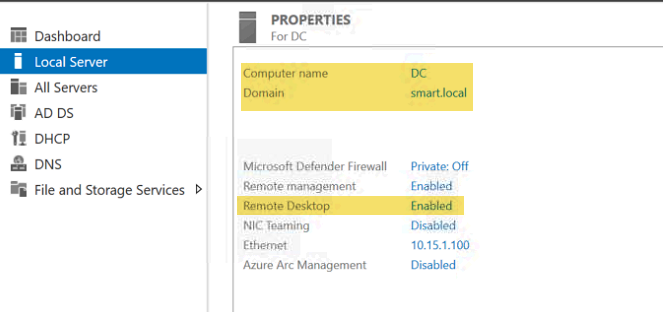
This is purely diagnostic — if Step 3 worked, you already have the answer. But it’s a useful sanity check when you’re troubleshooting and want to be sure the WAC setting actually landed on the registry.
Step 5: Verify path B — in-browser RDP via WAC
WAC also ships with a built-in Remote Desktop tool that opens an RDP session right inside the browser, no mstsc required.
- Back on the server’s WAC tools rail, select Remote Desktop.
- On the Welcome to Remote Desktop form, enter your username (
SMART\Administrator) and password. - Pick a keyboard layout (default US).
- Leave Automatically connect with the certificate presented by this machine ticked (or untick it if you want to evaluate the cert each time).
- Click Connect.
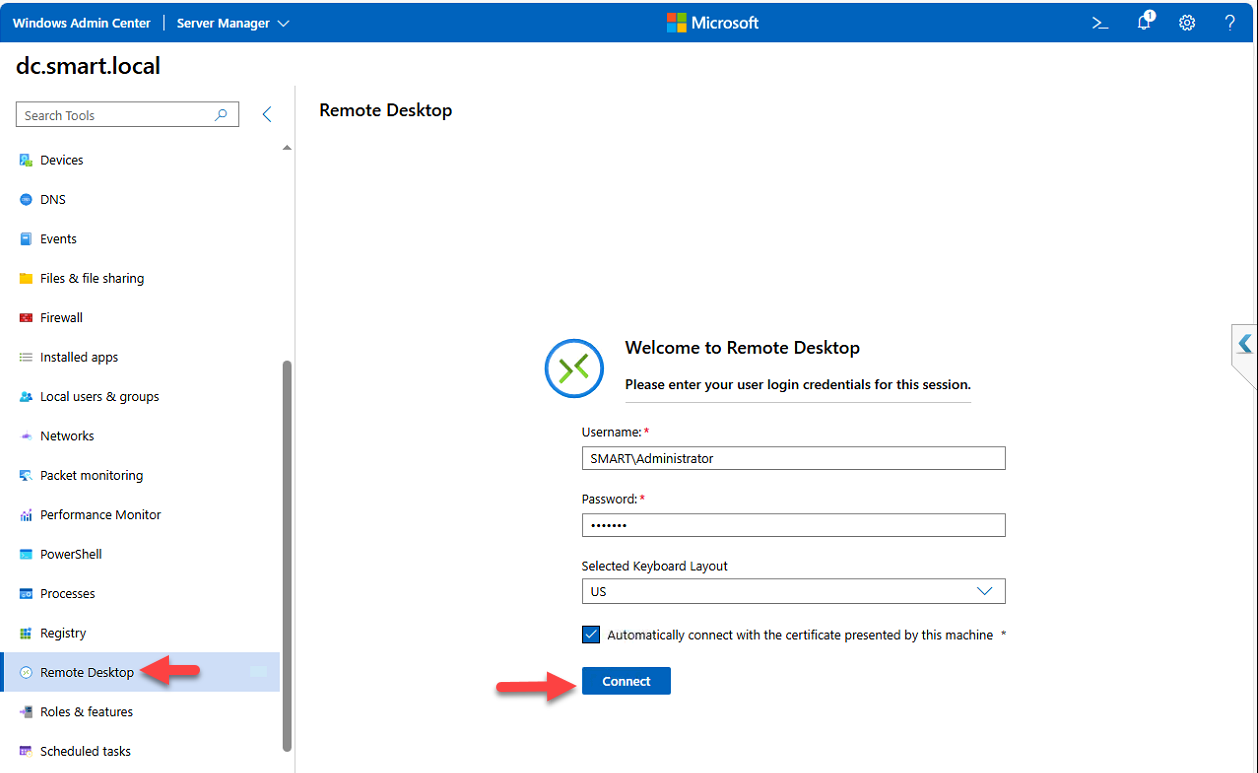
WAC tunnels the RDP session through its gateway and renders the desktop in the browser tab. You get a Disconnect button and a Send Ctrl+Alt+Del button at the top of the embedded session.
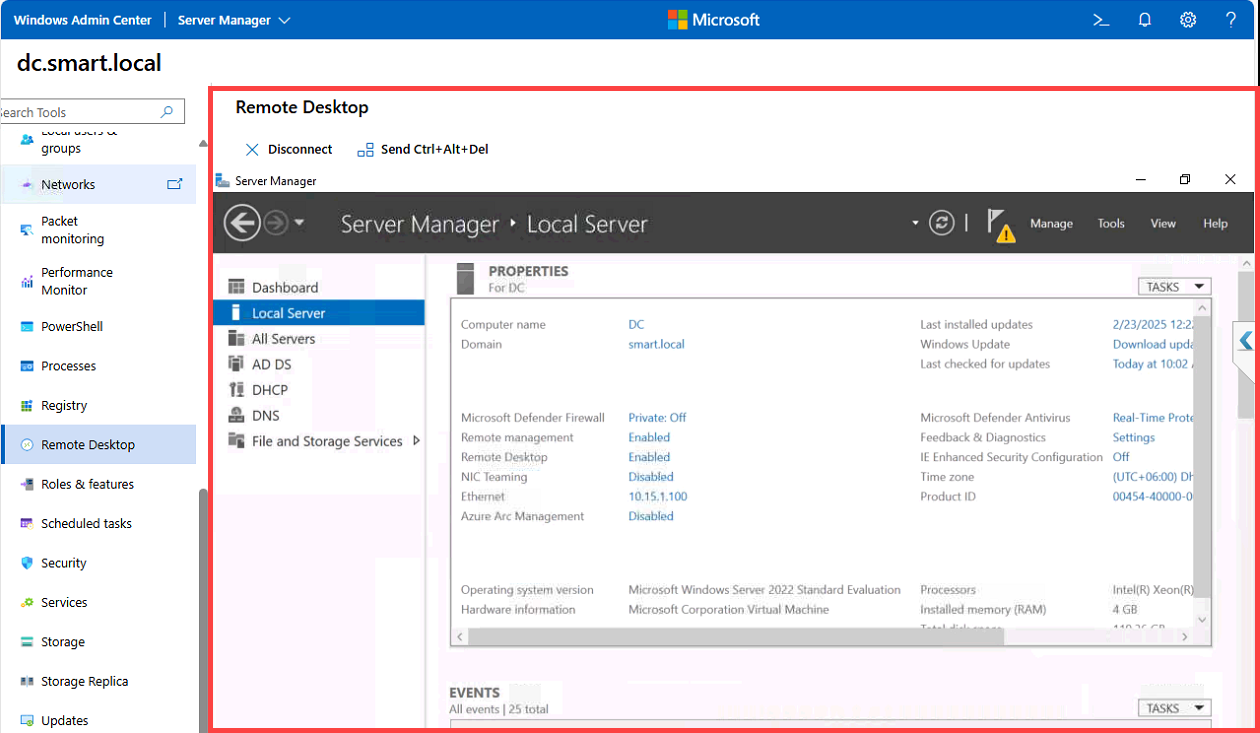
This is the most useful path when you’re working from a machine that doesn’t have mstsc available, or when network policy only allows access through the WAC gateway. The functional difference between the two paths is the trust boundary: mstsc connects the client directly to TCP 3389 on the target, while WAC’s in-browser session goes client → WAC gateway → target, with the WAC server doing the RDP handshake.
Hardening notes
- NLA stays on. Don’t uncheck the NLA box. Anything that can’t do NLA is old enough to be a liability anyway.
- Restrict to a group, not Everyone. Add only the accounts that actually need RDP to the local Remote Desktop Users group on the target. Domain Admins implicitly have access; everyone else should be explicit.
- Consider RD Gateway / just-in-time access. For internet-exposed scenarios put RDP behind RD Gateway with MFA, or use Azure / cloud just-in-time VM access so port 3389 isn’t open all the time.
- Audit logons. Watch for Event ID 4624 (successful logon) with Logon Type 10 (RemoteInteractive) on the target. Anything outside expected business hours or coming from unfamiliar source IPs is worth investigating.
Conclusion
Enabling RDP through Windows Admin Center sidesteps the chicken-and-egg problem of needing RDP to enable RDP — WAC’s management channel is the bootstrap. The toggle takes seconds, NLA is on by default, and you can verify the result two ways: a classic mstsc connection from a workstation, or WAC’s own in-browser Remote Desktop tool. Either path is fine; pick whichever fits your access model. Just be sure to follow up with sane RDP hardening — restrict access to a named group, leave NLA on, and audit logons — before declaring the server production-ready.