
Raising Active Directory functional level is a one-way change that unlocks newer features (Privileged Access Management at the 2016 forest mode, Protected Users at the 2012 R2 domain mode, AD Recycle Bin at 2008 R2 forest mode), removes support for older Windows Server versions as DCs, and applies to every domain controller in the scope. The change itself is fast — click Raise, click OK, click OK again on the success dialog — but the pre-flight checks and the order in which you raise the levels are where most of the rollout time and risk live.
This walkthrough builds on the Forest and Domain Functional Levels theory article with the actual end-to-end raise: replication health checks, DC OS-version inventory, raise the domain level, raise the forest level, verify both, and the post-raise housekeeping (KDC service restart, replication monitoring) most articles skip.
Why the Order Matters: Domain Before Forest
The forest functional level is the floor — every domain in the forest must be at or above it. AD enforces this on the raise:
- To raise the forest from Windows Server 2012 R2 to 2016, every domain in the forest must already be at 2016.
- The Raise Forest Functional Level dropdown only offers a level if every domain has crossed it.
- Skipping a domain leaves the forest dropdown short of options — AD does not warn explicitly, the level just is not on the menu.
So the operational order is: raise each domain first, then raise the forest once. In a multi-domain forest, that means walking each domain (root + children + tree-roots) and raising in turn.
Pre-flight Checks
Three things to confirm before clicking anything:
1) Replication Health
The raised level only matters once it has replicated to every DC. Broken replication leaves DCs at the old level operationally even if the new level is set on the source DC. Run from any DC:
repadmin /replsummary
repadmin /showrepl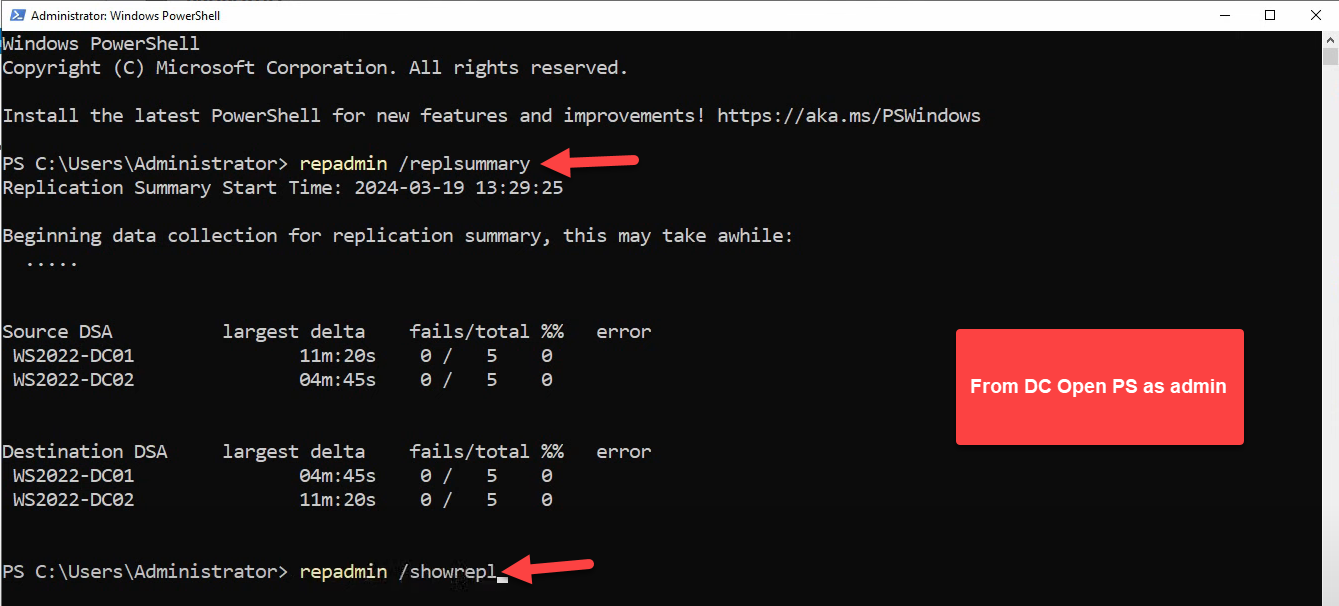
repadmin /replsummary shows DC-to-DC replication latency and failure counts; repadmin /showrepl drills into per-partition status. Both must come back clean before raising functional level — if replication is broken, the raised level may not propagate to every DC and you end up with split-brain functional-level state.The PowerShell equivalent is also worth running:
Get-ADReplicationFailure -Target "fortesting.local" -Scope Domain
Get-ADReplicationFailure -Target "fortesting.local" -Scope Forest
Get-ADReplicationFailure -Target <domain> -Scope Domain followed by -Scope Forest. Empty output is the correct result — any failure rows here represent stuck or broken replication that has to be cleared before proceeding.Empty output from Get-ADReplicationFailure is the correct result — the command only returns rows for failures. repadmin /replsummary reports zeros in the fails/total columns when healthy.
2) DC Operating System Inventory
Every DC in the scope must run at least the new level’s minimum OS. To raise to Windows Server 2016, every DC must run 2016 or newer (2019, 2022 are fine — they all operate at the 2016 functional level since Microsoft did not introduce new functional levels for 2019/2022).
Get-ADDomainController -Filter * |
    Select-Object Hostname, OperatingSystem, OperatingSystemVersion, Site |
    Sort-Object OperatingSystem
If any DC is older than the target level, you must demote it cleanly before raising:
# On the old DC, demote it
Uninstall-ADDSDomainController -DemoteOperationMasterRole:$true
Do not just power off the old DC — AD still considers it part of the topology, and the raise will fail or surface lingering metadata.
3) Application Compatibility
Some line-of-business apps key on functional level (older Exchange versions, ancient SCCM builds, third-party identity products). Confirm with each application’s vendor that it supports the target level. Common gotchas:
- Exchange Server: each Exchange version has minimum and maximum supported AD functional levels. Check the support matrix before raising.
- Old-version SQL Server using Active Directory authentication: usually fine, but pre-2014 versions have edge cases.
- Third-party MFA / privileged-access products: more variable; check vendor docs.
Once all three checks pass, raise the levels.
Step 1: Raise the Domain Functional Level
Open Server Manager › Tools › Active Directory Domains and Trusts (or run domain.msc). Right-click the domain (e.g. fortesting.local):
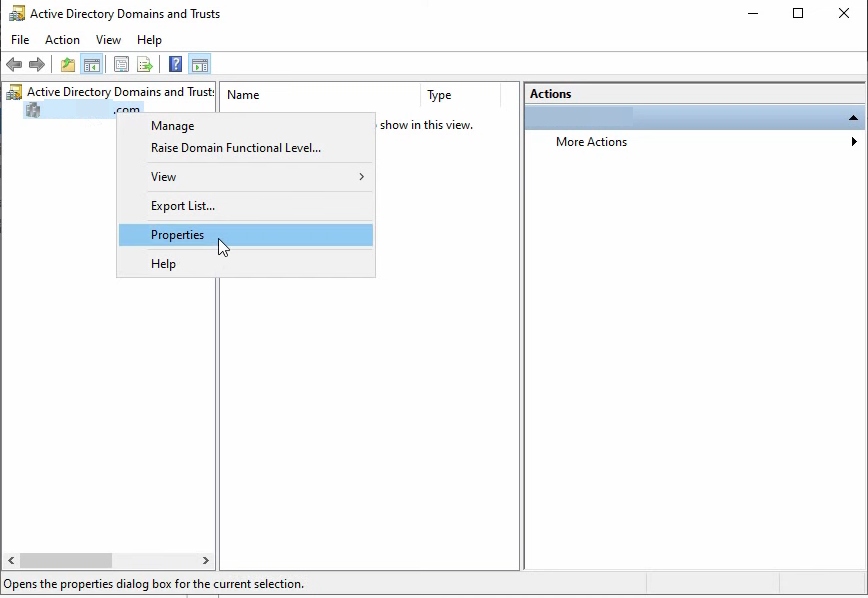
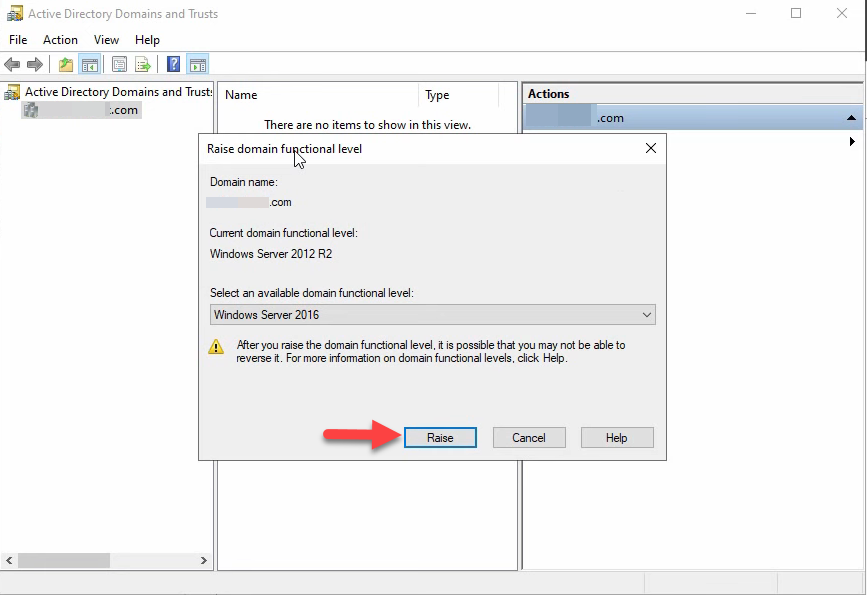
domain.msc). Right-click the domain (e.g. fortesting.local) to reveal Raise Domain Functional Level… and Properties. The raise option is what we are after.Pick Raise Domain Functional Level…. The dialog shows the current level and a dropdown of available higher levels. Pick the target — Windows Server 2016 — and click Raise:
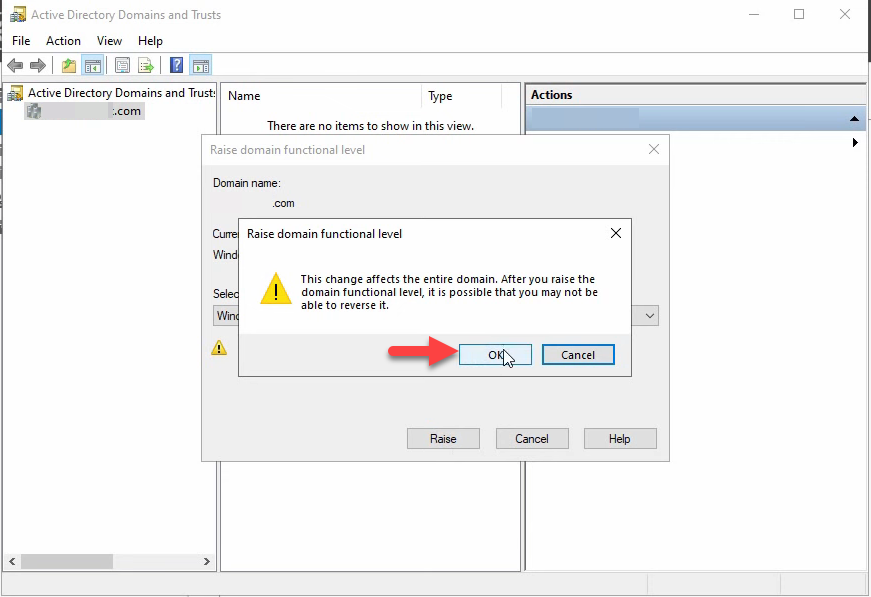
The confirmation prompt warns the change affects the entire domain. Click OK:
The success dialog confirms the change and notes that replication will carry it to every DC in the domain:
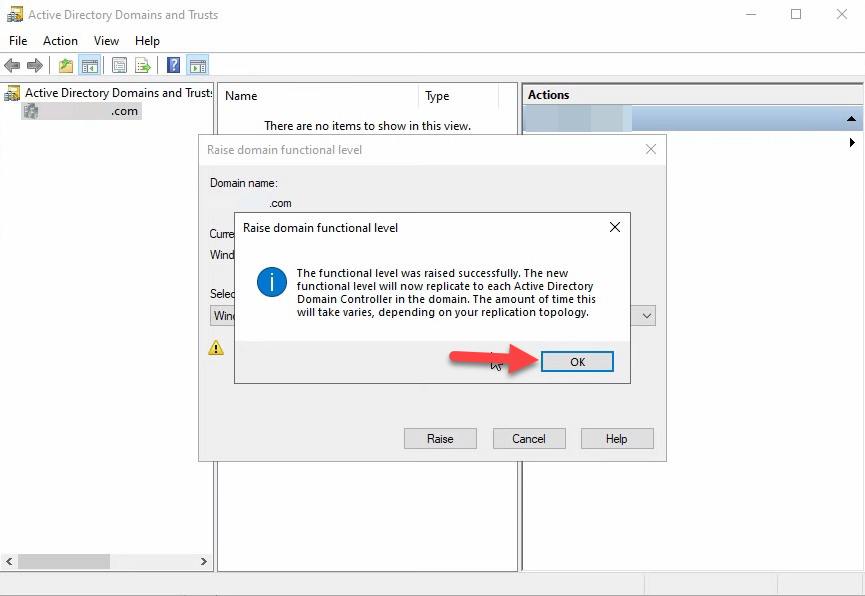
Click OK. Repeat this step for every domain in the forest. In a single-domain forest, you are done with this section.
Step 2: Raise the Forest Functional Level
Right-click the Active Directory Domains and Trusts root node (the very top of the tree, not a specific domain) and pick Raise Forest Functional Level…:
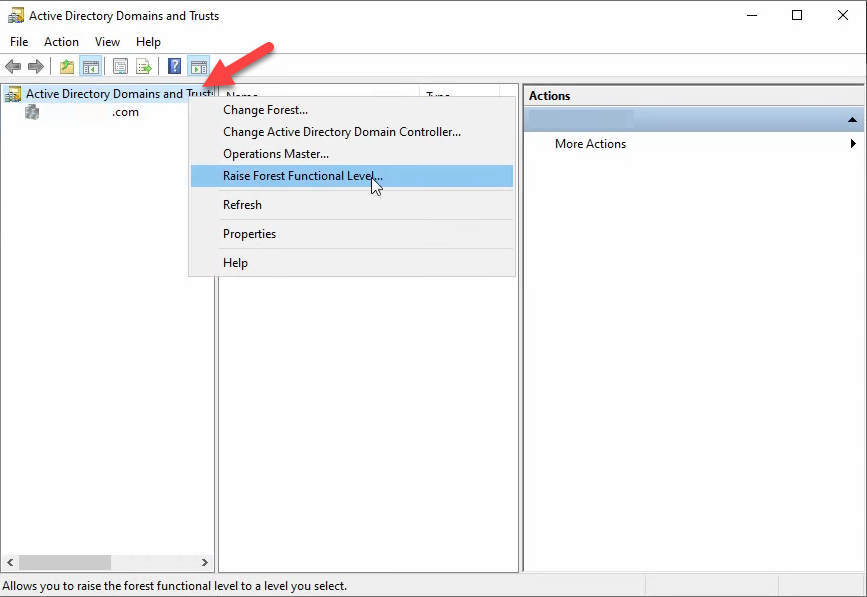
The dialog matches the domain version, scoped to the forest. Pick Windows Server 2016 and click Raise:
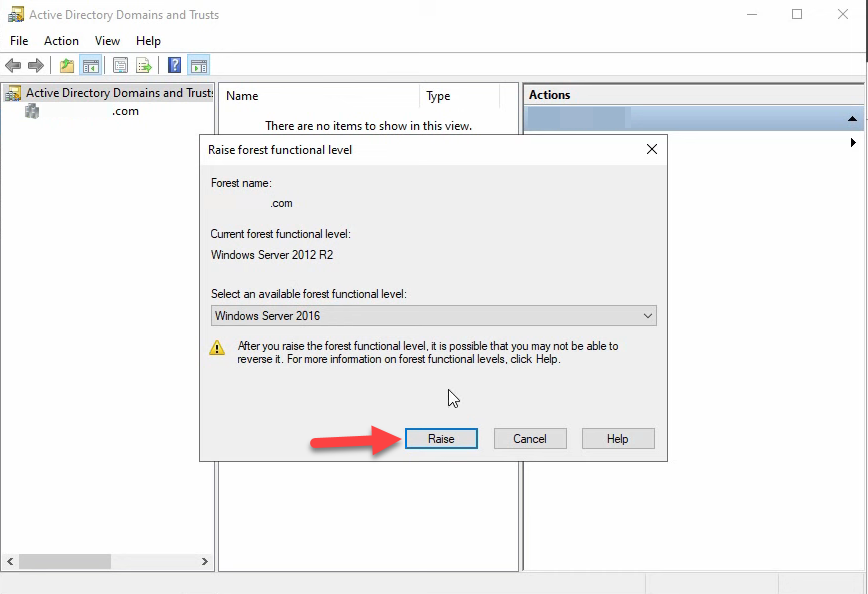
The dropdown only offers levels that every domain has reached. If 2016 is not in the list, at least one domain is still below it — cancel out, raise that domain, then come back.
The confirmation prompt warns the change affects the entire forest:
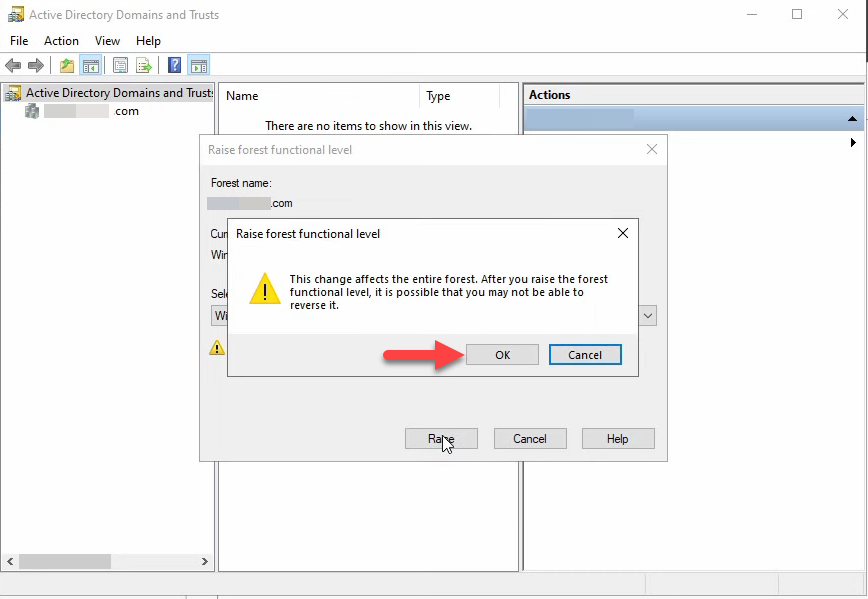
Click OK. The success dialog confirms forest-wide replication is starting:
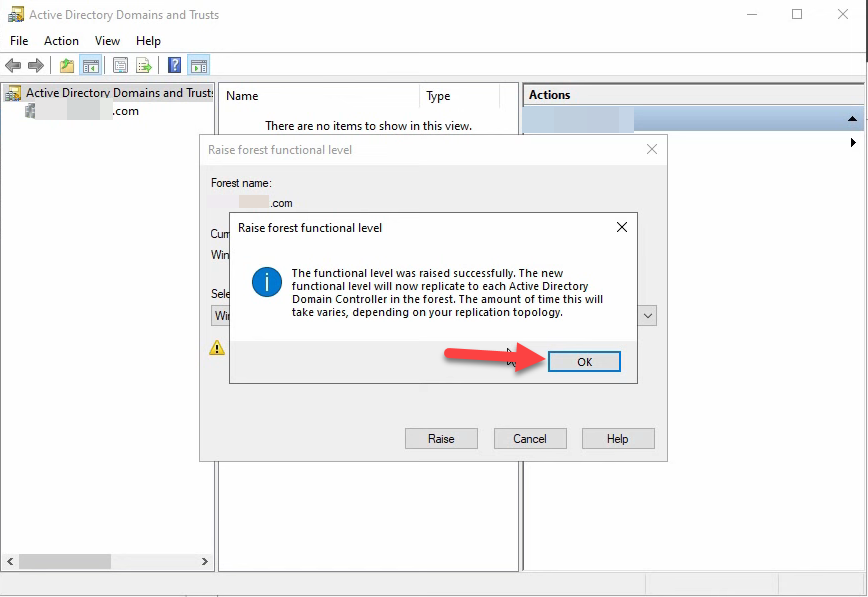
Forest-wide replication takes longer than domain-wide because it walks the configuration partition through inter-site replication.
Step 3: Verify Both Levels
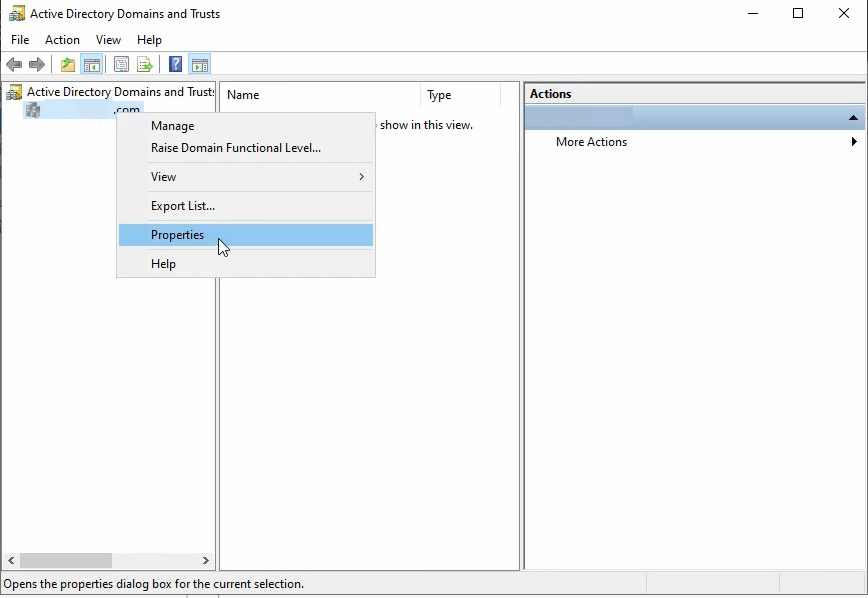
Right-click the domain in Active Directory Domains and Trusts — this time pick Properties instead of one of the Raise options:
The General tab shows both the domain and forest functional levels in one place:
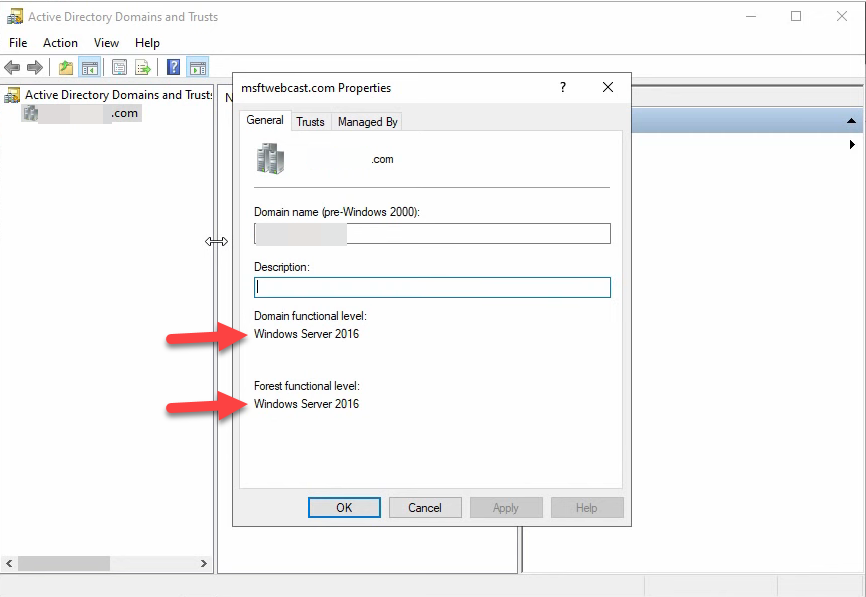
Get-ADDomain | Select DomainMode and Get-ADForest | Select ForestMode.From PowerShell, the equivalent one-liner:
Get-ADForest | Select-Object Name, ForestMode
Get-ADDomain | Select-Object Name, DomainMode
Expected output for a single-domain forest at the 2016 level:
Name             ForestMode
----             ----------
fortesting.local Windows2016Forest

Name        DomainMode
----        ----------
fortesting  Windows2016Domain
Step 4: Post-Raise Housekeeping
Two things matter after the raise:
Replication monitoring. Force a sync and confirm every DC picked up the new level:
# Force replication across all DCs
repadmin /syncall /Aed

# Re-verify the level on every DC by name
Get-ADDomainController -Filter * |
    ForEach-Object {
        $dc = $_.HostName
        $mode = (Get-ADDomain -Server $dc).DomainMode
        Write-Host "$dc : $mode"
    }
Every DC should report the new level. If any DC still reports the old level after a full replication cycle (~30 minutes inter-site), investigate replication on that DC specifically.
KDC service restart. The Kerberos KDC caches the current functional level state at startup. Restarting it on every DC ensures any new Kerberos behaviour tied to the new level is immediately active rather than waiting for the next service-start cycle:
# On each DC
Restart-Service kdc -Force
This is a few-second restart and is transparent to running clients — existing Kerberos tickets keep working until expiry; only new ticket requests during the restart window briefly fail and retry.
Common Pitfalls
- Raising the forest before every domain has been raised. AD silently omits unreachable target levels from the dropdown rather than explaining why. If the level you want is missing, look at every domain’s level first.
- Powered-off old DCs treated as “gone.” AD still tracks them. Demote with
Uninstall-ADDSDomainControllerto remove them cleanly;ntdsutil metadata cleanupfor orphaned cases. - Skipping the FRS to DFS-R migration before raising to 2016. If
dfsrmig /getglobalstatereturns anything other than Eliminated, the SYSVOL replication migration is incomplete. The 2016 raise will fail until you finish it (Start → Prepared → Redirected → Eliminated). - Not testing the irreversibility caveat. Domain-level downgrade is supported in some narrow cases (2008 R2+ domain mode, AD Recycle Bin not enabled). Forest-level downgrade is not supported at all. Treat the raise as permanent and act accordingly.
- Forgetting application owners. Mail server team, IDM team, MFA vendor — all should be informed before the raise so they can flag compatibility issues you do not know about. Three days notice is usually enough; same-day notice is asking for an “why is auth broken?” ticket.
- Watching only one DC. The level changes on the DC you ran the wizard against immediately, but other DCs are at the old level until replication completes. A monitoring tool that polls only one DC misses split-brain functional-level state during the propagation window.
Conclusion
Raising functional level is a five-step operation: pre-flight (replication + DC inventory + app compat), raise each domain, raise the forest, verify, post-raise housekeeping. The wizard is dead simple; the discipline lives in the pre-flight and the order. Pair this article with the theory primer on what functional levels actually do and the quick check article for “what level am I at right now?”, and the next time someone asks “can we move to 2016 mode?”, the answer is a 30-minute inventory plus a 5-minute wizard.