
When You Actually Need to Turn the Firewall Off
Disabling the host firewall is almost always the wrong move. The whole point of the host firewall is that it backstops a firewall higher up the stack: a router ACL is bypassed by a VPN, a perimeter firewall is bypassed by an authenticated tunnel, but the host firewall is the one that has the final say on what arrives at the local socket. Turning it off makes that final say allow everything.
That said, there are legitimate cases for the off switch — almost all in test, lab, and triage scenarios:
- You are debugging a connectivity issue and need to confirm whether the host firewall is the cause. Toggling it off briefly answers the question with no rule-by-rule guesswork. Once you know, turn it back on and add the right allow rule.
- You are running a lab on an isolated network where every box is trusted, and the firewall’s default rules block the test traffic.
- You are migrating a workload and the new host needs to accept legacy traffic that has not yet been allow-listed. Turn the firewall off for the migration window only, with a calendar reminder to turn it back on.
What is not a legitimate reason: making a production server work today by disabling its firewall instead of writing the right rule. Six months later that “temporary” off state is a footnote in the post-mortem of the next breach. This article explains how to disable the firewall when you actually need to — and how to put it back the moment the test ends.
The Three Profiles, Briefly
Windows Firewall has three independent profiles. The same as for the enable case, but worth re-reading:
- Domain — in effect when the host can reach a Domain Controller for its joined domain.
- Private — user-marked “private network” (home / trusted lab).
- Public — the default for any uncategorized connection.
Each profile’s on/off state is independent. Disabling the firewall usually means disabling all three; the targeted version (just one) is sometimes useful for triage. Read the active profile of each adapter with Get-NetConnectionProfile before you decide.
Step 1 — Read the Current State
Open Windows PowerShell as administrator and read the per-profile state with Get-NetFirewallProfile:
Get-NetFirewallProfile | Format-Table Name, EnabledOn a default Windows Server install, all three profiles are on:
Name      Enabled
----      -------
Domain       True
Private      True
Public       True
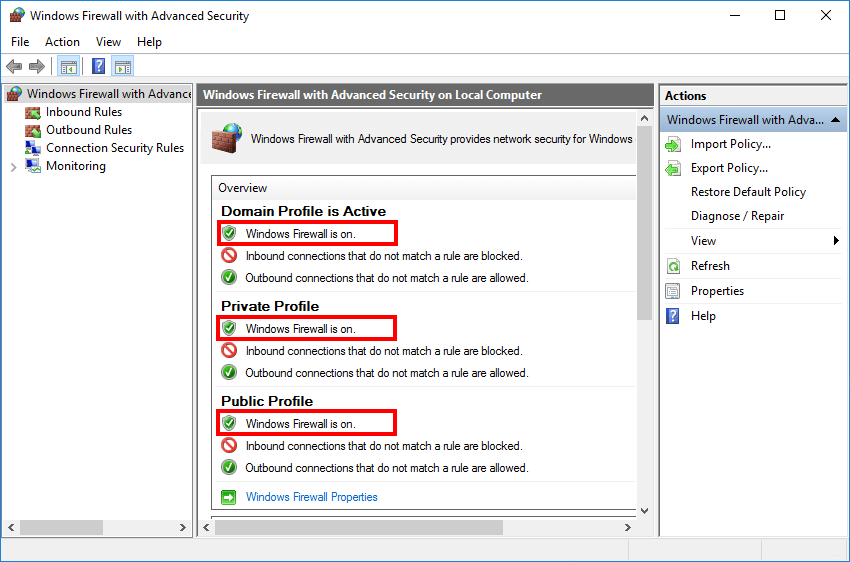
The MMC view (Windows Defender Firewall with Advanced Security) confirms the same, with green checks under each profile:
Step 2 — Disable All Three Profiles
One cmdlet, three profiles, off:
Set-NetFirewallProfile -Profile Domain, Public, Private -Enabled FalseEffective immediately — the firewall stops enforcing rules on every connection in any of the three profiles before the cmdlet returns. There is no service restart, no reboot.
To target a single profile (e.g. only Public, because that is the active profile on your Wi-Fi adapter and you want Domain and Private rules to keep working):
Set-NetFirewallProfile -Profile Public -Enabled FalseStep 3 — Verify
Re-run the read cmdlet to confirm the change took:
Get-NetFirewallProfile | Format-Table Name, EnabledYou want to see False on every row:
Name      Enabled
----      -------
Domain      False
Private     False
Public      False
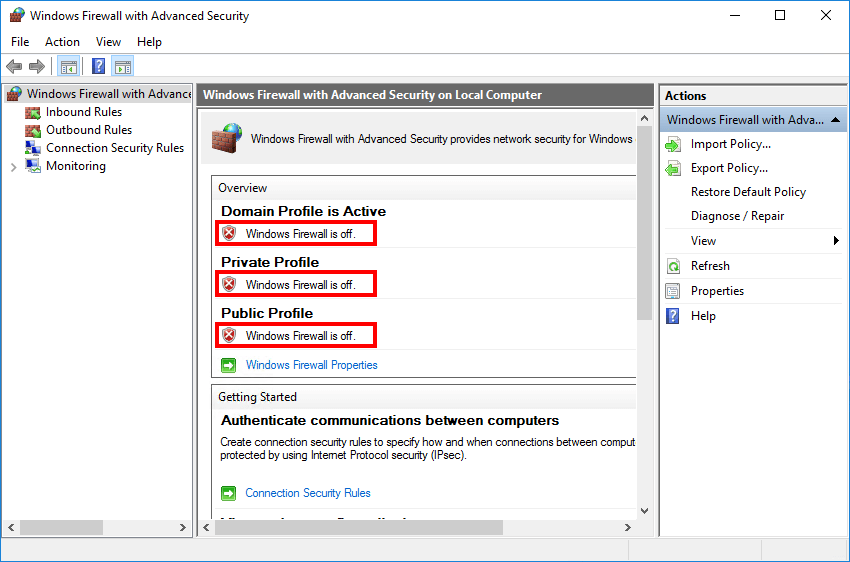
The MMC view changes to red Xs on every profile:
Step 4 — Re-Enable When You’re Done
Make this part of the test cleanup, not a thing you remember to do later. The same cmdlet with True:
Set-NetFirewallProfile -Profile Domain, Public, Private -Enabled True
Get-NetFirewallProfile | Format-Table Name, Enabled
If you have a habit of forgetting, schedule a Task Scheduler job to re-enable the firewall after a fixed window:
# Re-enable the firewall in 60 minutes, just in case
Register-ScheduledJob -Name 'Re-enable Firewall' -RunNow:$false `
    -Trigger (New-JobTrigger -Once -At (Get-Date).AddMinutes(60)) `
    -ScriptBlock {
        Set-NetFirewallProfile -Profile Domain,Public,Private -Enabled True
    }
Or if you prefer not to schedule it, an at-your-desk reminder works just as well. The point is some forcing function so “temporary” does not become “permanent”.
Targeted Off — Disable a Single Rule Instead of the Whole Profile
Most of the time, when you think you need to turn the firewall off, you actually want to disable one specific rule that is blocking your test traffic. That preserves all the other protections.
# Find rules that are currently blocking inbound on port 80
Get-NetFirewallRule -Direction Inbound -Action Block |
    Get-NetFirewallPortFilter |
    Where-Object LocalPort -eq 80 |
    ForEach-Object { Get-NetFirewallRule -Name $_.InstanceID } |
    Select-Object DisplayName, Profile, Enabled

# Disable a specific rule by display name
Disable-NetFirewallRule -DisplayName 'Block inbound HTTP'

# Re-enable when you are done testing
Enable-NetFirewallRule -DisplayName 'Block inbound HTTP'
If you are debugging an outbound connection from one specific application, the same applies but for outbound rules. Disabling a single rule is almost always preferable to flipping a whole profile off.
Common Pitfalls
- Forgot to turn it back on. The single most common production incident root cause for “why is this server suddenly compromised?”. Schedule a forcing function before you disable.
- Turned off Domain when the active profile is Public. If the test traffic is on the Public profile, disabling Domain does not change anything. Run
Get-NetConnectionProfilefirst to see which profile each adapter is on. - GPO turns it back on every 90 minutes. If your domain has a Computer Configuration GPO that enforces the firewall state, your local off command lasts until the next gpupdate cycle. Test on a non-domain-joined box, or pause GPO refresh, or accept that you have a 90-minute window.
- Disabled the firewall, the test still fails. The host firewall is one of several gatekeepers (perimeter firewall, IPsec, the OS network stack, the application’s own deny lists). Confirm whether the firewall was even the issue with
Get-NetFirewallSecurityFilter+Get-NetFirewallProfilelogging before assuming the off state did anything. - Trusted the wrong tool.
netsh advfirewall set allprofiles state offstill works on every modern Windows Server, but theNetSecuritymodule is the supported successor. Stick with the cmdlets in scripts;netshis fine for one-off interactive use. - Forgot the cleanup script for shared lab boxes. If five engineers use the same lab VM, a leftover “firewall off” from someone else’s test means everyone’s traffic is unfiltered until someone notices. Always re-enable as the last act of every test session.
Conclusion
Three lines for the disable-then-re-enable round trip:
Set-NetFirewallProfile -Profile Domain, Public, Private -Enabled False
# ... do your testing here ...
Set-NetFirewallProfile -Profile Domain, Public, Private -Enabled True
Wrap them as a try { ... } finally { ... } in your test script and you cannot leave the firewall off by accident:
Set-NetFirewallProfile -Profile Domain, Public, Private -Enabled False
try {
    # test work that needs the firewall off
} finally {
    Set-NetFirewallProfile -Profile Domain, Public, Private -Enabled True
}
If your test legitimately needs the firewall off, that pattern is the safest way to do it. If your test does not actually need the firewall off and you are reaching for it out of habit, disable a single rule instead and put the principle of least change to work.