
Part 1 of this series covered the architecture and prerequisites — the cloud-versus-on-prem split, the proxy-as-egress design, the network ports, the licensing matrix, the FRS-versus-DFSR Sysvol gotcha. With those out of the way this post is the actual install: stage the installers, set up the proxy, register the forest with the cloud tenant, install the agent on every writable controller, run the audit-mode walk to size impact, then flip to enforce and confirm the rejection path. The whole thing is reversible — Part 3 covers clean uninstall — so a deliberate Audit-then-Enforce rollout is the safe path even in production.
What success looks like at the end
By the time you finish this post you should be able to: open Active Directory Users and Computers, reset a user’s password to admin@123, and have the change rejected with the standard AD password-complexity error dialog. In Event Viewer on the controller you’ll see event 10025 (would-have-rejected) paired with event 30009 (global banned token match). And anywhere in the forest you can change a password, the same enforcement applies because every writable controller is running the agent and pulling the same cached policy.
If at the end of the install you can do that on a fresh user, with the rejection event in the log, the deployment is done. The rest is monitoring (event-log volume), HA (a second proxy), and operational hygiene (event 30009 triage to identify users who keep trying weak passwords).
Phase 0 — baseline the test controller
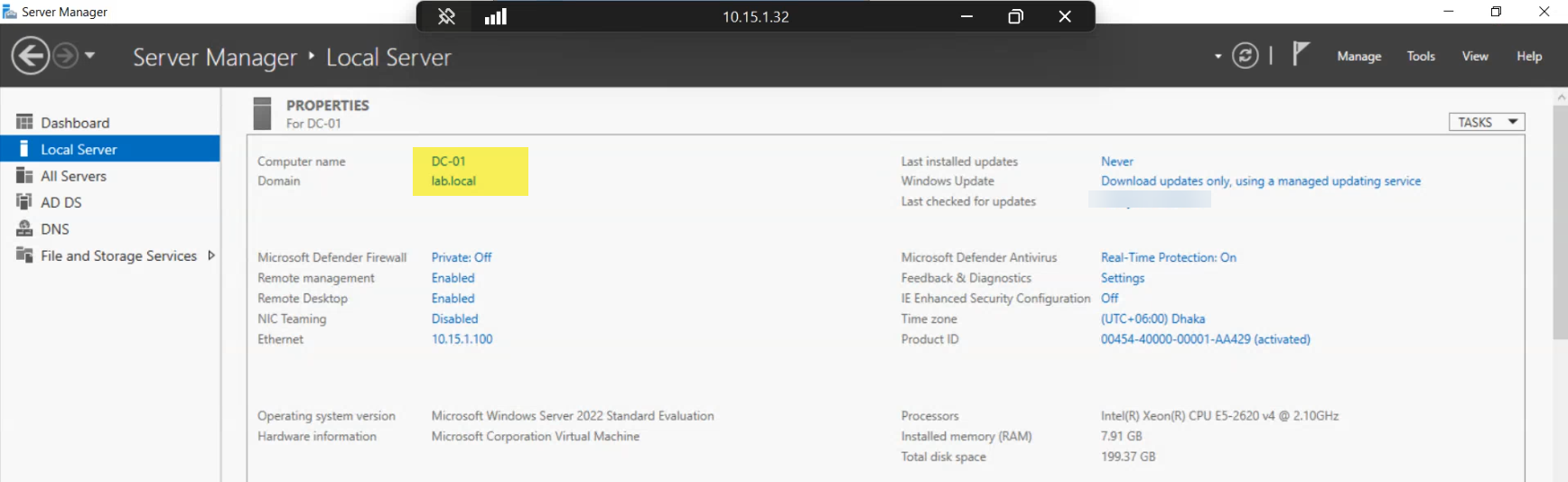
Always know what the writable controller looked like before you touched it. Capture the hostname, FQDN, IPv4, AD site, and the current Sysvol replication mode. If something goes sideways during the install you’ll want to compare against this baseline. For a production rollout, do this on every controller you plan to install onto — not just the first one — and keep the inventory somewhere durable.
Phase 1 — download and stage both installers
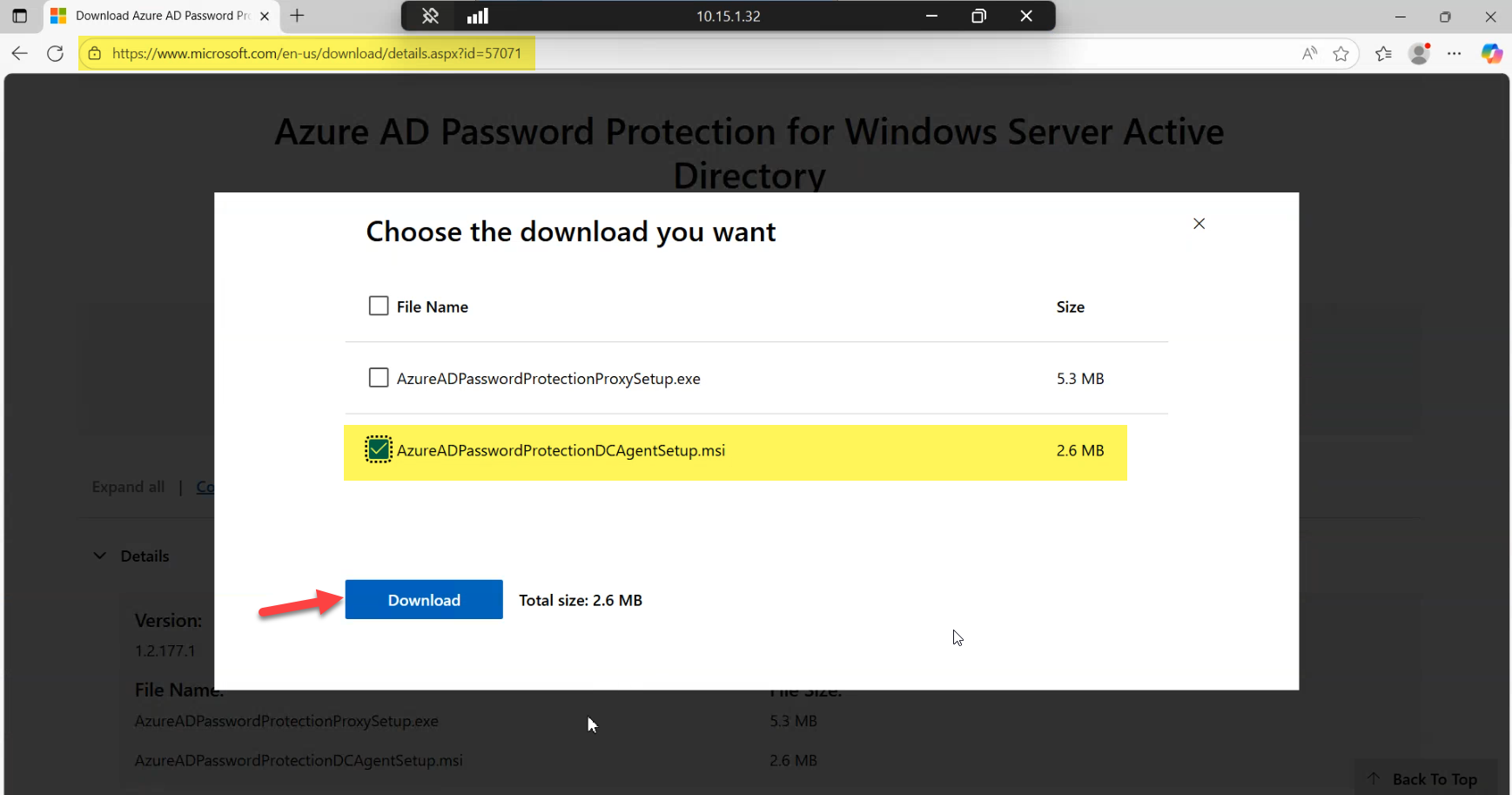
The agent installer is AzureADPasswordProtectionDCAgentSetup.msi. Despite the legacy “AzureAD” naming (the brand became Microsoft Entra ID in 2023, but the filenames carry the old name), this is current. Download from Microsoft Download Center entry 57071 — same source as Part 1 — and copy the .msi to a staging share or a local folder on every writable controller you intend to install onto.
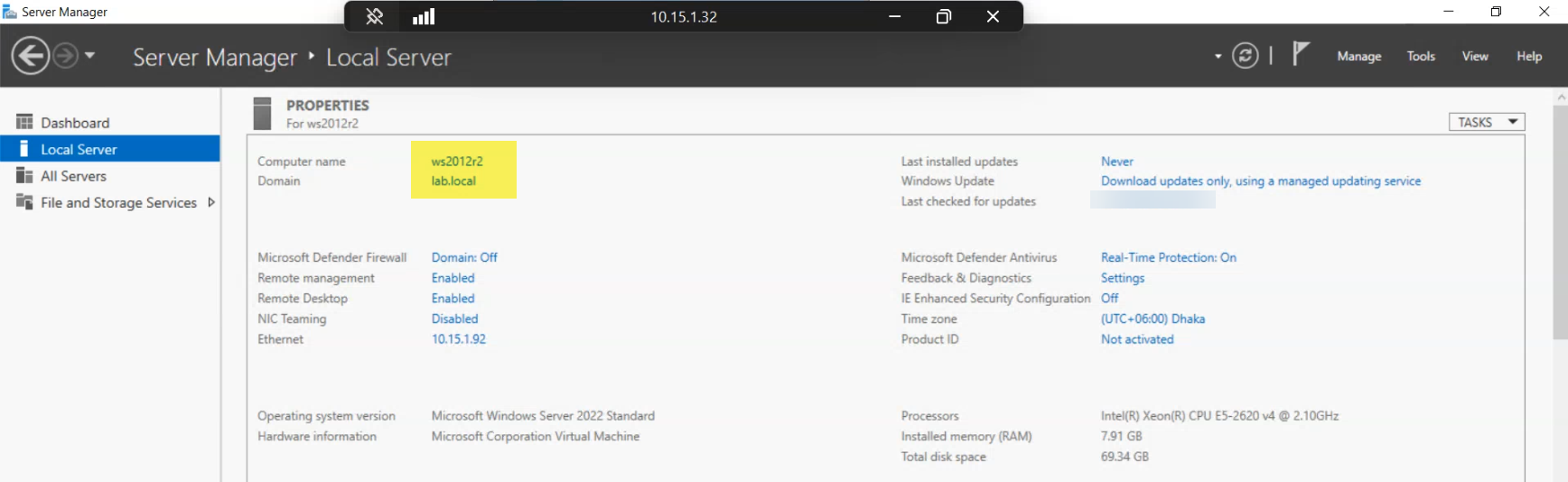
The proxy host is a domain-joined member server, not a controller. Microsoft does not support running the proxy service on a controller (RPC port-binding conflicts with other DC services), and the install will fail in non-obvious ways if you try. Pick a member server that has unimpeded outbound HTTPS to Microsoft endpoints and that controllers can reach via RPC.
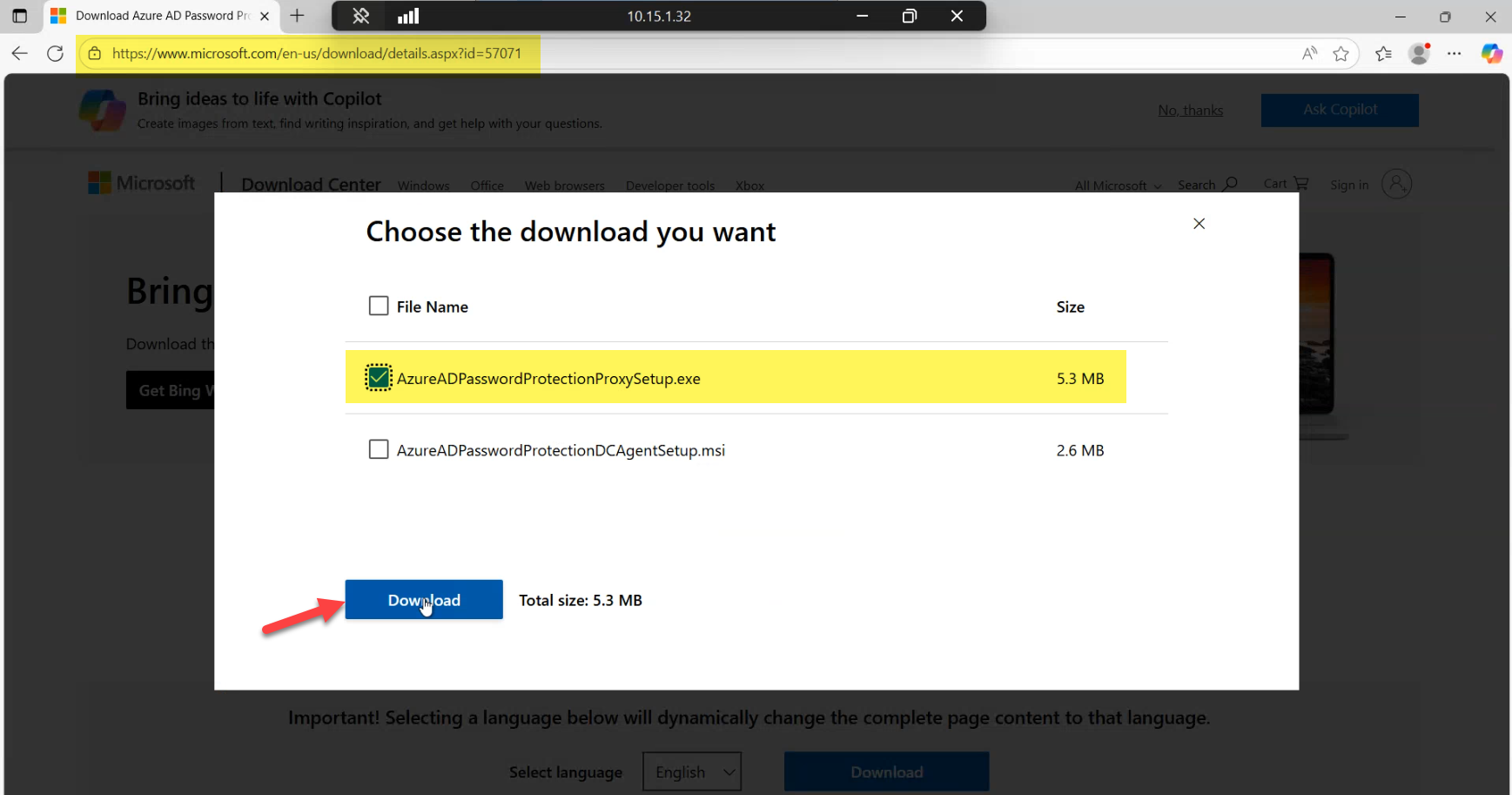
Download the proxy installer (AzureADPasswordProtectionProxySetup.exe) to the same staging share. Cache both installers locally before starting so all hosts install from the same package version — mixing versions across the fleet is an avoidable source of weird behaviour.

Copy the proxy .exe into C:\install on the member server. The path is a convention, not a requirement, but having all installs run from the same predictable path makes troubleshooting much faster when you’re working three hosts deep into a rollout.
Phase 2 — install the proxy on the member server
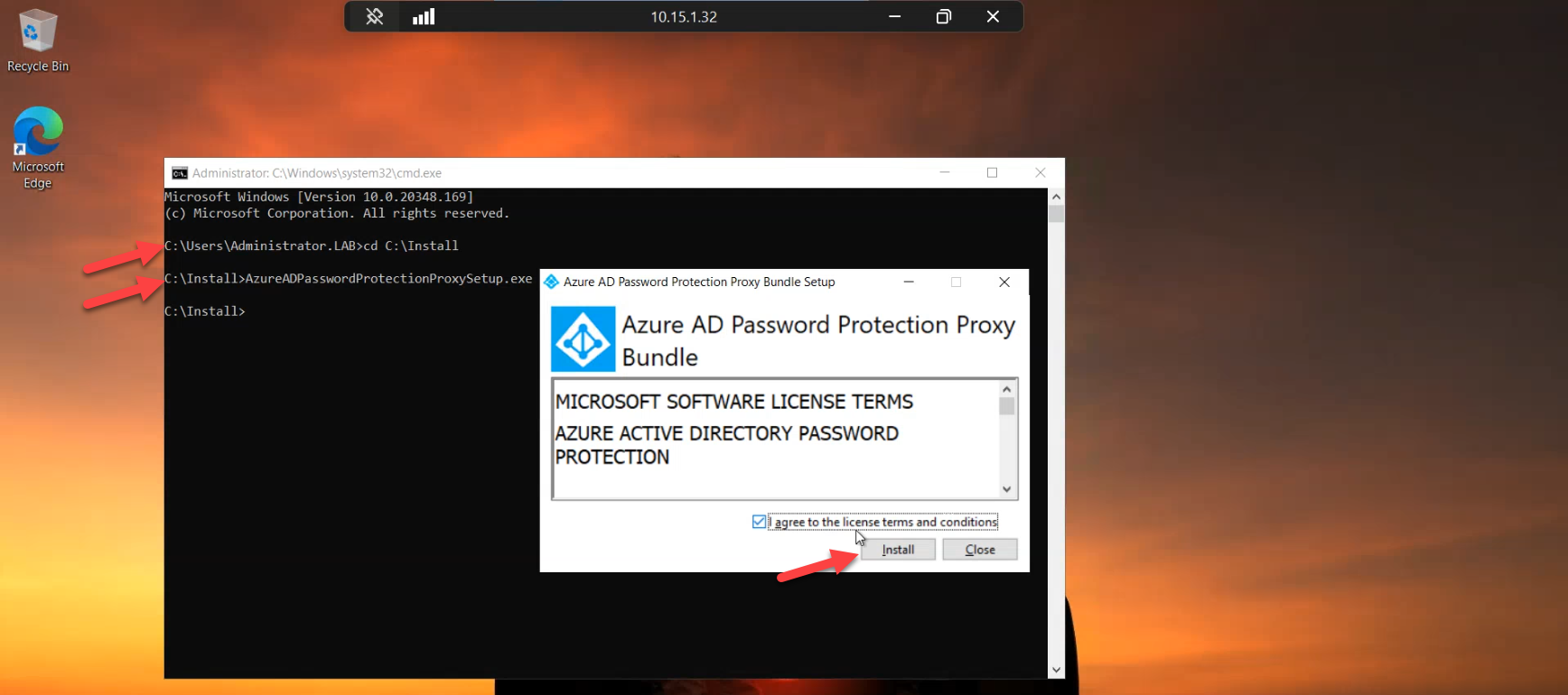
From an elevated session on the member server, navigate to C:\install and run the proxy setup. Accept the EULA, click Install, and let the bootstrap stage the binaries. The installer is short — expect under a minute on modern hardware.
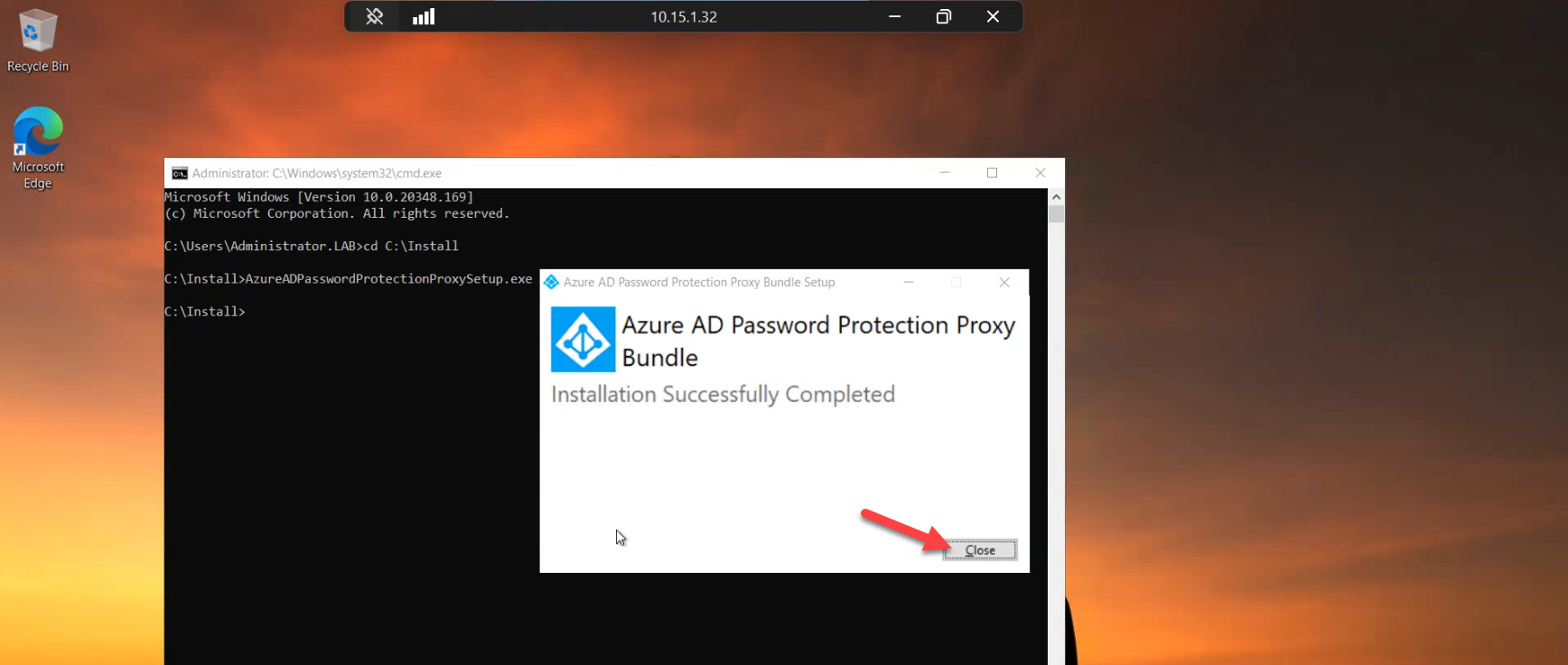
Click Close when the bootstrap finishes. The proxy service is now installed but it has no credentials yet — it doesn’t know which tenant to talk to. Verify the install by opening Programs and Features and confirming “Microsoft Entra Password Protection Proxy” is listed. If you don’t see it, re-run the bootstrap with logging (msiexec /i AzureADPasswordProtectionProxySetup.exe /L*V install.log) and check the log for the failure.
Phase 3 — register the proxy and the forest with the cloud tenant
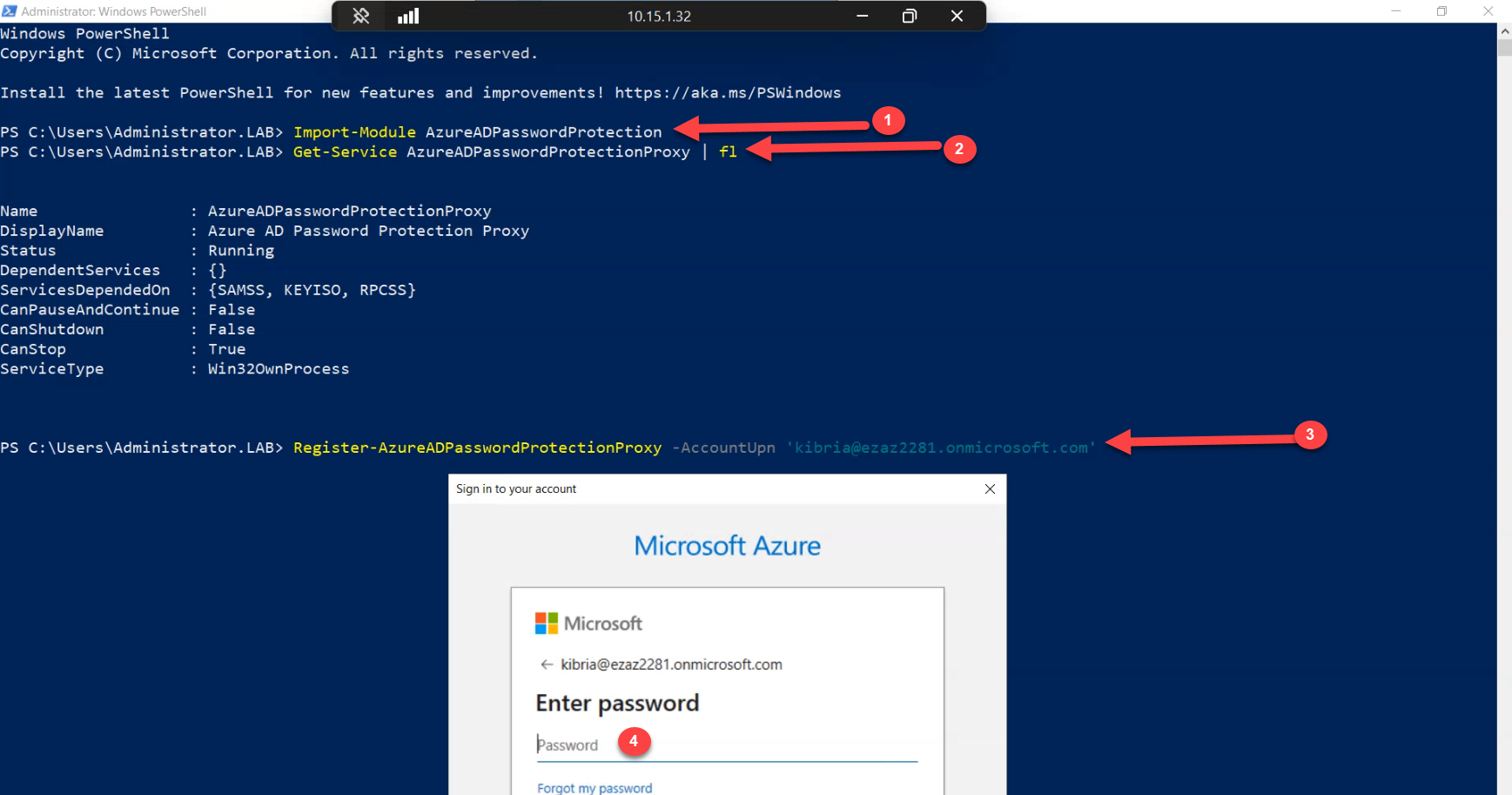
Open Windows PowerShell (x64) as Administrator on the proxy host (the 32-bit host doesn’t have the module). Import the module:
Import-Module AzureADPasswordProtection
Get-Service AzureADPasswordProtectionProxy
The service should report Running. If it’s Stopped, start it manually with Start-Service AzureADPasswordProtectionProxy and check the System event log for what crashed it. Most common cause at this stage: missing UCRT or .NET 4.7.2 (covered in Part 1’s prerequisites).
With the service up, pair this proxy with the tenant:
Register-AzureADPasswordProtectionProxyThe cmdlet pops a Global Administrator credential prompt the first time. Sign in with an account in the Global Administrator role — the registration writes credentials onto the host that the proxy service will use for all future cloud calls. After this completes once per proxy host, day-to-day operation does NOT require Global Admin — the credentials are persisted.
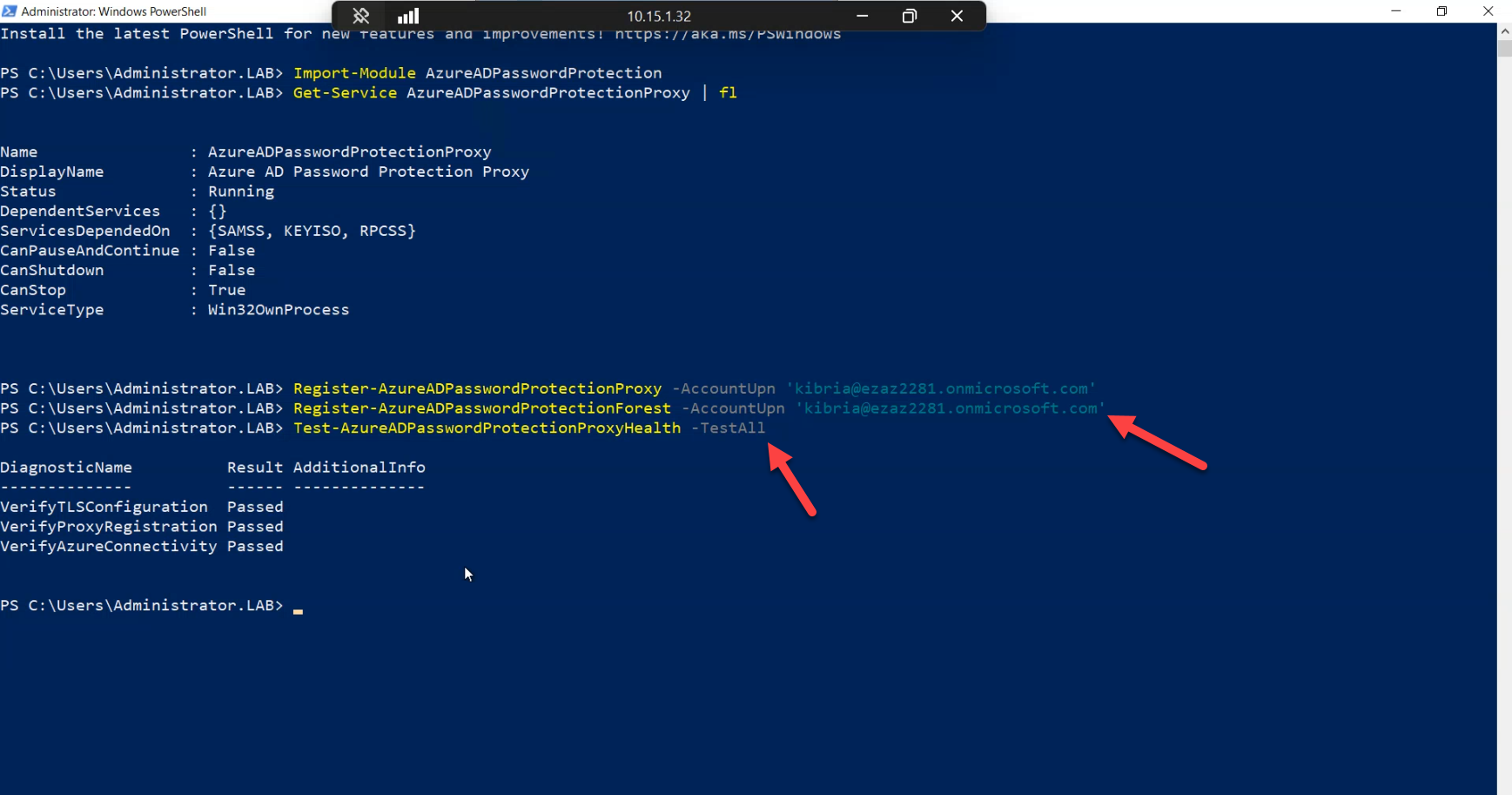
Now register the forest itself:
Register-AzureADPasswordProtectionForestThis is a once-per-forest call. It establishes the link between the on-prem AD forest and the cloud tenant, creating the service principal in the tenant that represents your forest. Two notes:
- Order matters. This call only succeeds after at least one proxy has been registered. The forest registration uses the proxy as its outbound path.
- It does not matter which proxy you run this on if you have multiple. The forest is a forest-scoped object; any registered proxy can perform the registration.
If the cmdlet fails with a credential or HTTP error, check outbound HTTPS to login.microsoftonline.com and enterpriseregistration.windows.net from the proxy host — these were the prerequisite endpoints in Part 1.
Phase 4 — configure the policy in the cloud (still in Audit mode)
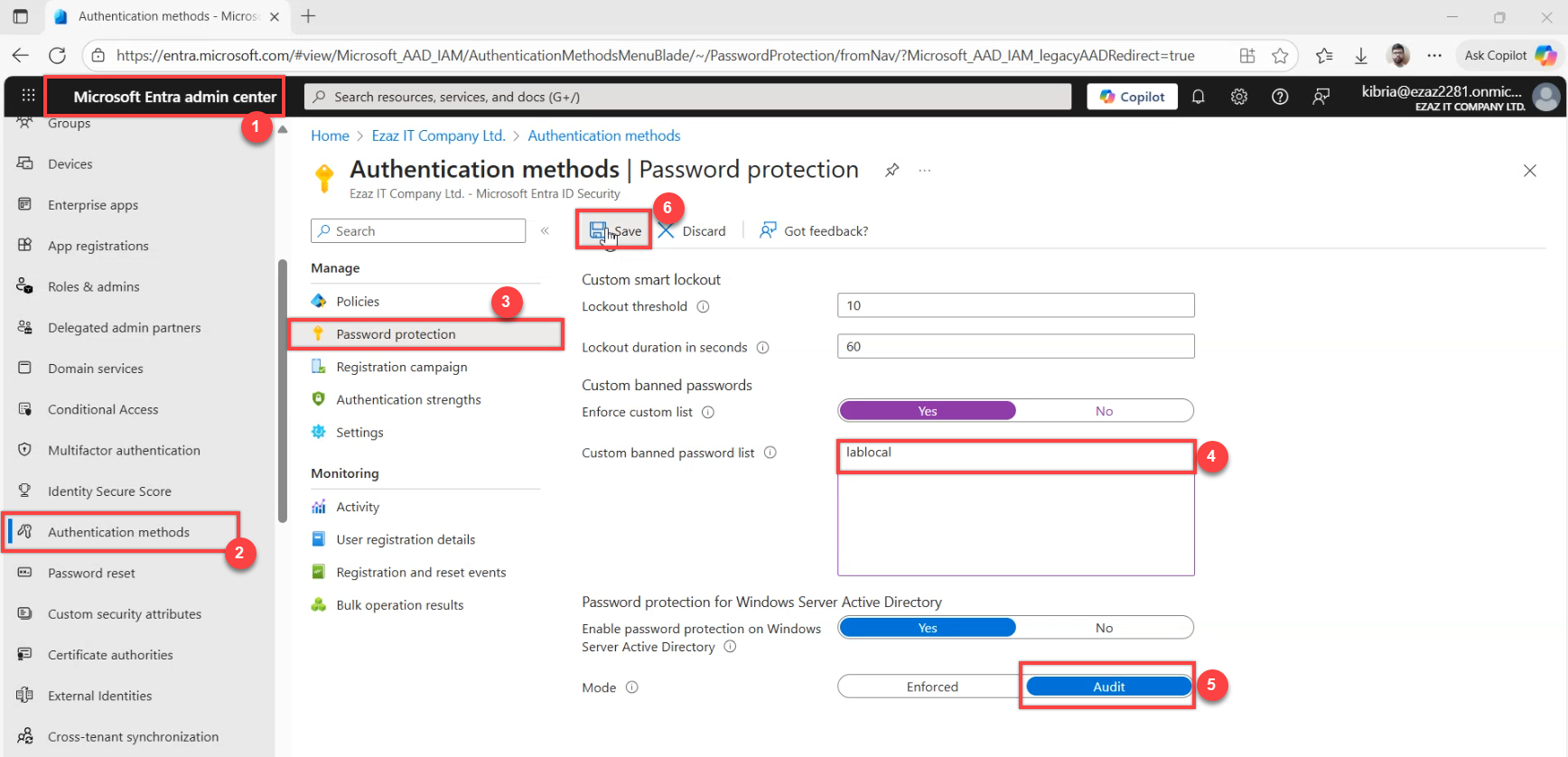
BEFORE installing any agents on controllers, set up the policy in the cloud tenant. The order matters: install agents first and they’ll fall back to a default policy that may not match what you want; configure the policy first and the agents pull the right thing on first start.
Sign in to the Microsoft Entra admin centre. Navigate to Protection > Authentication methods > Password protection (or just search for “Password protection” from the top bar). Two settings to confirm:
- Enable custom list: ON. Add your company name and any obvious internal phrases (product brand names, the office street name, the founder’s last name — whatever common-knowledge tokens make weak inputs that legacy rules wouldn’t catch).
- Mode: Audit. This is the default for newly enabled tenants but verify rather than assume. Audit mode logs would-be rejections without actually rejecting — safe to enable broadly.
Save. The policy is now in the cloud and the proxy will pull it on the next refresh cycle. Agents installed in the next phase will get it on first start.
Phase 5 — install the agent on each writable controller
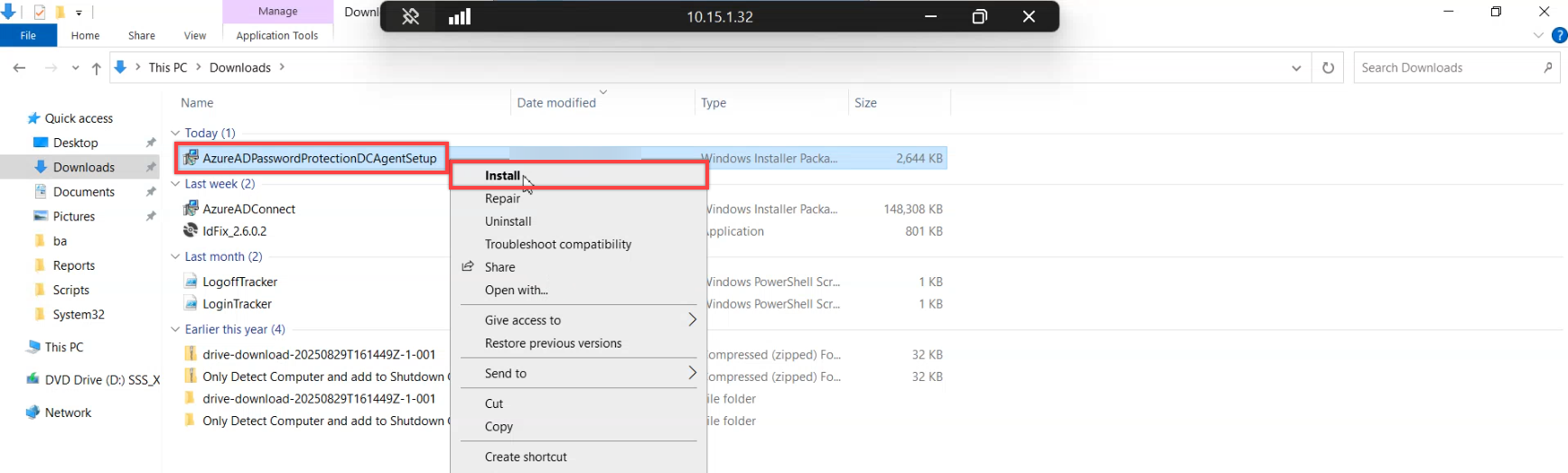
Move to a writable controller. Copy the agent .msi from the staging share to C:\install on the controller and run it from an elevated prompt. The installer drops the password filter DLL and registers the agent service.
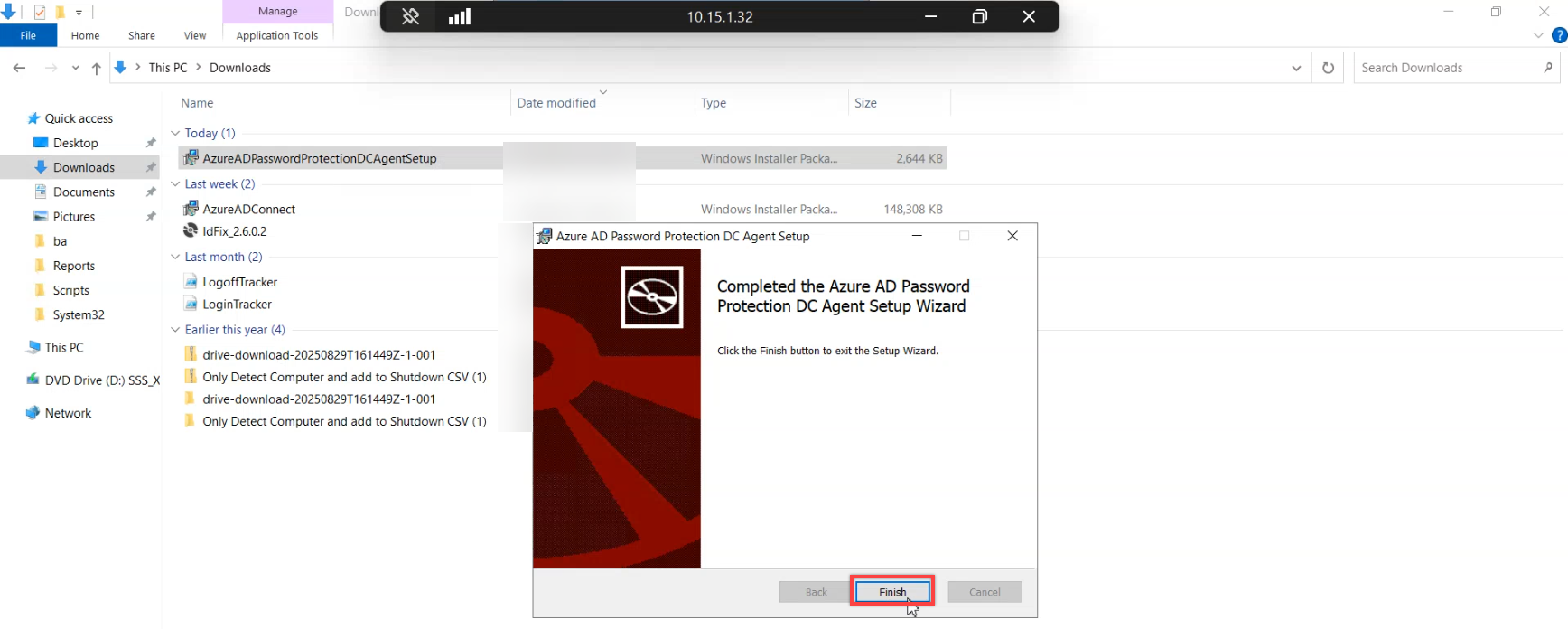
Click Finish when the install completes. The post-install reboot prompt appears next.
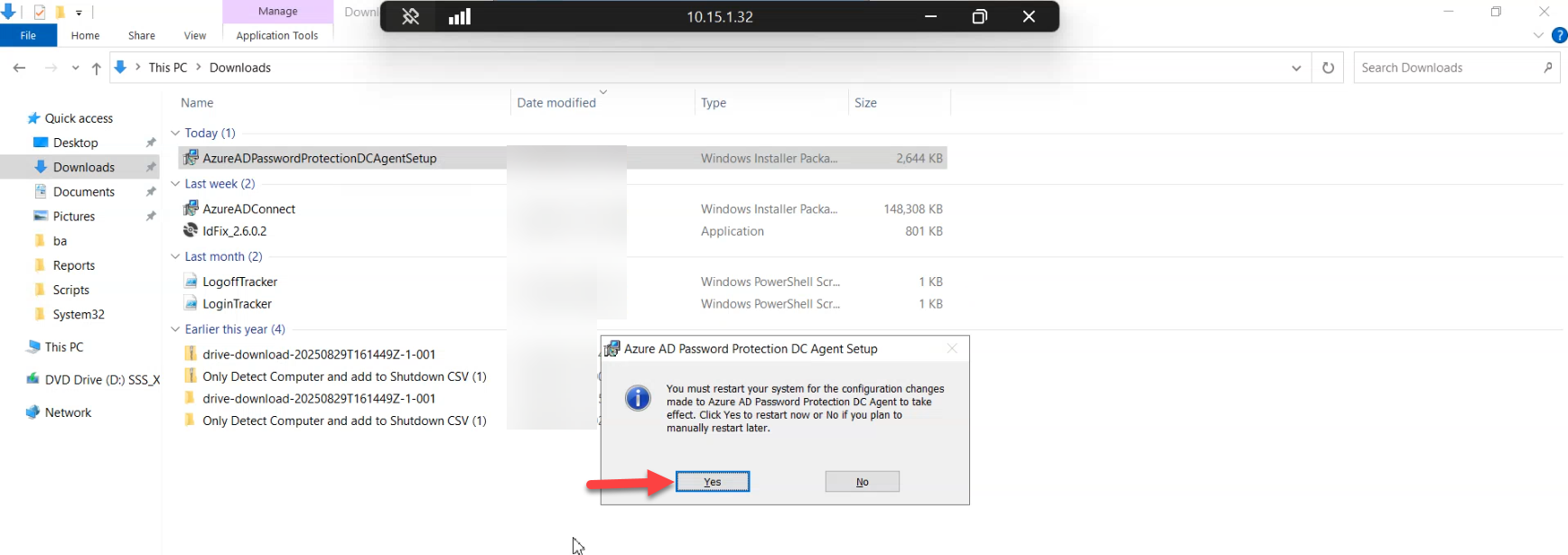
Click Yes to the restart prompt. The reboot is required because the password filter DLL registers with LSASS at boot — LSASS is one of those processes you cannot reload without rebooting.
Wait out the restart. Expect a few minutes of downtime for this controller. Critical operational note: roll the install one controller at a time. Never reboot multiple controllers in the same domain simultaneously. Authentication needs to keep working during the rollout, and you do that by always leaving at least one controller serving requests.
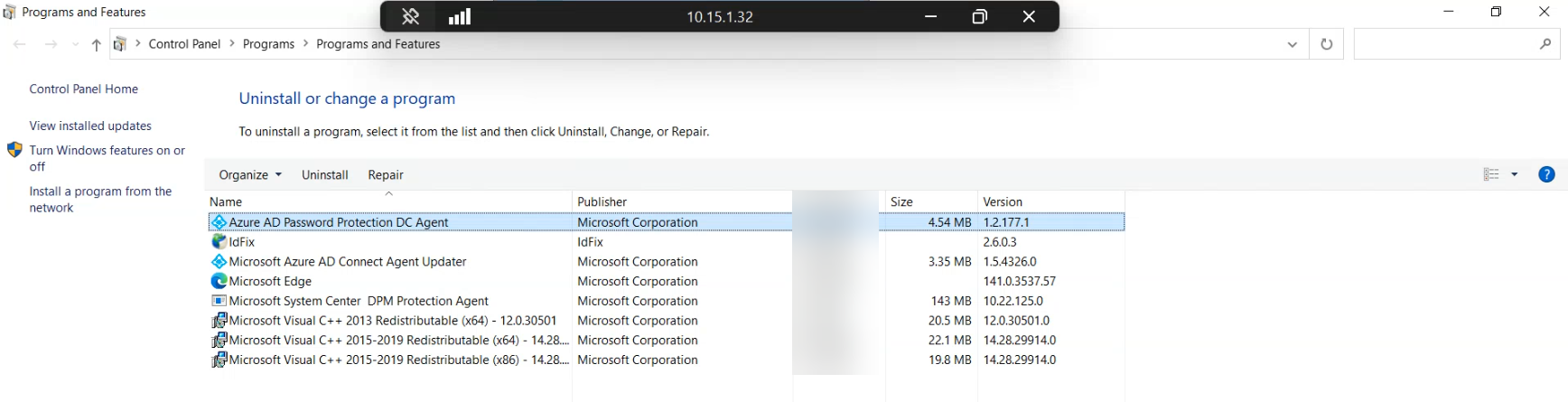
After reboot, verify the host came back on its expected network identity. ncpa.cpl shows the LAN adapter; confirm the IPv4 address, gateway, and DNS server are unchanged from the baseline you captured in Phase 0. A controller that comes back on the wrong DNS server (or with a flapping NIC) will appear to work but quietly diverge from the rest of the domain over hours.
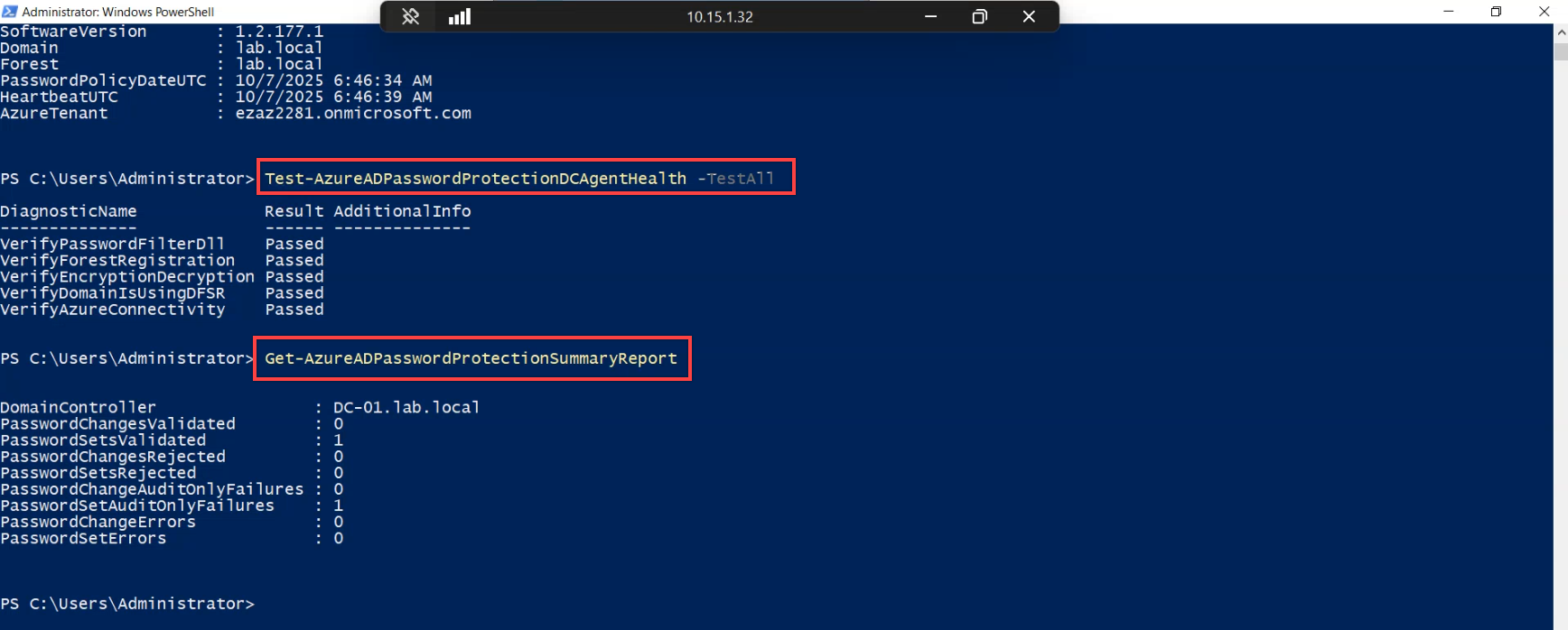
From any host with the AzureADPasswordProtection module loaded (the proxy host is convenient), run an inventory check:
Get-AzureADPasswordProtectionDCAgentEach row is a controller in the forest currently running the agent. Use this to track rollout progress — as you install on each controller, a row appears here. Once the row count matches your writable-controller count, the fleet is covered.
Repeat the install on every other writable controller in the domain (and in any other domains in the forest). The pattern is identical: copy .msi, run it, click through, reboot, wait for it to come back, run the inventory check, move on.
Phase 6 — audit-mode walk: prove the agent sees the input
With agents on every controller and the policy in Audit mode, every password change is now being evaluated — just not enforced. This is the “dry run” window. Run it for at least a couple of weeks before flipping to Enforce so you can size the impact.
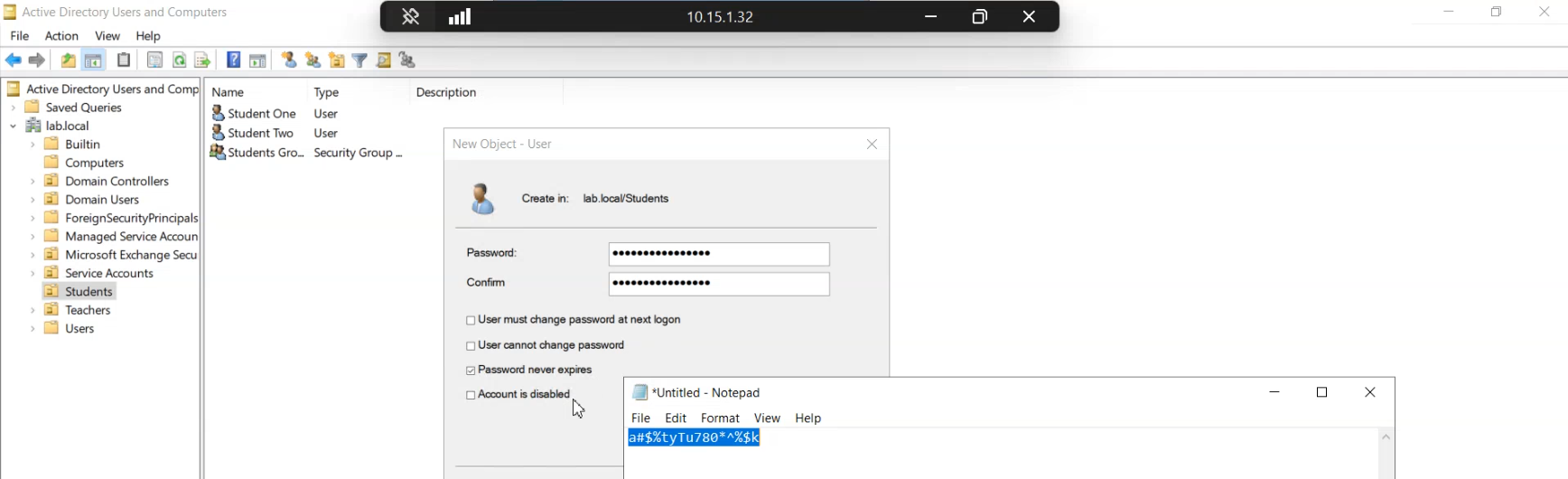
Open Active Directory Users and Computers and create a test user with a strong opening password — something that genuinely passes both the legacy complexity rule and the new banned list. This is the test subject for the audit walk.
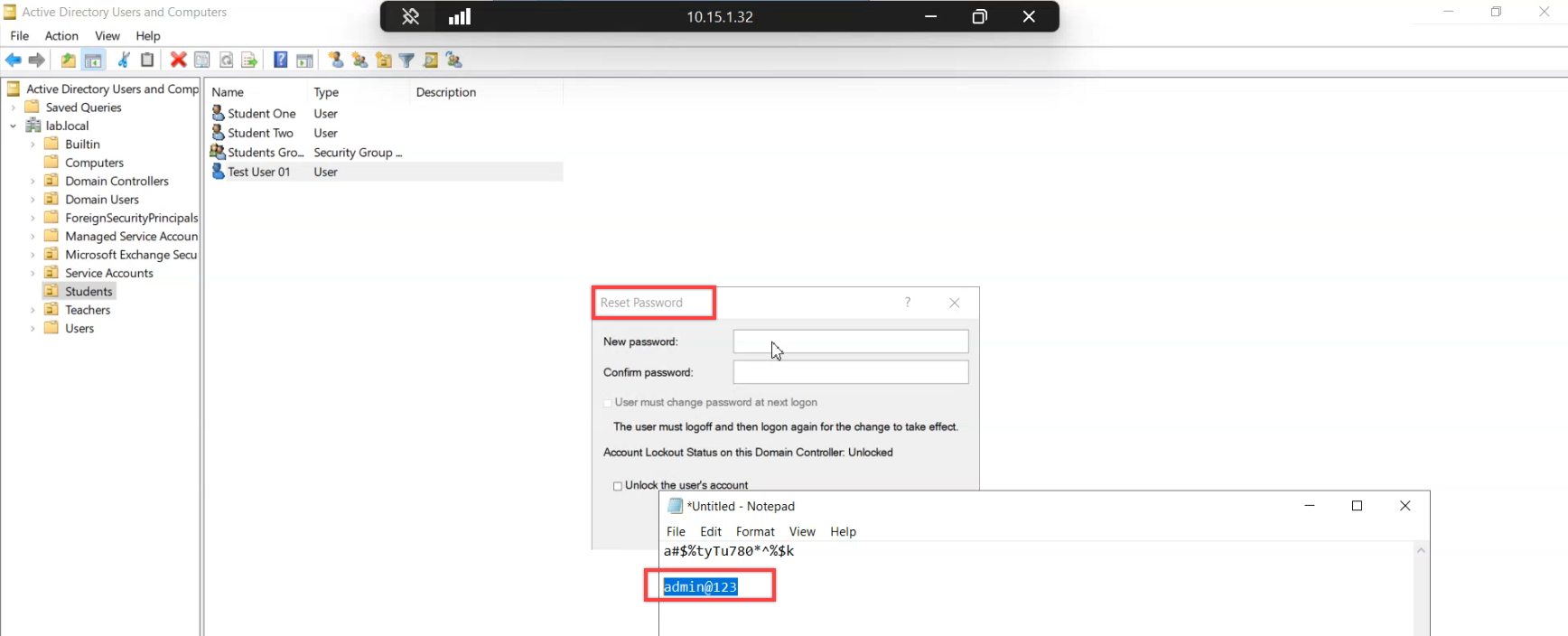
Now reset the test user’s password to admin@123. The reset succeeds (audit mode, remember — the agent doesn’t reject anything). But the agent saw it, evaluated it against the policy, and logged the verdict.
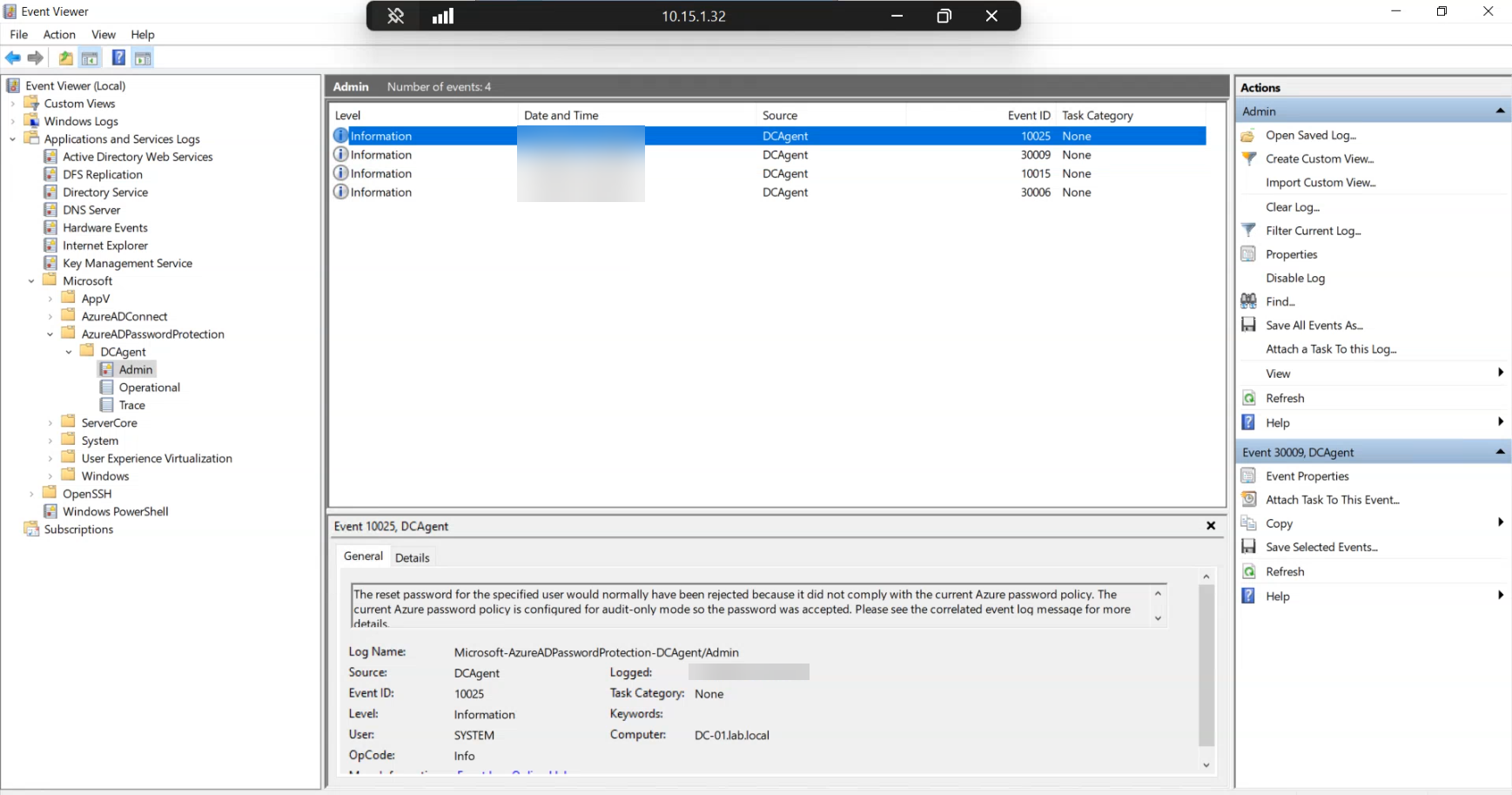
On the controller, open Event Viewer and navigate to Applications and Services Logs > Microsoft > AzureADPasswordProtection > DCAgent > Admin. The most recent event should be 10025 — would-have-rejected. The message body names the user account and explains that the change would have been rejected against the active policy but was accepted because the agent is in audit mode.
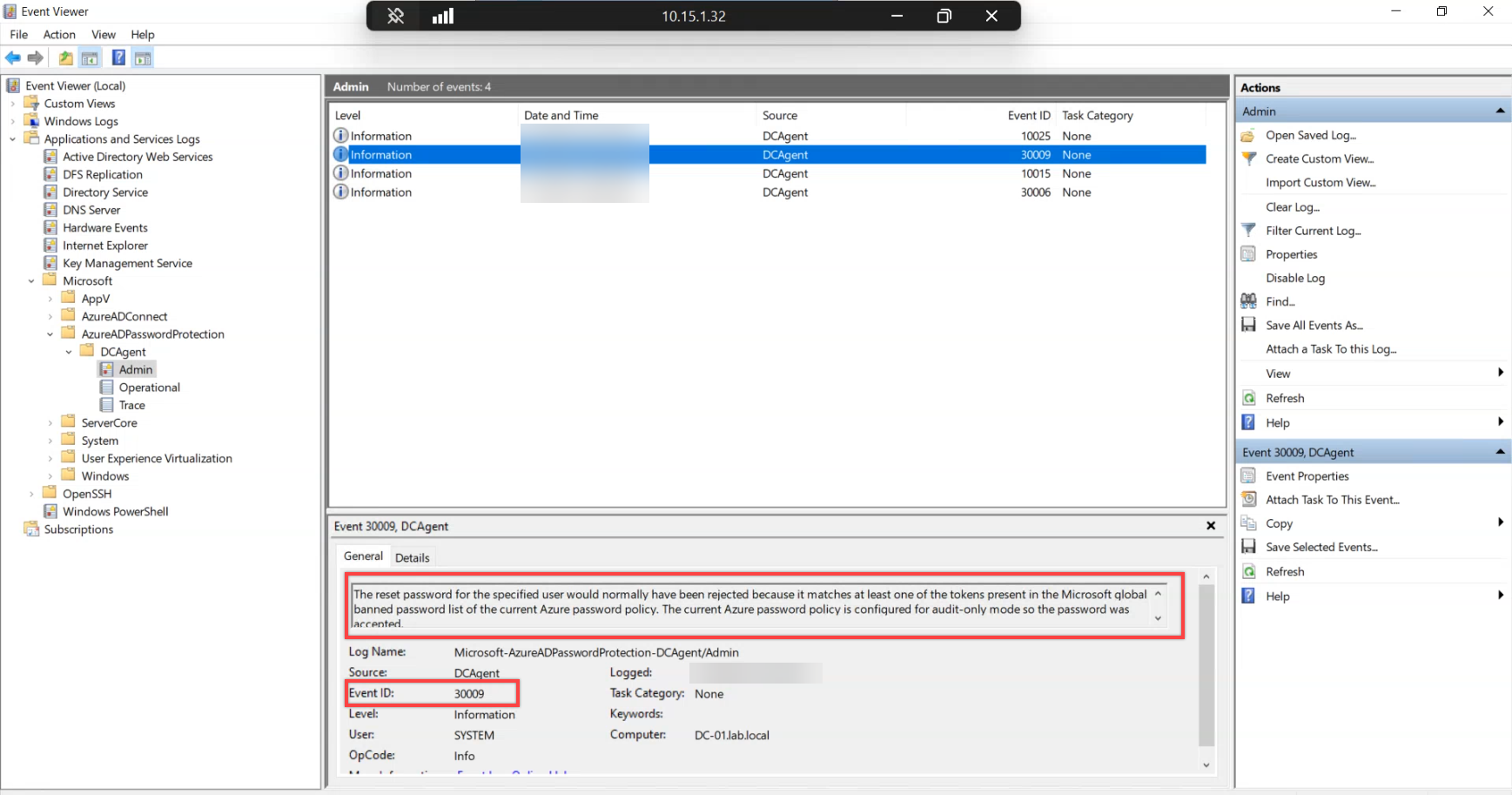
Right after the 10025 you should see event 30009 — the detail event explaining WHY the change would have been rejected. admin@123 matches a token in the Microsoft-curated global banned list. Custom-list matches show up as event 30005 instead — same idea, different source.
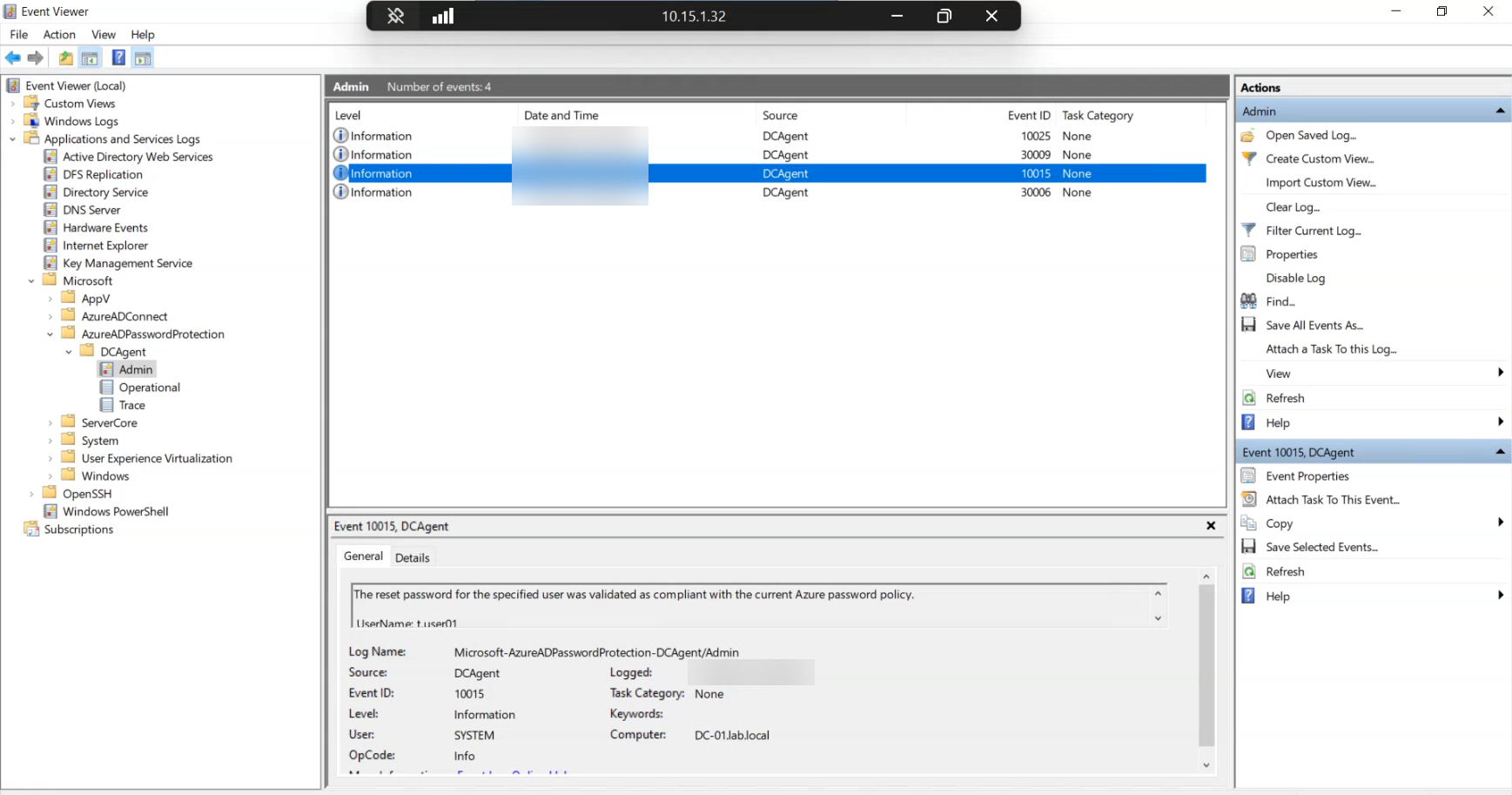
Try a strong password (not in any banned list, satisfies complexity) and you’ll see event 10015 — validated as compliant. The mirror image of 10025: the agent evaluated the input and approved it.
This is the metric to track during audit mode. Counts of 10025 + 30009 + 30005 over the audit window tell you how many rejections you’ll see when enforce flips on. If the count is huge (a few percent of password changes), do additional comms to users before flipping. If the count is tiny (a handful per week), flip when ready.
Phase 7 — flip to Enforce
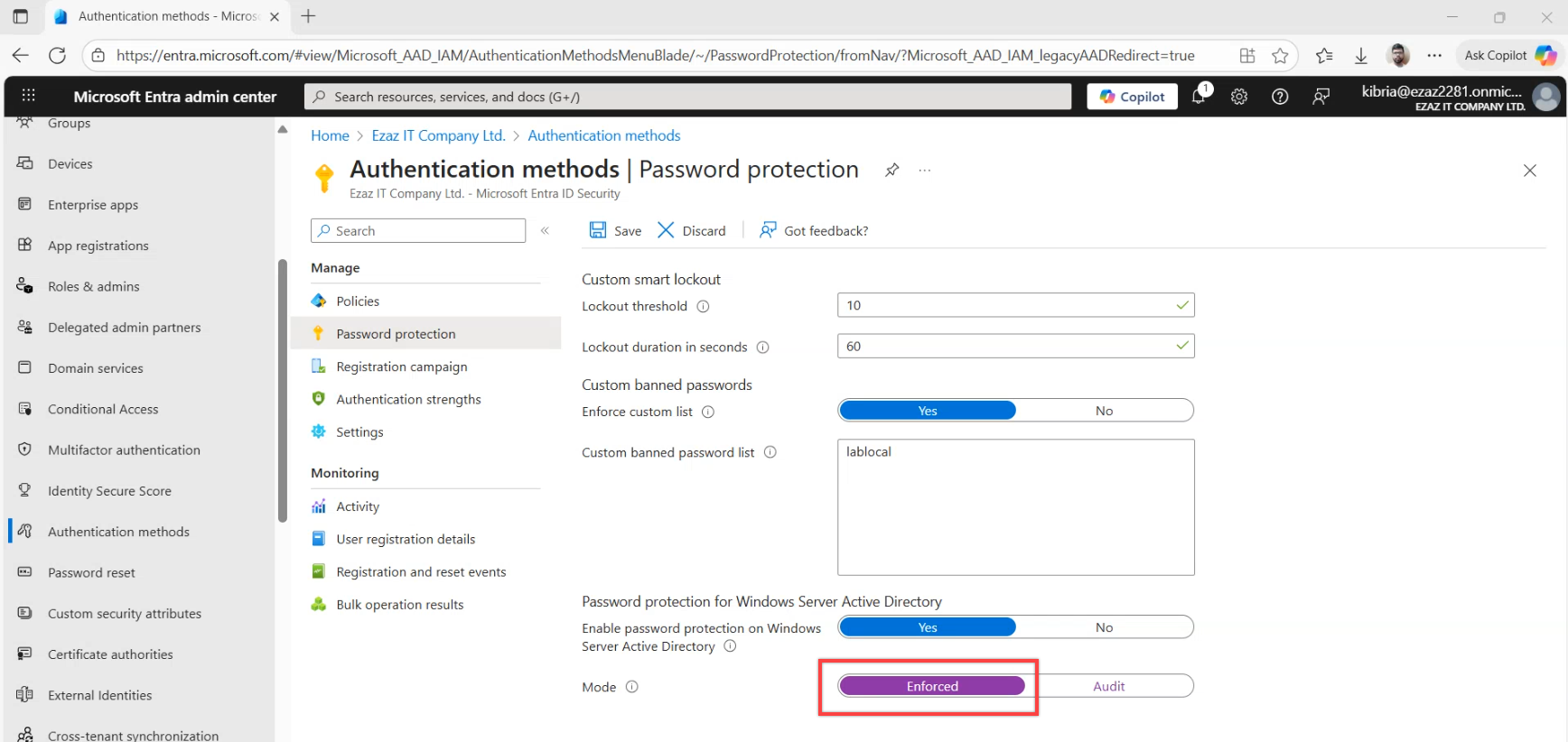
Back in the Microsoft Entra admin centre, navigate to the Password protection blade and switch the mode toggle from Audit to Enforce. Save. The change is forest-wide and propagates to all agents on the next policy refresh.
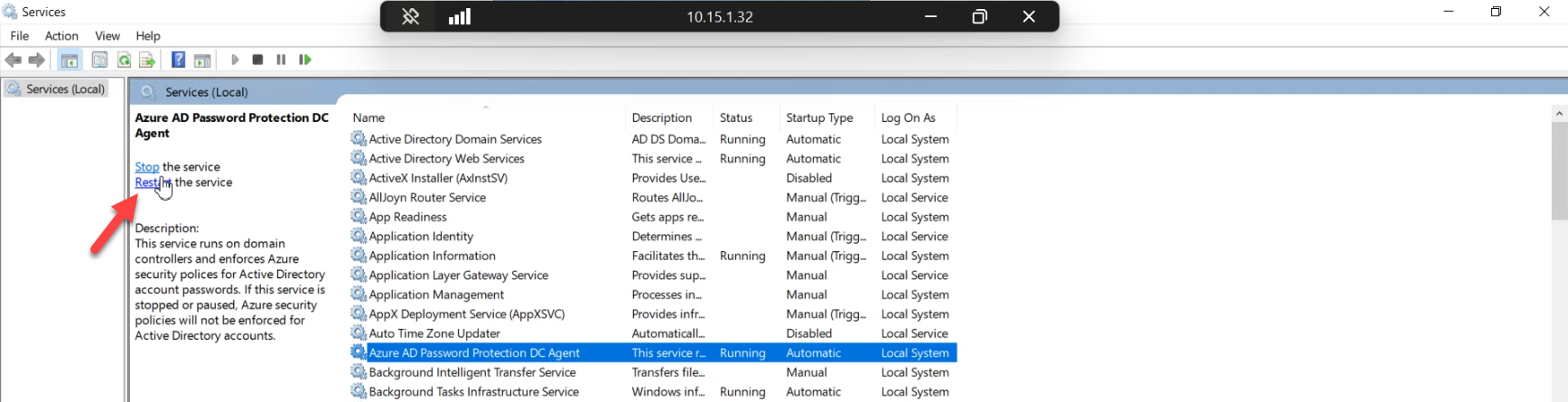
Force an immediate refresh by restarting the agent service on every writable controller:
Restart-Service AzureADPasswordProtectionDCAgentWithout the restart, agents pick up the new mode on their next poll cycle (typically within the hour). Restart only matters when you need the change effective NOW — for example, you’re demoing the rejection behaviour and don’t want to wait. For a quiet weekend rollout, you can skip the restart and let the polling do its thing.
Phase 8 — verify enforce works end-to-end
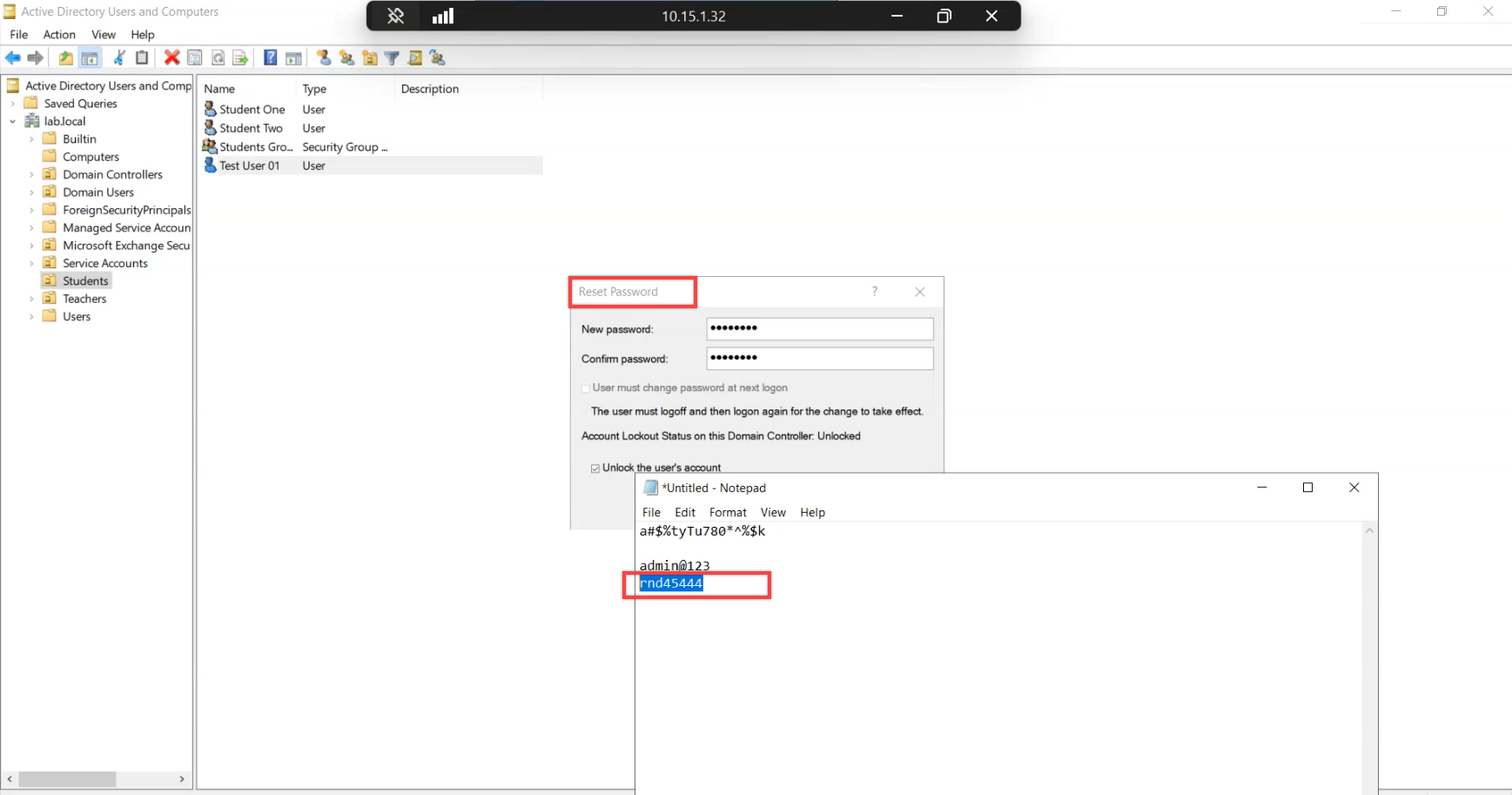
In ADUC, reset the test user’s password to admin@123 again. With enforce active, the controller now rejects the change.
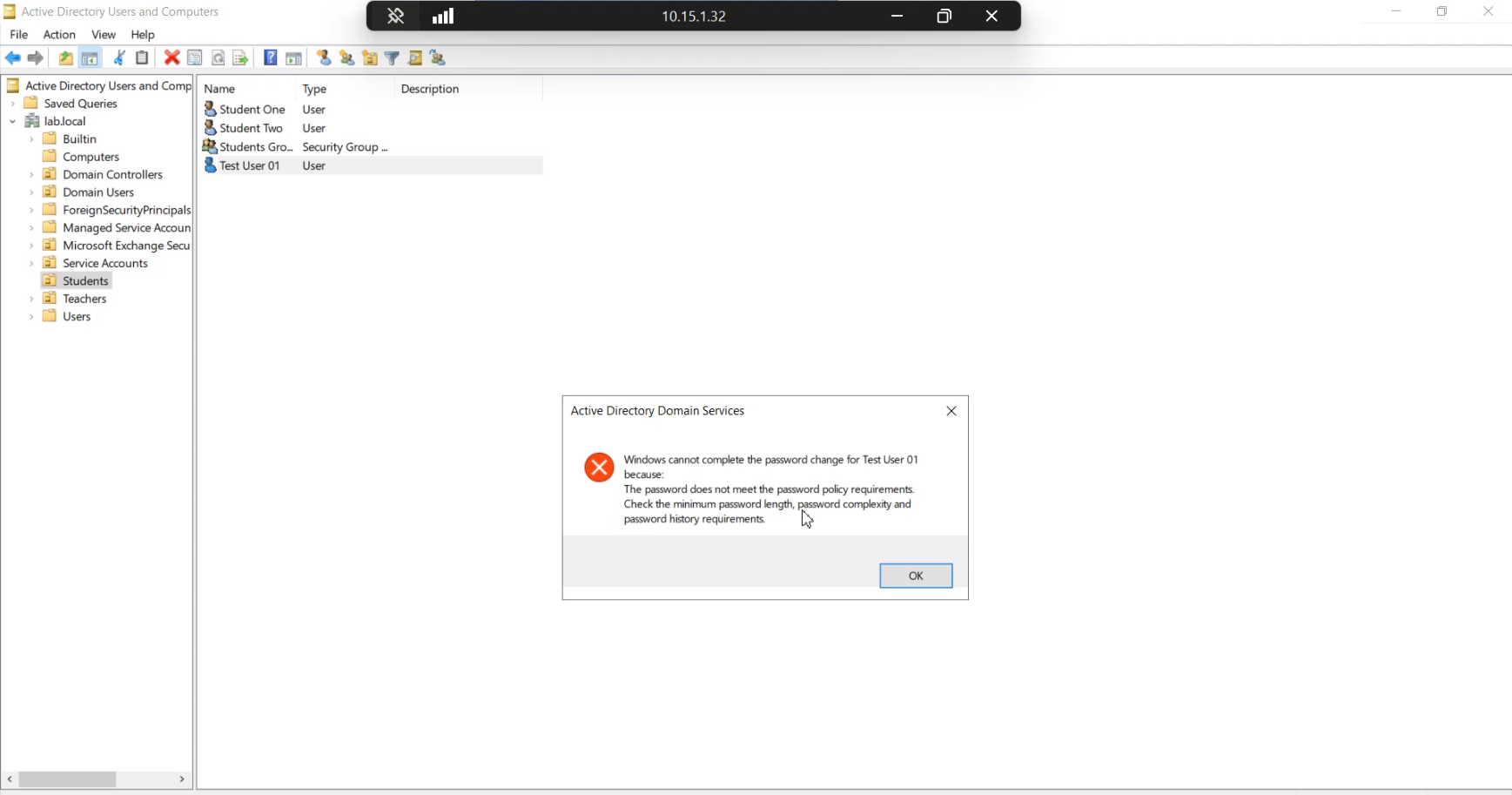
The rejection surfaces as the standard AD password-complexity error. Users see the same wording as a legacy length-complexity-history failure — they will NOT know the rejection came from the banned list rather than the legacy rule. Brief the help-desk on the new policy so they can recognise these calls. The user’s instinct will be to add a special character or make it longer; for a banned-token rejection that won’t help.
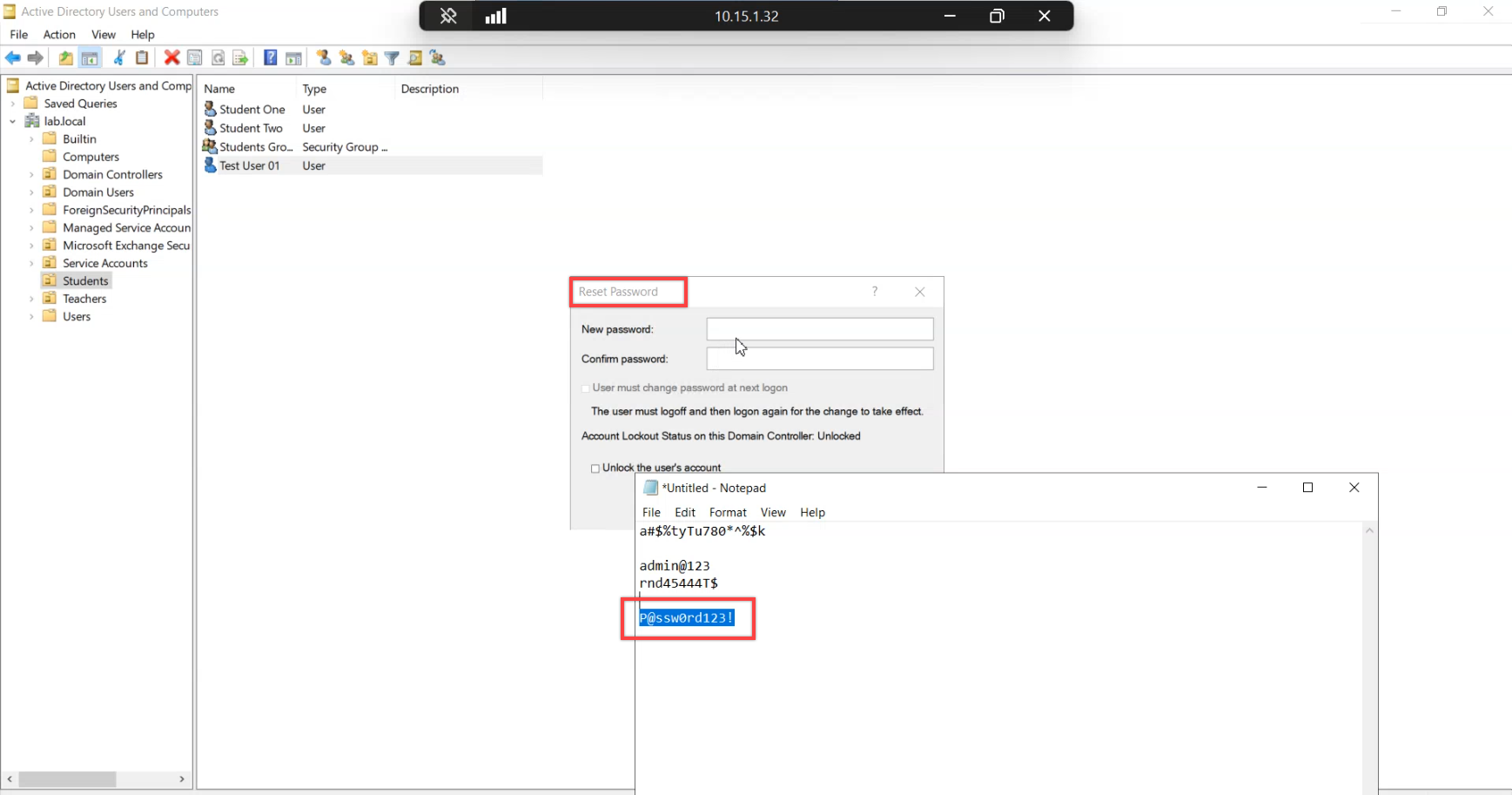
Try a slightly more elaborate variant — something with extra characters, a number swap, capitalisation. Still in the banned list (it’s the variants that wordlists are built from), still rejected.
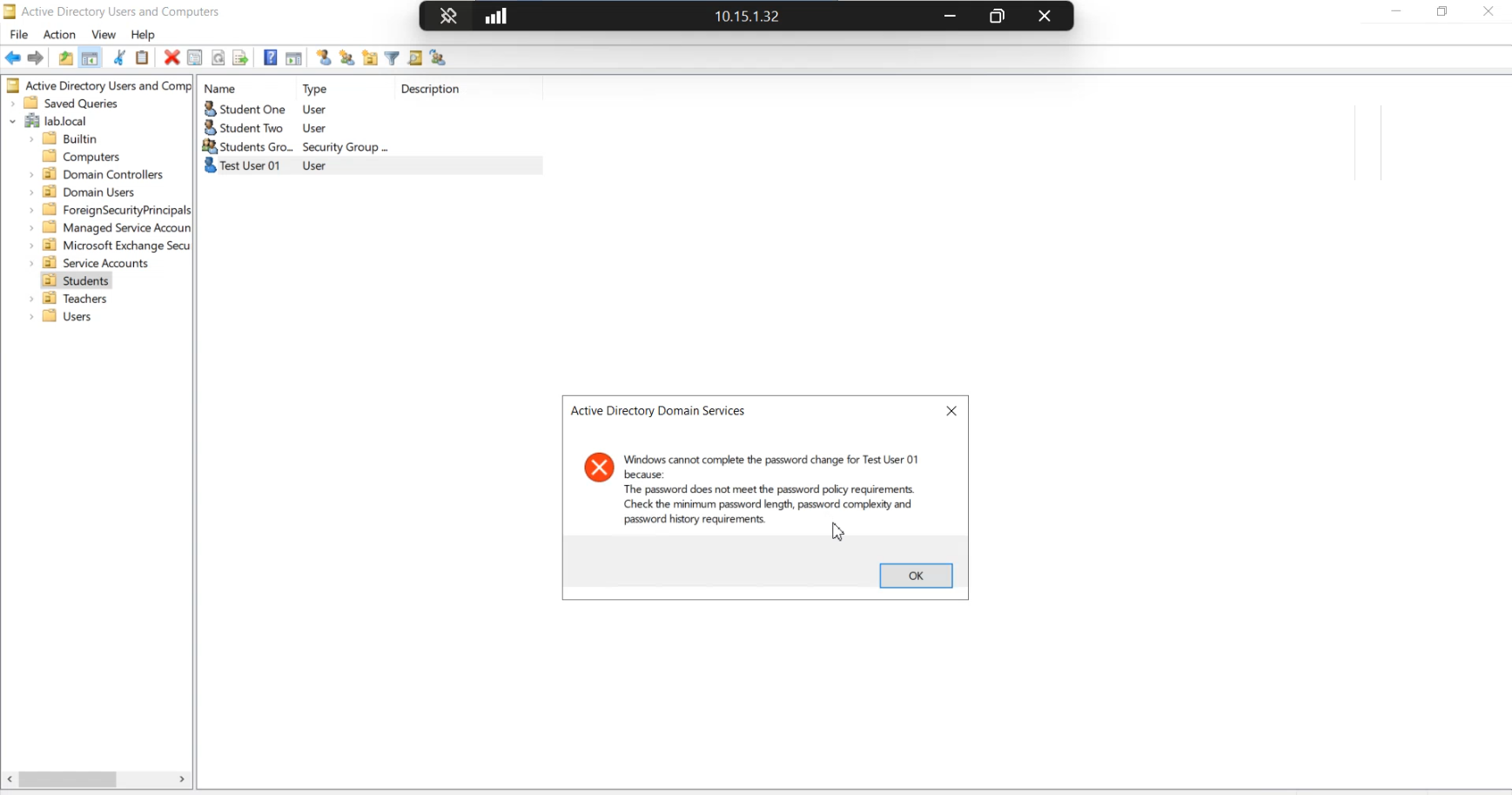
Same rejection dialog. The point of this demo: shape-based password rules cannot distinguish “technically complex” from “trivially guessable.” P@ssw0rd! is in every credential-stuffing wordlist on the planet but passes legacy complexity. The banned list closes that gap.
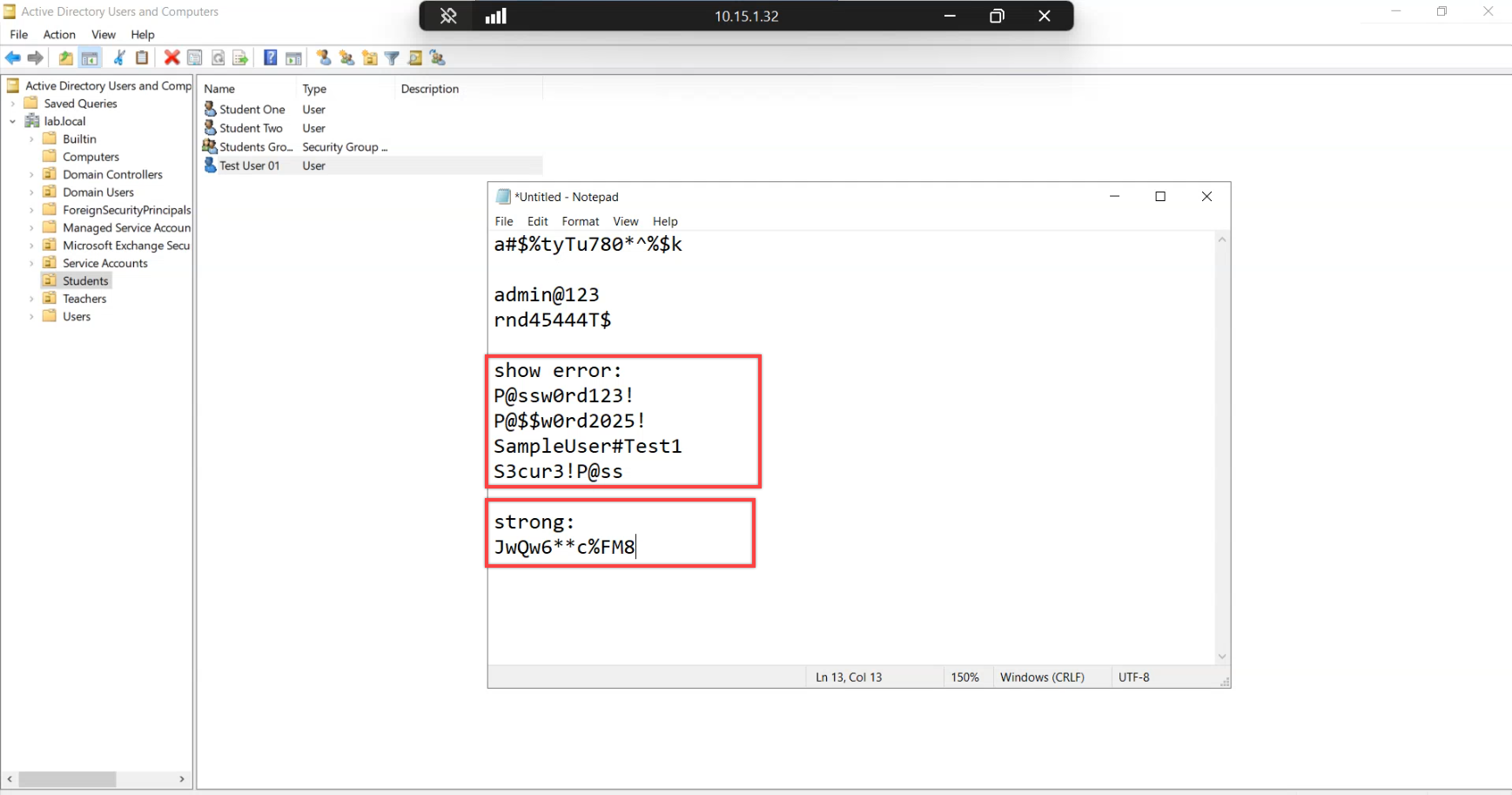
Final demo — an input that looks strong on shape (length, character classes, no obvious dictionary word) but still pattern-matches a banned token. Confirms the policy fires on token match, not pure shape, and that the “long enough must be safe” intuition does not hold.
Things that bite people during the deployment
Forest registration fails before any proxy is registered
Common ordering mistake: try to run Register-AzureADPasswordProtectionForest right after installing the proxy bootstrap, before running Register-AzureADPasswordProtectionProxy. The forest call fails with an unhelpful HTTP error. Fix: run the proxy registration first, confirm it succeeded, THEN run the forest registration. The forest call uses the proxy as its outbound path so the proxy must be registered first.
Multiple controllers rebooting simultaneously
The agent install requires a reboot. If you script the rollout naively (one job per controller, run them in parallel), every controller in the domain reboots at once and the domain has no authentication for a few minutes. Always sequence the installs — one controller at a time, wait for it to come back and confirm health, then move on. For a five-controller domain that’s thirty minutes of work, not three.
Service won’t restart after install
Occasionally the agent service refuses to start after install (The service did not respond to the start or control request in a timely fashion). Most common cause: missing prerequisites — UCRT or .NET 4.7.2 didn’t install cleanly. Re-check both. If still stuck, look in the System event log for the actual service start error; the message usually points at the missing dependency.
Audit-mode logs grow unbounded
The DCAgent\Admin event log is not auto-rotated. A long audit window in a busy domain can fill the log and start dropping new events. Increase the log size (Event Viewer > right-click the log > Properties > Maximum log size) or set Overwrite-as-needed before starting the audit walk. 100 MB is a reasonable starting point for most domains.
Custom list edits don’t take effect immediately
You add a new term to the custom banned list. You expect it to start rejecting on the next change. It doesn’t — because the agents are running on cached policy and won’t pull the new version until their next poll cycle. To force immediate refresh, restart the agent service (same Restart-Service call from Phase 7). Same applies to mode changes (Audit to Enforce or vice versa).
Help-desk calls misattributed to legacy complexity
Once enforce is on, you’ll start seeing help-desk tickets — “my password got rejected and I don’t know why.” The user message is the standard length-complexity-history dialog, so users (and the help-desk) blame the legacy rule. The fix is procedural: brief the help-desk on the new policy and the diagnostic shortcut (search the DCAgent\Admin log for the user’s account name; a 10025 event identifies the user, the timestamp, and that the rejection was banned-list rather than complexity).
Audit doesn’t catch ALL future rejections
Audit mode logs every rejection that happens DURING the audit window. It doesn’t predict rejections from users who simply won’t change their password during the window. A user with Admin@123 set six months ago and not changed since won’t generate any audit event — their existing password is still valid (enforce mode doesn’t evaluate currently-set passwords, only changes). To force evaluation, drop the maximum password age temporarily so existing passwords expire and users must change.
Where this leaves you
At this point you have: agents on every writable controller, a registered proxy on a member server, the cloud policy in Enforce mode with a custom banned list, and verified end-to-end rejection of weak inputs. The deployment is done. From here it’s operational: monitor 10025/30009/30005 event volumes, add a second proxy for HA when you’re ready, and revisit the custom list periodically as your organisation’s naming conventions evolve.
Part 3 covers clean uninstall — how to remove the agents, deregister the forest, and tear down the proxy when retiring the feature or migrating to an alternative. For broader context, the Hybrid Identity pathway covers the wider set of features that connect on-prem AD to the cloud, the Group Policy pathway covers the legacy password policy this layers on top of, and the Active Directory pathway covers the on-prem fundamentals that make all this work.