
Standard Active Directory password policy enforces shape — minimum length, complexity, history, age. Shape doesn’t catch P@ssw.rd or Admin@123: both pass complexity; both are in every credential-stuffing wordlist on the planet. Microsoft Entra Password Protection layers a banned-password check over the standard policy: a global list maintained by Microsoft (the password-fingerprints from breach corpus + Microsoft’s own threat intel) plus an organisation-specific custom list (your company name, common internal phrases, brand keywords) that catches the “technically complex but obviously guessable” passwords the standard policy lets through. The cloud-side feature has been there for years; the on-prem extension — what this 3-part series covers — brings the same protection to the password-change path on traditional Windows Server domain controllers. This first post is the prerequisite + architecture reference; Parts 2 and 3 cover the actual deployment and uninstall.
What you need before starting (the whole 3-part series)
- An on-prem Active Directory forest you control (test or production)
- An Entra ID tenant linked to that forest, OR willingness to register the AD forest with Entra during deployment
- For licensing: see the table below — Entra ID P1 or P2 required for hybrid scenarios with custom banned lists
- At least one Windows Server 2012 R2+ box per domain to host the Proxy Service (preferably two for HA)
- The DC Agent installer (.msi) and Proxy installer (.exe) downloaded from Microsoft Download Center (id=57071)
- Outbound HTTPS access from the proxy host to the three Microsoft endpoints listed below
Why the cloud-only protection isn’t enough on its own
Entra ID Password Protection has been the default for cloud-only Entra users for years — every cloud password change goes through the same banned-list check. The catch is that hybrid environments (users synced from on-prem AD via Entra Connect) keep doing password changes against the on-prem DCs, not against Entra. A user changes their password at a domain-joined workstation; the password lands at the DC; the DC enforces local AD policy; the synced password is pushed to the cloud only after it’s already accepted on-prem. Without on-prem Password Protection, the on-prem DC is the weak link — it’ll accept Admin@123 happily, and Entra Connect dutifully syncs it.
The on-prem extension closes the loop. Same banned-list logic, same global + custom lists, but executed at the DC at the moment the password change is processed. The shape of the standard AD policy still applies on top — banned-list and complexity-rule failures both result in the change being rejected.
Licensing — Entra ID Free vs P1/P2
| User type | Global banned list | Custom banned list |
|---|---|---|
| Cloud-only users | Entra ID Free | Entra ID P1 or P2 |
| Synced from on-prem AD DS | Entra ID P1 or P2 | Entra ID P1 or P2 |
The hybrid case — what this series covers — requires P1 or P2 across the board. The free tier covers cloud-only users for the global list; everything else needs paid licensing. The licence applies to the user; calculate cost based on the number of users who’ll have passwords protected.
How the components fit together
Three components in series, talking up:
- DC Agent — runs on every Domain Controller. Hosts a password filter DLL that registers with the LSA password-change subsystem; every password change/reset on the DC runs through the filter before being committed.
- Proxy Service — runs on a member server (NOT on a DC). Bridges the DC Agent and the Entra cloud over outbound HTTPS. The DC never talks directly to the cloud; the proxy handles all outbound communication.
- Entra ID — the source of truth for the global + custom banned lists. The proxy polls Entra for the latest policy; the DC Agent pulls from the proxy and caches in Sysvol so all DCs in the domain get the same policy.
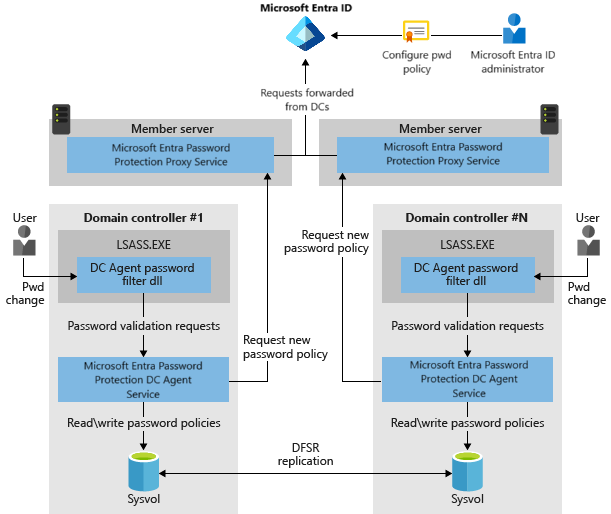
The DC-side flow on a single password change: user changes password on a domain-joined workstation → request hits the DC → password filter DLL intercepts → DC Agent service validates against the cached policy → accept or reject (depending on Audit vs Enforce mode). End-to-end latency <100 ms in healthy deployments — users don’t notice the check.
High availability — how many proxies you need
Each DC Agent picks a proxy via round-robin from the registered proxies. If a proxy is unreachable, the agent skips it and tries the next. Two proxies is the recommended baseline for HA — that’s enough to survive maintenance windows on either one. For very large deployments or specific network topologies (multiple sites with separate egress), add more proxies as needed.
Even when ALL proxies are unreachable, the DC Agent keeps enforcing the cached policy. The cache is local to each DC and persists indefinitely; the only thing a proxy outage prevents is policy refresh. Since banned lists change on the order of days (not hours), a multi-day proxy outage has zero functional impact — password changes continue to be checked against the last good policy.
System prerequisites — both DC Agent and Proxy hosts
Universal C Runtime (UCRT)
Required on every host that runs either the DC Agent or the Proxy Service. Get it via Windows Update (preferred) or via the OS-specific KB on Microsoft Update Catalog. Modern Server 2019+ ships with UCRT preinstalled; Server 2012 R2 and 2016 typically need the explicit install if Windows Update hasn’t been run.
Active Directory Domain Admin (forest root)
The first-time forest registration with Entra requires an account in Domain Admins in the forest root domain. After registration completes, day-to-day operations work with lower privilege.
Key Distribution Service (KDS)
Must be enabled on all DCs running Windows Server 2012 or later. KDS is on by default with manual-trigger start mode; verify with Get-Service KdsSvc on each DC. The DC Agent uses KDS for some of its key-management operations.
Network connectivity DC ↔ Proxy
The DC Agent reaches the Proxy Service over RPC. Open these ports between every DC and at least one Proxy:
- TCP 135 — RPC Endpoint Mapper (the “which port should I actually use?” service).
- TCP 49152–65535 — the dynamic RPC range. Or pin the service to a specific port via the documented registry value and open just that.
Half-configured firewalls (135 open, dynamic range blocked) is the most common deployment failure mode — the DC Agent connects, asks for the port, gets a value, then can’t reach it.
External connectivity from the Proxy Service host
The Proxy Service host needs outbound HTTPS (TLS 1.2) to:
| Endpoint | Purpose |
|---|---|
https://login.microsoftonline.com |
Auth requests — the proxy authenticates to Entra here |
https://enterpriseregistration.windows.net |
Password-protection policy operations — this is where the proxy actually pulls policies from |
https://autoupdate.msappproxy.net |
Auto-upgrade for the Proxy Service binaries |
If your network has an outbound proxy (Squid, Zscaler, etc.), allow these endpoints through. If outbound is blocked entirely, the deployment can’t complete — the Proxy Service is the egress point and needs unimpeded access.
DC Agent host requirements
- Operating system: Windows Server 2012 R2 or later, Core editions OK.
- AD compatibility: Any forest/domain functional level Microsoft still supports.
- .NET Framework: 4.7.2 or later. Get the offline installer from Microsoft if it isn’t already present.
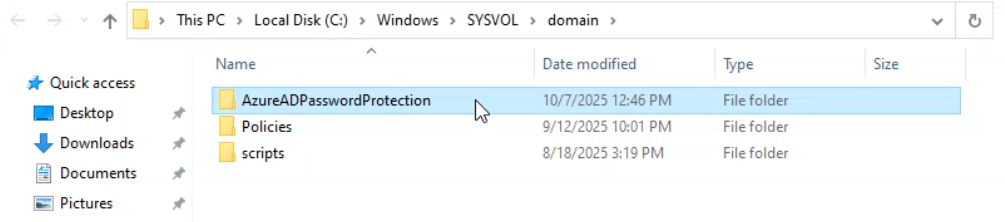
- Sysvol replication: Must use DFS-R, not the legacy FRS. If your domain is still on FRS (rare on modern DCs but possible on long-lived domains promoted years ago), migrate to DFS-R via
dfsrmigbefore installing the DC Agent. The agent uses Sysvol to distribute the cached policy across DCs and FRS isn’t supported.
Proxy Service host requirements
- Operating system: Windows Server 2012 R2 or later, Core editions OK.
- NOT a DC: The Proxy Service installs on member servers, not on Domain Controllers. The DC Agent goes on DCs; the Proxy Service goes elsewhere.
- .NET Framework: 4.7.2 or later.
- “Access this computer from the network” user right: Domain Controllers must be granted this right on the proxy host so they can authenticate when calling the proxy. Grant via local security policy (
secpol.msc) or via a GPO that targets the proxy host’s OU. - TLS 1.2 outbound: Confirm the OS-level TLS settings allow 1.2 outbound. Server 2016+ has it on by default; Server 2012 R2 may need the SchUseStrongCrypto registry tweak.
- Registration role: First-time forest registration requires Global Administrator in Entra. Subsequent forest or proxy registrations work with Security Administrator (a less-privileged role).
Even if your DCs have direct outbound internet access, the deployment requires a Proxy Service. Microsoft enforces the indirection for two reasons: centralised observability of all on-prem-to-cloud traffic, and a defined rollout point for proxy upgrades that doesn’t require touching every DC.
Installer downloads
Two MSI/EXE bundles from Microsoft Download Center (id=57071):
AzureADPasswordProtectionDCAgentSetup.msi— for every Domain Controller. (Note the older “AzureAD” naming — the brand became “Microsoft Entra ID” in 2023 but the installer filenames still carry the legacy name.)AzureADPasswordProtectionProxySetup.exe— for the proxy host(s).
Cache both installers locally before starting the deployment so all hosts can install from the same version. Microsoft updates the packages periodically; the auto-upgrade feature on the Proxy Service handles ongoing version drift after the initial install.
Audit mode vs Enforce mode — how to roll out safely
The DC Agent has two operational modes:
- Audit mode — the agent evaluates every password change against the current policy but ALWAYS accepts the change. Failures are logged to the Windows event log only. This is the “dry run” mode — use it during initial rollout to see how many users would be affected if Enforce were on.
- Enforce mode — the agent rejects password changes that fail the policy. Users see the standard AD password-complexity error (the same wording as a complexity-rule failure — users won’t know the rejection came from the banned-list check rather than the legacy rule).
Recommended rollout: Audit mode for 2–4 weeks, watch the event logs to identify how many users are setting weak passwords (and which users), communicate the upcoming change, then flip to Enforce. The mode is a per-domain (technically per-forest, since the policy is forest-wide) setting controlled via PowerShell on the Proxy host.
Things that bite people in production
Proxies are required even with direct DC-to-internet connectivity
Common deployment confusion: “Our DCs already reach login.microsoftonline.com directly, can we skip the proxy?” No — the architecture requires it regardless of network topology. The proxy is the controlled egress point and the place where Microsoft auto-updates the agent binaries. Trying to deploy without it leaves the DCs unable to register.
Existing weak passwords stay valid until the next change
Enforce mode does NOT evaluate currently-set passwords. Users who already have Admin@123 can keep using it indefinitely; the check fires only on password change/reset. To force the existing weak passwords through the check, enforce a password reset via GPO (User must change password at next logon on the user object, or set the domain’s Maximum password age shorter so existing passwords expire sooner).
FRS-replicated Sysvol blocks the install
Long-lived domains promoted on Server 2008 or earlier may still be on the legacy File Replication Service for Sysvol. The DC Agent installer hard-fails with “Sysvol must be replicated via DFS-R.” Migrate via the documented dfsrmig three-state process (Prepared → Redirected → Eliminated) before attempting the install. Migration is a one-time domain-wide operation that doesn’t cause downtime but does take days to complete.
The Proxy must NOT be installed on a DC
Putting the Proxy Service on a Domain Controller is unsupported. The two services have conflicting RPC port-binding behaviour and the install will appear to succeed but the password protection won’t work. Always use a member server for the Proxy Service.
TLS 1.2 isn’t default on Server 2012 R2
If the proxy host is on Server 2012 R2, OS-level TLS 1.2 is supported but not enabled by default for .NET applications. Enable via the registry:
HKLM\Software\Microsoft\.NETFramework\v4.0.30319\SchUseStrongCrypto = 1
HKLM\Software\Wow6432Node\Microsoft\.NETFramework\v4.0.30319\SchUseStrongCrypto = 1
Reboot. Without this, the proxy’s outbound HTTPS calls fail with “The request was aborted: Could not create SSL/TLS secure channel.”
Cached policy can grow stale during long proxy outages
The DC Agent caches the policy and uses it indefinitely if the proxy is unreachable. That’s great for short outages (the design intent), but a multi-week proxy outage means new banned-list entries pushed by Microsoft don’t reach your DCs. Monitor proxy health; treat a proxy outage longer than a few days as an active incident even if password changes still work.
Where this fits in the series
This is the prerequisite + architecture reference. Part 2 walks the actual deployment — install the Proxy Service, register the forest with Entra, install the DC Agent on each DC, configure Audit/Enforce mode, verify the password-change flow. Part 3 covers uninstall — removing the components cleanly when retiring the feature or moving to an alternative. For broader hybrid-identity context, see the Hybrid Identity pathway. For traditional GPO-based password policy that this layers on top of, see the Group Policy pathway. For the Entra Connect / AD sync infrastructure that backs hybrid identity in the first place, the broader Active Directory pathway covers the on-prem side.