
VMs created in Parts 2 and 3. Now the basic post-install tasks for all three. This is foundation sysadmin work — rename, domain-join, static IP, patch, reboot. If any of these are unfamiliar, this isn’t the right series for you yet — pick up the basic Windows Server admin posts first.
The same six steps for each VM
- Rename to a meaningful name (NODE-01, NODE-02, iSCSI)
- Join the domain (
infotechninja.local) - Disable Windows Firewall (lab only — production keeps it on with scoped rules)
- Set a static IP from the plan in Part 1
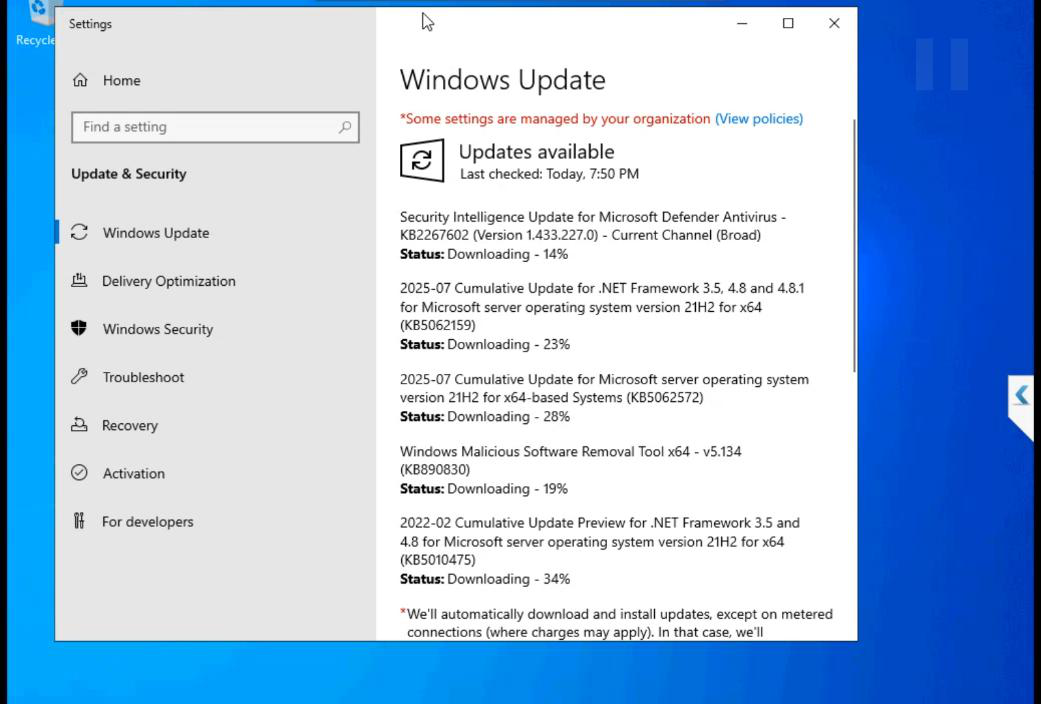
- Run Windows Update
- Reboot
NODE-01
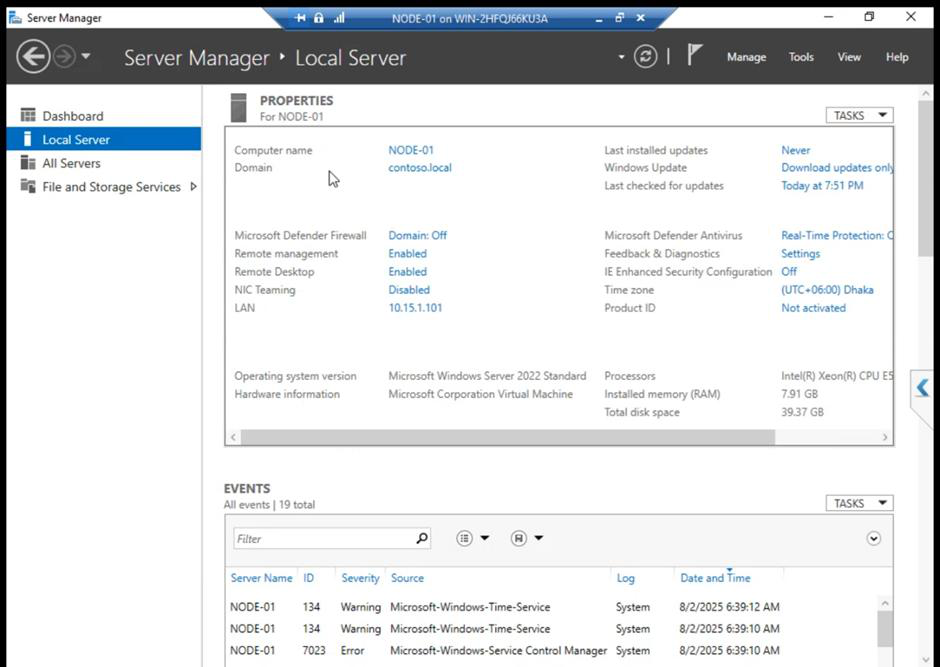
infotechninja.local. Standard sysadmin work.Renamed to NODE-01. Joined infotechninja.local. Sign in with a domain account from this point forward.
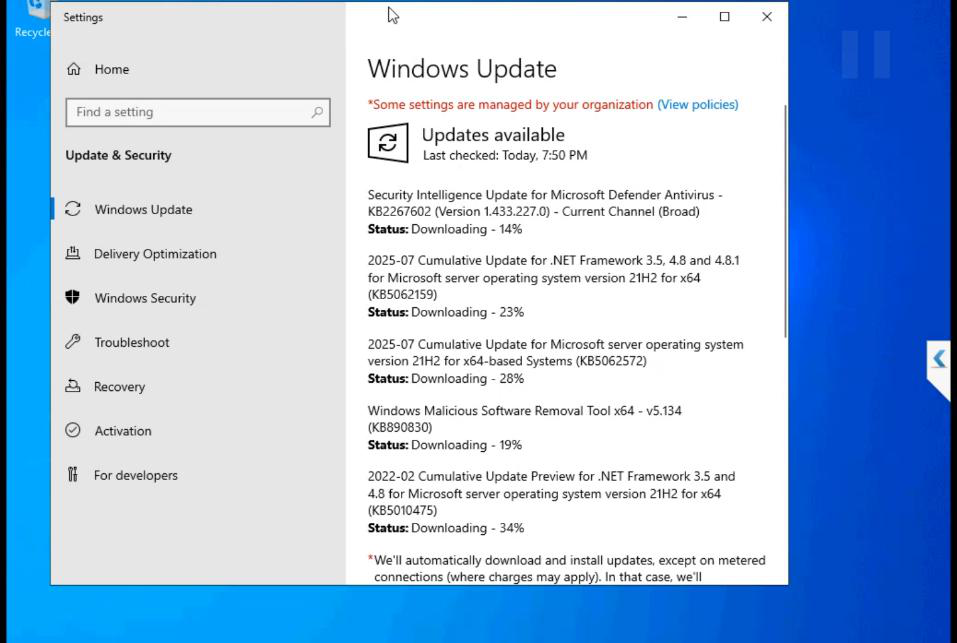
10.15.1.101. DNS points to the DC. Windows Firewall off (lab only).Static IP 10.15.1.101. DNS points to the DC. Subnet 255.255.255.0. Default gateway your lab’s router.
NODE-02
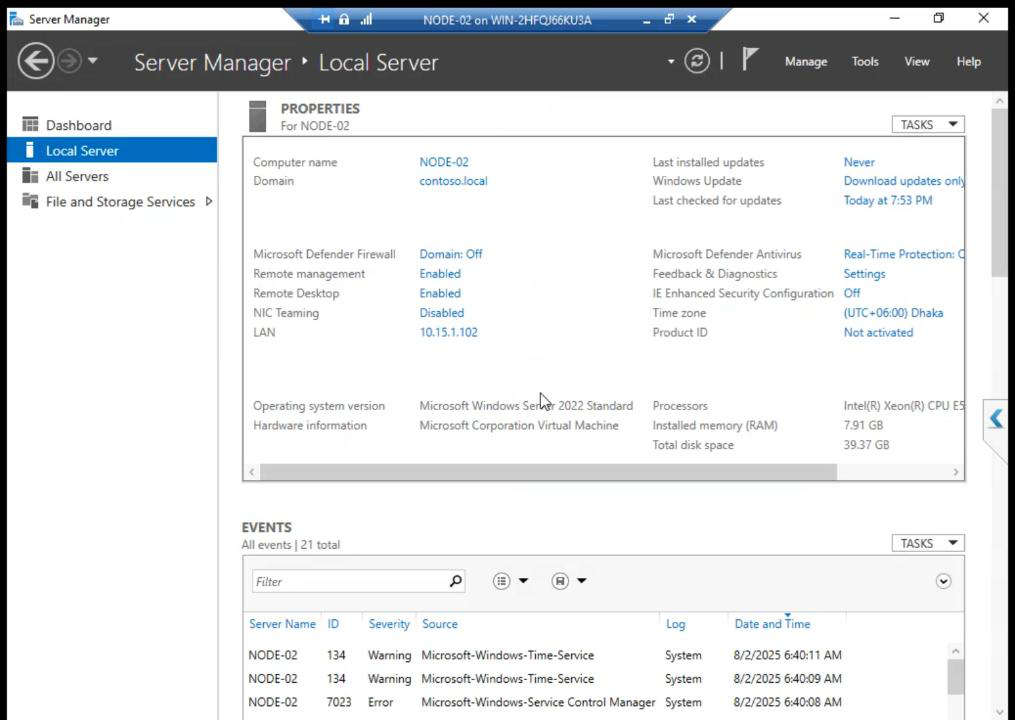
Same drill. Renamed and joined.
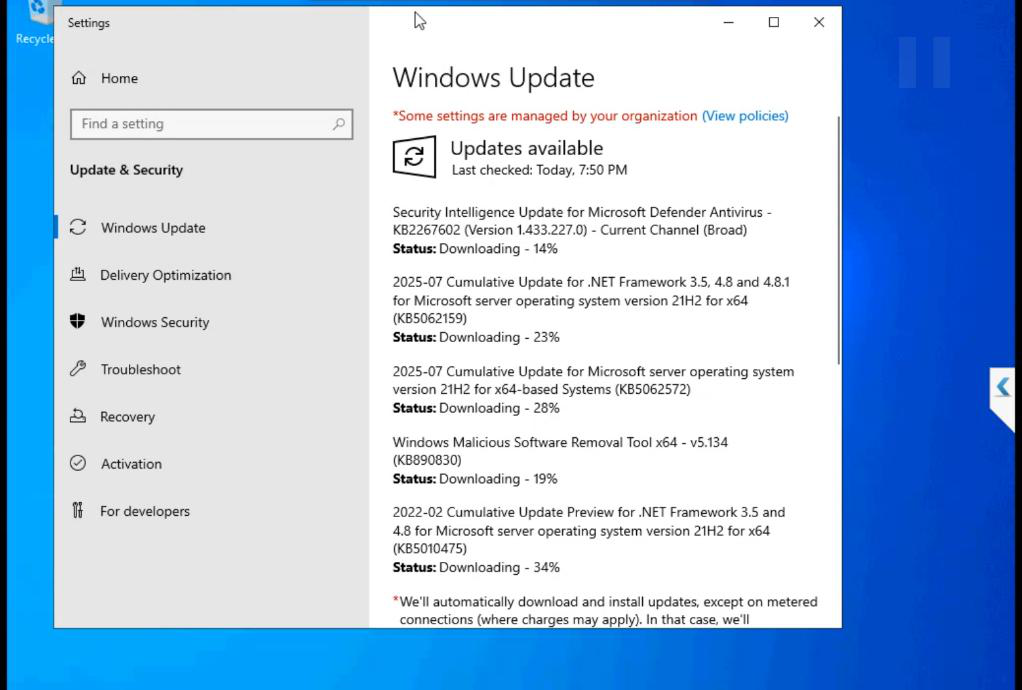
10.15.1.102.Static IP 10.15.1.102.
iSCSI VM
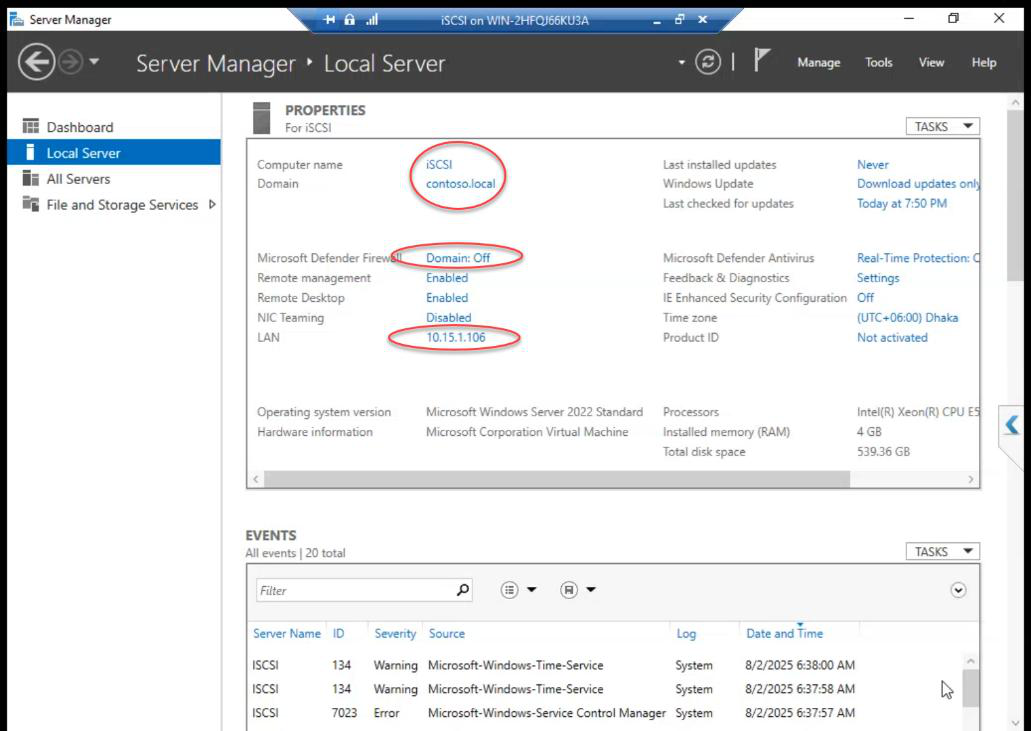
Renamed. Domain join: optional, lab convention here joins it for management ease.
Production trade-off: the SAN should stay in workgroup. Reasons:
- Domain Admin compromise doesn’t reach the SAN
- SAN admin is a separate identity (separate password vault, separate audit trail)
- If AD goes down, the SAN keeps working
If you do domain-join the SAN (lab or prod), use a dedicated AD account scoped tightly — not Domain Admin.
10.15.1.106. Windows Firewall off.Static IP 10.15.1.106.
Why disable Windows Firewall in the lab?
Cluster validation and inter-node communication use a wide range of dynamic RPC ports. Configuring Windows Firewall correctly for clustering is non-trivial — you need rules for:
- iSCSI (TCP 3260)
- RPC endpoint mapper (TCP 135)
- Dynamic RPC range (TCP 49152-65535 by default)
- Cluster service (UDP 3343)
- SMB (TCP 445)
- WMI
For a lab, disabling the firewall lets you focus on the cluster. For production, NEVER disable. Configure the rules properly — the “Failover Cluster Manager” firewall rule group covers most of what you need with a single click.
Things that bite people in this part
Domain join fails — DNS
Most common cause: the new VM’s DNS isn’t set to the DC. Without DC DNS, the VM can’t resolve _msdcs.infotechninja.local to find the DC’s LDAP service. Set DNS = DC IP before attempting domain join.
Static IP conflicts
Quick ping 10.15.1.101 from another machine before assigning it. If it answers, pick a different IP.
Forgot to reboot after rename
Renaming a computer requires a reboot for the new name to take effect. Domain join also needs a reboot. Do both at once: rename + join, then reboot once.
Windows Update takes 30+ minutes
Fresh Win Server 2022 install needs a substantial cumulative update. Don’t skip — running an unpatched cluster is asking for trouble. Schedule the install during a coffee break.
What’s next
Part 5 attaches a data disk to the iSCSI VM — the storage pool that becomes the cluster’s shared LUNs. See the full series at Hyper-V Failover Clustering pathway.