
The PowerShell execution policy is the safety setting that decides whether a .ps1 file is allowed to run on a machine. Default on Windows clients is Restricted — interactive commands work, scripts do not. That default is fine for end-user devices but breaks every legitimate admin script the moment a real workload arrives. The right answer is to set the policy centrally via Group Policy so every domain-joined client has a known, auditable, consistent state instead of each user running Set-ExecutionPolicy by hand.
This walkthrough configures execution policy via GPO end to end on Windows Server 2022 + Windows 10/11 clients: verify the default Restricted state, create a GPO that sets RemoteSigned, link it to a pilot OU, force gpupdate + reboot, confirm the new state, then flip the GPO to Disabled to demonstrate the rollback path.
The Five Execution Policies
- Restricted — default on Windows 10/11. Interactive PowerShell commands run;
.ps1files do not. Most secure of the runnable policies; awkward for any real automation. - AllSigned — every script must be signed by a trusted publisher. Strictest practical setting. Requires a code-signing infrastructure; the operational overhead pushes most environments away from this.
- RemoteSigned — local scripts run as written; remote-flagged scripts (downloaded files with the Mark of the Web attribute) must be signed. The standard production answer — balanced security and usability.
- Unrestricted — all scripts run regardless of source. Remote scripts emit a one-time warning. Avoid in production.
- Bypass — nothing is blocked, no warnings. Used by management agents, intentionally unsafe for general use.
The GPO Path
The execution-policy GPO setting is at:
Computer Configuration
  Policies
    Administrative Templates
      Windows Components
        Windows PowerShell
          Turn on Script Execution
One setting controls everything. Two states matter:
- Enabled + dropdown picks the policy: Allow only signed scripts = AllSigned, Allow local scripts and remote signed scripts = RemoteSigned, Allow all scripts = Unrestricted.
- Disabled = the OS default applies (Restricted on clients).
- Not Configured = no GPO interference; whatever was already set on the machine via the registry stays.
The GPO writes to HKLM\Software\Policies\Microsoft\Windows\PowerShell. Get-ExecutionPolicy reads from there with higher priority than the per-user / per-machine non-policy registry locations — so the GPO setting wins against any individual user’s Set-ExecutionPolicy.
Step 1: Confirm the Default on the Client
On a domain-joined Windows 10 / 11 client, sign in as a regular user:
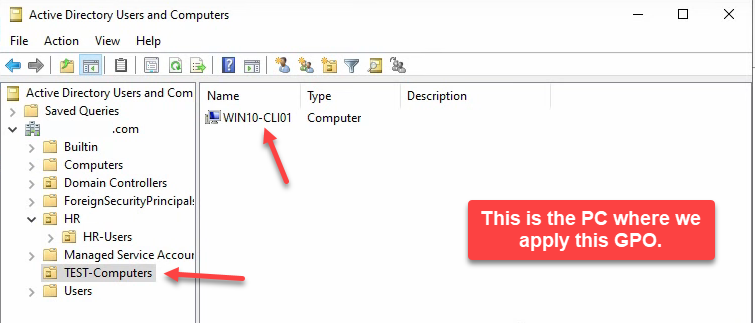
smart\DeepakPatil).Open PowerShell, navigate to a script, and try to run it. The default Restricted policy blocks it:
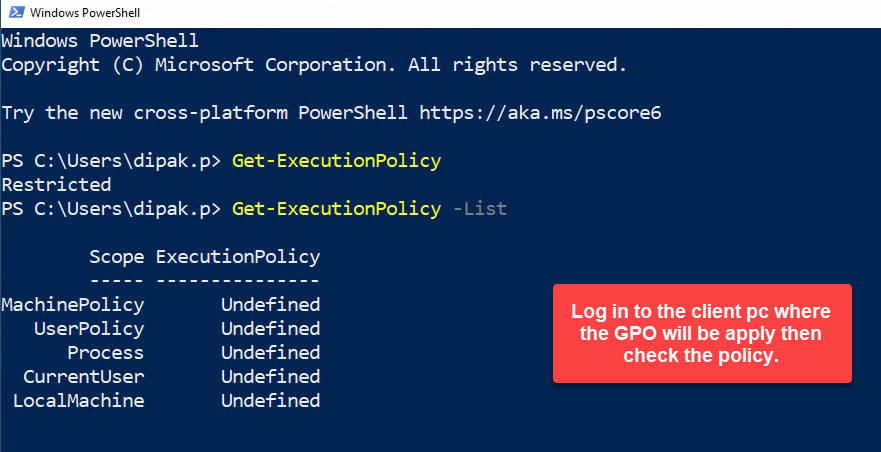
Restricted. Running .\sample.ps1 produces running scripts is disabled on this system; Get-ExecutionPolicy confirms the policy.The error reads running scripts is disabled on this system. Get-ExecutionPolicy confirms Restricted. This is the baseline we are about to flip.
Step 2: Create the GPO and Set RemoteSigned
On the DC, open Group Policy Management. Right-click Group Policy Objects → New. Name it Set PowerShell Execution Policy. Right-click the new GPO → Edit:
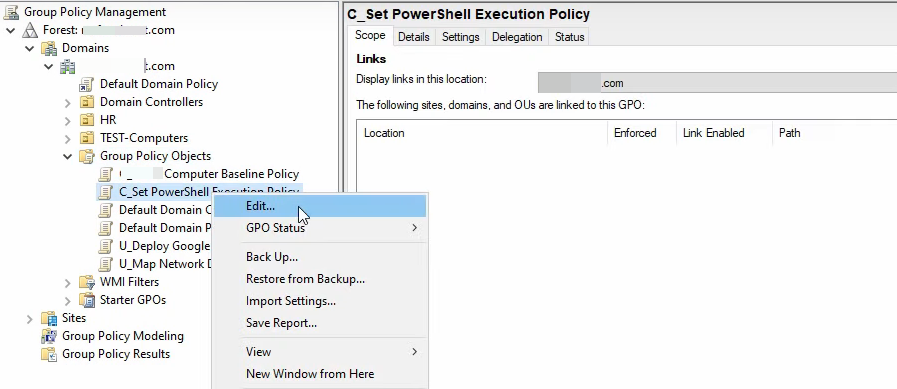
Navigate to Computer Configuration › Policies › Administrative Templates › Windows Components › Windows PowerShell › Turn on Script Execution. Set Enabled and pick Allow local scripts and remote signed scripts:
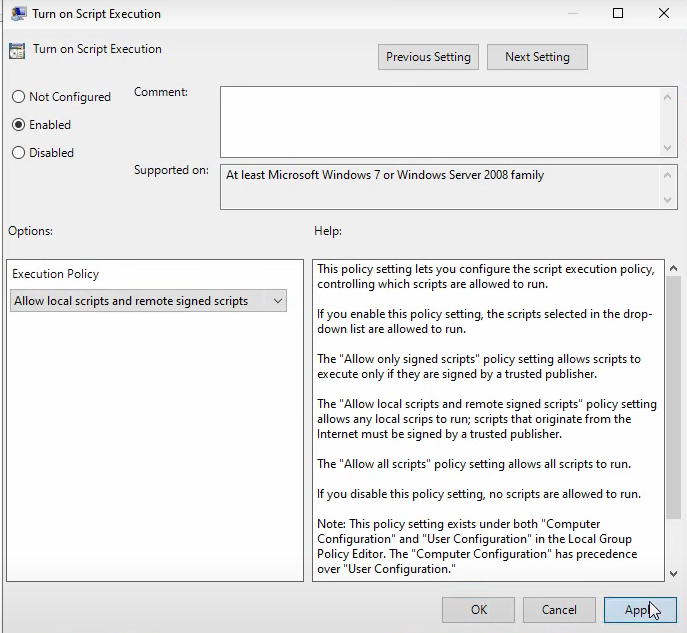
RemoteSigned.Click Apply + OK, close the editor. Link the GPO to the OU that holds the client computer accounts — for a pilot, a Test Computers OU with one or two test machines:
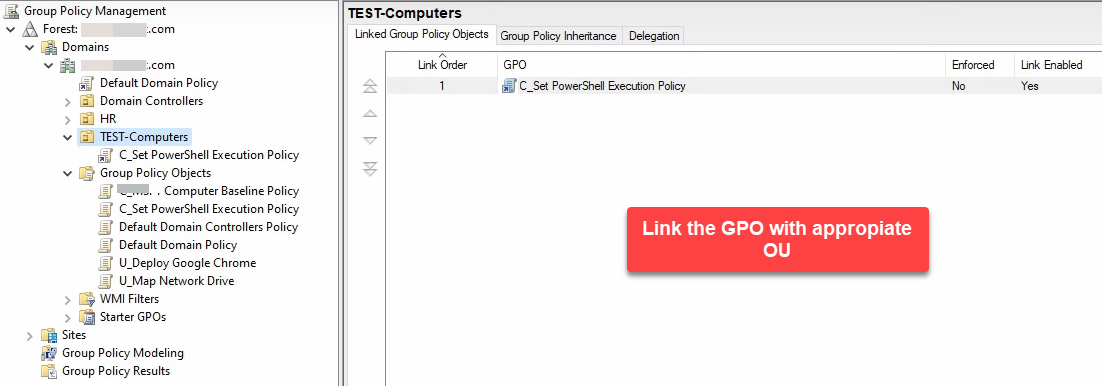
Step 3: Apply on the Client and Verify
On the client, run gpupdate /force from an elevated PowerShell:
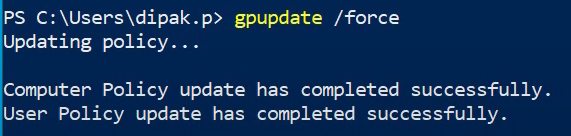
gpupdate /force. The execution policy lives in the registry; the policy push writes the value.Reboot:
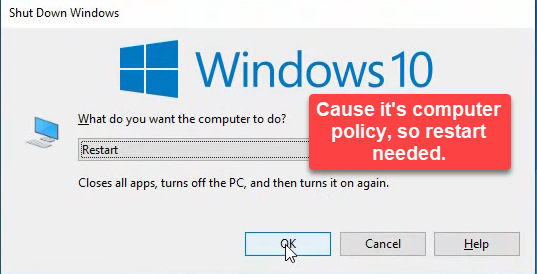
Sign in again. Get-ExecutionPolicy now returns RemoteSigned:
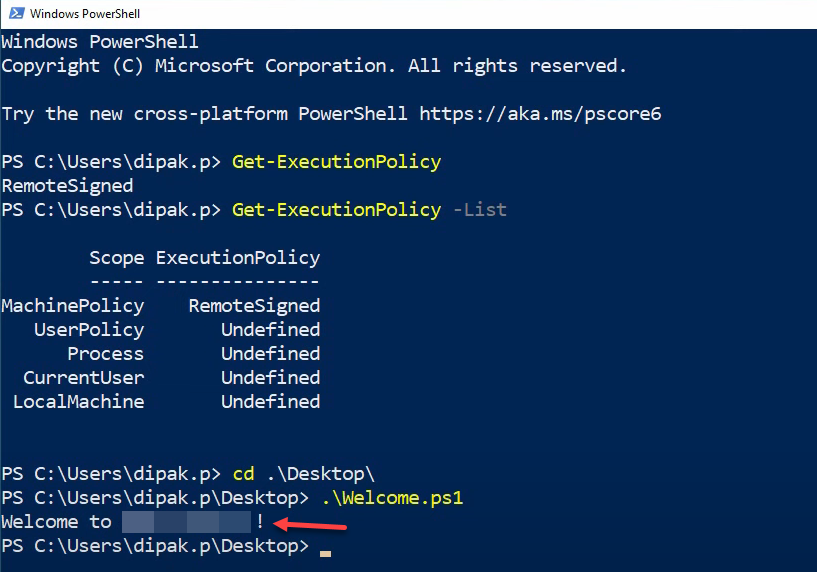
Get-ExecutionPolicy returns RemoteSigned. Local scripts now run; remote-marked scripts still need signing.The same .\sample.ps1 that failed in step 1 now runs — local scripts are allowed.
Step 4: Flip the GPO to Demonstrate Rollback
To show how the rollback path works, edit the same GPO. Open the Turn on Script Execution setting and switch to Disabled:
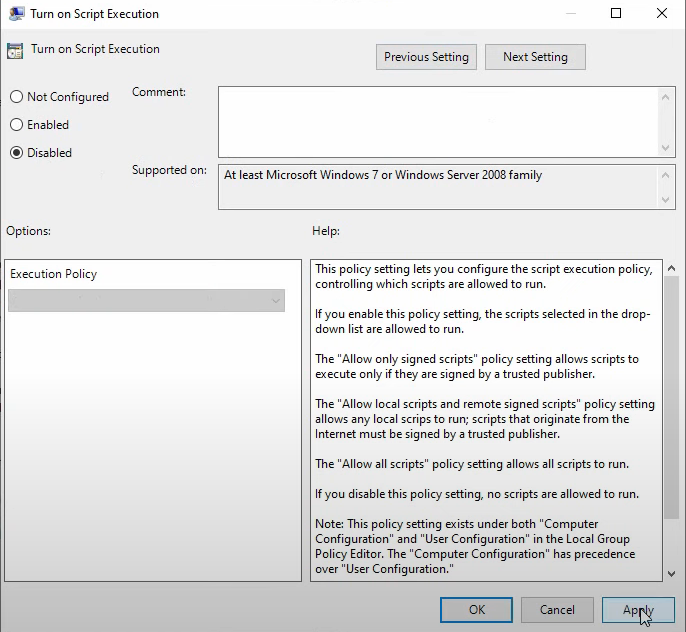
Restricted. Click Apply + OK.Disabled means “the OS default applies.” On a Windows client that defaults to Restricted. (Note: Not Configured would leave any non-policy registry value in place; Disabled actively overrides back to the OS default.)
On the client, second gpupdate /force:
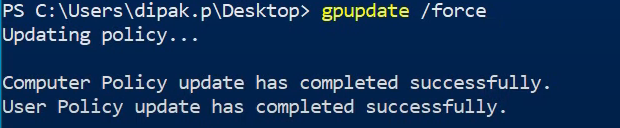
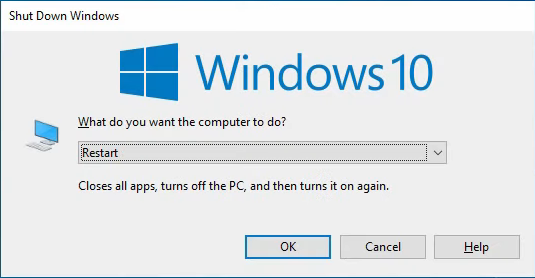
gpupdate /force on the client to pick up the disabled-policy change.Reboot:
Try the script again — blocked, same as the step-1 baseline. Get-ExecutionPolicy reports Restricted:
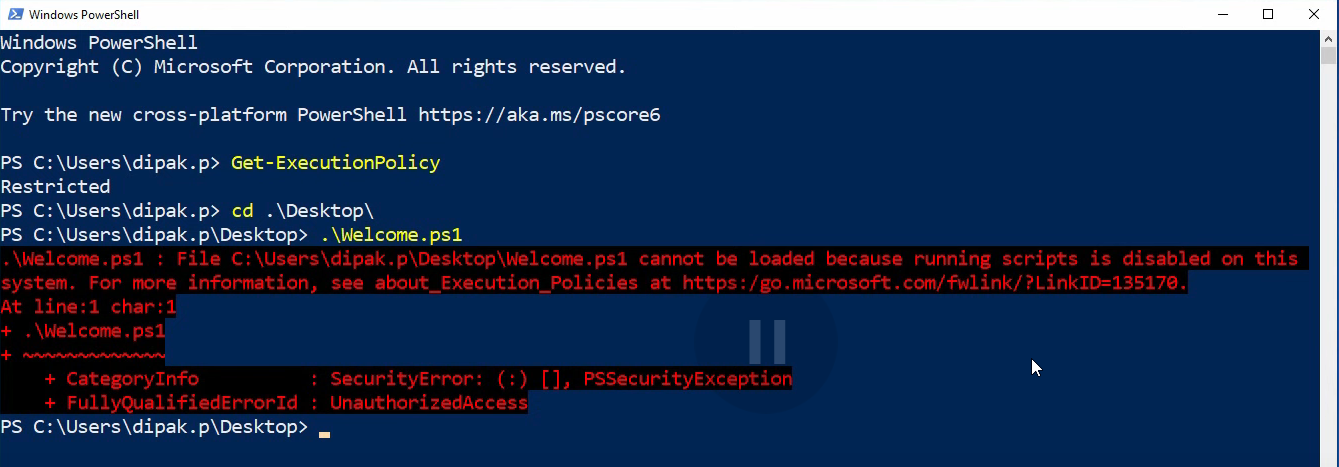
Get-ExecutionPolicy reports Restricted; the GPO drove the change end to end.The GPO drove the round trip cleanly. In a real rollback you would either disable the GPO link, set the policy back to Not Configured, or change the dropdown to a less restrictive setting — whichever fits your operational pattern.
Verification with PowerShell
# Show the current effective policy
Get-ExecutionPolicy

# Show every scope
Get-ExecutionPolicy -List

# Sample output after the GPO applies:
#
#         Scope ExecutionPolicy
#         ----- ---------------
# MachinePolicy    RemoteSigned    ← the GPO setting
#    UserPolicy       Undefined
#       Process       Undefined
#   CurrentUser       Undefined
#  LocalMachine       Undefined
The interesting column is MachinePolicy. When the GPO is in effect, that row reports the policy and overrides everything below it — including any user-side Set-ExecutionPolicy. UserPolicy is the User Configuration version of the same GPO setting, available at User Configuration › Policies › Administrative Templates › Windows Components › Windows PowerShell › Turn on Script Execution; usually you only need the Computer-side one.
Confirm GPO application:
gpresult /scope:computer /h C:\temp\rsop.htmlSearch the HTML report for Set PowerShell Execution Policy — it should appear under Applied GPOs.
Common Pitfalls
- Linking at the user OU instead of the computer OU. The Computer Configuration setting requires the GPO to be linked at an OU containing the computer account, not the user. User Configuration has its own version of the same setting; pick whichever side matches your scope rather than mixing them.
- Skipping the reboot. The policy registry value writes during
gpupdatebut the running PowerShell processes have already cached the old value. New PowerShell sessions started after the gpupdate see the new policy; existing sessions do not. The reboot is the deterministic way to clear all sessions. - Setting Unrestricted as the production default. Convenient for the lab; bad for production. Stick to RemoteSigned and sign-or-don’t-download for remote scripts.
- Using Not Configured as a rollback. Not Configured on a GPO means “this GPO does not say anything about this setting.” Any non-policy value already in
HKLM\Software\Microsoft\PowerShell\1\ShellIds\Microsoft.PowerShellstays. To force back to the OS default, use Disabled. - Mixing User and Computer policies. If both Computer and User Configuration policies set the execution policy, MachinePolicy wins (per the precedence in
Get-ExecutionPolicy -List). Pick one side. - Forgetting that local admins can bypass. A local admin can run
powershell.exe -ExecutionPolicy Bypass -File script.ps1from an elevated cmd, which ignores the GPO entirely. Execution policy is a safety, not a security boundary — it stops accidental and unauthorised low-privilege execution, not a determined admin who knows what they are doing. Pair with AppLocker or WDAC for real script restriction.
Conclusion
Execution policy via GPO is a five-minute setup with a 30-minute test cycle (gpupdate, reboot, verify). Default to RemoteSigned for production clients, leave the policy Not Configured for servers running automation that has its own controls, and document the GPO so the next admin knows where the policy is set. Pair this article with the Comprehensive Guide to GPOs for the GPO-mechanics theory and the AppLocker article for the real script-restriction story when execution policy alone is not enough.