
The big moment. Five parts of plumbing — networks, SAN, initiators, cluster, validation — have led here. Now we install SQL Server itself, but in a special mode: Failover Cluster Instance. Instead of a SQL Server bound to one machine, we get a virtual SQL Server that floats between cluster nodes. Clients connect to a name (AOFCI) that the cluster keeps online — if Node-01 dies, the SQL service starts on Node-02 with the same name, same IP, same data files. From a connection-string perspective, nothing changed.
Pre-install housekeeping
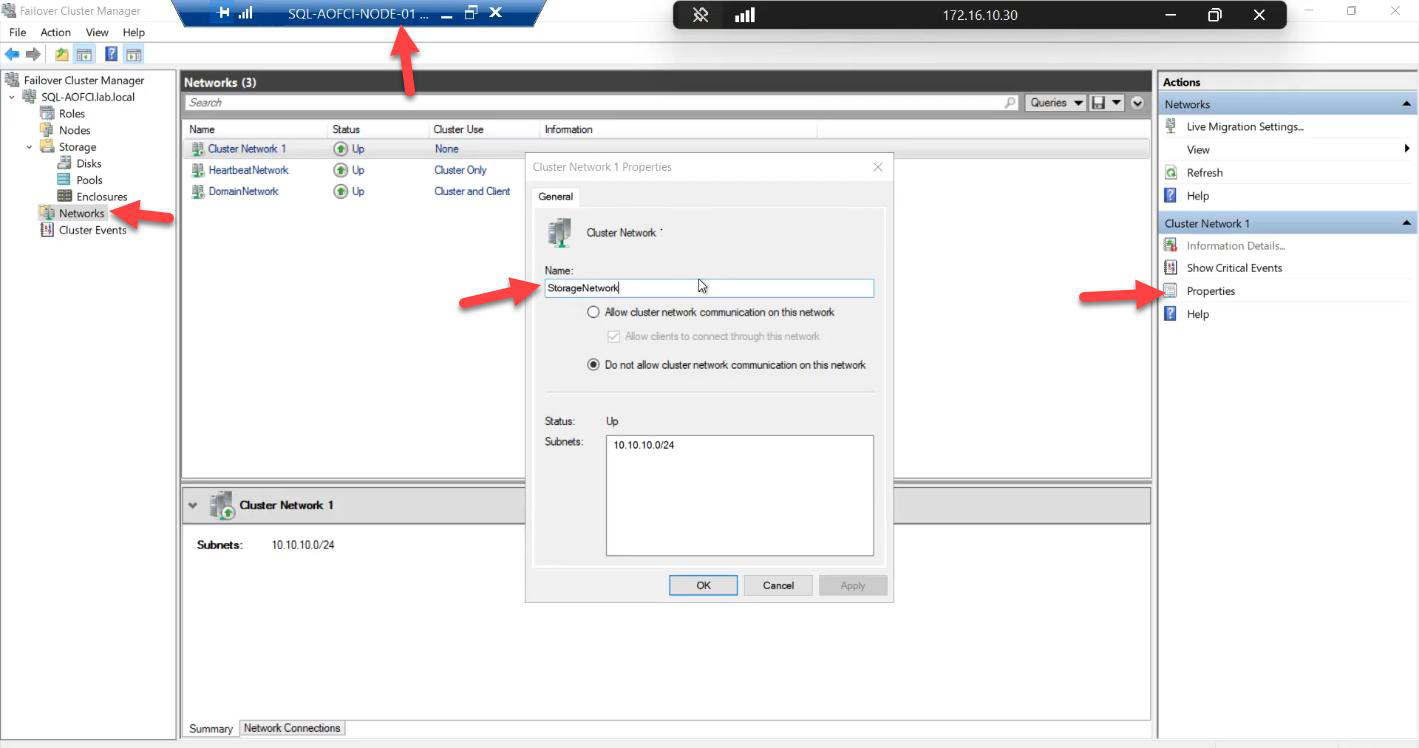
Cluster Network 1/2 labels to Public, Storage, Heartbeat. Saves you 30 seconds every time you debug something later.FCM > Networks. Rename the generic Cluster Network 1/2/3 labels to Public, Storage, Heartbeat. Match the subnet to the role. This is cosmetic but pays off every single time you ever debug the cluster again.
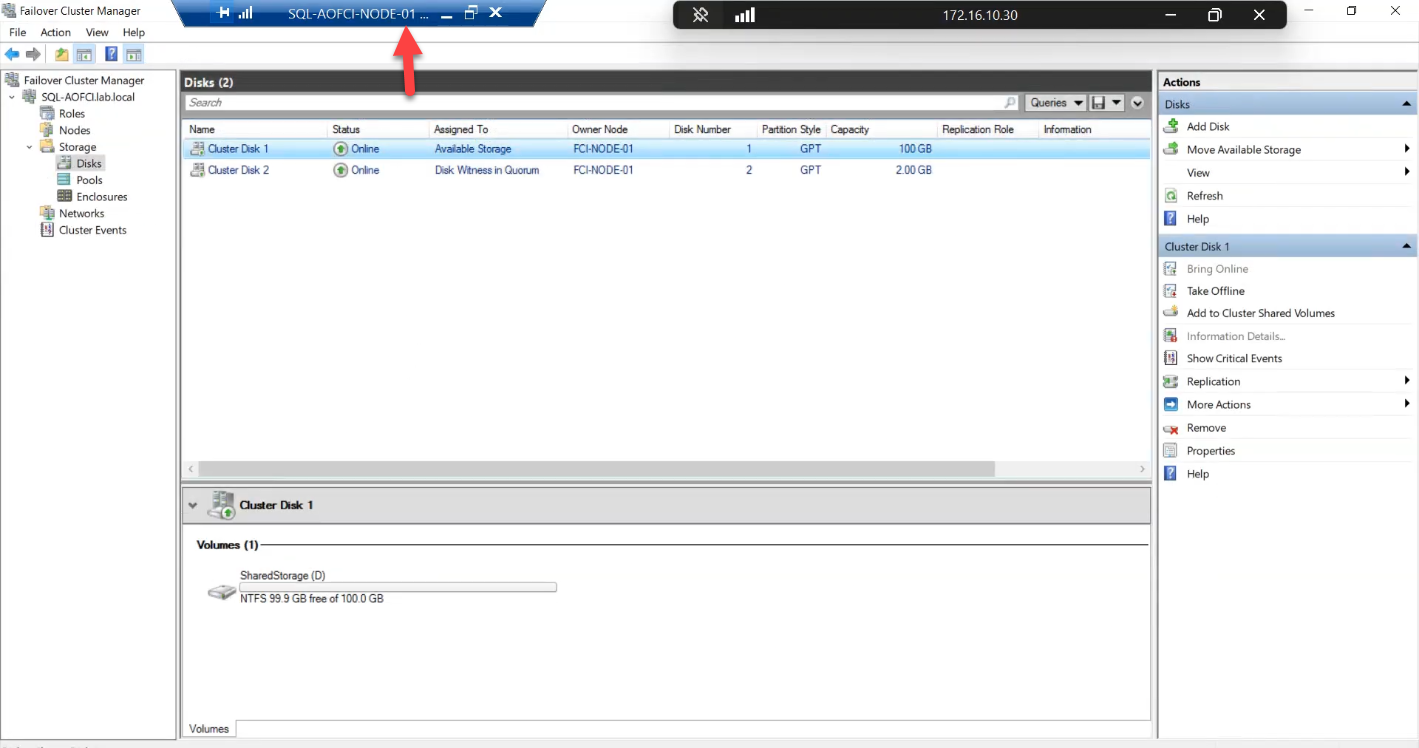
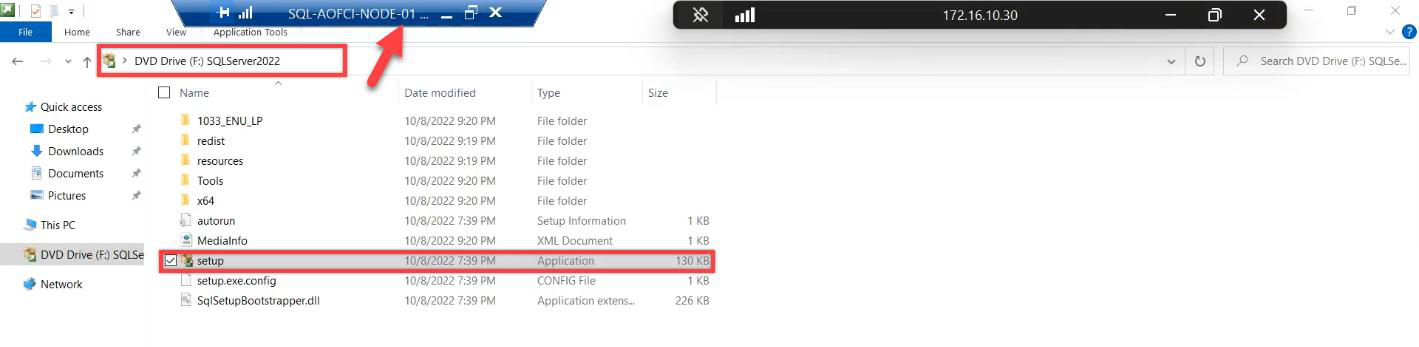
setup.exe as Administrator from Node-01.Mount the SQL Server 2022 ISO on Node-01. Run setup.exe as Administrator.
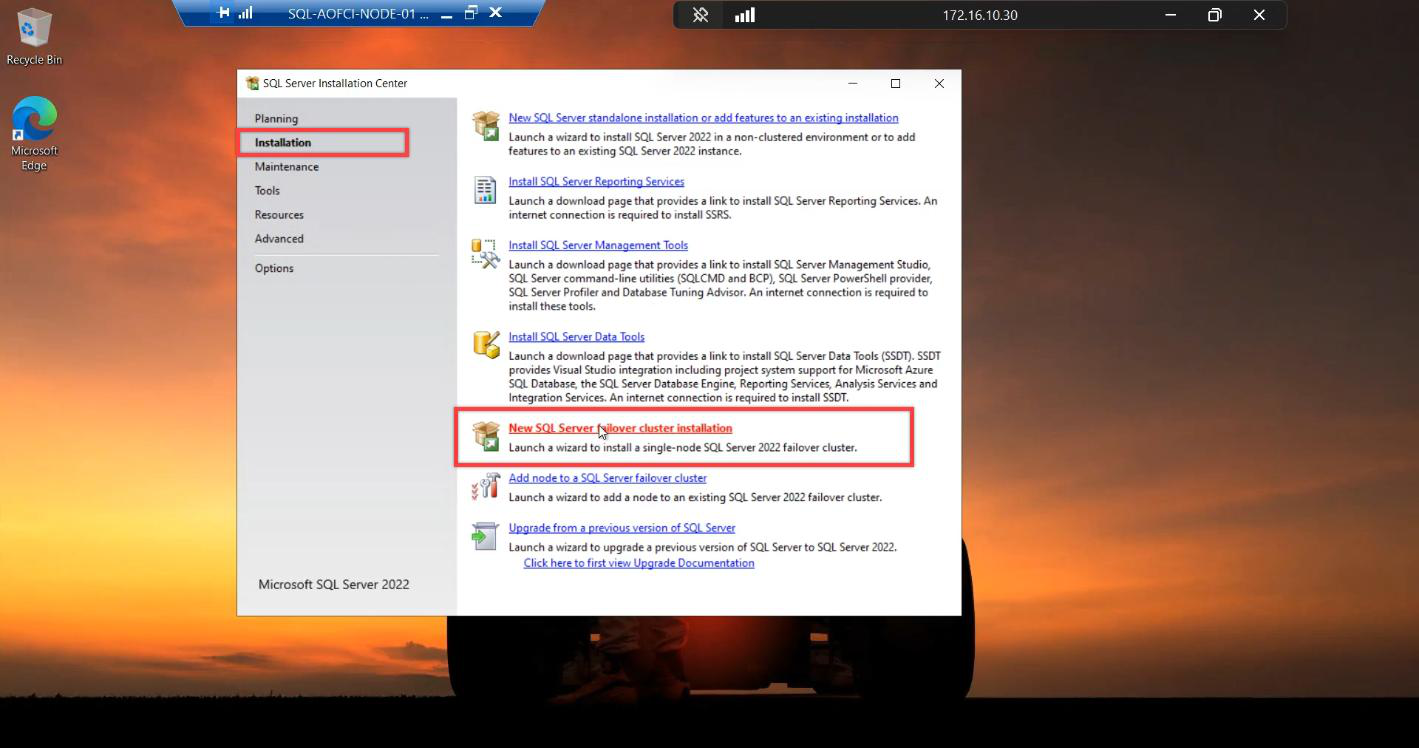
Installation Center opens. Installation tab in the left nav. “New SQL Server failover cluster installation” — NOT “New SQL Server stand-alone installation.” This is the most consequential single click in the entire setup. Pick wrong and you cannot convert it later — the cure is uninstall + reinstall.
Wizard walkthrough
Edition + updates + rules
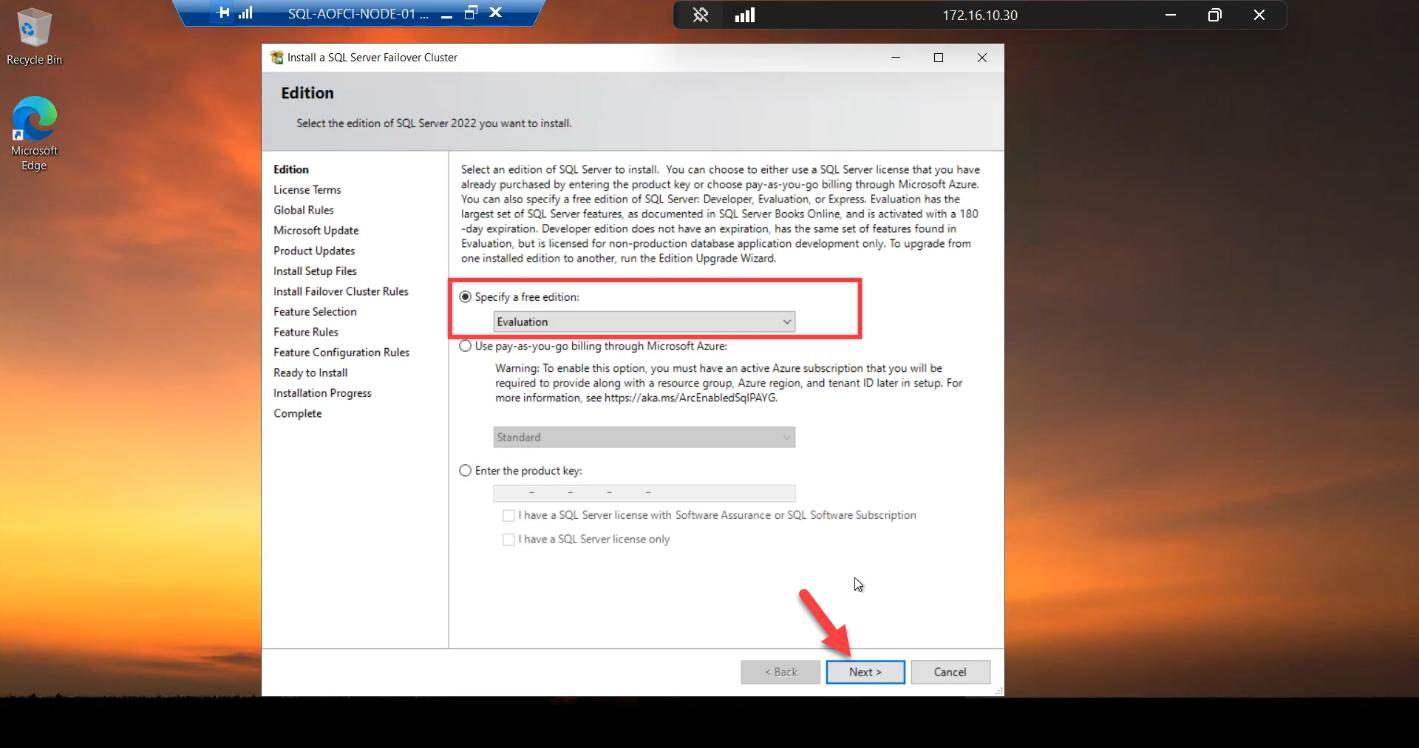
Edition: Evaluation (180 days, full Enterprise features), Developer (free, non-prod only, full features), or your licensed edition. Standard supports FCI but caps at 2 nodes; Enterprise has no cap.
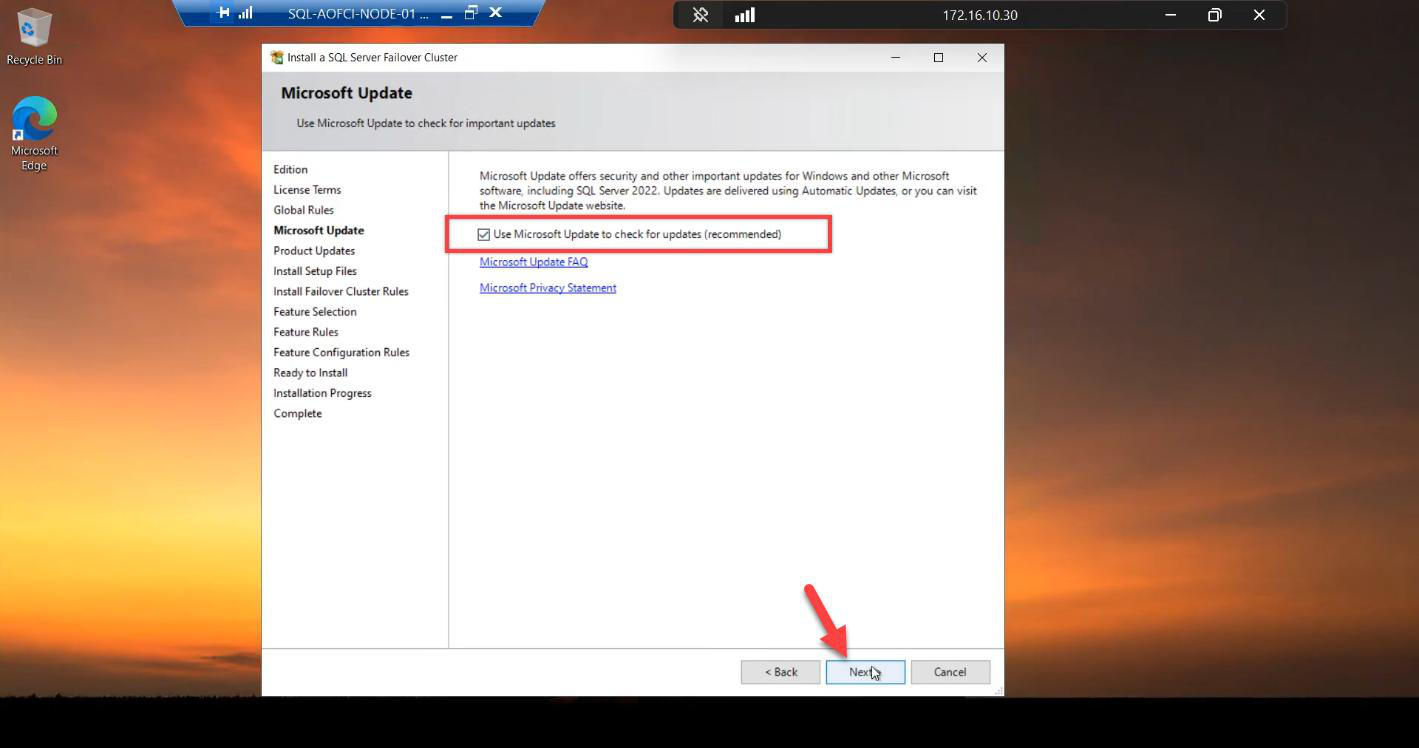
Microsoft Update: tick. SQL CUs matter.
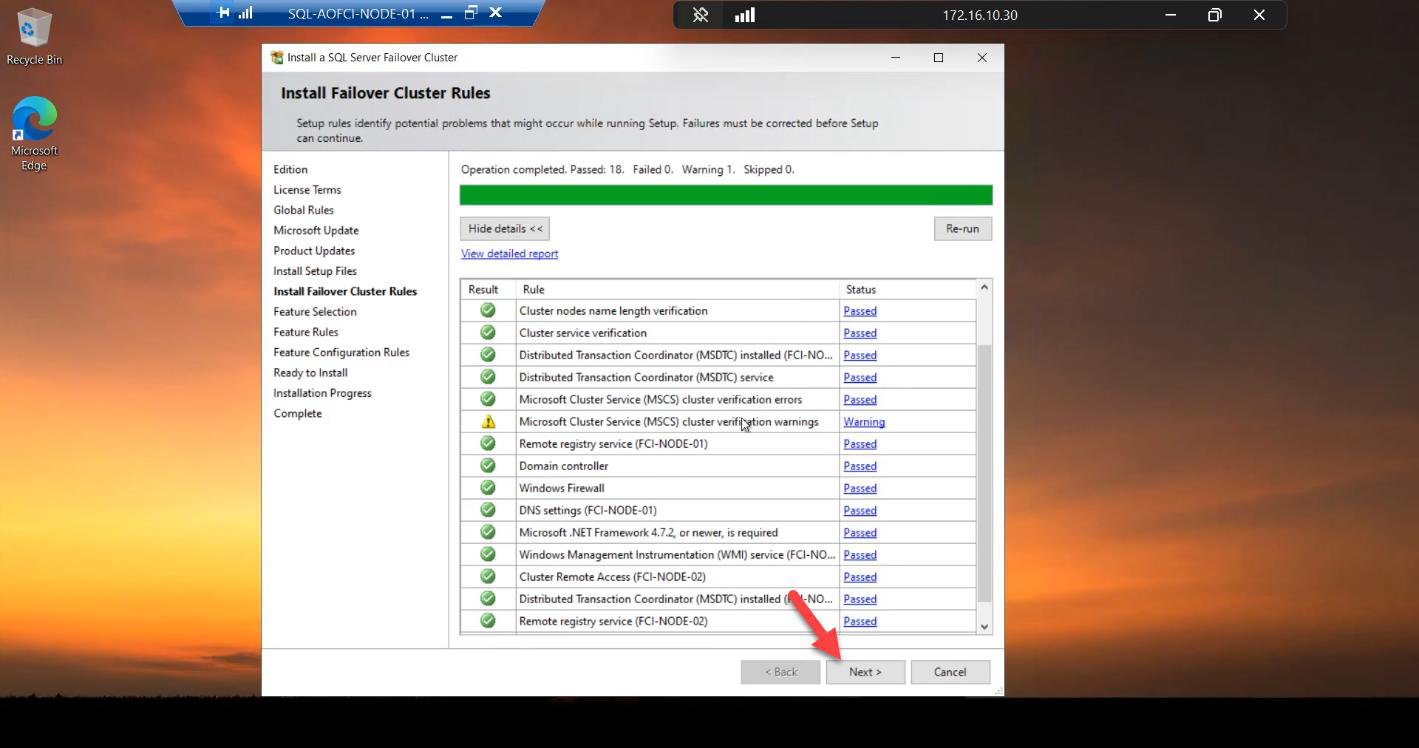
Install Rules: all green. Warnings usually about Windows Firewall — the installer will open ports 1433 and 5022 if needed.
Features
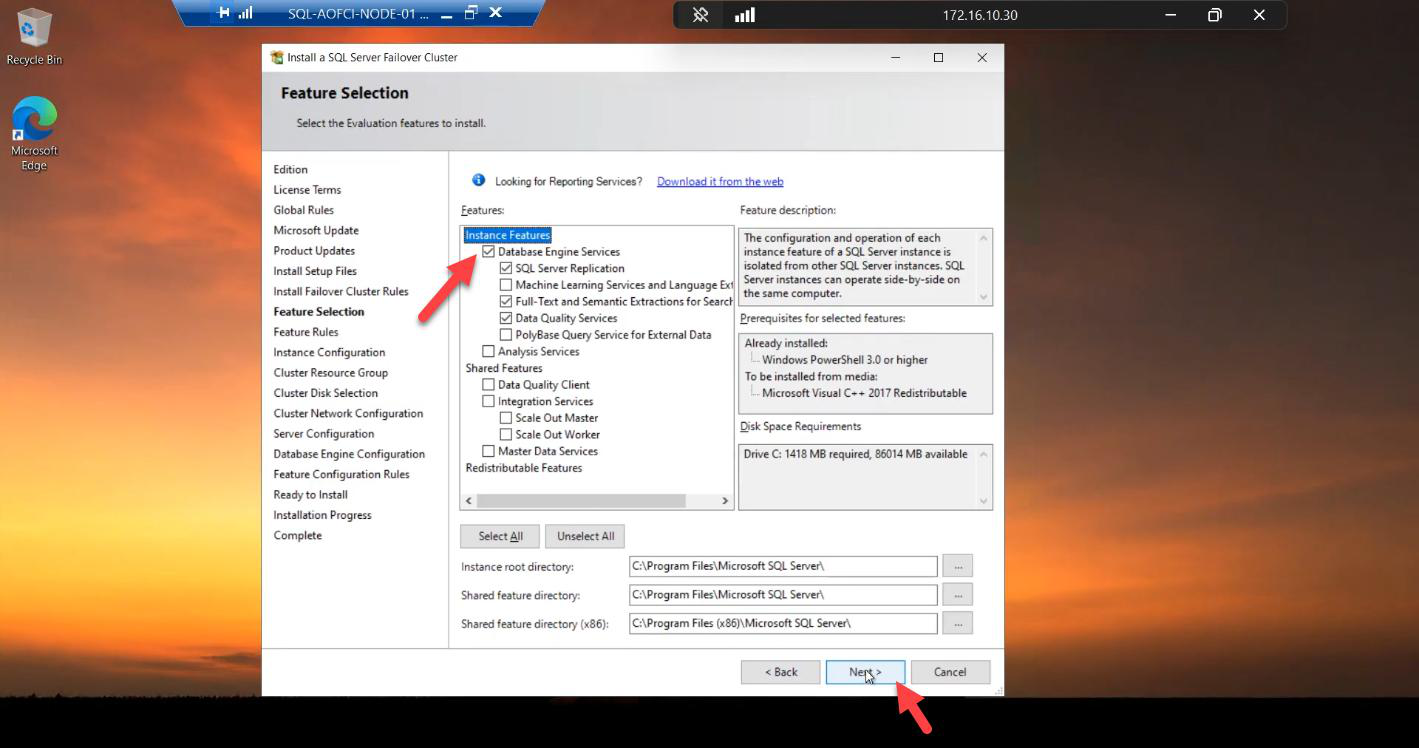
Database Engine Services — the minimum. Add Replication / FTS / Polybase if your workload needs them. Easier to install up front; adding later requires re-running setup against the cluster.
Instance configuration — the FCI identity
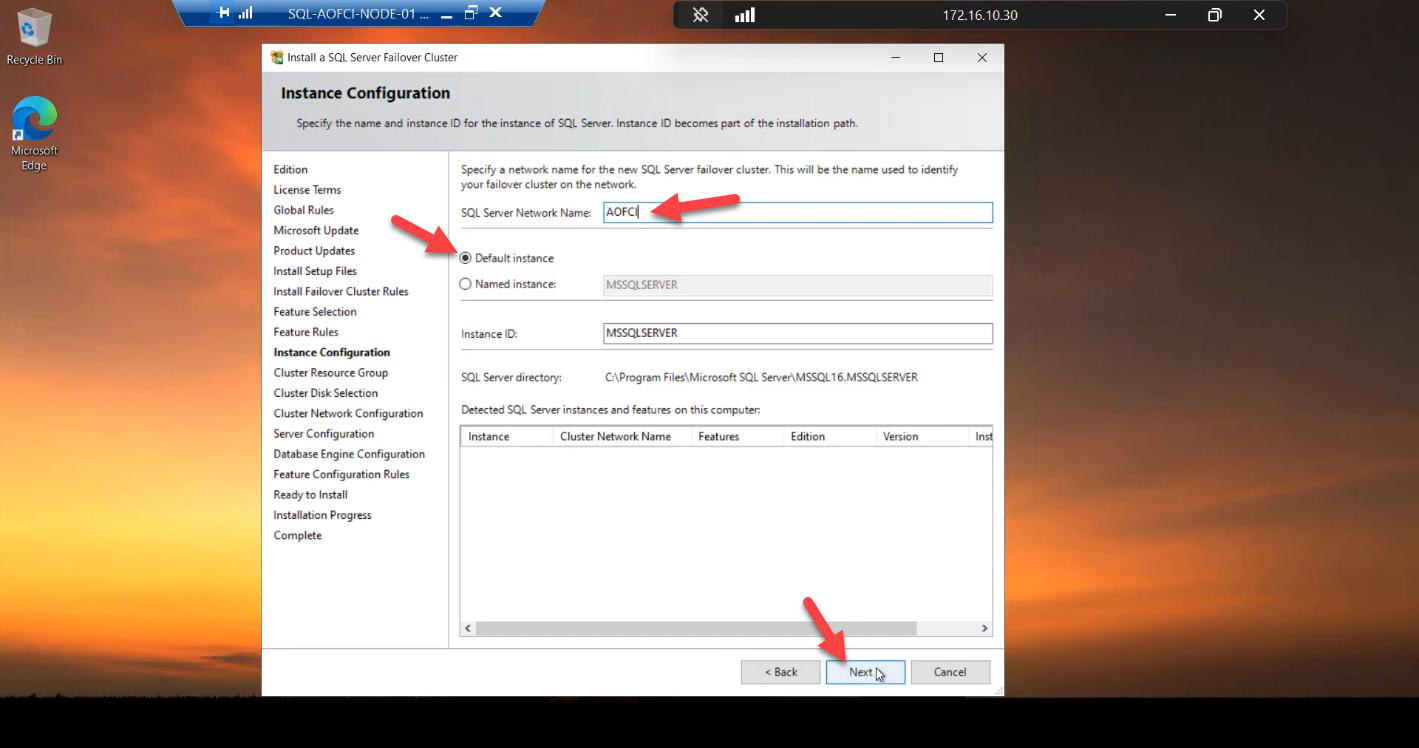
AOFCI. Clients connect to AOFCI, not Node-01. Instance ID: default MSSQLSERVER (default instance). Named instances also work; default keeps client connection strings simple.SQL Server Network Name: AOFCI. This becomes the DNS name clients connect to. Instance ID: default MSSQLSERVER. Default instance keeps client connection strings simple (Server=AOFCI rather than Server=AOFCI\INSTANCE).
Cluster resource group
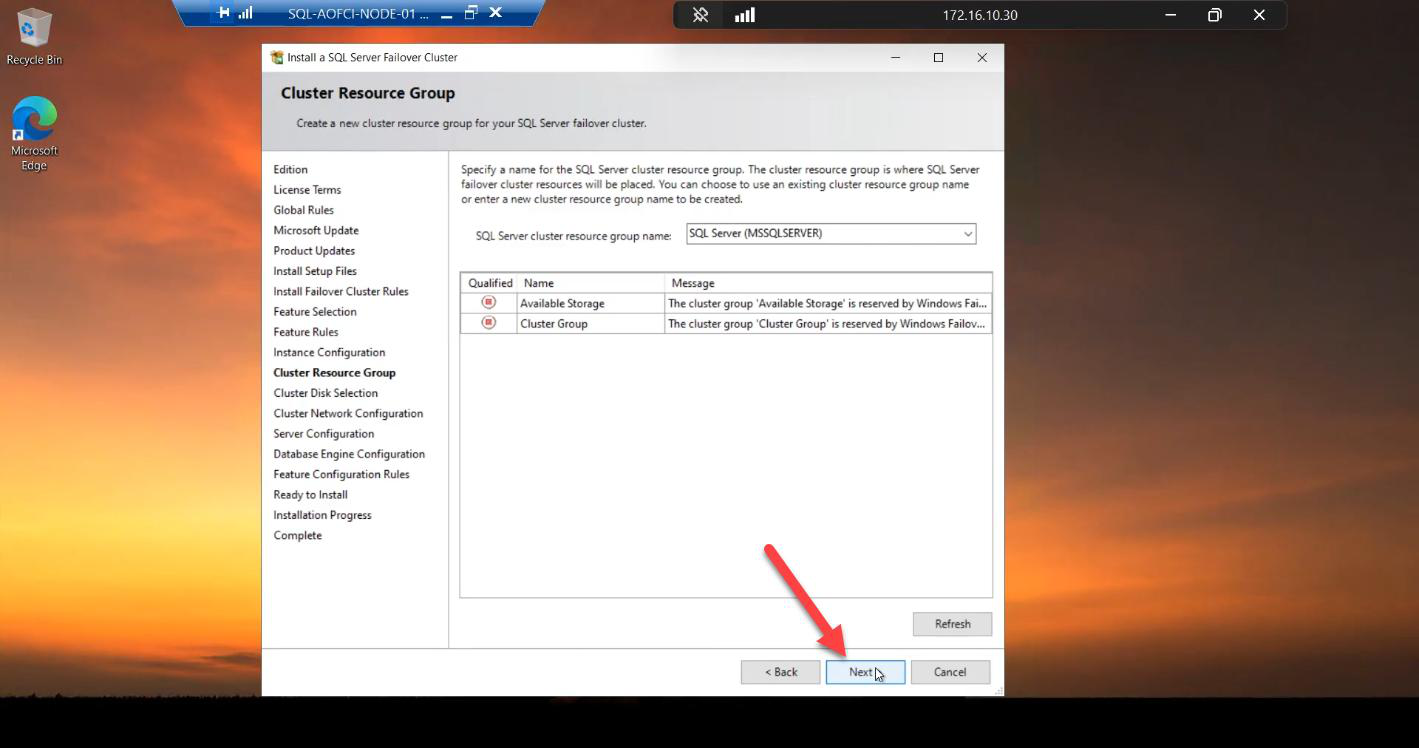
SQL Server (MSSQLSERVER). This is the cluster container holding SQL service + network name + IP + disk dependencies as a single failover unit.Default name: SQL Server (MSSQLSERVER). Keep it. This is the cluster container that holds the SQL service + network name + IP + disk dependencies as a single failover unit.
Cluster disks
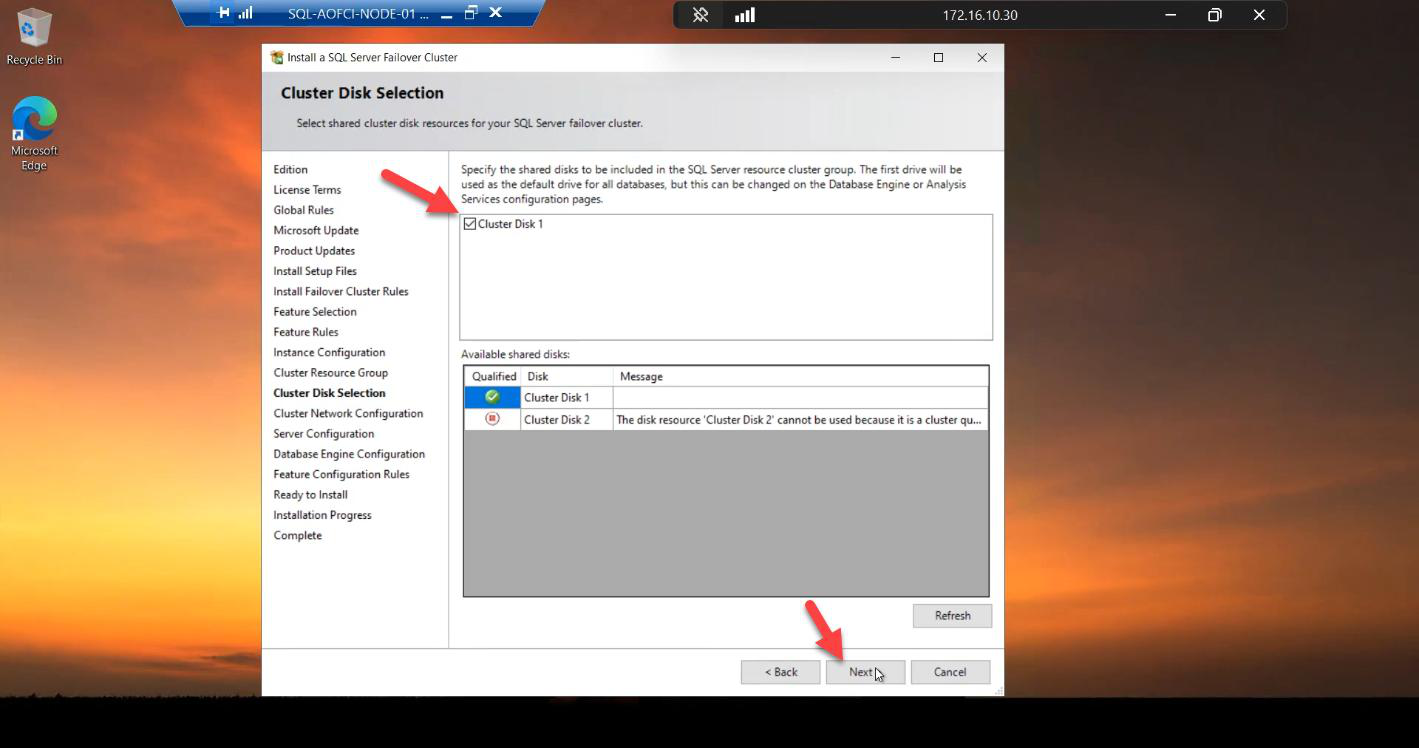
Tick the 100 GB Data disk only. Do NOT tick the Quorum. The Quorum belongs to the cluster as a whole; SQL doesn’t own it.
Cluster network — the Virtual IP
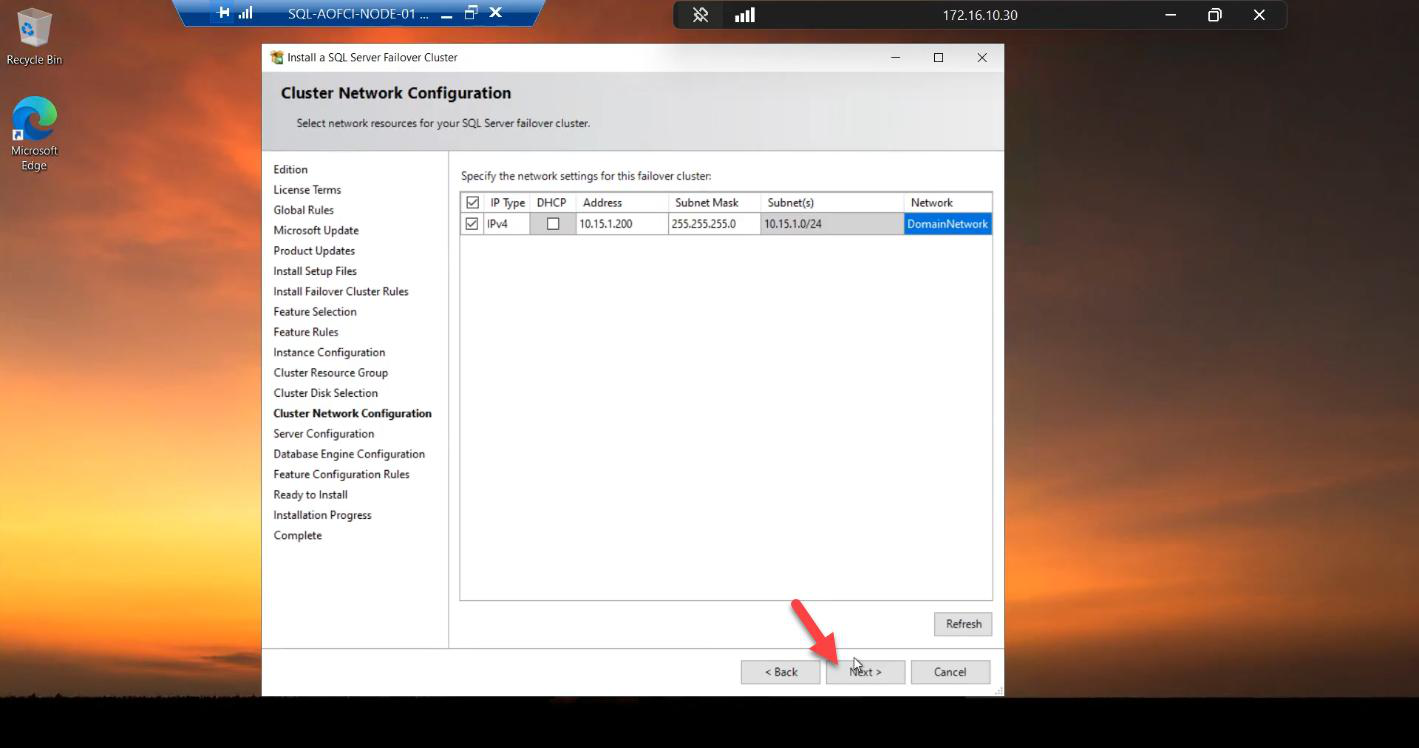
10.15.1.200 (free IP on Public subnet). This IP follows AOFCI on failover — clients always reach AOFCI → 10.15.1.200 regardless of which node owns it.IPv4 ticked. Address: 10.15.1.200 — a free IP on the Public subnet. This is the AOFCI VIP. Failover keeps this IP attached to the SQL service no matter which node owns it.
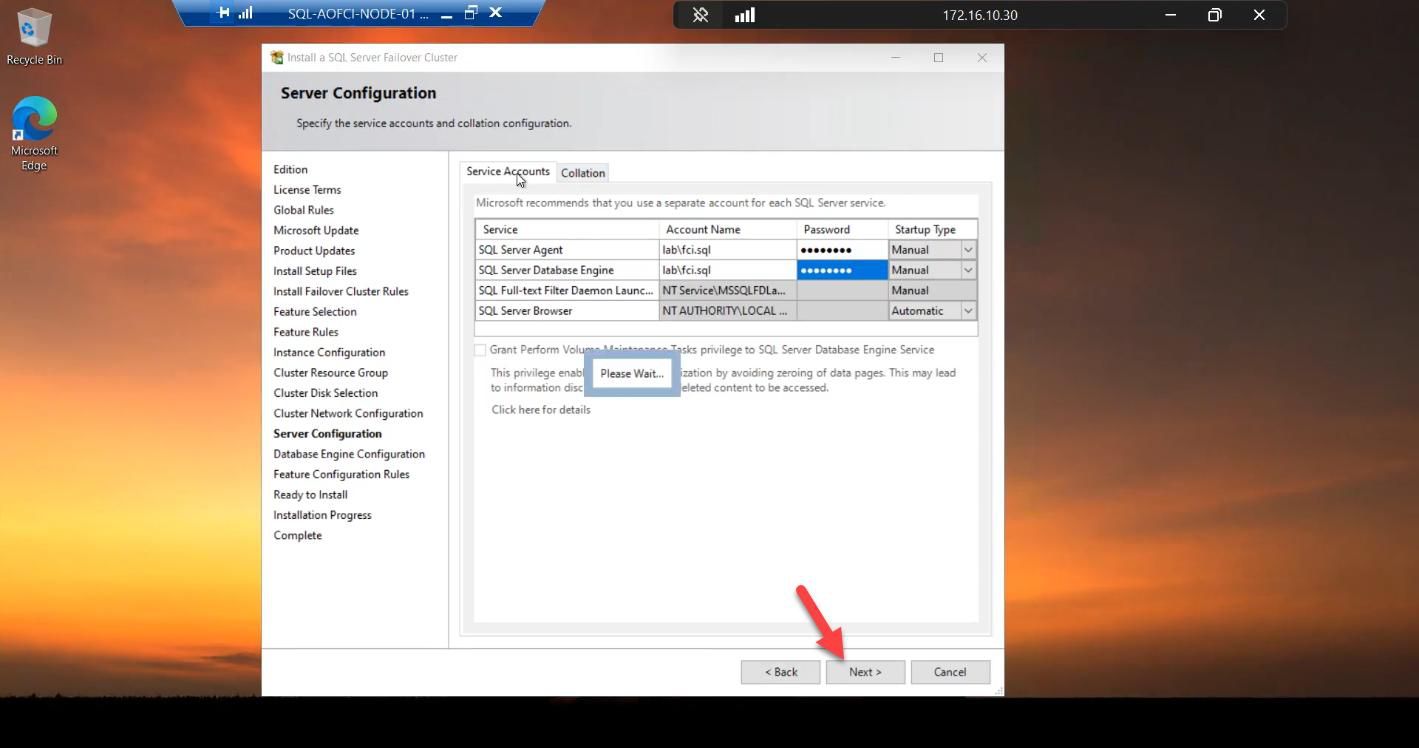
Service accounts
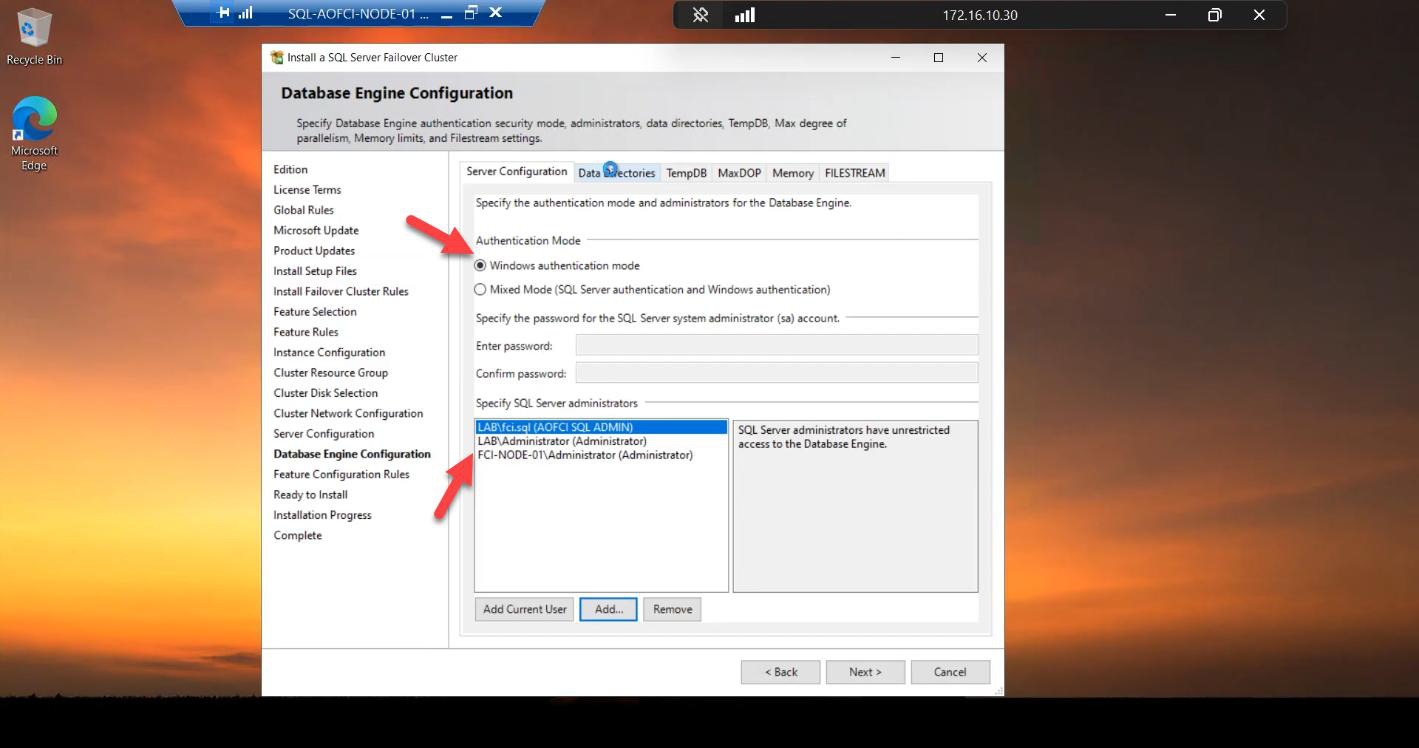
Server Configuration tab: Windows Authentication. Add Current User as a sysadmin (so you can manage the instance after install). Mixed mode if you need SQL logins (e.g., legacy apps).
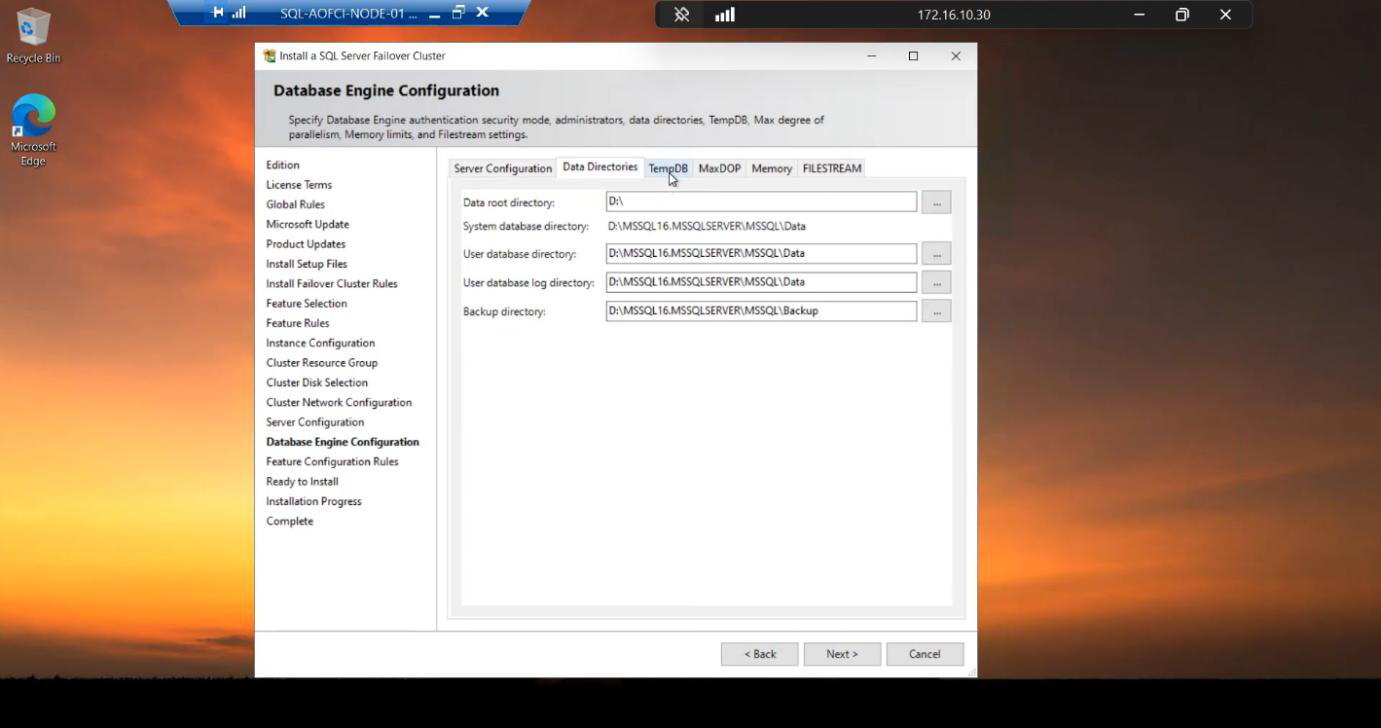
D:\ (the cluster disk). This is what you want — data files live on shared storage so the other node can pick them up after failover.Data Directories tab: Data Root automatically points to the cluster disk. Correct. Data files MUST be on shared storage in FCI mode — otherwise the other node can’t pick them up.
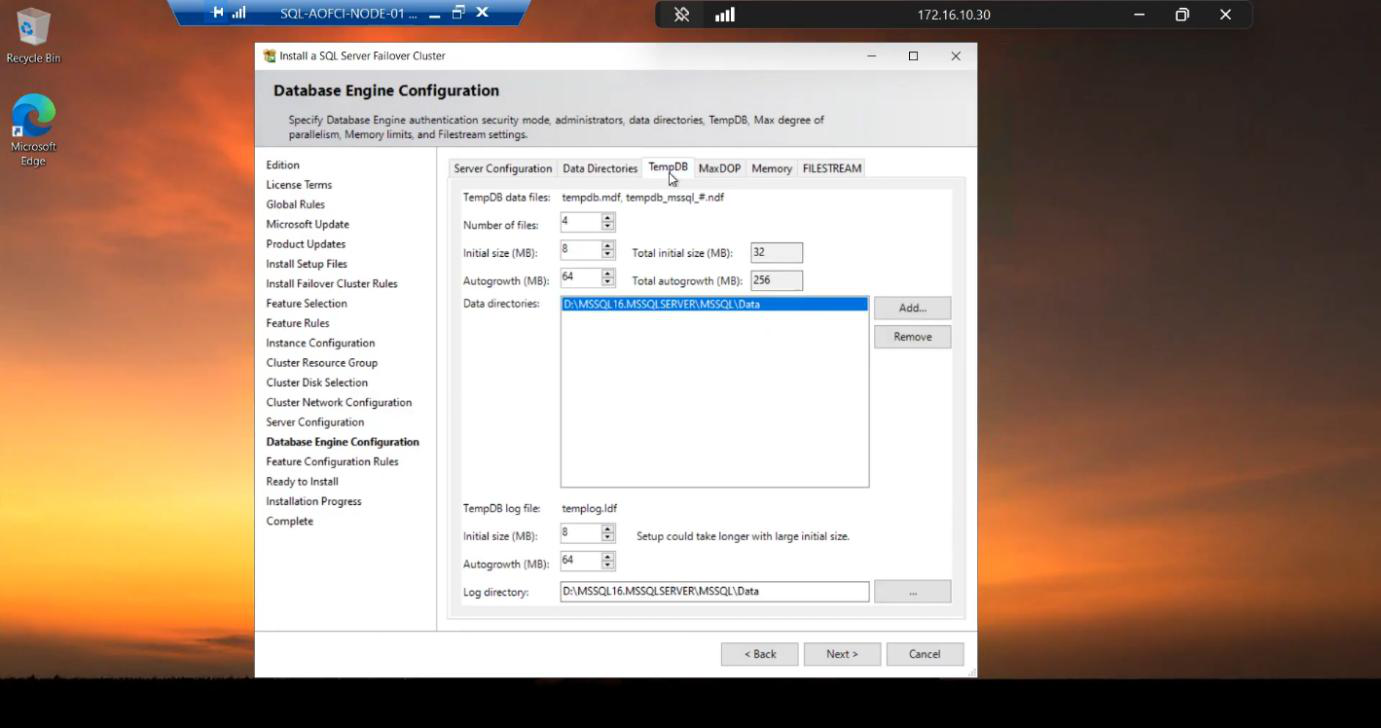
TempDB tab: also defaults to cluster disk. Acceptable. SQL 2019+ supports local-disk TempDB per node (better perf, each node has its own tempdb on local SSD), but cluster-disk is the simple/safe default.
Install
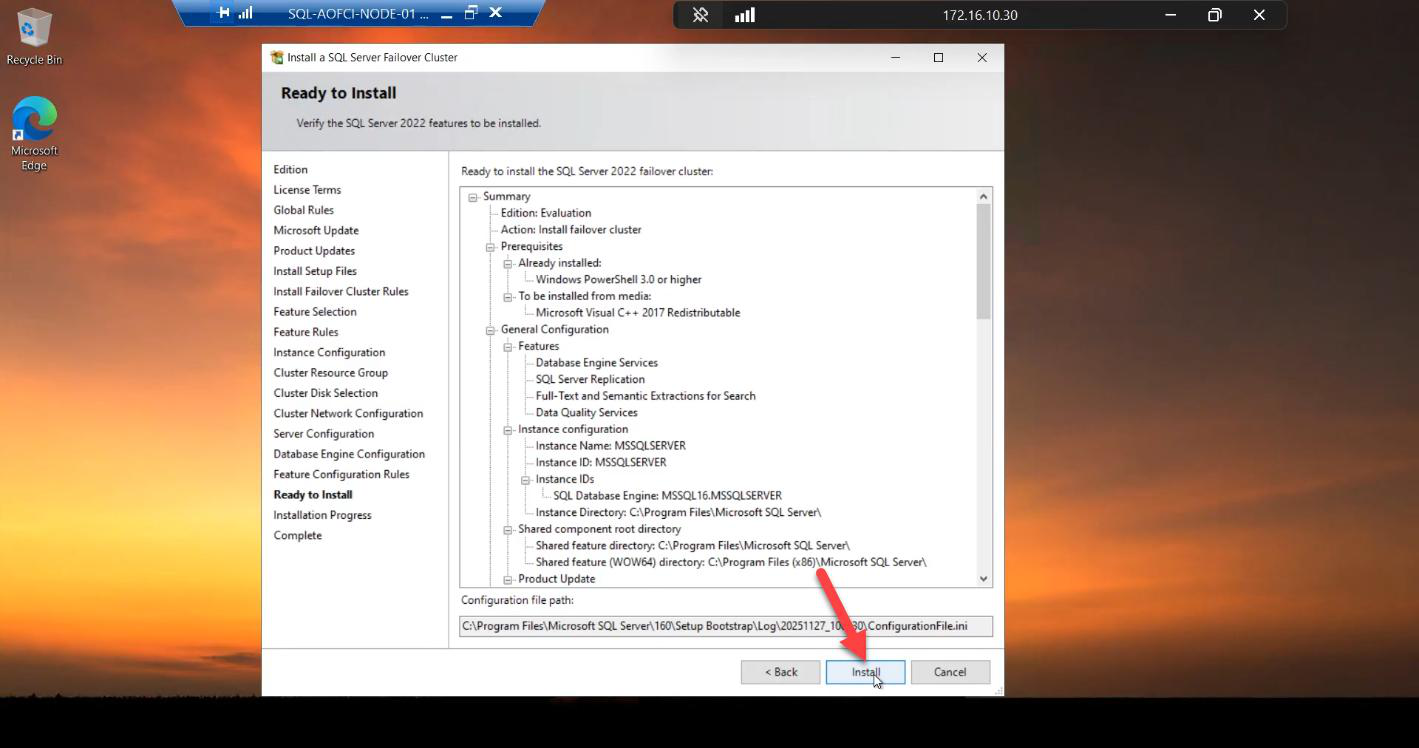
Ready to Install summary. Eyeball every line. Last sanity check before commit.
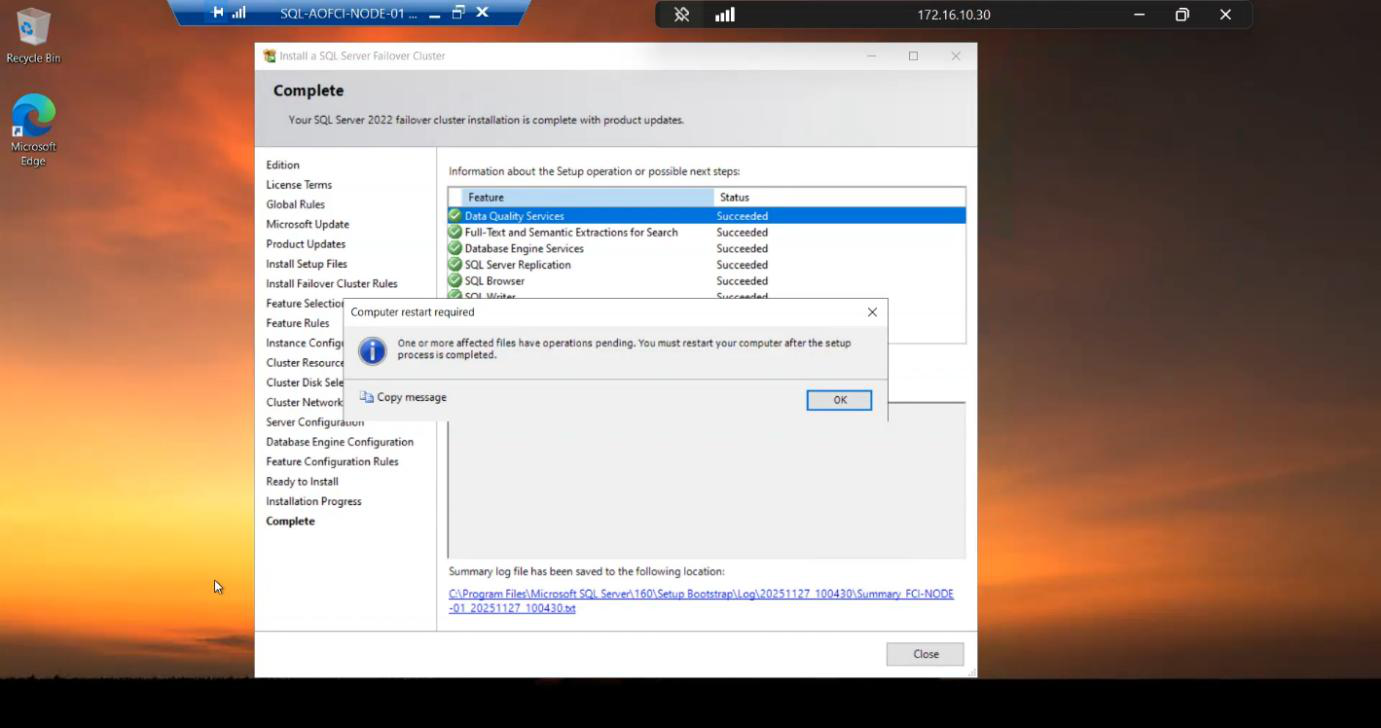
Install in progress. 5-15 min.
Done. All features green.
SSMS
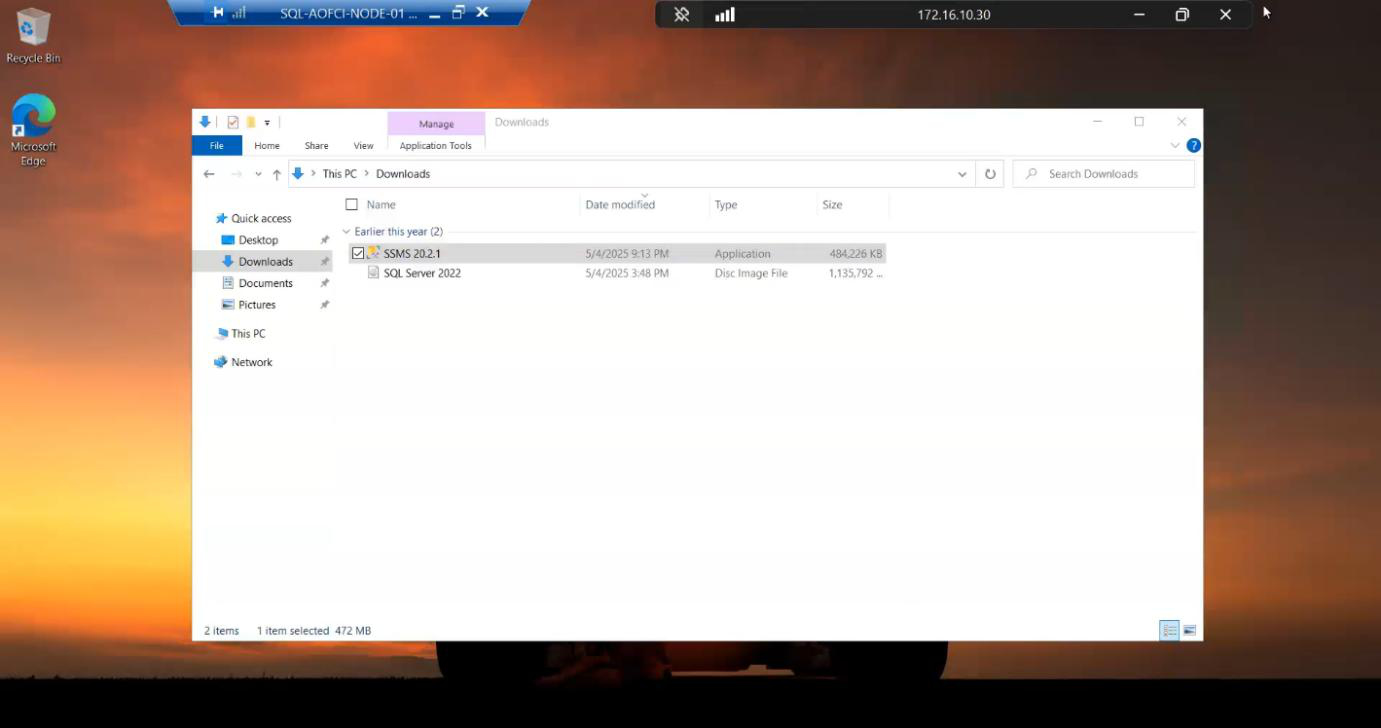
SSMS isn’t bundled with SQL setup since SQL 2016. Run the SSMS installer (download ahead of time).
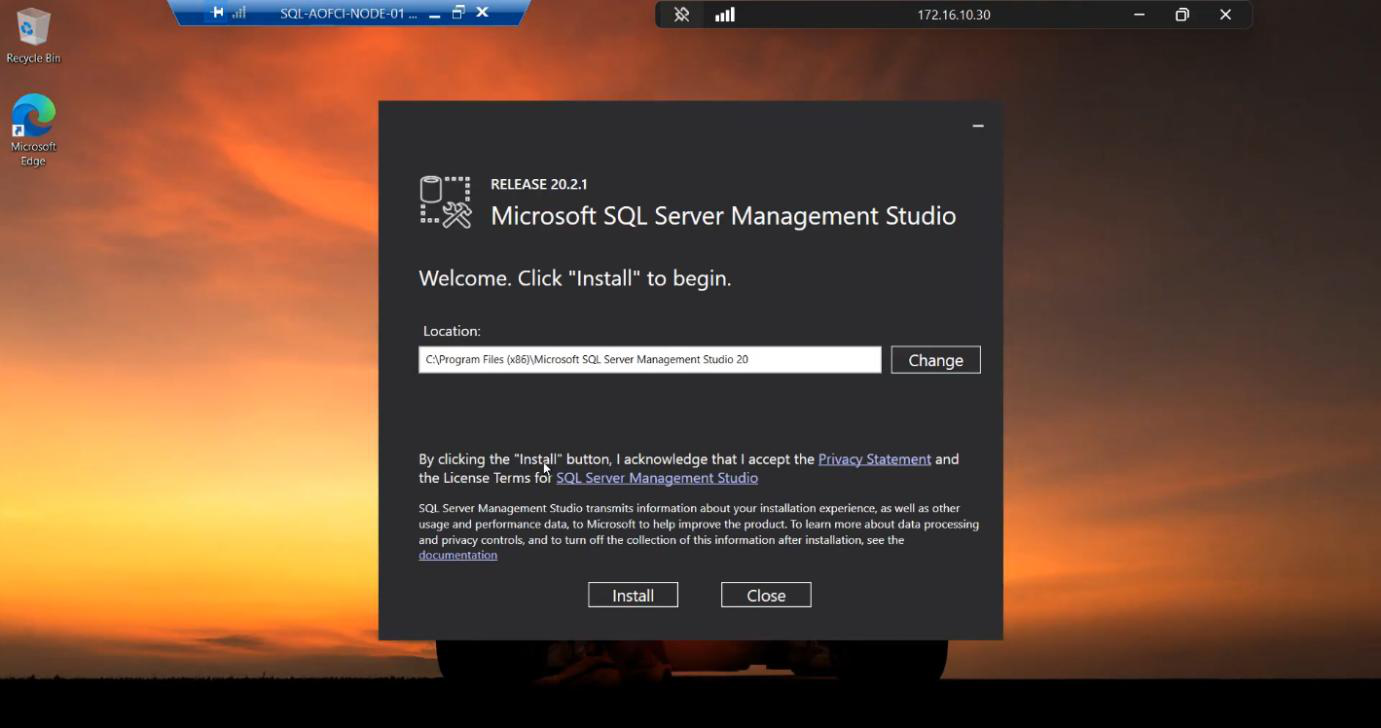
Default path, Install. ~2-3 min.
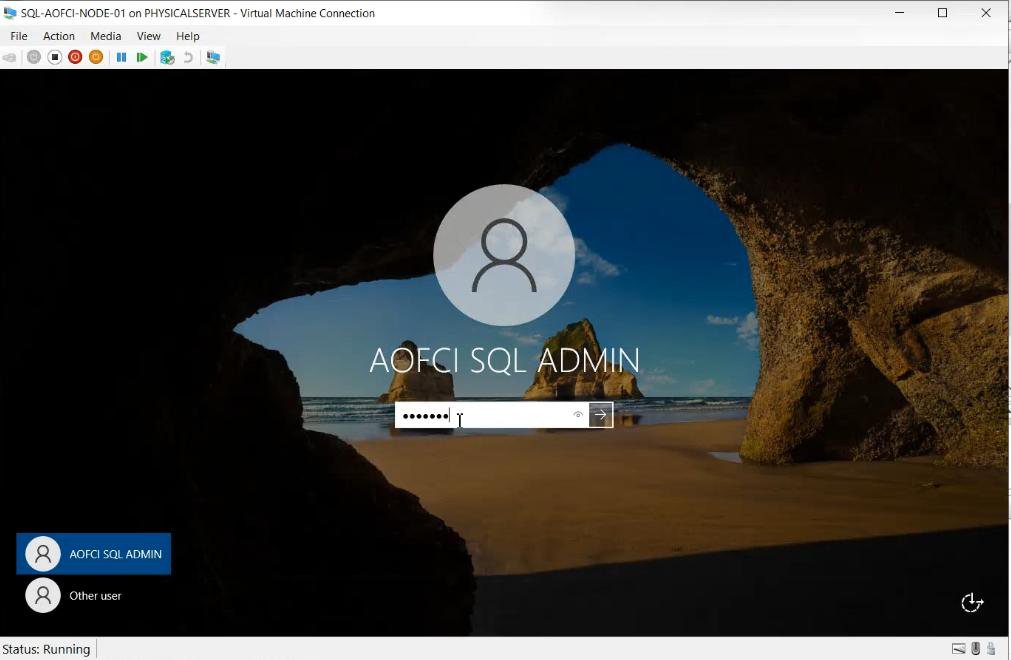
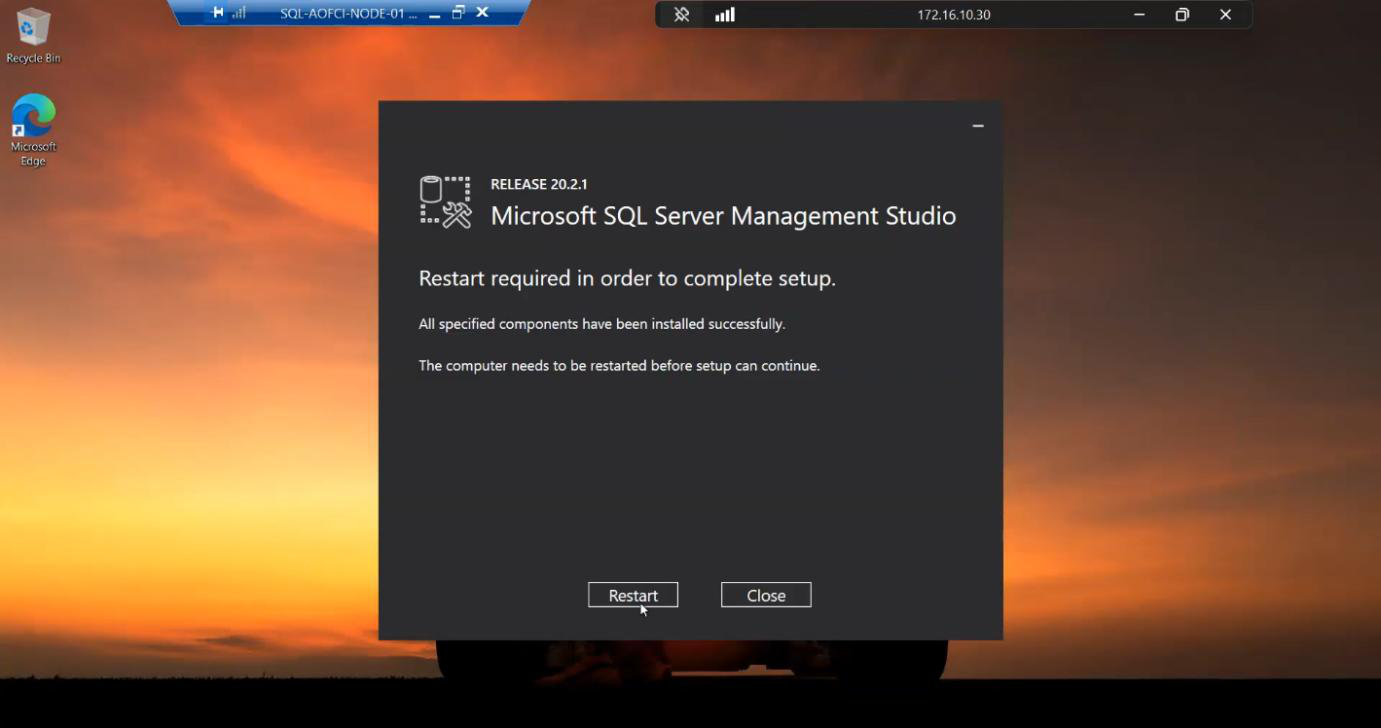
Reboot to finalise.
Verification — the “hooray” moment
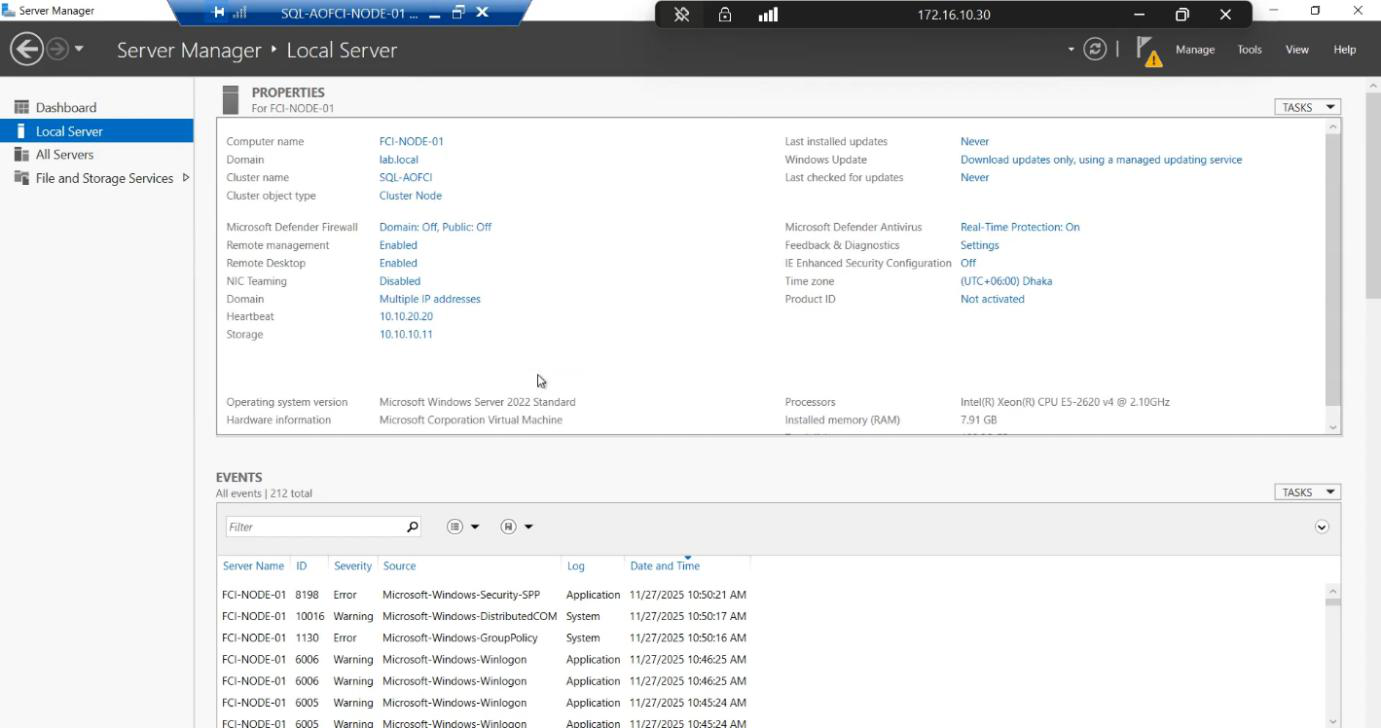
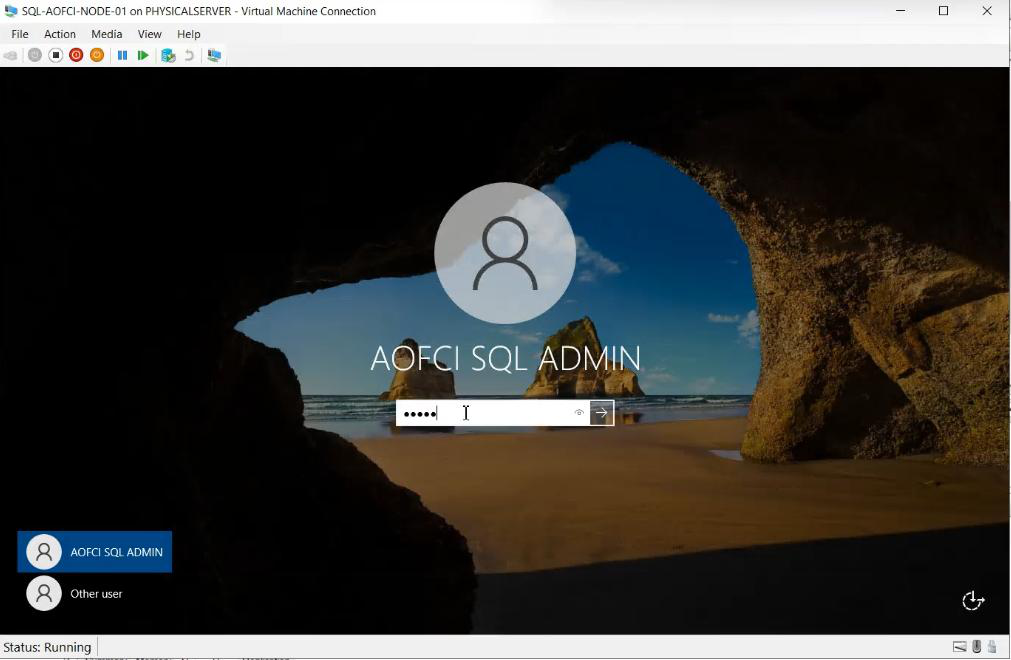
Node-01. The OS doesn’t change identity — SQL has its own virtual name.After reboot, sign back in to Node-01. Server Manager Local Server still shows the OS name Node-01 — the OS doesn’t change identity. SQL has its own virtual name.
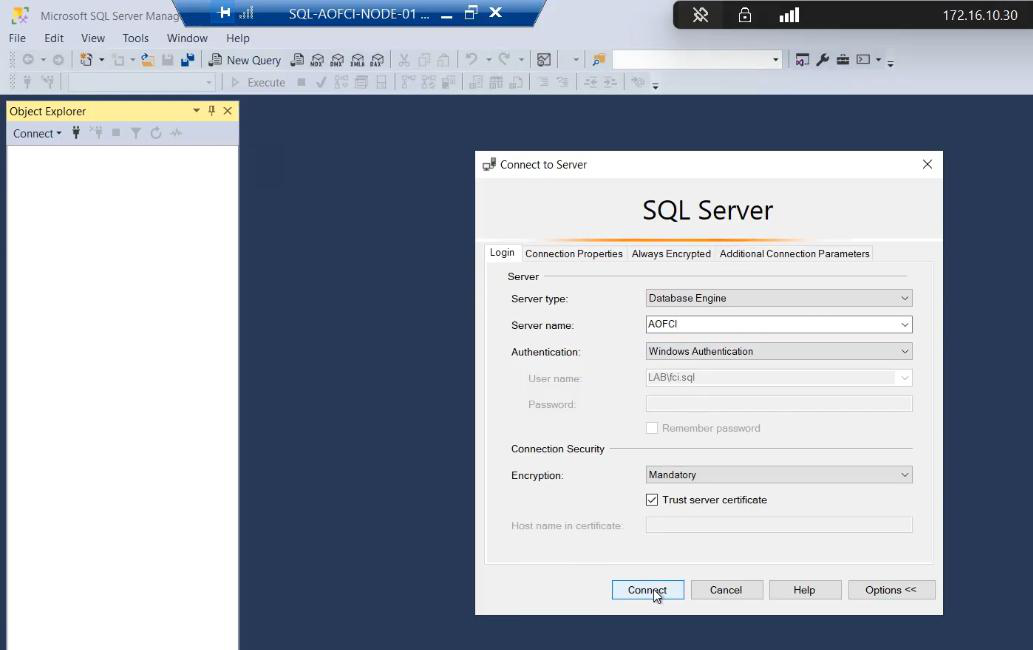
AOFCI. NOT Node-01. Authentication: Windows.Open SSMS. Server name: AOFCI. Authentication: Windows. Connect.
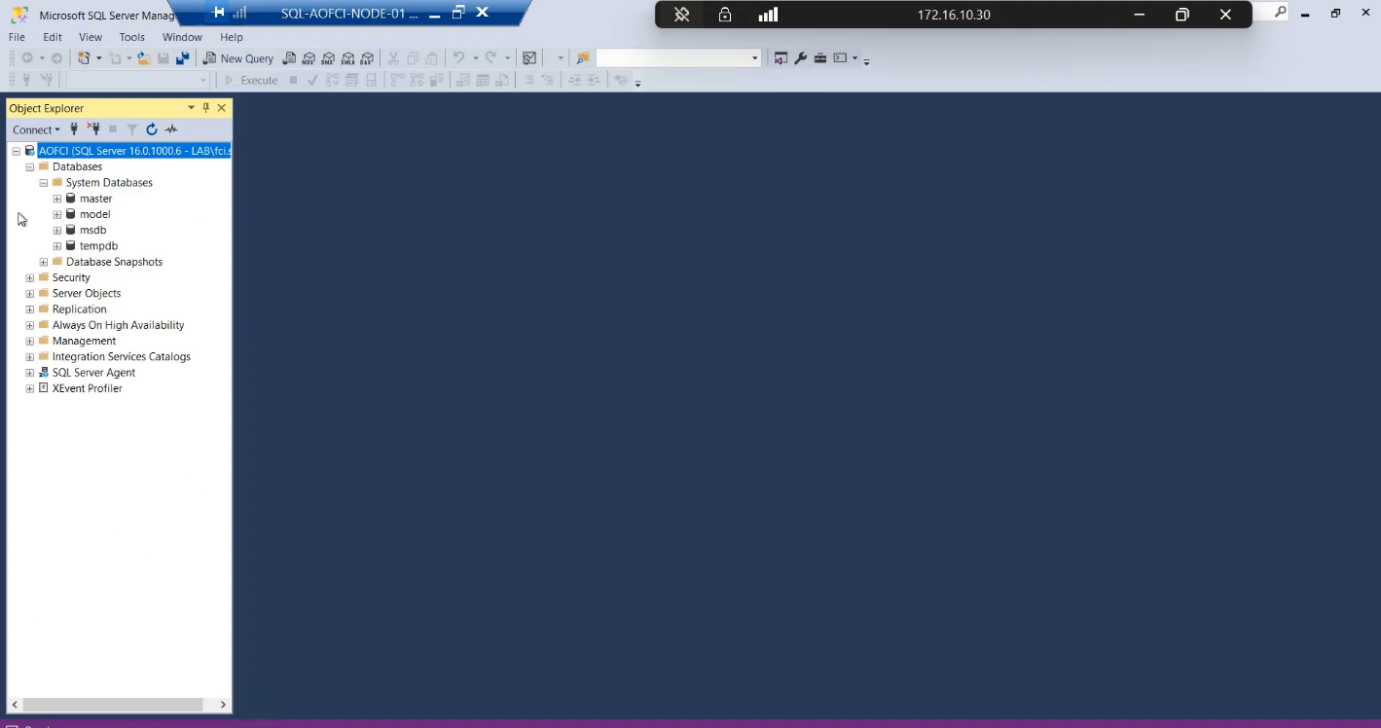
AOFCI as the server. SQL Server Failover Cluster Instance is alive on Node-01.Object Explorer shows server name AOFCI. SQL Server FCI is alive on Node-01.
Try connecting from a workstation: same AOFCI name resolves via DNS, hits the VIP, lands on Node-01’s SQL service. From the client perspective, this looks exactly like a regular SQL Server — that’s the entire point of FCI.
Things that bite people in this part
Picking “stand-alone” instead of “failover cluster”
The single most common FCI mistake. The two install paths look almost identical on the first screen. Read the link text. Stand-alone cannot be converted to FCI — you have to uninstall, drop the resources, redo. Cost: ~3 hours of work.
Local service account chosen by accident
The wizard sometimes pre-fills NT Service\MSSQLSERVER. That’s a local account. FCI requires domain accounts. The wizard will let you proceed but later steps fail. Always type the domain account explicitly.
VIP conflicts
10.15.1.200 must be free. Quick ping 10.15.1.200 from anywhere on the subnet — if it answers, pick another.
Forgetting to add yourself as sysadmin
If you don’t click “Add Current User” on Database Engine Configuration, you finish the install and can’t connect because you’re not a sysadmin. The fix is messy (boot SQL into single-user mode and grant yourself rights). Always Add Current User.
Cluster disk ownership not on Node-01
If, between Part 5 and now, the cluster disk ownership flipped to Node-02 (e.g., a planned failover test), the installer can’t access it from Node-01. FCM → right-click the disk → Move → Node-01 before starting the SQL install.
SSMS not on the cluster nodes
You don’t need SSMS on the cluster nodes — it’s usually installed on a jump box / admin workstation. But for this lab walkthrough, it’s convenient to have it locally for verification.
What’s next
SQL is alive on Node-01 only — that’s a single point of failure dressed up as a cluster. Part 7 adds Node-02 to the SQL FCI via the “Add Node” setup mode — this is what gives us actual high availability. See the full series at SQL Server Clustering pathway.