
Why You Want an Active Directory Security Assessment
Active Directory has been the centre of enterprise identity for over twenty-five years. Roughly 90% of large organizations still use it. That popularity means it is also the most attacked Windows service on Earth — ransomware, lateral-movement playbooks, and almost every public IR report names AD as the eventual target. The defender’s problem: most of the dangerous configurations in AD are legitimate when set up. A wide-open DCSync replication right is exactly what an admin tool needs; it is also exactly what Mimikatz needs. Telling the two apart by reading event logs is hard work.
An Active Directory Security Assessment is a one-shot read of the directory’s state against a published list of known-bad indicators. Tools like Microsoft’s own AD Risk Assessment and Semperis Purple Knight read the partitions a low-privilege user can already see, run a hundred-plus scripted checks against them, and produce a report you can hand to leadership. The goal is not perfection; it is making the next attacker’s job harder by closing the things you can see right now.
This article walks through running Purple Knight Community — Semperis’ free assessment tool — against an Active Directory forest, examining the report, and remediating one of its findings.
What Purple Knight Is (and Isn’t)
Purple Knight is a Windows-only WPF application from Semperis. It is a wrapper around 100+ PowerShell scripts — each script is one indicator — bundled with a results dashboard and a clean HTML/PDF/Excel exporter. Two flavors:
- Community Edition (free). What this article uses. Active Directory + Microsoft Entra ID + Okta scans, full report, no commercial features.
- Commercial editions. Add scheduled scans, role-based access, multi-tenant, and the Hybrid Identity Forest Recovery features. Not covered here.
The tool is portable — no installer, no MSI, just a folder you extract and run. The scripts inside are readable PowerShell; you can open the Scripts folder and audit exactly what each indicator does. This matters because you should not run anything against Active Directory without knowing what it’s doing.
Purple Knight’s findings come in two flavors:
- Indicators of Exposure (IOE). Configurations that could be abused: print spooler running on a DC, weak Kerberos encryption types, machine accounts without password expiration, etc. These are remediation candidates — you fix them before they are abused.
- Indicators of Compromise (IOC). Evidence that has been abused: the AdminSDHolder ACL has been modified, NTDS.DIT has been ACL-altered, etc. These need an incident response, not a config change.
Most reports on a healthy domain are 90%+ IOEs and zero IOCs. If you ever see IOCs, you have a different problem.
Pre-Flight
- Run as a regular Domain User on a domain-joined client. Not Domain Admin, not on a Domain Controller. The whole point is to read what an unprivileged attacker would see. If you run as DA, every check that depends on read-permissions returns differently than reality.
- The client must be joined to the AD forest you are scanning. Purple Knight uses the current Kerberos context to authenticate; cross-forest scans require explicit credentials in the wizard.
- You need network access to a Domain Controller. The scripts query AD via LDAP, NetBIOS, RPC, and SMB depending on the indicator. Block any of those at the firewall and the report has gaps.
- Plan for ~5–30 minutes runtime. Most indicators finish in seconds. The Zerologon check alone can take hours on a real production environment — the wizard de-selects it by default. Run without it first; re-run with it overnight if you need that data point.
Step 1 — Download Purple Knight
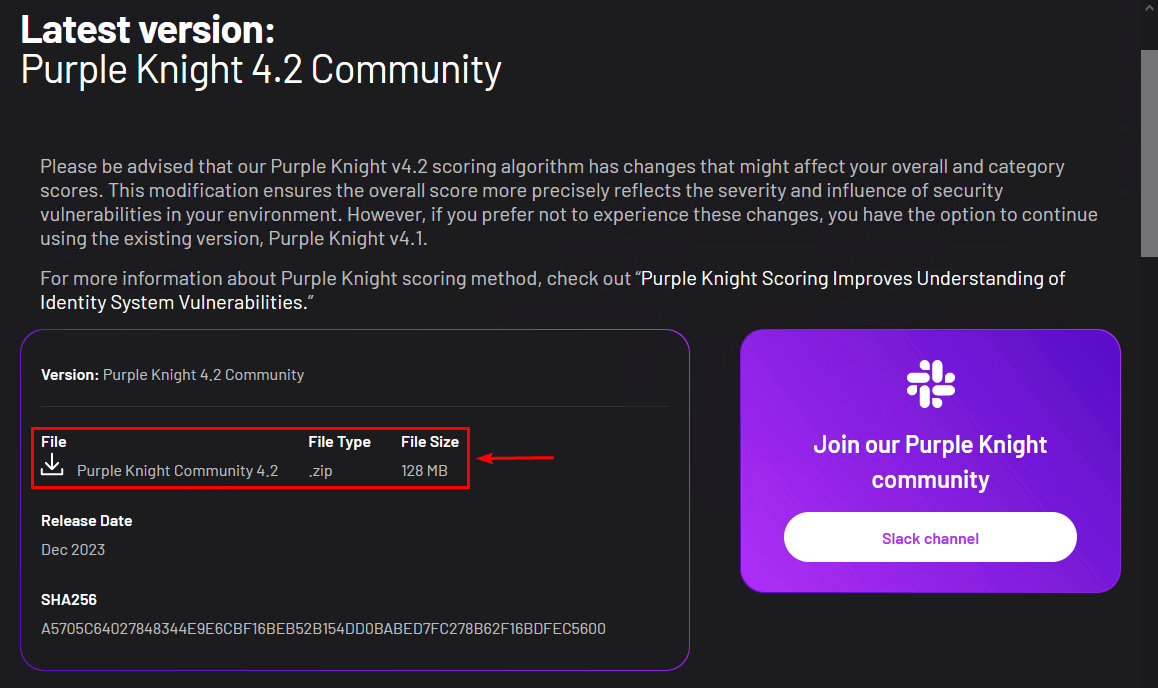
Sign in on a domain-joined client with a regular Domain User account, and grab the latest community release from the Purple Knight resources page:
Extract the .zip to a working folder — here, C:\Install\PurpleKnight-Community:
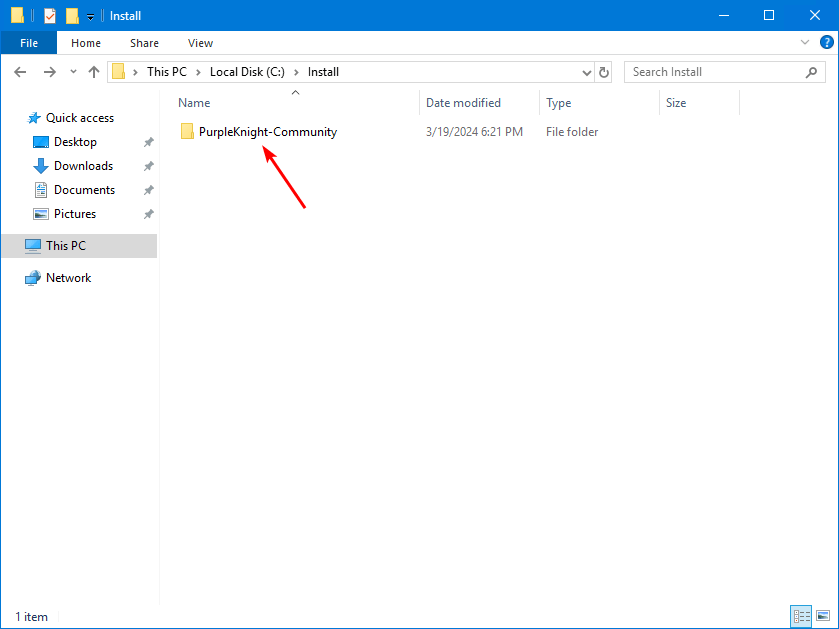
C:\Install\PurpleKnight-Community.Step 2 — Unblock the Files (PowerShell)
Files inside a .zip from the public internet have the Mark of the Web set on them. PowerShell scripts with MotW set are subject to the system’s execution policy and will refuse to run by default. Without unblocking you get this error on launch:
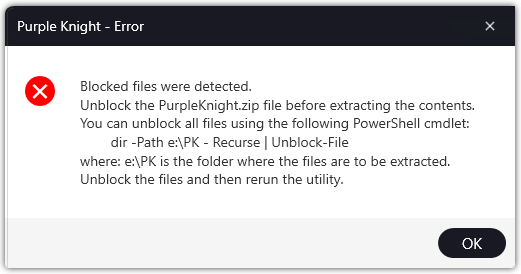
Open Windows PowerShell (no admin rights needed for this; the user owns the files), and run Unblock-File recursively across the extracted tree:
Get-ChildItem -Path "C:\Install\PurpleKnight-Community\PK Community 4.2" -Recurse |
    Unblock-File
Substitute the actual subfolder name — the version number changes between Purple Knight releases. The cmdlet returns silently when it succeeds.
Step 3 — Run Purple Knight
Double-click PurpleKnight.exe in the extracted folder:

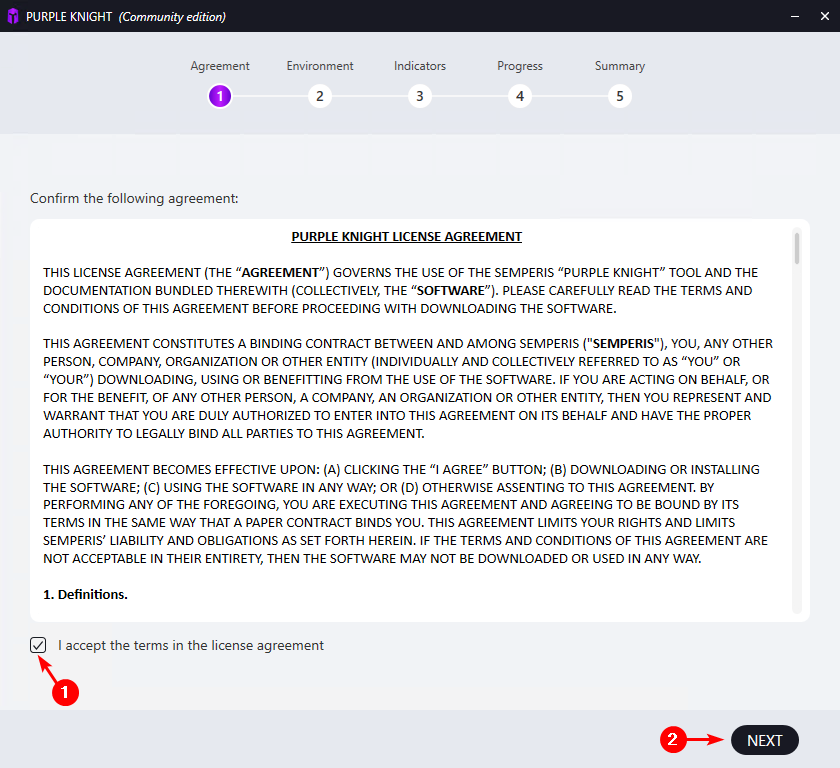
PurpleKnight.exe to launch.Step through the wizard. Agreement is the license; tick I accept and click Next:
3a — Update before scanning
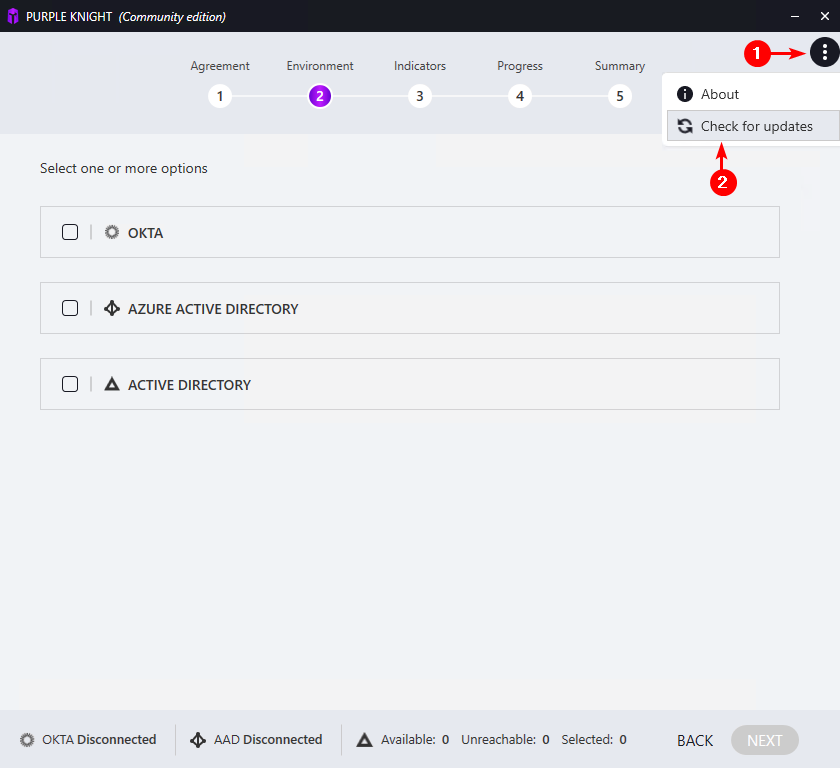
Open the three-dot menu in the top-right and choose Check for updates:
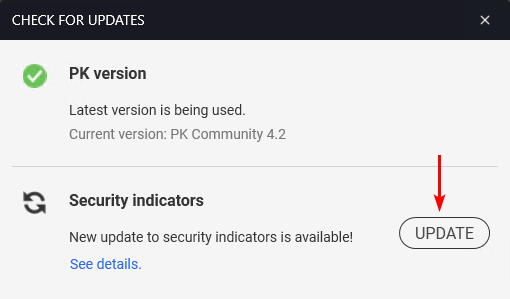
Click Update on the Security indicators row:
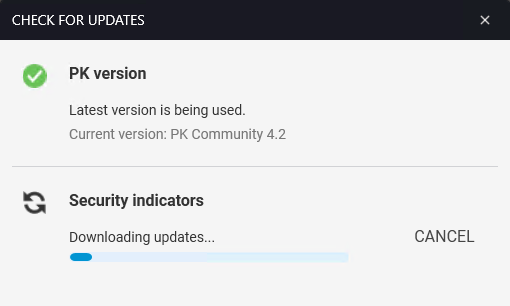
The new indicator scripts download from Semperis:
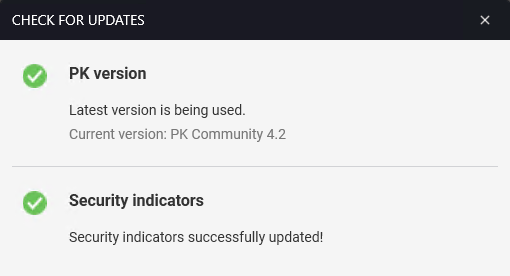
Both rows should turn green — PK version up to date AND security indicators up to date:
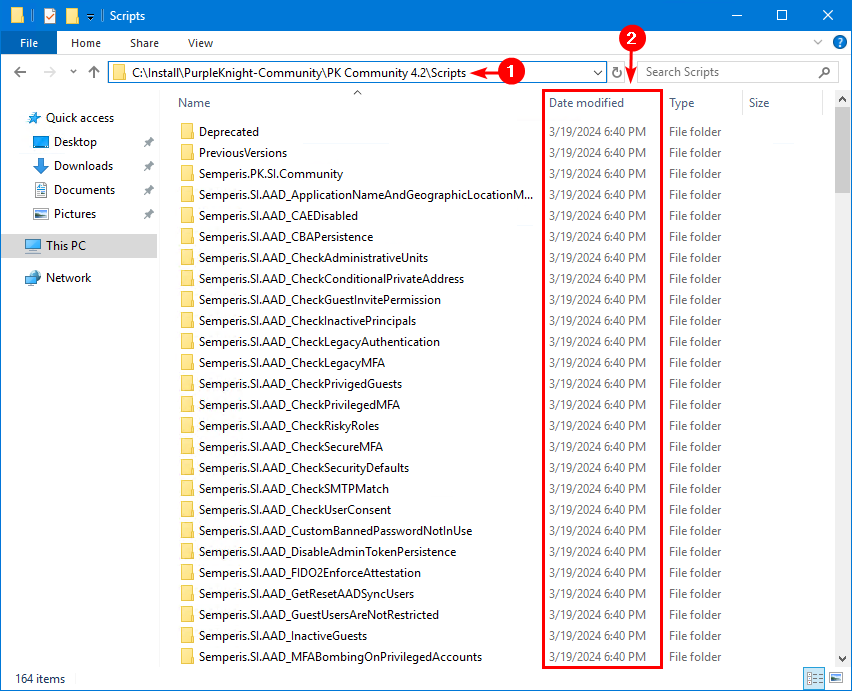
The new scripts land in the Scripts folder under your install. If you have time, this is the right moment to skim them — each subfolder is one indicator with its PowerShell, parameters, and (on commercial builds) remediation guidance:
3b — Pick the environment
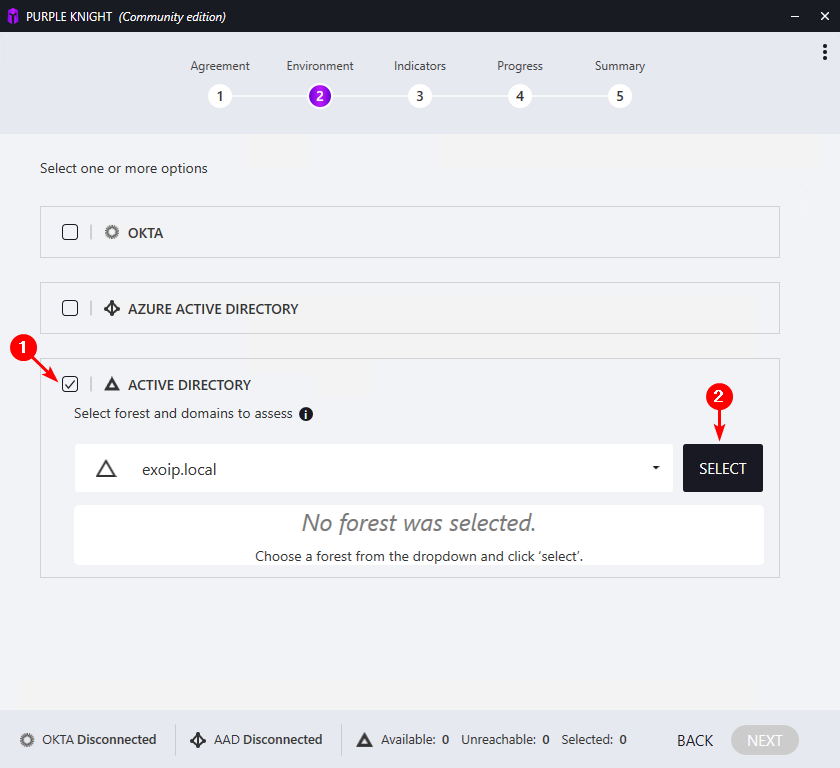
Step 2 of the wizard is Environment. Tick ACTIVE DIRECTORY, pick the forest from the dropdown, and click Select:
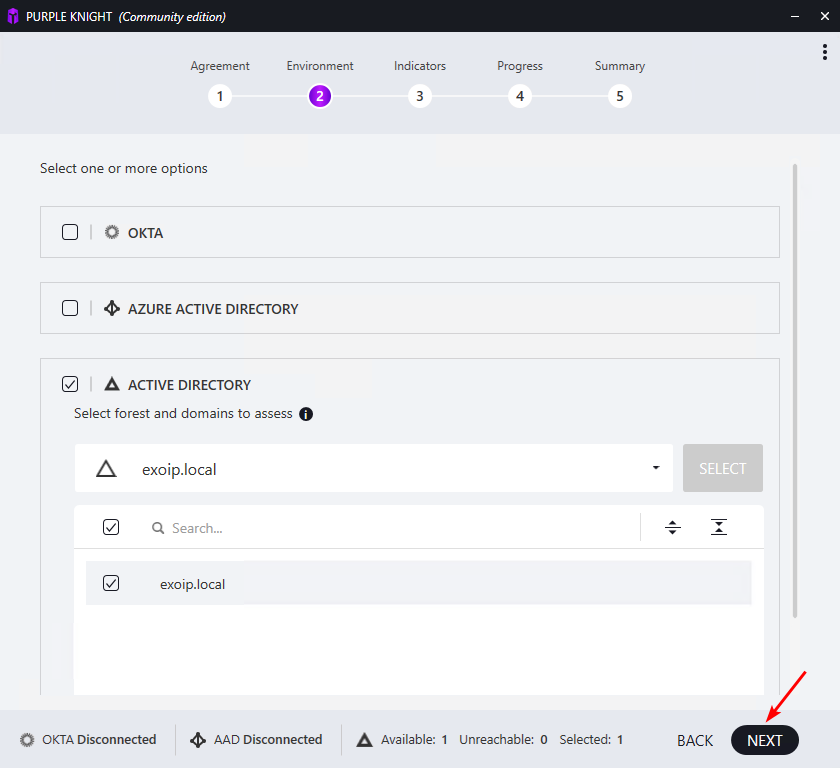
Confirm Available 1 / Selected 1 in the status bar at the bottom, then Next:
3c — Indicators
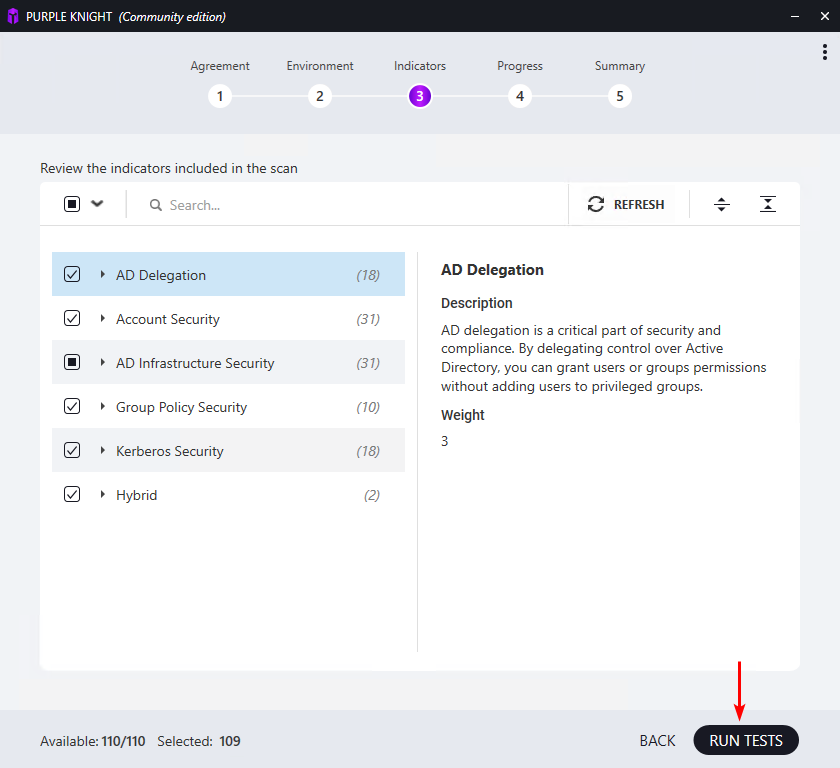
Step 3 lists six categories with a count of indicators per category:
- AD Delegation (18) — AdminSDHolder, ACL drift, dangerous delegations
- Account Security (31) — password policies, expiry settings, kerberoastable accounts
- AD Infrastructure Security (31) — FRS-vs-DFSR, SMB v1, print spooler on DCs, etc.
- Group Policy (10) — default domain policy drift, GPO ACL issues
- Kerberos (18) — weak crypto, AS-REP roasting candidates, RC4 still allowed
- Hybrid (2) — Entra ID Connect drift, sync account exposure
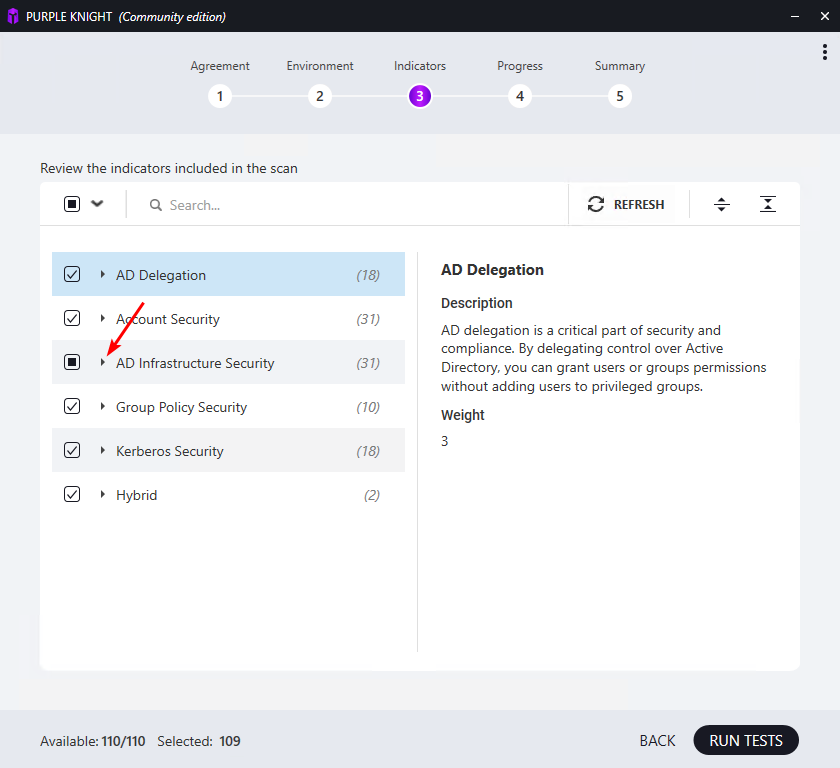
One indicator is de-selected by default — Zerologon vulnerability:
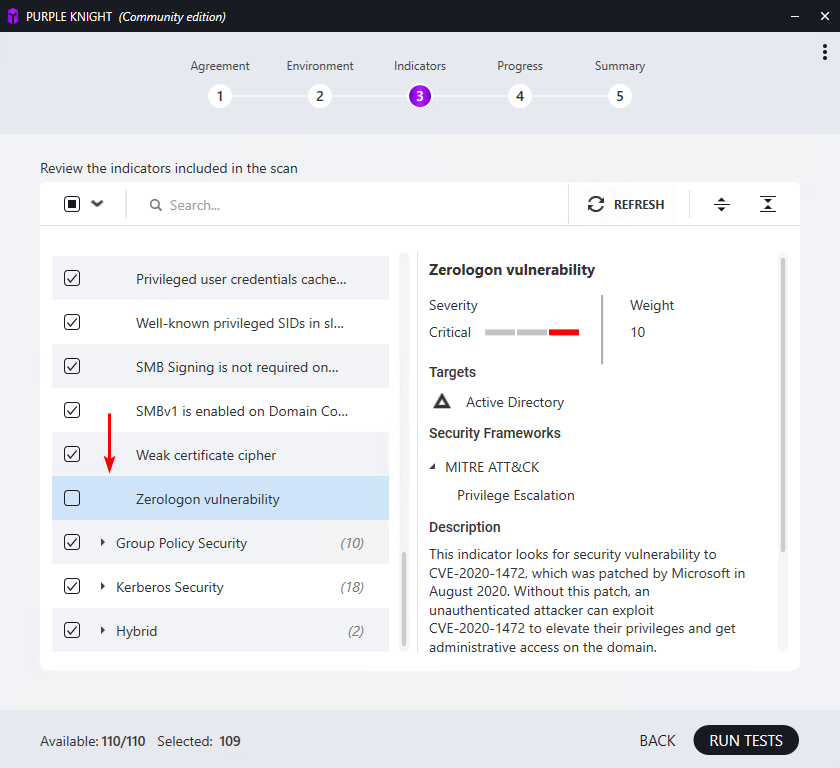
Zerologon (CVE-2020-1472) is critical, but the check probes every DC’s secure channel and can take hours on a production forest. Run without it first; re-run later with just Zerologon enabled when you have the time. Click Run Tests:
3d — Progress
Step 4 shows live progress per category:
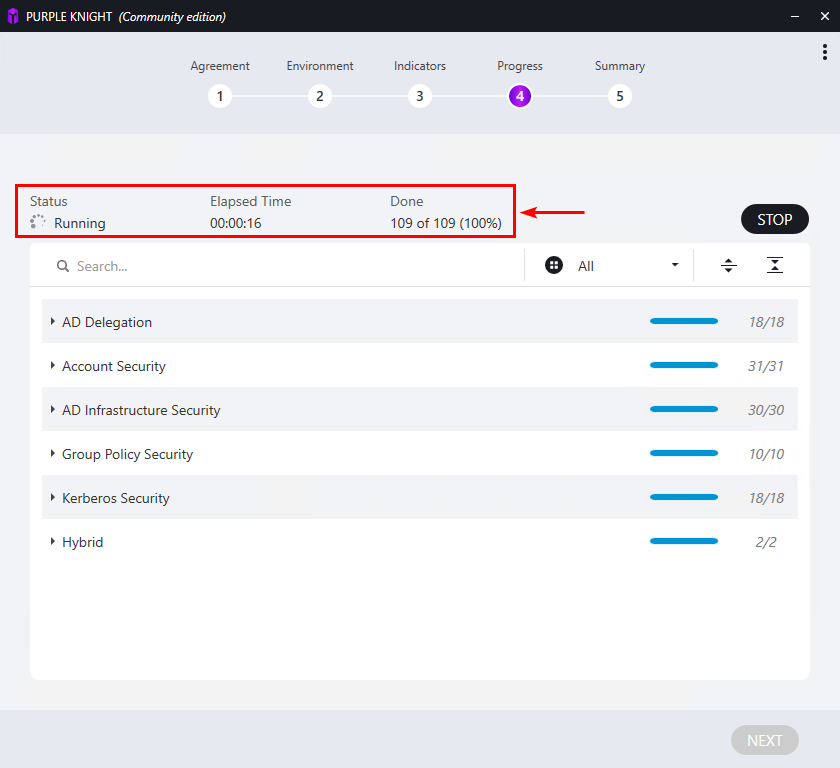
Most categories complete in seconds. The screen reports elapsed time and a per-category “processed of total” counter so you can see which one is slow.
3e — Summary and report
Step 5 is the Summary:
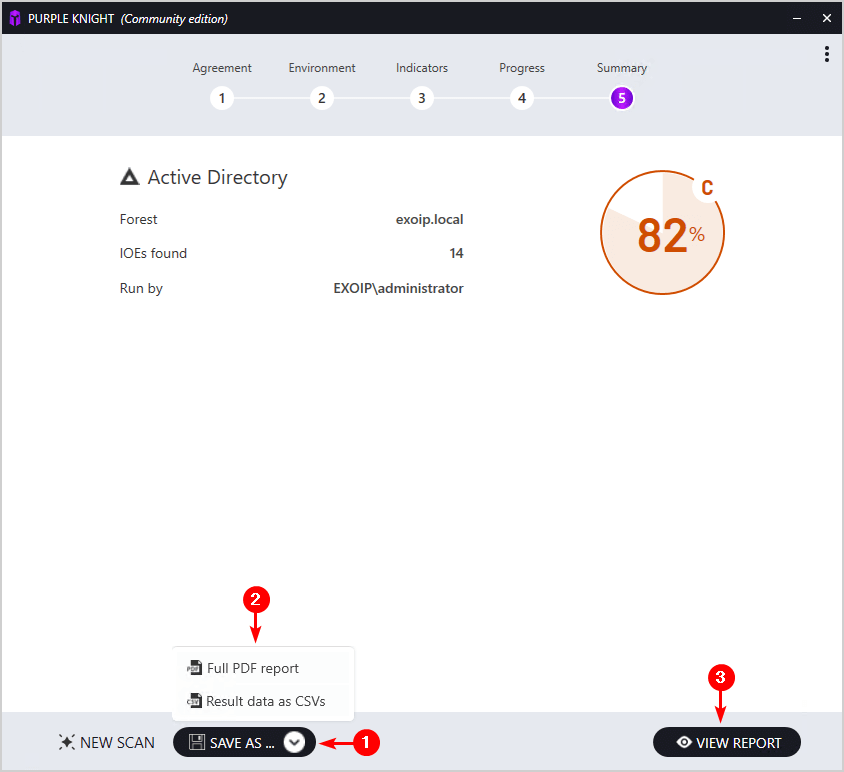
Numbers to read: total score (here 82%, grade C), how many IOEs were found (14), the user the scan ran as, and the forest it scanned. The Save As dropdown exports a full PDF; View Report opens the HTML. Both files also land automatically in the Output folder under the install:
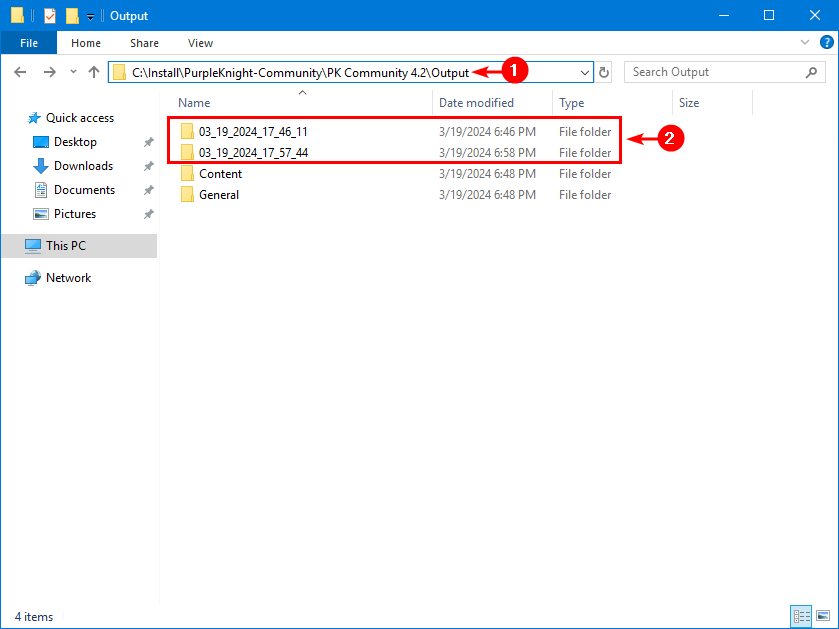
Output\.Inside each timestamped run folder you get the HTML report and an Excel checklist:
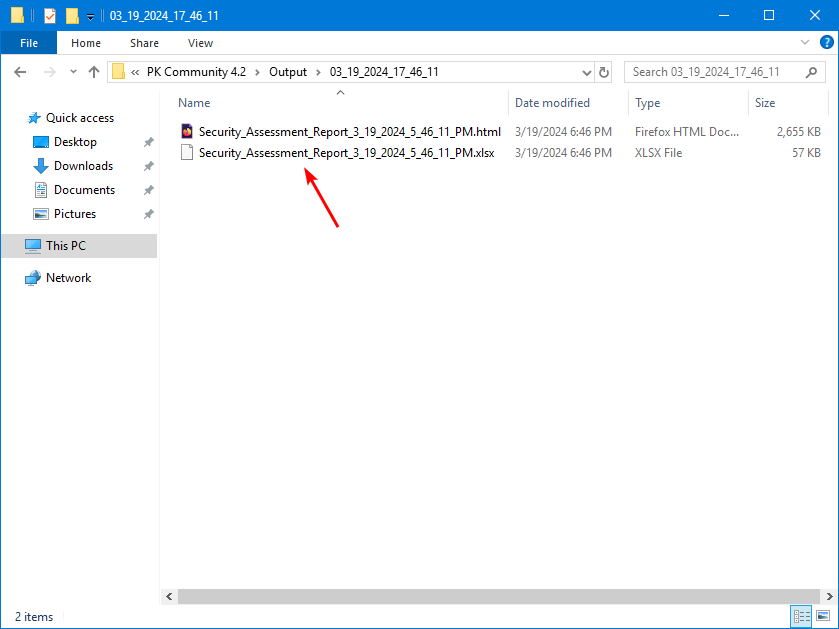
Step 4 — Examine the Report
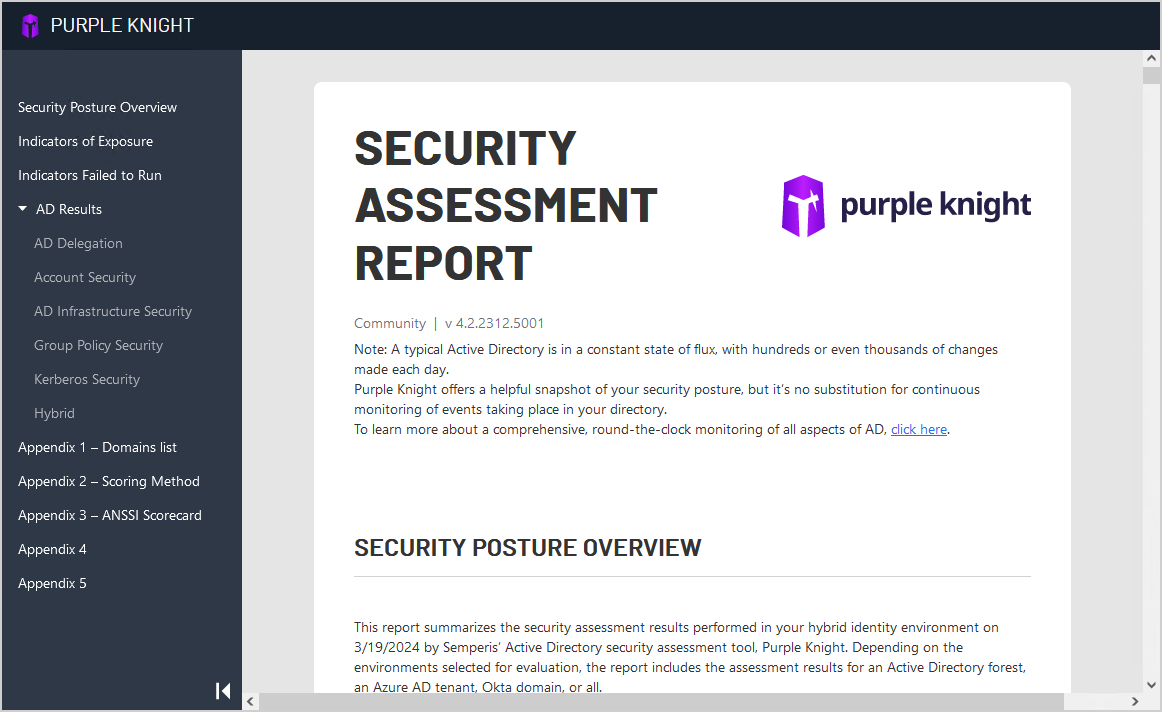
Open the HTML report. The header has a left-hand nav: Security Posture Overview, Indicators of Exposure, AD Results, plus five appendices for the underlying data:
The score card on the AD Results page summarizes the run — forest scanned, scan duration, indicators evaluated, indicators not selected (1, the Zerologon skip), IOEs found, indicators passed, indicators not relevant:
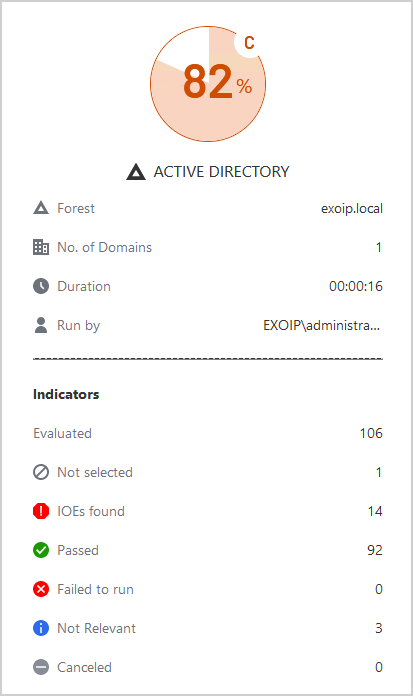
The headline is the IOE count. 14 IOEs is your to-do list. Scroll into the IOE detail to see exactly what each one is, why it matters, and which AD object/setting needs to change:
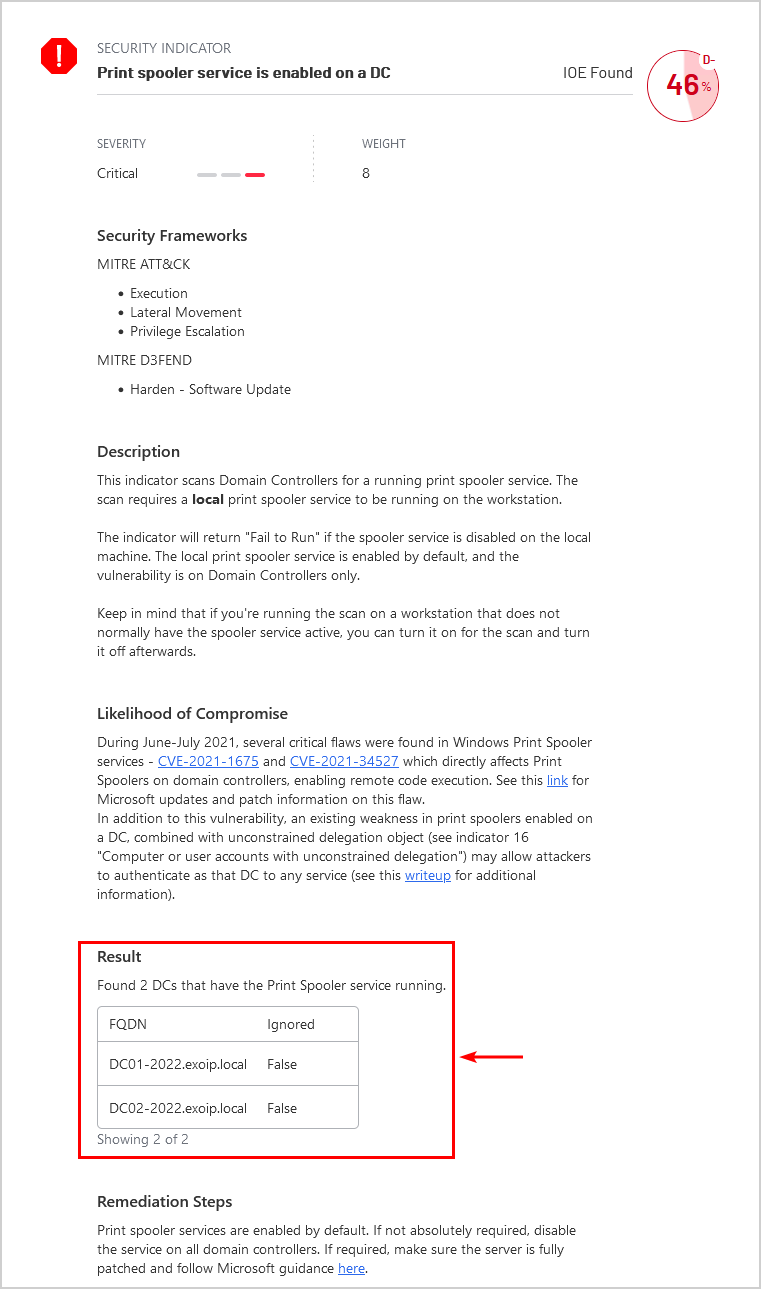
This one is the classic print spooler service running on a Domain Controller — the PrintNightmare class of vulnerabilities (CVE-2021-1675 and successors) need the spooler service running to be exploited remotely. The Result table lists every DC where the service is enabled, the MITRE ATT&CK techniques it enables (Execution / Lateral Movement / Privilege Escalation), and the suggested remediation: stop and disable Print Spooler on every DC.
One Get-Service Spooler + Stop-Service Spooler -Force; Set-Service Spooler -StartupType Disabled on each DC closes this finding. Re-run the scan and the same indicator now shows green:
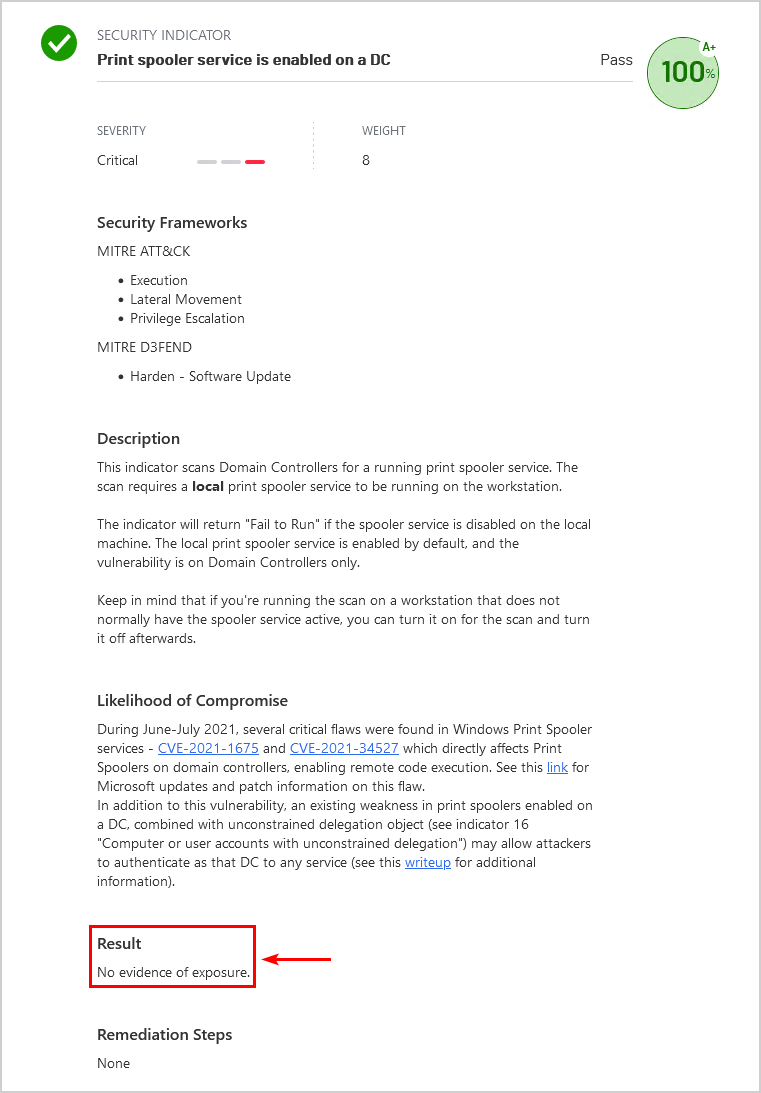
That is the workflow: scan, identify, remediate, re-scan, archive the new score. Each pass moves the grade up.
How to Read the Score
Purple Knight grades AD Out of 100, weighted by indicator severity:
- A+ 95-100 — you are doing the right things; keep monitoring for drift.
- A 90-94 — near-perfect; chase the last few low-severity items.
- B 80-89 — healthy but with at least one critical finding; remediate this quarter.
- C 70-79 — this is where most uncared-for production AD environments score the first time they are scanned. Several criticals; remediate this month.
- D 60-69 — the directory is materially exposed. Treat as urgent.
- F <60 — a competent attacker who lands a foothold gets DA in hours. Stop reading; start fixing.
The grade is useful for tracking direction over time (“we were a C in February, B+ in May”) and for explaining the situation to leadership. It is not the full story — one critical IOE that exposes DCSync rights to a service account matters more than ten low-severity findings — but it is the easiest single number to communicate.
Common Pitfalls
- Running as Domain Admin. Some indicators check what a low-privileged user can read; running as DA hides those gaps. Always run as a regular Domain User.
- Running on a DC. Same problem — DCs see the directory differently than a domain-joined workstation does. Run on a normal client.
- Not unblocking the files. First run after extract will fail with the “files are blocked” error. Always run the
Get-ChildItem | Unblock-Filecommand before launching Purple Knight. - Skipping the update step. Indicators are pushed continuously; running last quarter’s indicator set means missing recent vulnerability classes (e.g., the late-2023 KrbRelay-derived indicators). Always Check for updates before the run.
- Treating IOEs as a checklist to mass-fix without thinking. A few IOEs (e.g., DSRM password set on a non-zero number of DCs) are intentional in some environments and breaking them changes BCDR. Read the indicator detail before remediating.
- Letting Zerologon block every run. Run without it first to get the rest of the report; come back to it overnight.
- Not archiving prior runs. The score-over-time trend is the most useful artifact for board / audit conversations. Keep every run’s HTML and PDF in a SharePoint or Git repo. Each run lives in its own timestamped folder anyway.
Conclusion
Purple Knight is the cheapest, fastest first AD security assessment you can run. Free, portable, scripted in PowerShell you can audit, and it produces a report a non-technical executive can read. The first run is the most useful — it surfaces the configuration debt nobody has paid since the forest was set up.
Schedule it weekly or monthly going forward. Pair it with the AD Health Check for replication / dcdiag state, the functional-level pre-flight before any structural change, and the AD hardening baseline for the prevention-side controls. The four together cover almost every “is the directory healthy and safe?” question you will be asked.