
A user’s laptop dies on a Wednesday morning. With normal local-profile Documents, every file they had is gone — whatever wasn’t in OneDrive, in email, or copied to a share by hand. With Folder Redirection, the same incident is a one-hour event: hand the user any other domain-joined PC, they sign in, and their Documents folder appears exactly as it was on the dead laptop. The data wasn’t local in the first place; it lived on a file share, and the user just thought they were saving locally.
This walkthrough builds the full configuration end to end: the OU, the test user, the security group that filters the policy, the hidden share with the right NTFS permissions, the GPO, and the validation steps to prove redirection actually worked on a Windows 10 client. The Security Filtering quirk that catches everyone the first time (you must keep Authenticated Users with Read permission, even though they don’t apply the GPO) is explained at the end with the reasoning, not just the rule.
What you need before starting
- A Windows Server 2022 (or 2019/2016) domain controller
- A domain-joined Windows 10 (or 11) client for testing
- Domain Admin rights on the DC
- Administrative access to the file server hosting the redirected share — in lab environments this is often the DC itself, but do not do this in production; use a dedicated file server
What Folder Redirection does (and why)
Folder Redirection is a Group Policy feature that points a user’s special folders (Documents, Desktop, Downloads, AppData\Roaming, etc.) at a server share instead of the local profile. Applications still see “Documents” in the user shell folder; the underlying location is a UNC path. The user notices nothing until they sign in on a different domain-joined PC and find all their files there waiting.
What you get:
- Centralized backup — user files live in one place on the file server. Back up the share, you’ve backed up everyone’s Documents.
- Roaming — users can sign in on any domain-joined PC and see the same data. Especially useful for shared workstations and hot-desking.
- Hardware-failure resilience — lost laptop = lost hardware, not lost data. Hand them a replacement PC and they’re working again in under an hour.
- Offline access — combined with Offline Files (which we enable in Step 10), the redirected folder is cached locally and works when the network is unavailable.
Step 1 — Create an OU for the redirected users
OU isolation makes the GPO scope explicit. Sign into the DC as Domain Admin, open Server Manager > Tools > Active Directory Users and Computers. Right-click the domain > New > Organizational Unit > name it Design > OK.
Step 2 — Create a test user inside the OU
Right-click the Design OU > New > User. First name Deepak, last name Patel, logon Deepak. Next. Set a password, untick User must change password at next logon (this is a test user; in production you’d leave it ticked). Next > Finish.
Step 3 — Create the security group that gates the GPO
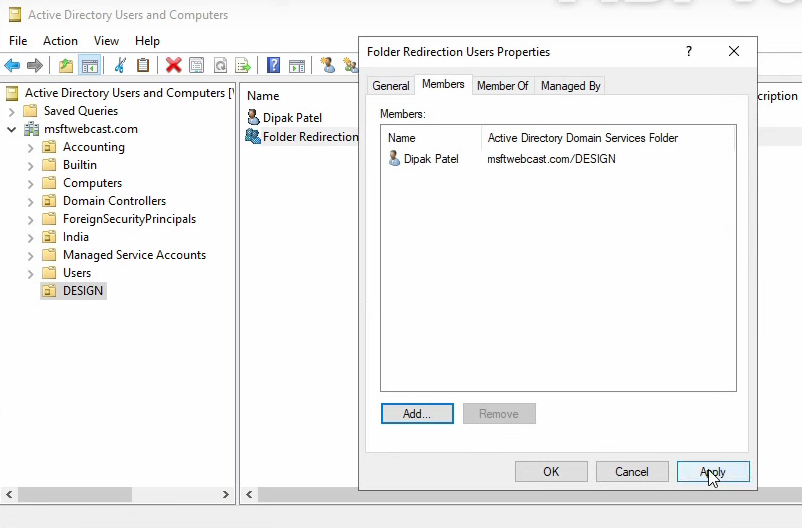
Right-click Design OU > New > Group. Name Folder Redirection Users, scope Global, type Security > OK. Right-click the new group > Properties > Members > Add, add Deepak Patel, Check Names > OK > Apply > OK.
Step 4 — Create the hidden share that holds the redirected data
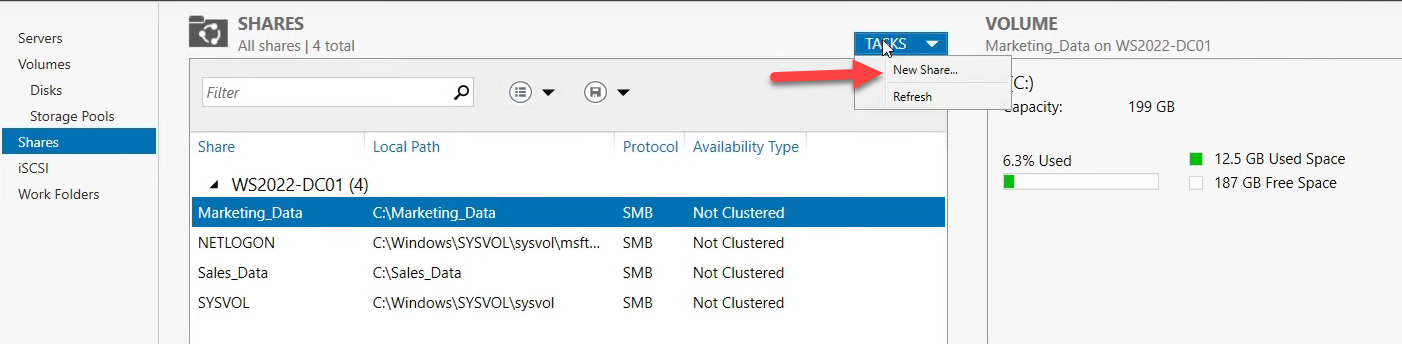
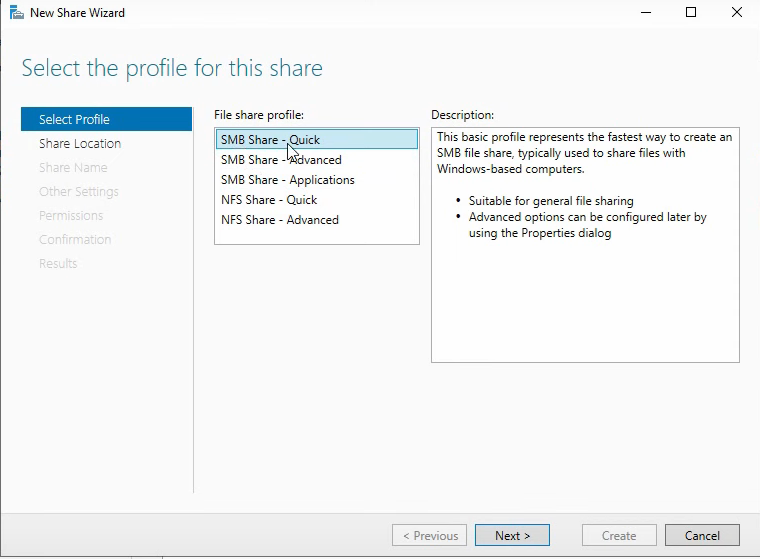
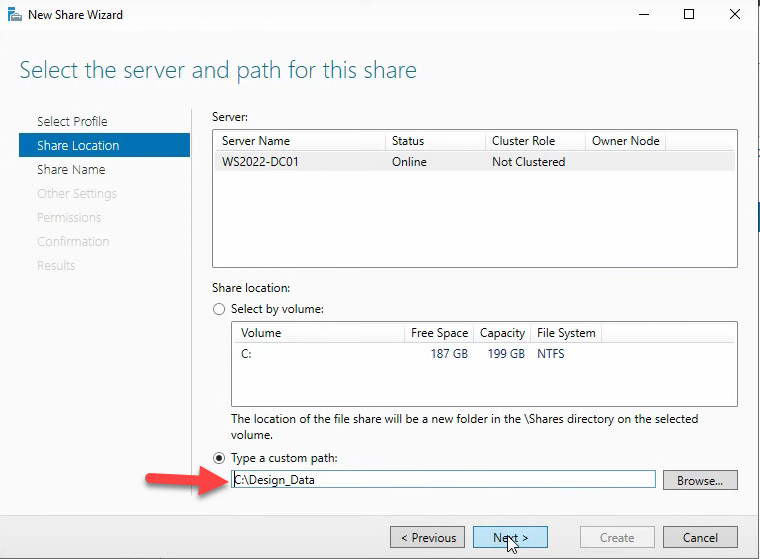
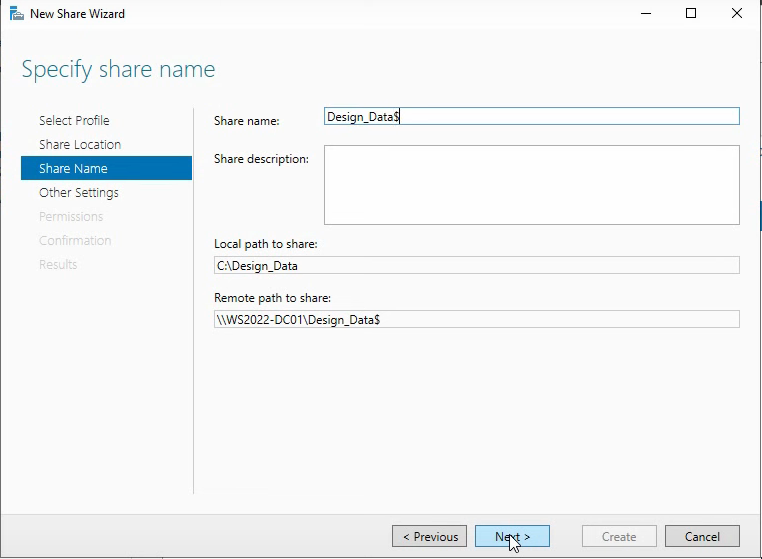
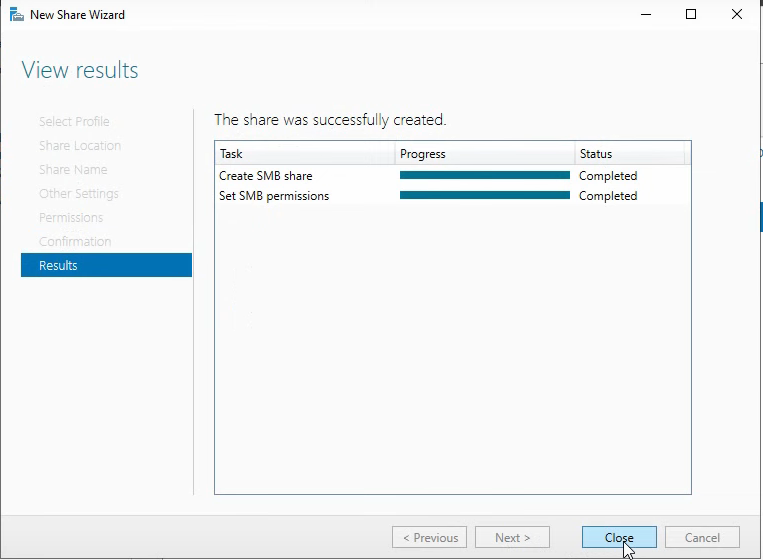
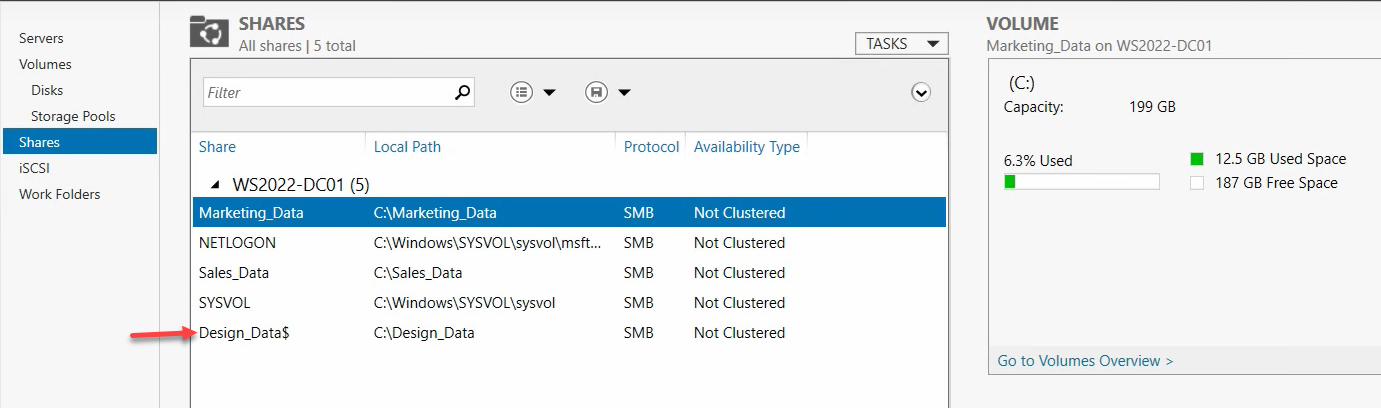
The share name ends with $ — that’s the convention for hidden shares (won’t appear in browse lists, but is fully accessible by UNC path). In Server Manager > File and Storage Services > Shares, click Tasks > New Share > SMB Share – Quick > Next. On Share Location, pick Custom Path, Browse to C:, click New Folder, name it DesignData, select it, click Select Folder > Next. On Share Name, enter DesignData$ > Next.
Step 5 — NTFS permissions on the share
The default share permissions are too open and too narrow at the same time — too open in that everyone can read everyone else’s subfolders, too narrow in that nobody can create new ones. The lockdown:
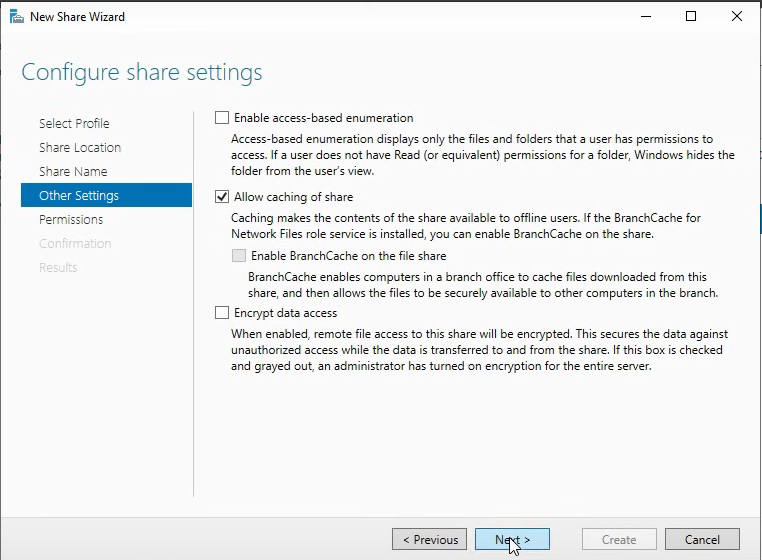
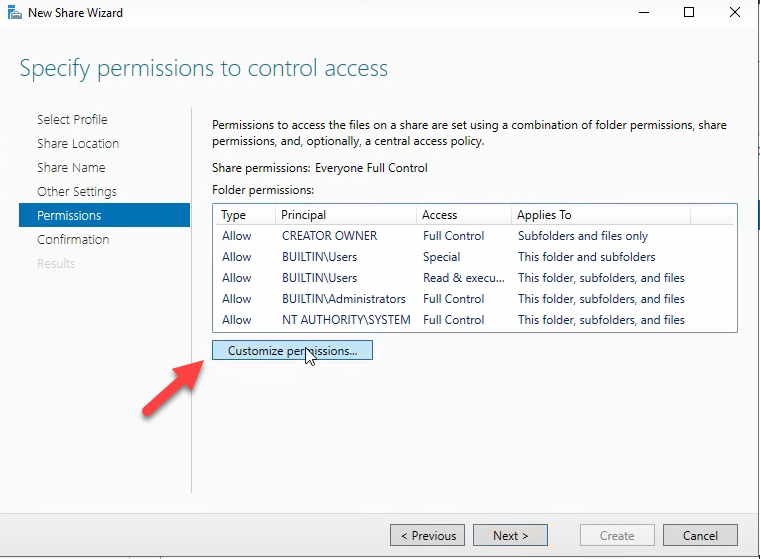
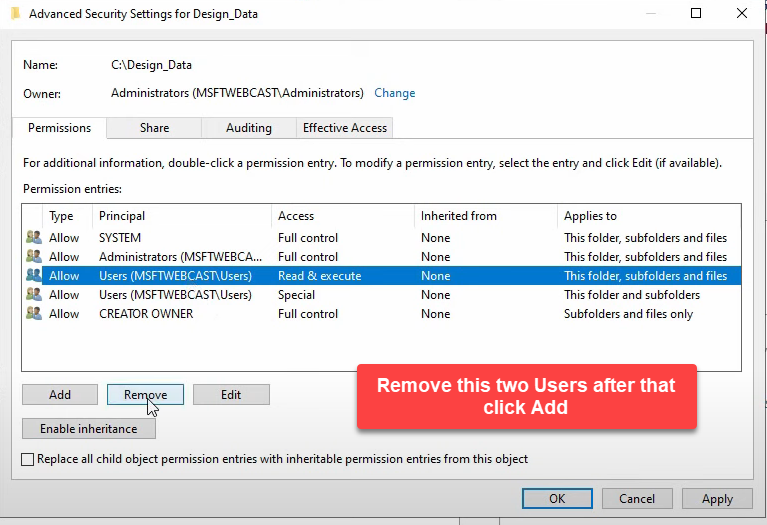
- On Configure Share Settings, click Customize Permissions
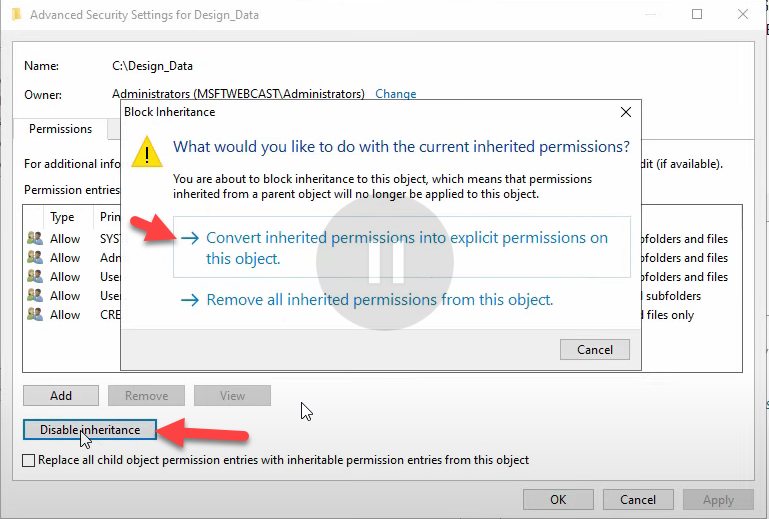
- Disable Inheritance > Convert inherited permissions into explicit permissions
- Remove the Users entry
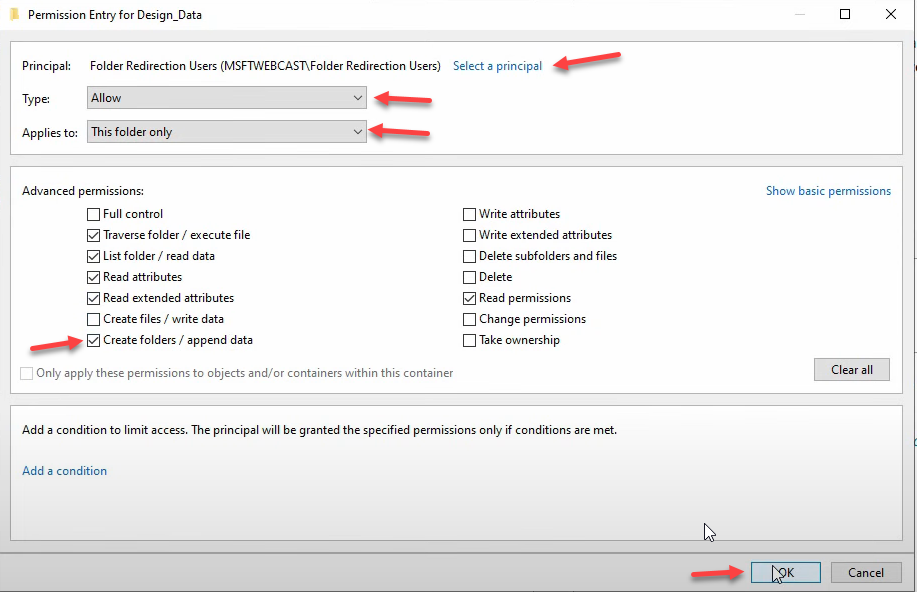
- Add > Select a Principal, enter Folder Redirection Users, Check Names > OK
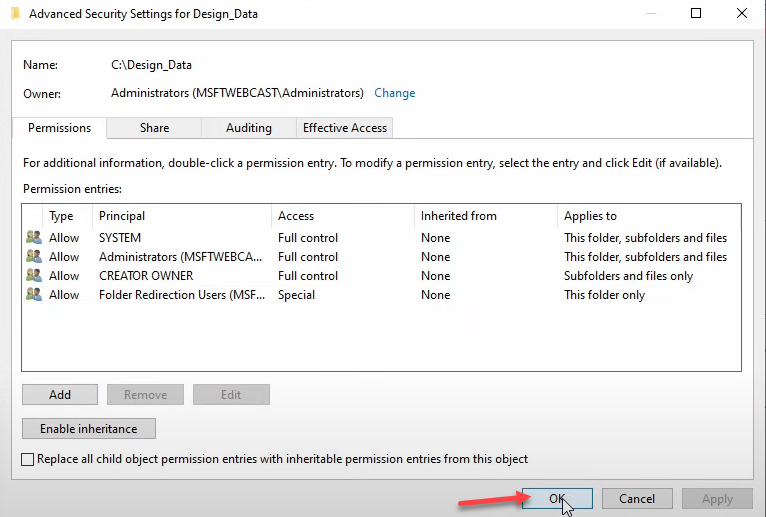
- Keep the default permissions, then add Create folders / append data — this is the critical permission. Without it, the per-user subfolder can’t be created on first redirection and the whole flow silently fails for new users.
- Set Applies to: This folder only (so Folder Redirection Users can’t traverse into other users’ subfolders — once a user’s subfolder is created, only that user has access to it via the inherited permissions Folder Redirection sets at creation time)
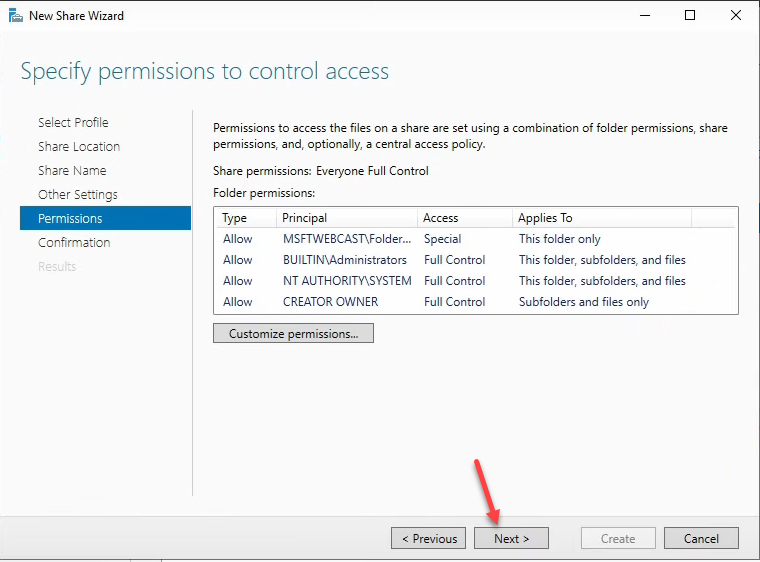
- OK > Apply > OK > Next > Create > Close
Step 6 — Create the GPO
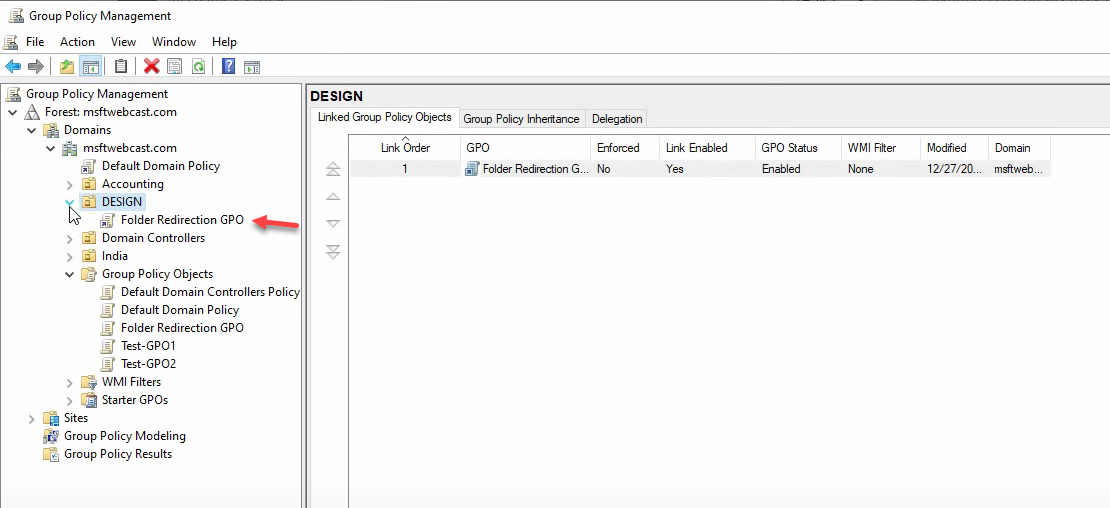
From Server Manager > Tools > Group Policy Management, expand the domain, right-click Group Policy Objects > New. Name it Folder Redirection GPO. OK. The GPO is created but not yet linked or scoped — that’s the next two steps.
Step 7 — Security filter the GPO to the redirection group
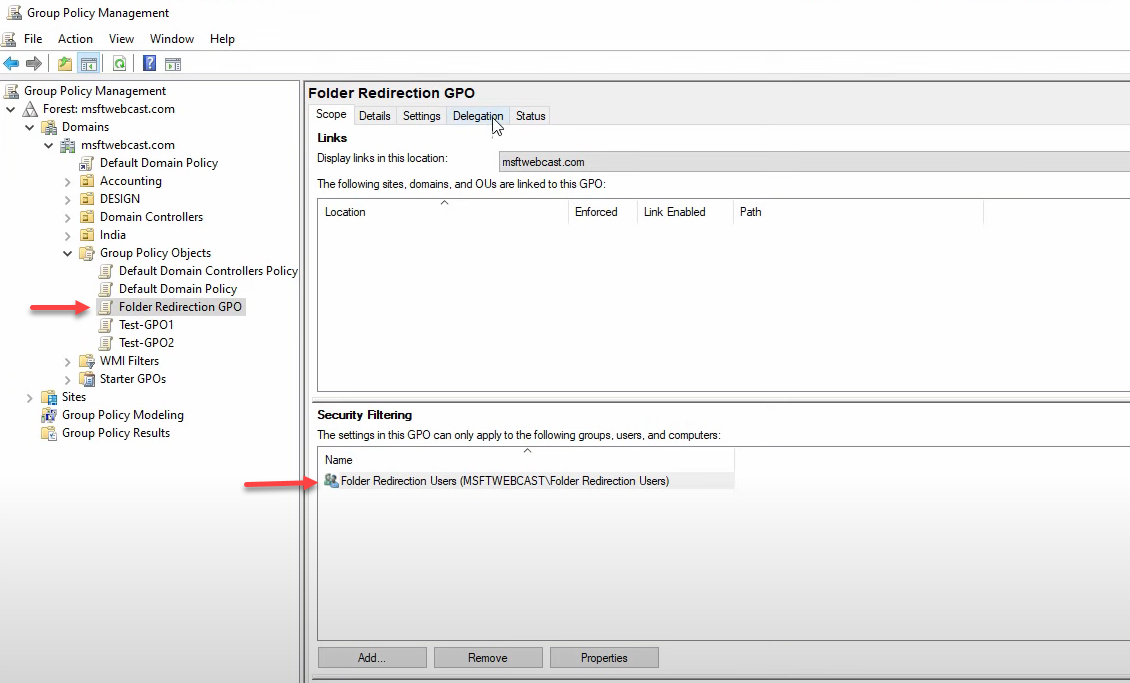
Select the new GPO. On the Scope tab:
- In Security Filtering, remove Authenticated Users
- Add > the Folder Redirection Users group > OK
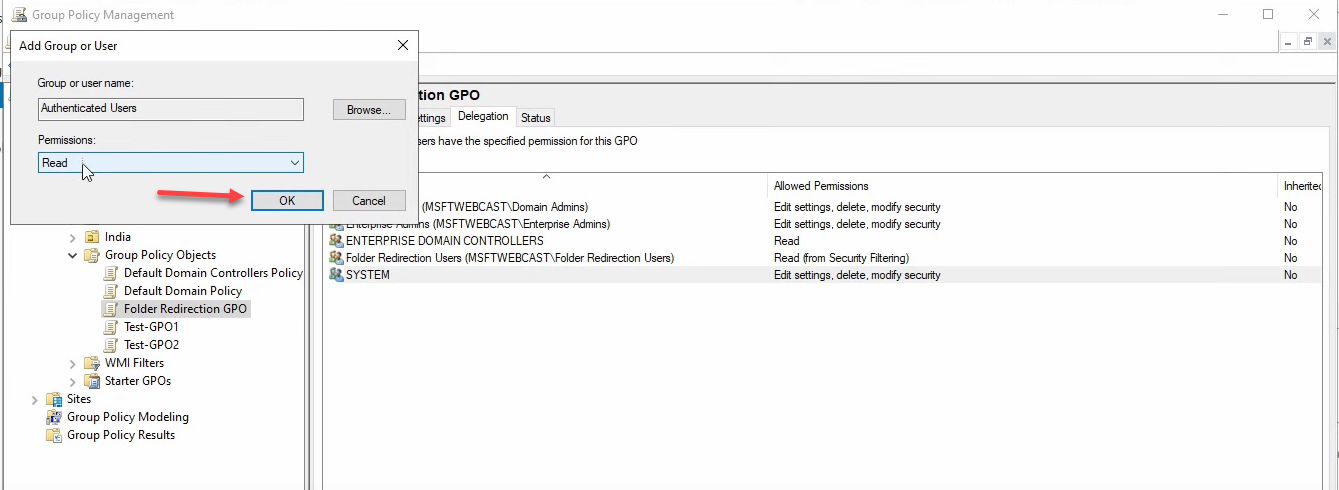
Adding the group automatically grants it both Read and Apply Group Policy permissions. But you’re not done — Folder Redirection has a quirk compared to other GPO types. The CSE (Client-Side Extension) needs to read the GPO before it can decide whether to apply it, and that read happens against Authenticated Users by default. If you’ve removed Authenticated Users entirely, the CSE can’t see the GPO and processing fails silently.
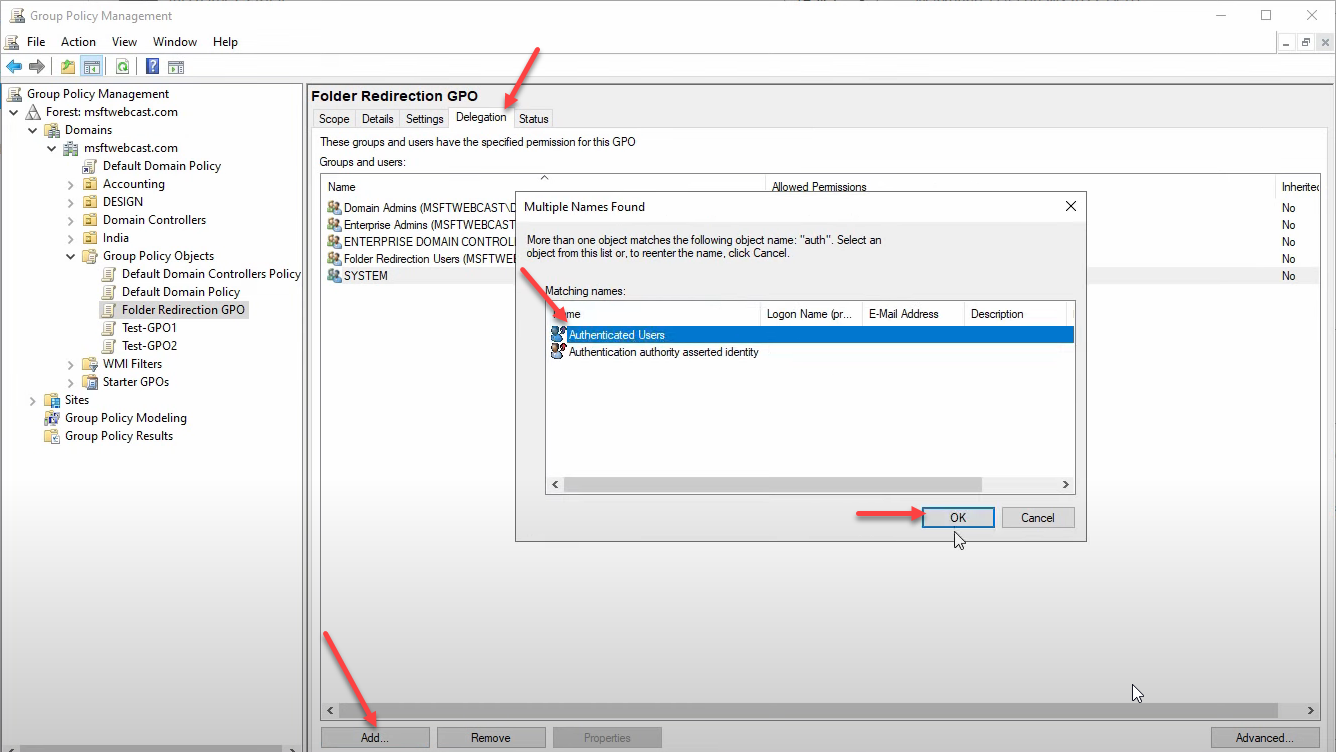
Fix: go to the Delegation tab > Add > add Authenticated Users > give them Read permission only (NOT Apply Group Policy — that would cause the GPO to apply to everyone again). The deep-dive at the end of this article walks through the why; for now, just add it.
Step 8 — Configure the actual redirection in the GPO
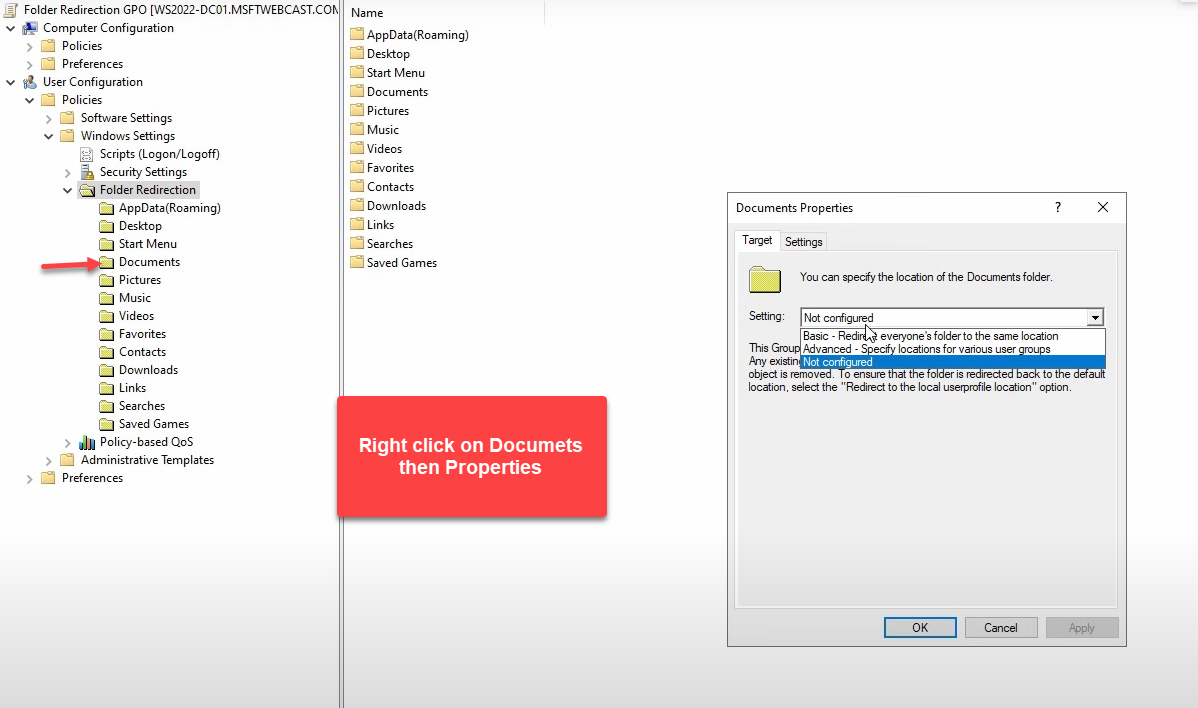
Right-click Folder Redirection GPO > Edit. Navigate to User Configuration > Policies > Windows Settings > Folder Redirection. Right-click Documents > Properties:
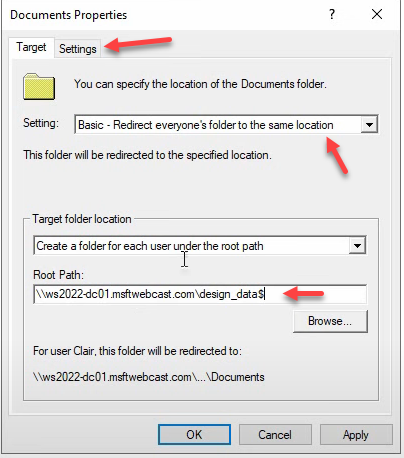
- Setting: Basic – Redirect everyone’s folder to the same location (Basic = one share root, per-user subfolders auto-created; Advanced = different shares per group)
- Target folder location: Create a folder for each user under the root path
- Root Path: the UNC of your share, e.g.
\\WS2022-HAV-DC01\DesignData$
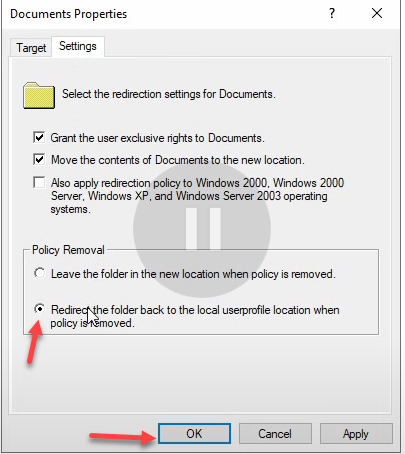
Switch to the Settings tab and pick Redirect the folder back to the local user profile location when policy is removed. This matters — if you ever decommission Folder Redirection, you want the user’s shell folders to revert to C:\Users\Username\Documents instead of staying pointed at a server share that may no longer exist.
Apply > Yes on the warning > OK. Close the GPME.
Step 9 — Link the GPO to the OU
Right-click the Design OU > Link an Existing GPO > pick Folder Redirection GPO > OK. The GPO is now linked and will apply to users in the OU on next policy refresh.
Step 10 — Test on a Windows 10 client
The verification:
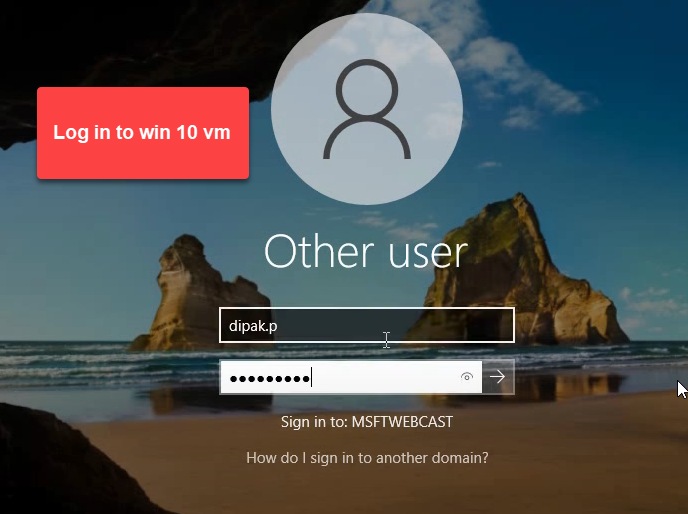
- Sign in to a domain-joined Windows 10 client as Deepak
- First sign-in creates a fresh local profile
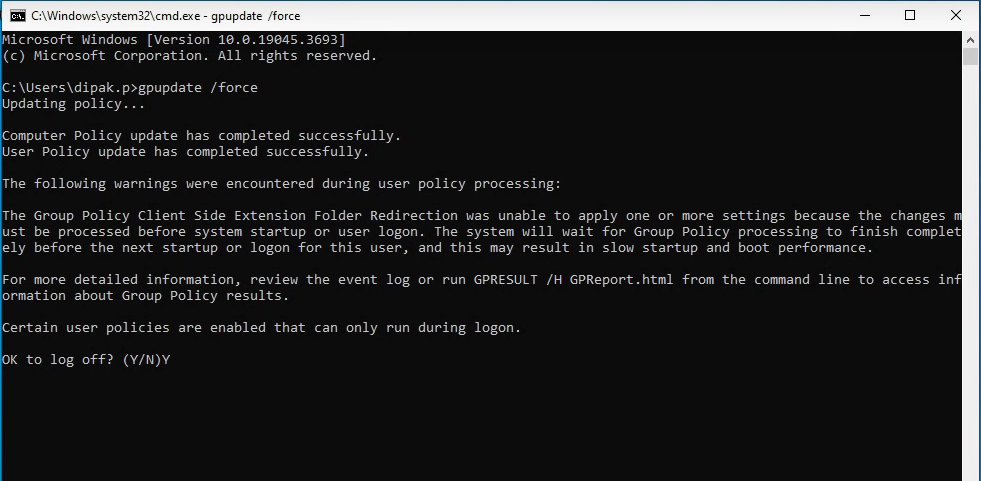
- Open Command Prompt:
gpupdate /force - When prompted, type Y to log off (Folder Redirection processing only happens at sign-in — gpupdate alone is not enough)
- Sign back in as the same user
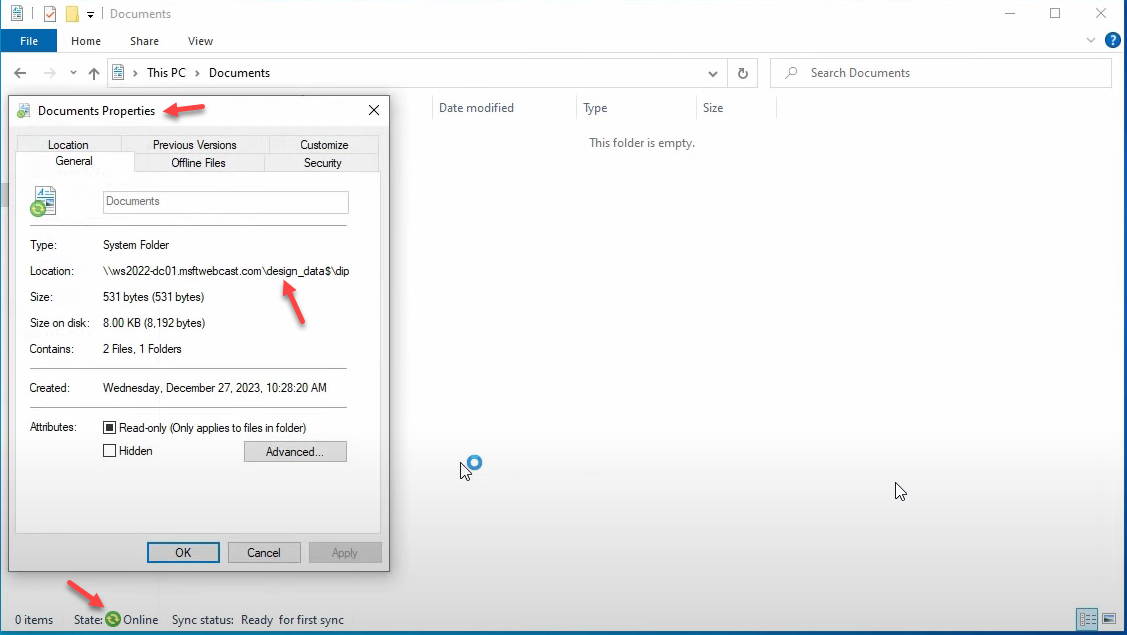
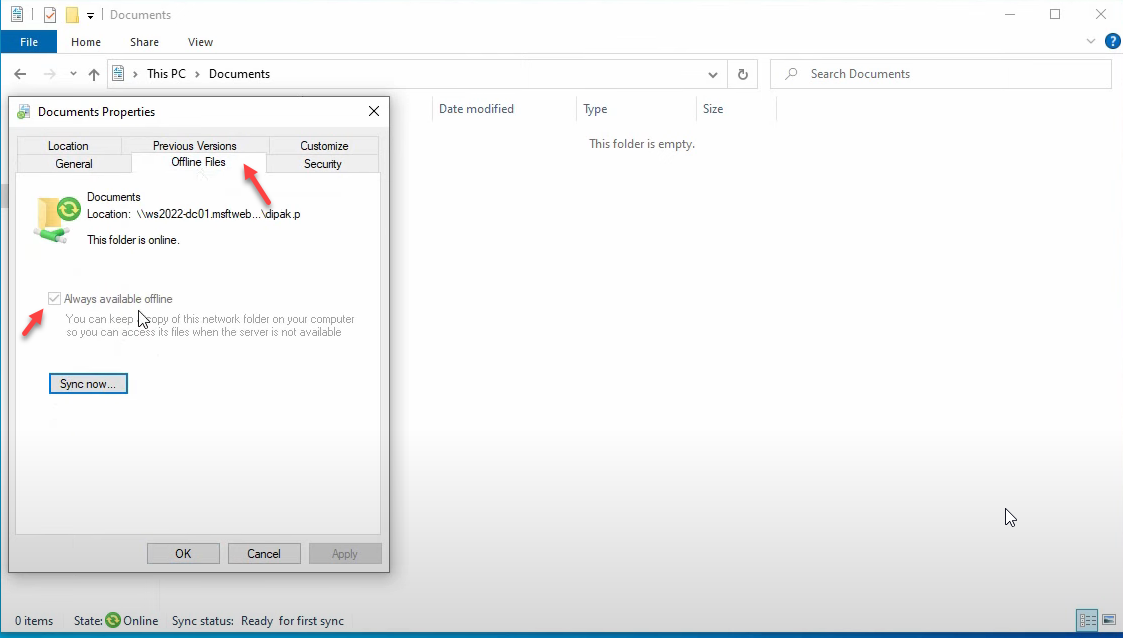
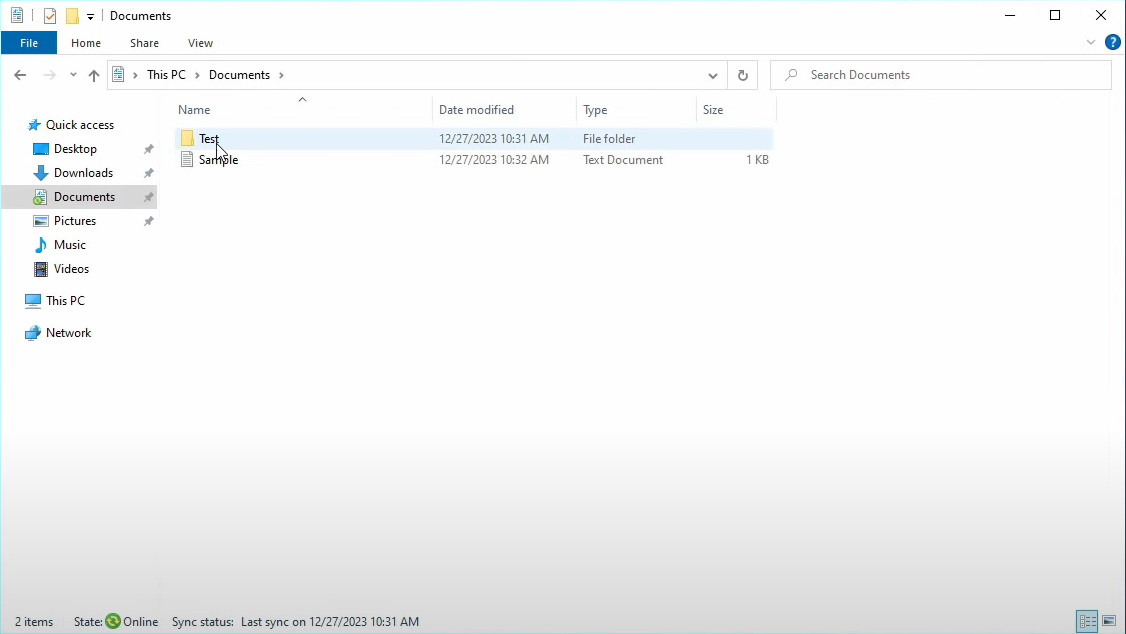
- Open File Explorer > Documents
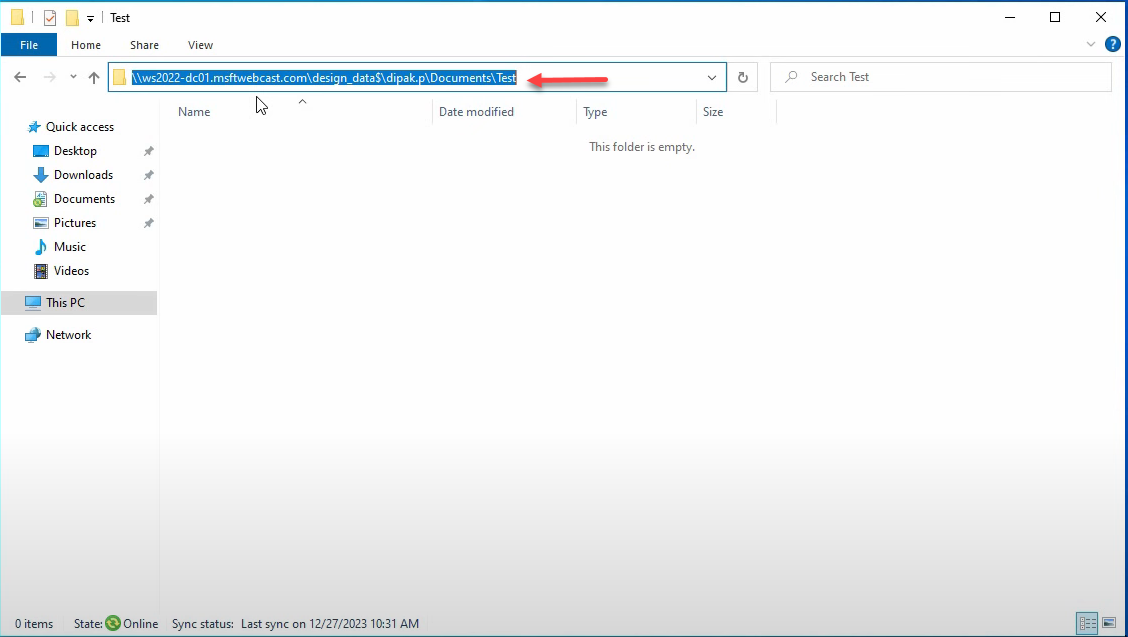
- Right-click inside Documents > Properties > Location tab
- Confirm the path is
\\WS2022-HAV-DC01\DesignData$\Deepak(or whatever your share + username is) — not a local C:\Users path - Switch to the Offline Files tab, ensure Always available offline is enabled, click Sync Now if prompted
Save a file in Documents. Switch to the file server, browse to C:\DesignData\Deepak — the file is there. Save another file from a different domain-joined PC signed in as the same user; it appears in the same place. Folder Redirection is working.

The Setting options on the Documents Properties dialog
| Option | What it does |
|---|---|
| Not Configured | Redirection is off. Documents stays in the local profile. |
| Basic – Redirect everyone’s folder to the same location | One share root for all targeted users; per-user subfolder created automatically (\\server\share\username). What we used. |
| Advanced – Specify locations for various user groups | Different share for different security groups. Sales → \\server\sales, Marketing → \\server\marketing. Use when departments need separate physical storage. |
The Security Filtering quirk explained — Read vs. Apply
This is the bit that breaks Folder Redirection in 90% of bad lab setups. Two GPO permissions matter:
- Read — lets a user/computer see that the GPO exists and read its contents
- Apply Group Policy — controls whether the GPO actually applies to that user/computer
For most GPOs (password policy, software installation, registry settings), you can remove Authenticated Users entirely and add only your target group. The target group has both Read and Apply, the GPO works, everyone else doesn’t see it.
Folder Redirection is different. The Folder Redirection Client-Side Extension has to read the GPO at every user logon to decide “does this apply to me?” If you’ve removed Authenticated Users completely, only members of your target group can read the GPO — but the CSE runs in the user’s context, and on systems where the user isn’t in the target group, the CSE can’t even see the GPO to decide. The processing silently fails. Even worse, in some configurations the failure is intermittent — works for some users some of the time, depending on whether GP cached the GPO from a previous read.
The fix is the pattern used in Step 7: keep Authenticated Users with Read only on the Delegation tab. Anyone in the domain can read the GPO (so the CSE can always evaluate it), but only Folder Redirection Users members have Apply Group Policy (so the GPO only takes effect for them).
| GPO type | Authenticated Users config | Reason |
|---|---|---|
| Normal GPO | Can remove entirely | CSEs evaluate from cached policy info; remove-and-replace works |
| Folder Redirection GPO | Keep with Read only on Delegation tab | CSE must read the GPO live to evaluate applicability |
The notice-board analogy
If GPO permissions still feel weird, here’s the analogy that makes it click:
Imagine a notice board in an office. The notice says: “Only Marketing employees follow this instruction.”
Read permission = everyone can walk past and read the notice (so they can decide if it applies to them).
Apply Group Policy permission = only Marketing employees actually follow the instruction.
If you put the notice in a locked room only Marketing can enter (no Read for others), then Sales and Engineering can never see the notice — they don’t know it exists, can’t evaluate whether it applies, and any logic that assumed “everyone reads the notice first” breaks.
Folder Redirection works the same way: every user’s logon process needs to read the GPO to evaluate applicability, even if only a few users actually apply it. Hence the Read-only delegation to Authenticated Users.
Things that bite people in production
Don’t host the share on a domain controller
Lab walkthroughs often use the DC as the file server — convenient for screenshots, terrible for production. DCs should be dedicated to AD; layering a busy file share onto a DC creates load patterns that interfere with authentication. Use a dedicated file server (or a clustered file server for HA) for the redirected-folders share in production.
Test before mass-applying
The first user to sign in after redirection is enabled gets their entire profile rebuilt — if anything is misconfigured (missing permissions, wrong UNC, share unreachable), they end up with a broken profile and a long support ticket. Always test with a single user in a single OU first. Verify the per-user subfolder is created, files redirect correctly, and Offline Files works. Then expand.
Permissions wrong = silent failure
Forgetting to grant Create folders / append data in Step 5 means the per-user subfolder can’t be created on first sign-in. The redirection silently fails and the user’s Documents stays local. Symptom: GPO shows applied in gpresult /r, but Documents Properties > Location still shows the local C:\Users path. The fix is the permission, not anything in the GPO.
Watch share size growth
Centralizing user data also centralizes its growth. A 200-user site with average 5 GB per user is a 1 TB share before any growth. Layer in FSRM quotas per user folder so a single hoarder can’t fill the entire share, and consider Data Deduplication on the volume for storage efficiency.
Backup is now critical
Before redirection, losing a laptop loses one user’s data. After redirection, losing the file server loses everyone’s data. The share absolutely must be on backed-up storage with tested restore procedures. Test restores quarterly — an untested backup is a hope, not a backup.
Plan the offline-files cache size
Offline Files caches the redirected folder on each client. By default the cache is sized as a percentage of the local disk — on small SSDs this can be too small to hold the user’s full Documents. Tune the cache size via Group Policy if users have large local file collections (designers with image libraries, developers with large repos).
Where this fits
Folder Redirection is one piece of the broader user-data-resilience story. The companion pieces are configuring roaming profiles in Active Directory for full profile portability beyond just shell folders, FSRM quotas to keep share growth bounded per user, Data Deduplication for storage efficiency on the share volume, and DFS file management for multi-server share presentation in larger environments. The broader Group Policy pathway covers the GPO mechanics, and the Windows Server Administration pathway covers the rest of file-server hygiene.