
Now that you have a new Domain Controller running in Active Directory, it is time to demote the old one. There are two paths for removing a DC, and which one you take depends on whether the old DC is still online and reachable.
Two Paths to Remove a Domain Controller
- Graceful demotion (preferred). The DC is online, you can sign in to it, AD replication is healthy. You run Remove Roles and Features on the DC itself; AD demotes the DC, replicates the change forest-wide, removes the binaries, and reboots cleanly. Steps 1–7 below.
- Manual / forced removal. The DC is offline and unrecoverable — hardware failure, a corrupt OS, an unbootable VM that you cannot get back. You delete the DC’s metadata from a surviving DC by force-deleting its computer object. The cleanup is otherwise identical. Steps 1–4 of the manual path.
Both paths leave the same residue: a stale computer object in Domain Controllers, a stale server entry in Sites and Services, and stale DNS records in _msdcs and the forward zones. The clean-up steps at the end of this article handle that residue regardless of which path you took.
Path A — Graceful Demotion via Server Manager
Step 1 (recommended) — Move FSMO Roles to a Surviving DC
If the DC you are about to demote holds any of the five FSMO roles (Schema Master, Domain Naming Master, PDC Emulator, RID Master, Infrastructure Master), move them to a healthy DC before demoting. The graceful path will move them automatically as part of demotion, but doing it manually first is safer — it lets you choose which DC inherits the roles, and you can verify replication of the transfer before you commit to demoting.
# Move all 5 FSMO roles from the current holder to DC02-2022
Move-ADDirectoryServerOperationMasterRole `
    -Identity "DC02-2022" `
    -OperationMasterRole 0,1,2,3,4 `
    -Force -Confirm:$false
The role numbers are: 0 = PDC Emulator, 1 = RID Master, 2 = Infrastructure Master, 3 = Schema Master, 4 = Domain Naming Master. See the FSMO roles audit article for the full transfer playbook.
Step 2 — Test the Demote With Test-ADDSDomainControllerUninstallation
The AD DS module includes a pre-flight that runs the same validation the demote wizard runs, without making any changes. Run it on the DC you are about to demote — it confirms there is nothing the demote will trip on.
Test-ADDSDomainControllerUninstallationIf the cmdlet asks for the new local-administrator password (it does on Windows Server 2019+), use:
Test-ADDSDomainControllerUninstallation `
    -LocalAdministratorPassword (Read-Host -Prompt "password" -AsSecureString)
Output you want to see:
Message                                : Operation completed successfully
Context                                : Test.VerifyDcPromoCore.DCPromo.General.1
RebootRequired                         : False
Status                                 : Success
Step 3 — Demote the Domain Controller
Sign in to the DC you are demoting (in this lab walkthrough, DC01-2019):
- Open Server Manager.
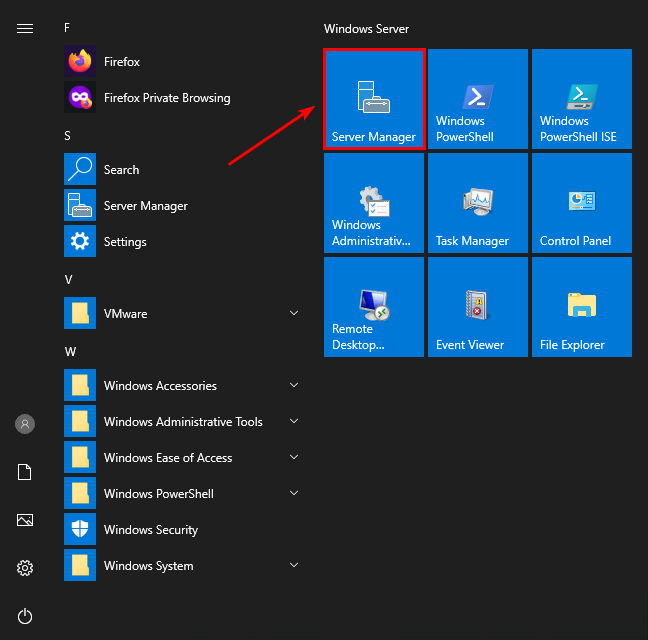
DC01-2019).- Click Manage > Remove Roles and Features.
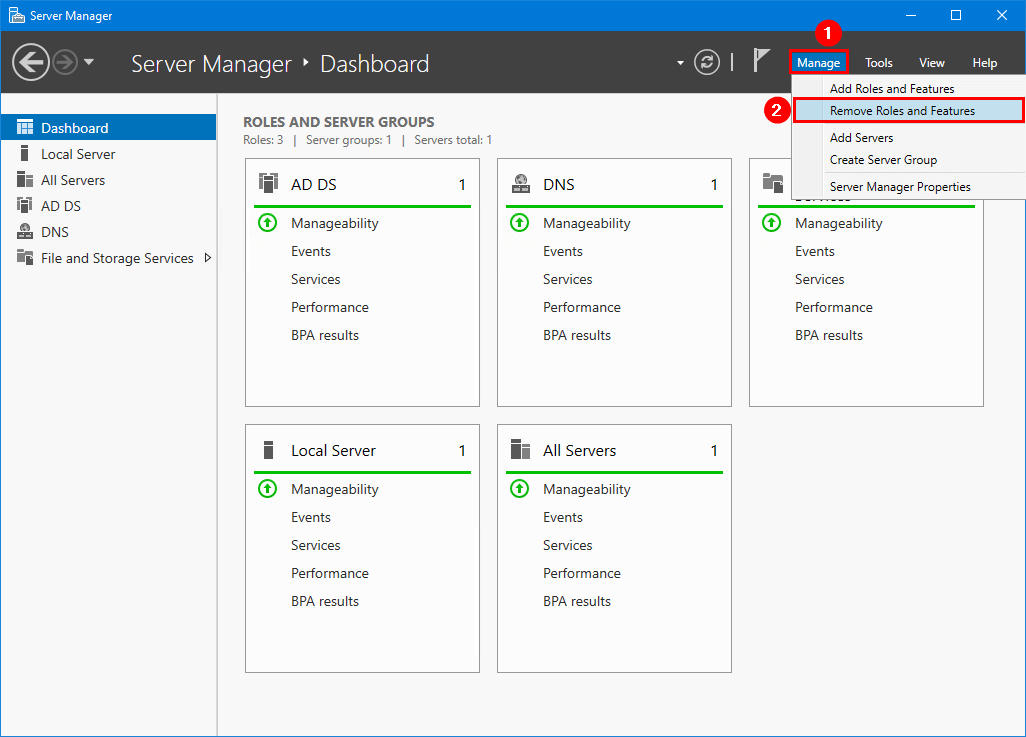
- On the Before You Begin page, click Next.

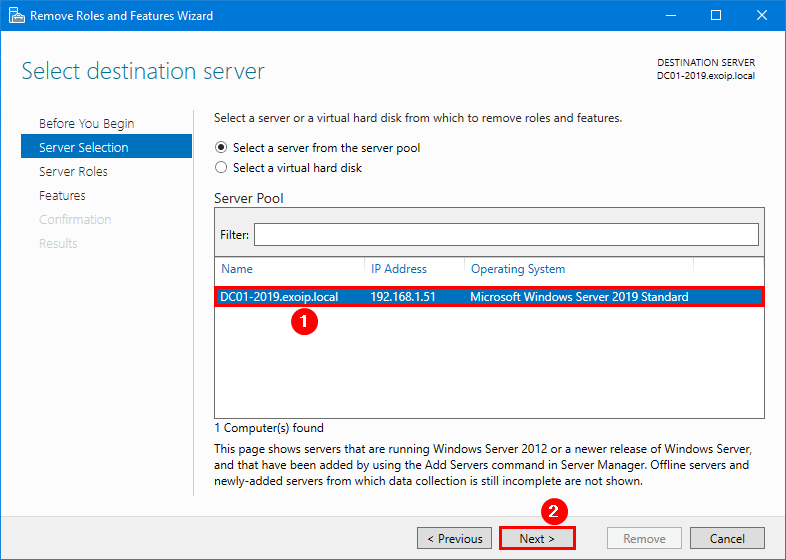
- On Select destination server, pick the local DC, then Next.
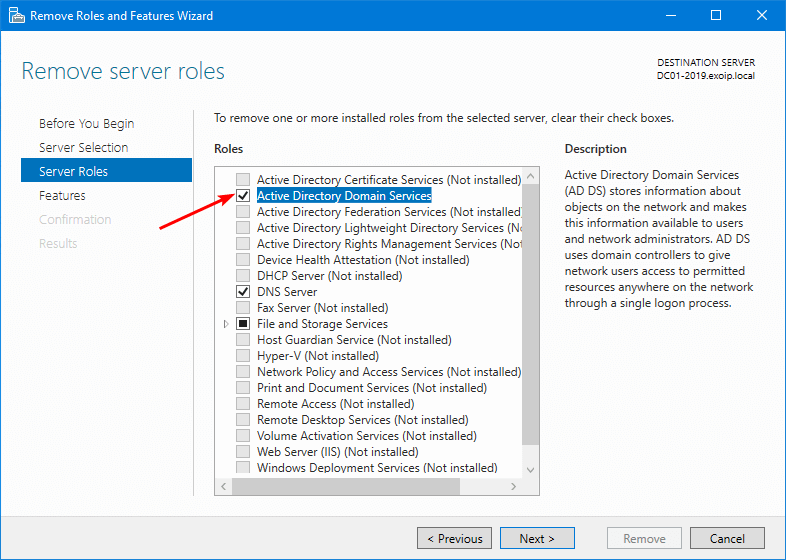
- On Server Roles, clear the Active Directory Domain Services checkbox.
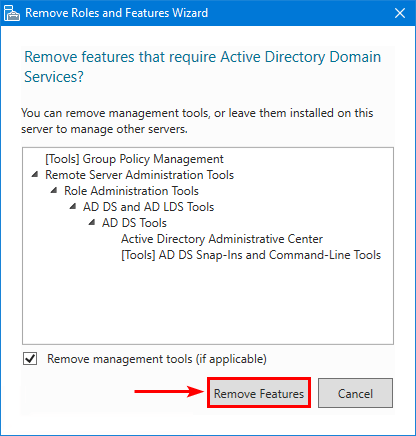
- The wizard pops a sub-dialog asking to remove dependent features — click Remove Features.
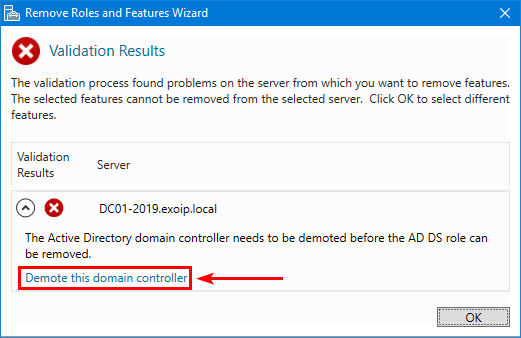
- The wizard refuses to remove AD DS until the DC is demoted. Click Demote this domain controller.
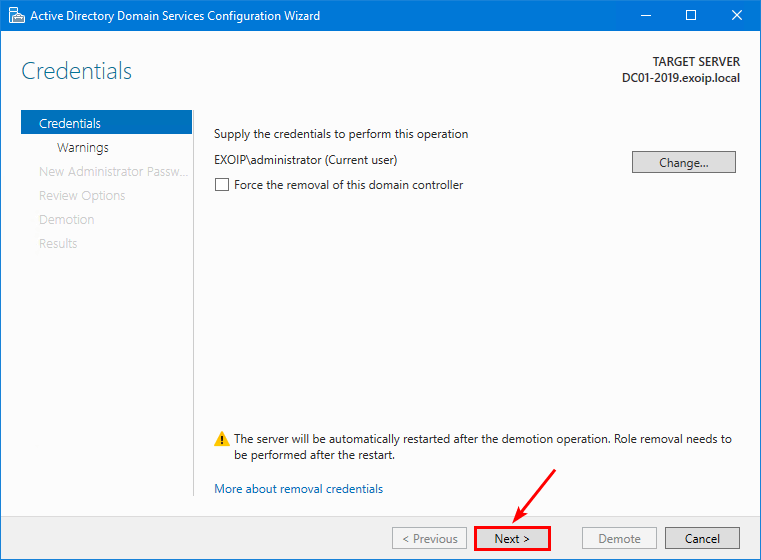
- The AD DS Configuration Wizard opens at Credentials. The current user (a Domain Admin) is fine. Do not tick Force the removal of this domain controller — that is the manual path. Click Next.
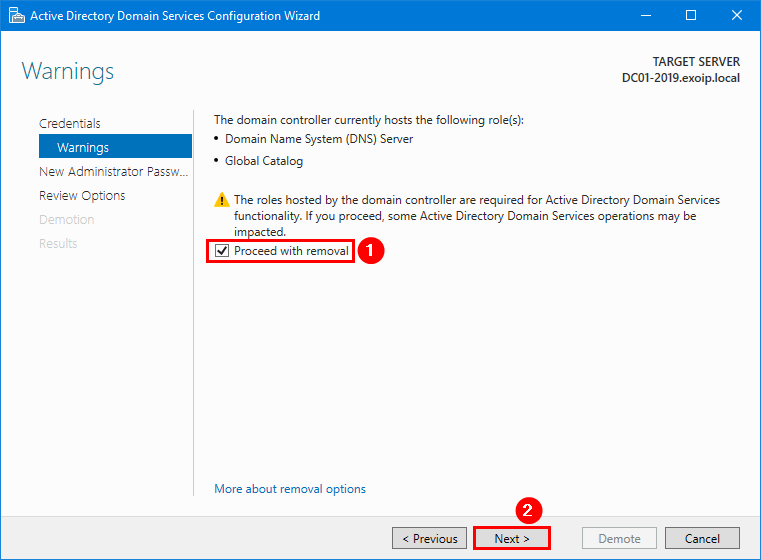
- On Warnings, the wizard lists every role this DC currently holds. Tick Proceed with removal, then Next.
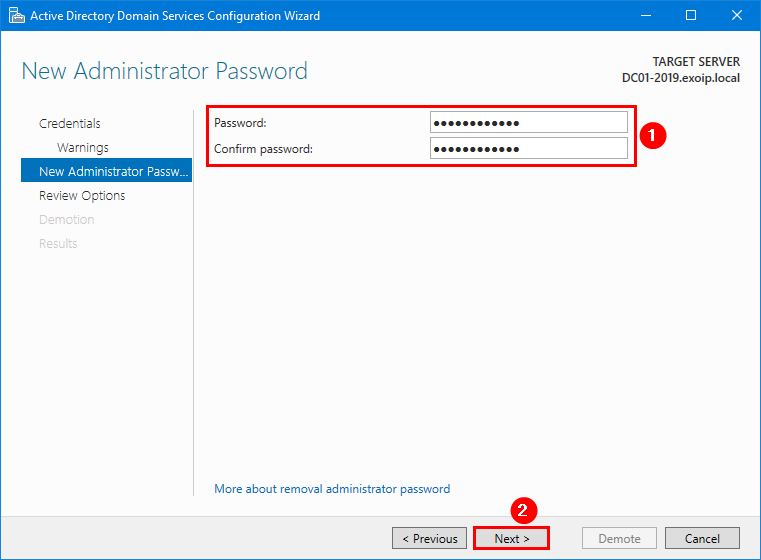
- On New Administrator Password, set the local-admin password the server will use after it becomes a member server.
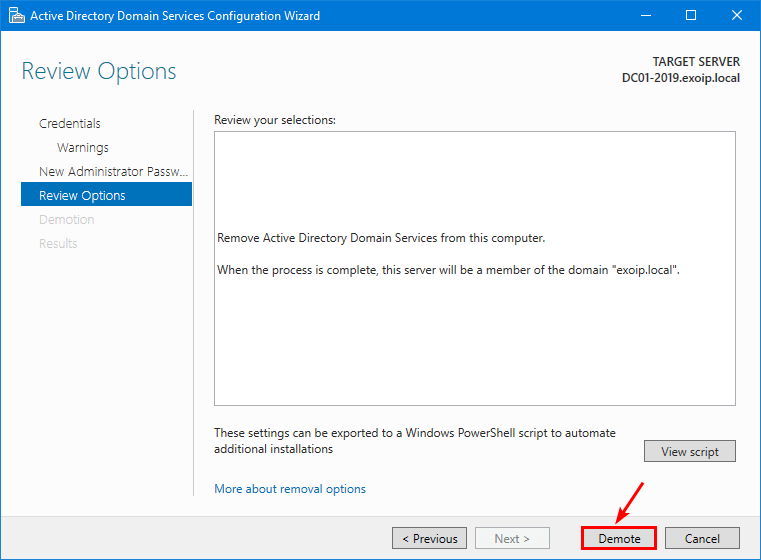
- On Review Options, confirm and click Demote.
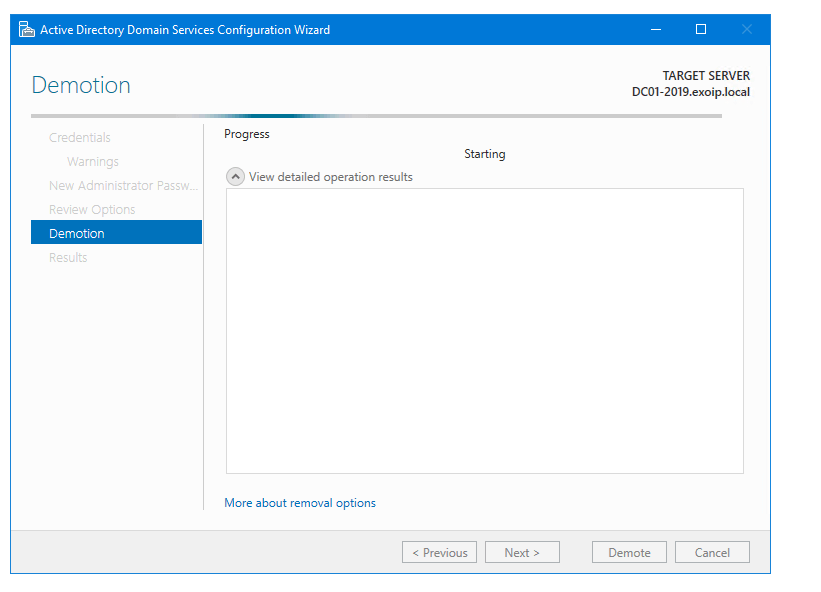
- The Demotion progress page runs. The server reboots when the demote completes — expect 5–15 minutes depending on forest size and replication.
Step 4 — Remove the AD DS Role Binaries
After the reboot the server is no longer a Domain Controller, but the AD DS role binaries are still installed. Remove them next:
- Sign back in to the (now-member) server.
- Open Server Manager > Manage > Remove Roles and Features.
- Step through to Server Roles.
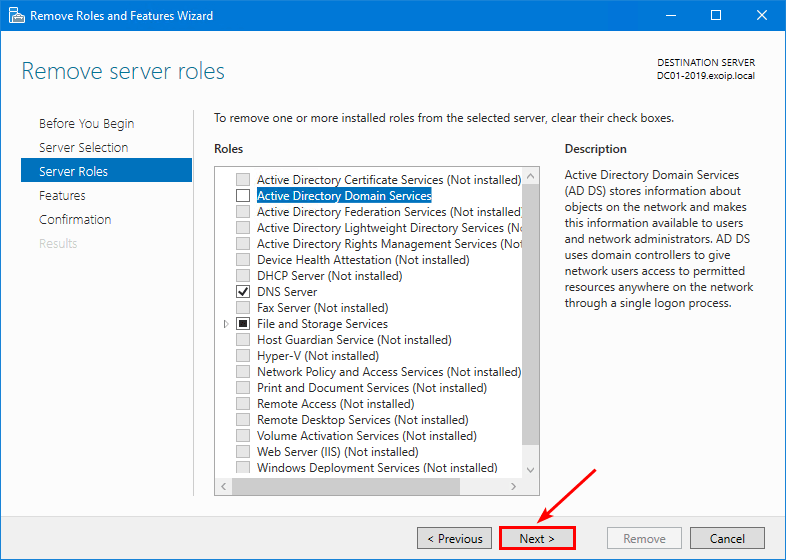
- The AD DS row is now removable. Clear the checkbox.
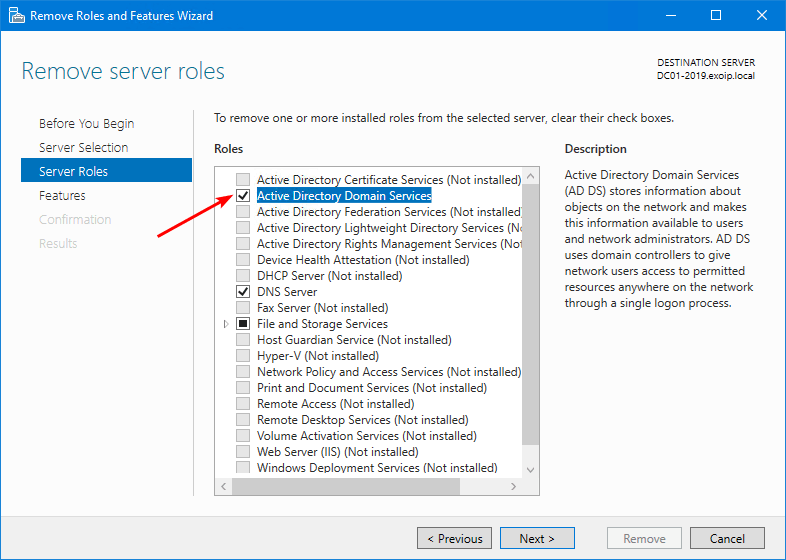
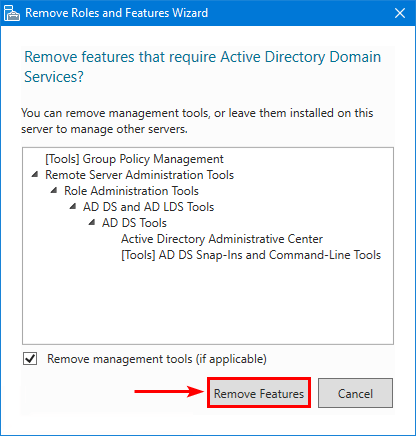
- Click Remove Features in the sub-dialog.
- Next on the Roles page.
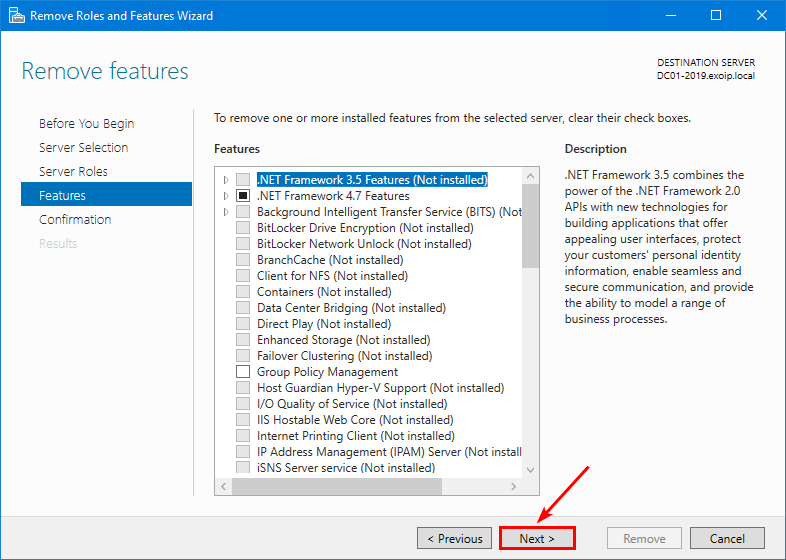
- Next on the Features page.
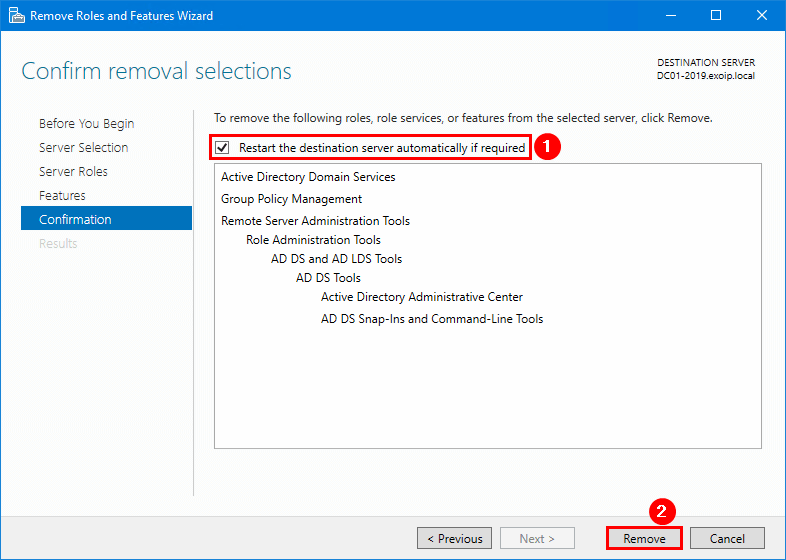
- On Confirm removal selections, tick Restart the destination server automatically if required, then Remove.
- The progress bar runs and the server reboots once more.
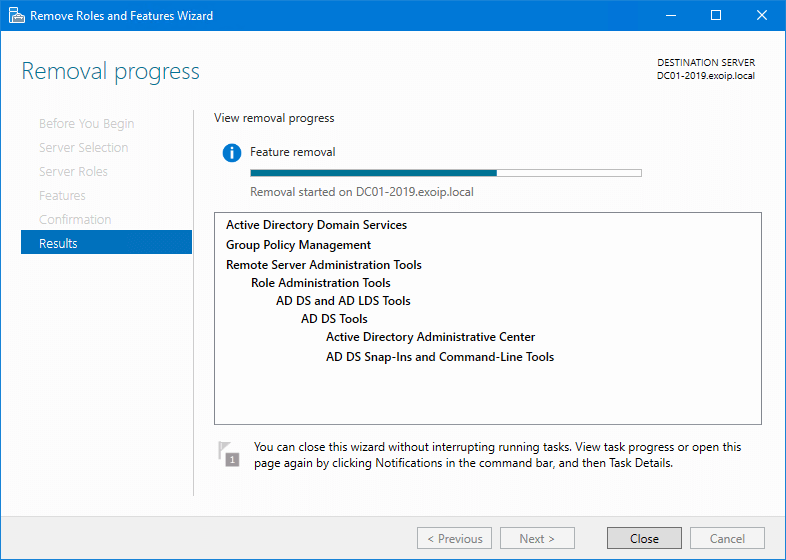
Once the server is back, the role binaries are gone:
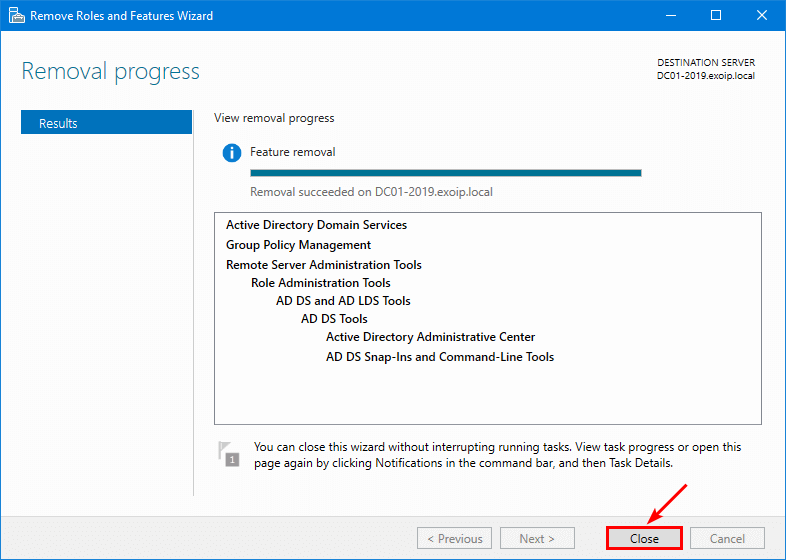
Step 5 — Remove the Old Computer Object from AD
The graceful demote moves the AD computer object out of Domain Controllers into Computers, but does not delete it. From a surviving DC:
- Open Active Directory Users and Computers.
- Expand the domain > Computers.
- Find the now-demoted server (here,
DC01-2019). - Right-click and choose Delete.
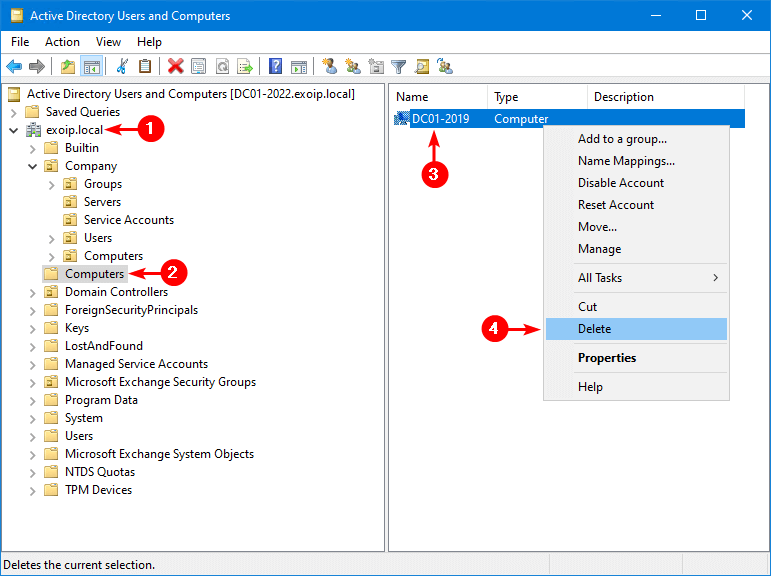
Computers container. Right-click the old DC’s computer object and choose Delete.- Confirm with Yes.
Step 6 — Remove the Server from AD Sites and Services
The Sites and Services console keeps a separate server object per DC under each site. The demote does not remove this; you have to.
- Open Active Directory Sites and Services.
- Expand Sites > the site that hosted the demoted DC > Servers.
- Right-click the demoted server’s entry and choose Delete.
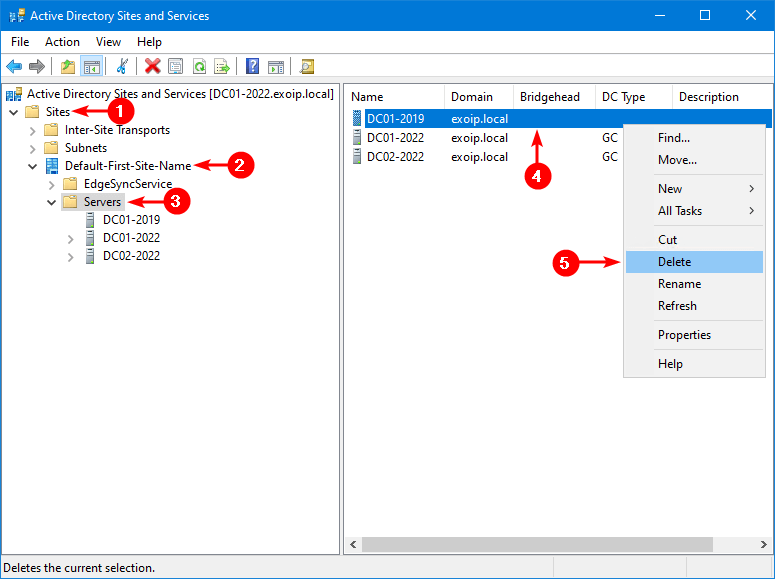
- Confirm with Yes.
Step 7 — Scrub Stale DNS Records
The demote does not remove the DC’s DNS records — the A record in the forward zone, the NS record on the zone, the SRV records under _msdcs, and any glue records that pointed to the old DC’s IP. Open DNS Manager on a surviving DC and you will still see them:
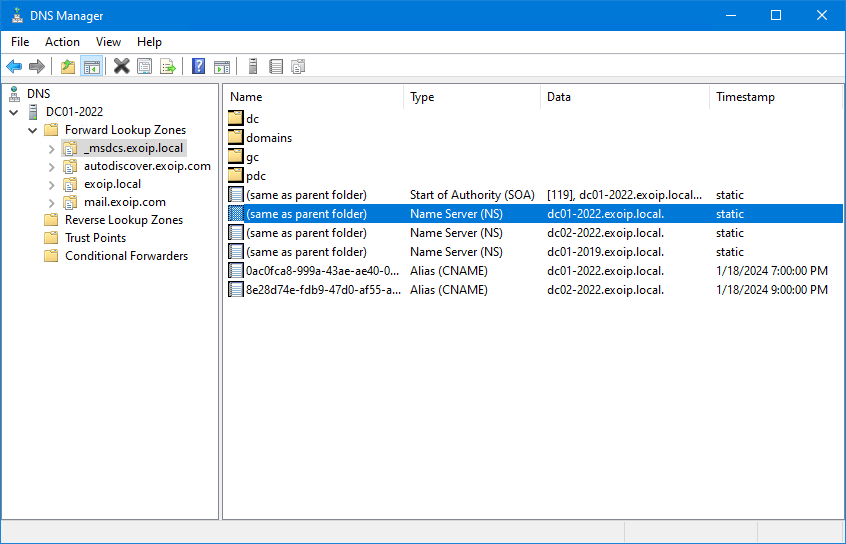
Manually deleting them is tedious; the safer move is the script below. It walks every Primary forward zone, finds every record that names or points to the old DC, and removes them in one pass. Edit the three variables at the top for your environment first.
# Remove every DNS record for the demoted DC across all Primary zones.
# Read first, then re-run with -WhatIf removed once you are happy.
$ServerFQDN     = "dc01-2019.infotechninja.local."
$ServerHostname = "dc01-2019"
$IPAddress      = "192.168.1.51"

$zones = Get-DnsServerZone | Where-Object {
    $_.ZoneType -eq "Primary" -and $_.IsAutoCreated -eq $false
}

foreach ($zone in $zones) {
    Write-Host "Scanning zone: $($zone.ZoneName)" -ForegroundColor Cyan

    Get-DnsServerResourceRecord -ZoneName $zone.ZoneName | Where-Object {
        ($_.RecordType -eq "A"     -and $_.HostName -eq $ServerHostname)               -or
        ($_.RecordType -eq "A"     -and $_.RecordData.IPv4Address.IPAddressToString -eq $IPAddress) -or
        ($_.RecordType -eq "NS"    -and $_.RecordData.NameServer       -eq $ServerFQDN)             -or
        ($_.RecordType -eq "SRV"   -and $_.RecordData.DomainName       -eq $ServerFQDN)             -or
        ($_.RecordType -eq "CNAME" -and $_.RecordData.HostNameAlias    -eq $ServerFQDN)
    } | ForEach-Object {
        Remove-DnsServerResourceRecord `
            -ZoneName $zone.ZoneName `
            -RRType   $_.RecordType `
            -Name     $_.HostName `
            -RecordData $_.RecordData `
            -Force `
            -WhatIf
    }
}
Run with -WhatIf first. Confirm the records it lists are the ones you want gone, then remove the -WhatIf on the Remove-DnsServerResourceRecord call and re-run.
Path B — Manual / Forced Removal of an Offline DC
If the DC is offline, unrecoverable, or you have already nuked the VM, the graceful path is impossible — you cannot run the wizard on a server that no longer exists. AD has a forced-removal path: delete the DC’s computer object from Domain Controllers and answer the warnings honestly.
Requires Windows Server 2008 R2 or later. Earlier versions need ntdsutil metadata cleanup instead, which is documented elsewhere.
Manual Step 1 — Move FSMO Roles First if Possible
If the offline DC was the FSMO holder, you may need to seize the roles rather than transfer them (since the source is unreachable). Same cmdlet, different semantics:
# Seize FSMO roles from an offline holder
Move-ADDirectoryServerOperationMasterRole `
    -Identity "DC02-2022" `
    -OperationMasterRole 0,1,2,3,4 `
    -Force -Confirm:$false
If the offline DC was not a FSMO holder, the next step (force-delete) will surface that fact in a warning dialog and you can proceed straight through.
Manual Step 2 — Force-Delete the DC’s Computer Object
- From a surviving DC, open Active Directory Users and Computers.
- Enable the Advanced Features view (View menu) so you can see all OU contents.
- Expand the domain > Domain Controllers OU.
- Find the offline DC, right-click and choose Delete.
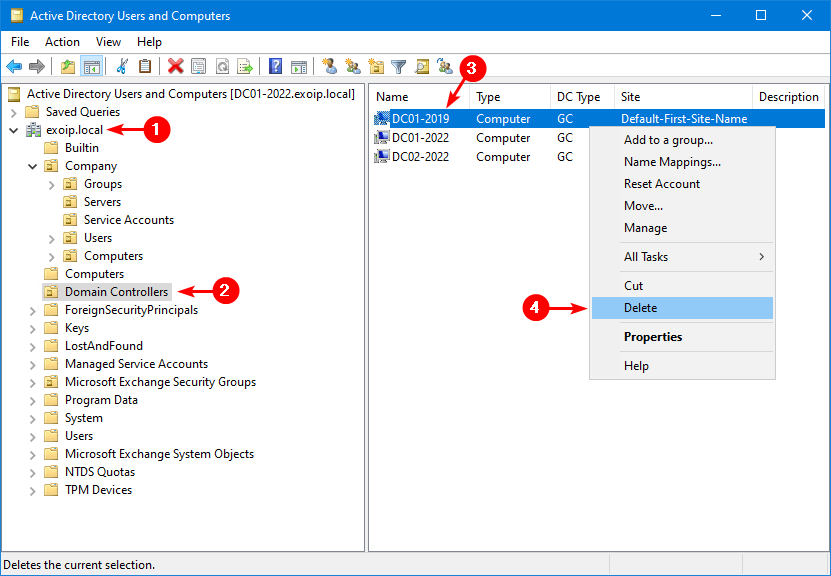
- Confirm with Yes.
- AD warns that this is a Domain Controller and the normal removal wizard cannot be used. Tick Delete this Domain Controller anyway. It is permanently offline and can no longer be removed using the removal wizard. Click Delete.
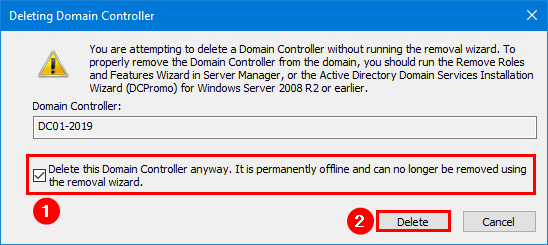
- If the offline DC was a Global Catalog, AD asks for an explicit confirmation. Yes.
- If the offline DC held any FSMO roles, AD reports them as moved to a surviving DC. OK.
Manual Step 3 — Remove the Server Object from AD Sites and Services
- Open Active Directory Sites and Services.
- Expand Sites > the site > Servers.
- Right-click the orphan server entry and choose Delete.
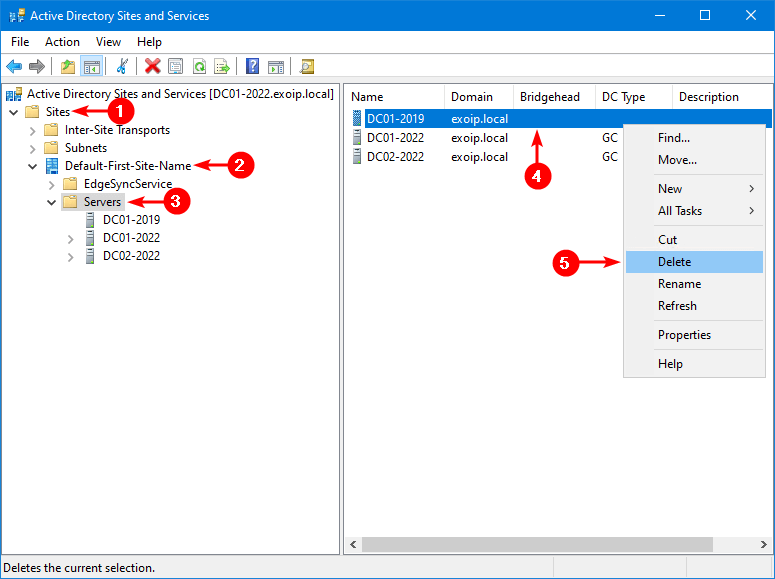
- Confirm with Yes.
Manual Step 4 — Scrub the Stale DNS Records
Open DNS Manager on a surviving DC. The same residue exists as in the graceful path:
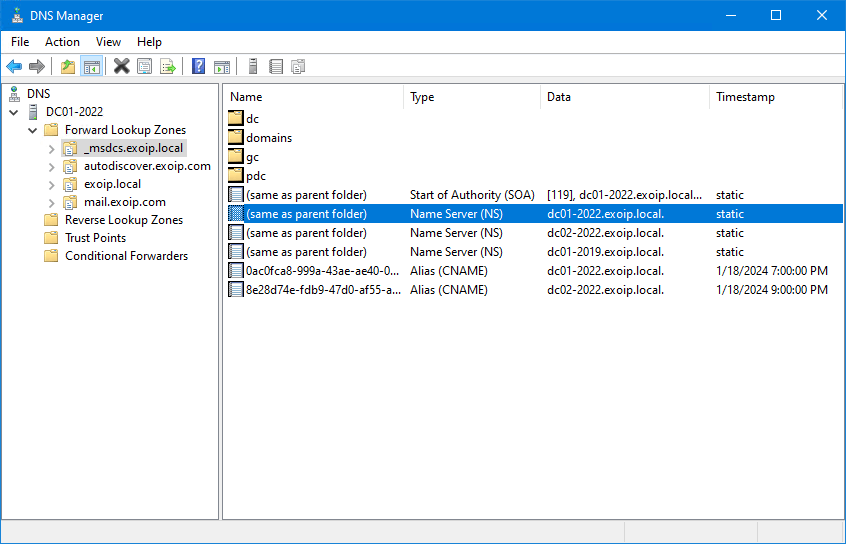
Run the same DNS-cleanup script from Path A > Step 7. It does not care whether the DC was demoted gracefully or force-deleted — it removes records that name or point to the old hostname / FQDN / IP regardless.
Verification — Did Everything Get Cleaned Up?
Run these on a surviving DC after either path:
# 1. The old DC should NOT appear in the DC list any more
Get-ADDomainController -Filter * | Select Name, Site, IsGlobalCatalog

# 2. No replication failures, no "ghost" references to the old DC
repadmin /replsummary

# 3. FSMO roles all owned by living DCs
netdom query FSMO

# 4. No lingering computer object
Get-ADComputer -Filter "Name -eq 'DC01-2019'"   # expect: nothing returned

# 5. No lingering NTDS Settings object under any site
Get-ADObject -SearchBase (Get-ADRootDSE).configurationNamingContext `
             -Filter "objectClass -eq 'nTDSDSA'" |
    Where-Object { $_.DistinguishedName -match 'DC01-2019' }   # expect: nothing
If any of those do return the old DC, you have a metadata leftover. The fastest fix is ntdsutil metadata cleanup — rare since the modern delete-from-ADUC path covers it, but worth knowing about.
Common Pitfalls
- Demoted the FSMO holder without transferring roles first. The graceful demote does this automatically, but the result is non-deterministic — AD picks some surviving DC for each role. Better to transfer manually beforehand so you control which DC gets which role.
- Force-deleted while the DC was actually still alive. If you force-delete the metadata of a DC that is up and replicating, that DC will see itself as deleted on its next replication and stop responding. Recovery is to demote it manually (now a member server) and rejoin cleanly. Avoid by confirming the DC is genuinely offline first.
- Skipped the DNS scrub. Stale NS records under
_msdcspoint clients at a DC that no longer exists. Symptoms: occasional logon timeouts, replication-source confusion, slow startup on member servers. Always run the DNS cleanup script. - Ran the cleanup script without
-WhatIffirst. The script targets every record that names or points to the old DC. If you mis-typed$IPAddressas a still-active DC’s address, you would scrub records for the live DC. Always dry-run first. - Demoted the last GC by accident. If the demoted DC was the only Global Catalog in the forest, every forest-wide LDAP query and Universal Group lookup at logon now fails. Promote a replacement GC before you demote, not after — see Configure a DC as a Global Catalog Server.
- Did not run health checks afterwards. A demote is a forest-wide change. Run Get-ADHealth.ps1 immediately after to confirm replication, dcdiag, and DNS are still happy on the surviving DCs.
Conclusion
One DC out of a healthy multi-DC forest is a routine change. The graceful path is one wizard run plus three small cleanup steps; the manual path is a force-delete plus the same three cleanup steps. Either way, the steps that bite afterwards are the residue: the orphan server object in Sites and Services and the stale DNS records, which neither wizard cleans up for you.
Pair this with FSMO role transfer before you demote, a replacement GC if the demoted DC was your only Global Catalog, and a health check immediately after, and the forest stays clean.