
The phone rings: a helpdesk tech ran a cleanup script against the wrong OU and accidentally deleted a senior engineer’s account ten minutes before her board presentation. With the AD Recycle Bin enabled, this is a two-click fix — the account, its group memberships, its attributes, even its password hash, all come back exactly as they were. Without the Recycle Bin, you’re looking at a multi-hour authoritative restore from backup. The Recycle Bin is one of those features you enable once and quietly thank yourself for years later.
This walkthrough explains how the AD object lifecycle changes once the Recycle Bin is on, then covers the two restore paths: the Active Directory Administrative Center GUI for one-off restores, and the PowerShell pattern for scripted or bulk recovery.
What you need before starting
- AD Recycle Bin enabled on the domain — requires Windows Server 2008 R2 forest functional level or higher. (See the gotcha below: enabling it retroactively does NOT protect already-deleted objects.)
- Windows Server 2012 or later for the ADAC graphical method (older environments use the PowerShell path)
- Domain Admin rights
- The deleted object must still be inside the deleted-object-lifetime window. Past that, attributes are stripped and full restore stops working — objects in the recycled state can’t be cleanly brought back.
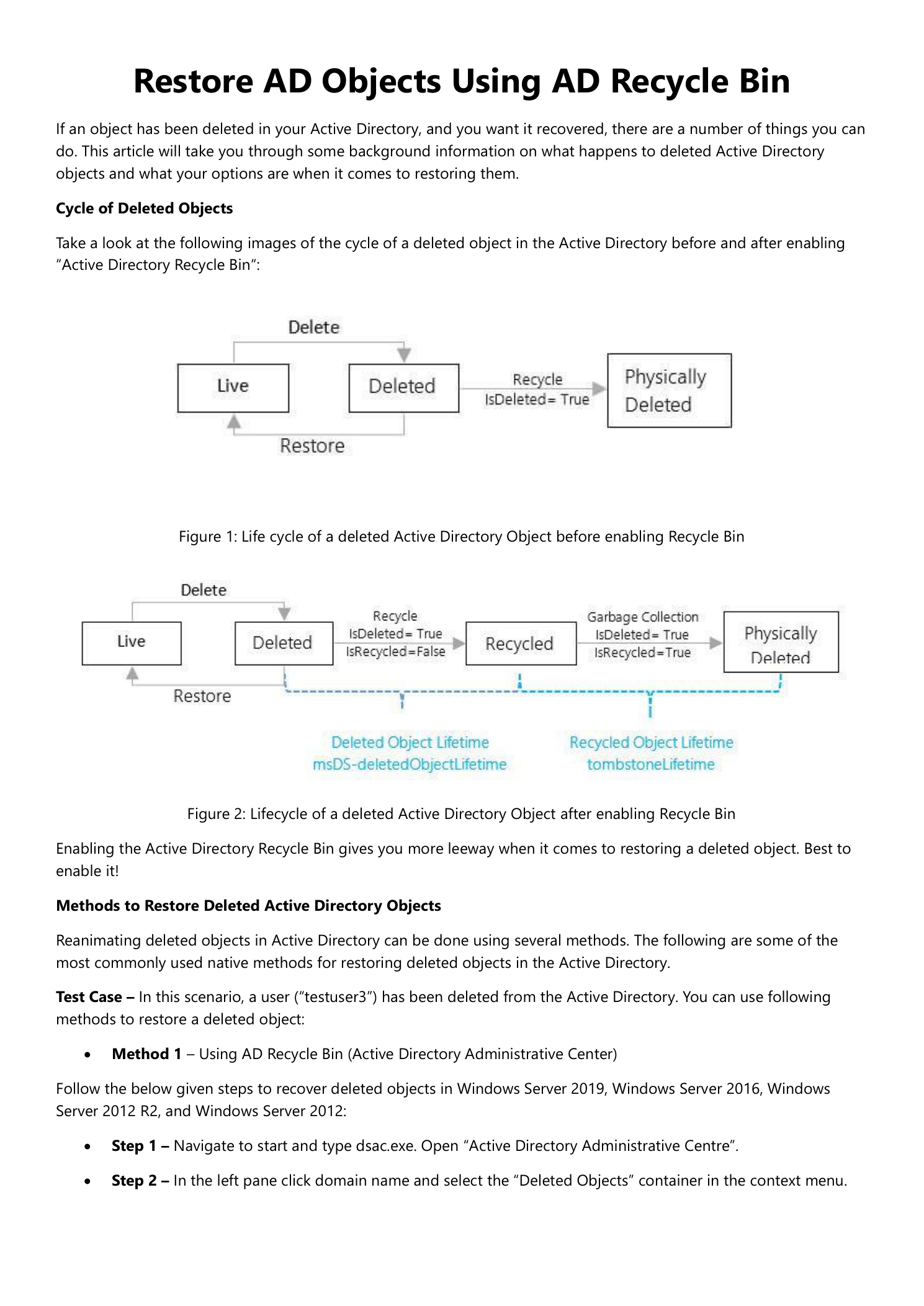
How AD deletion works (and what the Recycle Bin changes)
Before clicking restore, it’s worth understanding why the Recycle Bin matters — the same word means different things in different states.
Without the Recycle Bin
When you delete an object, AD flags it (isDeleted = True) and aggressively strips most of its attributes — group memberships, profile paths, password hashes, contact info — leaving only a tombstone with the bare-minimum identity. The object moves to the Deleted Objects container and waits there for the tombstone lifetime (180 days by default) before garbage collection finishes the job. Reanimating a tombstone is technically possible with low-level LDAP tools, but you’re reanimating an empty husk — the user’s group memberships, password, profile, all of it has to be rebuilt from scratch.
With the Recycle Bin enabled
The lifecycle gains a middle phase. A deleted object first enters the logically deleted state (isDeleted = True, isRecycled = False), and during this window — the deleted-object lifetime, also 180 days by default — every original attribute is preserved. After that window expires, the object transitions to the recycled state (isRecycled = True), at which point the attributes are stripped just like the no-Recycle-Bin model, and you’re back to a useless tombstone.
The practical takeaway: any restore done during the deleted-object-lifetime window is a one-click full recovery. After that window, you’re into authoritative-restore-from-backup territory.
Restore through ADAC (the easy path)
The Active Directory Administrative Center is the right tool for one-off restores. Available on Windows Server 2012 and later.
Step 1 — Open ADAC
From Server Manager > Tools, launch Active Directory Administrative Center — or run dsac.exe from Start or the Run dialog.
Step 2 — Navigate to Deleted Objects
Click your domain in the left navigation. Right-click the domain node and pick Deleted Objects from the context menu. The container opens with every Recycle-Bin-resident object listed — users, computers, groups, contacts, OUs, the lot.
Step 3 — Restore the object
Find the object you want back. The Filter bar at the top of the list searches by name, useful when the bin has hundreds of entries. Right-click the object and pick Restore — or use the same option in the Tasks panel on the right. Restore To lets you put the object into a different OU than its original location, useful when the original OU has been reorganized in the meantime.
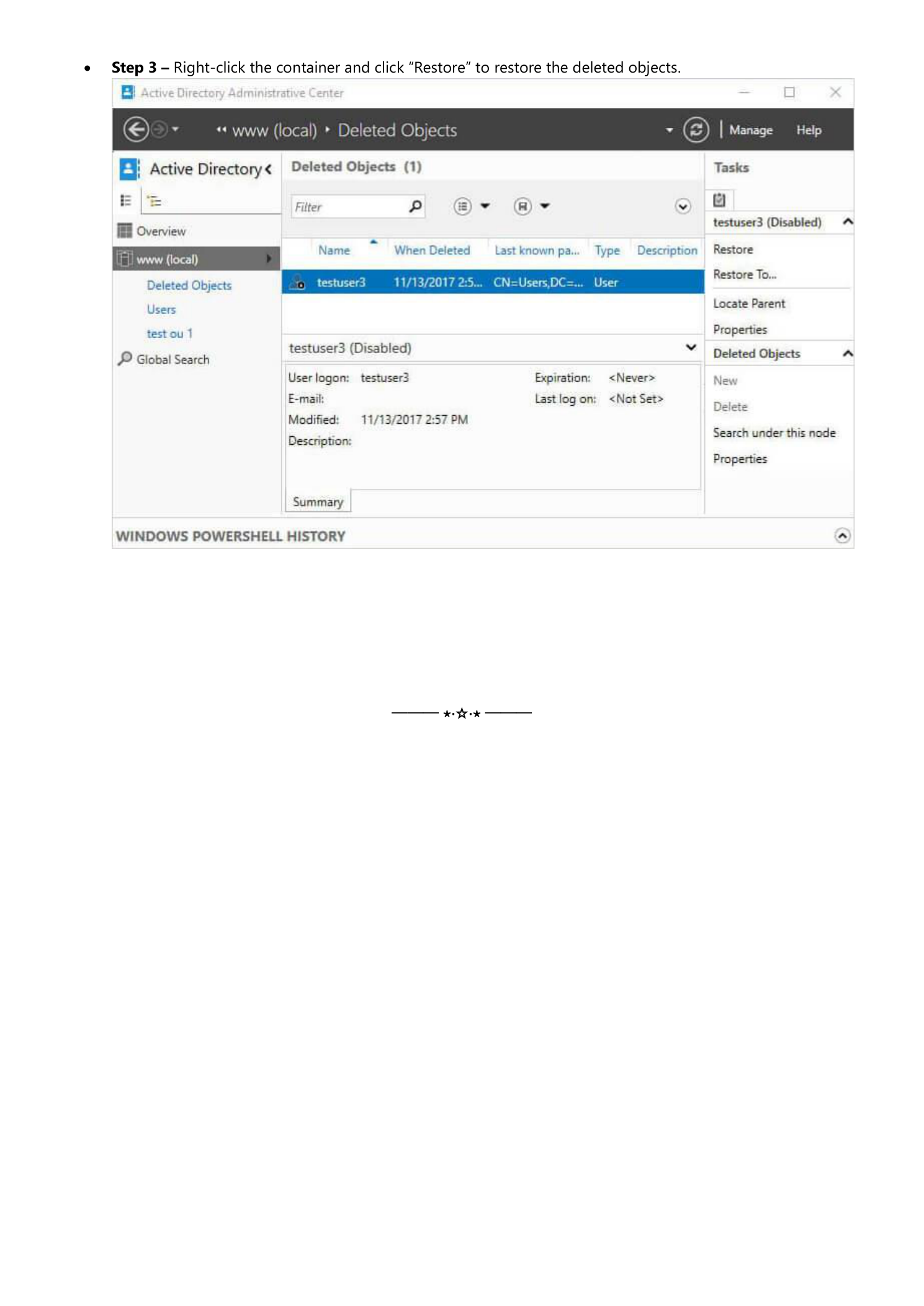
Refresh Deleted Objects after the restore — the object should be gone from the container. Navigate to the OU it came from and confirm it’s back. The restored account is disabled by default; re-enable it before the user tries to sign in. Group memberships, password, and other attributes are intact — you don’t need to rebuild anything.
Restore through PowerShell (scripts and bulk operations)
The PowerShell path covers Windows Server 2008 R2 (where ADAC didn’t yet exist) and any case where you need to script the restore — bulk recovery after a runaway script, or as part of an audited recovery procedure. The two-step pattern mirrors the permanent-delete pattern: find first, restore second.
# Find the deleted object - inspect attributes before acting
Get-ADObject -Filter {isDeleted -eq True -and Name -like "*testuser3*"}
    -IncludeDeletedObjects | Format-List DistinguishedName, Name, ObjectGUID

# Restore it to the original OU it was deleted from
Get-ADObject -Filter {isDeleted -eq True -and samaccountname -eq "testuser3"}
    -IncludeDeletedObjects | Restore-ADObject
Filter on samaccountname rather than Name for the same reason as permanent delete — the bin appends \0ADEL:<GUID> to the original CN to keep the LDAP namespace from collapsing on delete, so Name matches are unreliable.
To restore into a specific OU instead of the original location, use -TargetPath with the object’s GUID:
Restore-ADObject -Identity "<ObjectGUID>" -TargetPath "OU=Users,DC=domain,DC=com"What to watch out for
Enable the Recycle Bin BEFORE you need it
This is the single biggest gotcha. The Recycle Bin only protects objects deleted after it’s enabled. Enabling it doesn’t retroactively recover anything that was deleted earlier — those objects are already in the tombstone state without their attributes. Enable the Recycle Bin as part of your forest setup: ADAC > right-click domain > Enable Recycle Bin. The operation is one-way; you can’t turn it off once enabled, and there’s no good reason you’d want to.
Know your two timelines
Two attributes on the Directory Service object govern the windows: msDS-DeletedObjectLifetime (default 180 days — how long full attributes are preserved) and tombstoneLifetime (default 180 days — how long the bare tombstone survives after the recycled transition). Check your environment’s configured deleted-object lifetime with:
(Get-ADObject -Identity "CN=Directory Service,CN=Windows NT,CN=Services,CN=Configuration,DC=domain,DC=com"
    -Properties msDS-DeletedObjectLifetime).'msDS-DeletedObjectLifetime'
Some compliance regimes require lifetime tuning — see changing the AD Recycle Bin retention period for the procedure and the ordering rule (DOL must be <= TSL).
Re-enable and reset
Restored objects come back disabled. Re-enable the account in ADAC or with Enable-ADAccount, hand the user a temporary password, and confirm sign-in works. Group memberships and other attributes are intact — you don’t need to add the user back to any groups manually.
Where this fits
Restore is one half of the Recycle Bin story. The other half is permanently deleting objects from the Recycle Bin — the PowerShell-only escape hatch for compliance-driven hard deletes. For broader Recycle Bin lifecycle and the gotcha of changing retention windows safely, see the Active Directory pathway.